The Elegant macOS-Inspired Theme for Windows 11
The Elegant macOS-Inspired Theme for Windows 11 : Transform your Windows 11 desktop into a sleek, Mac-like experience with the best macOS theme available—macOS Monterey/Big Sur SkinPack.

The Elegant macOS-Inspired Theme for Windows 11
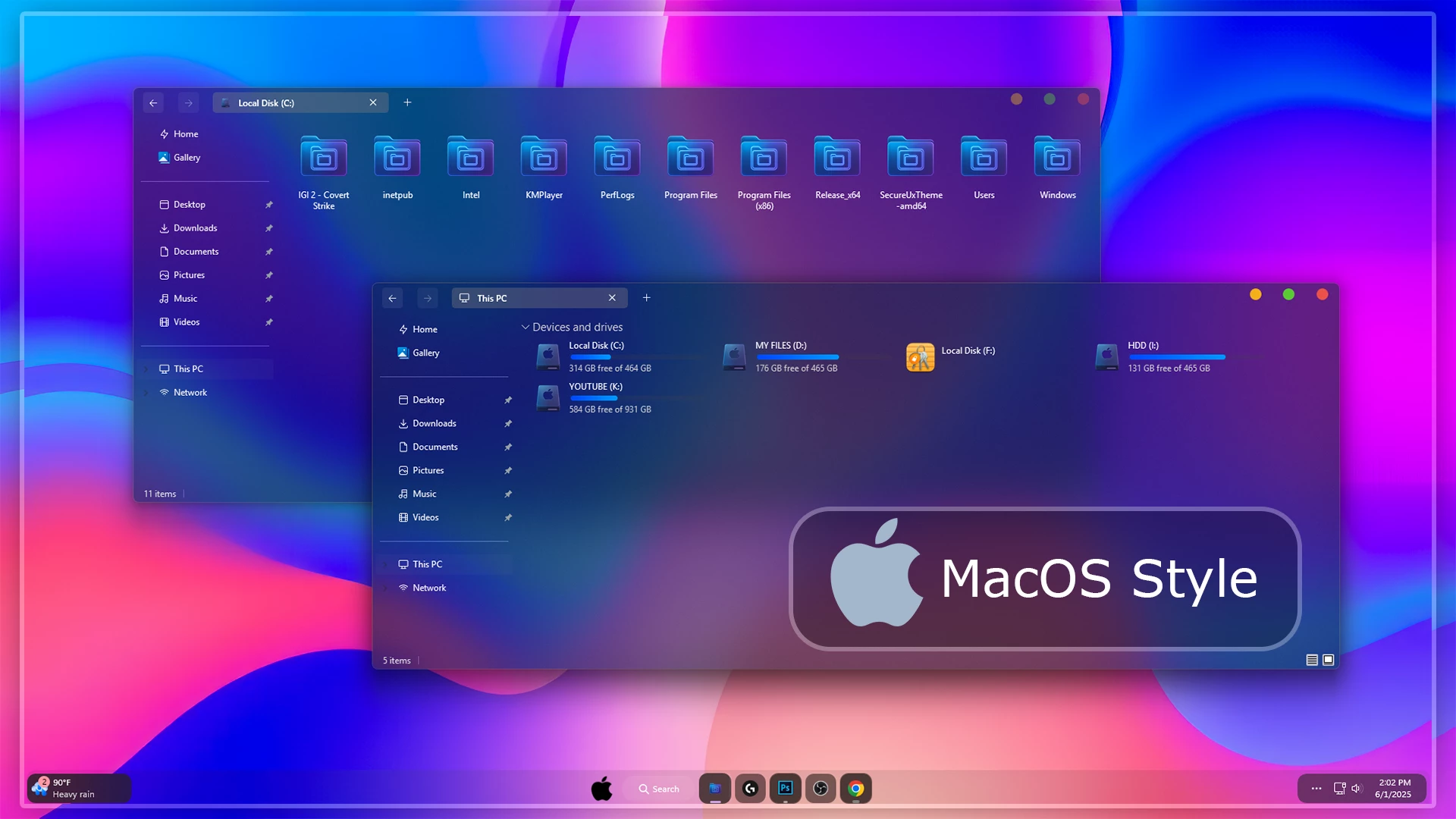
The Elegant macOS-Inspired Theme for Windows 11 is a custom desktop setup for users who want to bring a little macOS-inspired character to Windows 11 without changing the operating system itself. It combines dark translucent windows, colorful blue and purple tones, distinctive folder icons, macOS-style window controls, matching wallpaper, and optional interface tweaks to create a more coordinated desktop.
One of the first details you will notice is the custom minimize, maximize, and close button styling. These controls use the familiar red, yellow, and green traffic-light appearance associated with macOS, giving supported Windows title bars a very different look from the standard Windows 11 design.
The folder icons also have their own identity. Rather than using the default Windows folder appearance, the setup gives them a softer macOS-inspired feel that works naturally with the darker glass interface and colorful wallpaper.
This is an independently created third-party Windows customization package made for desktop personalization. It does not install macOS, replace Windows 11, or add official Apple features to your computer.
A Modern macOS-Inspired Glass Style
The theme uses dark semi-transparent surfaces over a colorful blue, violet, pink, and magenta background. File Explorer stays darker, while the transparency allows some of the wallpaper colors to remain visible behind the interface. This gives the desktop more depth without making folders, navigation, or text difficult to recognize.
The custom traffic-light window buttons add one of the strongest macOS-inspired details. Combined with the unique folder icons and centered taskbar styling, they help Windows 11 feel noticeably different from the default interface while still remaining familiar to use.
The setup is not intended to reproduce macOS exactly. Instead, it borrows several recognizable visual ideas and adapts them for Windows customization. That makes it a good option for users who want some of the macOS feel while keeping Windows 11 underneath.
Design Highlights
- Dark translucent macOS-inspired Windows 11 visual style
- Red, yellow, and green traffic-light minimize, maximize, and close buttons
- Unique folder icons with a softer macOS-inspired appearance
- Blue, purple, pink, and magenta desktop color palette
- Glass-style File Explorer with optional transparency effects
- Centered taskbar styling for a more compact dock-like appearance
- Matching icon pack for a more complete visual setup
- Optional Windhawk and Explorer tweaks for additional customization
My Thoughts on This Theme
In my opinion, this theme is a nice option for anyone who wants to bring some macOS-inspired styling to a Windows PC. The traffic-light window buttons are a small detail, but they immediately change the character of the title bar and make the interface feel different from a normal Windows 11 setup.
I also like the folder design. The icons are not exact copies of macOS folders, but they carry enough of that design direction to give File Explorer a more distinctive look. When the matching icon pack is used together with the main theme, the desktop feels much more complete and consistent.
I would not describe this as an exact macOS replica, and I do not think it needs to be one. For users who simply want that kind of visual feel on Windows, I think the combination of the glass interface, traffic-light controls, matching icons, and colorful wallpaper is more than enough to create a unique and slightly more premium-looking desktop.
Inside the Package
- Windows 11 Theme: Applies the main macOS-inspired visual style to supported Windows interface elements.
- Icon Pack: Gives compatible folders and system icons a more distinctive appearance that fits the rest of the setup.
- Windhawk Resources: Optional interface tweaks for users who want to change additional supported parts of Windows.
- Wallpaper: Adds the colorful blue, purple, pink, and magenta background used with the complete desktop.
The main theme can be used on its own, but the matching icon pack makes a noticeable difference. If you want the desktop to feel closer to the complete macOS-inspired setup, using the matching icons and relevant interface styles helps bring the different parts together.
Windows Compatibility
- Windows 11 21H2: Supported
- Windows 11 22H2: Supported
- Windows 11 23H2: Recommended
- Windows 11 24H2: Recommended
- Windows 11 25H2: Check optional mod compatibility
The main visual theme and optional customization mods do not always have the same compatibility. Some older Windhawk or Explorer mods were created for earlier Windows 11 builds and may not work correctly on newer 25H2 versions. If you are using Windows 11 25H2, check for an updated version of each mod before enabling it. Older builds such as 24H2 may still work better with mods that were originally created for those versions.
Useful Customization Tools
- SecureUxTheme – can be used when a compatible third-party visual style requires custom theme support.
- 7TSP GUI – useful for applying compatible icon packs.
- ExplorerBlurMica – can add supported blur, acrylic, or Mica-style effects to File Explorer.
- Windhawk – supports additional Windows interface customization through compatible mods.
You do not need every optional tool to use the theme. Start with the main visual style and see how it looks first. Add the matching icon pack next if you want a more complete design, then use Explorer effects or Windhawk mods only for the areas you actually want to change.
Prepare Your System
- Create a System Restore Point before applying third-party visual files.
- Check that the theme tools and optional mods support your Windows 11 build.
- Keep a default Windows theme available so you can switch back easily.
- Back up your original icons before applying a custom icon pack.
- Download optional utilities only from their original or trusted project pages.
- Apply the main theme, icons, and optional interface changes one at a time.
Theme Setup Steps
- Create a System Restore Point before starting so you can easily revert if anything goes wrong.
- Download and run UltraUXThemePatcher Or SecureX Theme Tool as Administrator, then restart your computer to patch core system files.
- Download the theme package using the button below and extract the
.zipor.rarfile. - Copy both the
.themefile and the theme folder toC:\Windows\Resources\Themes. - Right-click your desktop, go to Settings > Personalization > Themes, and select your new custom theme to apply it.
- If you are new to Windows customization, follow this detailed guide first: How to Install Custom Themes on Windows 11.
- Once the main theme looks right, try optional icons, Start menu styling, or Explorer effects one at a time.
Theme Files 166 MB
DownloadRemove the macOS-Inspired Setup
- Switch the Theme: Go to Settings > Personalization > Themes and choose one of the default Windows 11 themes.
- Undo the Extra Styling: Restore the original icons and disable any Windhawk, Explorer blur, traffic-light window controls, dock-style taskbar, or other optional interface changes.
- Restart and Recover: Restart Windows Explorer or reboot your PC. If anything still looks changed, use your System Restore Point or follow this Windows 11 theme removal guide.
Disclaimer
The Elegant macOS-Inspired Theme is an independently created third-party Windows customization package intended only for desktop personalization. It is not an official Apple or Microsoft product and is not affiliated with, endorsed by, or sponsored by Apple Inc., Microsoft Corporation, or any of the independent customization tools and projects mentioned in this post.
Apple, macOS, Windows, and other trademarks or brand names belong to their respective owners. References to macOS are used only to describe the visual inspiration behind this Windows customization style. The theme does not install macOS or reproduce the original operating system.
Final Word
The Elegant macOS-Inspired Theme gives Windows 11 a different personality by combining dark glass surfaces, distinctive folder icons, colorful wallpaper, and the familiar red, yellow, and green traffic-light window controls. These details do not turn Windows into macOS, but they do bring enough of that visual direction to make the desktop feel noticeably different.
For me, the matching icon pack is one of the most important additions if you want the full effect. The main theme already changes the overall appearance, but the icons and optional interface styles help the different parts of the desktop feel more connected. If you want a macOS-inspired feel on a Windows PC without trying to create an exact copy, this setup does that job well.
Frequently Asked Questions
Are the red, yellow, and green buttons inspired by macOS?
Yes. The custom minimize, maximize, and close controls use the familiar traffic-light color arrangement associated with macOS-style window controls.
Does this theme make Windows 11 look exactly like macOS?
No. It is only a macOS-inspired Windows customization. It borrows selected visual ideas while Windows 11 remains the operating system underneath.
Do I need the matching icon pack?
No, but the matching icons help File Explorer and other supported areas follow the same visual direction, making the complete setup feel more consistent.
Can I use the theme without the glass effect?
Yes. Blur and stronger transparency effects are optional, so you can keep the main visual style without using every glass-related modification.
Will every Windhawk mod work on Windows 11 25H2?
Not necessarily. Some older mods were designed for earlier Windows builds and may need an updated version before they work correctly on Windows 11 25H2.