Nemo Theme For Windows 11
Nemo Theme For Windows 11 : The Nemo Theme for Windows 11 is a well-crafted customization setup that offers a deep, modern, and immersive dark look for your desktop.

Nemo Theme For Windows 11
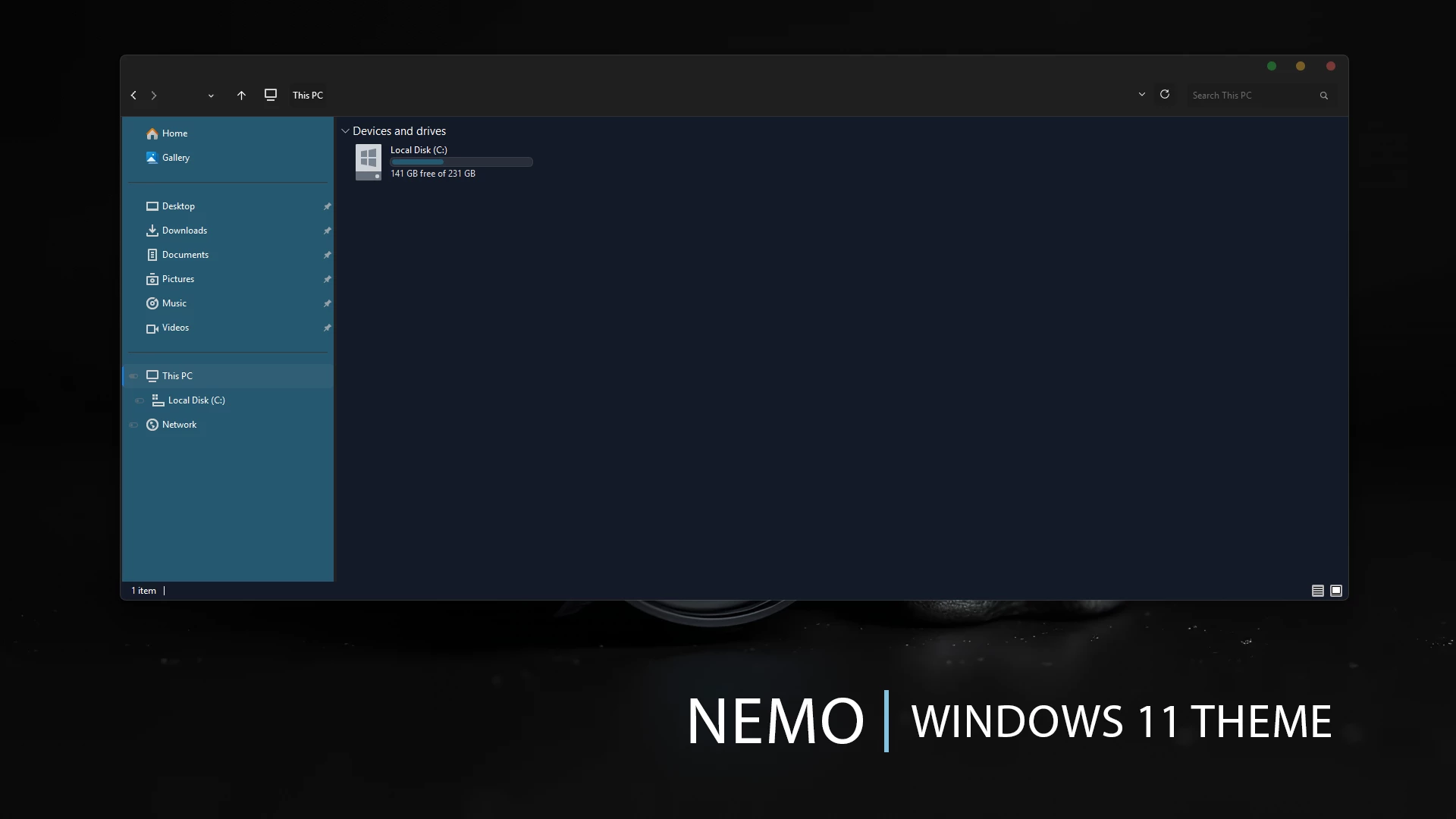
The Nemo Theme for Windows 11 gives File Explorer a deep navy and blue-black appearance with a darker main content area and a muted teal-blue navigation panel. The combination creates a strong dark interface without relying on pure black across every section.
The left navigation area uses a cooler blue tone that clearly separates Home, Gallery, common folders, drives, and Network from the darker Explorer content panel. Thin dividers and restrained highlights keep the layout organized while preserving the familiar Windows 11 structure.
Small colored window controls appear in the upper corner of supported windows, adding a subtle custom detail to the otherwise dark interface. The theme stays focused on navy, charcoal, and muted blue surfaces rather than bright gradients or heavy visual effects.
Features
- Deep navy and blue-black Windows 11 styling
- Dark File Explorer content area
- Muted teal-blue navigation panel
- Subtle borders and interface separators
- Compact colored window controls
- Clear contrast between navigation and content areas
- Designed for darker Windows 11 desktop setups
- Can be paired with a separate Nemo icon pack
Compatibility
- Windows 11 21H2: Supported
- Windows 11 22H2: Supported
- Windows 11 23H2: Supported
- Windows 11 24H2: Supported
- Windows 11 25H2: Supported
What is included in this?
- Windows 11 Theme
Optional Customization Tools
Credit & Special Thanks to Kdr3w Kdr3w originally created this theme for Windows 10. Inspired by his work,
I created a similar style for Windows 11 with my own modifications and adjustments.
Installing the Nemo Theme
- Create a System Restore Point before making visual changes to Windows.
- Prepare Windows with a compatible theme patcher, then download and extract the Nemo Theme package.
- Copy the theme folder and
.themefile toC:\Windows\Resources\Themes, then apply the theme from Personalization > Themes. - Once the main theme is working correctly, you can add the optional Nemo icon pack or StartAllBack customization if you want a more complete setup.
- For a detailed walkthrough, follow this Windows 11 custom theme installation guide.
Theme Files 9MB
Download How to Remove the Theme
- Open Settings > Personalization > Themes and switch back to one of the default Windows 11 themes.
- If you applied the separate Nemo icon pack, restore the default Windows icons before removing other optional customizations.
- Disable StartAllBack or any additional interface changes that were used with the setup, then restart Windows Explorer if needed.
- If anything still looks incorrect, use the System Restore Point created before installation.
- For the complete restoration process, follow this Windows 11 custom theme removal guide.
Disclaimer
Nemo Theme for Windows 11 is an independent third-party customization resource intended for personal desktop customization. It is not an official Microsoft product and is not affiliated with, sponsored by, or endorsed by Microsoft. Windows and related trademarks belong to their respective owners. Third-party themes can behave differently across Windows builds, so create a System Restore Point before applying theme files or modifying Windows visual resources.
Finalization
The Nemo Theme for Windows 11 gives the desktop a darker character through deep navy surfaces, a cooler blue navigation panel, subtle separators, and compact window controls. Its restrained color palette keeps File Explorer easy to follow while creating a noticeably different appearance from the default Windows 11 interface.