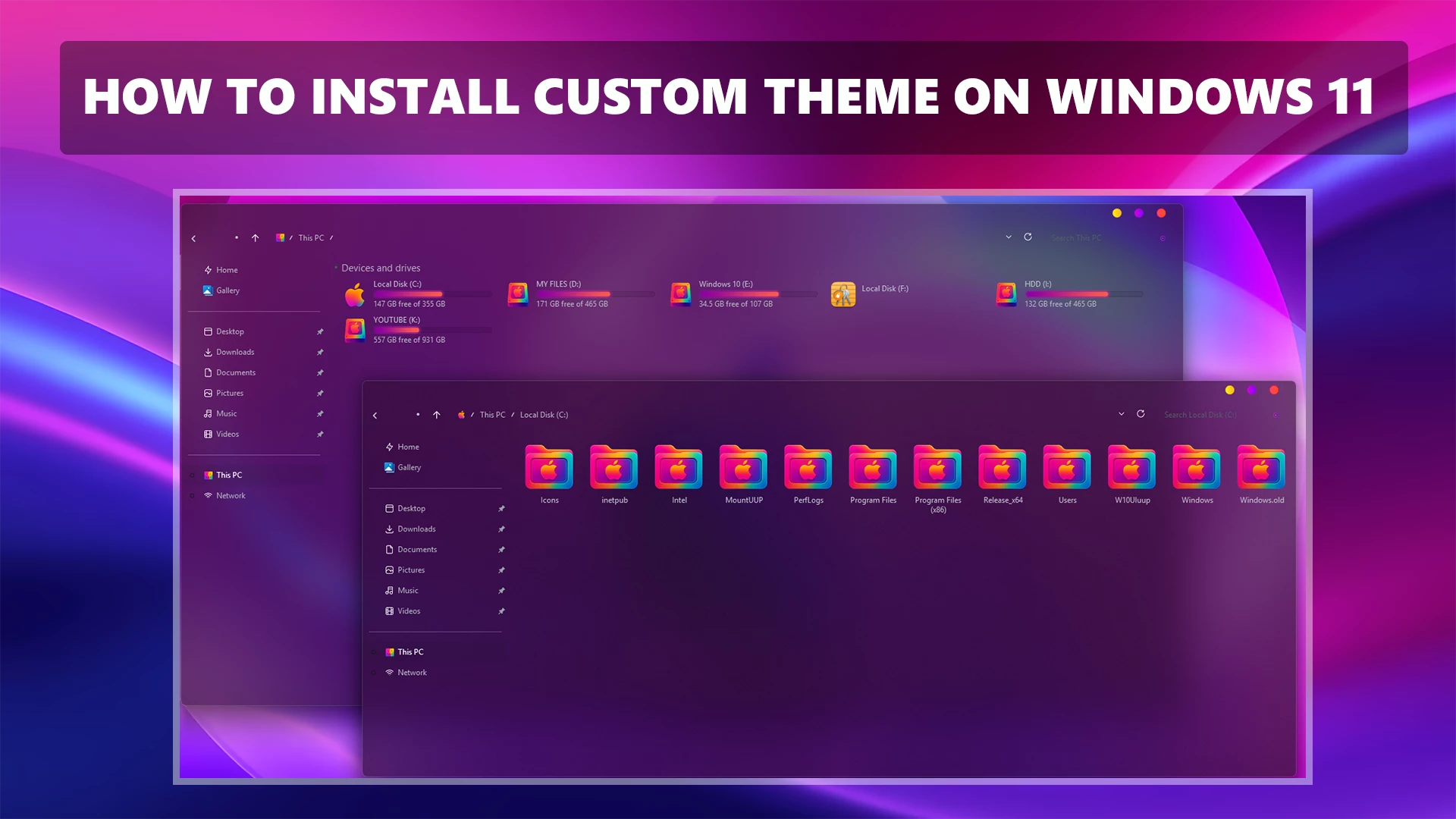
How to Install Custom Theme on Windows 11

How to Install Custom Theme on Windows 11

How to Install Custom Theme on Windows 11

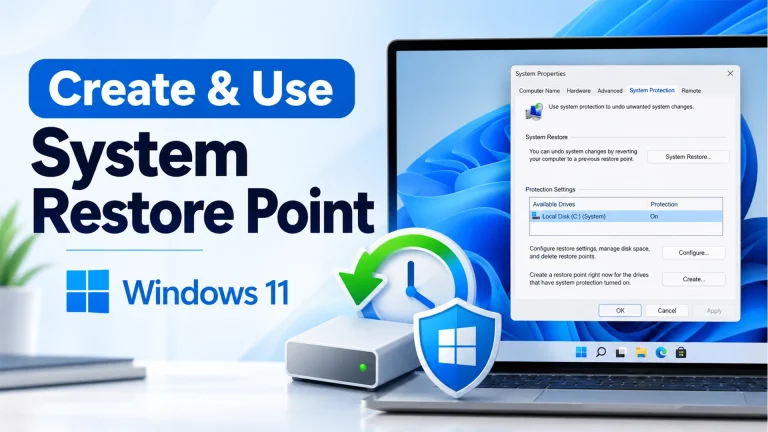
Step 1: Backup Your System (Recommended)

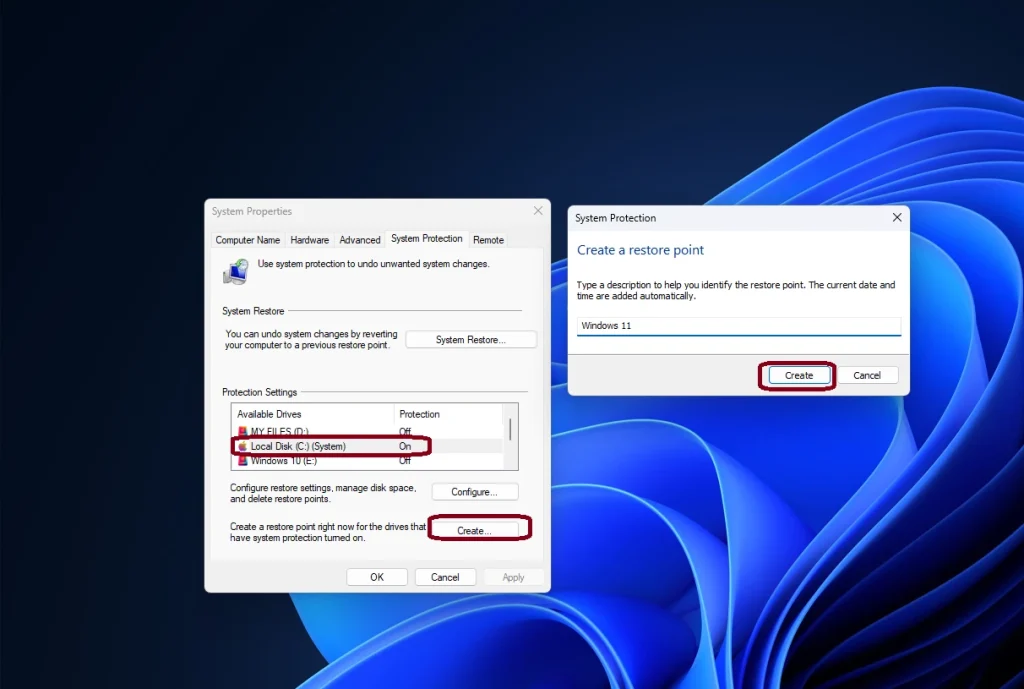
> Create a restore point:
Start > Create a restore point > Configure > Turn on system protection > Create

Screenshot 2025 07 18 173512

Step 2: Patch System for Third-Party Themes

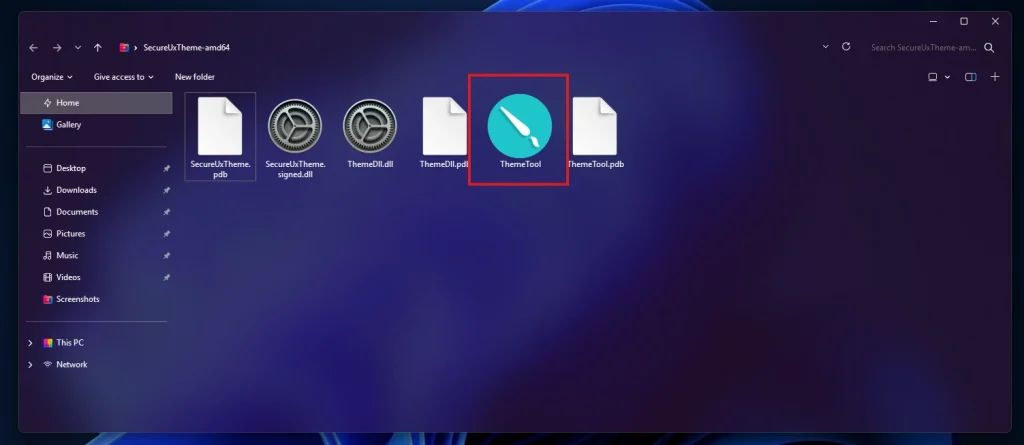
Screenshot 2025 07 18 174733
Screenshot 2025 07 18 174755

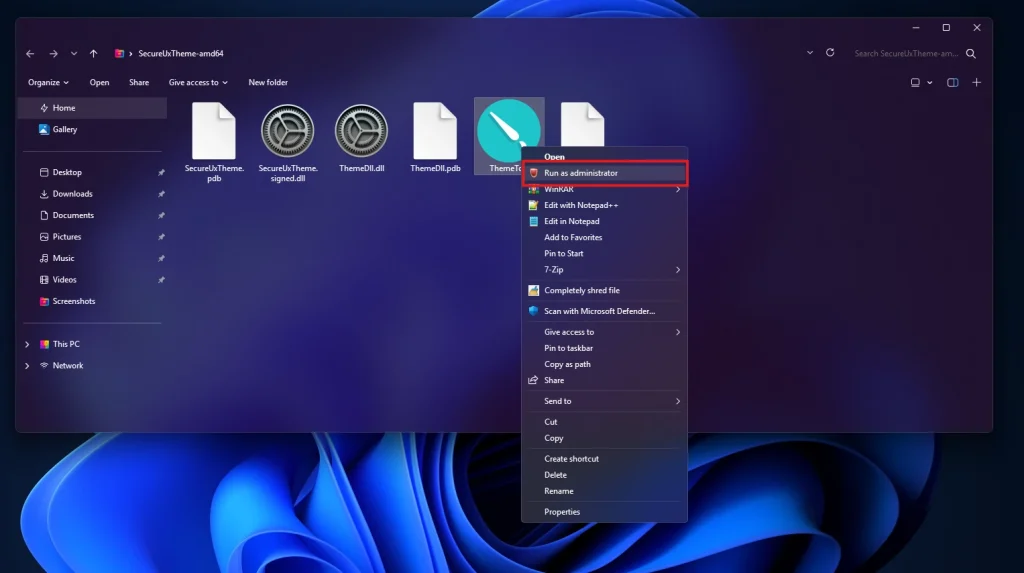
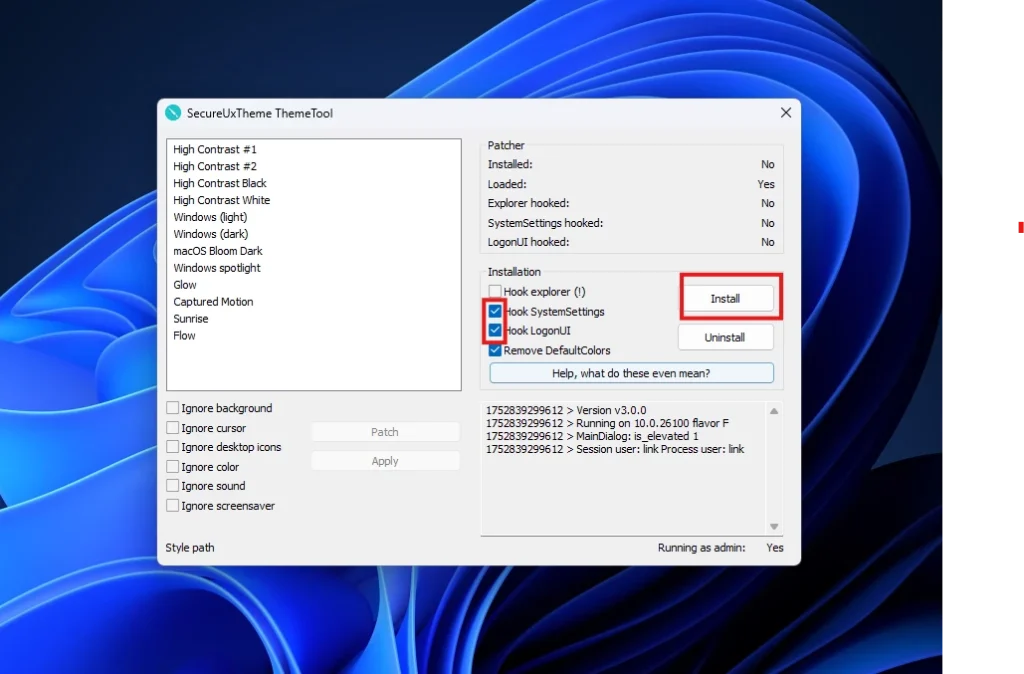
✅ Run SecureUxTheme.exe as Administrator.

Screenshot 2025 07 18 174833

✅ Mark This 2 Box & Click Install to patch your system.

✅ Restart your PC.

✅ Now Download a Custom Theme

Screenshot 2025 07 18 180041

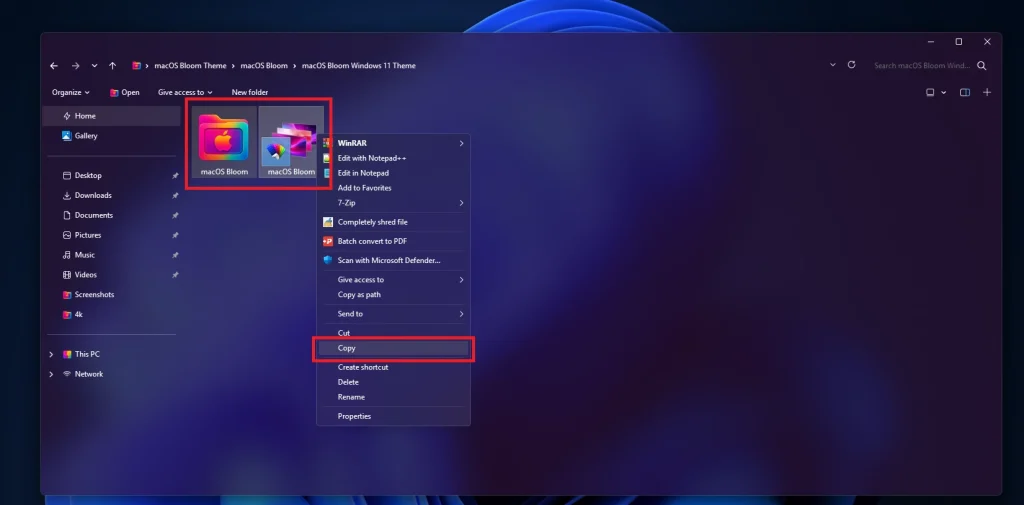
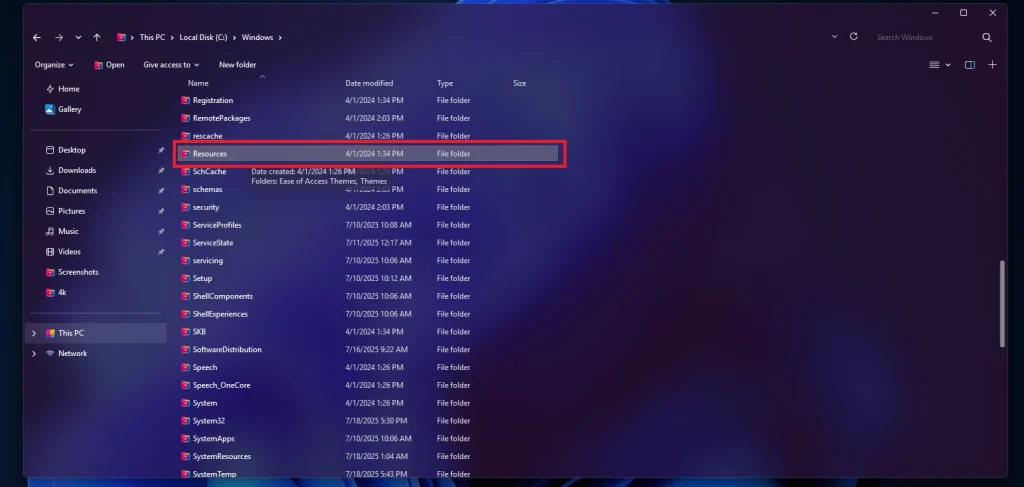
Copy Theme Files
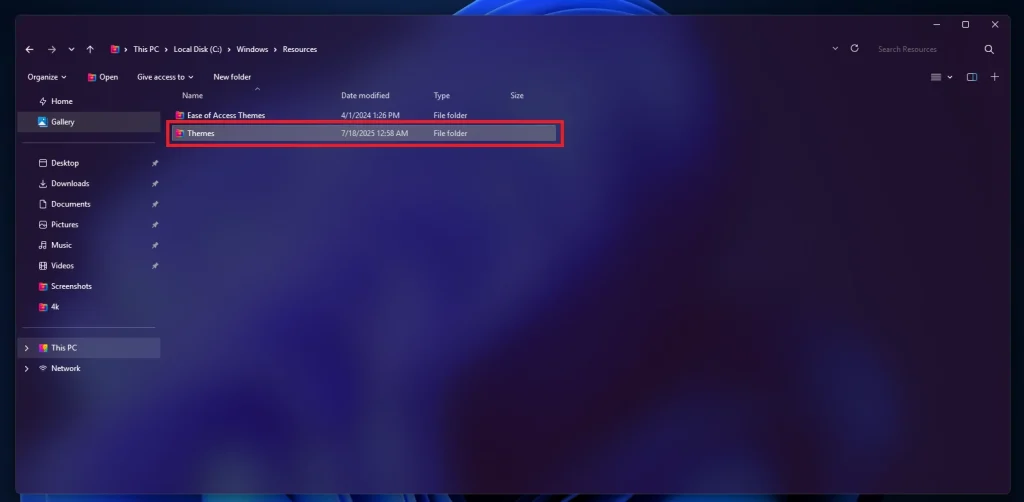
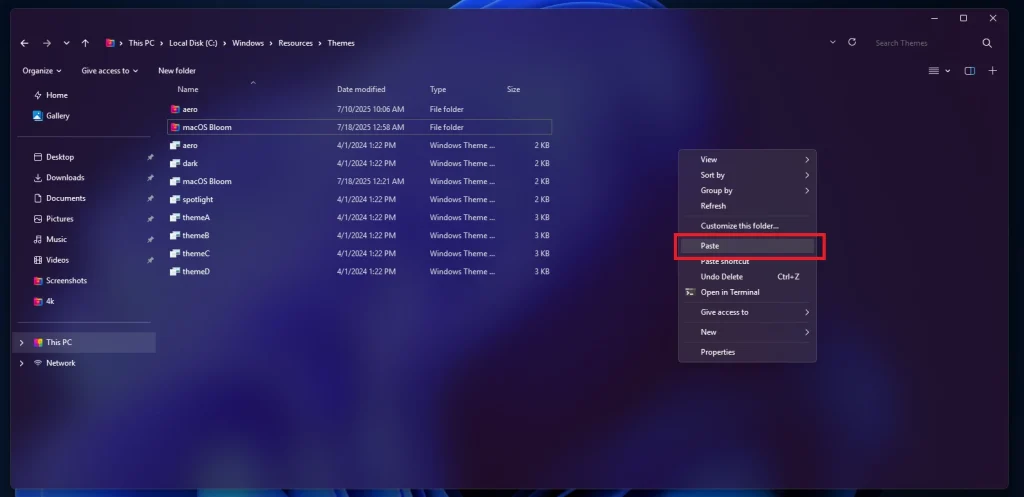
Copy .theme files and their folders to:
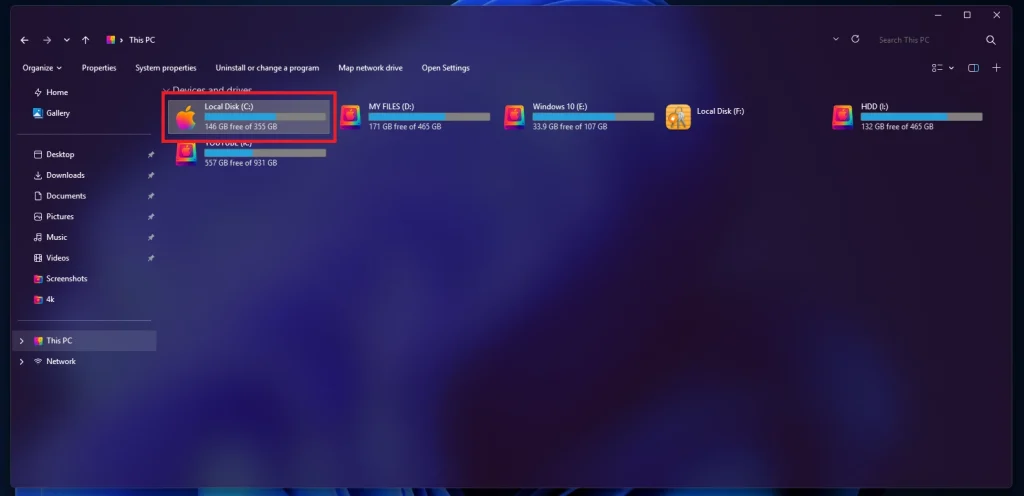
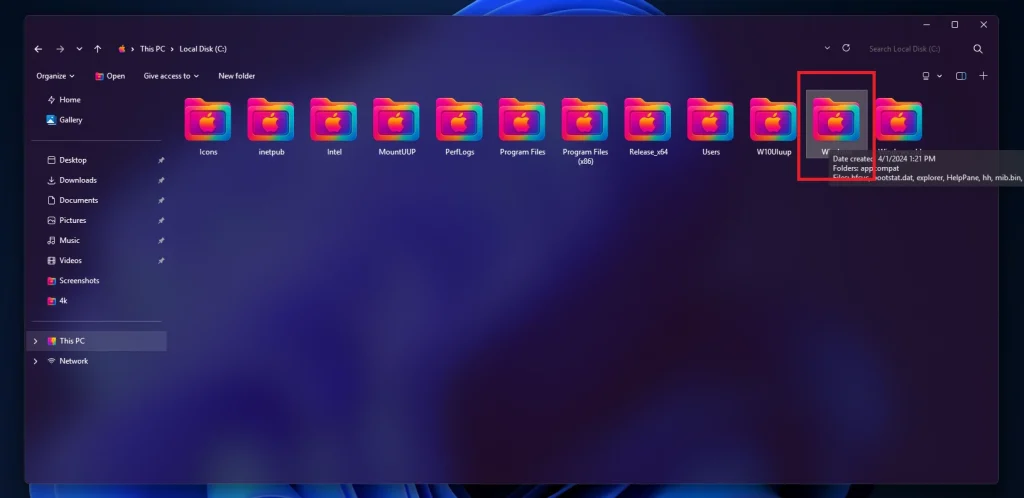
C:\Windows\Resources\Themes

Screenshot 2025 07 18 180054
Screenshot 2025 07 18 180104
Screenshot 2025 07 18 180118
Screenshot 2025 07 18 180130
Screenshot 2025 07 18 180147

And Paste Theme Files Here

✅ Apply the Theme

Step 5: Apply the Theme

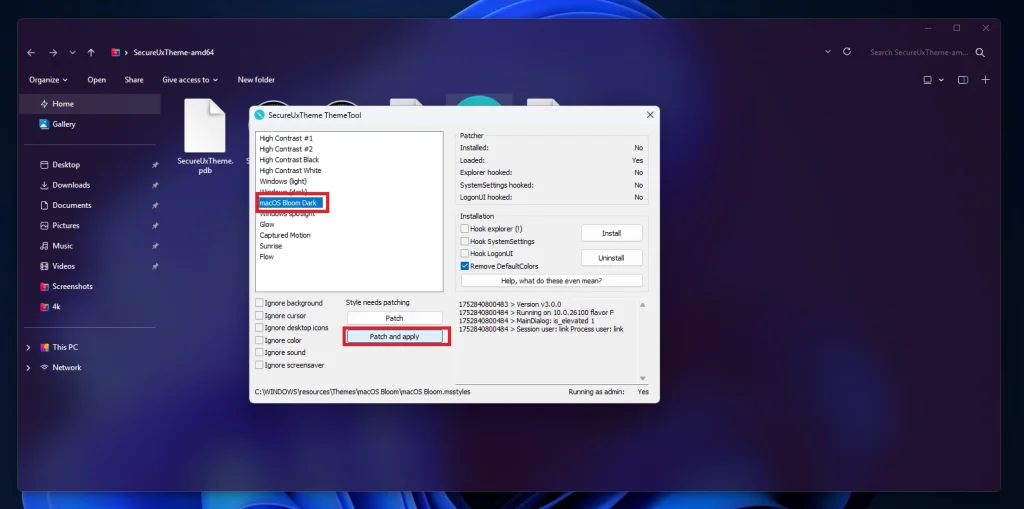
  1. Run SecureUxTheme.exe again.

  2. You’ll see your custom theme listed.

  3. Click on Patch & Apply 

Screenshot 2025 07 18 181331
Screenshot 2025 07 18 181515

Optional: Customize More

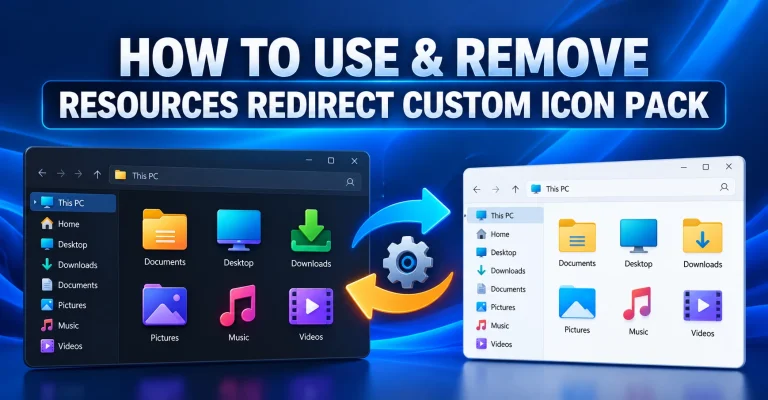
✅Use 7TSP Icon Pack for icons.

✅Use Blur Mica For Acrylic Effect

✅ Done!

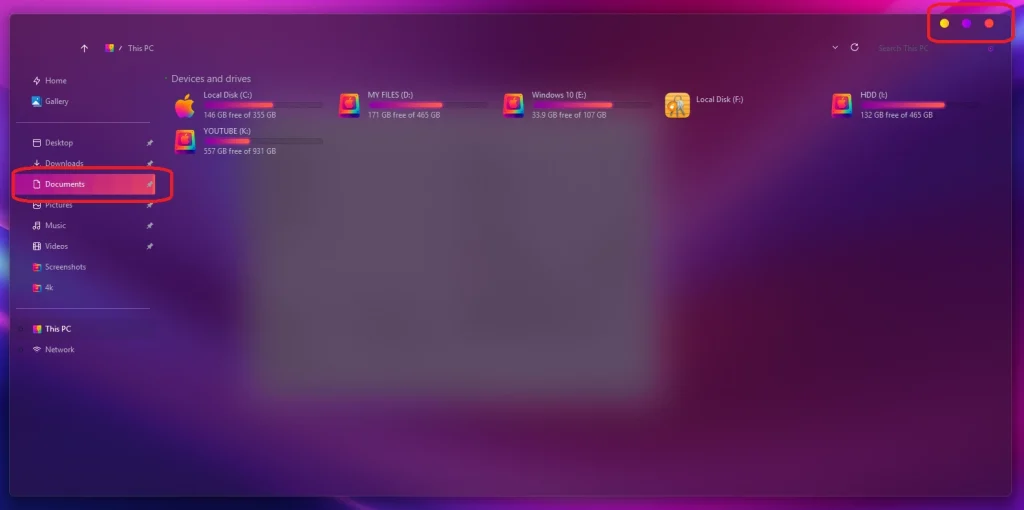
Your Windows 11 now has a fully custom theme. Enjoy a fresh look!

Safety Disclaimer

The information, instructions, and procedures provided on this platform are for educational and informational purposes only. By following any guides, tutorials, or instructions, you acknowledge and agree to the following terms:

  • Assumption of Risk: Any action you take based on the provided content is strictly at your own risk. We shall not be held liable for any damages, losses, technical failures, hardware/software malfunctions, data loss, or injuries resulting from the use or misuse of our content.

  • User Responsibility: You are solely responsible for taking all necessary safety precautions—such as creating system backups, setting up restore points, or taking proper personal safety measures—before executing any instructions or modifications.

  • No Warranty: All content is provided “as is” without any expressed or implied warranties regarding completeness, accuracy, reliability, or specific outcomes.

  • Third-Party Tools & Resources: We do not warrant, endorse, or assume responsibility for any third-party software, utilities, links, or hardware mentioned. Usage of third-party tools is done at your own discretion and risk.

Leave a Reply

Your email address will not be published. Required fields are marked *

Downloading issue

Ad-Blocker Detected!

Oops! unable to access the file download link. It seems that your ad blocker is removing the download link. Please try again or consider whitelisting our site in your ad blocker to resolve this issue.

We have detected that an ad blocker is active in your browser. This can lead to conflicts with our site, blocking many important scripts, and affecting downloads.

The revenue we generate from ads is vital for maintaining and managing this website. Therefore, we kindly request that you whitelist our website in your ad-blocker. Please rest assured that we won't inundate you with an excessive number of ads, nor will we inconvenience you or slow down your browsing experience. Your support is immensely appreciated!

How to Fix