

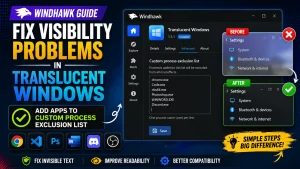
How to Fix Visibility Problems in Translucent Windows – Windhawk
How to Fix Visibility Problems in Translucent Windows (Windhawk) : Learn how to fix visibility issues in the Translucent Windows Windhawk mod by adding apps to the Custom Process Exclusion List. Step-by-step tutorial.

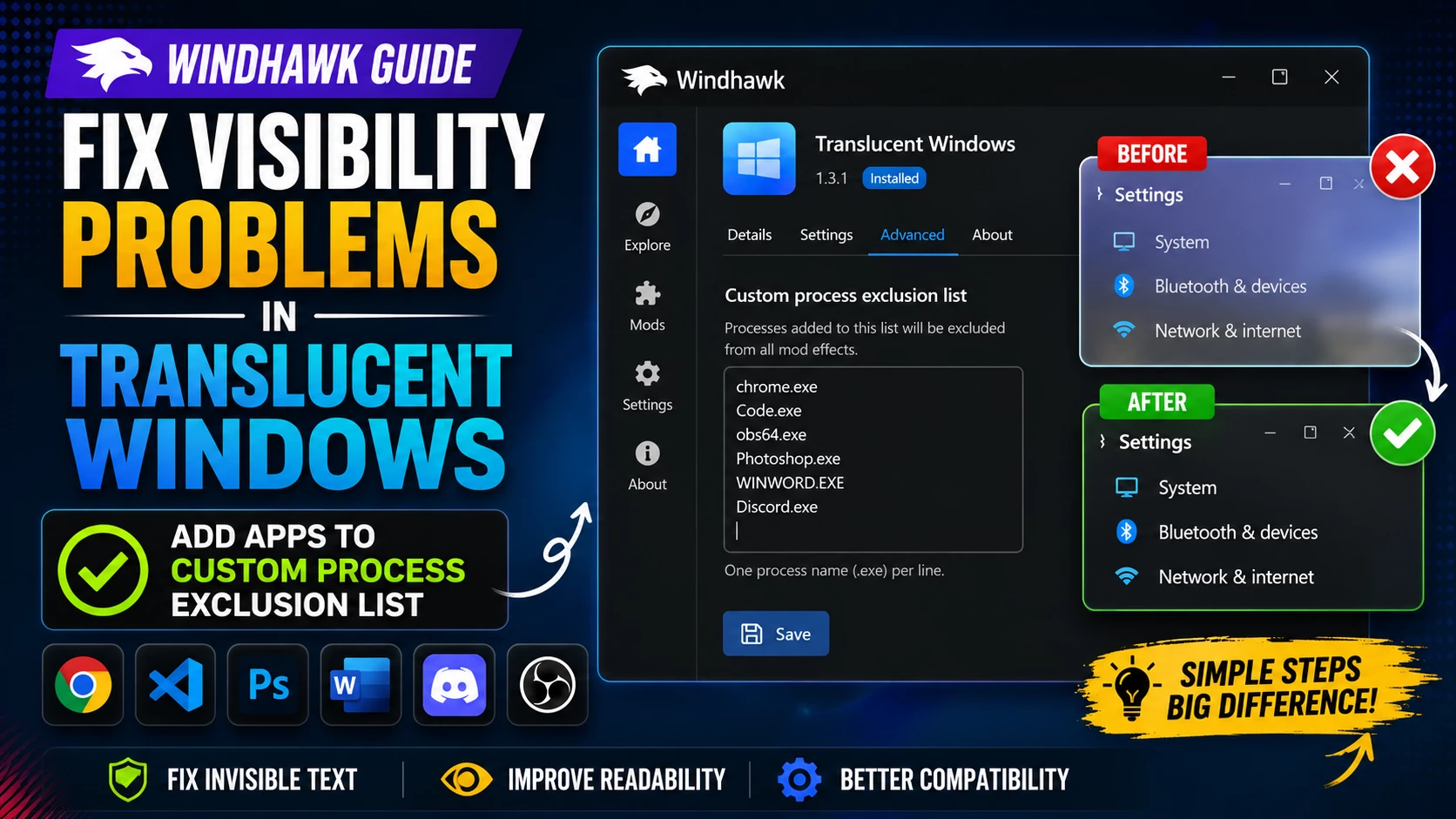
How to Fix Visibility Problems in Translucent Windows (Windhawk) Using the Custom Process Exclusion List
If some applications become difficult to read after enabling the Translucent Windows Windhawk mod, don’t worry. This is a common issue with certain Windows and third-party applications.
The easiest solution is to add those applications to the Custom Process Exclusion List. This tells the mod to ignore specific programs while keeping the translucent effect enabled for everything else.
Why Does This Problem Happen?
The Translucent Windows mod changes how Windows renders application backgrounds and transparency effects. Unfortunately, some applications are not fully compatible with these changes.
You may notice:
- Invisible text
- Black or white windows
- Unreadable buttons
- Missing icons
- Blurred menus
- Broken transparency
- UI glitches
Adding the application’s executable (.exe) file to the exclusion list fixes the problem instantly.
- First, go to the Settings tab of the Translucent Windows mod.
- Disable the “New System Colors” option.
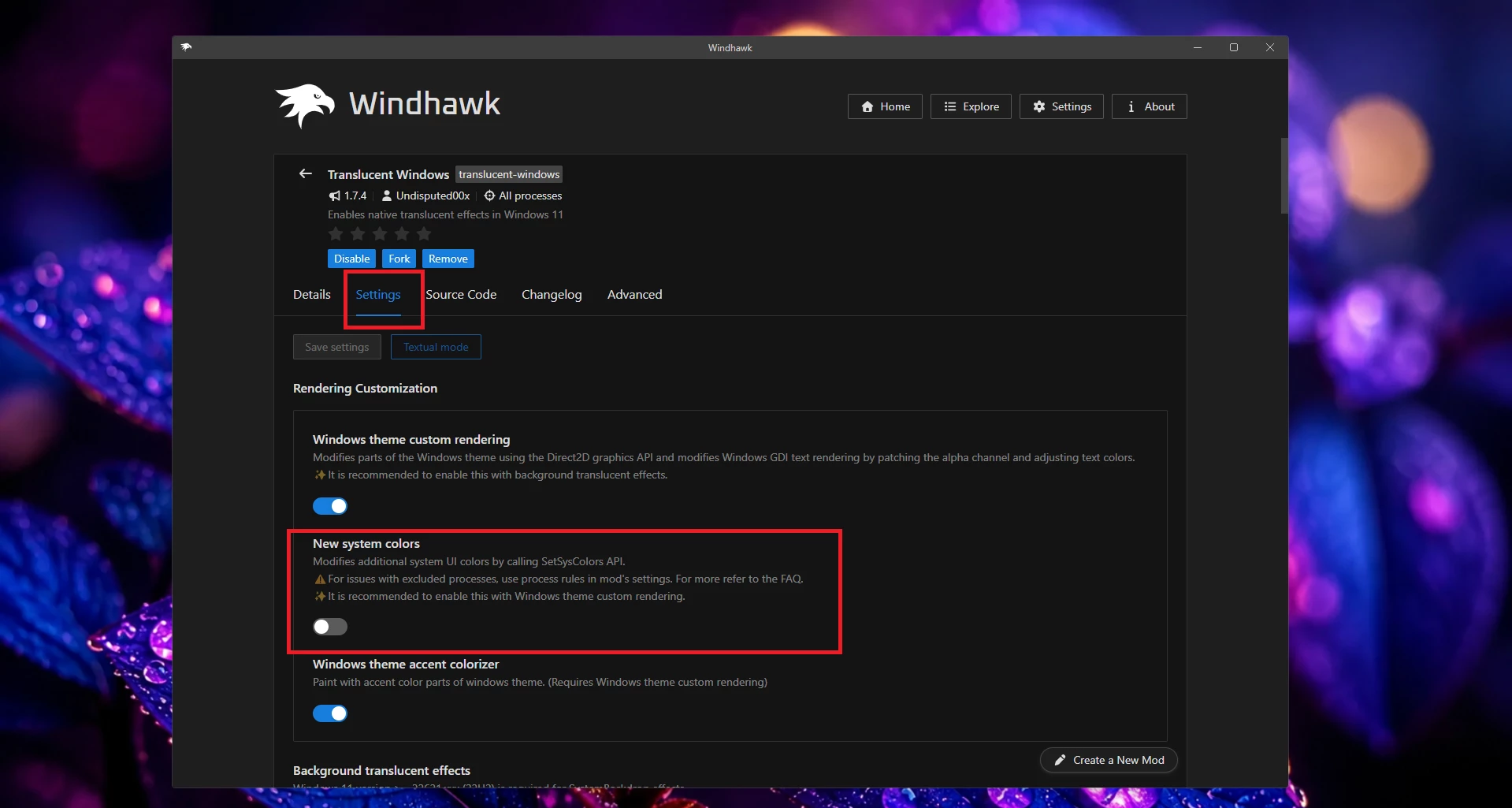
Step 1 — Open Windhawk
- Open Windhawk.
- Select the Translucent Windows mod.
- Click the Advanced tab.
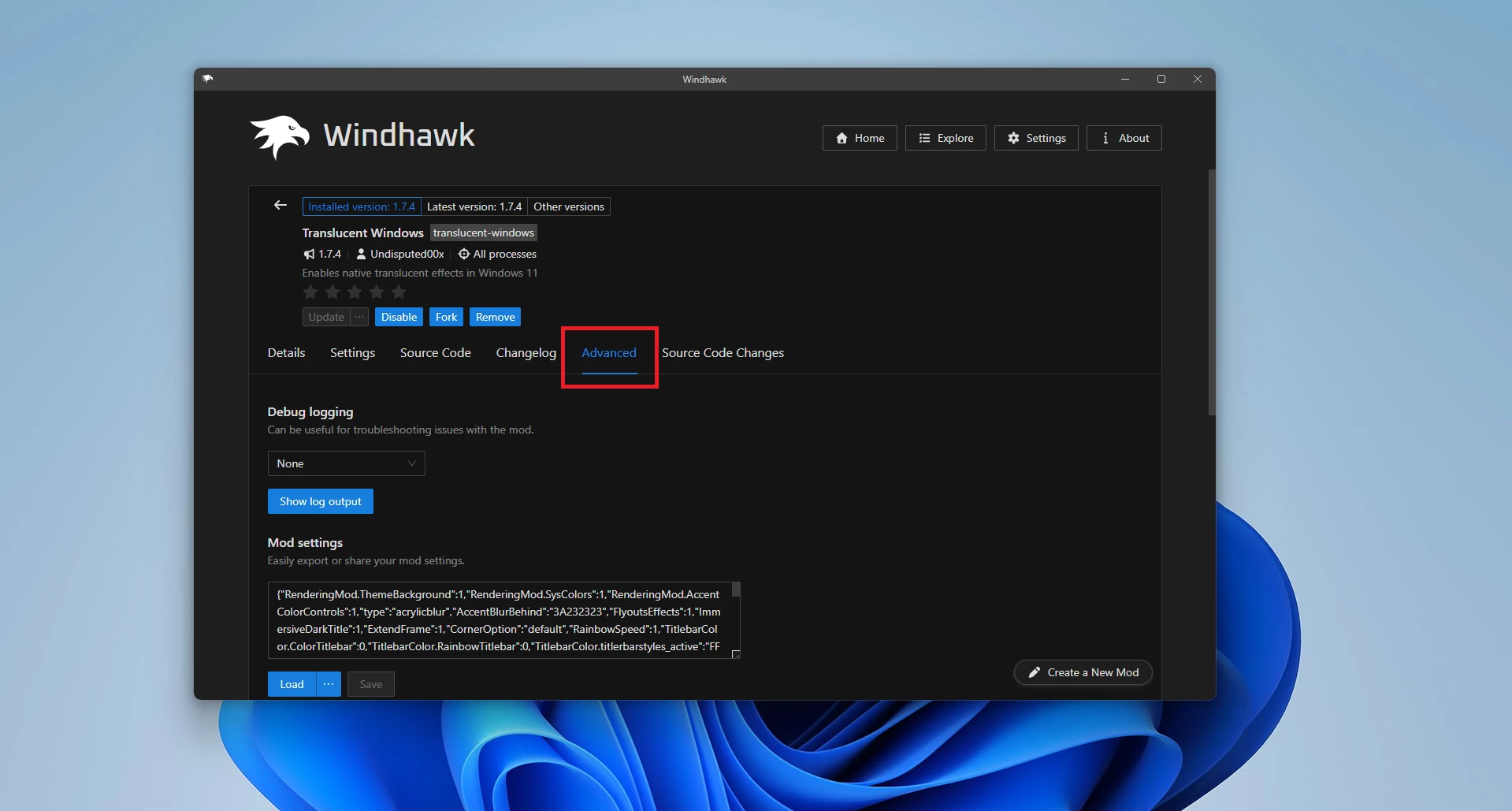
Step 2 — Find Custom Process Exclusion List
Scroll down until you find:
Custom Process Exclusion List
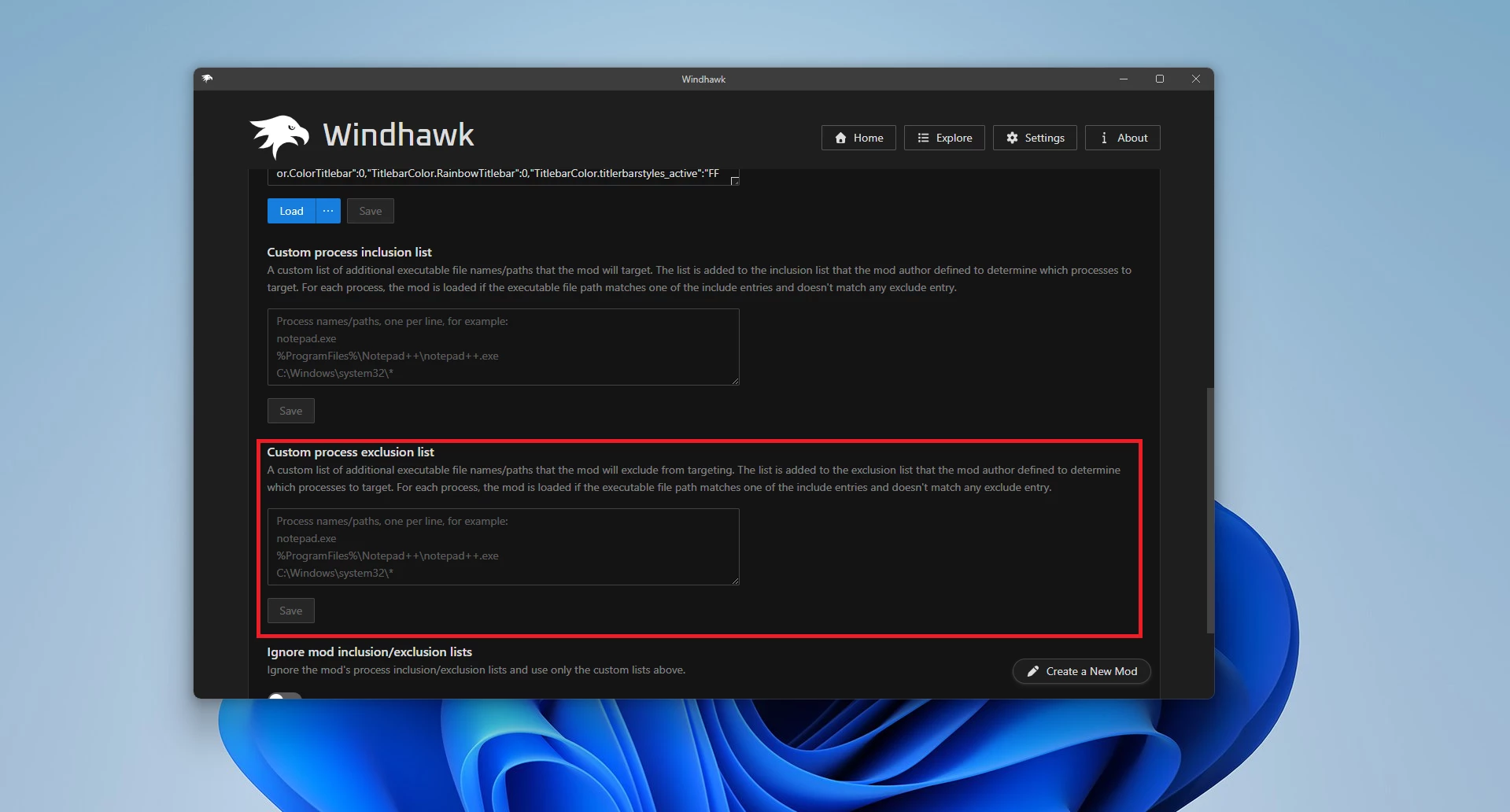
This setting allows you to exclude specific applications from receiving the translucent effect.
Step 3 — Add Your Application
Type the executable name of the application.
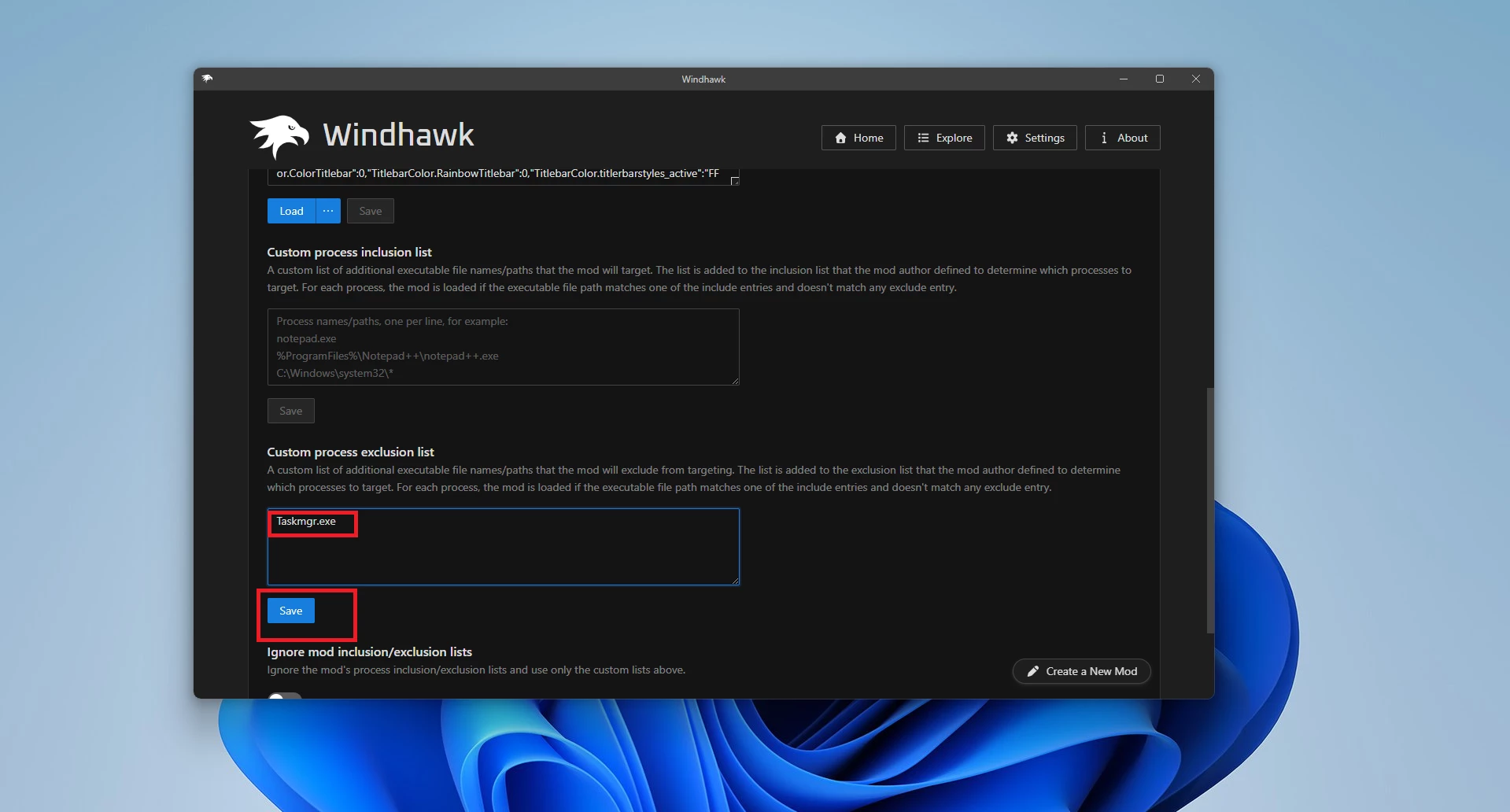
Important:
- Use only the executable (.exe) name.
- Do NOT enter the full file path.
- Add one application per line.
Correct:
chrome.exe
Code.exe
obs64.exe
Incorrect:
C:\Program Files\Google\Chrome\Application\chrome.exeStep 4 — Save Your Changes
- Click Save.
- Restart the affected application.
- If necessary, restart Windows Explorer or reboot your PC.
Common Applications to Exclude
Taskmgr.exe
explorer.exe
SearchHost.exe
StartMenuExperienceHost.exe
ShellExperienceHost.exe
TextInputHost.exe
Widgets.exe
RuntimeBroker.exe
ApplicationFrameHost.exe
SystemSettings.exe
Notepad.exe
SnippingTool.exe
mspaint.exe
calc.exe
cmd.exe
powershell.exe
WindowsTerminal.exe
regedit.exe
mstsc.exe
mmc.exe
control.exe
eventvwr.exe
perfmon.exe
resmon.exe
services.exe
taskhostw.exe
Microsoft Office
WINWORD.EXE
EXCEL.EXE
POWERPNT.EXE
OUTLOOK.EXE
ONENOTE.EXE
MSACCESS.EXE
VISIO.EXE
MSPUB.EXE
Web Browsers
chrome.exe
msedge.exe
firefox.exe
brave.exe
opera.exe
opera_gx.exe
vivaldi.exe
Code Editors
Code.exe
devenv.exe
idea64.exe
pycharm64.exe
webstorm64.exe
clion64.exe
rider64.exe
studio64.exe
eclipse.exe
Adobe Applications
Photoshop.exe
Illustrator.exe
AfterFX.exe
Acrobat.exe
Lightroom.exe
Adobe Audition.exe
Adobe Premiere Pro.exe
Adobe Media Encoder.exe
Design Software
Figma.exe
Canva.exe
CorelDRW.exe
Inkscape.exe
GIMP.exe
Recording & Streaming
obs64.exe
Streamlabs.exe
ShareX.exe
ScreenToGif.exe
Bandicam.exe
CamtasiaStudio.exe
Media Players
vlc.exe
mpv.exe
MPC-HC64.exe
PotPlayerMini64.exe
Spotify.exe
iTunes.exe
Communication Apps
Discord.exe
Telegram.exe
WhatsApp.exe
Slack.exe
Zoom.exe
Teams.exe
Skype.exe
Gaming Clients
steam.exe
EpicGamesLauncher.exe
Battle.net.exe
EA.exe
UbisoftConnect.exe
GalaxyClient.exe
Utilities
7zFM.exe
WinRAR.exe
Everything.exe
CPU-Z.exe
GPU-Z.exe
HWMonitor.exe
CrystalDiskInfo.exe
ProcessHacker.exe
ProcessExplorer.exe
Windows Customization Apps
ExplorerPatcher.exe
OpenShell.exe
Windhawk.exe
Rainmeter.exe
Nexus.exe
Winstep.exe
TranslucentTB.exe
How to Find the Correct .exe Name
If you’re not sure which executable name to use, follow these steps:
- Open the application.
- Press Ctrl + Shift + Esc to open Task Manager.
- Go to the Details tab.
- Locate the application.
- Copy its executable name (for example, chrome.exe).
- Add that name to the exclusion list.
Still Having Visibility Problems?
If excluding the application doesn’t solve the issue, try the following:
- Restart the application.
- Restart Windows Explorer.
- Restart your PC.
- Disable additional transparency or blur mods temporarily.
- Check for updates to the Translucent Windows mod.
- Try using Process Rules for more advanced compatibility settings.
Windhawk Mods:
- For more details, visit this GitHub guide
- For more Windhawk Styler, visit Check My Windhawk Category
Final Thoughts
The Custom Process Exclusion List is the quickest way to fix visibility issues caused by the Translucent Windows Windhawk mod. By excluding incompatible applications, you can continue enjoying beautiful translucent effects across Windows while keeping important apps fully readable and functional.
You may also like
Disclaimer: All themes, visual styles, and concepts shared on this website are unofficial, fan-made creations built from imagination for customization purposes. We are not affiliated with, endorsed by, or sponsored by Microsoft or any other official brand.