How Use Resources Redirect Custom Icon Pack

How to Use Resources Redirect Custom Icon Pack: 2026 Pro Guide

How to Use Resources Redirect Custom Icon Pack: 2026 Pro Guide

To Install the latest icon packs, visit the official Resource Redirect Icon Themes GitHub repository

* What You’ll Need

  1. Windhawk installed on your PC
  2. A Resources Icon Pack (downloaded — usually a ZIP with .ico/.png and possibly .resources files)

Install the Required Mod

    • Open Windhawk.

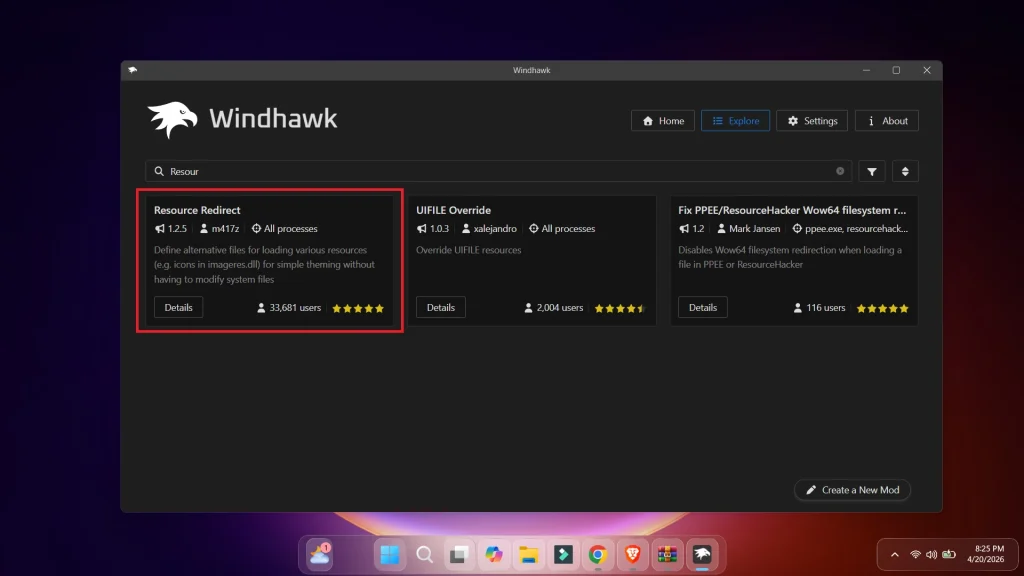
    • Go to the Explore tab.

    • Search for “Resource Redirect”.

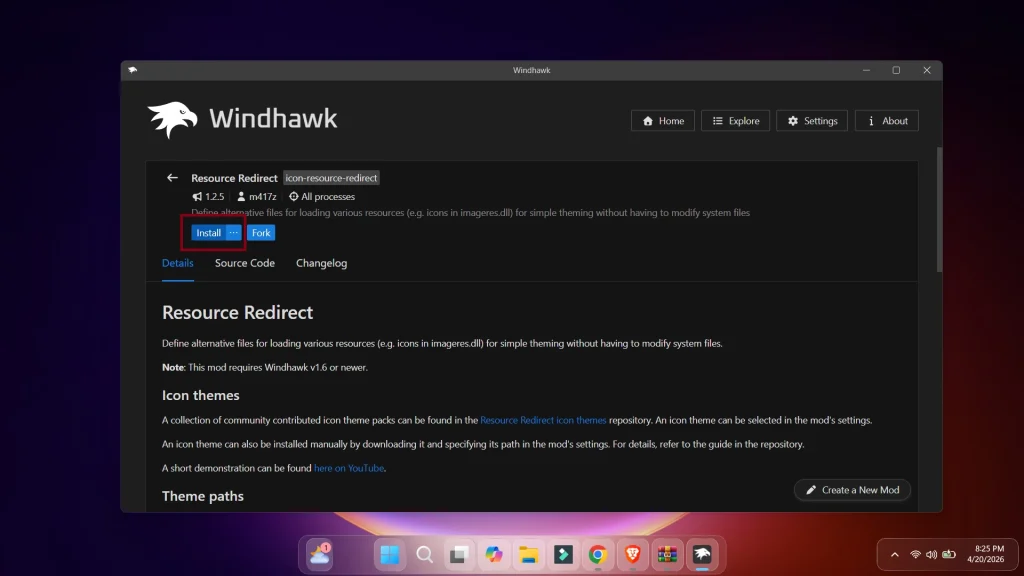
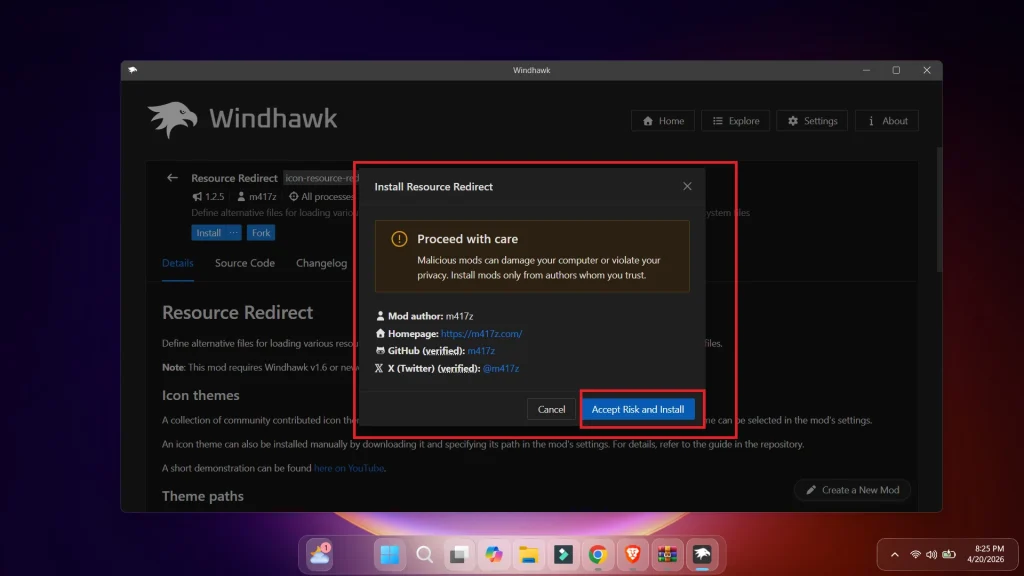
    • Click Install on the mod authored by m417z.

Screenshot 5 1
Screenshot 6
Screenshot 7

Configure the Redirect Paths

This is the most important step where you tell Windhawk which system icons to replace with your new ones.

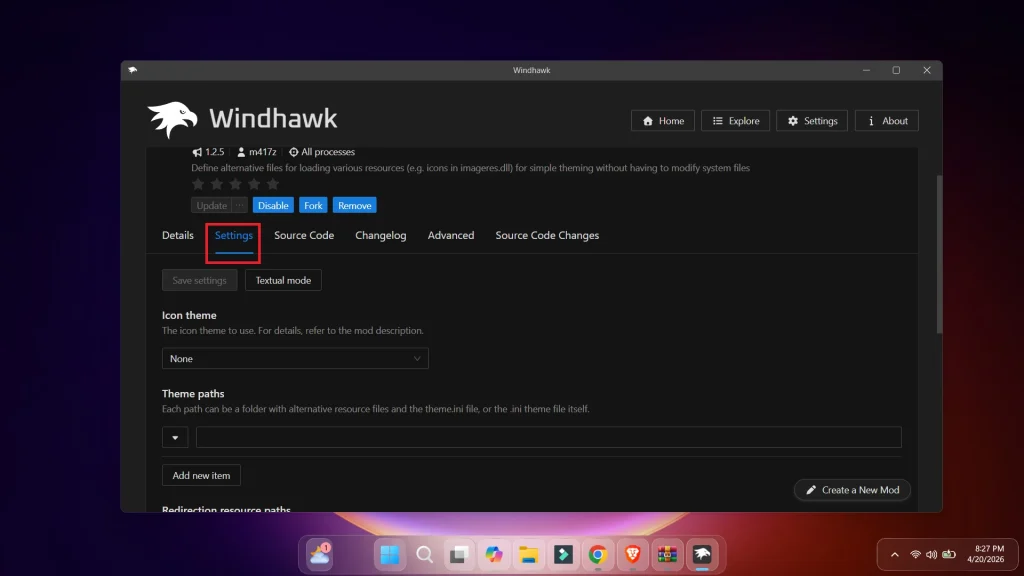
  1. In Windhawk, go to the Settings tab of the Resource Redirect mod

Screenshot 8

Now Download And Unzip The Icon Pack

Screenshot 2026 04 21 073120 1

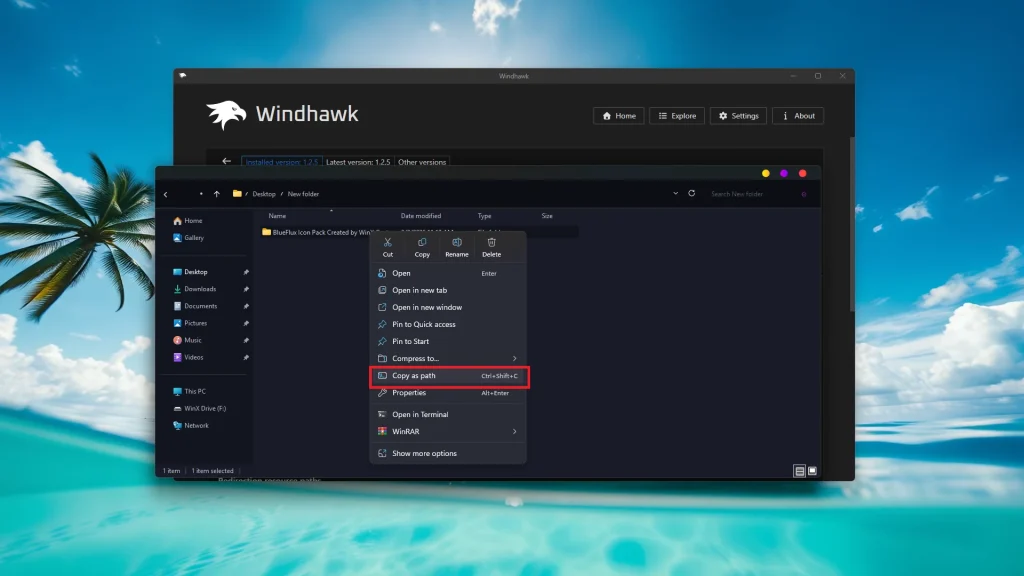
Right Click On The Icon Pack And Copy as path

Screenshot 2026 04 21 073142

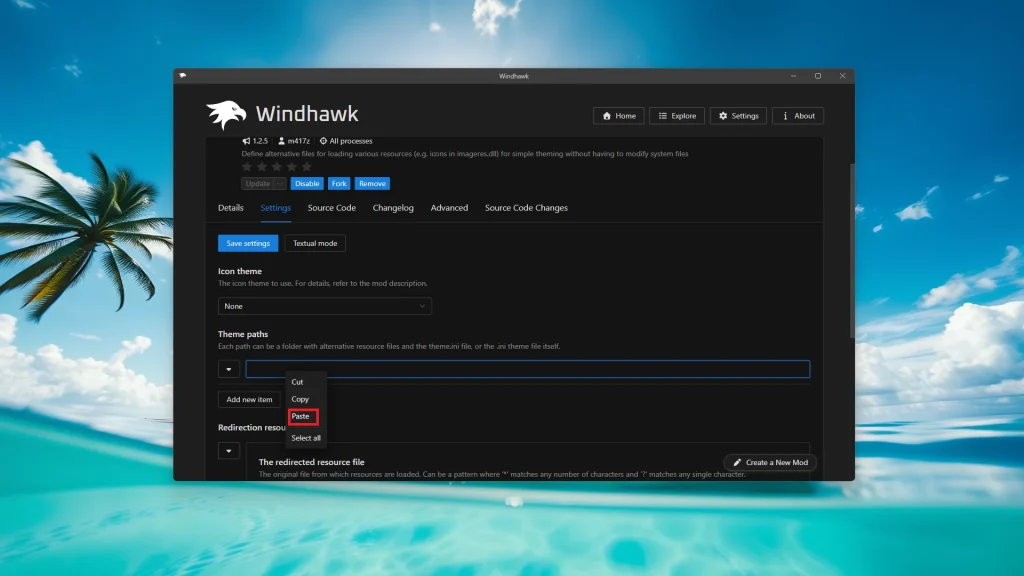
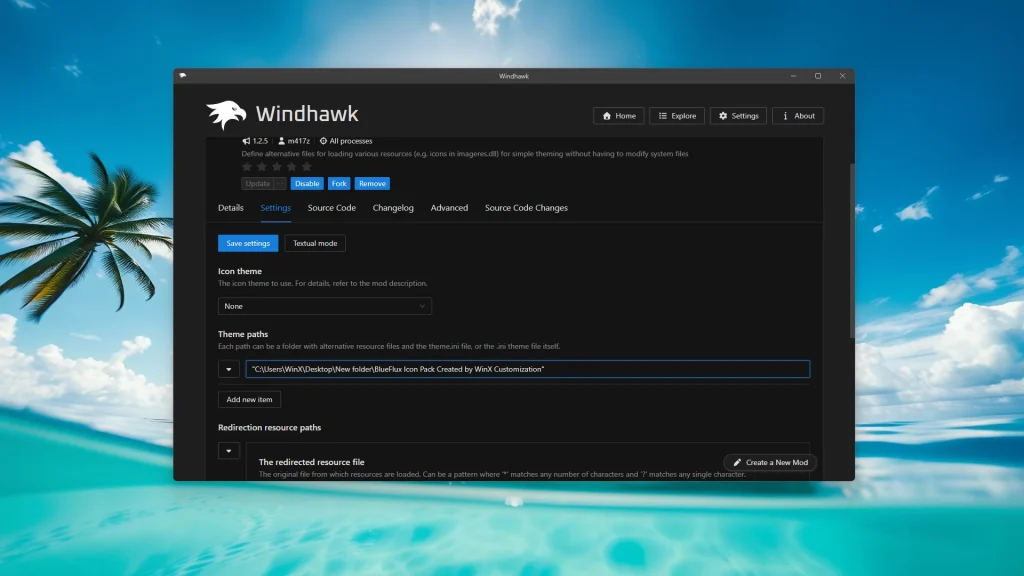
Then paste it into the theme path.

Screenshot 2026 04 21 073208 1
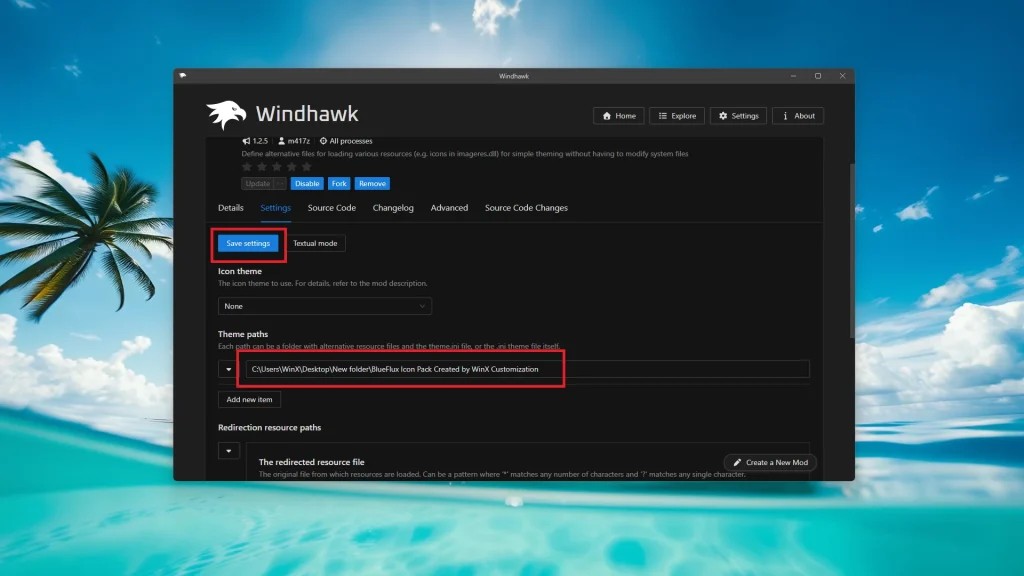
And then remove the quotation marks & Click on Save
Screenshot 2026 04 21 073218

Refresh the System Icons

Windows often caches icons, so they might not change immediately even after clicking Save Settings in Windhawk.

  • Restart Explorer: You can do this via Task Manager or by clicking the “Refresh” prompts within Windhawk if they appear.

Leave a Reply

Your email address will not be published. Required fields are marked *

Downloading issue

Ad-Blocker Detected!

Oops! unable to access the file download link. It seems that your ad blocker is removing the download link. Please try again or consider whitelisting our site in your ad blocker to resolve this issue.

We have detected that an ad blocker is active in your browser. This can lead to conflicts with our site, blocking many important scripts, and affecting downloads.

The revenue we generate from ads is vital for maintaining and managing this website. Therefore, we kindly request that you whitelist our website in your ad-blocker. Please rest assured that we won't inundate you with an excessive number of ads, nor will we inconvenience you or slow down your browsing experience. Your support is immensely appreciated!

How to Fix