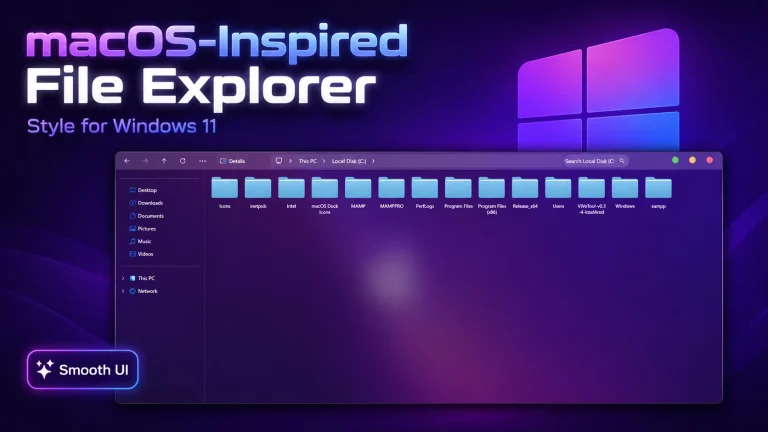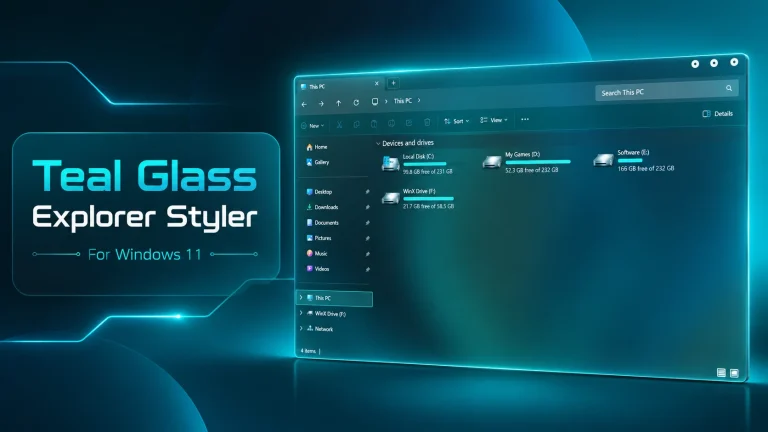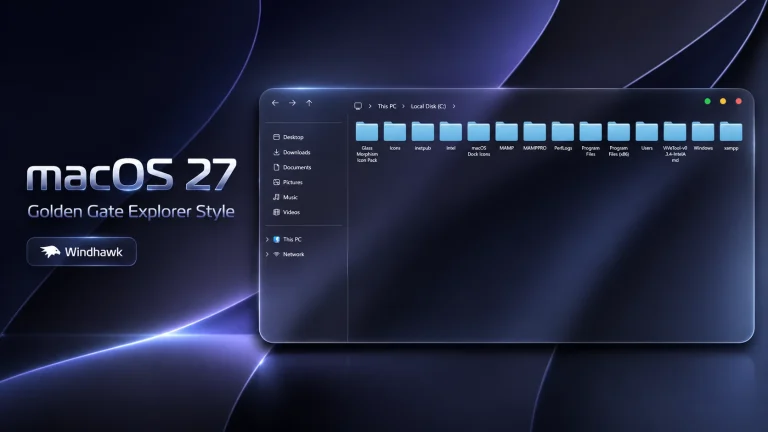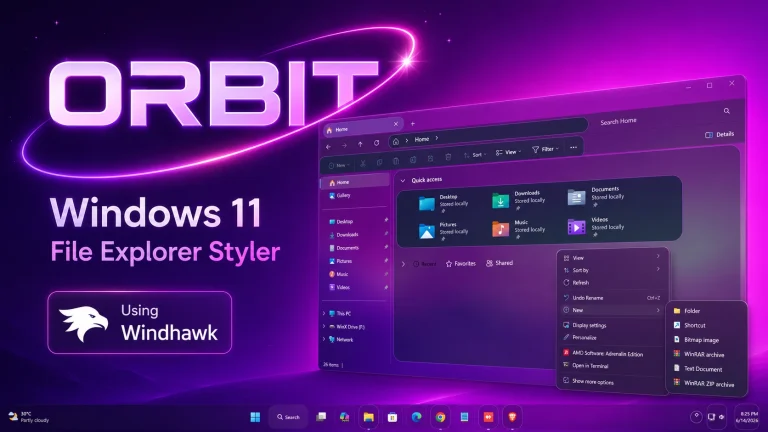
Best Liquid Glass Explorer Style For Windows 11
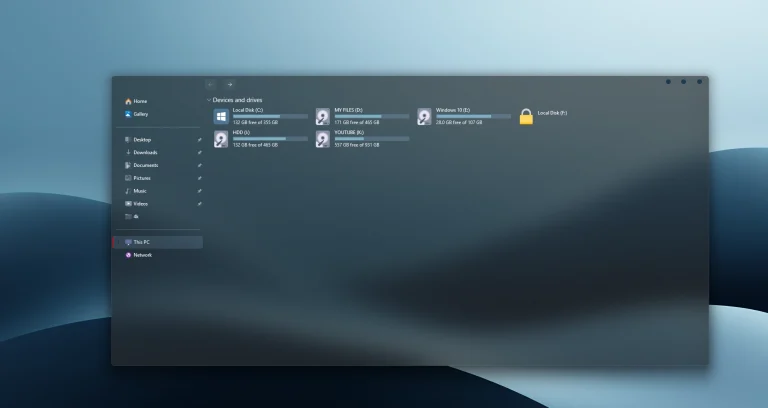
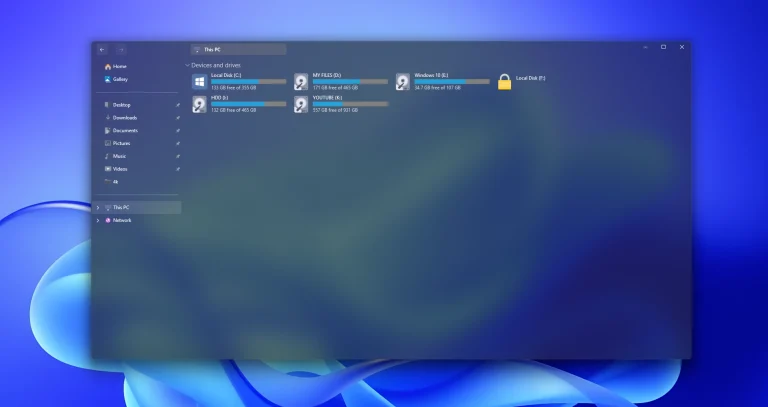
Elevate your desktop aesthetics with the stunning Liquid Glass Explorer style for Windows 11 using Windhawk. In this comprehensive 2026 guide, we walk you through the step-by-step process of achieving deep, high-blur translucency and glossy glassmorphism without compromising system stability. Discover how to use Windhawk mods to transform your File Explorer into a modern masterpiece.

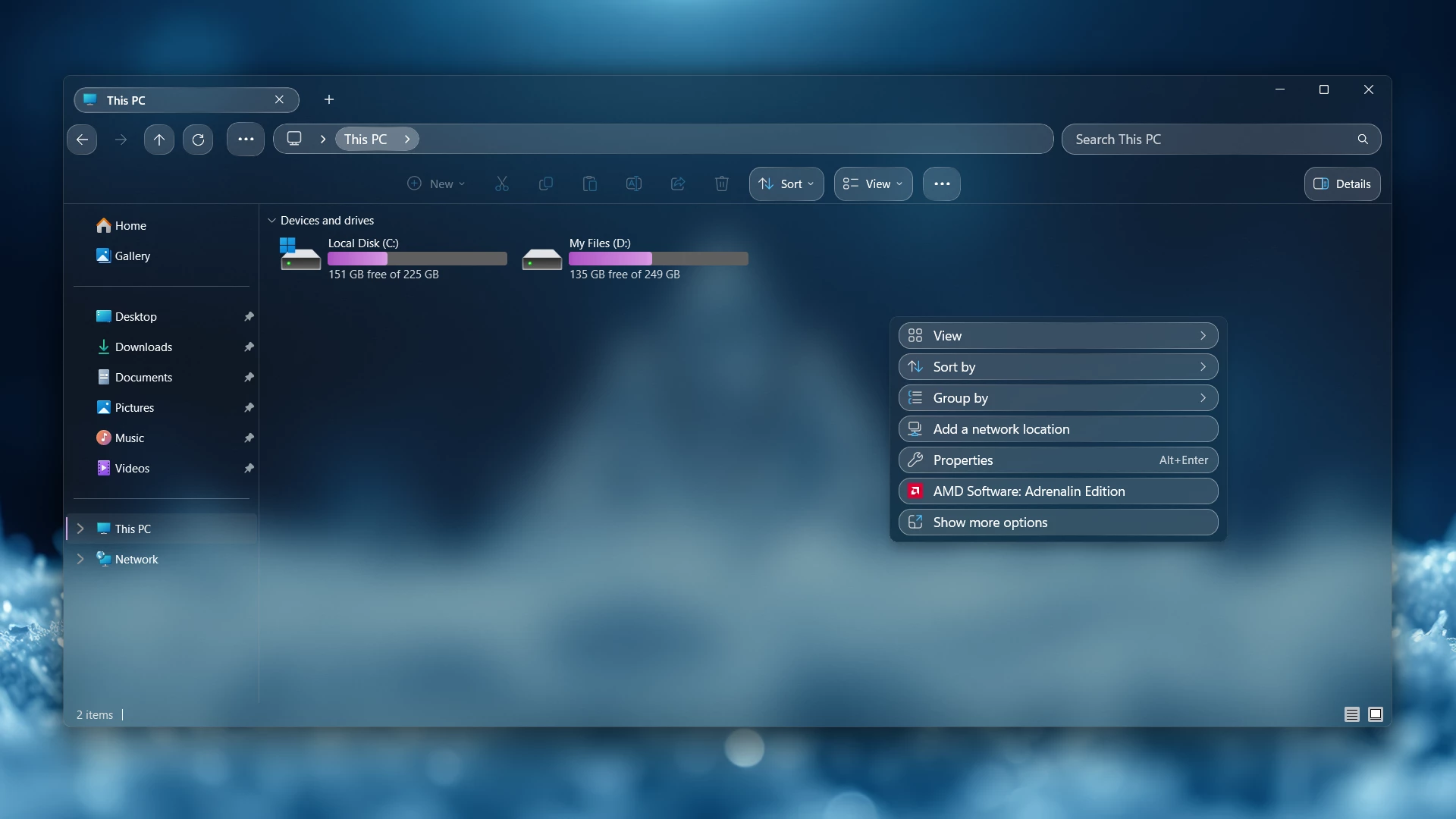
Liquid Glass Explorer Style For Windows 11 Using Windhawk Full Guide.
Ever since the “Liquid Glass” design trend took over the UI world in early 2026, Windows enthusiasts have been looking for ways to replicate that high-end, translucent aesthetic. While Microsoft’s Fluent Design is a great start, it doesn’t quite capture that deep, glossy finish.In this guide, you will learn exactly how to achieve the Liquid Glass Explorer Style For Windows 11 using Windhawk, the most powerful customization engine available today.
What is Liquid Glass Explorer Style?
The Liquid Glass style is a modern evolution of the classic Aero Glass from Windows 7, combined with Apple’s recent UI glassmorphism. It features:
- Windows 11 21H2: May work, but not recommended for the best experience
- Windows 11 22H2: May work, but compatibility can vary
- Windows 11 23H2: Recommended
- Windows 11 24H2: Recommended
- Windows 11 25H2: YES work, but test carefully after Windows updates
Requirements
- Download & Install windhawk.
- install & Open Windows 11 File Explorer Styler
- Go to the “Advanced” tab.
- Copy the content below to the text box under “Mod settings” and click “Save”.
{ "explorerFrameContainerHeight": 0, "controlStyles[0].target": "CommandBar#FileExplorerCommandBar ", "controlStyles[0].styles[0]": "Background=Transparent", "controlStyles[0].styles[1]": "HorizontalAlignment = 1", "controlStyles[1].target": "CommandBar#FileExplorerSecondaryCommandBar", "controlStyles[1].styles[0]": "Background=Transparent", "controlStyles[1].styles[1]": "MinHeight=60", "controlStyles[2].target": "Grid#TabContainerGrid > Border#LeftBottomBorderLine", "controlStyles[2].styles[0]": "Visibility=Collapsed", "controlStyles[3].target": "Grid#TabContainerGrid > Border#RightBottomBorderLine", "controlStyles[3].styles[0]": "Visibility=Collapsed", "controlStyles[4].target": "TabViewItem", "controlStyles[4].styles[0]": "Margin=0,0,8,0", "controlStyles[5].target": "TabViewItem > Grid#LayoutRoot", "controlStyles[5].styles[0]": "CornerRadius=12", "controlStyles[5].styles[1]": "Margin=2,4,0,4", "controlStyles[5].styles[2]": "Height=27", "controlStyles[5].styles[3]": "BorderThickness=1", "controlStyles[5].styles[4]": "BorderBrush:=<LinearGradientBrush StartPoint=\"0,0\" EndPoint=\"1,1\"><GradientStop Color=\"#80ffffff\" Offset=\"0.0\" /><GradientStop Color=\"{ThemeResource SurfaceStrokeColorDefault}\" Offset=\"0.55\" /><GradientStop Color=\"#80ffffff\" Offset=\"1\" /></LinearGradientBrush>", "controlStyles[6].target": "TabViewItem > Grid#LayoutRoot > Canvas", "controlStyles[6].styles[0]": "Visibility=Collapsed", "controlStyles[7].target": "TabViewItem > Grid#LayoutRoot > Grid#TabContainer", "controlStyles[7].styles[0]": "Background = Transparent ", "controlStyles[7].styles[1]": "BorderThickness = 0", "controlStyles[8].target": "TabViewItem > Grid#LayoutRoot@CommonStates", "controlStyles[8].styles[0]": "Background@Selected:=<WindhawkBlur BlurAmount=\"15\" TintColor=\"#25ffffff\" />", "controlStyles[8].styles[1]": "Background@PointerOverSelected:=<WindhawkBlur BlurAmount=\"15\" TintColor=\"#35ffffff\" />", "controlStyles[8].styles[2]": "Background@Normal:=<WindhawkBlur BlurAmount=\"15\" TintColor=\"#15ffffff\" />", "controlStyles[9].target": "Grid#TabContainerGrid > Border > Button#AddButton", "controlStyles[9].styles[0]": "Visibility = 0", "controlStyles[9].styles[1]": "Margin = 0,0,0,3", "controlStyles[10].target": "Grid#CommandBarControlRootGrid", "controlStyles[10].styles[0]": "Background=Transparent ", "controlStyles[11].target": "Grid#NavigationBarControlGrid", "controlStyles[11].styles[0]": "Background=Transparent ", "controlStyles[12].target": "Grid#PART_LayoutRoot", "controlStyles[12].styles[0]": "Background :=<WindhawkBlur BlurAmount=\"15\" TintColor=\"#25ffffff\" />", "controlStyles[12].styles[1]": "CornerRadius = 14", "controlStyles[12].styles[2]": "BorderThickness = 1", "controlStyles[12].styles[3]": "BorderBrush:=<LinearGradientBrush StartPoint=\"0,0\" EndPoint=\"1,1\"><GradientStop Color=\"#80ffffff\" Offset=\"0.0\" /><GradientStop Color=\"{ThemeResource SurfaceStrokeColorDefault}\" Offset=\"0.55\" /><GradientStop Color=\"#80ffffff\" Offset=\"1\" /></LinearGradientBrush>", "controlStyles[13].target": "FileExplorerExtensions.CommandBarControl", "controlStyles[13].styles[0]": "Margin = 0,0,0,0", "controlStyles[14].target": "AutoSuggestBox#FileExplorerSearchBox > Grid#LayoutRoot > TextBox > Grid@CommonStates > Border#BorderElement", "controlStyles[14].styles[0]": "Background :=<WindhawkBlur BlurAmount=\"15\" TintColor=\"#25ffffff\" />", "controlStyles[14].styles[1]": "CornerRadius = 14", "controlStyles[14].styles[2]": "BorderThickness = 1", "controlStyles[14].styles[3]": "BorderBrush:=<LinearGradientBrush StartPoint=\"0,0\" EndPoint=\"1,1\"><GradientStop Color=\"#80ffffff\" Offset=\"0.0\" /><GradientStop Color=\"{ThemeResource SurfaceStrokeColorDefault}\" Offset=\"0.55\" /><GradientStop Color=\"#80ffffff\" Offset=\"1\" /></LinearGradientBrush>", "controlStyles[15].target": "Microsoft.UI.Xaml.Controls.AppBarButton", "controlStyles[15].styles[0]": "Background :=<WindhawkBlur BlurAmount=\"15\" TintColor=\"#25ffffff\" />", "controlStyles[15].styles[1]": "CornerRadius = 12", "controlStyles[15].styles[2]": "BorderThickness = 1", "controlStyles[15].styles[3]": "Margin = 3,0,3,1", "controlStyles[15].styles[4]": "BorderBrush:=<LinearGradientBrush StartPoint=\"0,0\" EndPoint=\"1,1\"><GradientStop Color=\"#80ffffff\" Offset=\"0.0\" /><GradientStop Color=\"{ThemeResource SurfaceStrokeColorDefault}\" Offset=\"0.55\" /><GradientStop Color=\"#80ffffff\" Offset=\"1\" /></LinearGradientBrush>", "controlStyles[16].target": "Microsoft.UI.Xaml.Controls.AppBarToggleButton", "controlStyles[16].styles[0]": "Background :=<WindhawkBlur BlurAmount=\"15\" TintColor=\"#25ffffff\" />", "controlStyles[16].styles[1]": "CornerRadius = 12", "controlStyles[16].styles[2]": "BorderThickness = 1", "controlStyles[16].styles[3]": "Margin = 3,0,3,1", "controlStyles[16].styles[4]": "BorderBrush:=<LinearGradientBrush StartPoint=\"0,0\" EndPoint=\"1,1\"><GradientStop Color=\"#80ffffff\" Offset=\"0.0\" /><GradientStop Color=\"{ThemeResource SurfaceStrokeColorDefault}\" Offset=\"0.55\" /><GradientStop Color=\"#80ffffff\" Offset=\"1\" /></LinearGradientBrush>", "controlStyles[17].target": "Button#MoreButton", "controlStyles[17].styles[0]": "Background :=<WindhawkBlur BlurAmount=\"15\" TintColor=\"#25ffffff\" />", "controlStyles[17].styles[1]": "CornerRadius = 12", "controlStyles[17].styles[2]": "BorderThickness = 1", "controlStyles[17].styles[3]": "Margin = 3,0,3,1", "controlStyles[17].styles[4]": "BorderBrush:=<LinearGradientBrush StartPoint=\"0,0\" EndPoint=\"1,1\"><GradientStop Color=\"#80ffffff\" Offset=\"0.0\" /><GradientStop Color=\"{ThemeResource SurfaceStrokeColorDefault}\" Offset=\"0.55\" /><GradientStop Color=\"#80ffffff\" Offset=\"1\" /></LinearGradientBrush>", "controlStyles[18].target": "Microsoft.UI.Xaml.Controls.AppBarSeparator", "controlStyles[18].styles[0]": "Visibility = Collapsed", "controlStyles[19].target": "Microsoft.UI.Xaml.Controls.AppBarButton#backButton", "controlStyles[19].styles[0]": "Margin = 0,9,9,0", "controlStyles[20].target": "Microsoft.UI.Xaml.Controls.AppBarButton#forwardButton", "controlStyles[20].styles[0]": "Margin = 0,9,9,0", "controlStyles[21].target": "Microsoft.UI.Xaml.Controls.AppBarButton#upButton", "controlStyles[21].styles[0]": "Margin = 0,9,9,0", "controlStyles[22].target": "Microsoft.UI.Xaml.Controls.AppBarButton#refreshButton", "controlStyles[22].styles[0]": "Margin = 0,9,9,0", "theme": "Translucent Explorer11"}Enable the Liquid Glass Theme via “Translucent Windows”
To make the entire UI feel cohesive, you need to apply the glass effect to the window frames themselves.
- Is Windhawk safe for Windows 11?
- Does this work on Windows 10? Ans: Not Yet
- Will this slow down my PC?
Yes, Windhawk is an open-source project that uses a modular approach, meaning it doesn’t modify system files permanently. You can disable the Liquid Glass Explorer style instantly by clicking “Uninstall” in the app.
On modern hardware (2024+), the impact is negligible (usually less than 1% GPU usage).
Conclusion
Transforming your desktop into a Liquid Glass Explorer Style For Windows 11 using Windhawk is the ultimate way to modernize your workspace. By combining the File Explorer Styler with Translucent Windows mods, you create a premium, high-tech look that goes far beyond stock settings.Are you ready to upgrade your UI? Download Windhawk today and start customizing!
- Wasi X Gamer