Teal Glass Explorer Style
Download Teal Glass Explorer Style for Windows 11 and give File Explorer a modern teal, transparent glass look using compatible Windhawk Explorer mods.

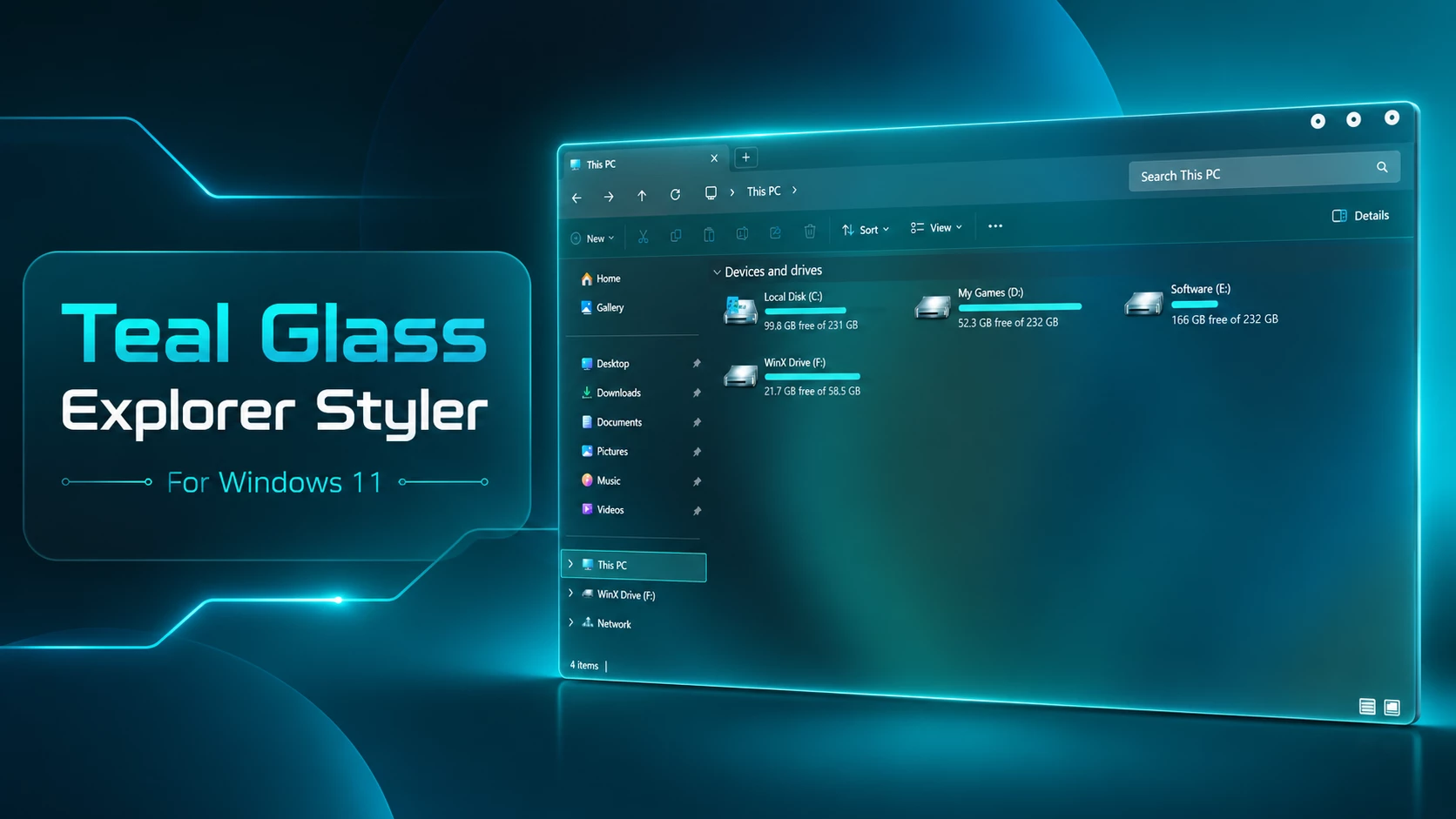
Teal Glass Explorer Style – A Modern Windhawk File Explorer Mod
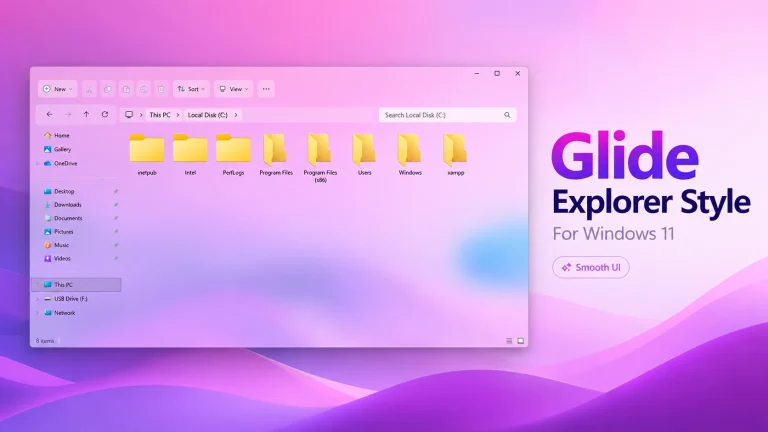
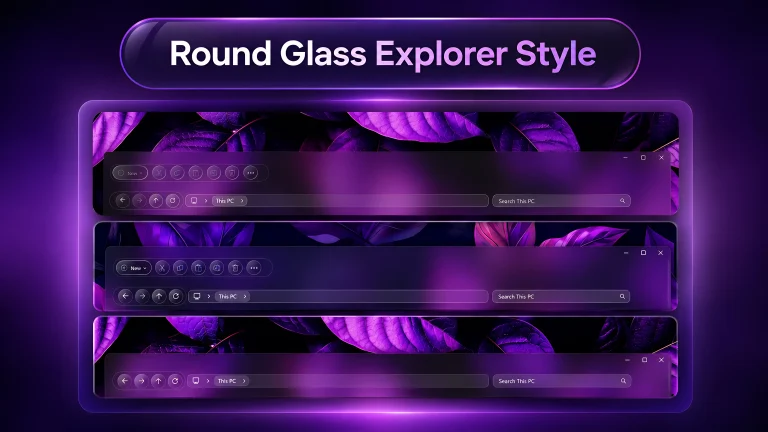
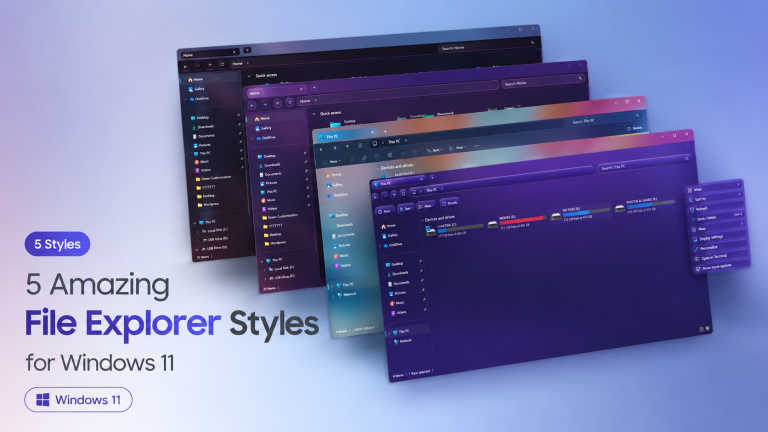
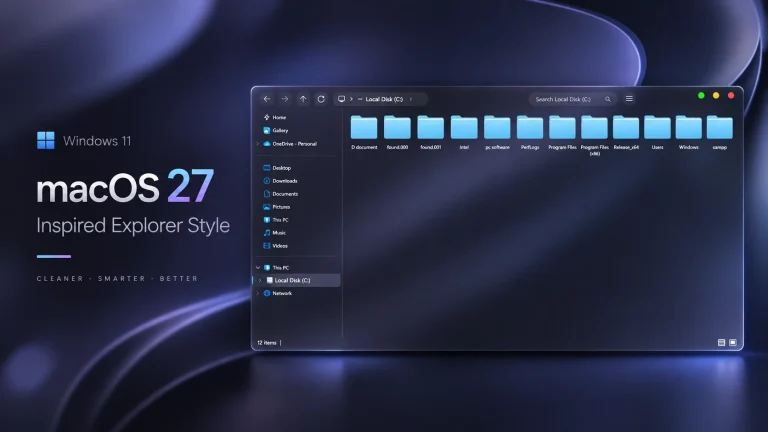
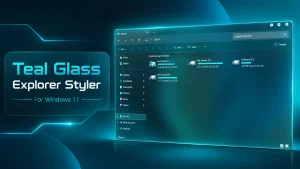
The Teal Glass Explorer Style gives Windows 11 File Explorer a cleaner and more modern appearance. It combines teal accents, transparent surfaces, rounded elements, and a glass-inspired interface to create a stylish file-browsing experience without changing the basic functions of File Explorer.
This customization is designed for use with a compatible Windhawk Explorer Styler mod. It is not a standalone application or a complete Windows theme. Instead, it changes selected visual elements inside File Explorer through Windhawk while keeping familiar features such as folders, navigation buttons, tabs, the address bar, and file controls available.
About the Teal Glass Explorer Style
The Teal Glass Explorer Style is created for users who want File Explorer to match a modern Windows 11 desktop setup. Its teal color palette and semi-transparent appearance work especially well with ocean wallpapers, dark backgrounds, minimal themes, and other glass-inspired desktop customizations.
The style focuses on visual improvements rather than changing how files and folders work. You can continue using File Explorer normally while enjoying a more personalized interface.
Main Features of This Explorer Style
- Modern teal and glass-inspired File Explorer appearance
- Transparent or semi-transparent interface elements
- Clean borders and rounded visual details
- Designed for compatible Windhawk Explorer styling mods
- Works well with dark and teal desktop themes
- Keeps standard File Explorer functions accessible
- Can be disabled or removed through Windhawk
- No permanent replacement of Windows system files is intended
Compatibility
- Windows 11 21H2: May work, but not recommended for the best experience
- Windows 11 22H2: May work, but compatibility can vary
- Windows 11 23H2: Recommended
- Windows 11 24H2: Recommended
- Windows 11 25H2: YES work, but test carefully after Windows updates
Installation steps:
- Create a system restore point before applying the style.
- Download and install Windhawk.
- Install and open the Windows 11 File Explorer Styler mod.
- Go to the Settings tab and select Textual mode.
- Copy and save the existing settings as a backup.
- Copy the complete YAML configuration for the style. Keep its indentation unchanged and leave out any surrounding code-block markers.
- Replace all the content in the text box with the copied YAML code, then click Save settings.
- Make sure the mod is enabled, then close and reopen File Explorer.
- For more details, visit the File Explorer styling guide.
- Explore more designs in our Windhawk File Explorer Styles category.
# Teal File Explorer Style by WinX Customizationtheme: ''backgroundTranslucentEffect: acrylicbackgroundTranslucentEffectRegion: ''styleConstants: - WinXCommandBar=<WindhawkBlur BlurAmount="24" TintColor="#116363" TintOpacity="0.72" /> - WinXGlass=<WindhawkBlur BlurAmount="24" TintColor="#FFFFFF" TintOpacity="0.14" /> - WinXGlassSoft=<WindhawkBlur BlurAmount="18" TintColor="#FFFFFF" TintOpacity="0.10" /> - WinXGlassHover=<WindhawkBlur BlurAmount="20" TintColor="#116363" TintOpacity="0.45" /> - WinXBodyGlass=<WindhawkBlur BlurAmount="28" TintColor="#FFFFFF" TintOpacity="0.05" /> - WinXBorder=<SolidColorBrush Color="#55FFFFFF" /> - WinXTopBorder=<SolidColorBrush Color="#5533CACA" /> - WinXAccent=<SolidColorBrush Color="#FF116363" /> - WinXText=<SolidColorBrush Color="#FFFFFFFF" /> - WinXTopText=<SolidColorBrush Color="#FFFFFFFF" />controlStyles: - target: Microsoft.UI.Xaml.Controls.Grid#CommandBarControlRootGrid styles: - RequestedTheme=2 - Background:=$WinXCommandBar - BorderThickness=0,0,0,1 - BorderBrush:=$WinXTopBorder - target: Microsoft.UI.Xaml.Controls.CommandBar#FileExplorerCommandBar styles: - RequestedTheme=2 - Background=Transparent - Foreground:=$WinXTopText - target: Microsoft.UI.Xaml.Controls.Grid#NavigationBarControlGrid styles: - RequestedTheme=2 - Background:=$WinXGlassSoft - BorderThickness=0,0,0,1 - BorderBrush:=$WinXBorder - target: Microsoft.UI.Xaml.Controls.Grid#HomeViewRootGrid styles: - RequestedTheme=2 - Background:=$WinXBodyGlass - target: Microsoft.UI.Xaml.Controls.Grid#DetailsViewControlRootGrid styles: - RequestedTheme=2 - Background:=$WinXBodyGlass - target: Microsoft.UI.Xaml.Controls.StackPanel#DetailsViewThumbnail > Microsoft.UI.Xaml.Controls.Grid styles: - RequestedTheme=2 - Background:=$WinXGlassSoft - target: FileExplorerExtensions.GalleryViewControl#GalleryViewControl > Microsoft.UI.Xaml.Controls.Grid styles: - RequestedTheme=2 - Background:=$WinXBodyGlass - target: Microsoft.UI.Xaml.Controls.Grid#GalleryRootGrid styles: - RequestedTheme=2 - Background:=$WinXBodyGlass - target: Microsoft.UI.Xaml.Controls.TabViewItem styles: - RequestedTheme=2 - Foreground:=$WinXText - target: Microsoft.UI.Xaml.Controls.Grid#TabContainer > Microsoft.UI.Xaml.Controls.ContentPresenter > Microsoft.UI.Xaml.Controls.StackPanel > Microsoft.UI.Xaml.Controls.TextBlock styles: - Foreground:=$WinXText - Opacity=1 - target: Microsoft.UI.Xaml.Controls.TabViewItem > Microsoft.UI.Xaml.Controls.Grid#LayoutRoot > Microsoft.UI.Xaml.Controls.Canvas > Microsoft.UI.Xaml.Shapes.Path#SelectedBackgroundPath styles: - Fill:=$WinXGlassSoft - target: Microsoft.UI.Xaml.Controls.Button#CloseButton styles: - RequestedTheme=2 - Foreground:=$WinXText - target: Microsoft.UI.Xaml.Controls.Button#AddButton styles: - RequestedTheme=2 - Background:=$WinXGlassSoft - Foreground:=$WinXText - BorderBrush:=$WinXBorder - BorderThickness=1 - target: Microsoft.UI.Xaml.Controls.AutoSuggestBox styles: - RequestedTheme=2 - Background:=$WinXGlassSoft - Foreground:=$WinXText - BorderBrush:=$WinXBorder - BorderThickness=1 - target: Microsoft.UI.Xaml.Controls.TextBox styles: - RequestedTheme=2 - Background:=$WinXGlassSoft - Foreground:=$WinXText - BorderBrush:=$WinXBorder - BorderThickness=1 - target: Microsoft.UI.Xaml.Controls.ToolTip styles: - RequestedTheme=2 - Background:=$WinXGlass - Foreground:=$WinXText - BorderBrush:=$WinXBorder - BorderThickness=1 - target: Microsoft.UI.Xaml.Controls.Grid#RootGrid styles: - Background=Transparent - target: Microsoft.UI.Xaml.Controls.Grid#PART_LayoutRoot styles: - Background=Transparent - target: Microsoft.UI.Xaml.Controls.Frame styles: - Background=Transparent - target: Microsoft.UI.Xaml.Controls.ContentPresenter styles: - Background=Transparent - target: Microsoft.UI.Xaml.Controls.TextBlock styles: - Foreground:=$WinXText - Opacity=1 - target: Microsoft.UI.Xaml.Controls.TextBlock#Text styles: - Foreground:=$WinXText - Opacity=1 - target: Microsoft.UI.Xaml.Controls.TextBlock#TextLabel styles: - Foreground:=$WinXText - Opacity=1 - target: Microsoft.UI.Xaml.Controls.TextBlock#DisplayName styles: - Foreground:=$WinXText - Opacity=1 - target: Microsoft.UI.Xaml.Controls.TextBlock#Name styles: - Foreground:=$WinXText - Opacity=1 - target: Microsoft.UI.Xaml.Controls.TextBlock#HeaderText styles: - Foreground:=$WinXText - Opacity=1 - target: Microsoft.UI.Xaml.Controls.TextBlock#SecondaryText styles: - Foreground:=$WinXText - Opacity=1 - target: Microsoft.UI.Xaml.Controls.TextBlock#SubtitleText styles: - Foreground:=$WinXText - Opacity=1 - target: Microsoft.UI.Xaml.Controls.TextBlock#PlaceholderText styles: - Foreground:=$WinXText - Opacity=1 - target: Microsoft.UI.Xaml.Controls.FontIcon styles: - Foreground:=$WinXText - Opacity=1 - target: Microsoft.UI.Xaml.Controls.SymbolIcon styles: - Foreground:=$WinXText - Opacity=1 - target: Microsoft.UI.Xaml.Controls.PathIcon styles: - Foreground:=$WinXText - Opacity=1 - target: Microsoft.UI.Xaml.Controls.NavigationViewItem styles: - RequestedTheme=2 - Foreground:=$WinXText - target: Microsoft.UI.Xaml.Controls.TreeViewItem styles: - RequestedTheme=2 - Foreground:=$WinXText - target: Microsoft.UI.Xaml.Controls.ListViewItem styles: - RequestedTheme=2 - Foreground:=$WinXText - target: Microsoft.UI.Xaml.Controls.GridViewItem styles: - RequestedTheme=2 - Foreground:=$WinXText - target: Microsoft.UI.Xaml.Controls.Button styles: - RequestedTheme=2 - Foreground:=$WinXText - target: Microsoft.UI.Xaml.Controls.ToggleButton styles: - RequestedTheme=2 - Foreground:=$WinXText - target: Microsoft.UI.Xaml.Controls.RadioButton styles: - RequestedTheme=2 - Foreground:=$WinXText - target: Microsoft.UI.Xaml.Controls.Grid#CommandBarControlRootGrid Microsoft.UI.Xaml.Controls.TextBlock styles: - Foreground:=$WinXTopText - Opacity=1 - target: Microsoft.UI.Xaml.Controls.Grid#CommandBarControlRootGrid Microsoft.UI.Xaml.Controls.FontIcon styles: - Foreground:=$WinXTopText - Opacity=1 - target: Microsoft.UI.Xaml.Controls.Grid#CommandBarControlRootGrid Microsoft.UI.Xaml.Controls.SymbolIcon styles: - Foreground:=$WinXTopText - Opacity=1 - target: Microsoft.UI.Xaml.Controls.Grid#CommandBarControlRootGrid Microsoft.UI.Xaml.Controls.PathIcon styles: - Foreground:=$WinXTopText - Opacity=1 - target: Microsoft.UI.Xaml.Controls.Grid#CommandBarControlRootGrid Microsoft.UI.Xaml.Controls.Button styles: - RequestedTheme=2 - Foreground:=$WinXTopText - Background=Transparent - target: Microsoft.UI.Xaml.Controls.Grid#CommandBarControlRootGrid Microsoft.UI.Xaml.Controls.AppBarButton styles: - RequestedTheme=2 - Foreground:=$WinXTopText - Background=Transparent - target: Microsoft.UI.Xaml.Controls.Grid#CommandBarControlRootGrid Microsoft.UI.Xaml.Controls.ToggleButton styles: - RequestedTheme=2 - Foreground:=$WinXTopText - Background=TransparentthemeResourceVariables: - ''explorerFrameContainerHeight: 0xamlDiagnosticsHandling: alertTheme & Icon Pack
Final Thoughts
The Teal Glass Explorer Style is a modern Windhawk customization that can refresh the appearance of Windows 11 File Explorer. Its transparent effects, teal tones, and clean interface details help create a polished desktop experience without replacing the standard file-management system.
Before applying the style, confirm that the required Windhawk mod supports your Windows version. Back up your current configuration, use trusted download sources, and review compatibility after major Windows updates.