Teal Glass Start Menu Style
Download Teal Glass Start Menu Style for Windows 11 and give your Start menu a modern teal, transparent glass look using a compatible Windhawk mod.

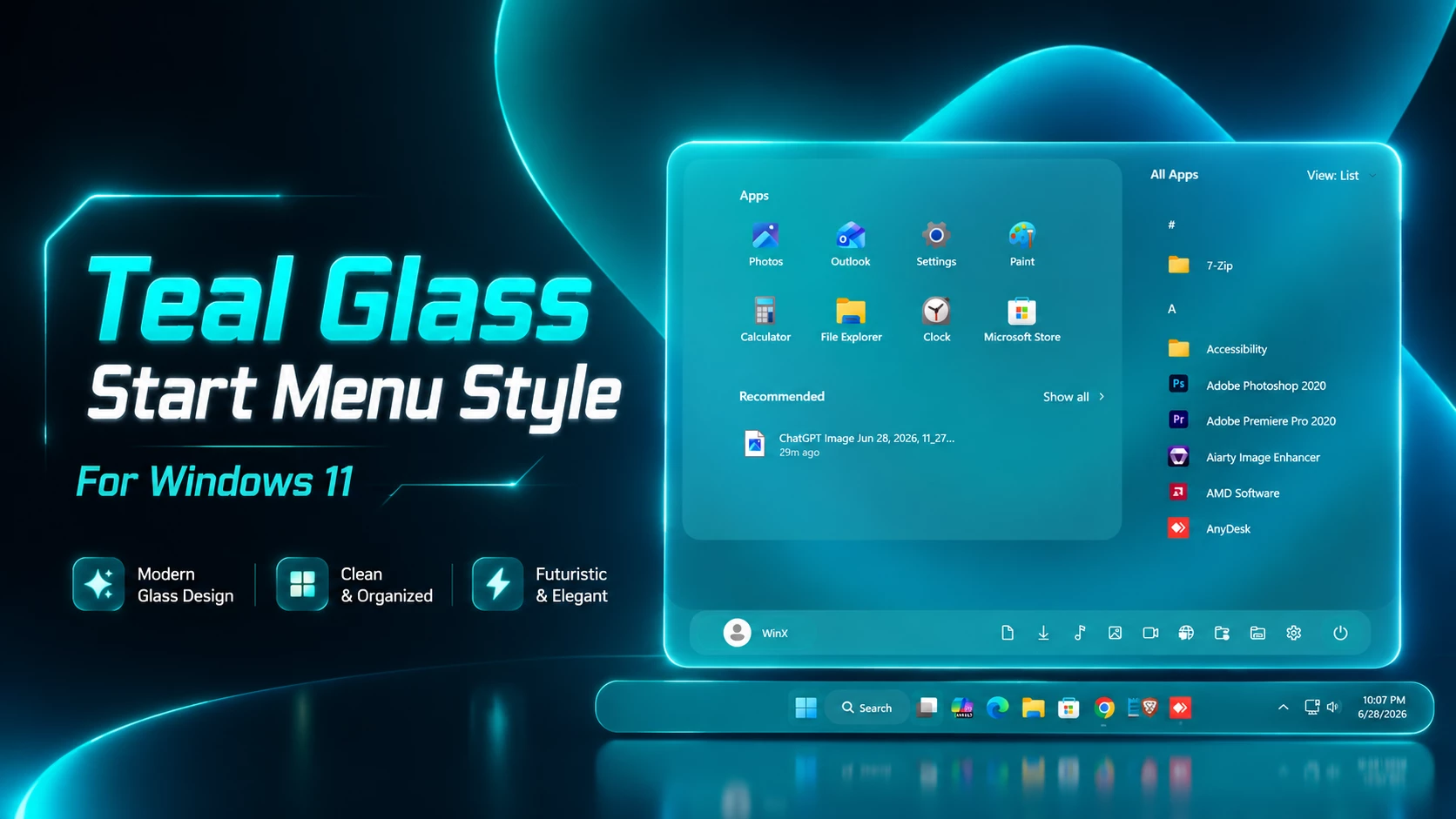
Teal Glass Start Menu Style – A Modern Windows 11 Customization
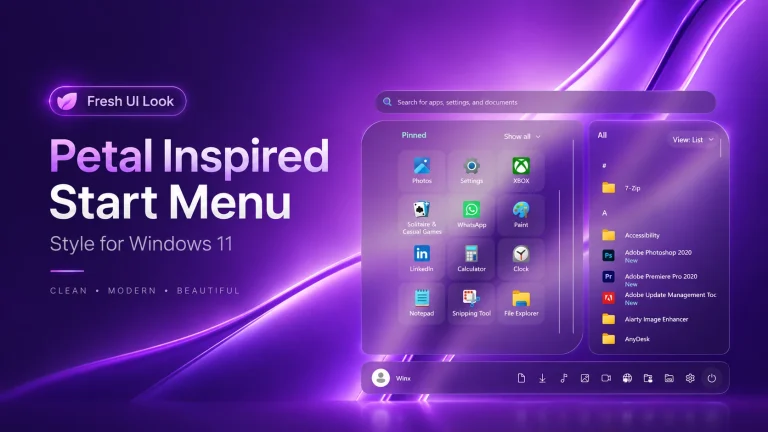
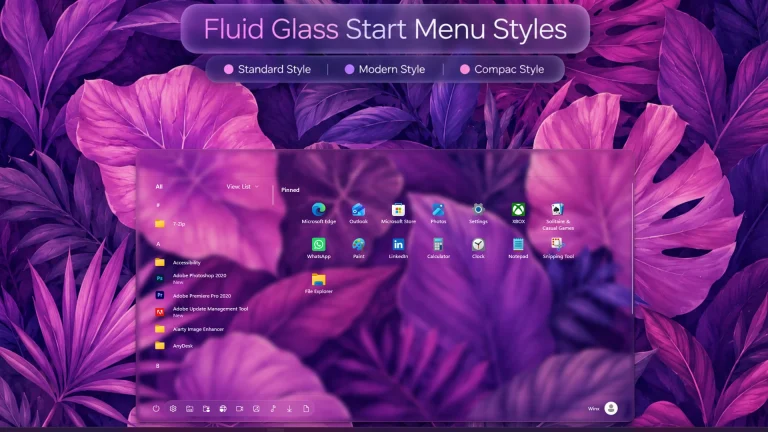
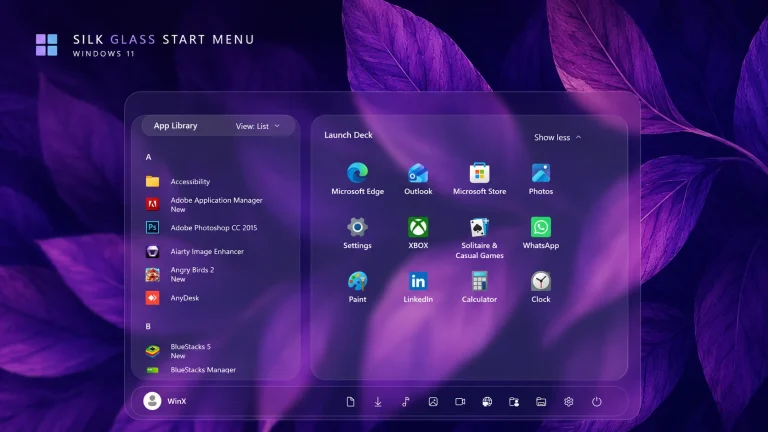
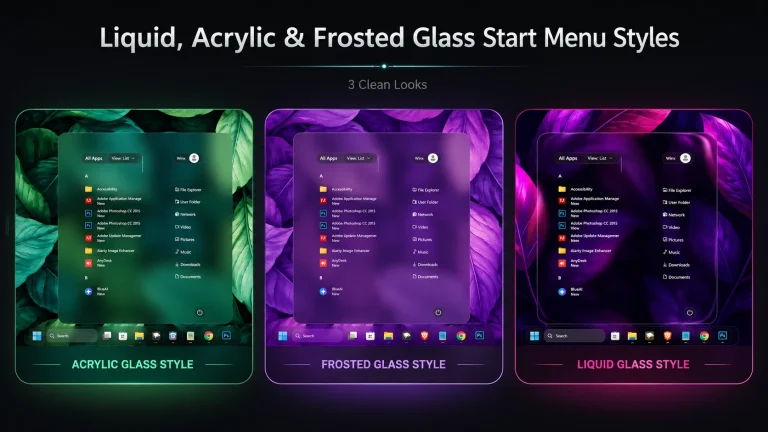
The Teal Glass Start Menu Style gives the Windows 11 Start menu a clean, modern, and visually refreshing appearance. With soft teal accents, transparent surfaces, rounded elements, and a glass-inspired design, this style can help your desktop look more polished while keeping the familiar Start menu layout easy to use.
This customization is intended for users who enjoy personalizing Windows 11 and want their Start menu to match a teal, ocean-inspired, dark, or minimal desktop setup. It focuses on improving the visual appearance of the interface without changing the normal purpose of the Start menu.
About the Teal Glass Start Menu Style
The Teal Glass Start Menu Style is a custom Windows 11 interface design that creates a transparent or semi-transparent effect around supported Start menu elements. Depending on the configuration and customization tool being used, it may change the background, search area, pinned application section, recommended section, buttons, borders, spacing, and other visual details.
The result is a more distinctive Start menu that fits naturally with modern Windows 11 themes. Teal colors can create a calm and balanced appearance, while the glass effect allows parts of the wallpaper or desktop colors to remain visible behind the interface.
Main Features of This Start Menu Style
- Modern teal and glass-inspired appearance
- Transparent or semi-transparent interface elements
- Clean borders and rounded visual details
- Designed to complement Windows 11
- Suitable for dark, ocean, teal, and minimal wallpapers
- Keeps commonly used Start menu controls accessible
- Can be disabled by turning off the related customization mod
- Does not require permanent replacement of Windows system files when used correctly
Download Windhawk To Use The Style
Features
- Modern Windows 11 inspired design
- Clean and minimal Start Menu layout
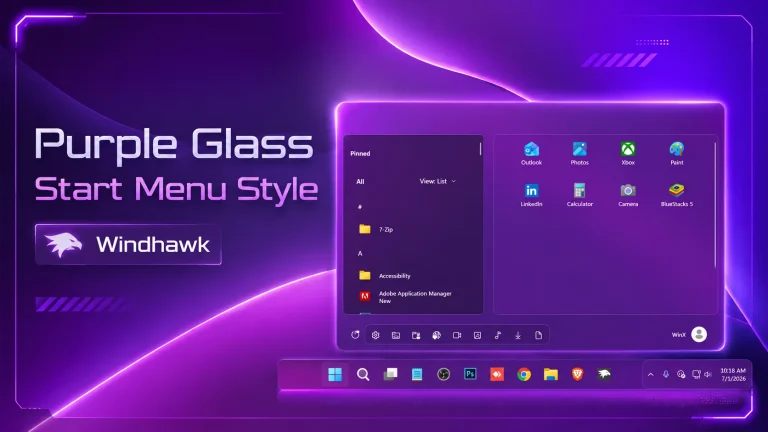
- Beautiful purple, blue, and glass effect
- Perfect for aesthetic desktop setups
- Works great with Windhawk customization
- Lightweight visual style for daily use
Compatibility
- 21H2 Yes
- 22H2 Yes
- 23H2 Yes
- 24H2 Yes
- Windows 11 25H2: YES work, but test carefully after Windows updates
How to Install
- Download and install Windhawk
- Open Windhawk and install the Windows 11 Start Menu Styler mod
- Go to the Advanced tab
- Paste the provided configuration code into the “Mod settings” box
- Click Save to apply the style
- For more details, visit this GitHub guide
theme: ''disableNewStartMenuLayout: newLayoutSideBySidestyleConstants: - MainGlass=<AcrylicBrush TintColor="#1AABAB" FallbackColor="#991AABAB" TintOpacity="0.55" TintLuminosityOpacity="0.55" Opacity="1"/> - InnerGlass=<AcrylicBrush TintColor="#1AABAB" FallbackColor="#661AABAB" TintOpacity="0.35" TintLuminosityOpacity="0.62" Opacity="1"/> - DockGlass=<AcrylicBrush TintColor="#1AABAB" FallbackColor="#771AABAB" TintOpacity="0.42" TintLuminosityOpacity="0.66" Opacity="1"/> - HoverGlass=<SolidColorBrush Color="#331AABAB" /> - PressGlass=<SolidColorBrush Color="#551AABAB" /> - BorderSoft=<SolidColorBrush Color="#881AABAB" /> - TextMain=<SolidColorBrush Color="#FFFFFFFF" /> - TextSub=<SolidColorBrush Color="#DDFFFFFF" /> - BigRadius=28 - PanelRadius=20 - ItemRadius=13 - DockRadius=18controlStyles: - target: StartDocked.StartSizingFrame styles: - Width=820 - MinWidth=820 - MaxWidth=820 - MinHeight=610 - MaxHeight=610 - target: StartDocked.LauncherFrame > Grid#RootGrid styles: - MinWidth=820 - MaxWidth=820 - target: StartDocked.LauncherFrame > Grid#RootPanel > Grid#RootGrid styles: - MinWidth=820 - MaxWidth=820 - target: Grid#MainMenu styles: - Width=820 - MinWidth=820 - MaxWidth=820 - target: Grid#FrameRoot styles: - Height=610 - RequestedTheme=1 - target: Frame#StartFrame styles: - Margin=0,-64,0,0 - target: Border#AcrylicBorder styles: - Background:=$MainGlass - BorderBrush:=$BorderSoft - BorderThickness=1.2 - CornerRadius=$BigRadius - target: Border#AcrylicOverlay styles: - Background:=<SolidColorBrush Color="#141AABAB"/> - CornerRadius=$BigRadius - Margin=0,-64,0,0 - target: Border#StartDropShadow styles: - CornerRadius=30 - Margin=-2 - target: Border#DropShadow styles: - CornerRadius=30 - Margin=-2 - target: StartMenu.SearchBoxToggleButton styles: - Height=0 - Width=0 - Margin=0 - Visibility=Collapsed - target: StartDocked.SearchBoxToggleButton styles: - Height=0 - Width=0 - Margin=0 - Visibility=Collapsed - target: Grid#SideBySidePinnedWrapper styles: - ColumnDefinitions:=<ColumnDefinitionCollection><ColumnDefinition Width="520*"/><ColumnDefinition Width="300*"/></ColumnDefinitionCollection> - Margin=0 - Background:=<SolidColorBrush Color="#001AABAB"/> - target: ScrollViewer#SideBySidePinnedScrollViewer styles: - Grid.Column=0 - Margin=18,18,8,78 - target: ScrollViewer#SideBySidePinnedScrollViewer > Border#Root styles: - Background:=$InnerGlass - CornerRadius=$PanelRadius - BorderBrush:=$BorderSoft - BorderThickness=1 - target: StartMenu.PinnedList#StartMenuPinnedList styles: - Margin=12,0,12,0 - Padding=0 - target: GridView#PinnedList styles: - Margin=0,0,0,0 - target: Grid#TopLevelHeader > Grid styles: - Margin=8,2,8,6 - target: TextBlock#PinnedListHeaderText styles: - Text=Apps - Foreground:=<SolidColorBrush Color="#FFFFFFFF" /> - FontSize=14 - FontWeight=SemiBold - target: Button#ShowAllAppsButton styles: - Margin=0,0,6,0 - CornerRadius=10 - MinHeight=30 - Padding=10,0,10,0 - Foreground:=<SolidColorBrush Color="#FFFFFFFF" /> - target: Button#ShowMoreSuggestionsButton styles: - Margin=0,0,6,0 - CornerRadius=10 - MinHeight=30 - Padding=10,0,10,0 - Foreground:=<SolidColorBrush Color="#FFFFFFFF" /> - target: Grid#SideBySidePinnedWrapper > ScrollViewer > Border#Root > Grid > ScrollContentPresenter > ItemsPresenter > ItemsWrapGrid styles: - Margin=24,0,24,12 - target: Grid#RecommendedSection styles: - Margin=8,2,8,0 - MaxHeight=145 - target: TextBlock#RecommendedHeaderText styles: - Text=Recent - Foreground:=<SolidColorBrush Color="#FFFFFFFF" /> - FontSize=13 - FontWeight=SemiBold - target: StartDocked.RecommendedListView styles: - Margin=0,0,0,0 - MaxHeight=110 - target: GridView#AllAppsGrid > Border > Grid#SideBySidePinnedWrapper > ScrollViewer#ScrollViewer styles: - Grid.Column=1 - Width=292 - MinWidth=292 - MaxWidth=292 - Margin=8,18,18,78 - target: GridView#AllAppsGrid > Border > Grid#SideBySidePinnedWrapper > ScrollViewer#ScrollViewer > Border#Root styles: - '' - target: Grid#AllListHeading styles: - Margin=8,0,8,8 - Height=36 - target: Grid#AllListHeading > TextBlock#AllListHeadingText styles: - Text=All Apps - Foreground:=<SolidColorBrush Color="#FFFFFFFF" /> - FontSize=14 - FontWeight=SemiBold - Margin=8,6,12,7 - target: Grid#AllListHeading > Microsoft.UI.Xaml.Controls.DropDownButton#ViewSelectionButton styles: - Margin=0,0,4,0 - CornerRadius=10 - MinHeight=30 - Foreground:=<SolidColorBrush Color="#FFFFFFFF" /> - target: StartDocked.AllAppsGridListView styles: - Width=274 - MinWidth=274 - MaxWidth=274 - Margin=6,0,6,0 - target: StartDocked.AllAppsGridListViewItem styles: - Width=268 - MinWidth=268 - MaxWidth=268 - Height=38 - Margin=0,1,0,1 - target: StartDocked.AllAppsGridListView > Windows.UI.Xaml.Controls.ScrollViewer > Border > Grid > Windows.UI.Xaml.Controls.Primitives.ScrollBar styles: - Margin=-4,0,4,2 - target: Button#CloseAllAppsButton styles: - Visibility=Visible - Width=34 - Height=30 - CornerRadius=10 - Margin=0,0,4,0 - Foreground:=<SolidColorBrush Color="#FFFFFFFF" /> - target: Windows.UI.Xaml.Controls.Button#CloseAllAppsButton styles: - Visibility=Visible - Width=34 - Height=30 - CornerRadius=10 - Margin=0,0,4,0 - Foreground:=<SolidColorBrush Color="#FFFFFFFF" /> - target: Border#ContentBorder@CommonStates > Grid#DroppedFlickerWorkaroundWrapper > Border styles: - CornerRadius=$ItemRadius - Background@Normal:=<SolidColorBrush Color="#001AABAB"/> - Background@PointerOver:=$HoverGlass - Background@Pressed:=$PressGlass - BorderBrush@PointerOver:=$BorderSoft - BorderThickness=1 - Margin=2 - target: StartDocked.AppListViewItem > Grid@CommonStates > Border styles: - CornerRadius=$ItemRadius - Background@Normal:=<SolidColorBrush Color="#001AABAB"/> - Background@PointerOver:=$HoverGlass - Background@Pressed:=$PressGlass - BorderBrush@PointerOver:=$BorderSoft - BorderThickness=1 - Margin=2 - target: StartDocked.AllAppsGridListViewItem > Grid@CommonStates > Border styles: - CornerRadius=$ItemRadius - Background@Normal:=<SolidColorBrush Color="#001AABAB"/> - Background@PointerOver:=$HoverGlass - Background@Pressed:=$PressGlass - BorderBrush@PointerOver:=$BorderSoft - BorderThickness=1 - Margin=1 - target: TextBlock#DisplayName styles: - Foreground:=<SolidColorBrush Color="#FFFFFFFF" /> - FontSize=12 - FontWeight=SemiBold - target: TextBlock#AppDisplayName styles: - Foreground:=<SolidColorBrush Color="#FFFFFFFF" /> - FontSize=12.5 - FontWeight=Regular - target: TextBlock#Subtitle styles: - Foreground:=<SolidColorBrush Color="#DDFFFFFF" /> - FontSize=11 - target: TextBlock#HeaderText styles: - Foreground:=<SolidColorBrush Color="#FFFFFFFF" /> - FontWeight=SemiBold - target: FontIcon styles: - FontFamily=Segoe Fluent Icons - Foreground:=<SolidColorBrush Color="#FFFFFFFF" /> - target: SymbolIcon styles: - FontFamily=Segoe Fluent Icons - Foreground:=<SolidColorBrush Color="#FFFFFFFF" /> - target: TextBlock#Glyph styles: - FontFamily=Segoe Fluent Icons - Foreground:=<SolidColorBrush Color="#FFFFFFFF" /> - target: Grid#NavPanePlaceholder styles: - Margin=28,0,28,14 - Background:=$DockGlass - CornerRadius=$DockRadius - BorderBrush:=$BorderSoft - BorderThickness=1 - Height=50 - target: StartDocked.NavigationPaneView#UserControl > Grid#RootPanel styles: - Margin=0 - HorizontalAlignment=Stretch - target: StartDocked.UserTileView styles: - Margin=8,0,8,0 - Visibility=Visible - target: StartDocked.PowerOptionsView styles: - Margin=8,0,8,0 - Visibility=Visible - target: StartDocked.NavigationPaneButton styles: - Width=42 - Height=36 - MinWidth=42 - MinHeight=36 - Margin=3,0,3,0 - CornerRadius=14 - Foreground:=<SolidColorBrush Color="#FFFFFFFF" /> - target: StartDocked.UserTileView > StartDocked.NavigationPaneButton styles: - Width=132 - Height=36 - MinHeight=36 - Margin=0,0,6,0 - CornerRadius=14 - Foreground:=<SolidColorBrush Color="#FFFFFFFF" /> - target: StartDocked.PowerOptionsView > StartDocked.NavigationPaneButton styles: - Width=42 - Height=36 - MinWidth=42 - MinHeight=36 - Margin=3,0,3,0 - CornerRadius=14 - Foreground:=<SolidColorBrush Color="#FFFFFFFF" /> - target: StartDocked.NavigationPaneButton > Grid@CommonStates > Border styles: - CornerRadius=14 - Background@Normal:=<SolidColorBrush Color="#181AABAB"/> - Background@PointerOver:=$HoverGlass - Background@Pressed:=$PressGlass - BorderBrush:=$BorderSoft - BorderThickness=1 - target: StartDocked.UserTileView > StartDocked.NavigationPaneButton > Grid@CommonStates > Border styles: - CornerRadius=14 - Background@Normal:=<SolidColorBrush Color="#281AABAB"/> - Background@PointerOver:=$HoverGlass - Background@Pressed:=$PressGlass - BorderBrush:=$BorderSoft - BorderThickness=1 - target: StartDocked.PowerOptionsView > StartDocked.NavigationPaneButton > Grid@CommonStates > Border styles: - CornerRadius=14 - Background@Normal:=<SolidColorBrush Color="#281AABAB"/> - Background@PointerOver:=$HoverGlass - Background@Pressed:=$PressGlass - BorderBrush:=$BorderSoft - BorderThickness=1 - target: StartDocked.NavigationPaneButton#PowerButton > Grid@CommonStates > Border styles: - CornerRadius=14 - Background@Normal:=<SolidColorBrush Color="#281AABAB"/> - Background@PointerOver:=$HoverGlass - Background@Pressed:=$PressGlass - BorderBrush:=$BorderSoft - BorderThickness=1 - target: StartDocked.NavigationPaneButton#UserTileButton > Grid@CommonStates > Border styles: - CornerRadius=14 - Background@Normal:=<SolidColorBrush Color="#281AABAB"/> - Background@PointerOver:=$HoverGlass - Background@Pressed:=$PressGlass - BorderBrush:=$BorderSoft - BorderThickness=1 - target: StartMenu.FolderModal > Grid > Border styles: - Background:=$MainGlass - BorderBrush:=$BorderSoft - BorderThickness=1 - CornerRadius=$BigRadius - target: MenuFlyoutPresenter > Border styles: - Background:=$MainGlass - BorderBrush:=$BorderSoft - BorderThickness=1 - CornerRadius=16 - target: TextBlock styles: - Foreground:=<SolidColorBrush Color="#FFFFFFFF" /> - target: StartDocked.AllAppsGridListView TextBlock styles: - Foreground:=<SolidColorBrush Color="#FFFFFFFF" /> - target: GridView#AllAppsGrid TextBlock styles: - Foreground:=<SolidColorBrush Color="#FFFFFFFF" /> - target: GridView#PinnedList TextBlock styles: - Foreground:=<SolidColorBrush Color="#FFFFFFFF" /> - target: Grid#RecommendedSection TextBlock styles: - Foreground:=<SolidColorBrush Color="#FFFFFFFF" /> - target: Grid#NavPanePlaceholder TextBlock styles: - Foreground:=<SolidColorBrush Color="#FFFFFFFF" /> - target: Button styles: - Foreground:=<SolidColorBrush Color="#FFFFFFFF" /> - target: Microsoft.UI.Xaml.Controls.DropDownButton styles: - Foreground:=<SolidColorBrush Color="#FFFFFFFF" /> - target: StartDocked.NavigationPaneButton styles: - Foreground:=<SolidColorBrush Color="#FFFFFFFF" /> - target: FontIcon styles: - FontFamily=Segoe Fluent Icons - Foreground:=<SolidColorBrush Color="#FFFFFFFF" /> - target: SymbolIcon styles: - FontFamily=Segoe Fluent Icons - Foreground:=<SolidColorBrush Color="#FFFFFFFF" /> - target: TextBlock#Glyph styles: - FontFamily=Segoe Fluent Icons - Foreground:=<SolidColorBrush Color="#FFFFFFFF" /> - target: PathIcon styles: - Foreground:=<SolidColorBrush Color="#FFFFFFFF" /> - target: BitmapIcon styles: - Foreground:=<SolidColorBrush Color="#FFFFFFFF" />themeResourceVariables: - ''webContentStyles: - target: '' styles: - ''webContentCustomJs: ''Taskbar & Start menu
Disclaimer
The Teal Glass Start Menu Style is a third-party Windows customization concept designed to enhance the visual appearance of the Windows 11 Start Menu. It uses customization tools and user-created configurations to adjust the interface style and does not represent an official Microsoft theme or modification.
Before applying any customization, it is recommended to create a system restore point and keep a backup of important files. The appearance and compatibility may vary depending on your Windows version, updates, and other installed customization tools. Windows and related trademarks belong to their respective owners.
Final Thoughts
The Teal Glass Start Menu Style offers a simple way to refresh the Windows 11 Start menu with transparent effects, teal colors, and clean interface details. It can make the desktop feel more personal and modern while preserving the main functions users rely on every day.
Before applying the style, confirm that the required customization mod supports your current Windows version. Use trusted sources, back up your existing configuration, and review compatibility again after major Windows updates.