

Silk Glass Start Menu Style for Windows 11
Silk Glass Start Menu Style : Give Windows 11 a soft pink-and-purple glass Start Menu with Silk Glass, a Windhawk style featuring an app library and launch deck.

Silk Glass Start Menu Style for Windows 11
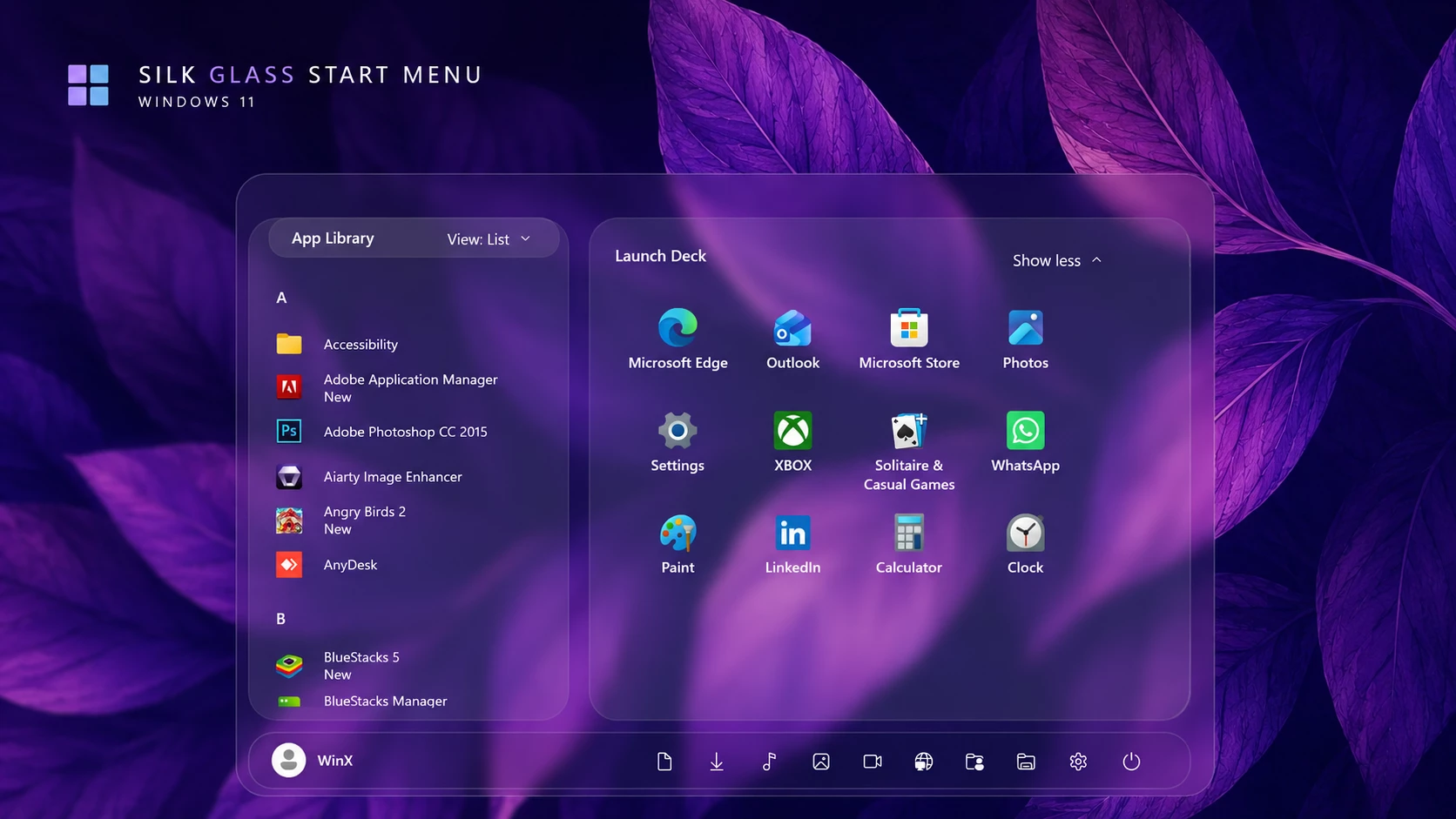
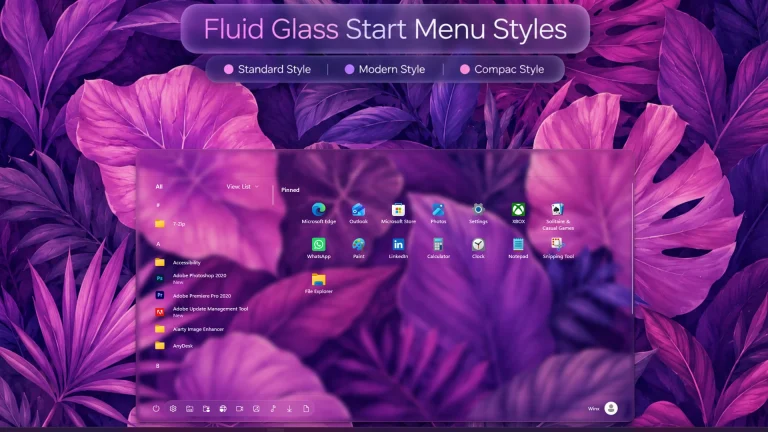
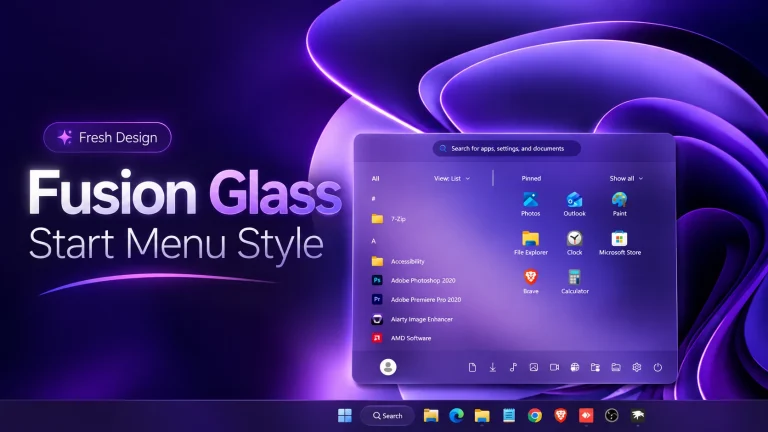
If you are a fan of frosted glass and vibrant desktop themes, the Silk Glass Start Menu is going to look absolutely incredible on your setup. Built specifically for Windhawk, this customization ditches the boring, solid panels of Windows 11 in favor of a beautiful, soft glassmorphism effect. As you can see in the preview (Slik-Glass-Start-Menu-For-Windows-11-300×169.webp), it allows rich wallpapers—like the deep purple leaves shown above—to naturally blur through the interface, creating a calm and immersive desktop environment.
A Completely Restructured Layout
Instead of just changing background colors, Silk Glass completely rethinks how you navigate your apps. It introduces a spacious, highly organized two-column design. On the left side, you get a clean, alphabetical “App Library” that makes scrolling through your installed programs effortless. On the right, the “Launch Deck” provides a roomy grid with smooth, rounded tiles for your most-used applications.
Down at the very bottom, there is a slim, compact quick-access dock. It neatly houses your user profile, folder shortcuts, settings, and power options without cluttering the main screen. The result is a UI that feels polished, structured, and perfect for a relaxed workflow.
- Silky Frosted Finish: A gorgeous translucent effect that lets your desktop wallpaper’s colors softly bleed through the panels.
- Dual-Column Navigation: Perfectly splits your workflow with a dedicated App Library on the left and a Launch Deck on the right.
- Alphabetical App Library: Makes finding installed software quick and easy with a nicely spaced, scrollable list.
- Rounded Launch Tiles: Drops the sharp edges for smooth, modern tiles where your favorite apps live.
- Sunset & Violet Mood: Looks breathtaking over warm rose, purple, magenta, or sunset landscape wallpapers.
- Compact Bottom Dock: Keeps all your essential system controls, power options, and profile settings in one organized, slim strip.
- Windhawk Optimized: Fully designed to work flawlessly with the Windows 11 Start Menu Styler mod.
What Else Can You Customize?
While this preset looks stunning right out of the box, it is also highly adaptable. You can easily pair it with your favorite 7TSP icon packs, custom cursors, and complementary taskbar modifications to build a completely unified Windows 11 theme. Depending on your personal Windhawk settings, you can effortlessly tweak the blur strength, adjust the panel borders, and fine-tune the transparency levels so it sits perfectly over your active wallpaper.
Download Windhawk To Use The Style
Compatibility
- Windows 11 21H2: Yes
- Windows 11 22H2: Yes
- Windows 11 23H2: Yes
- Windows 11 24H2: Yes
- Windows 11 25H2: Yes, but test carefully after Windows updates.
How to Install
- Download and install Windhawk
- Open Windhawk and install the Windows 11 Start Menu Styler mod
- Go to the Advanced tab
- Paste the provided configuration code into the “Mod settings” box
- Click Save to apply the style
- For more details, visit this GitHub guide
- For The taskbar Style Check Here
1 / 3
{ "Theme": "Silk Liquid Glass By link Vegas ", "disableNewStartMenuLayout": "newLayoutSideBySide", "styleConstants[0]": "Canvas=<WindhawkBlur BlurAmount=\"18\" TintColor=\"#111923\" TintOpacity=\"0.78\" />", "styleConstants[1]": "SearchSurface=<WindhawkBlur BlurAmount=\"12\" TintColor=\"#1C3048\" TintOpacity=\"0.68\" />", "styleConstants[2]": "Panel=<SolidColorBrush Color=\"#19FFFFFF\" />", "styleConstants[3]": "PanelHover=<SolidColorBrush Color=\"#2BFFFFFF\" />", "styleConstants[4]": "PanelPressed=<SolidColorBrush Color=\"#38FFFFFF\" />", "styleConstants[5]": "FrameStroke=<SolidColorBrush Color=\"#3DFFFFFF\" />", "styleConstants[6]": "SoftStroke=<SolidColorBrush Color=\"#21FFFFFF\" />", "styleConstants[7]": "AccentStroke=<SolidColorBrush Color=\"{ThemeResource SystemAccentColorLight1}\" Opacity=\"0.70\" />", "styleConstants[8]": "AccentFill=<SolidColorBrush Color=\"{ThemeResource SystemAccentColor}\" Opacity=\"0.20\" />", "styleConstants[9]": "PrimaryText=<SolidColorBrush Color=\"#F5F9FF\" />", "styleConstants[10]": "SecondaryText=<SolidColorBrush Color=\"#AFC1D5\" />", "styleConstants[11]": "Transparent=<SolidColorBrush Color=\"Transparent\" />", "styleConstants[12]": "Flyout=<WindhawkBlur BlurAmount=\"20\" TintColor=\"#162433\" TintOpacity=\"0.88\" />", "styleConstants[13]": "Glass=<WindhawkBlur BlurAmount=\"5\" TintColor=\"{ThemeResource SystemChromeMediumColor}\" TintOpacity=\"0.1\" />", "controlStyles[0].target": "Grid#MainMenu", "controlStyles[0].styles[0]": "Width=840", "controlStyles[0].styles[1]": "RequestedTheme=2", "controlStyles[1].target": "Grid#FrameRoot", "controlStyles[1].styles[0]": "Height=620", "controlStyles[1].styles[1]": "MaxHeight=620", "controlStyles[2].target": "Border#AcrylicBorder", "controlStyles[2].styles[0]": "Background:=$Glass", "controlStyles[2].styles[1]": "BorderBrush:=$FrameStroke", "controlStyles[2].styles[2]": "BorderThickness=1", "controlStyles[2].styles[3]": "CornerRadius=28", "controlStyles[2].styles[4]": "Padding=0", "controlStyles[2].styles[5]": "Margin=0", "controlStyles[3].target": "Border#AcrylicOverlay", "controlStyles[3].styles[0]": "Visibility=Collapsed", "controlStyles[4].target": "Border#BorderElement", "controlStyles[4].styles[0]": "Visibility=Collapsed", "controlStyles[5].target": "Border#AppBorder", "controlStyles[5].styles[0]": "Background:=$Canvas", "controlStyles[5].styles[1]": "BorderBrush:=$FrameStroke", "controlStyles[5].styles[2]": "BorderThickness=1", "controlStyles[5].styles[3]": "CornerRadius=28", "controlStyles[6].target": "Border#AccentAppBorder", "controlStyles[6].styles[0]": "Background:=$Canvas", "controlStyles[6].styles[1]": "BorderBrush:=$FrameStroke", "controlStyles[6].styles[2]": "BorderThickness=1", "controlStyles[6].styles[3]": "CornerRadius=28", "controlStyles[7].target": "Border#LayerBorder", "controlStyles[7].styles[0]": "Visibility=Collapsed", "controlStyles[8].target": "Border#StartDropShadow", "controlStyles[8].styles[0]": "Visibility=Collapsed", "controlStyles[9].target": "Border#dropshadow", "controlStyles[9].styles[0]": "Visibility=Collapsed", "controlStyles[10].target": "Frame#StartFrame", "controlStyles[10].styles[0]": "Margin=0", "controlStyles[11].target": "StartMenu.SearchBoxToggleButton", "controlStyles[11].styles[0]": "Visibility=Collapsed", "controlStyles[12].target": "StartDocked.SearchBoxToggleButton", "controlStyles[12].styles[0]": "Visibility=Visible", "controlStyles[12].styles[1]": "Height=46", "controlStyles[12].styles[2]": "Margin=20,16,20,8", "controlStyles[12].styles[3]": "HorizontalAlignment=Stretch", "controlStyles[13].target": "StartDocked.SearchBoxToggleButton > Grid > Windows.UI.Xaml.Controls.Border", "controlStyles[13].styles[0]": "Background@Normal:=$SearchSurface", "controlStyles[13].styles[1]": "Background@PointerOver:=$PanelHover", "controlStyles[13].styles[2]": "Background@Pressed:=$PanelPressed", "controlStyles[13].styles[3]": "BorderBrush:=$SoftStroke", "controlStyles[13].styles[4]": "BorderBrush@PointerOver:=$AccentStroke", "controlStyles[13].styles[5]": "BorderThickness=1", "controlStyles[13].styles[6]": "CornerRadius=16", "controlStyles[14].target": "StartDocked.SearchBoxToggleButton TextBlock", "controlStyles[14].styles[0]": "Foreground:=$SecondaryText", "controlStyles[14].styles[1]": "FontWeight=SemiBold", "controlStyles[15].target": "Grid#SideBySidePinnedWrapper", "controlStyles[15].styles[0]": "ColumnDefinitions:=<ColumnDefinitionCollection><ColumnDefinition Width=\"315*\"/><ColumnDefinition Width=\"525*\"/></ColumnDefinitionCollection>", "controlStyles[16].target": "GridView#AllAppsGrid > Border > Grid#SideBySidePinnedWrapper > ScrollViewer#ScrollViewer", "controlStyles[16].styles[0]": "Grid.Column=0", "controlStyles[16].styles[1]": "Background:=$Panel", "controlStyles[16].styles[2]": "BorderBrush:=$SoftStroke", "controlStyles[16].styles[3]": "BorderThickness=1", "controlStyles[16].styles[4]": "CornerRadius=22", "controlStyles[16].styles[5]": "Margin=20,0,6,12", "controlStyles[17].target": "ScrollViewer#SideBySidePinnedScrollViewer", "controlStyles[17].styles[0]": "Grid.Column=1", "controlStyles[17].styles[1]": "Background:=$Panel", "controlStyles[17].styles[2]": "BorderBrush:=$SoftStroke", "controlStyles[17].styles[3]": "BorderThickness=1", "controlStyles[17].styles[4]": "CornerRadius=22", "controlStyles[17].styles[5]": "Margin=6,0,20,12", "controlStyles[18].target": "Grid#SideBySidePinnedWrapper > ScrollViewer > Border#Root > Grid > ScrollContentPresenter > ItemsPresenter > ItemsWrapGrid", "controlStyles[18].styles[0]": "Margin=16,6,16,12", "controlStyles[19].target": "Grid#AllListHeading", "controlStyles[19].styles[0]": "Background:=$Panel", "controlStyles[19].styles[1]": "BorderBrush:=$SoftStroke", "controlStyles[19].styles[2]": "BorderThickness=1", "controlStyles[19].styles[3]": "CornerRadius=14", "controlStyles[19].styles[4]": "Margin=20,1,6,6", "controlStyles[19].styles[5]": "Padding=4,0,4,0", "controlStyles[20].target": "Grid#AllListHeading > TextBlock#AllListHeadingText", "controlStyles[20].styles[0]": "Text=App Library", "controlStyles[20].styles[1]": "Margin=14,5,6,5", "controlStyles[20].styles[2]": "Foreground:=$PrimaryText", "controlStyles[20].styles[3]": "FontWeight=SemiBold", "controlStyles[20].styles[4]": "FontSize=14", "controlStyles[21].target": "Grid#AllListHeading > Microsoft.UI.Xaml.Controls.DropDownButton#ViewSelectionButton", "controlStyles[21].styles[0]": "Margin=0,0,12,0", "controlStyles[22].target": "Windows.UI.Xaml.Controls.TextBlock#PinnedListHeaderText", "controlStyles[22].styles[0]": "Text=Launch Deck", "controlStyles[22].styles[1]": "Visibility=Visible", "controlStyles[22].styles[2]": "Margin=22,2,14,6", "controlStyles[22].styles[3]": "Foreground:=$PrimaryText", "controlStyles[22].styles[4]": "FontWeight=SemiBold", "controlStyles[22].styles[5]": "FontSize=14", "controlStyles[23].target": "TextBlock#PinnedListHeaderText", "controlStyles[23].styles[0]": "Text=Launch Deck", "controlStyles[23].styles[1]": "Visibility=Visible", "controlStyles[23].styles[2]": "Margin=22,2,14,6", "controlStyles[23].styles[3]": "Foreground:=$PrimaryText", "controlStyles[23].styles[4]": "FontWeight=SemiBold", "controlStyles[23].styles[5]": "FontSize=14", "controlStyles[24].target": "Button#ShowAllAppsButton", "controlStyles[24].styles[0]": "Visibility=Collapsed", "controlStyles[25].target": "Windows.UI.Xaml.Controls.Button#ShowAllAppsButton", "controlStyles[25].styles[0]": "Visibility=Collapsed", "controlStyles[26].target": "Button#CloseAllAppsButton", "controlStyles[26].styles[0]": "Visibility=Collapsed", "controlStyles[27].target": "Windows.UI.Xaml.Controls.Button#CloseAllAppsButton", "controlStyles[27].styles[0]": "Visibility=Collapsed", "controlStyles[28].target": "GridView#RecommendedList", "controlStyles[28].styles[0]": "Visibility=Collapsed", "controlStyles[29].target": "Grid#TopLevelSuggestionsListHeader", "controlStyles[29].styles[0]": "Visibility=Collapsed", "controlStyles[30].target": "TextBlock#TopLevelSuggestionsListHeaderText", "controlStyles[30].styles[0]": "Visibility=Collapsed", "controlStyles[31].target": "Grid#TopLevelSuggestionsContainer", "controlStyles[31].styles[0]": "Visibility=Collapsed", "controlStyles[32].target": "Windows.UI.Xaml.Controls.Grid#TopLevelSuggestionsListHeader", "controlStyles[32].styles[0]": "Visibility=Collapsed", "controlStyles[33].target": "Windows.UI.Xaml.Controls.Grid#TopLevelSuggestionsContainer", "controlStyles[33].styles[0]": "Visibility=Collapsed", "controlStyles[34].target": "Windows.UI.Xaml.Controls.Grid#NoTopLevelSuggestionsText", "controlStyles[34].styles[0]": "Visibility=Collapsed", "controlStyles[35].target": "Windows.UI.Xaml.Controls.Grid#ShowMoreSuggestions", "controlStyles[35].styles[0]": "Visibility=Collapsed", "controlStyles[36].target": "Windows.UI.Xaml.Controls.Grid#MoreSuggestionsRoot", "controlStyles[36].styles[0]": "Visibility=Collapsed", "controlStyles[37].target": "Grid#NavPanePlaceholder", "controlStyles[37].styles[0]": "Margin=20,0,20,12", "controlStyles[37].styles[1]": "Background:=$Glass", "controlStyles[37].styles[2]": "BorderBrush:=$FrameStroke", "controlStyles[37].styles[3]": "BorderThickness=1", "controlStyles[37].styles[4]": "CornerRadius=20", "controlStyles[37].styles[5]": "Height=48", "controlStyles[37].styles[6]": "Padding=8,0,8,0", "controlStyles[38].target": "StartDocked.UserTileView > StartDocked.NavigationPaneButton > Grid@CommonStates > Border", "controlStyles[38].styles[0]": "Background:=$Panel", "controlStyles[38].styles[1]": "BorderBrush:=$SoftStroke", "controlStyles[38].styles[2]": "BorderThickness=1", "controlStyles[38].styles[3]": "CornerRadius=14", "controlStyles[39].target": "StartDocked.PowerOptionsView > StartDocked.NavigationPaneButton > Grid@CommonStates > Border", "controlStyles[39].styles[0]": "Background:=$Panel", "controlStyles[39].styles[1]": "BorderBrush:=$SoftStroke", "controlStyles[39].styles[2]": "BorderThickness=1", "controlStyles[39].styles[3]": "CornerRadius=14", "controlStyles[40].target": "StartDocked.NavigationPaneButton > Grid@CommonStates > Border#BackgroundBorder", "controlStyles[40].styles[0]": "Background@PointerOver:=$PanelHover", "controlStyles[40].styles[1]": "Background@Pressed:=$AccentFill", "controlStyles[40].styles[2]": "BorderBrush@PointerOver:=$AccentStroke", "controlStyles[40].styles[3]": "BorderBrush@Pressed:=$AccentStroke", "controlStyles[40].styles[4]": "BorderThickness=1", "controlStyles[40].styles[5]": "CornerRadius=14", "controlStyles[41].target": "StartDocked.UserTileView", "controlStyles[41].styles[0]": "Visibility=Visible", "controlStyles[41].styles[1]": "VerticalAlignment=Center", "controlStyles[41].styles[2]": "Height=36", "controlStyles[42].target": "Border#ContentBorder@CommonStates > Grid#DroppedFlickerWorkaroundWrapper > Border", "controlStyles[42].styles[0]": "Background@Normal:=$Transparent", "controlStyles[42].styles[1]": "Background@PointerOver:=$PanelHover", "controlStyles[42].styles[2]": "Background@Pressed:=$AccentFill", "controlStyles[42].styles[3]": "BorderBrush@Normal:=$Transparent", "controlStyles[42].styles[4]": "BorderBrush@PointerOver:=$AccentStroke", "controlStyles[42].styles[5]": "BorderBrush@Pressed:=$AccentStroke", "controlStyles[42].styles[6]": "BorderThickness@PointerOver=1", "controlStyles[42].styles[7]": "BorderThickness@Pressed=1", "controlStyles[42].styles[8]": "CornerRadius=17", "controlStyles[42].styles[9]": "Margin=1", "controlStyles[43].target": "StartDocked.AllAppsGridListViewItem > Grid@CommonStates > Border", "controlStyles[43].styles[0]": "Background@Normal:=$Transparent", "controlStyles[43].styles[1]": "Background@PointerOver:=$PanelHover", "controlStyles[43].styles[2]": "Background@Pressed:=$AccentFill", "controlStyles[43].styles[3]": "BorderBrush@PointerOver:=$AccentStroke", "controlStyles[43].styles[4]": "BorderBrush@Pressed:=$AccentStroke", "controlStyles[43].styles[5]": "BorderThickness@PointerOver=1", "controlStyles[43].styles[6]": "BorderThickness@Pressed=1", "controlStyles[43].styles[7]": "CornerRadius=12", "controlStyles[43].styles[8]": "Margin=2", "controlStyles[44].target": "ListViewItem > Grid#ContentBorder@CommonStates", "controlStyles[44].styles[0]": "Background@Normal:=$Transparent", "controlStyles[44].styles[1]": "Background@PointerOver:=$PanelHover", "controlStyles[44].styles[2]": "Background@Pressed:=$AccentFill", "controlStyles[44].styles[3]": "BorderBrush@PointerOver:=$AccentStroke", "controlStyles[44].styles[4]": "BorderBrush@Pressed:=$AccentStroke", "controlStyles[44].styles[5]": "BorderThickness@PointerOver=1", "controlStyles[44].styles[6]": "BorderThickness@Pressed=1", "controlStyles[44].styles[7]": "CornerRadius=12", "controlStyles[44].styles[8]": "Margin=1", "controlStyles[45].target": "StartDocked.NavigationPaneButton#UserTileButton > Grid@CommonStates > Border", "controlStyles[45].styles[0]": "Background@Normal:=$Panel", "controlStyles[45].styles[1]": "Background@PointerOver:=$PanelHover", "controlStyles[45].styles[2]": "Background@Pressed:=$AccentFill", "controlStyles[45].styles[3]": "BorderBrush:=$SoftStroke", "controlStyles[45].styles[4]": "BorderBrush@PointerOver:=$AccentStroke", "controlStyles[45].styles[5]": "BorderThickness=1", "controlStyles[45].styles[6]": "CornerRadius=13", "controlStyles[45].styles[7]": "Margin=0", "controlStyles[45].styles[8]": "VerticalAlignment=Center", "controlStyles[45].styles[9]": "Height=34", "controlStyles[46].target": "StartDocked.NavigationPaneButton#PowerButton > Grid@CommonStates > Border", "controlStyles[46].styles[0]": "Background@Normal:=$Panel", "controlStyles[46].styles[1]": "Background@PointerOver:=$PanelHover", "controlStyles[46].styles[2]": "Background@Pressed:=$AccentFill", "controlStyles[46].styles[3]": "BorderBrush:=$SoftStroke", "controlStyles[46].styles[4]": "BorderBrush@PointerOver:=$AccentStroke", "controlStyles[46].styles[5]": "BorderThickness=1", "controlStyles[46].styles[6]": "CornerRadius=13", "controlStyles[46].styles[7]": "Margin=0", "controlStyles[46].styles[8]": "VerticalAlignment=Center", "controlStyles[46].styles[9]": "Height=34", "controlStyles[47].target": "StartDocked.PowerOptionsView > Grid@CommonStates > Border", "controlStyles[47].styles[0]": "Background@Normal:=$Panel", "controlStyles[47].styles[1]": "Background@PointerOver:=$PanelHover", "controlStyles[47].styles[2]": "Background@Pressed:=$AccentFill", "controlStyles[47].styles[3]": "BorderBrush:=$SoftStroke", "controlStyles[47].styles[4]": "BorderBrush@PointerOver:=$AccentStroke", "controlStyles[47].styles[5]": "BorderThickness=1", "controlStyles[47].styles[6]": "CornerRadius=14", "controlStyles[48].target": "Microsoft.UI.Xaml.Controls.DropDownButton > Grid#RootGrid", "controlStyles[48].styles[0]": "Background:=$Transparent", "controlStyles[48].styles[1]": "Background@PointerOver:=$PanelHover", "controlStyles[48].styles[2]": "Background@Pressed:=$AccentFill", "controlStyles[48].styles[3]": "BorderBrush@PointerOver:=$AccentStroke", "controlStyles[48].styles[4]": "BorderThickness@PointerOver=1", "controlStyles[48].styles[5]": "CornerRadius=12", "controlStyles[49].target": "DropDownButton", "controlStyles[49].styles[0]": "Foreground:=$PrimaryText", "controlStyles[50].target": "Button > Grid@CommonStates > Border", "controlStyles[50].styles[0]": "Background@Normal:=$Transparent", "controlStyles[50].styles[1]": "Background@PointerOver:=$PanelHover", "controlStyles[50].styles[2]": "Background@Pressed:=$AccentFill", "controlStyles[50].styles[3]": "BorderBrush@PointerOver:=$AccentStroke", "controlStyles[50].styles[4]": "BorderThickness@PointerOver=1", "controlStyles[50].styles[5]": "CornerRadius=13", "controlStyles[51].target": "StartMenu.FolderModal > Grid > Border", "controlStyles[51].styles[0]": "Background:=$Flyout", "controlStyles[51].styles[1]": "BorderBrush:=$FrameStroke", "controlStyles[51].styles[2]": "BorderThickness=1", "controlStyles[51].styles[3]": "CornerRadius=24", "controlStyles[51].styles[4]": "Padding=8", "controlStyles[52].target": "StartMenu.ExpandedFolderList > Grid > Border", "controlStyles[52].styles[0]": "Background:=$Flyout", "controlStyles[52].styles[1]": "BorderBrush:=$FrameStroke", "controlStyles[52].styles[2]": "BorderThickness=1", "controlStyles[52].styles[3]": "CornerRadius=24", "controlStyles[53].target": "MenuFlyoutPresenter > Border", "controlStyles[53].styles[0]": "Background:=$Flyout", "controlStyles[53].styles[1]": "BorderBrush:=$FrameStroke", "controlStyles[53].styles[2]": "BorderThickness=1", "controlStyles[53].styles[3]": "CornerRadius=18", "controlStyles[53].styles[4]": "Padding=7,8,7,8", "controlStyles[54].target": "MenuFlyoutItem", "controlStyles[54].styles[0]": "Background:=$Transparent", "controlStyles[54].styles[1]": "Background@PointerOver:=$PanelHover", "controlStyles[54].styles[2]": "Background@Pressed:=$AccentFill", "controlStyles[54].styles[3]": "BorderBrush@PointerOver:=$AccentStroke", "controlStyles[54].styles[4]": "BorderThickness@PointerOver=1", "controlStyles[54].styles[5]": "CornerRadius=11", "controlStyles[54].styles[6]": "Margin=2,1,2,1", "controlStyles[55].target": "TextBlock", "controlStyles[55].styles[0]": "Foreground:=$PrimaryText", "controlStyles[56].target": "TextBlock#Text", "controlStyles[56].styles[0]": "Foreground:=$PrimaryText", "controlStyles[56].styles[1]": "FontWeight=SemiBold", "controlStyles[57].target": "TextBlock#DisplayName", "controlStyles[57].styles[0]": "Foreground:=$PrimaryText", "controlStyles[57].styles[1]": "FontWeight=SemiBold", "controlStyles[58].target": "TextBlock#SecondaryText", "controlStyles[58].styles[0]": "Foreground:=$SecondaryText", "controlStyles[59].target": "ToolTip > ContentPresenter#LayoutRoot", "controlStyles[59].styles[0]": "Background:=$Flyout", "controlStyles[59].styles[1]": "BorderBrush:=$FrameStroke", "controlStyles[59].styles[2]": "BorderThickness=1", "controlStyles[59].styles[3]": "CornerRadius=12", "controlStyles[59].styles[4]": "Padding=8,6,8,6", "controlStyles[60].target": "StartDocked.PowerOptionsView", "controlStyles[60].styles[0]": "Visibility=Visible", "controlStyles[60].styles[1]": "VerticalAlignment=Center", "controlStyles[60].styles[2]": "Height=36"}{ "Theme": "Silk Glass With Frosted Glass By Link Vegas", "disableNewStartMenuLayout": "newLayoutSideBySide", "styleConstants[0]": "Canvas=<WindhawkBlur BlurAmount=\"15\" TintColor=\"{ThemeResource SystemChromeMediumColor}\" TintOpacity=\"0.3\" />", "styleConstants[1]": "SearchSurface=<WindhawkBlur BlurAmount=\"12\" TintColor=\"#1C3048\" TintOpacity=\"0.68\" />", "styleConstants[2]": "Panel=<SolidColorBrush Color=\"#19FFFFFF\" />", "styleConstants[3]": "PanelHover=<SolidColorBrush Color=\"#2BFFFFFF\" />", "styleConstants[4]": "PanelPressed=<SolidColorBrush Color=\"#38FFFFFF\" />", "styleConstants[5]": "FrameStroke=<SolidColorBrush Color=\"#3DFFFFFF\" />", "styleConstants[6]": "SoftStroke=<SolidColorBrush Color=\"#21FFFFFF\" />", "styleConstants[7]": "AccentStroke=<SolidColorBrush Color=\"{ThemeResource SystemAccentColorLight1}\" Opacity=\"0.70\" />", "styleConstants[8]": "AccentFill=<SolidColorBrush Color=\"{ThemeResource SystemAccentColor}\" Opacity=\"0.20\" />", "styleConstants[9]": "PrimaryText=<SolidColorBrush Color=\"#F5F9FF\" />", "styleConstants[10]": "SecondaryText=<SolidColorBrush Color=\"#AFC1D5\" />", "styleConstants[11]": "Transparent=<SolidColorBrush Color=\"Transparent\" />", "styleConstants[12]": "Flyout=<WindhawkBlur BlurAmount=\"20\" TintColor=\"#162433\" TintOpacity=\"0.88\" />", "styleConstants[13]": "Glass=<WindhawkBlur BlurAmount=\"15\" TintColor=\"{ThemeResource SystemChromeMediumColor}\" TintOpacity=\"0.3\" />", "controlStyles[0].target": "Grid#MainMenu", "controlStyles[0].styles[0]": "Width=840", "controlStyles[0].styles[1]": "RequestedTheme=2", "controlStyles[1].target": "Grid#FrameRoot", "controlStyles[1].styles[0]": "Height=620", "controlStyles[1].styles[1]": "MaxHeight=620", "controlStyles[2].target": "Border#AcrylicBorder", "controlStyles[2].styles[0]": "Background:=$Glass", "controlStyles[2].styles[1]": "BorderBrush:=$FrameStroke", "controlStyles[2].styles[2]": "BorderThickness=1", "controlStyles[2].styles[3]": "CornerRadius=28", "controlStyles[2].styles[4]": "Padding=0", "controlStyles[2].styles[5]": "Margin=0", "controlStyles[3].target": "Border#AcrylicOverlay", "controlStyles[3].styles[0]": "Visibility=Collapsed", "controlStyles[4].target": "Border#BorderElement", "controlStyles[4].styles[0]": "Visibility=Collapsed", "controlStyles[5].target": "Border#AppBorder", "controlStyles[5].styles[0]": "Background:=$Canvas", "controlStyles[5].styles[1]": "BorderBrush:=$FrameStroke", "controlStyles[5].styles[2]": "BorderThickness=1", "controlStyles[5].styles[3]": "CornerRadius=28", "controlStyles[6].target": "Border#AccentAppBorder", "controlStyles[6].styles[0]": "Background:=$Canvas", "controlStyles[6].styles[1]": "BorderBrush:=$FrameStroke", "controlStyles[6].styles[2]": "BorderThickness=1", "controlStyles[6].styles[3]": "CornerRadius=28", "controlStyles[7].target": "Border#LayerBorder", "controlStyles[7].styles[0]": "Visibility=Collapsed", "controlStyles[8].target": "Border#StartDropShadow", "controlStyles[8].styles[0]": "Visibility=Collapsed", "controlStyles[9].target": "Border#dropshadow", "controlStyles[9].styles[0]": "Visibility=Collapsed", "controlStyles[10].target": "Frame#StartFrame", "controlStyles[10].styles[0]": "Margin=0", "controlStyles[11].target": "StartMenu.SearchBoxToggleButton", "controlStyles[11].styles[0]": "Visibility=Collapsed", "controlStyles[12].target": "StartDocked.SearchBoxToggleButton", "controlStyles[12].styles[0]": "Visibility=Visible", "controlStyles[12].styles[1]": "Height=46", "controlStyles[12].styles[2]": "Margin=20,16,20,8", "controlStyles[12].styles[3]": "HorizontalAlignment=Stretch", "controlStyles[13].target": "StartDocked.SearchBoxToggleButton > Grid > Windows.UI.Xaml.Controls.Border", "controlStyles[13].styles[0]": "Background@Normal:=$SearchSurface", "controlStyles[13].styles[1]": "Background@PointerOver:=$PanelHover", "controlStyles[13].styles[2]": "Background@Pressed:=$PanelPressed", "controlStyles[13].styles[3]": "BorderBrush:=$SoftStroke", "controlStyles[13].styles[4]": "BorderBrush@PointerOver:=$AccentStroke", "controlStyles[13].styles[5]": "BorderThickness=1", "controlStyles[13].styles[6]": "CornerRadius=16", "controlStyles[14].target": "StartDocked.SearchBoxToggleButton TextBlock", "controlStyles[14].styles[0]": "Foreground:=$SecondaryText", "controlStyles[14].styles[1]": "FontWeight=SemiBold", "controlStyles[15].target": "Grid#SideBySidePinnedWrapper", "controlStyles[15].styles[0]": "ColumnDefinitions:=<ColumnDefinitionCollection><ColumnDefinition Width=\"315*\"/><ColumnDefinition Width=\"525*\"/></ColumnDefinitionCollection>", "controlStyles[16].target": "GridView#AllAppsGrid > Border > Grid#SideBySidePinnedWrapper > ScrollViewer#ScrollViewer", "controlStyles[16].styles[0]": "Grid.Column=0", "controlStyles[16].styles[1]": "Background:=$Panel", "controlStyles[16].styles[2]": "BorderBrush:=$SoftStroke", "controlStyles[16].styles[3]": "BorderThickness=1", "controlStyles[16].styles[4]": "CornerRadius=22", "controlStyles[16].styles[5]": "Margin=20,0,6,12", "controlStyles[17].target": "ScrollViewer#SideBySidePinnedScrollViewer", "controlStyles[17].styles[0]": "Grid.Column=1", "controlStyles[17].styles[1]": "Background:=$Panel", "controlStyles[17].styles[2]": "BorderBrush:=$SoftStroke", "controlStyles[17].styles[3]": "BorderThickness=1", "controlStyles[17].styles[4]": "CornerRadius=22", "controlStyles[17].styles[5]": "Margin=6,0,20,12", "controlStyles[18].target": "Grid#SideBySidePinnedWrapper > ScrollViewer > Border#Root > Grid > ScrollContentPresenter > ItemsPresenter > ItemsWrapGrid", "controlStyles[18].styles[0]": "Margin=16,6,16,12", "controlStyles[19].target": "Grid#AllListHeading", "controlStyles[19].styles[0]": "Background:=$Panel", "controlStyles[19].styles[1]": "BorderBrush:=$SoftStroke", "controlStyles[19].styles[2]": "BorderThickness=1", "controlStyles[19].styles[3]": "CornerRadius=14", "controlStyles[19].styles[4]": "Margin=20,1,6,6", "controlStyles[19].styles[5]": "Padding=4,0,4,0", "controlStyles[20].target": "Grid#AllListHeading > TextBlock#AllListHeadingText", "controlStyles[20].styles[0]": "Text=App Library", "controlStyles[20].styles[1]": "Margin=14,5,6,5", "controlStyles[20].styles[2]": "Foreground:=$PrimaryText", "controlStyles[20].styles[3]": "FontWeight=SemiBold", "controlStyles[20].styles[4]": "FontSize=14", "controlStyles[21].target": "Grid#AllListHeading > Microsoft.UI.Xaml.Controls.DropDownButton#ViewSelectionButton", "controlStyles[21].styles[0]": "Margin=0,0,12,0", "controlStyles[22].target": "Windows.UI.Xaml.Controls.TextBlock#PinnedListHeaderText", "controlStyles[22].styles[0]": "Text=Launch Deck", "controlStyles[22].styles[1]": "Visibility=Visible", "controlStyles[22].styles[2]": "Margin=22,2,14,6", "controlStyles[22].styles[3]": "Foreground:=$PrimaryText", "controlStyles[22].styles[4]": "FontWeight=SemiBold", "controlStyles[22].styles[5]": "FontSize=14", "controlStyles[23].target": "TextBlock#PinnedListHeaderText", "controlStyles[23].styles[0]": "Text=Launch Deck", "controlStyles[23].styles[1]": "Visibility=Visible", "controlStyles[23].styles[2]": "Margin=22,2,14,6", "controlStyles[23].styles[3]": "Foreground:=$PrimaryText", "controlStyles[23].styles[4]": "FontWeight=SemiBold", "controlStyles[23].styles[5]": "FontSize=14", "controlStyles[24].target": "Button#ShowAllAppsButton", "controlStyles[24].styles[0]": "Visibility=Collapsed", "controlStyles[25].target": "Windows.UI.Xaml.Controls.Button#ShowAllAppsButton", "controlStyles[25].styles[0]": "Visibility=Collapsed", "controlStyles[26].target": "Button#CloseAllAppsButton", "controlStyles[26].styles[0]": "Visibility=Collapsed", "controlStyles[27].target": "Windows.UI.Xaml.Controls.Button#CloseAllAppsButton", "controlStyles[27].styles[0]": "Visibility=Collapsed", "controlStyles[28].target": "GridView#RecommendedList", "controlStyles[28].styles[0]": "Visibility=Collapsed", "controlStyles[29].target": "Grid#TopLevelSuggestionsListHeader", "controlStyles[29].styles[0]": "Visibility=Collapsed", "controlStyles[30].target": "TextBlock#TopLevelSuggestionsListHeaderText", "controlStyles[30].styles[0]": "Visibility=Collapsed", "controlStyles[31].target": "Grid#TopLevelSuggestionsContainer", "controlStyles[31].styles[0]": "Visibility=Collapsed", "controlStyles[32].target": "Windows.UI.Xaml.Controls.Grid#TopLevelSuggestionsListHeader", "controlStyles[32].styles[0]": "Visibility=Collapsed", "controlStyles[33].target": "Windows.UI.Xaml.Controls.Grid#TopLevelSuggestionsContainer", "controlStyles[33].styles[0]": "Visibility=Collapsed", "controlStyles[34].target": "Windows.UI.Xaml.Controls.Grid#NoTopLevelSuggestionsText", "controlStyles[34].styles[0]": "Visibility=Collapsed", "controlStyles[35].target": "Windows.UI.Xaml.Controls.Grid#ShowMoreSuggestions", "controlStyles[35].styles[0]": "Visibility=Collapsed", "controlStyles[36].target": "Windows.UI.Xaml.Controls.Grid#MoreSuggestionsRoot", "controlStyles[36].styles[0]": "Visibility=Collapsed", "controlStyles[37].target": "Grid#NavPanePlaceholder", "controlStyles[37].styles[0]": "Margin=20,0,20,12", "controlStyles[37].styles[1]": "Background:=$Glass", "controlStyles[37].styles[2]": "BorderBrush:=$FrameStroke", "controlStyles[37].styles[3]": "BorderThickness=1", "controlStyles[37].styles[4]": "CornerRadius=20", "controlStyles[37].styles[5]": "Height=48", "controlStyles[37].styles[6]": "Padding=8,0,8,0", "controlStyles[38].target": "StartDocked.UserTileView > StartDocked.NavigationPaneButton > Grid@CommonStates > Border", "controlStyles[38].styles[0]": "Background:=$Panel", "controlStyles[38].styles[1]": "BorderBrush:=$SoftStroke", "controlStyles[38].styles[2]": "BorderThickness=1", "controlStyles[38].styles[3]": "CornerRadius=14", "controlStyles[39].target": "StartDocked.PowerOptionsView > StartDocked.NavigationPaneButton > Grid@CommonStates > Border", "controlStyles[39].styles[0]": "Background:=$Panel", "controlStyles[39].styles[1]": "BorderBrush:=$SoftStroke", "controlStyles[39].styles[2]": "BorderThickness=1", "controlStyles[39].styles[3]": "CornerRadius=14", "controlStyles[40].target": "StartDocked.NavigationPaneButton > Grid@CommonStates > Border#BackgroundBorder", "controlStyles[40].styles[0]": "Background@PointerOver:=$PanelHover", "controlStyles[40].styles[1]": "Background@Pressed:=$AccentFill", "controlStyles[40].styles[2]": "BorderBrush@PointerOver:=$AccentStroke", "controlStyles[40].styles[3]": "BorderBrush@Pressed:=$AccentStroke", "controlStyles[40].styles[4]": "BorderThickness=1", "controlStyles[40].styles[5]": "CornerRadius=14", "controlStyles[41].target": "StartDocked.UserTileView", "controlStyles[41].styles[0]": "Visibility=Visible", "controlStyles[41].styles[1]": "VerticalAlignment=Center", "controlStyles[41].styles[2]": "Height=36", "controlStyles[42].target": "Border#ContentBorder@CommonStates > Grid#DroppedFlickerWorkaroundWrapper > Border", "controlStyles[42].styles[0]": "Background@Normal:=$Transparent", "controlStyles[42].styles[1]": "Background@PointerOver:=$PanelHover", "controlStyles[42].styles[2]": "Background@Pressed:=$AccentFill", "controlStyles[42].styles[3]": "BorderBrush@Normal:=$Transparent", "controlStyles[42].styles[4]": "BorderBrush@PointerOver:=$AccentStroke", "controlStyles[42].styles[5]": "BorderBrush@Pressed:=$AccentStroke", "controlStyles[42].styles[6]": "BorderThickness@PointerOver=1", "controlStyles[42].styles[7]": "BorderThickness@Pressed=1", "controlStyles[42].styles[8]": "CornerRadius=17", "controlStyles[42].styles[9]": "Margin=1", "controlStyles[43].target": "StartDocked.AllAppsGridListViewItem > Grid@CommonStates > Border", "controlStyles[43].styles[0]": "Background@Normal:=$Transparent", "controlStyles[43].styles[1]": "Background@PointerOver:=$PanelHover", "controlStyles[43].styles[2]": "Background@Pressed:=$AccentFill", "controlStyles[43].styles[3]": "BorderBrush@PointerOver:=$AccentStroke", "controlStyles[43].styles[4]": "BorderBrush@Pressed:=$AccentStroke", "controlStyles[43].styles[5]": "BorderThickness@PointerOver=1", "controlStyles[43].styles[6]": "BorderThickness@Pressed=1", "controlStyles[43].styles[7]": "CornerRadius=12", "controlStyles[43].styles[8]": "Margin=2", "controlStyles[44].target": "ListViewItem > Grid#ContentBorder@CommonStates", "controlStyles[44].styles[0]": "Background@Normal:=$Transparent", "controlStyles[44].styles[1]": "Background@PointerOver:=$PanelHover", "controlStyles[44].styles[2]": "Background@Pressed:=$AccentFill", "controlStyles[44].styles[3]": "BorderBrush@PointerOver:=$AccentStroke", "controlStyles[44].styles[4]": "BorderBrush@Pressed:=$AccentStroke", "controlStyles[44].styles[5]": "BorderThickness@PointerOver=1", "controlStyles[44].styles[6]": "BorderThickness@Pressed=1", "controlStyles[44].styles[7]": "CornerRadius=12", "controlStyles[44].styles[8]": "Margin=1", "controlStyles[45].target": "StartDocked.NavigationPaneButton#UserTileButton > Grid@CommonStates > Border", "controlStyles[45].styles[0]": "Background@Normal:=$Panel", "controlStyles[45].styles[1]": "Background@PointerOver:=$PanelHover", "controlStyles[45].styles[2]": "Background@Pressed:=$AccentFill", "controlStyles[45].styles[3]": "BorderBrush:=$SoftStroke", "controlStyles[45].styles[4]": "BorderBrush@PointerOver:=$AccentStroke", "controlStyles[45].styles[5]": "BorderThickness=1", "controlStyles[45].styles[6]": "CornerRadius=13", "controlStyles[45].styles[7]": "Margin=0", "controlStyles[45].styles[8]": "VerticalAlignment=Center", "controlStyles[45].styles[9]": "Height=34", "controlStyles[46].target": "StartDocked.NavigationPaneButton#PowerButton > Grid@CommonStates > Border", "controlStyles[46].styles[0]": "Background@Normal:=$Panel", "controlStyles[46].styles[1]": "Background@PointerOver:=$PanelHover", "controlStyles[46].styles[2]": "Background@Pressed:=$AccentFill", "controlStyles[46].styles[3]": "BorderBrush:=$SoftStroke", "controlStyles[46].styles[4]": "BorderBrush@PointerOver:=$AccentStroke", "controlStyles[46].styles[5]": "BorderThickness=1", "controlStyles[46].styles[6]": "CornerRadius=13", "controlStyles[46].styles[7]": "Margin=0", "controlStyles[46].styles[8]": "VerticalAlignment=Center", "controlStyles[46].styles[9]": "Height=34", "controlStyles[47].target": "StartDocked.PowerOptionsView > Grid@CommonStates > Border", "controlStyles[47].styles[0]": "Background@Normal:=$Panel", "controlStyles[47].styles[1]": "Background@PointerOver:=$PanelHover", "controlStyles[47].styles[2]": "Background@Pressed:=$AccentFill", "controlStyles[47].styles[3]": "BorderBrush:=$SoftStroke", "controlStyles[47].styles[4]": "BorderBrush@PointerOver:=$AccentStroke", "controlStyles[47].styles[5]": "BorderThickness=1", "controlStyles[47].styles[6]": "CornerRadius=14", "controlStyles[48].target": "Microsoft.UI.Xaml.Controls.DropDownButton > Grid#RootGrid", "controlStyles[48].styles[0]": "Background:=$Transparent", "controlStyles[48].styles[1]": "Background@PointerOver:=$PanelHover", "controlStyles[48].styles[2]": "Background@Pressed:=$AccentFill", "controlStyles[48].styles[3]": "BorderBrush@PointerOver:=$AccentStroke", "controlStyles[48].styles[4]": "BorderThickness@PointerOver=1", "controlStyles[48].styles[5]": "CornerRadius=12", "controlStyles[49].target": "DropDownButton", "controlStyles[49].styles[0]": "Foreground:=$PrimaryText", "controlStyles[50].target": "Button > Grid@CommonStates > Border", "controlStyles[50].styles[0]": "Background@Normal:=$Transparent", "controlStyles[50].styles[1]": "Background@PointerOver:=$PanelHover", "controlStyles[50].styles[2]": "Background@Pressed:=$AccentFill", "controlStyles[50].styles[3]": "BorderBrush@PointerOver:=$AccentStroke", "controlStyles[50].styles[4]": "BorderThickness@PointerOver=1", "controlStyles[50].styles[5]": "CornerRadius=13", "controlStyles[51].target": "StartMenu.FolderModal > Grid > Border", "controlStyles[51].styles[0]": "Background:=$Flyout", "controlStyles[51].styles[1]": "BorderBrush:=$FrameStroke", "controlStyles[51].styles[2]": "BorderThickness=1", "controlStyles[51].styles[3]": "CornerRadius=24", "controlStyles[51].styles[4]": "Padding=8", "controlStyles[52].target": "StartMenu.ExpandedFolderList > Grid > Border", "controlStyles[52].styles[0]": "Background:=$Flyout", "controlStyles[52].styles[1]": "BorderBrush:=$FrameStroke", "controlStyles[52].styles[2]": "BorderThickness=1", "controlStyles[52].styles[3]": "CornerRadius=24", "controlStyles[53].target": "MenuFlyoutPresenter > Border", "controlStyles[53].styles[0]": "Background:=$Flyout", "controlStyles[53].styles[1]": "BorderBrush:=$FrameStroke", "controlStyles[53].styles[2]": "BorderThickness=1", "controlStyles[53].styles[3]": "CornerRadius=18", "controlStyles[53].styles[4]": "Padding=7,8,7,8", "controlStyles[54].target": "MenuFlyoutItem", "controlStyles[54].styles[0]": "Background:=$Transparent", "controlStyles[54].styles[1]": "Background@PointerOver:=$PanelHover", "controlStyles[54].styles[2]": "Background@Pressed:=$AccentFill", "controlStyles[54].styles[3]": "BorderBrush@PointerOver:=$AccentStroke", "controlStyles[54].styles[4]": "BorderThickness@PointerOver=1", "controlStyles[54].styles[5]": "CornerRadius=11", "controlStyles[54].styles[6]": "Margin=2,1,2,1", "controlStyles[55].target": "TextBlock", "controlStyles[55].styles[0]": "Foreground:=$PrimaryText", "controlStyles[56].target": "TextBlock#Text", "controlStyles[56].styles[0]": "Foreground:=$PrimaryText", "controlStyles[56].styles[1]": "FontWeight=SemiBold", "controlStyles[57].target": "TextBlock#DisplayName", "controlStyles[57].styles[0]": "Foreground:=$PrimaryText", "controlStyles[57].styles[1]": "FontWeight=SemiBold", "controlStyles[58].target": "TextBlock#SecondaryText", "controlStyles[58].styles[0]": "Foreground:=$SecondaryText", "controlStyles[59].target": "ToolTip > ContentPresenter#LayoutRoot", "controlStyles[59].styles[0]": "Background:=$Flyout", "controlStyles[59].styles[1]": "BorderBrush:=$FrameStroke", "controlStyles[59].styles[2]": "BorderThickness=1", "controlStyles[59].styles[3]": "CornerRadius=12", "controlStyles[59].styles[4]": "Padding=8,6,8,6", "controlStyles[60].target": "StartDocked.PowerOptionsView", "controlStyles[60].styles[0]": "Visibility=Visible", "controlStyles[60].styles[1]": "VerticalAlignment=Center", "controlStyles[60].styles[2]": "Height=36"}{ "Theme": "ArcShelf — Graphite Start Menu", "disableNewStartMenuLayout": "newLayoutSideBySide", "styleConstants[0]": "Canvas=<WindhawkBlur BlurAmount=\"18\" TintColor=\"#111923\" TintOpacity=\"0.78\" />", "styleConstants[1]": "SearchSurface=<WindhawkBlur BlurAmount=\"12\" TintColor=\"#1C3048\" TintOpacity=\"0.68\" />", "styleConstants[2]": "Panel=<SolidColorBrush Color=\"#19FFFFFF\" />", "styleConstants[3]": "PanelHover=<SolidColorBrush Color=\"#2BFFFFFF\" />", "styleConstants[4]": "PanelPressed=<SolidColorBrush Color=\"#38FFFFFF\" />", "styleConstants[5]": "FrameStroke=<SolidColorBrush Color=\"#3DFFFFFF\" />", "styleConstants[6]": "SoftStroke=<SolidColorBrush Color=\"#21FFFFFF\" />", "styleConstants[7]": "AccentStroke=<SolidColorBrush Color=\"{ThemeResource SystemAccentColorLight1}\" Opacity=\"0.70\" />", "styleConstants[8]": "AccentFill=<SolidColorBrush Color=\"{ThemeResource SystemAccentColor}\" Opacity=\"0.20\" />", "styleConstants[9]": "PrimaryText=<SolidColorBrush Color=\"#F5F9FF\" />", "styleConstants[10]": "SecondaryText=<SolidColorBrush Color=\"#AFC1D5\" />", "styleConstants[11]": "Transparent=<SolidColorBrush Color=\"Transparent\" />", "styleConstants[12]": "Flyout=<WindhawkBlur BlurAmount=\"20\" TintColor=\"#162433\" TintOpacity=\"0.88\" />", "styleConstants[13]": "Glass=<WindhawkBlur BlurAmount=\"5\" TintColor=\"{ThemeResource SystemChromeMediumColor}\" TintOpacity=\"0.1\" />", "controlStyles[0].target": "Grid#MainMenu", "controlStyles[0].styles[0]": "Width=840", "controlStyles[0].styles[1]": "RequestedTheme=2", "controlStyles[1].target": "Grid#FrameRoot", "controlStyles[1].styles[0]": "Height=620", "controlStyles[1].styles[1]": "MaxHeight=620", "controlStyles[2].target": "Border#AcrylicBorder", "controlStyles[2].styles[0]": "Background:=$Glass", "controlStyles[2].styles[1]": "BorderBrush:=$FrameStroke", "controlStyles[2].styles[2]": "BorderThickness=1", "controlStyles[2].styles[3]": "CornerRadius=12", "controlStyles[2].styles[4]": "Padding=0", "controlStyles[2].styles[5]": "Margin=0", "controlStyles[3].target": "Border#AcrylicOverlay", "controlStyles[3].styles[0]": "Visibility=Collapsed", "controlStyles[4].target": "Border#BorderElement", "controlStyles[4].styles[0]": "Visibility=Collapsed", "controlStyles[5].target": "Border#AppBorder", "controlStyles[5].styles[0]": "Background:=$Canvas", "controlStyles[5].styles[1]": "BorderBrush:=$FrameStroke", "controlStyles[5].styles[2]": "BorderThickness=1", "controlStyles[5].styles[3]": "CornerRadius=12", "controlStyles[6].target": "Border#AccentAppBorder", "controlStyles[6].styles[0]": "Background:=$Canvas", "controlStyles[6].styles[1]": "BorderBrush:=$FrameStroke", "controlStyles[6].styles[2]": "BorderThickness=1", "controlStyles[6].styles[3]": "CornerRadius=12", "controlStyles[7].target": "Border#LayerBorder", "controlStyles[7].styles[0]": "Visibility=Collapsed", "controlStyles[8].target": "Border#StartDropShadow", "controlStyles[8].styles[0]": "Visibility=Collapsed", "controlStyles[9].target": "Border#dropshadow", "controlStyles[9].styles[0]": "Visibility=Collapsed", "controlStyles[10].target": "Frame#StartFrame", "controlStyles[10].styles[0]": "Margin=0", "controlStyles[11].target": "StartMenu.SearchBoxToggleButton", "controlStyles[11].styles[0]": "Visibility=Collapsed", "controlStyles[12].target": "StartDocked.SearchBoxToggleButton", "controlStyles[12].styles[0]": "Visibility=Visible", "controlStyles[12].styles[1]": "Height=46", "controlStyles[12].styles[2]": "Margin=20,16,20,8", "controlStyles[12].styles[3]": "HorizontalAlignment=Stretch", "controlStyles[13].target": "StartDocked.SearchBoxToggleButton > Grid > Windows.UI.Xaml.Controls.Border", "controlStyles[13].styles[0]": "Background@Normal:=$SearchSurface", "controlStyles[13].styles[1]": "Background@PointerOver:=$PanelHover", "controlStyles[13].styles[2]": "Background@Pressed:=$PanelPressed", "controlStyles[13].styles[3]": "BorderBrush:=$SoftStroke", "controlStyles[13].styles[4]": "BorderBrush@PointerOver:=$AccentStroke", "controlStyles[13].styles[5]": "BorderThickness=1", "controlStyles[13].styles[6]": "CornerRadius=10", "controlStyles[14].target": "StartDocked.SearchBoxToggleButton TextBlock", "controlStyles[14].styles[0]": "Foreground:=$SecondaryText", "controlStyles[14].styles[1]": "FontWeight=SemiBold", "controlStyles[15].target": "Grid#SideBySidePinnedWrapper", "controlStyles[15].styles[0]": "ColumnDefinitions:=<ColumnDefinitionCollection><ColumnDefinition Width=\"315*\"/><ColumnDefinition Width=\"525*\"/></ColumnDefinitionCollection>", "controlStyles[16].target": "GridView#AllAppsGrid > Border > Grid#SideBySidePinnedWrapper > ScrollViewer#ScrollViewer", "controlStyles[16].styles[0]": "Grid.Column=0", "controlStyles[16].styles[1]": "Background:=$Panel", "controlStyles[16].styles[2]": "BorderBrush:=$SoftStroke", "controlStyles[16].styles[3]": "BorderThickness=1", "controlStyles[16].styles[4]": "CornerRadius=10", "controlStyles[16].styles[5]": "Margin=20,0,6,12", "controlStyles[17].target": "ScrollViewer#SideBySidePinnedScrollViewer", "controlStyles[17].styles[0]": "Grid.Column=1", "controlStyles[17].styles[1]": "Background:=$Panel", "controlStyles[17].styles[2]": "BorderBrush:=$SoftStroke", "controlStyles[17].styles[3]": "BorderThickness=1", "controlStyles[17].styles[4]": "CornerRadius=10", "controlStyles[17].styles[5]": "Margin=6,0,20,12", "controlStyles[18].target": "Grid#SideBySidePinnedWrapper > ScrollViewer > Border#Root > Grid > ScrollContentPresenter > ItemsPresenter > ItemsWrapGrid", "controlStyles[18].styles[0]": "Margin=16,6,16,12", "controlStyles[19].target": "Grid#AllListHeading", "controlStyles[19].styles[0]": "Background:=$Panel", "controlStyles[19].styles[1]": "BorderBrush:=$SoftStroke", "controlStyles[19].styles[2]": "BorderThickness=1", "controlStyles[19].styles[3]": "CornerRadius=8", "controlStyles[19].styles[4]": "Margin=20,1,6,6", "controlStyles[19].styles[5]": "Padding=4,0,4,0", "controlStyles[20].target": "Grid#AllListHeading > TextBlock#AllListHeadingText", "controlStyles[20].styles[0]": "Text=App Library", "controlStyles[20].styles[1]": "Margin=14,5,6,5", "controlStyles[20].styles[2]": "Foreground:=$PrimaryText", "controlStyles[20].styles[3]": "FontWeight=SemiBold", "controlStyles[20].styles[4]": "FontSize=14", "controlStyles[21].target": "Grid#AllListHeading > Microsoft.UI.Xaml.Controls.DropDownButton#ViewSelectionButton", "controlStyles[21].styles[0]": "Margin=0,0,12,0", "controlStyles[22].target": "Windows.UI.Xaml.Controls.TextBlock#PinnedListHeaderText", "controlStyles[22].styles[0]": "Text=Launch Deck", "controlStyles[22].styles[1]": "Visibility=Visible", "controlStyles[22].styles[2]": "Margin=22,2,14,6", "controlStyles[22].styles[3]": "Foreground:=$PrimaryText", "controlStyles[22].styles[4]": "FontWeight=SemiBold", "controlStyles[22].styles[5]": "FontSize=14", "controlStyles[23].target": "TextBlock#PinnedListHeaderText", "controlStyles[23].styles[0]": "Text=Launch Deck", "controlStyles[23].styles[1]": "Visibility=Visible", "controlStyles[23].styles[2]": "Margin=22,2,14,6", "controlStyles[23].styles[3]": "Foreground:=$PrimaryText", "controlStyles[23].styles[4]": "FontWeight=SemiBold", "controlStyles[23].styles[5]": "FontSize=14", "controlStyles[24].target": "Button#ShowAllAppsButton", "controlStyles[24].styles[0]": "Visibility=Collapsed", "controlStyles[25].target": "Windows.UI.Xaml.Controls.Button#ShowAllAppsButton", "controlStyles[25].styles[0]": "Visibility=Collapsed", "controlStyles[26].target": "Button#CloseAllAppsButton", "controlStyles[26].styles[0]": "Visibility=Collapsed", "controlStyles[27].target": "Windows.UI.Xaml.Controls.Button#CloseAllAppsButton", "controlStyles[27].styles[0]": "Visibility=Collapsed", "controlStyles[28].target": "GridView#RecommendedList", "controlStyles[28].styles[0]": "Visibility=Collapsed", "controlStyles[29].target": "Grid#TopLevelSuggestionsListHeader", "controlStyles[29].styles[0]": "Visibility=Collapsed", "controlStyles[30].target": "TextBlock#TopLevelSuggestionsListHeaderText", "controlStyles[30].styles[0]": "Visibility=Collapsed", "controlStyles[31].target": "Grid#TopLevelSuggestionsContainer", "controlStyles[31].styles[0]": "Visibility=Collapsed", "controlStyles[32].target": "Windows.UI.Xaml.Controls.Grid#TopLevelSuggestionsListHeader", "controlStyles[32].styles[0]": "Visibility=Collapsed", "controlStyles[33].target": "Windows.UI.Xaml.Controls.Grid#TopLevelSuggestionsContainer", "controlStyles[33].styles[0]": "Visibility=Collapsed", "controlStyles[34].target": "Windows.UI.Xaml.Controls.Grid#NoTopLevelSuggestionsText", "controlStyles[34].styles[0]": "Visibility=Collapsed", "controlStyles[35].target": "Windows.UI.Xaml.Controls.Grid#ShowMoreSuggestions", "controlStyles[35].styles[0]": "Visibility=Collapsed", "controlStyles[36].target": "Windows.UI.Xaml.Controls.Grid#MoreSuggestionsRoot", "controlStyles[36].styles[0]": "Visibility=Collapsed", "controlStyles[37].target": "Grid#NavPanePlaceholder", "controlStyles[37].styles[0]": "Margin=20,0,20,12", "controlStyles[37].styles[1]": "Background:=$Glass", "controlStyles[37].styles[2]": "BorderBrush:=$FrameStroke", "controlStyles[37].styles[3]": "BorderThickness=1", "controlStyles[37].styles[4]": "CornerRadius=10", "controlStyles[37].styles[5]": "Height=48", "controlStyles[37].styles[6]": "Padding=8,0,8,0", "controlStyles[38].target": "StartDocked.UserTileView > StartDocked.NavigationPaneButton > Grid@CommonStates > Border", "controlStyles[38].styles[0]": "Background:=$Panel", "controlStyles[38].styles[1]": "BorderBrush:=$SoftStroke", "controlStyles[38].styles[2]": "BorderThickness=1", "controlStyles[38].styles[3]": "CornerRadius=8", "controlStyles[39].target": "StartDocked.PowerOptionsView > StartDocked.NavigationPaneButton > Grid@CommonStates > Border", "controlStyles[39].styles[0]": "Background:=$Panel", "controlStyles[39].styles[1]": "BorderBrush:=$SoftStroke", "controlStyles[39].styles[2]": "BorderThickness=1", "controlStyles[39].styles[3]": "CornerRadius=8", "controlStyles[40].target": "StartDocked.NavigationPaneButton > Grid@CommonStates > Border#BackgroundBorder", "controlStyles[40].styles[0]": "Background@PointerOver:=$PanelHover", "controlStyles[40].styles[1]": "Background@Pressed:=$AccentFill", "controlStyles[40].styles[2]": "BorderBrush@PointerOver:=$AccentStroke", "controlStyles[40].styles[3]": "BorderBrush@Pressed:=$AccentStroke", "controlStyles[40].styles[4]": "BorderThickness=1", "controlStyles[40].styles[5]": "CornerRadius=8", "controlStyles[41].target": "StartDocked.UserTileView", "controlStyles[41].styles[0]": "Visibility=Visible", "controlStyles[41].styles[1]": "VerticalAlignment=Center", "controlStyles[41].styles[2]": "Height=36", "controlStyles[42].target": "Border#ContentBorder@CommonStates > Grid#DroppedFlickerWorkaroundWrapper > Border", "controlStyles[42].styles[0]": "Background@Normal:=$Panel", "controlStyles[42].styles[1]": "Background@PointerOver:=$PanelHover", "controlStyles[42].styles[2]": "Background@Pressed:=$AccentFill", "controlStyles[42].styles[3]": "BorderBrush@Normal:=$SoftStroke", "controlStyles[42].styles[4]": "BorderBrush@PointerOver:=$AccentStroke", "controlStyles[42].styles[5]": "BorderBrush@Pressed:=$AccentStroke", "controlStyles[42].styles[6]": "BorderThickness=1", "controlStyles[42].styles[7]": "CornerRadius=8", "controlStyles[42].styles[8]": "Margin=2", "controlStyles[43].target": "StartDocked.AllAppsGridListViewItem > Grid@CommonStates > Border", "controlStyles[43].styles[0]": "Background@Normal:=$Transparent", "controlStyles[43].styles[1]": "Background@PointerOver:=$PanelHover", "controlStyles[43].styles[2]": "Background@Pressed:=$AccentFill", "controlStyles[43].styles[3]": "BorderBrush@PointerOver:=$AccentStroke", "controlStyles[43].styles[4]": "BorderBrush@Pressed:=$AccentStroke", "controlStyles[43].styles[5]": "BorderThickness@PointerOver=1", "controlStyles[43].styles[6]": "BorderThickness@Pressed=1", "controlStyles[43].styles[7]": "CornerRadius=6", "controlStyles[43].styles[8]": "Margin=2", "controlStyles[44].target": "ListViewItem > Grid#ContentBorder@CommonStates", "controlStyles[44].styles[0]": "Background@Normal:=$Panel", "controlStyles[44].styles[1]": "Background@PointerOver:=$PanelHover", "controlStyles[44].styles[2]": "Background@Pressed:=$AccentFill", "controlStyles[44].styles[3]": "BorderBrush@Normal:=$SoftStroke", "controlStyles[44].styles[4]": "BorderBrush@PointerOver:=$AccentStroke", "controlStyles[44].styles[5]": "BorderThickness=1", "controlStyles[44].styles[6]": "CornerRadius=8", "controlStyles[44].styles[7]": "Margin=2", "controlStyles[45].target": "StartDocked.NavigationPaneButton#UserTileButton > Grid@CommonStates > Border", "controlStyles[45].styles[0]": "Background@Normal:=$Panel", "controlStyles[45].styles[1]": "Background@PointerOver:=$PanelHover", "controlStyles[45].styles[2]": "Background@Pressed:=$AccentFill", "controlStyles[45].styles[3]": "BorderBrush:=$SoftStroke", "controlStyles[45].styles[4]": "BorderBrush@PointerOver:=$AccentStroke", "controlStyles[45].styles[5]": "BorderThickness=1", "controlStyles[45].styles[6]": "CornerRadius=8", "controlStyles[45].styles[7]": "Margin=0", "controlStyles[45].styles[8]": "VerticalAlignment=Center", "controlStyles[45].styles[9]": "Height=34", "controlStyles[46].target": "StartDocked.NavigationPaneButton#PowerButton > Grid@CommonStates > Border", "controlStyles[46].styles[0]": "Background@Normal:=$Panel", "controlStyles[46].styles[1]": "Background@PointerOver:=$PanelHover", "controlStyles[46].styles[2]": "Background@Pressed:=$AccentFill", "controlStyles[46].styles[3]": "BorderBrush:=$SoftStroke", "controlStyles[46].styles[4]": "BorderBrush@PointerOver:=$AccentStroke", "controlStyles[46].styles[5]": "BorderThickness=1", "controlStyles[46].styles[6]": "CornerRadius=8", "controlStyles[46].styles[7]": "Margin=0", "controlStyles[46].styles[8]": "VerticalAlignment=Center", "controlStyles[46].styles[9]": "Height=34", "controlStyles[47].target": "StartDocked.PowerOptionsView > Grid@CommonStates > Border", "controlStyles[47].styles[0]": "Background@Normal:=$Panel", "controlStyles[47].styles[1]": "Background@PointerOver:=$PanelHover", "controlStyles[47].styles[2]": "Background@Pressed:=$AccentFill", "controlStyles[47].styles[3]": "BorderBrush:=$SoftStroke", "controlStyles[47].styles[4]": "BorderBrush@PointerOver:=$AccentStroke", "controlStyles[47].styles[5]": "BorderThickness=1", "controlStyles[47].styles[6]": "CornerRadius=8", "controlStyles[48].target": "Microsoft.UI.Xaml.Controls.DropDownButton > Grid#RootGrid", "controlStyles[48].styles[0]": "Background:=$Transparent", "controlStyles[48].styles[1]": "Background@PointerOver:=$PanelHover", "controlStyles[48].styles[2]": "Background@Pressed:=$AccentFill", "controlStyles[48].styles[3]": "BorderBrush@PointerOver:=$AccentStroke", "controlStyles[48].styles[4]": "BorderThickness@PointerOver=1", "controlStyles[48].styles[5]": "CornerRadius=6", "controlStyles[49].target": "DropDownButton", "controlStyles[49].styles[0]": "Foreground:=$PrimaryText", "controlStyles[50].target": "Button > Grid@CommonStates > Border", "controlStyles[50].styles[0]": "Background@Normal:=$Transparent", "controlStyles[50].styles[1]": "Background@PointerOver:=$PanelHover", "controlStyles[50].styles[2]": "Background@Pressed:=$AccentFill", "controlStyles[50].styles[3]": "BorderBrush@PointerOver:=$AccentStroke", "controlStyles[50].styles[4]": "BorderThickness@PointerOver=1", "controlStyles[50].styles[5]": "CornerRadius=8", "controlStyles[51].target": "StartMenu.FolderModal > Grid > Border", "controlStyles[51].styles[0]": "Background:=$Flyout", "controlStyles[51].styles[1]": "BorderBrush:=$FrameStroke", "controlStyles[51].styles[2]": "BorderThickness=1", "controlStyles[51].styles[3]": "CornerRadius=12", "controlStyles[51].styles[4]": "Padding=8", "controlStyles[52].target": "StartMenu.ExpandedFolderList > Grid > Border", "controlStyles[52].styles[0]": "Background:=$Flyout", "controlStyles[52].styles[1]": "BorderBrush:=$FrameStroke", "controlStyles[52].styles[2]": "BorderThickness=1", "controlStyles[52].styles[3]": "CornerRadius=12", "controlStyles[53].target": "MenuFlyoutPresenter > Border", "controlStyles[53].styles[0]": "Background:=$Flyout", "controlStyles[53].styles[1]": "BorderBrush:=$FrameStroke", "controlStyles[53].styles[2]": "BorderThickness=1", "controlStyles[53].styles[3]": "CornerRadius=10", "controlStyles[53].styles[4]": "Padding=7,8,7,8", "controlStyles[54].target": "MenuFlyoutItem", "controlStyles[54].styles[0]": "Background:=$Transparent", "controlStyles[54].styles[1]": "Background@PointerOver:=$PanelHover", "controlStyles[54].styles[2]": "Background@Pressed:=$AccentFill", "controlStyles[54].styles[3]": "BorderBrush@PointerOver:=$AccentStroke", "controlStyles[54].styles[4]": "BorderThickness@PointerOver=1", "controlStyles[54].styles[5]": "CornerRadius=6", "controlStyles[54].styles[6]": "Margin=2,1,2,1", "controlStyles[55].target": "TextBlock", "controlStyles[55].styles[0]": "Foreground:=$PrimaryText", "controlStyles[56].target": "TextBlock#Text", "controlStyles[56].styles[0]": "Foreground:=$PrimaryText", "controlStyles[56].styles[1]": "FontWeight=SemiBold", "controlStyles[57].target": "TextBlock#DisplayName", "controlStyles[57].styles[0]": "Foreground:=$PrimaryText", "controlStyles[57].styles[1]": "FontWeight=SemiBold", "controlStyles[58].target": "TextBlock#SecondaryText", "controlStyles[58].styles[0]": "Foreground:=$SecondaryText", "controlStyles[59].target": "ToolTip > ContentPresenter#LayoutRoot", "controlStyles[59].styles[0]": "Background:=$Flyout", "controlStyles[59].styles[1]": "BorderBrush:=$FrameStroke", "controlStyles[59].styles[2]": "BorderThickness=1", "controlStyles[59].styles[3]": "CornerRadius=6", "controlStyles[59].styles[4]": "Padding=8,6,8,6", "controlStyles[60].target": "StartDocked.PowerOptionsView", "controlStyles[60].styles[0]": "Visibility=Visible", "controlStyles[60].styles[1]": "VerticalAlignment=Center", "controlStyles[60].styles[2]": "Height=36", "controlStyles[61].target": "GridViewItem > Grid#ContentBorder@CommonStates", "controlStyles[61].styles[0]": "Background@Normal:=$Panel", "controlStyles[61].styles[1]": "Background@PointerOver:=$PanelHover", "controlStyles[61].styles[2]": "Background@Pressed:=$AccentFill", "controlStyles[61].styles[3]": "BorderBrush@Normal:=$SoftStroke", "controlStyles[61].styles[4]": "BorderBrush@PointerOver:=$AccentStroke", "controlStyles[61].styles[5]": "BorderThickness=1", "controlStyles[61].styles[6]": "CornerRadius=8", "controlStyles[61].styles[7]": "Margin=2"}Choose and Change Your Glass Style
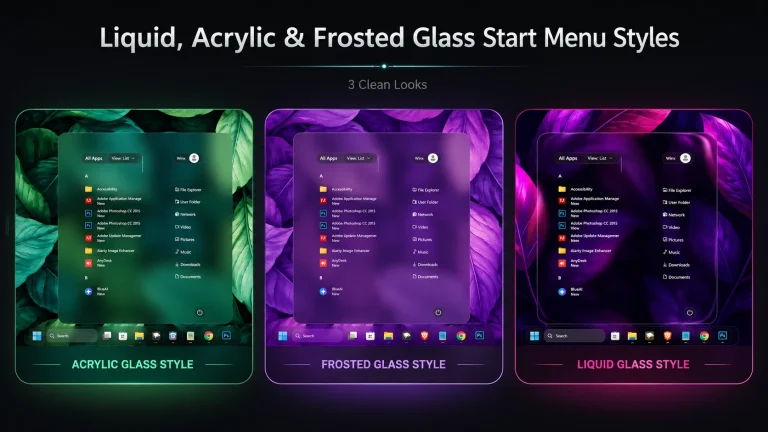
Silk Glass includes three background looks. Choose the one that best matches your wallpaper and desktop setup. You only need to replace the Glass=... line in the Silk Glass configuration; keep the existing Background:=$Glass lines unchanged.
Glass Style Options
- Frosted Glass: A light, soft blur with a subtle tint. This is the cleanest option for a calm and transparent Start Menu.
"styleConstants[13]": "Glass=<WindhawkBlur BlurAmount="5" TintColor="{ThemeResource SystemChromeMediumColor}" TintOpacity="0.1" />", - Liquid Glass: A stronger blur and deeper tint that gives the Start Menu a richer, more colourful glass appearance.
"styleConstants[13]": "Glass=<WindhawkBlur BlurAmount="15" TintColor="{ThemeResource SystemChromeMediumColor}" TintOpacity="0.3" />", - Acrylic Glass: A more transparent Windows acrylic-style finish that works well when you prefer a lighter background effect.
"styleConstants[13]": "Glass=<AcrylicBrush TintColor="{ThemeResource SystemChromeMediumColor}" TintOpacity="0" FallbackColor="{ThemeResource SystemChromeMediumColor}" />",
How to change the style:
- Open Windhawk and select Windows 11 Start Menu Styler.
- Open the same Silk Glass configuration where you pasted or imported the style code.
- Find the line beginning with
"styleConstants[13]": "Glass=. - Replace that complete line with one of the three options above.
- Click Save, then reopen the Start Menu to view the change.
Important: Use only one glass option at a time. Do not paste all three Glass= lines together. If you want to return to the original Silk Glass look, use the Frosted Glass option again.
How to Revert to the Default Windows 11 Look
If you ever decide to switch things up and return to the standard Windows 11 Start Menu, reversing this tweak is incredibly easy. Just open up your Windhawk app and simply disable the Windows 11 Start Menu Styler mod. Alternatively, you can clear out the custom Silk Glass JSON settings you pasted earlier.
Hit save, reopen your Start Menu, and you’ll instantly see your old layout back. As always, I highly recommend keeping a Windows system restore point handy, just in case you ever want to quickly roll back a broader desktop customization.
Is the Silk Glass Style Right for Your Setup?
As you can clearly see in the Slik-Glass-Start-Menu-For-Windows-11-300×169.webp preview, this theme is an absolute dream for minimalists. If you love a soft, frosted glass aesthetic that completely transforms the clunky default menu into a beautifully split “App Library” and “Launch Deck”, this is for you.
It looks exceptionally stunning if you are a dark-mode user. When paired with a deep, rich background—like the dark purple leaf wallpaper in my screenshot—the translucent glass panels pop perfectly while keeping all your app icons and text crisp and easy to read.
A Quick Disclaimer Before You Customize
Just a quick reminder: the Silk Glass setup is an independent, community-driven customization created for Windhawk. Link Vegas Theme isn’t affiliated with Microsoft or the official Windhawk development team.
Because Windows 11 updates frequently, visual mods can sometimes act a bit quirky depending on your specific OS build or display scaling. Always remember to back up your current Windhawk configurations and set a quick system restore point before applying new JSON codes. You’re tweaking your desktop at your own discretion, so take those basic precautions first to avoid any software conflicts!
Wrapping Up Your Desktop Makeover
The Silk Glass Start Menu Style proves that you don’t need heavy third-party software to make Windows 11 look premium. By dividing your workflow into a clean, alphabetical App Library on the left and a spacious Launch Deck for your pinned apps on the right, it drastically improves both form and function.
Take a few minutes to apply the code, tweak your desktop background to something dark and moody, and enjoy your completely refreshed, glass-like UI!
What kind of wallpaper are you planning to use with this glass effect? Let me know down in the comments, and feel free to ask if you run into any setup issues!
Frequently Asked Questions
Is this style free to use?
Check the notes in the download section for the current availability and usage terms. Do not assume that every related tool, asset, or optional add-on has the same license.
Will this style slow down my PC?
Visual effects such as transparency and blur can use a small amount of system resources. Performance depends on your PC, Windows build, wallpaper, and any other customization tools that are running. If you notice lag, reduce effects, disable overlapping mods, or restore the default style.
Can I uninstall it later?
Yes. Follow the reset or uninstall guidance included with the style, or disable the related Start Menu Styler settings in Windhawk. Keeping a restore point before installation gives you an additional recovery option.
You may also like

Disclaimer: All themes, visual styles, and concepts shared on this website are unofficial, fan-made creations built from imagination for customization purposes. We are not affiliated with, endorsed by, or sponsored by Microsoft or any other official brand.