

Grape Theme For Windows 11
Explore the Grape Theme For Windows 11, a dark purple desktop style with glossy icons, neon accents, and safe setup tips

Grape Theme For Windows 11: A Purple Glass Desktop Style
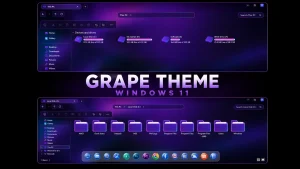
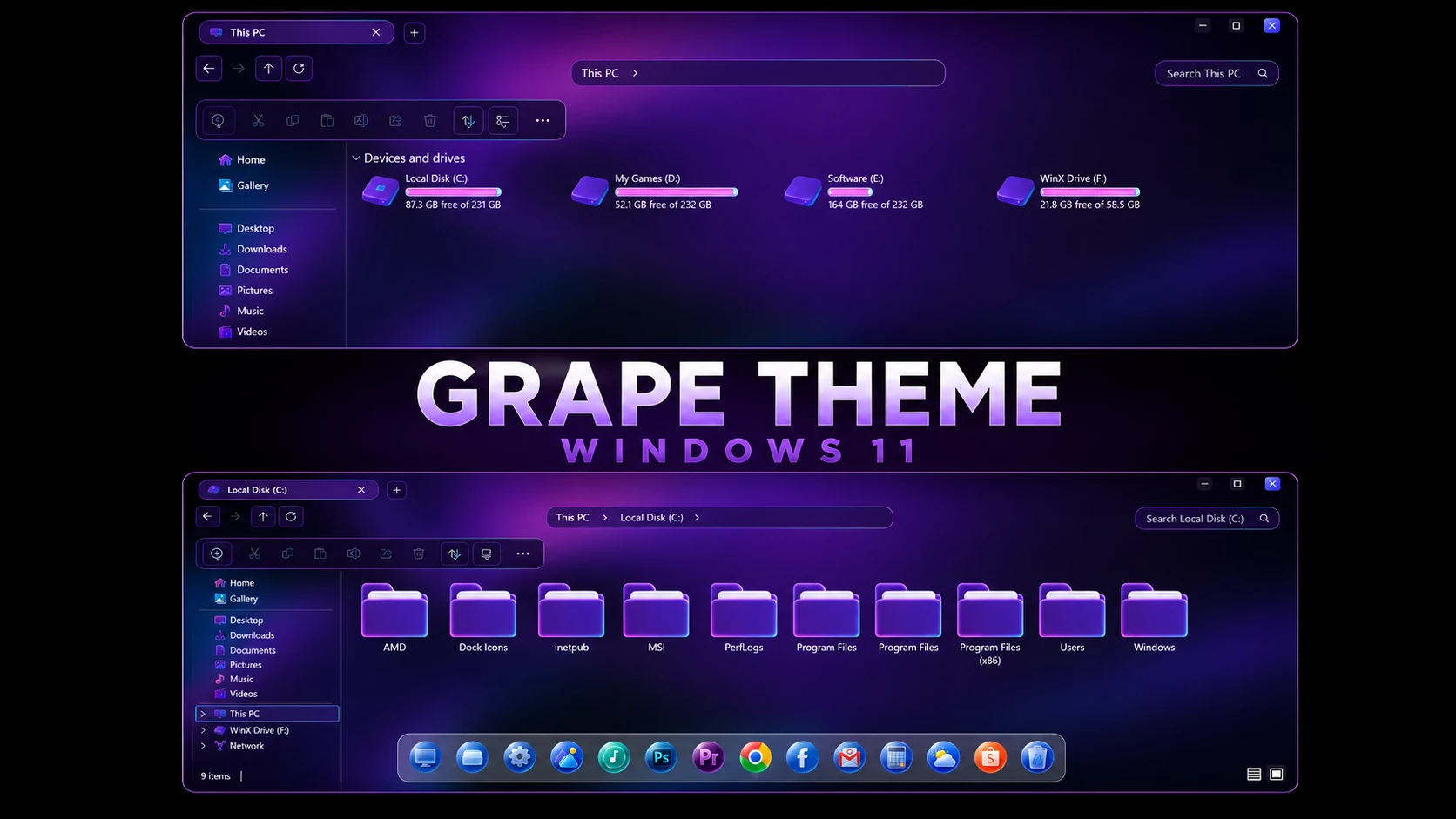
Grape Theme For Windows 11 is a custom Windows 11 visual style built around deep purple tones, transparent surfaces, and matching purple interface details. It gives File Explorer a darker glass-inspired appearance while keeping the familiar Windows 11 layout and navigation easy to use.
The purple color direction continues into the folder design. The folders use a darker purple finish with a soft neon-like glow around the edges, adding a little extra depth without turning the interface into a heavy neon setup. Pink hard-drive level indicators bring a brighter accent to the Devices and Drives area.
This version of the theme has been prepared and tested for Windows 11 25H2. Older Windows 11 builds have not been tested with this setup, so their compatibility should not be assumed.
Deep Purple Glass with a Soft Glow
Grape is mainly for users who enjoy purple desktops but want something darker than a bright or highly colorful theme. The interface combines dark transparent surfaces with purple accents, giving File Explorer a glass-like appearance while keeping the content area relatively clean.
The purple folders are one of the more distinctive parts of the design. A subtle glow around their edges gives them a slightly illuminated appearance, but the effect stays soft enough to fit the darker interface. The pink storage level bars add another layer of color and are easy to notice against the dark Explorer background.
Purple Glass Highlights
- Dark purple glass-inspired Windows 11 visual style
- Transparent File Explorer surfaces with purple accents
- Purple folder icons with a soft neon-like edge glow
- Pink hard-drive level indicators inside File Explorer
- Customized DWM window controls for supported windows
- Optional Windhawk configurations for additional interface styling
- Matching dock and icon resources for a more complete Grape setup
- Designed and tested around Windows 11 25H2
My Thoughts on the Grape Theme
In my opinion, Grape is a good choice for anyone who likes a dark purple desktop with glass effects. The theme has enough color to make Windows 11 look noticeably different, but it does not cover every part of the interface with strong neon effects.
I particularly like the purple folder design. The light glow around the folders gives File Explorer a little more character, while the pink hard-drive level bars provide a nice contrast against the darker background. Together, these details make the theme feel more distinctive than a simple purple recolor.
I also think the setup looks better when compatible Windhawk mods are used with it. The main theme already provides the purple glass direction, but the additional interface styling helps carry that design into more parts of Windows and makes the complete setup feel more attractive.
What Comes with the Grape Setup?
- Windows 11 Theme: Provides the main dark purple visual style for supported Windows interface areas.
- Wallpapers: Includes backgrounds that work with the overall Grape color direction.
- Windhawk Config: Provides optional settings for extending the styling into additional supported interface areas.
- Dock Icons & Config: Adds optional dock resources for users who want a more complete desktop setup.
- Resource Redirect Icon Pack: Provides matching icon resources that can be applied separately.
You do not need to use every included component. The main Windows theme can be applied first, then the Windhawk configuration, dock resources, and matching icons can be added only if you want to recreate more of the complete Grape look.
Tested Windows Version
- Windows 11 21H2: Not tested
- Windows 11 22H2: Not tested
- Windows 11 23H2: Not tested
- Windows 11 24H2: Not tested
- Windows 11 25H2: Tested and supported
The Grape Theme has been tested on Windows 11 25H2 and the current setup is intended for that build. Compatibility with earlier Windows 11 versions has not been confirmed. Optional Windhawk mods should also be checked individually before applying them, since mod compatibility can change after Windows updates.
Grape Setup Steps
- Create a Restore Point: Make a System Restore Point before changing Windows themes or other visual resources.
- Prepare Theme Support: Install a compatible Theme Patcher that supports your Windows 11 build.
- Download and Extract: Download the Grape Theme package and extract its contents to a separate folder.
- Apply the Main Theme: Install the Grape visual style and select it from Windows theme settings.
- Add Optional Windhawk Styling: Apply the included Windhawk configurations only for mods that are compatible with your current build.
- Apply Icons or Dock Resources: Add the Resource Redirect icon pack or dock configuration if you want the fuller Grape desktop look.
- Restart Explorer: Restart Windows Explorer or reboot your PC after applying the changes.
- Need More Help? For a detailed walkthrough, follow this Windows 11 custom theme installation guide.
Grape Theme 40.4 MB
DownloadRemove the Grape Setup
- Switch the Theme: Open Settings > Personalization > Themes and select one of the default Windows 11 themes.
- Undo Extra Styling: Disable the Grape Windhawk configurations, restore the default icon resources, and close or remove the optional dock setup if used.
- Restart and Restore: Restart Windows Explorer or reboot your PC. If anything still looks changed, use your System Restore Point or follow this Windows 11 theme removal guide.
Customization & Trademark Notice
Grape Theme For Windows 11 is an independent third-party customization resource intended for personal desktop customization. It is not an official Microsoft product and is not affiliated with, sponsored by, approved by, or endorsed by Microsoft. Windows and related trademarks remain the property of their respective owners.
Third-party themes and mods can be affected by Windows updates. Create a System Restore Point before changing Windows visual resources, and confirm compatibility before applying optional Windhawk configurations or other interface modifications.
Final Thoughts
Grape gives Windows 11 a strong purple identity without relying on an excessively bright design. The transparent Explorer surface, purple folders with their subtle glow, and pink hard-drive level indicators work together to create a darker glass-style desktop that still has plenty of character.
For users who already like purple and glass-inspired Windows customization, the main theme works well on its own. Adding compatible Windhawk configurations and the matching icon or dock resources makes the overall desktop feel more complete and brings out the Grape style even more.
Frequently Asked Questions
Is Grape Theme made for Windows 11 25H2?
Yes. This setup has been tested on Windows 11 25H2 and is intended to work with that build.
Does Grape work on Windows 11 24H2 or older versions?
Compatibility with earlier Windows 11 builds has not been tested, so support for those versions cannot be confirmed.
What color are the hard-drive level indicators?
The storage level indicators use a pink color that stands out against the darker purple File Explorer interface.
What makes the Grape folders different?
The folders use a purple design with a subtle neon-like glow around the edges, giving them more depth without creating a heavy neon appearance.
Do I need the Windhawk configurations?
No. They are optional, but compatible Windhawk mods can extend the Grape styling into more parts of Windows and make the complete setup feel more coordinated.
Does the package include matching icon resources?
Yes. A Resource Redirect icon pack is included and can be added separately if you want a more complete Grape desktop setup.






Disclaimer: All themes, visual styles, and concepts shared on this website are unofficial, fan-made creations built from imagination for customization purposes. We are not affiliated with, endorsed by, or sponsored by Microsoft or any other official brand.