

Full Transparent Theme For Windows 11
Full Transparent Theme For Windows 11 : The Windows 11 Full Transparent Theme is a visually striking customization that transforms the standard Windows 11 interface into a sleek, glass-like experience.

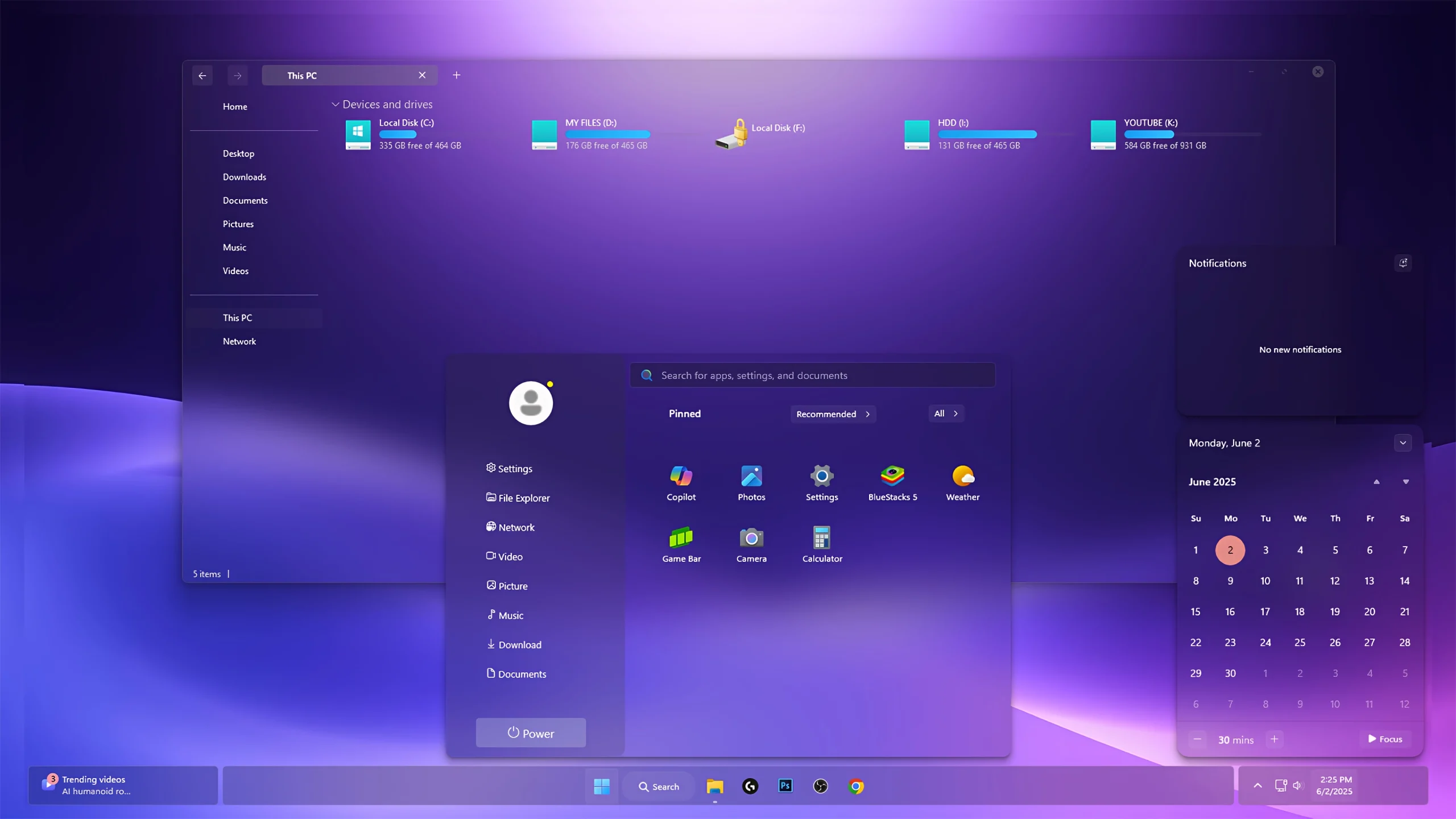
Full Transparent Theme For Windows 11: A Glass UI Desktop Experience
Full Transparent Theme For Windows 11 is a modern desktop customization pack created for users who want to transform the standard Windows 11 interface into a cleaner and more immersive glass-style experience. The theme focuses on transparency effects, modern UI elements, and a futuristic desktop appearance while keeping the familiar Windows 11 workflow.
This customization features a completely transparent interface that beautifully adapts to your desktop background (the purple color you see is actually the wallpaper shining through). It includes transparent windows, a refined Start Menu appearance, and a clean desktop layout. The combination of transparency, soft lighting effects, and matching visual elements creates a premium-looking Windows setup.
Note: To achieve the full transparent effect, you must use Blurmica or Windhawk translucent mods along with this theme.
This theme is suitable for users who enjoy glass UI designs, minimal desktop layouts, customized wallpapers, and modern Windows personalization. It can help create a unique workstation, gaming setup, or creative desktop environment.
What Is Full Transparent Theme For Windows 11?
Full Transparent Theme For Windows 11 is a third-party customization package designed to enhance the visual appearance of selected Windows 11 interface elements. It does not replace Windows or install a different operating system. Instead, it applies visual changes to create a more transparent and modern desktop style.
The theme focuses on glass-inspired effects, clean interface elements, and a more open desktop appearance. Depending on the included files and tools used, users can customize areas such as the Windows theme style, icons, Explorer appearance, and additional interface effects.
The final result may vary depending on your Windows version, display settings, installed customization tools, and system configuration.
Features
- Glass-inspired transparent Windows 11 interface
- Fully adapts to your wallpaper colors
- Requires Blurmica or Windhawk translucent mods for full transparency
- Custom Windows theme included
- Icon pack support
- Explorer customization resources
- Windhawk compatibility for additional UI customization
- Suitable for futuristic and minimal desktop setups
What You Can Customize
Full Transparent Theme For Windows 11 allows you to customize different parts of your desktop appearance. Depending on the included resources, you can apply the visual theme, icons, Explorer modifications, wallpaper, and additional interface enhancements.
You can use the complete transparent setup or combine individual components with your existing Windows customization to create a personalized desktop style.
Compatibility & Included Files
This theme is designed for Windows 11 customization. Some transparency effects and interface modifications may require additional tools, and compatibility can depend on your Windows build.
- Windows 11 21H2: Check compatibility
- Windows 11 22H2: Check compatibility
- Windows 11 23H2: Recommended
- Windows 11 24H2: Recommended
- Windows 11 25H2: Check compatibility
Always confirm that your theme tools and customization software support your current Windows version before applying changes.
- Windows 11 Theme
- Icon Pack
- Explorer Mods
- Wallpaper
How to Install
- Create a System Restore Point before starting so you can easily revert if anything goes wrong.
- Download and run UltraUXThemePatcher Or SecureX Theme Tool as Administrator, then restart your computer to patch core system files.
- Download the theme package using the button below and extract the
.zipor.rarfile. - Copy both the
.themefile and the theme folder toC:\Windows\Resources\Themes. - Right-click your desktop, go to Settings > Personalization > Themes, and select your new custom theme to apply it.
- If you are new to Windows customization, follow this detailed guide first: How to Install Custom Themes on Windows 11.
- Once the main theme looks right, try optional icons, Start menu styling, or Explorer effects one at a time.
Theme Files 42 MB
DownloadHow to Remove Full Transparent Theme For Windows 11?
If you want to return your Windows 11 desktop to the default appearance, you can remove the Full Transparent Theme by reversing the customization changes you applied. Follow the steps below carefully.
- Open Windows Settings and go to Personalization → Themes.
- Select the default Windows theme to restore the original appearance.
- If you installed a custom icon pack, use your icon customization tool to restore the original Windows icons.
- Remove any Explorer modifications, transparency tools, or additional customization settings applied with the theme.
- Restart Windows Explorer or restart your computer to apply the changes completely.
- If any issue remains, use the system restore point created before installation.
Removing the theme will not delete your personal files or installed applications. It only restores the visual elements modified during the customization process.
Who Should Use This Theme?
Full Transparent Theme For Windows 11 is a good choice for users who enjoy modern glass-style interfaces, futuristic desktop designs, and personalized Windows setups. This theme is suitable for:
Ideal For:
- Windows customization enthusiasts
- Users who like transparent and glass-inspired UI designs
- People who enjoy minimal and premium desktop layouts
- Gamers and creators building custom PC setups
- Users who want a unique alternative to the default Windows 11 appearance
If you prefer a simple Windows experience, you can also use selected elements such as the wallpaper or icon pack without applying the complete transparent setup.
Disclaimer
Disclaimer: Full Transparent Theme For Windows 11 is shared for Windows customization purposes only. Link Vegas Theme is not affiliated with Microsoft or the original creators of any theme files, icons, wallpapers, or third-party customization tools.
This is not an official Microsoft theme, Windows update, or Microsoft product. It does not replace Windows or add new operating system features. It only changes selected visual elements of an existing Windows 11 installation.
Third-party themes, transparency tools, and interface modifications may behave differently depending on your Windows version and system configuration. Always create a restore point and use trusted customization tools before applying changes.
Final Thoughts
Full Transparent Theme For Windows 11 provides a stylish way to transform the desktop into a cleaner and more immersive glass-style environment. With transparent visual effects, modern interface elements, and supporting customization resources, it can create a unique Windows 11 experience.
For users who enjoy futuristic UI designs and personalized desktop setups, this theme offers a fresh alternative to the standard Windows appearance. Apply each customization component carefully and keep a restore point available for a safe customization experience.
Frequently Asked Questions
What is Full Transparent Theme For Windows 11?
It is a third-party Windows 11 customization package designed to create a glass-inspired transparent desktop appearance with custom visual elements.
Is this an official Microsoft theme?
No. It is an unofficial third-party customization package and is not created, supported, or endorsed by Microsoft.
Does this theme install a new version of Windows?
No. It does not install or upgrade Windows. It only changes selected visual elements of an existing Windows 11 installation.
Do I need extra tools for the transparent effects?
Some transparency and interface modifications may require additional customization tools. Check the included requirements before installation.
What files are included with this theme?
The package includes a Windows 11 theme, icon pack, Explorer modifications, and wallpaper resources.
Can I use only the wallpaper or icons?
Yes. You can apply individual components separately if they are compatible with your Windows version and required tools.
Will this theme work after Windows updates?
Compatibility may change after major Windows updates. Some theme files or customization tools may need updates or reinstallation.
How can I restore the default Windows appearance?
Switch back to the default Windows theme, restore original icons, remove additional customization tools, or use your system restore point if necessary.
Is this theme safe to use?
The theme is intended for desktop customization. Use trusted files, scan downloads, create a restore point, and confirm compatibility before applying third-party modifications.







Disclaimer: All themes, visual styles, and concepts shared on this website are unofficial, fan-made creations built from imagination for customization purposes. We are not affiliated with, endorsed by, or sponsored by Microsoft or any other official brand.