

Zyon Theme For Windows 11
Zyon Theme For Windows 11 : Give Windows 11 a refined dark blue look with Zyon Theme. Discover its elegant File Explorer styling, custom folder and drive icons, unique window buttons, and modern taskbar design.

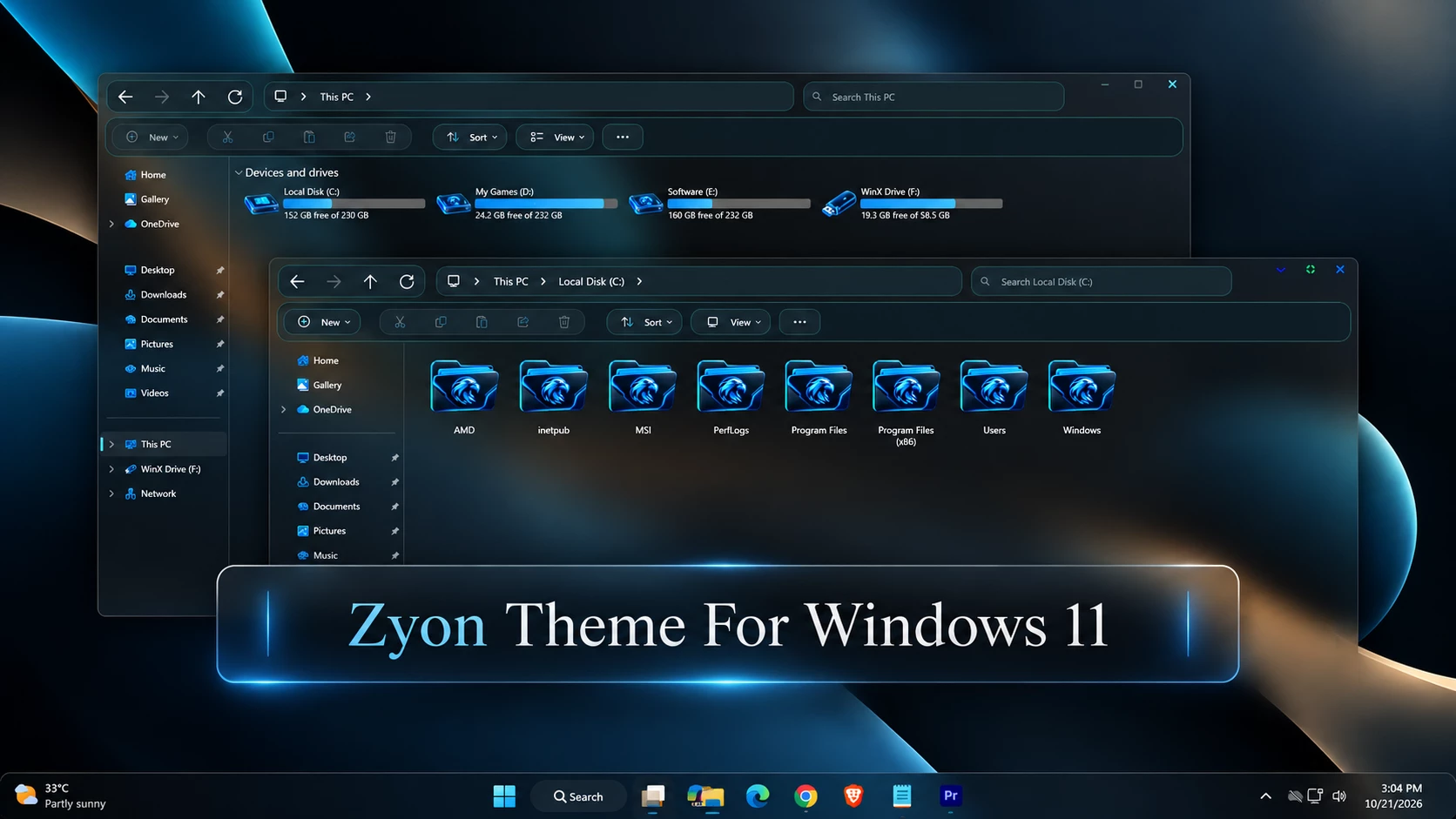
Zyon Theme For Windows 11
If you love dark Windows themes, Zyon Theme For Windows 11 is definitely worth checking out. It gives your desktop a fresh look with dark blue colors, custom icons, and a beautiful glass-like File Explorer design.
What I like about this theme is how well everything matches. The dark background, blue highlights, folder icons, and window buttons all work nicely together. It looks stylish without making Windows 11 feel too different or difficult to use.
A Beautiful Dark Blue Design
Zyon comes with a dark color combination that looks clean and modern. Most of the interface uses deep black and navy blue shades, with a little cyan around the buttons and borders.
The soft, glass-like background gives File Explorer a nice sense of depth. It also blends well with the dark wallpaper, making the whole desktop look more connected.
The design is simple enough for everyday use, but it still has plenty of small details that make it stand out from the default Windows 11 appearance.
Theme Features
- Dark navy blue and black Windows 11 interface
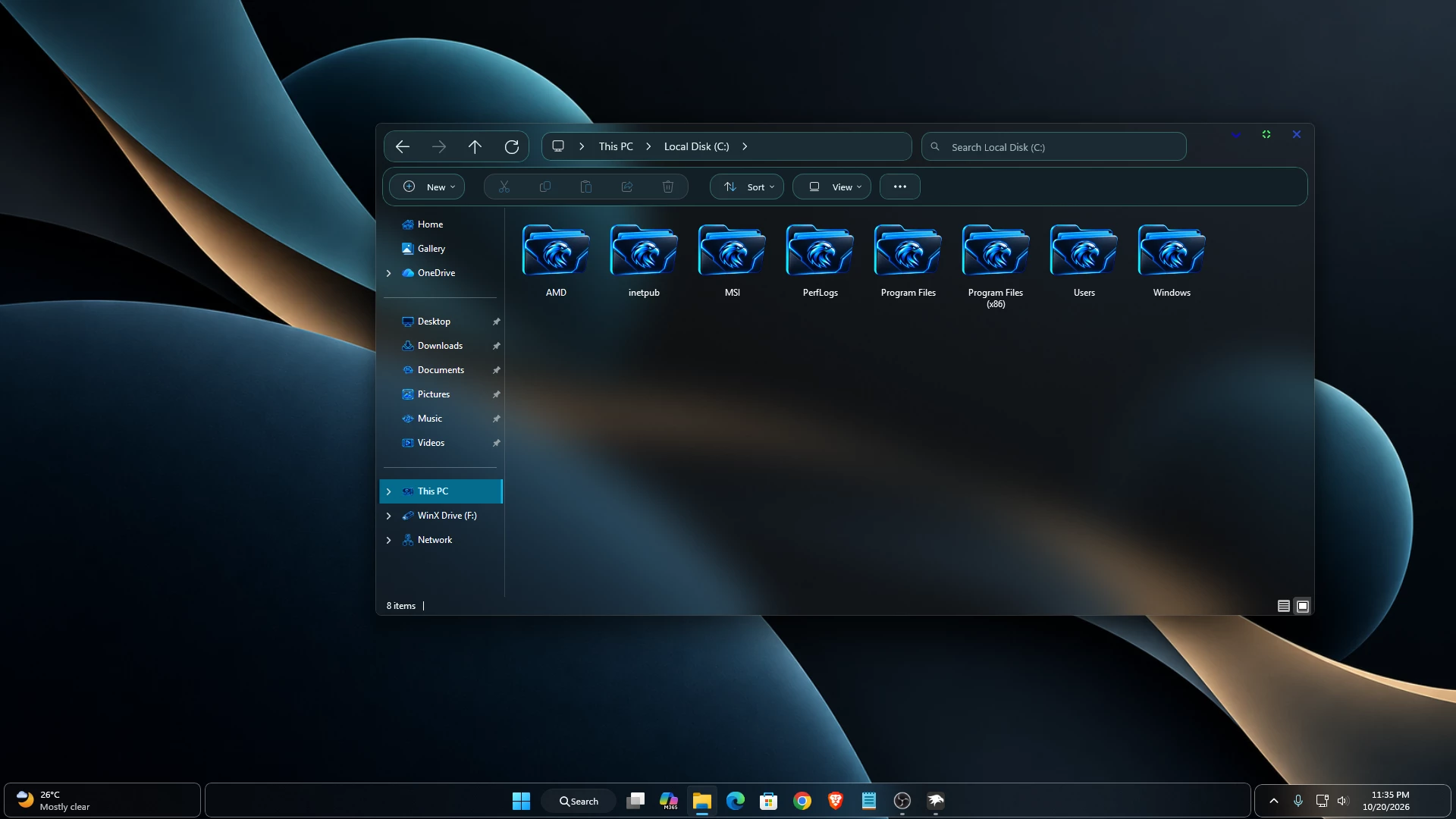
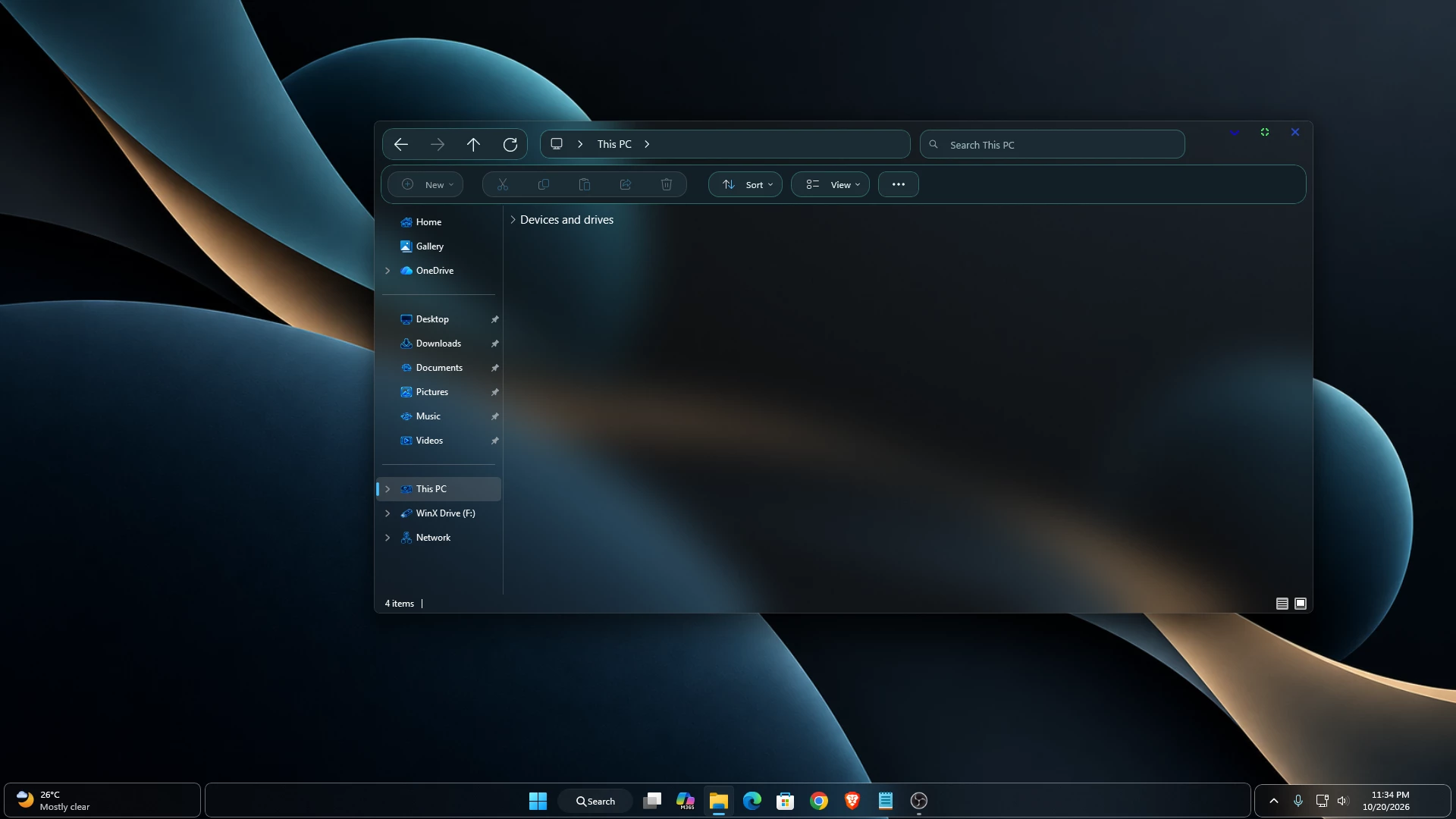
- Glass-like File Explorer with soft background blur effects
- Custom blue folder icons with glowing edges and lion-style artwork
- Matching blue hard drive and USB drive icons
- Cyan-blue storage bars inside This PC
- Dark File Explorer navigation panel with blue icons and selection highlights
- Rounded Explorer toolbar with neatly grouped navigation and command buttons
- Dark address bar and search box with thin cyan borders
- Custom minimize, maximize, and close buttons with blue and green accents
- Subtle blue highlights and borders across the Explorer interface
- Three-section taskbar layout with rounded corners and dark backgrounds
- Clean and modern desktop styling with a consistent dark blue color scheme
Compatibility
- Windows 11 21H2: Not tested
- Windows 11 22H2: Not tested
- Windows 11 23H2: Not tested
- Windows 11 24H2: Not tested
- Windows 11 25H2: supported
- Windows 11 25H2: supported
- Windows 11 26H2 (OS Build 26300.9711)
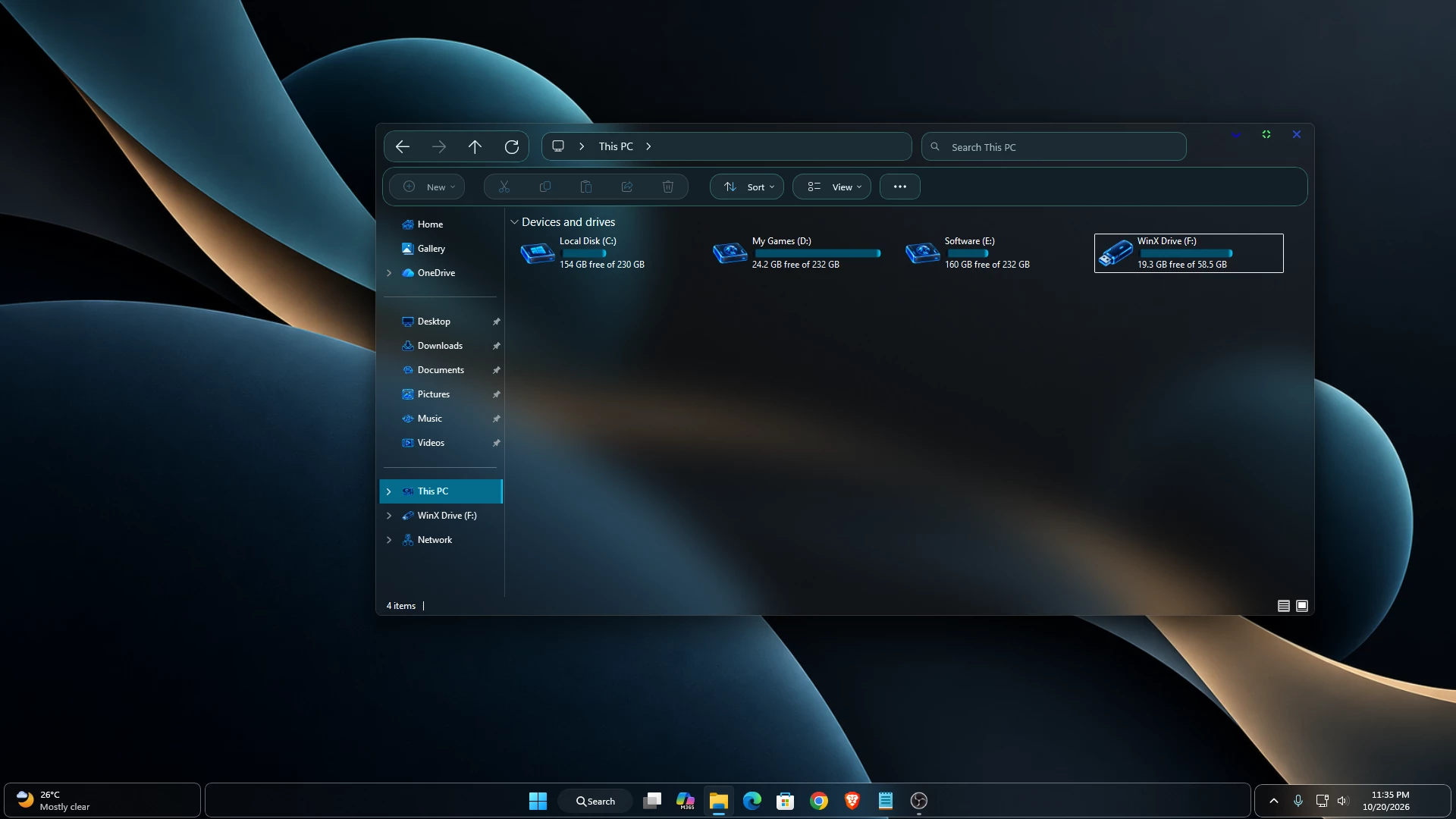
Theme Preview
How to Install This Theme
- Create a System Restore Point before making any changes.
- Make sure the theme supports your Windows 11 version.
- Install a compatible theme patcher, such as SecureUxTheme or UltraUXThemePatcher, and restart if required.
- Download and extract the custom theme package.
- Copy the theme folder and its
.themefile toC:\Windows\Resources\Themes. - Go to Settings > Personalization > Themes and select your custom theme.
- For more details, follow this Windows 11 custom theme installation guide.
Note: Always use trusted theme files and compatible tools. Some themes may require additional customization tools or specific installation steps.
How to Get the Complete Zyon Theme Look
To get the complete Zyon desktop look, you’ll need to apply the matching Start Menu, Taskbar, and File Explorer customization styles along with the theme.
To enable the glass-like transparency effect, open Windhawk > Windows 11 File Explorer Styler > Settings. Under Translucent background effect, select Acrylic. Then set Translucent background effect region to Entire window and click Save settings to apply the changes.
The final appearance may vary depending on your Windows 11 version and the customization styles you use.
What’s Included in the Zyon Theme Package?
The Zyon Theme package includes the following folders to help you customize your Windows 11 desktop:
- Icon Pack Custom icons to match the Zyon desktop style.
- Wallpapers: Matching wallpapers for your desktop.
- Windhawk Style: Customization styles for the Windows 11 interface.
- Windows 11 Theme: The main Zyon theme files for Windows 11.
Google Drive 28 MB
DownloadHow to Remove This Custom Theme
- Restore Default Theme: Open Settings > Personalization > Themes and select a default Windows 11 theme.
- Remove Customizations: Disable any Windhawk mods used for this setup and restore the default Start menu, taskbar, and File Explorer styles. Remove any additional customization tools if no longer needed.
- Remove Theme Files and Restart: Delete the custom theme files from
C:\Windows\Resources\Themesif applicable, then restart your PC. For complete instructions, follow our Windows 11 custom theme removal guide.
Disclaimer
Zyon is a third-party Windows 11 customization theme and is not affiliated with Microsoft. Before applying the theme, make sure it supports your Windows version and create a system restore point. Some visual changes may require additional customization tools, and the final appearance may vary depending on your setup.
Frequently Asked Questions (FAQs)
What is Zyon Theme For Windows 11?
Zyon is a dark blue Windows 11 customization theme with a glass-like File Explorer design, custom folder and drive icons, and matching desktop styling.
What is included in the Zyon Theme package?
The package includes four folders: Icons, Wallpapers, Windhawk Style, and Windows 11 Theme. These files help you create the complete Zyon desktop look.
Do I need Windhawk to get the complete look?
Yes, you’ll need to apply the matching Windhawk customization styles to achieve the complete File Explorer and taskbar appearance. The main theme alone may not change every part of Windows.
How do I enable the glass effect in File Explorer?
Open Windhawk and go to Windows 11 File Explorer Styler > Settings. Set Translucent background effect to Acrylic and Translucent background effect region to Entire window. Then click Save settings.
Will Zyon Theme work on every Windows 11 version?
Not necessarily. Compatibility depends on your Windows 11 build and the customization tools you’re using. Always check the supported versions before installing.
Can I return to the default Windows 11 appearance?
Yes. You can select a default theme from Settings > Personalization > Themes. If you’ve used Windhawk or other customization tools, disable or remove the applied styles and restore any custom icons separately.
Final Thoughts
Zyon Theme For Windows 11 is a great option if you love dark blue desktop setups. The glass-like File Explorer, glowing blue folder icons, custom drive icons, and colorful window buttons give Windows 11 a fresh and stylish look.
What makes Zyon stand out is how nicely everything fits together. The colors, icons, and small design details create a clean desktop without making it feel too busy.
If you’re looking for a simple but beautiful way to change your Windows 11 desktop, Zyon is definitely worth checking out. Just remember to follow the installation instructions and create a restore point before making any changes.







Disclaimer: All themes, visual styles, and concepts shared on this website are unofficial, fan-made creations built from imagination for customization purposes. We are not affiliated with, endorsed by, or sponsored by Microsoft or any other official brand.