

Pink Pine Theme For Windows 11
Pink Pine Theme For Windows 11 brings a fresh and aesthetic look to your desktop with soft pink tones, modern visuals, and a clean customization style. Learn about its features, compatibility, installation steps, safety tips, and how to restore the default Windows appearance

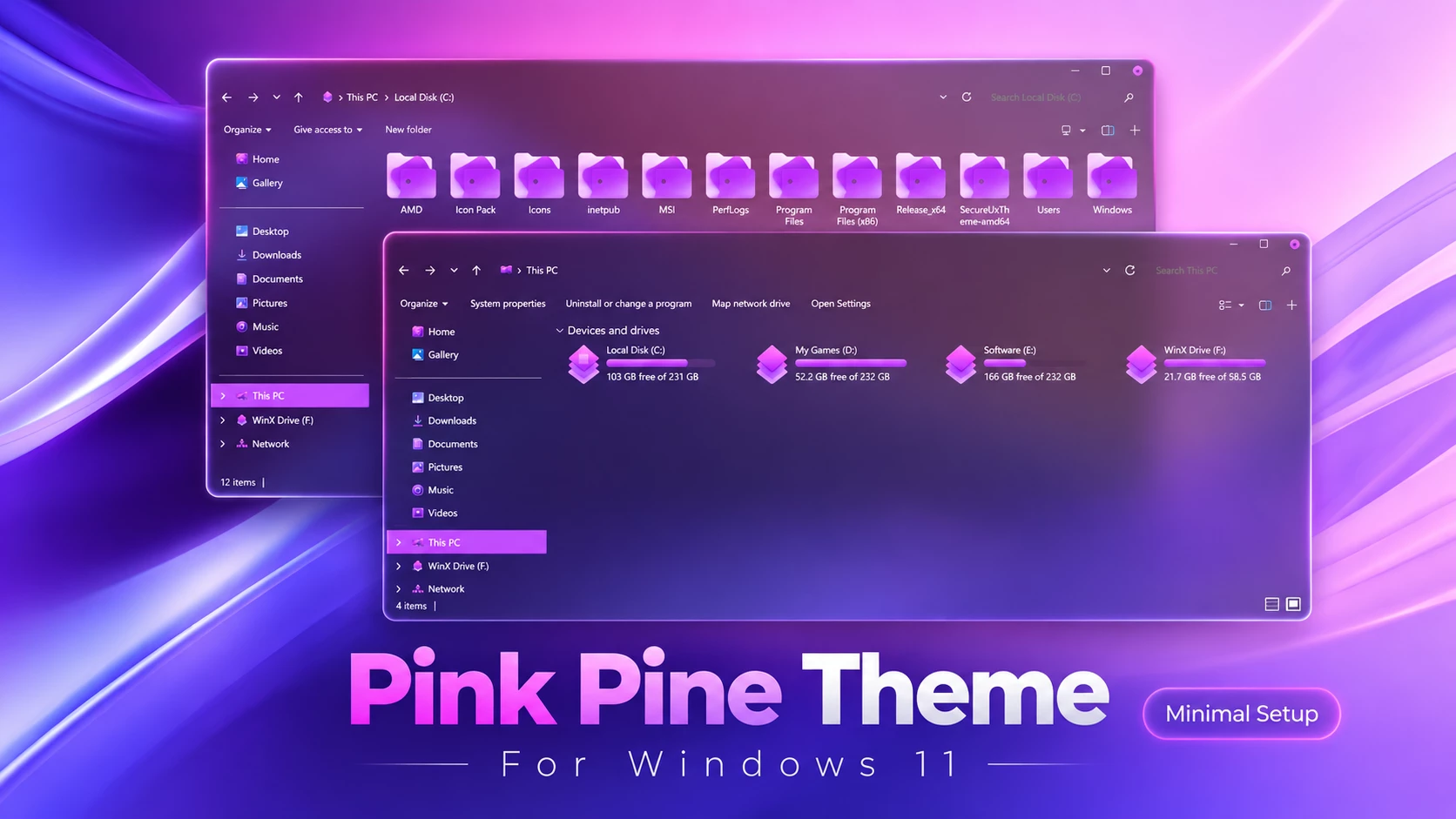
Pink Pine Theme For Windows 11 – Pink Glass Desktop Style
The Pink Pine Theme For Windows 11 is a custom desktop style built around a darker Windows interface with pink accents and optional transparency. One of its most noticeable details is the pink hover effect used in the File Explorer navigation panel, giving everyday navigation a more colorful appearance without changing the familiar Windows 11 layout.
The same pink direction continues into the storage area, where the hard-drive level indicators use a brighter pink tone. When the matching icon pack is applied, folders and other supported icons also follow a pink-inspired style, helping the different parts of the desktop feel more connected.
For the transparent appearance, the setup uses the Translucent Windows Windhawk mod. This effect allows more of the wallpaper to remain visible through supported window areas. The transparency is optional, so you can also use the Pink Pine visual style without the translucent effect if you prefer a more solid interface.
Pink Accents with Optional Transparency
Pink Pine works best for users who like a darker Windows setup but want brighter pink details instead of the usual blue or gray accents. The navigation panel hover effect is one of the simplest changes, but it gives File Explorer a noticeably different character whenever you move through folders and locations.
The pink hard-drive level indicators continue that same color direction inside the Devices and Drives area. Adding the matching icon pack takes the styling a little further, especially if you want folders and other supported icons to blend more naturally with the rest of the setup.
Transparency adds another layer to the design, but it is not required. You can use the main theme and pink icon styling without the Translucent Windows mod, or enable the mod when you want the wallpaper to become a more visible part of the interface.
Pink Pine Highlights
- Dark Windows 11 visual style with a pink color direction
- Pink hover effect in the File Explorer navigation panel
- Pink hard-drive level indicators inside File Explorer
- Optional transparent window effect through the Translucent Windows Windhawk mod
- Matching icon resources for a stronger pink desktop look
- Transparency can be enabled or skipped depending on your preference
- Keeps the familiar Windows 11 Explorer structure and navigation
My Thoughts on Pink Pine
In my opinion, Pink Pine is a good fit for users who like transparent Windows setups but want something based around pink rather than the more common blue or dark-gray styles. The pink navigation hover effect is a small detail, but it helps give File Explorer its own identity.
I also like the way the pink hard-drive indicators work with the matching icon pack. Using the icon resources makes the overall color palette feel more complete instead of leaving the pink styling limited to only a few interface elements.
The transparency is useful if you enjoy glass-style Windows customization, but I would not consider it essential. The theme can still be used without the translucent effect, which is useful for anyone who likes the pink color palette but prefers a more solid desktop appearance.
How to Install Pink Pine Theme
- Create a System Restore Point before making changes.
- Patch Windows using SecureUxTheme or UltraUXThemePatcher.
- Download and extract the theme package.
- Copy the theme folder and
.themefile toC:\Windows\Resources\Themes. - Double-click the
.themefile, or go to Personalization > Themes and select the theme. - For more details, follow this Windows 11 custom theme installation guide.
Pink Pine Resources
To achieve the complete Pink Pine desktop look, it is recommended to use the matching icon pack along with this customization. The icon pack helps maintain a consistent visual style across your Windows interface.
- Pink Pine Icon Pack – add matching pink-style folder and system icons to complete the overall desktop appearance.
- Windhawk – used to apply Windows interface customizations through compatible mods.
- SecureUxTheme – useful for supported third-party Windows visual styles that require additional theme support.
Windows Version Compatibility
- Windows 11 21H2: Supported
- Windows 11 22H2: Supported
- Windows 11 23H2: Recommended
- Windows 11 24H2: Recommended
- Windows 11 25H2: Supported, but check optional mod compatibility after Windows updates
The main theme and optional Windhawk mods may not always have identical compatibility. If the transparent effect stops working after a Windows update, check whether the required Windhawk mod has been updated for your current build.
Inside the Pink Pine Package
- Windows 11 Theme
- Windhawk Mods
- Wallpapers
- iPack Icons
- Dock Files
Pink Pine Theme 29MB
DownloadRestore Your Default Windows Setup
- Switch Back: Open Settings > Personalization > Themes and select one of the default Windows 11 themes.
- Undo the Extra Styling: Disable the Translucent Windows or other Windhawk mods, restore your original icons, and remove the optional dock configuration if you used it.
- Restart and Recover: Restart Windows Explorer or reboot your PC. If unwanted changes remain, use your System Restore Point or follow this Windows 11 custom theme removal guide.
Pink Pine Customization Notice
Pink Pine Theme for Windows 11 is an independently created third-party customization resource intended for personal desktop styling. It is not an official Microsoft product and is not affiliated with, sponsored by, approved by, or endorsed by Microsoft. Windows and related trademarks remain the property of their respective owners.
Third-party themes and Windhawk mods can behave differently across Windows builds. Creating a System Restore Point and checking tool compatibility before applying themes, icons, or interface modifications is recommended.
Final Thoughts
Pink Pine combines a darker Windows interface with pink navigation highlights, pink storage indicators, matching icon resources, and optional transparency. The pink accents are noticeable without requiring every part of the interface to use the same color.
For users who like both pink color palettes and transparent Windows customization, enabling the compatible Translucent Windows mod helps bring out the glass-style appearance. If transparency is not your preference, the main theme and matching icons can still be used on their own for a cleaner pink desktop setup.
Frequently Asked Questions
What part of the navigation panel uses pink?
The hover effect on supported File Explorer navigation items uses a pink accent, giving the navigation panel a more distinctive appearance.
What color are the hard-drive level indicators?
The storage level indicators use a pink color that matches the main accent direction of the Pink Pine setup.
Which mod creates the transparent effect?
The transparent appearance can be added with the compatible Translucent Windows Windhawk mod.
Can I use Pink Pine without transparency?
Yes. The transparent effect is optional, so you can use the main visual style and matching icons without enabling the Translucent Windows mod.
Does the icon pack add more pink styling?
Yes. The matching icon resources help extend the pink color direction into supported folders and other system icons.
Do I need every included customization component?
No. You can start with the main theme and add the icons, transparency, dock, or other optional resources only if you want them.






Disclaimer: All themes, visual styles, and concepts shared on this website are unofficial, fan-made creations built from imagination for customization purposes. We are not affiliated with, endorsed by, or sponsored by Microsoft or any other official brand.