

Dragon Knight Theme For Windows 11
Dragon Knight Theme For Windows 11:The Dragon Knight Windows 11 Theme is a powerful and visually striking customization pack that brings a dark fantasy aesthetic to your desktop

Dragon Knight Theme For Windows 11
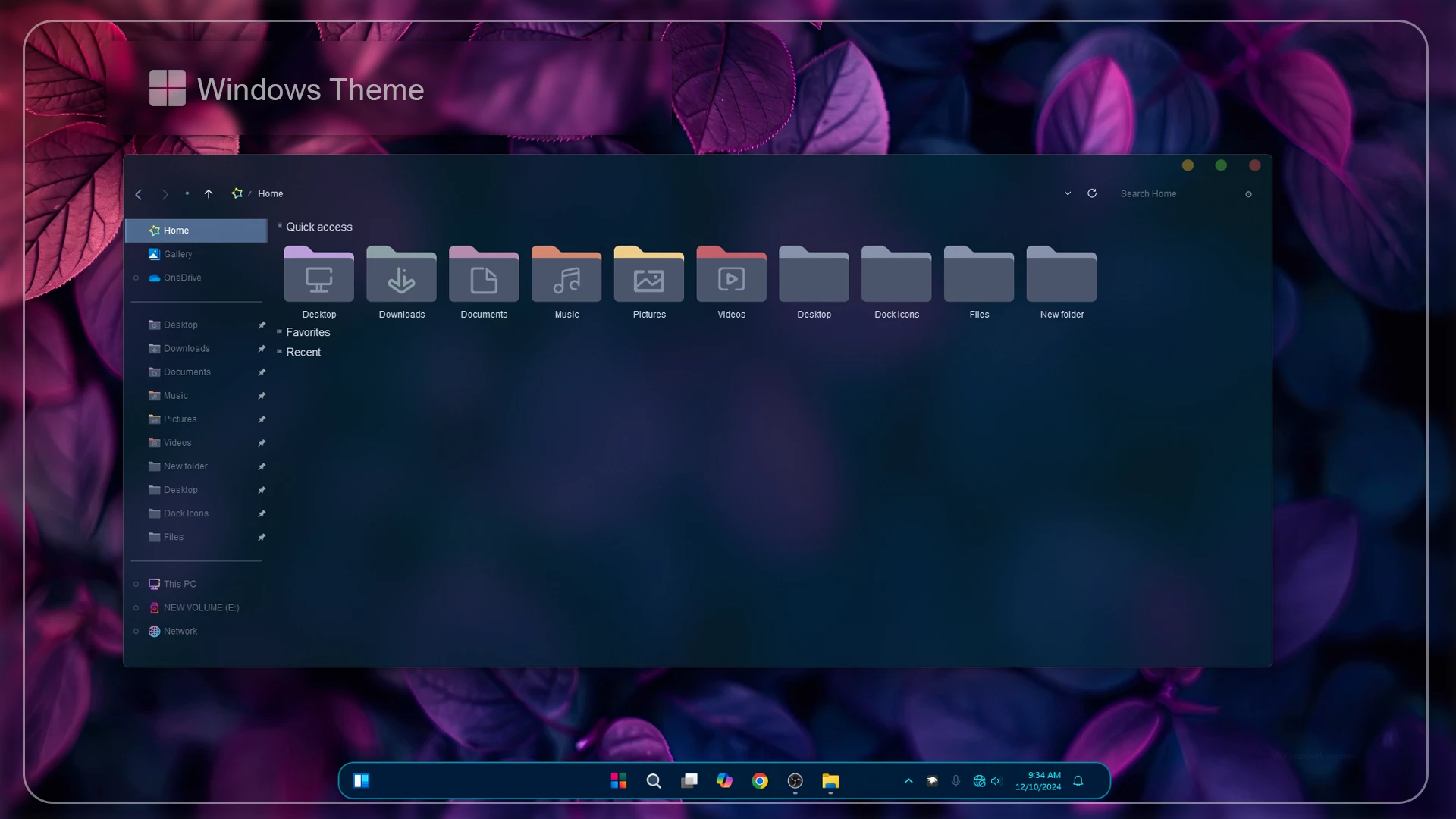
Dragon Knight Theme For Windows 11 is a dark and modern custom theme designed for users who want to give their Windows 11 desktop a cleaner, more stylish, and more atmospheric look. It uses deep blue and teal interface tones, soft glass-like transparency, rounded elements, and a rich purple wallpaper to create a desktop setup that feels noticeably different from the standard Windows appearance.
The File Explorer uses a darker custom style with a smooth blue-toned background, matching folder icons, and a simple layout that keeps the interface easy to read. The combination of dark surfaces, subtle transparency, and purple lighting gives the desktop a calm but distinctive character without making the design feel overloaded.
This is an independently created third-party custom theme made for Windows desktop personalization. It changes selected visual parts of Windows 11 but does not replace the operating system or install another OS. Your normal apps, files, settings, and everyday Windows features remain available while the desktop gets a more customized visual style.
Theme Highlights
- Dark blue and teal custom visual style for Windows 11
- Glass-inspired File Explorer with subtle transparency
- Matching custom folder and system icon appearance
- Rounded interface details for a softer modern look
- Custom window controls that match the overall theme style
- Compact taskbar styling with centered app icons
- Purple and dark wallpaper pairing that complements the interface
Dark Glass Look for Windows 11
The main appeal of Dragon Knight Theme is its dark glass-style interface. Deep blue surfaces, soft transparency, and muted icon colors work together to give File Explorer and other desktop elements a more refined appearance. The purple-toned background adds contrast without overpowering the interface, which helps the whole setup feel balanced.
The custom icons, window controls, compact taskbar, and darker interface all follow the same visual direction. Instead of using overly bright effects, the theme relies on deep blue, teal, and purple tones to give Windows 11 a more personal and distinctive character.
What Comes with the Dragon Knight Theme?
Theme Package Contents
- Windows 11 Theme: The package includes the main Dragon Knight visual style, which changes selected parts of the Windows interface to match the theme design.
The main download contains the Dragon Knight Windows 11 theme itself. If you want to build a more complete desktop around it, you can pair the theme with compatible icon packs and additional customization tools for File Explorer, the taskbar, Start menu, and other supported interface areas.
Tools You Can Use with the Theme
Suggested Customization Tools
- Theme Tool – can be used to enable and apply compatible third-party Windows visual styles.
- Icon Pack – adds an optional icon design that matches the darker appearance of the setup.
- 7TSP GUI – useful for applying supported 7TSP icon packs to Windows.
- StartAllBack – gives you extra control over the Start menu and taskbar appearance.
- ExplorerBlurMica – can bring blur and transparency effects to supported parts of File Explorer.
The extra tools are optional, so you do not have to install all of them just to use the main theme. A better approach is to apply the visual style first, check that everything works correctly, and then add icons or other interface changes one by one. This also makes it easier to find the cause if one part of the setup does not behave as expected.
Setting Up the Theme
Theme Setup Steps
- Create a System Restore Point before starting so you can easily revert if anything goes wrong.
- Download and run UltraUXThemePatcher as Administrator, then restart your computer to patch core system files.
- Download the theme package using the button below and extract the
.zipor.rarfile. - Copy both the
.themefile and the theme folder toC:\Windows\Resources\Themes. - Right-click your desktop, go to Settings > Personalization > Themes, and select your new custom theme to apply it.
- If you are new to Windows customization, follow this detailed guide first: How to Install Custom Themes on Windows 11.
- Once the main theme looks right, try optional icons, Start menu styling, or Explorer effects one at a time.
If you are installing a third-party Windows theme for the first time, these guides explain the process in more detail:
Windows Version Support
Supported Windows Builds
- Windows 11 21H2: Supported
- Windows 11 22H2: Supported
- Windows 11 23H2: Recommended
- Windows 11 24H2: Recommended
- Windows 11 25H2: Supported
Support for the optional tools may differ from one Windows build to another. Before applying any extra customization, check that the tool you plan to use is compatible with your installed Windows 11 version.
Dragon Knight 585KB
DownloadHow to Remove the Theme
How to Remove
- Switch Back to a Default Theme: Open Settings > Personalization > Themes and select one of the standard Windows 11 themes.
- Restore the Original Icons: If you applied a 7TSP icon pack, use the restore option in the icon tool to bring back the default Windows icons.
- Disable Extra Customization: Turn off or remove any optional Explorer, taskbar, Start menu, or blur effects used with the setup.
- Restart Windows Explorer: Restart Explorer or reboot your PC so the original interface can reload properly.
- Use System Restore if Needed: If any visual changes remain, use the Restore Point created before installing the theme.
My Thoughts on the Dragon Knight Theme
For me, the Dragon Knight Theme has a nice balance between a dark Windows 11 setup and a more colorful custom look. The blue, teal, and purple details work well together, while the glass-style elements keep the desktop looking modern without making it feel overloaded.
I also like that the setup can stay fairly simple if you only use the main theme. If you want a more complete look, matching icons and a few optional interface effects can be added later. That makes the theme flexible enough for both minimal setups and users who enjoy deeper Windows customization.
Disclaimer
This is an independently created third-party custom theme shared only for Windows desktop customization and personalization. It is not affiliated with, endorsed by, or officially connected to Microsoft or any third-party tool, developer, or project mentioned on this page. All trademarks and brand names belong to their respective owners. Compatibility can vary between Windows builds, so creating a System Restore Point before applying customization files is recommended.
Final Word
Dragon Knight Theme gives Windows 11 a dark glass-inspired personality built around deep blue, teal, and purple tones. The custom interface styling, matching icons, subtle transparency, and compact desktop elements work together without making the setup feel unnecessarily heavy.
If you enjoy dark glass themes with a colorful edge, would you keep this setup simple with the main theme, or add the matching icons and Explorer effects as well?







Disclaimer: All themes, visual styles, and concepts shared on this website are unofficial, fan-made creations built from imagination for customization purposes. We are not affiliated with, endorsed by, or sponsored by Microsoft or any other official brand.