

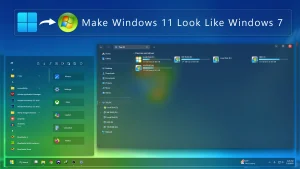
Windows 7 Inspired Modern Theme For Windows 11
Windows 7 Modern Theme For Windows 11:Windows 7 Modern Theme for Windows 11 is a refined visual overhaul that brings the nostalgic charm of Windows 7 to the sleek environment of Windows 11.

Windows 7 Inspired Modern Theme For Windows 11
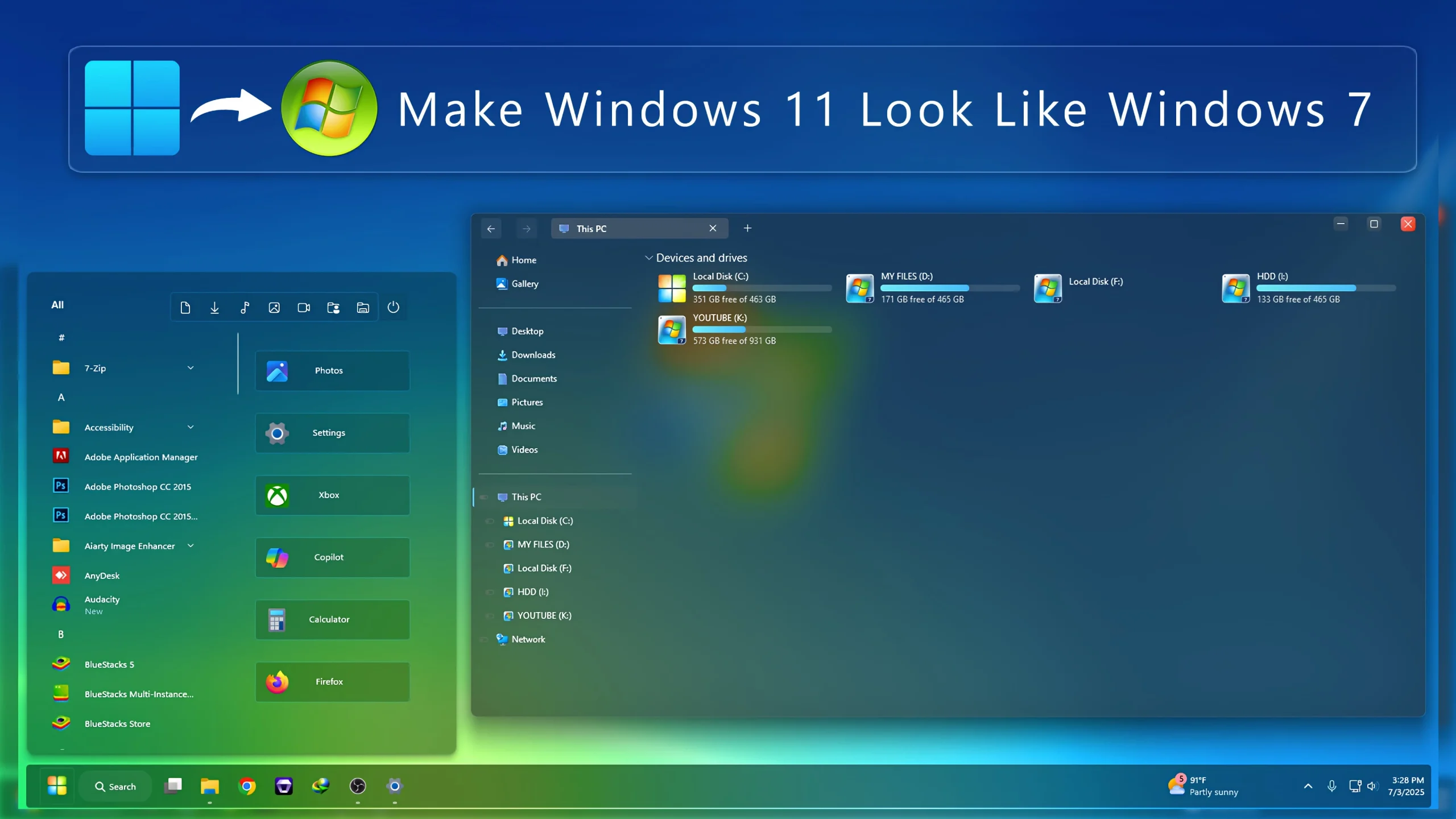
Windows 7 Inspired Modern Theme For Windows 11 is a custom desktop setup inspired by the familiar visual character of Windows 7, but presented in a more modern way for Windows 11. Instead of trying to copy the old interface exactly, it brings back recognizable Aero-style colors, glass-inspired surfaces, classic-looking icons, and a more traditional desktop feel while keeping the underlying system Windows 11.
The visual style mixes blue glass-like window frames with darker interface surfaces and familiar green accents around areas such as the Start menu and taskbar. File Explorer also follows a more classic Windows direction, but the overall result feels cleaner and more current than a direct recreation of the original Windows 7 desktop.
This is an independently created third-party customization package made for Windows desktop personalization. It does not install Windows 7, downgrade Windows 11, or add official Microsoft features. The changes are limited to supported visual elements of your existing Windows 11 installation.
Windows 7 Inspired Modern Highlights
- Windows 7-inspired visual style redesigned for Windows 11
- Blue Aero-style window surfaces with optional transparency
- Classic-looking Start menu and taskbar styling
- Matching folder and system icons for a more complete desktop look
- File Explorer styling inspired by the older Windows interface
- Glass effects can be used or skipped depending on your preference
- Designed for users who like the character of Windows 7 but want a more modern presentation
My Thoughts on the Windows 7 Inspired Modern Theme
In my opinion, this theme works best for users who miss the Windows 7 look but do not want their Windows 11 desktop to feel completely retro. It keeps some of the familiar Aero-style details while giving them a more modern presentation, which makes the setup feel nostalgic without looking like a direct copy of an older operating system.
I also think the matching icon pack is worth using if you want the full effect. The theme itself changes the main interface, but the icons help carry the Windows 7-inspired style into folders and system areas, making the whole desktop feel more connected.
The transparency is another nice touch, but I would consider it optional rather than required. If you like glass effects, it adds more depth to the setup. If you prefer a simpler desktop, you can leave the transparent effects disabled and still keep the main Windows 7 Inspired Modern style.
Package Contents
- Windows 11 Custom Theme: Applies the main Windows 7-inspired visual style to supported interface elements.
- Icon Pack: Gives compatible folders and system icons a more classic Windows appearance that matches the theme.
- Explorer Mods: Optional changes that can bring File Explorer closer to the older Windows design direction.
- Wallpaper: Adds a background that works well with the Aero-inspired colors and glass styling.
The core theme can be used by itself, but combining it with the matching icons and optional Explorer styling gives the desktop a stronger Windows 7-inspired identity. You can still choose only the parts you actually want to use.
Recommended Customization Tools
- SecureUxTheme – can be used to apply compatible third-party Windows visual styles.
- 7TSP GUI – useful for applying the matching icon pack.
- ExplorerBlurMica – can add supported blur and transparency effects to File Explorer if you want the glass look.
- Windhawk – supports additional Windows interface changes through compatible mods.
You do not need every tool above. Start with the main visual style and see how it looks first. If you want the desktop to lean further into the Windows 7-inspired direction, add the matching icon pack next, followed by Explorer, taskbar, Start menu, or transparency changes only where you want them.
Windhawk Mod Compatibility
Some older Windhawk mods may not work correctly on the latest Windows 11 25H2 builds. Many of these mods were originally made for earlier Windows versions, such as Windows 11 24H2, so changes introduced with 25H2 can affect how they behave.
If a mod does not work after updating to Windows 11 25H2, check whether the developer has released a newer compatible version. Users running Windows 11 24H2 may still have better compatibility with older mods that were created for that build.
This Theme Setup Steps
- Create a System Restore Point before starting so you can easily revert if anything goes wrong.
- Download and run UltraUXThemePatcher Or SecureX Theme Tool as Administrator, then restart your computer to patch core system files.
- Download the theme package using the button below and extract the
.zipor.rarfile. - Copy both the
.themefile and the theme folder toC:\Windows\Resources\Themes. - Right-click your desktop, go to Settings > Personalization > Themes, and select your new custom theme to apply it.
- If you are new to Windows customization, follow this detailed guide first: How to Install Custom Themes on Windows 11.
- Once the main theme looks right, try optional icons, Start menu styling, or Explorer effects one at a time.
Win 7 80MB
DownloadRemove Windows 7 Modern Theme
- Switch the Theme: Go to Settings > Personalization > Themes and choose one of the default Windows 11 themes.
- Undo the Extra Styling: Restore the original icons and disable any Explorer, Windhawk, taskbar, Start menu, or glass effects used with the setup.
- Restart and Recover: Restart Windows Explorer or reboot your PC. If anything still looks changed, use your System Restore Point or follow this Windows 11 custom theme removal guide.
Disclaimer
Windows 7 Inspired Modern Theme is an independently created third-party customization package intended for Windows desktop personalization. It is not an official Microsoft theme and is not affiliated with or endorsed by Microsoft or any of the independent customization tools and projects mentioned in this post. Windows and related trademarks belong to Microsoft and their respective owners.
Compatibility can vary between Windows builds and customization tools. Creating a System Restore Point before applying third-party themes, icon packs, Explorer modifications, or glass effects is recommended.
Final Word
Windows 7 Inspired Modern Theme is less about recreating Windows 7 exactly and more about giving its familiar Aero-style personality a place on Windows 11. The blue glass-inspired surfaces, classic colors, matching icons, and traditional interface details bring back some of that older Windows character while still keeping the setup visually modern.
The matching icon pack helps the theme feel much more complete, while the transparent effect gives the interface extra depth for users who enjoy the classic Aero look. Since the transparency is optional, you can also keep the same theme with a cleaner solid appearance if that suits your desktop better.
Frequently Asked Questions
Is this an exact copy of the original Windows 7 interface?
No. The setup is inspired by the Windows 7 Aero style, but it presents those visual ideas in a more modern way for Windows 11.
Do I have to use the transparent glass effect?
No. The glass and transparency effects are optional. You can use the main theme without them if you prefer a more solid interface.
Does the matching icon pack make a difference?
Yes. It is optional, but the matching icons help folders and system elements follow the same Windows 7-inspired style, which makes the complete setup feel more consistent.
Can I keep the Windows 11 Start menu?
Yes. Start menu changes are optional, so you can keep the default Windows 11 Start menu while using the main visual style.
Can I use only the Explorer styling?
Yes, as long as the Explorer customization tool you use supports your current Windows build.
Will this change Windows 11 into Windows 7?
No. Windows 11 remains your operating system. The setup only changes supported visual elements to create a Windows 7-inspired appearance.







Disclaimer: All themes, visual styles, and concepts shared on this website are unofficial, fan-made creations built from imagination for customization purposes. We are not affiliated with, endorsed by, or sponsored by Microsoft or any other official brand.