

Bluesolar Theme for Windows 11
Bluesolar Theme for Windows 11:Bluesolar Theme for Windows 11 is a stunning and refreshing customization that brings a calm, futuristic look to your desktop. Inspired by deep blue tones mixed with solar flare highlights, this theme completely transforms the appearance of your Windows interface into a sleek, elegant experience

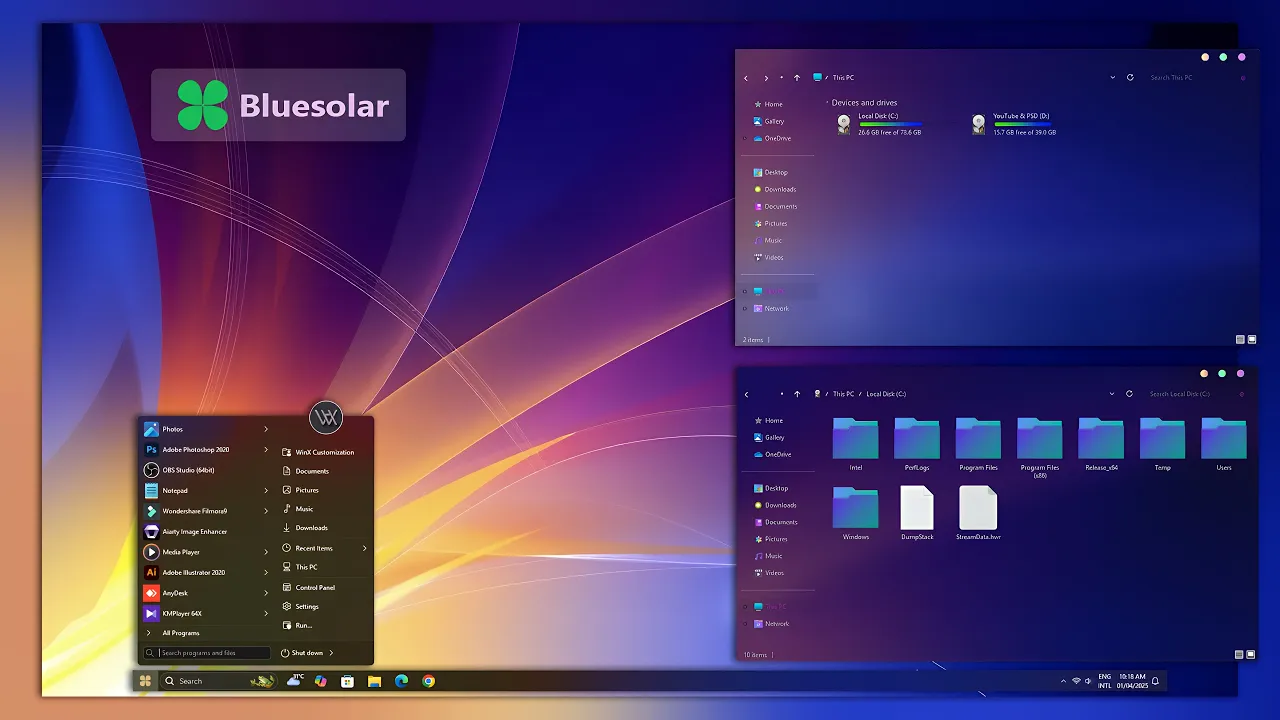
Bluesolar Theme For Windows 11: Modern Blue Desktop Style
The Bluesolar Theme For Windows 11 gives the desktop a dark blue visual direction with brighter accents, coordinated icons, and a cleaner customized interface. It keeps the familiar Windows 11 structure while giving supported areas a more distinctive blue-themed appearance.
Deep blue surfaces form the base of the design, while brighter highlights add contrast around selected interface elements. The result is more colorful than the default Windows 11 look without turning every part of the desktop into a heavily decorated layout.
The package also includes an icon pack and wallpaper, allowing the main Windows theme to be paired with matching desktop resources for a more coordinated setup.
Bluesolar Visual Style
The design is built around dark blue tones, brighter accent colors, and a cleaner arrangement of Windows interface elements. The theme changes supported visual areas while keeping normal Windows 11 functions and applications unchanged.
Matching icons and the included wallpaper help carry the same color direction beyond the main Windows theme. Optional Start Menu, taskbar, Explorer, or Windhawk changes can be added separately if you want to customize more of the interface.
Features
- Dark blue Windows 11 interface styling
- Bright solar-inspired accent details
- Clean and coordinated desktop appearance
- Windows 11 theme included
- Matching icon pack included
- Wallpaper included with the package
- Can be paired with optional Explorer and Windhawk customizations
- Keeps normal Windows 11 functionality underneath
What the Theme Changes
Bluesolar focuses on the appearance of supported Windows 11 interface elements rather than changing the operating system itself. The main theme can alter themeable surfaces, colors, and related visual details while Windows 11 remains fully underneath.
The included icon pack and wallpaper can be applied separately from the main theme. Start Menu styling, taskbar modifications, Explorer effects, or Windhawk settings should be treated as additional customizations unless they are specifically included in your downloaded files.
Compatibility
- Windows 11 21H2: Supported
- Windows 11 22H2: Supported
- Windows 11 23H2: Supported
- Windows 11 24H2: Supported
- Windows 11 25H2: Not Specified
Package Contents
- Windows 11 Theme
- Icon Pack
- Wallpaper
Optional Tools
- Theme Tool
- 7TSP GUI
- Blur Mica
- Windhawk for additional interface customization
Installation Steps
- Download the Bluesolar Theme package and extract the ZIP file.
- Copy the extracted theme files and theme folder to
C:\Windows\Resources\Themes. - Right-click on the desktop, select Personalize, open the Themes section, and choose the Bluesolar theme to apply it.
- After the main theme is active, you can apply the included icon pack and wallpaper, then add any optional Explorer or Windhawk customizations separately.
- For the complete installation process and additional setup details, follow this Windows 11 custom theme installation guide.
Bluesolar Theme 30 MB
Download Removal Steps
- Right-click on the desktop, open Personalize, and switch back to one of the default Windows 11 themes.
- If you applied the included icon pack, restore the default Windows icons using your icon customization tool and switch back to your previous wallpaper if needed.
- Disable any Windhawk settings, Explorer effects, or other optional interface modifications that were added separately.
- For the complete restoration process, follow this Windows 11 custom theme removal guide.
Building a Complete Bluesolar Setup
The Windows theme, icon pack, and wallpaper already share the same blue-focused direction, so using those included resources together creates a more consistent desktop without requiring many extra tools.
If you want to extend the look further, Explorer effects, taskbar changes, or Windhawk configurations can be added separately. Keeping those additions close to the same dark blue and bright-accent palette helps the desktop feel coordinated rather than pieced together from unrelated styles.
Wallpaper and Color Balance
The included wallpaper helps reinforce the darker blue direction of the theme and provides a matching background for the icon pack and Windows styling.
You can still use another wallpaper if you prefer. Dark blue, black, cyan, or restrained gradient backgrounds generally work naturally with the theme, while brighter backgrounds can shift the overall character of the setup.
Disclaimer
Bluesolar Theme For Windows 11 is an independent third-party customization resource intended for personal desktop styling. It is not an official Microsoft theme, Windows update, or Microsoft product and is not affiliated with, sponsored by, or endorsed by Microsoft.
Windows and related trademarks belong to Microsoft. Third-party themes, icon packs, Windhawk configurations, and optional customization tools can behave differently across Windows builds or after major system updates.
Final Word
Bluesolar gives Windows 11 a stronger blue identity through dark interface tones, brighter accents, matching icons, and a coordinated wallpaper. The main theme changes the visual character of the desktop while keeping the normal Windows 11 environment intact.
Since the package already includes the main theme, icon pack, and wallpaper, you can build a coordinated setup without relying on every optional customization tool. Additional Explorer or Windhawk changes can be added later if you want to take the design further.
Frequently Asked Questions
What colors does Bluesolar use?
The theme mainly uses dark blue tones with brighter accent colors that give the desktop a more vivid and modern appearance.
Is an icon pack included?
Yes. The supplied package information lists an icon pack along with the Windows 11 theme.
Is a wallpaper included?
Yes. A wallpaper is included as part of the Bluesolar package.
Do I need Windhawk to use the main theme?
No. Windhawk is an optional customization tool and is only needed if you want additional supported interface changes.
Can I use the icon pack without the main theme?
Yes. The included icon pack can be applied separately if it is compatible with your Windows build and icon customization tool.
Is Windows 11 25H2 supported?
The supplied compatibility information does not specify Windows 11 25H2, so compatibility should be checked before installation.
Can I use another wallpaper?
Yes. The included wallpaper matches the Bluesolar direction, but another background can be used if you prefer a different desktop color balance.







Disclaimer: All themes, visual styles, and concepts shared on this website are unofficial, fan-made creations built from imagination for customization purposes. We are not affiliated with, endorsed by, or sponsored by Microsoft or any other official brand.