Arc Accent Dark Theme For Windows 11
Arc Accent Dark Theme for Windows 11 delivers a clean Linux-inspired dark UI with smooth accent colors, minimal design, and a modern desktop experience.

Arc Accent Dark Theme For Windows 11
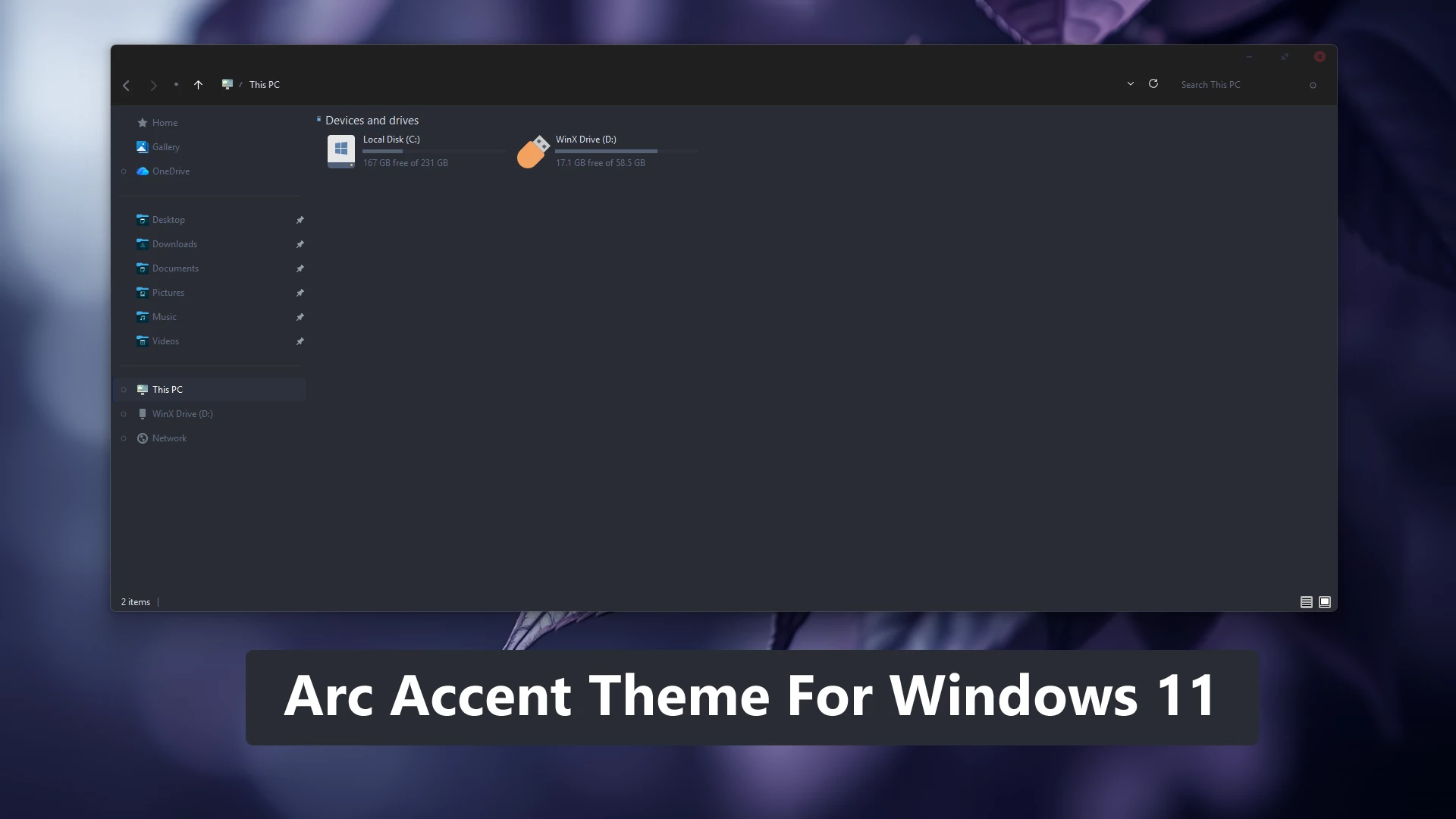
The Arc Accent Dark Theme for Windows 11 gives File Explorer a solid dark appearance built around charcoal, deep gray, and muted blue tones. It keeps the familiar Windows 11 layout while replacing the brighter default surfaces with a calmer and more restrained dark interface.
The main Explorer area uses a deep gray background, while the navigation panel is slightly darker to create a clear separation between folders, drives, Home, Gallery, and Network. Small blue and cyan accents appear around selected interface elements, adding contrast without turning the whole setup into a brightly colored design.
The drive area follows the same dark direction with deep gray styling that blends naturally with the rest of File Explorer. Subtle borders, compact controls, and low-contrast separators keep the interface organized without relying on transparency, glow effects, or heavy visual decoration.
File Explorer Design
This theme takes a more straightforward approach to dark customization. Instead of using a glass or highly transparent surface, File Explorer stays solid and dark, which gives the window a more consistent appearance regardless of the wallpaper behind it.
Muted blue and cyan details provide just enough contrast around selected areas, while the darker navigation panel helps different sections of Explorer remain easy to distinguish.
Arc Accent Highlights
- Dark charcoal and deep gray Windows 11 styling
- Solid dark File Explorer surfaces
- Slightly darker navigation panel
- Muted blue and cyan interface accents
- Subtle borders and low-contrast separators
- Compact window controls
- Simple flat appearance without heavy visual effects
- Keeps the familiar Windows 11 Explorer structure
Compatibility
- Windows 11 21H2: May work, but not recommended for the best experience
- 22H2 YES
- 23H2 YES
- 24H2 YES
- 25H2 YES
Included Files
- Windows 11 Theme
Optional Customization Tools
Applying the Theme
- Create a System Restore Point, prepare Windows with a compatible theme patcher, then place the extracted theme files in
C:\Windows\Resources\Themesand apply the style from Personalization > Themes. - For the complete setup process, follow this Windows 11 custom theme installation guide.
Theme Files 1MB
Download Back to the Default Windows Look
- Select a default Windows 11 theme and disable any optional StartAllBack, icon, or other interface changes used with the setup.
- For detailed restoration steps, follow this Windows 11 custom theme removal guide.
Disclaimer
Arc Accent Dark Theme for Windows 11 is an independently created third-party customization resource intended for personal desktop styling. It is not an official Microsoft product and is not affiliated with, sponsored by, or endorsed by Microsoft. Windows and related trademarks remain the property of their respective owners.
Third-party visual styles and optional customization tools may behave differently across Windows builds or after major system updates. Check compatibility before applying additional interface changes.
Final Thoughts
The Arc Accent Dark Theme for Windows 11 gives File Explorer a solid charcoal appearance with muted blue and cyan accents, darker navigation areas, and restrained interface details. The design stays simple and flat rather than relying on transparency or stronger visual effects.
For users who prefer a darker Windows 11 setup with consistent surfaces and only a small amount of accent color, this theme offers a clean visual change while keeping the normal Explorer structure familiar.