

Future Vision Theme For Windows 11
Future Vision Theme for Windows 11 is a concept-based customization pack featuring a modern visual style, matching 7TSP icons, and useful desktop extras.

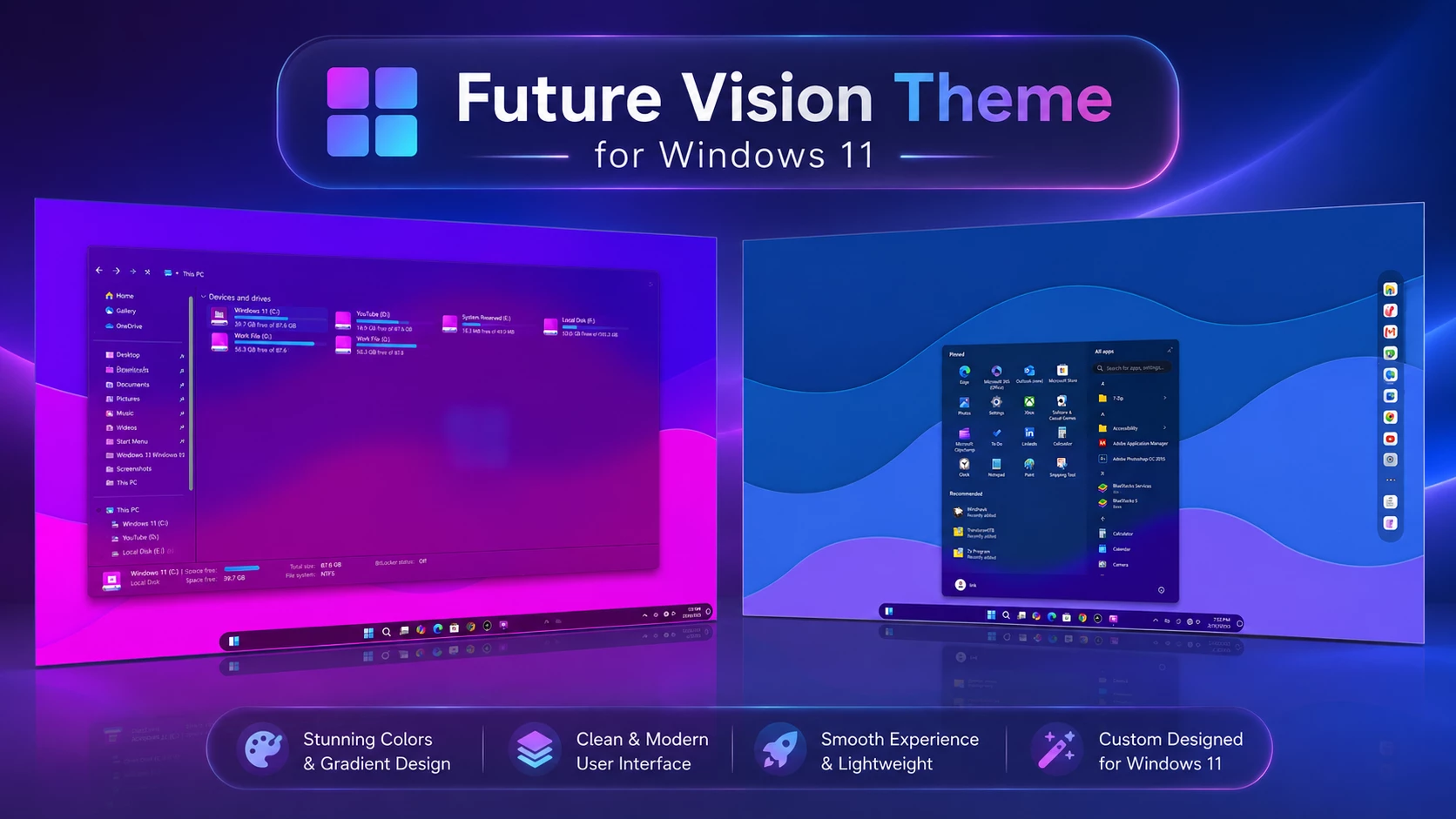
Future Vision Theme For Windows 11: A Modern Futuristic Desktop Look
Future Vision Theme For Windows 11 is a custom desktop theme made for users who want to give their Windows 11 setup a cleaner, more futuristic, and more personal look. It combines a custom visual style, matching icons, and additional resources to help create a complete and well-matched desktop setup.
The theme uses a dark futuristic interface with smooth shapes, modern icon styling, subtle transparency, and a balanced mix of colors. These details give Windows 11 a more polished and concept-inspired appearance while still keeping the familiar layout and everyday Windows workflow easy to use.
What Is Future Vision Theme For Windows 11?
Future Vision Theme For Windows 11 is a third-party customization package created to change selected visual parts of the Windows desktop. It is made for users who enjoy futuristic interface designs, modern styling, and building a desktop setup that feels more unique than the default Windows appearance.
The setup focuses on visual changes such as custom icons, refined interface details, rounded elements, and a clean futuristic style. It does not install another operating system or replace Windows 11. Your regular files, applications, settings, and Windows features remain available as usual.
The final look can vary depending on your Windows 11 version, screen resolution, display scaling, wallpaper, and any other customization tools already being used on your system.
This Theme Features
- Modern futuristic Windows 11 desktop appearance
- Custom Windows visual style
- Matching 7TSP icon pack included
- Clean folder and system icon design
- Soft corners and smooth interface elements
- Glass-inspired and Modern visual effects
- Suitable for modern and creative desktop setups
- This Is Good For Customization
Windows Version Support
Future Vision Theme is designed for Windows 11 customization. Compatibility may vary depending on your Windows build, theme patcher support, icon tools, and other customization software.
- Windows 11 21H2: Not tested with this theme
- Windows 11 22H2: Not tested with this theme
- Windows 11 23H2: Recommended
- Windows 11 24H2: Recommended
- Windows 11 25H2: Supported
Before installation, always confirm that your current Windows version supports the required customization tools.
Prepare and Install
- Create a System Restore Point and back up any important files before making changes.
- Make sure your Theme Patcher and other customization tools support your Windows 11 build.
- Install the required Theme Patcher, then apply the theme following the package instructions.
- If you need help, follow our Windows 11 theme installation guide or the guide by niivu.
- Keep the default Windows theme available in case you need to switch back later.
What’s Included in This Theme?
- Windows 11 Visual Theme
- 7TSP Icon Pack
- Additional Customization Resources
- Supporting Configuration Files
Future Vision Theme 94 MB
DownloadWho Should Use This Theme?
Future Vision Theme For Windows 11 is a good choice for users who enjoy modern desktop customization, futuristic interface concepts, and clean visual designs.
This theme can be suitable for:
- Windows customization enthusiasts
- Users who prefer futuristic and minimal desktop layouts
- Content creators making desktop showcase videos
- Users who enjoy custom icons and visual styles
- People who want a more personalized Windows 11 experience
If you prefer the default Windows appearance or do not want to modify system visual elements, you can use selected parts of the package, such as wallpapers or icons only.
Restore the Default Windows Look
To remove the Future Vision Theme, simply reverse the visual changes you applied.
- Switch Theme: Go to Settings > Personalization > Themes and select a default Windows theme.
- Restore Extra Changes: Restore the original icons if you used 7TSP, then remove any added wallpaper, dock settings, or theme files.
- Restart: Restart Explorer or your PC. If anything still looks changed, use your System Restore Point or follow this theme removal guide.
This only removes the visual customization and does not affect your personal files or installed apps.
Important Disclaimer
Future Vision Theme For Windows 11 is shared only for desktop customization. Link Vegas Theme is not affiliated with Microsoft or the creators of any third-party themes, icons, wallpapers, or tools used with this setup.
This is not an official Microsoft theme or Windows update. It only changes selected visual elements of Windows 11.
Create a System Restore Point before applying third-party customizations, as compatibility can vary between Windows builds and system configurations.
Final Thoughts
Future Vision Theme For Windows 11 provides a modern way to refresh your desktop with a futuristic visual style, custom icons, and additional customization resources.
With its clean interface elements, matching design components, and concept-based appearance, it can help create a more unique Windows 11 setup while keeping the original operating system structure.
For the best experience, apply each customization component carefully, test your system after every change, and keep a restore point available until your setup is working properly.
Frequently Asked Questions
What is Future Vision Theme For Windows 11?
Future Vision Theme is a third-party Windows 11 customization pack that changes selected visual elements, icons, and desktop resources to create a modern futuristic appearance.
Is Future Vision Theme an official Microsoft theme?
No. It is an independent third-party customization package and is not created, supported, or endorsed by Microsoft.
Does this theme install a new version of Windows?
No. It does not install or upgrade Windows. It only modifies supported visual elements of your existing Windows 11 system.
Do I need additional tools to install this theme?
Some customization parts may require compatible tools such as a theme patcher or icon customization software. Always check compatibility before applying changes.
Are custom icons included with this theme?
Yes. The package includes a matching 7TSP icon pack for supported Windows icons.
Can I use only the wallpaper or icons?
Yes. You can apply individual components separately without using the complete theme setup.
Will this theme work after Windows updates?
Compatibility may change after major Windows updates. Some customization files or tools may require updates to work correctly.
How can I return to the default Windows appearance?
Switch back to the default Windows theme, restore original icons, remove additional customization files, or use your system restore point if required.
Is it safe to use this theme?
The theme is intended for Windows customization. However, third-party tools that modify system appearance should always be used carefully. Create a restore point and use trusted sources before installation.
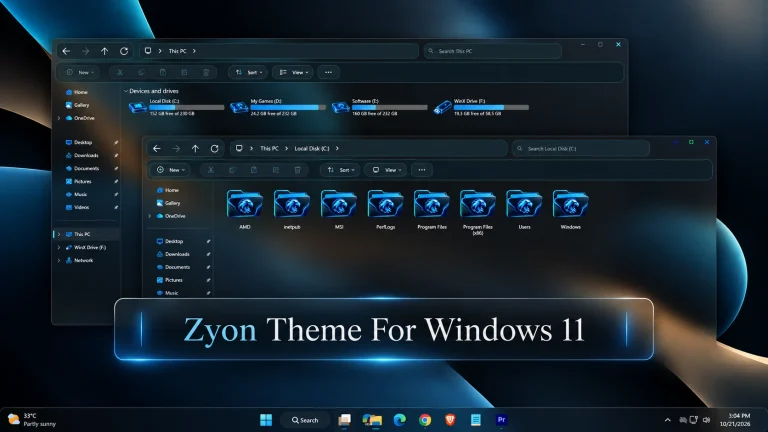







Disclaimer: All themes, visual styles, and concepts shared on this website are unofficial, fan-made creations built from imagination for customization purposes. We are not affiliated with, endorsed by, or sponsored by Microsoft or any other official brand.