

Color Verse Theme For Windows 11
Color Verse Theme For Windows 11 : Color Verse Windows 11 Theme 24H2 brings a vibrant and modern aesthetic to your desktop, perfectly blending Windows 11’s clean interface with a burst of colorful gradients.

Color Verse Theme For Windows 11
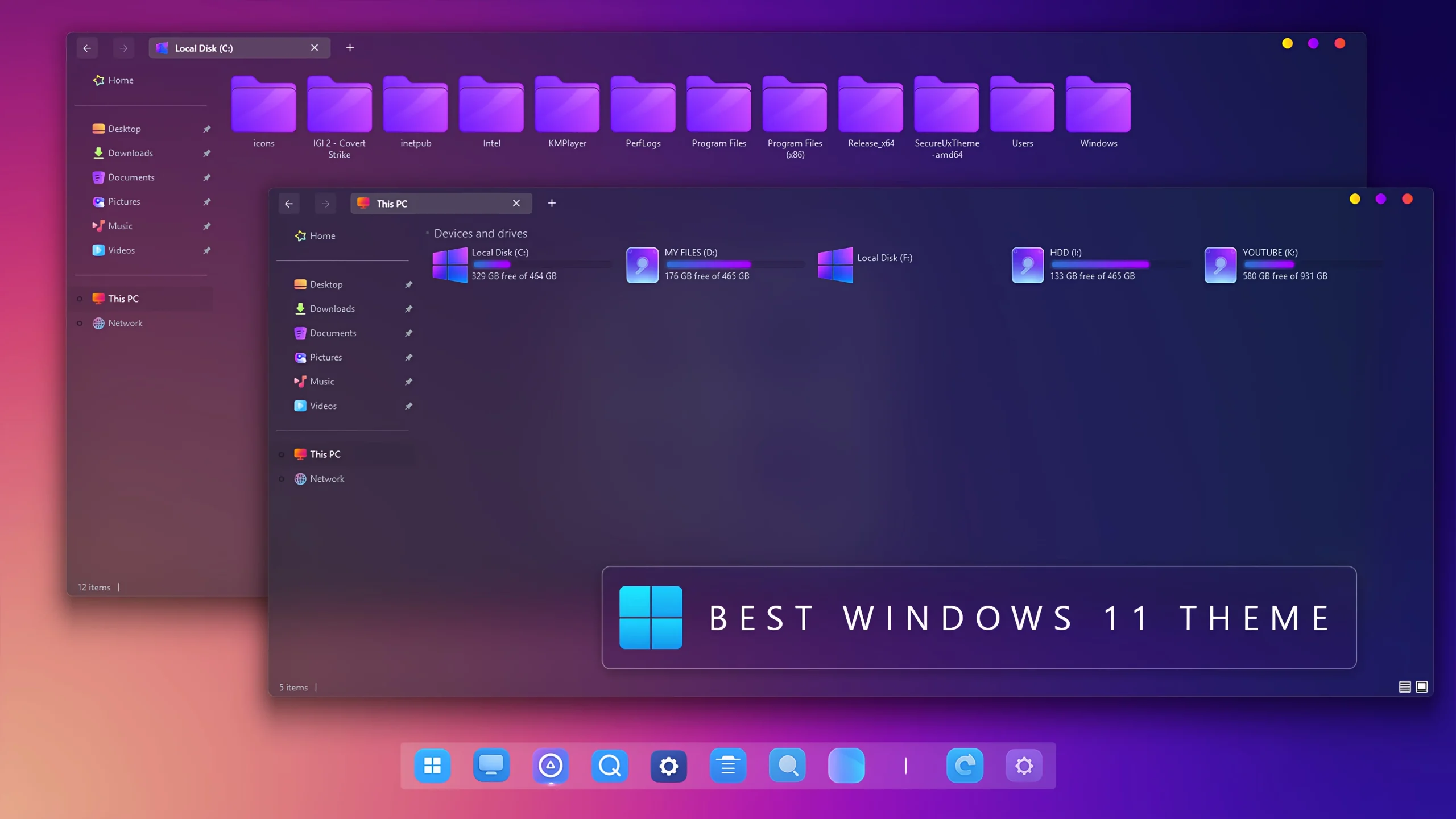
The Color Verse Theme For Windows 11 turns the desktop into a rich mix of indigo, violet, magenta, and electric blue. Darker Windows surfaces act as a backdrop for brighter folders, colorful drive indicators, and a vivid gradient wallpaper, giving the setup plenty of color without making every panel equally bright.
File Explorer carries much of the visual character. Its deep navy and purple background is paired with glossy violet folders, while the navigation area stays darker so folders and drive information remain easy to separate. The wallpaper brings warmer pink and coral light around the edges, creating contrast with the cooler interface colors.
Color Verse is an independent third-party customization package intended for Windows desktop personalization. It changes supported visual elements of Windows 11 without replacing the operating system or adding official Microsoft features.
A Color-Rich Explorer Style
The folder design is one of the first details that stands out. Instead of the usual yellow Windows folders, Color Verse uses bright violet and purple resources with a slightly glossy appearance. They sit naturally against the darker Explorer background and give the window a much stronger identity.
The drive section brings in another layer of color. Storage level indicators use cyan, turquoise, violet, and pink-magenta tones, creating a multicolor accent beneath the drives. Because the surrounding Explorer area remains dark, these brighter bars stay visible without taking over the layout.
Small colored window controls add detail around the upper interface, while the centered dock-style taskbar can extend the same blue and purple direction along the bottom of the desktop when the related customization is used.
Features
- Deep indigo and navy File Explorer styling
- Glossy violet and purple folder icons
- Cyan, turquoise, violet, and magenta storage level indicators
- Custom colored window control buttons
- Centered dock-style taskbar with blue and purple accents
- Pink, coral, purple, and blue gradient wallpaper
- Windhawk mods included for additional interface styling
What Is Included?
- Windows 11 Theme
- Icon Pack
- Windhawk Mods
- Wallpaper
Compatibility
- Windows 11 21H2: Supported
- Windows 11 22H2: Supported
- Windows 11 23H2: Recommended
- Windows 11 24H2: Recommended
- Windows 11 25H2: Supported
The main visual style and additional interface mods can behave differently between Windows builds. After a major Windows feature update, check the compatibility of any optional or modified interface components before applying them again.
Installation Steps
- Download the Color Verse Theme package and extract the ZIP file.
- Copy the extracted theme files and theme folder to
C:\Windows\Resources\Themes. - Right-click on the desktop, select Personalize, open the Themes section, and choose the Color Verse theme to apply it.
- After the main theme is active, you can apply the included icon pack, wallpaper, and Windhawk mods separately if you want the complete Color Verse setup.
- For the complete installation process and additional setup details, follow this Windows 11 custom theme installation guide.
Color Verse Theme Files 55 MB
Download Removal Steps
- Right-click on the desktop, open Personalize, and switch back to one of the default Windows 11 themes.
- If you applied the included icon pack, use your icon customization tool to restore the default Windows icons.
- Disable the Windhawk mods, dock-style taskbar changes, or other additional interface modifications, and restore your previous wallpaper if needed.
- For the complete restoration process, follow this Windows 11 custom theme removal guide.
How the Colors Work Together
Color Verse uses its strongest colors in smaller areas rather than making the entire interface equally bright. Deep navy and indigo surfaces provide the darker foundation, while violet folders, cyan-to-magenta storage bars, and colored controls add contrast where it is most noticeable.
This balance is what keeps the setup from becoming visually overwhelming. The darker Explorer background gives the brighter elements room to stand out, while the wallpaper connects the cool blue and violet interface with warmer pink and coral tones.
Changing the Mood With Wallpaper
The included gradient wallpaper reinforces the full Color Verse palette, but the theme can also work with simpler backgrounds. Navy, black, violet, magenta, and darker blue wallpapers can keep the desktop colorful while reducing some of the brighter visual energy.
If you prefer a more vivid setup, brighter pink, coral, or purple gradients can strengthen the contrast around the darker Explorer surfaces and purple folder resources.
Who Will Enjoy This Setup?
Color Verse suits users who like strong color but still want a dark foundation underneath the desktop. The indigo Explorer keeps the interface grounded, while the violet folders, multicolor storage bars, and bright wallpaper provide most of the personality.
The setup can also be toned down easily. Keeping only the dark theme and purple icons creates a quieter version, while adding the wallpaper, Windhawk mods, and dock styling produces the fuller Color Verse appearance.
Disclaimer
Color Verse Theme For Windows 11 is an independent third-party customization resource intended for personal desktop styling. It is not an official Microsoft product and is not affiliated with, sponsored by, or endorsed by Microsoft.
Windows, Windhawk, and other product or project names belong to their respective owners. Third-party themes, icon packs, and interface modifications can behave differently across Windows builds or after major system updates.
Final Word
Color Verse gets its character from the contrast between a darker indigo foundation and brighter visual details. Violet folders, cyan-to-magenta storage indicators, small colored controls, and the vivid wallpaper all add color without forcing every part of the interface to use the same intensity.
The main theme already establishes the dark purple direction, while the included icon pack, wallpaper, and Windhawk mods can extend the same style across more of the desktop when you want the complete setup.
Frequently Asked Questions
Are the storage indicators all the same color?
No. The drive area mixes cyan and turquoise with violet and magenta accents, giving the storage section a more colorful appearance than a standard single-color usage bar.
Is the icon pack included?
Yes. The package includes an icon pack that provides the matching purple folder and compatible system icon styling.
Are Windhawk mods included?
Yes. Windhawk mods are included and can be applied separately if you want the additional interface styling.
Can I keep the purple folders but remove the gradient wallpaper?
Yes. The icon pack and wallpaper can be used separately, so you can keep the violet folder styling while using a darker or simpler background.
Does the centered dock-style taskbar have to be used?
No. That part of the setup can remain optional. The main Windows theme and icon styling can still be used with a more standard taskbar layout.
Which wallpaper colors work well with Color Verse?
Dark blue, violet, pink, coral, magenta, and related gradient backgrounds fit naturally with the cool and warm colors used throughout the setup.
Can I make Color Verse less bright?
Yes. Keep the main dark theme and icon pack, use a simpler navy or black wallpaper, and skip any optional dock or additional interface effects.







Disclaimer: All themes, visual styles, and concepts shared on this website are unofficial, fan-made creations built from imagination for customization purposes. We are not affiliated with, endorsed by, or sponsored by Microsoft or any other official brand.