

Mini Aero Start Menu Style For Windows 11
Aero Start Menu Style For Windows 11:Experience a refreshing twist to your Windows 11 desktop with the Aero Start Menu Style, bringing back the sleek and transparent look inspired by Windows 7’s Aero design — now enhanced for 2025!

Mini Aero Start Menu Style For Windows 11
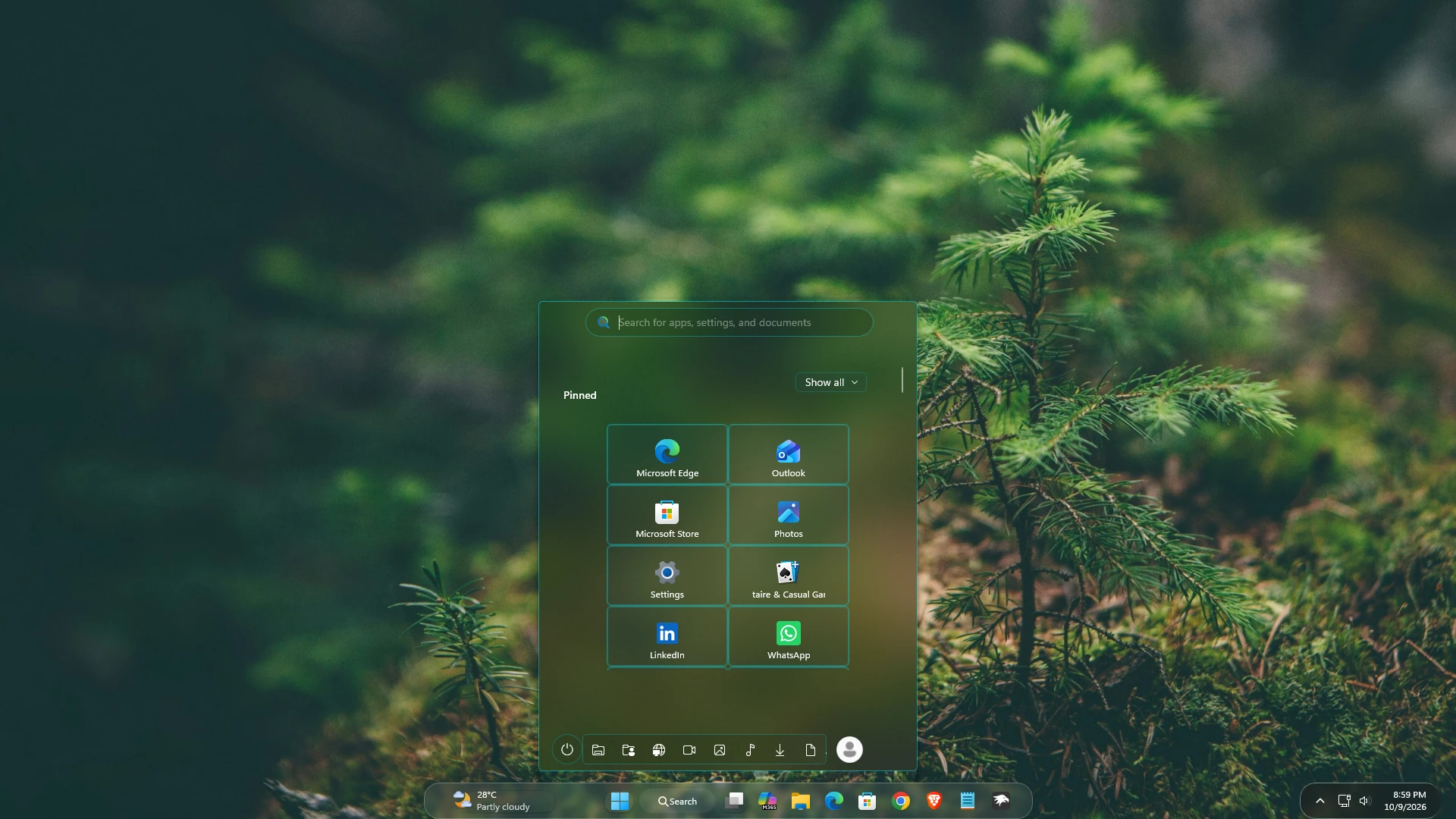
Mini Aero Start Menu Style For Windows 11 gives the Start Menu a compact, transparent, and neatly organized appearance. The design uses a dark green glass-like background with soft transparency, allowing the desktop wallpaper to remain visible behind the interface. A thin cyan border surrounds the panel and adds a clean outline without making the layout look too heavy.
The Start Menu is placed in the center of the screen with a tall, narrow layout. At the top, there is a rounded search box with a subtle outline, followed by the Pinned section and a small Show all button. This arrangement keeps the main controls easy to find while leaving enough space for the pinned applications below.
What Is the Mini Aero Start Menu Style?
The Mini Aero Start Menu Style is a customized Windows 11 Start Menu layout designed for users who prefer a smaller interface with a glass-inspired visual appearance. It keeps the familiar Windows 11 structure but changes the size, spacing, borders, transparency, and overall presentation of the Start Menu.
The green-tinted translucent panel blends naturally with nature-themed and dark wallpapers. Its soft background effect gives the Start Menu a subtle Aero-style feel while the modern rounded search bar, clean typography, and centered placement keep the design suitable for a Windows 11 desktop.
Compact Pinned App Layout
The pinned applications are arranged in two evenly spaced columns, creating a simple and balanced grid. Each application is placed inside its own rectangular tile with a thin cyan outline. These borders help separate the apps clearly while maintaining the transparent appearance of the Start Menu.
The layout includes space for commonly used applications such as Microsoft Edge, Outlook, Microsoft Store, Photos, Settings, LinkedIn, and WhatsApp. The app names are displayed below the icons, making the tiles easy to recognize without using oversized icons or unnecessary decorative elements.
Aero-Inspired Glass Appearance
The main panel uses a dark transparent green finish with a gentle blurred effect. Instead of using a bright or heavily decorated theme, the design relies on transparency, subtle contrast, thin cyan outlines, and rounded corners to create its visual character.
The result is a modern Start Menu that feels lightweight and slightly futuristic while still retaining the familiar Windows 11 layout. It works especially well with forest, nature, dark, and blurred wallpapers where the transparent background can blend into the desktop.
Main Visual Features
- Compact centered Start Menu layout
- Tall and narrow translucent panel
- Dark green glass-inspired background
- Thin cyan border around the main panel
- Rounded search bar at the top
- Two-column pinned application grid
- Individual outlined tiles for pinned apps
- Clear app icons with labels underneath
- Bottom control strip with system shortcuts
- Separate user profile and power buttons
- Suitable for dark and nature-themed wallpapers
- Designed for a clean and organized Windows 11 desktop
Compatibility
- Windows 11 21H2: Not Tested
- Windows 11 22H2: Not Tested
- Windows 11 23H2: Not Tested
- Windows 11 24H2: Not Tested
- Windows 11 25H2: Tested and Working
- Latest Test: Checked on Windows 11 26H2 (Build 26300.9550)
How to Install
- Download and install Windhawk
- Open Windhawk and install the Windows 11 Start Menu Styler mod
- Go to the Advanced tab
- Paste the provided configuration code into the “Mod settings” box
- Click Save to apply the style
- For more details, visit this GitHub guide
{ "theme": "Mini Aero By Link Vegas", "controlStyles[0].target": "Grid#MainMenu", "controlStyles[0].styles[0]": "Width=500", "controlStyles[0].styles[1]": "MinWidth=500", "controlStyles[0].styles[2]": "MaxWidth=500", "controlStyles[1].target": "Grid#FrameRoot", "controlStyles[1].styles[0]": "Height=620", "controlStyles[1].styles[1]": "MinHeight=620", "controlStyles[1].styles[2]": "MaxHeight=620", "controlStyles[2].target": "Grid#TopLevelSuggestionsListHeader", "controlStyles[2].styles[0]": "Visibility=Collapsed", "controlStyles[2].styles[1]": "Height=0", "controlStyles[3].target": "Grid#TopLevelSuggestionsRoot", "controlStyles[3].styles[0]": "Visibility=Collapsed", "controlStyles[3].styles[1]": "Height=0", "controlStyles[3].styles[2]": "MaxHeight=0", "controlStyles[4].target": "Grid#ShowMoreSuggestions", "controlStyles[4].styles[0]": "Visibility=Collapsed", "controlStyles[4].styles[1]": "Height=0", "controlStyles[5].target": "Grid#MoreSuggestionsRoot", "controlStyles[5].styles[0]": "Visibility=Collapsed", "controlStyles[5].styles[1]": "Height=0", "controlStyles[6].target": "StartMenu.PinnedList#StartMenuPinnedList", "controlStyles[6].styles[0]": "Width=440", "controlStyles[6].styles[1]": "MinWidth=440", "controlStyles[6].styles[2]": "MaxWidth=440", "controlStyles[6].styles[3]": "Height=620", "controlStyles[6].styles[4]": "MinHeight=620", "controlStyles[6].styles[5]": "MaxHeight=620", "controlStyles[6].styles[6]": "Margin=20,42,20,0", "controlStyles[6].styles[7]": "HorizontalAlignment=Center", "controlStyles[7].target": "TextBlock#PinnedListHeaderText", "controlStyles[7].styles[0]": "Margin=18,20,0,-35", "controlStyles[7].styles[1]": "FontSize=14", "controlStyles[7].styles[2]": "FontWeight=SemiBold", "controlStyles[8].target": "Microsoft.UI.Xaml.Controls.PipsPager#PinnedListPipsPager", "controlStyles[8].styles[0]": "Visibility=Collapsed", "controlStyles[9].target": "Border#AcrylicOverlay", "controlStyles[9].styles[0]": "Visibility=Collapsed", "controlStyles[10].target": "Border#AcrylicBorder", "controlStyles[10].styles[0]": "Width=500", "controlStyles[10].styles[1]": "MinWidth=500", "controlStyles[10].styles[2]": "MaxWidth=500", "controlStyles[10].styles[3]": "Height=620", "controlStyles[10].styles[4]": "MinHeight=620", "controlStyles[10].styles[5]": "MaxHeight=620", "controlStyles[10].styles[6]": "Background:=<AcrylicBrush BackgroundSource=\"Backdrop\" TintColor=\"{ThemeResource SystemChromeAltHighColor}\" TintOpacity=\"0.05\" TintLuminosityOpacity=\".40\" />", "controlStyles[10].styles[7]": "BorderBrush:=<SolidColorBrush Color=\"#8000e5ff\"/>", "controlStyles[10].styles[8]": "BorderThickness=1", "controlStyles[10].styles[9]": "CornerRadius=5", "controlStyles[10].styles[10]": "Margin=0", "controlStyles[10].styles[11]": "HorizontalAlignment=Center", "controlStyles[10].styles[12]": "VerticalAlignment=Center", "controlStyles[11].target": "Border#DropShadow", "controlStyles[11].styles[0]": "Width=500", "controlStyles[11].styles[1]": "Height=650", "controlStyles[11].styles[2]": "CornerRadius=5", "controlStyles[11].styles[3]": "Margin=0", "controlStyles[12].target": "Border#StartDropShadow", "controlStyles[12].styles[0]": "Width=500", "controlStyles[12].styles[1]": "Height=650", "controlStyles[12].styles[2]": "CornerRadius=5", "controlStyles[12].styles[3]": "Margin=0", "controlStyles[13].target": "GridView#PinnedList", "controlStyles[13].styles[0]": "Width=324", "controlStyles[13].styles[1]": "HorizontalAlignment=Center", "controlStyles[13].styles[2]": "Margin=0", "controlStyles[14].target": "GridView#PinnedList > Border > ScrollViewer", "controlStyles[14].styles[0]": "Width=324", "controlStyles[14].styles[1]": "HorizontalAlignment=Center", "controlStyles[15].target": "GridView#PinnedList > Border > ScrollViewer > Border#Root > Grid > ScrollContentPresenter > ItemsPresenter > ItemsWrapGrid", "controlStyles[15].styles[0]": "Orientation=Horizontal", "controlStyles[15].styles[1]": "MaximumRowsOrColumns=2", "controlStyles[15].styles[2]": "HorizontalSpacing=4", "controlStyles[15].styles[3]": "VerticalSpacing=14", "controlStyles[15].styles[4]": "Width=324", "controlStyles[15].styles[5]": "HorizontalAlignment=Center", "controlStyles[16].target": "GridView#PinnedList > Border > ScrollViewer > Border#Root > Grid > ScrollContentPresenter > ItemsPresenter > ItemsWrapGrid > GridViewItem", "controlStyles[16].styles[0]": "Width=160", "controlStyles[16].styles[1]": "Height=70", "controlStyles[16].styles[2]": "Margin=0", "controlStyles[17].target": "StartMenu.PinnedList#StartMenuPinnedList Border#ContentBorder@CommonStates > Grid#DroppedFlickerWorkaroundWrapper > Border", "controlStyles[17].styles[0]": "CornerRadius=5", "controlStyles[17].styles[1]": "Height=70", "controlStyles[17].styles[2]": "Width=160", "controlStyles[17].styles[3]": "Margin=0", "controlStyles[17].styles[4]": "FocusVisualPrimaryBrush:=<SolidColorBrush Color=\"#00e5ff\" Opacity=\".15\"/>", "controlStyles[18].target": "StartMenu.PinnedList#StartMenuPinnedList Border#ContentBorder@CommonStates > Grid#DroppedFlickerWorkaroundWrapper > Border#BackgroundBorder", "controlStyles[18].styles[0]": "Background@Normal:=<SolidColorBrush Color=\"#201f4b58\"/>", "controlStyles[18].styles[1]": "Background@PointerOver:=<AcrylicBrush TintColor=\"#00e5ff\" TintOpacity=\".08\" FallbackColor=\"#201f4b58\"/>", "controlStyles[18].styles[2]": "BorderBrush:=<SolidColorBrush Color=\"#4000e5ff\"/>", "controlStyles[18].styles[3]": "BorderBrush@PointerOver:=<SolidColorBrush Color=\"#8000e5ff\"/>", "controlStyles[18].styles[4]": "BorderThickness=1", "controlStyles[18].styles[5]": "CornerRadius=5", "controlStyles[19].target": "StartMenu.SearchBoxToggleButton#SearchBoxToggleButton", "controlStyles[19].styles[0]": "Height=38", "controlStyles[19].styles[1]": "MinHeight=38", "controlStyles[19].styles[2]": "MaxHeight=38", "controlStyles[19].styles[3]": "Width=380", "controlStyles[19].styles[4]": "MinWidth=380", "controlStyles[19].styles[5]": "MaxWidth=380", "controlStyles[19].styles[6]": "HorizontalAlignment=Center", "controlStyles[19].styles[7]": "Margin=0,0,0,14", "controlStyles[19].styles[8]": "Canvas.ZIndex=10", "controlStyles[20].target": "StartMenu.SearchBoxToggleButton#SearchBoxToggleButton > Grid@CommonStates > Border#BorderElement", "controlStyles[20].styles[0]": "Background:=<AcrylicBrush BackgroundSource=\"Backdrop\" TintColor=\"{ThemeResource CardStrokeColorDefaultSolid}\" TintOpacity=\"0\" TintLuminosityOpacity=\".20\"/>", "controlStyles[20].styles[1]": "BorderBrush:=<SolidColorBrush Color=\"#5000e5ff\"/>", "controlStyles[20].styles[2]": "BorderBrush@PointerOver:=<SolidColorBrush Color=\"#9000e5ff\"/>", "controlStyles[20].styles[3]": "BorderThickness=1", "controlStyles[20].styles[4]": "CornerRadius=20", "controlStyles[21].target": "StartMenu.SearchBoxToggleButton > Grid > ContentPresenter > TextBlock#PlaceholderText", "controlStyles[21].styles[0]": "Opacity=.75", "controlStyles[21].styles[1]": "FontSize=14", "controlStyles[22].target": "Grid#TopLevelHeader > Grid > Button", "controlStyles[22].styles[0]": "Height=26", "controlStyles[22].styles[1]": "MinHeight=26", "controlStyles[22].styles[2]": "MaxHeight=26", "controlStyles[23].target": "Grid#TopLevelHeader > Grid > Button > Grid@CommonStates", "controlStyles[23].styles[0]": "BorderBrush:=<SolidColorBrush Color=\"#3000e5ff\"/>", "controlStyles[23].styles[1]": "BorderThickness=1", "controlStyles[23].styles[2]": "CornerRadius=5", "controlStyles[24].target": "Grid#TopLevelHeader > Grid > Button > Grid@CommonStates > Border#BackgroundBorder", "controlStyles[24].styles[0]": "Background@Normal:=<SolidColorBrush Color=\"#201f4b58\"/>", "controlStyles[24].styles[1]": "Background@PointerOver:=<AcrylicBrush TintColor=\"#00e5ff\" TintOpacity=\".08\" FallbackColor=\"#201f4b58\"/>", "controlStyles[25].target": "GridView#AllAppsGrid", "controlStyles[25].styles[0]": "Margin=15,10,15,72", "controlStyles[26].target": "Grid#AllListHeading", "controlStyles[26].styles[0]": "Margin=18,0,18,0", "controlStyles[27].target": "Grid#AllListHeading > TextBlock#AllListHeadingText", "controlStyles[27].styles[0]": "Margin=8,6,0,7", "controlStyles[28].target": "Grid#AllListHeading > Microsoft.UI.Xaml.Controls.DropDownButton#ViewSelectionButton", "controlStyles[28].styles[0]": "Margin=0,0,8,0", "controlStyles[29].target": "StartDocked.UserTileView", "controlStyles[29].styles[0]": "RenderTransform:=<TranslateTransform X=\"42\" Y=\"0\"/>", "controlStyles[30].target": "Grid#UserTileIcon", "controlStyles[30].styles[0]": "Width=35", "controlStyles[30].styles[1]": "Height=35", "controlStyles[31].target": "Grid#NavPanePlaceholder", "controlStyles[31].styles[0]": "Margin=18,0,18,0", "controlStyles[32].target": "StartDocked.NavigationPaneView#UserControl > Grid#RootPanel", "controlStyles[32].styles[0]": "FlowDirection=1", "controlStyles[33].target": "StartDocked.PowerOptionsView#PowerButton", "controlStyles[33].styles[0]": "FlowDirection=0", "controlStyles[34].target": "ItemsStackPanel > ListViewItem", "controlStyles[34].styles[0]": "FlowDirection=0", "controlStyles[35].target": "StartDocked.AppListView#NavigationPanePlacesListView > Border", "controlStyles[35].styles[0]": "Background:=<AcrylicBrush TintColor=\"{ThemeResource CardStrokeColorDefaultSolid}\" FallbackColor=\"{ThemeResource CardStrokeColorDefaultSolid}\" TintOpacity=\"0\" TintLuminosityOpacity=\".15\" Opacity=\"1\"/>", "controlStyles[35].styles[1]": "BorderBrush:=<SolidColorBrush Color=\"#4000e5ff\"/>", "controlStyles[35].styles[2]": "BorderThickness=1", "controlStyles[35].styles[3]": "CornerRadius=5", "controlStyles[36].target": "StartDocked.NavigationPaneButton#PowerButton > Grid@CommonStates > Border#BackgroundBorder", "controlStyles[36].styles[0]": "Background@Normal:=<AcrylicBrush TintColor=\"{ThemeResource CardStrokeColorDefaultSolid}\" TintOpacity=\"0\" TintLuminosityOpacity=\".15\"/>", "controlStyles[36].styles[1]": "Background@PointerOver:=<AcrylicBrush TintColor=\"#00e5ff\" TintOpacity=\".12\"/>", "controlStyles[36].styles[2]": "BorderBrush@Normal:=<SolidColorBrush Color=\"#4000e5ff\"/>", "controlStyles[36].styles[3]": "BorderBrush@PointerOver:=<SolidColorBrush Color=\"#9000e5ff\"/>", "controlStyles[36].styles[4]": "BorderThickness=1", "controlStyles[36].styles[5]": "CornerRadius=20", "controlStyles[37].target": "Windows.UI.Xaml.Controls.Primitives.ToggleButton#ShowHideCompanion", "controlStyles[37].styles[0]": "Visibility=Collapsed", "controlStyles[38].target": "Grid#CompanionRoot", "controlStyles[38].styles[0]": "Visibility=Collapsed", "controlStyles[19].styles[9]": "VerticalAlignment=Bottom", "controlStyles[39].target": "ScrollViewer > ScrollContentPresenter > Border > StartMenu.StartBlendedFlexFrame > Grid#FrameRoot", "controlStyles[39].styles[0]": "Height=650", "controlStyles[39].styles[1]": "MinHeight=650", "controlStyles[39].styles[2]": "MaxHeight=650", "controlStyles[39].styles[3]": "VerticalAlignment=Bottom", "controlStyles[39].styles[4]": "Margin=0", "controlStyles[40].target": "StartMenu.PinnedListTile", "controlStyles[40].styles[0]": "Width=160", "controlStyles[40].styles[1]": "Height=70", "controlStyles[40].styles[2]": "HorizontalAlignment=Center", "controlStyles[40].styles[3]": "VerticalAlignment=Center", "controlStyles[41].target": "StartMenu.PinnedListTile > Grid#Root", "controlStyles[41].styles[0]": "Width=160", "controlStyles[41].styles[1]": "Height=70", "controlStyles[41].styles[2]": "HorizontalAlignment=Center", "controlStyles[42].target": "Border#ContentBorder@CommonStates > Grid#DroppedFlickerWorkaroundWrapper > Border#BackgroundBorder", "controlStyles[42].styles[0]": "Background@Normal:=<SolidColorBrush Color=\"#201f4b58\"/>", "controlStyles[42].styles[1]": "Background@PointerOver:=<AcrylicBrush TintColor=\"#00e5ff\" TintOpacity=\".08\" FallbackColor=\"#201f4b58\"/>", "controlStyles[42].styles[2]": "BorderBrush:=<SolidColorBrush Color=\"#4000e5ff\"/>", "controlStyles[42].styles[3]": "BorderBrush@PointerOver:=<SolidColorBrush Color=\"#8000e5ff\"/>", "controlStyles[42].styles[4]": "BorderThickness=1", "controlStyles[42].styles[5]": "CornerRadius=5", "controlStyles[43].target": "Border > ScrollViewer#ScrollViewer > Border#Root > Grid > ScrollContentPresenter#ScrollContentPresenter > ItemsPresenter > ItemsWrapGrid > GridViewItem > Border#ContentBorder > Grid#DroppedFlickerWorkaroundWrapper > Border#BackgroundBorder", "controlStyles[43].styles[0]": "Background@Normal:=<SolidColorBrush Color=\"#201f4b58\"/>", "controlStyles[43].styles[1]": "Background@PointerOver:=<AcrylicBrush TintColor=\"#00e5ff\" TintOpacity=\".08\" FallbackColor=\"#201f4b58\"/>", "controlStyles[43].styles[2]": "BorderBrush:=<SolidColorBrush Color=\"#4000e5ff\"/>", "controlStyles[43].styles[3]": "BorderBrush@PointerOver:=<SolidColorBrush Color=\"#8000e5ff\"/>", "controlStyles[43].styles[4]": "BorderThickness=1", "controlStyles[43].styles[5]": "CornerRadius=5", "controlStyles[44].target": "Windows.UI.Xaml.Controls.GridView#PinnedList > Border > Windows.UI.Xaml.Controls.ScrollViewer > Border > Grid > Windows.UI.Xaml.Controls.ScrollContentPresenter > ItemsPresenter > ItemsWrapGrid > Windows.UI.Xaml.Controls.GridViewItem > Border#ContentBorder@CommonStates > Grid#DroppedFlickerWorkaroundWrapper > Border#HighContrastBorder", "controlStyles[44].styles[0]": "Background:=<SolidColorBrush Color=\"#201f4b58\"/>", "controlStyles[44].styles[1]": "BorderBrush:=<SolidColorBrush Color=\"#4000e5ff\"/>", "controlStyles[44].styles[2]": "BorderThickness=1", "controlStyles[44].styles[3]": "CornerRadius=5", "controlStyles[45].target": "StartMenu.PinnedListTile > Grid#Root > Grid#DisplayNameAndDownloadIconContainer > TextBlock", "controlStyles[45].styles[0]": "TextWrapping=NoWrap", "controlStyles[45].styles[1]": "TextTrimming=CharacterEllipsis", "controlStyles[45].styles[2]": "MaxLines=1", "controlStyles[45].styles[3]": "HorizontalAlignment=Center", "controlStyles[46].target": "Grid#MainMenu > Grid#MainContent > Grid", "controlStyles[46].styles[0]": "Canvas.ZIndex=1", "controlStyles[47].target": "Grid#MainMenu > Grid#MainContent", "controlStyles[47].styles[0]": "CornerRadius=5", "controlStyles[47].styles[1]": "Margin=0", "controlStyles[48].target": "GridView#PinnedList > Border > ScrollViewer > Border > Grid > ScrollContentPresenter > ItemsPresenter > ItemsWrapGrid > GridViewItem > Border#ContentBorder@CommonStates > Grid#DroppedFlickerWorkaroundWrapper", "controlStyles[48].styles[0]": "Background@Normal:=<SolidColorBrush Color=\"#201f4b58\"/>", "controlStyles[48].styles[1]": "Background@PointerOver:=<AcrylicBrush TintColor=\"#00e5ff\" TintOpacity=\".08\" FallbackColor=\"#201f4b58\"/>", "controlStyles[48].styles[2]": "Background@Pressed:=<SolidColorBrush Color=\"#302b6c78\"/>", "controlStyles[48].styles[3]": "BorderBrush:=<SolidColorBrush Color=\"#6000e5ff\"/>", "controlStyles[48].styles[4]": "BorderBrush@PointerOver:=<SolidColorBrush Color=\"#9000e5ff\"/>", "controlStyles[48].styles[5]": "BorderThickness=1", "controlStyles[48].styles[6]": "CornerRadius=5", "controlStyles[48].styles[7]": "Margin=0", "controlStyles[49].target": "Border > ScrollViewer#ScrollViewer > Border#Root > Grid > ScrollContentPresenter#ScrollContentPresenter > ItemsPresenter > ItemsWrapGrid > GridViewItem > Border#ContentBorder@CommonStates > Grid#DroppedFlickerWorkaroundWrapper", "controlStyles[49].styles[0]": "Background@Normal:=<SolidColorBrush Color=\"#201f4b58\"/>", "controlStyles[49].styles[1]": "Background@PointerOver:=<AcrylicBrush TintColor=\"#00e5ff\" TintOpacity=\".08\" FallbackColor=\"#201f4b58\"/>", "controlStyles[49].styles[2]": "Background@Pressed:=<SolidColorBrush Color=\"#302b6c78\"/>", "controlStyles[49].styles[3]": "BorderBrush:=<SolidColorBrush Color=\"#6000e5ff\"/>", "controlStyles[49].styles[4]": "BorderBrush@PointerOver:=<SolidColorBrush Color=\"#9000e5ff\"/>", "controlStyles[49].styles[5]": "BorderThickness=1", "controlStyles[49].styles[6]": "CornerRadius=5", "controlStyles[49].styles[7]": "Margin=0", "controlStyles[50].target": "Windows.UI.Xaml.Controls.GridView#PinnedList > Border > Windows.UI.Xaml.Controls.ScrollViewer > Border > Grid > Windows.UI.Xaml.Controls.ScrollContentPresenter > ItemsPresenter > ItemsWrapGrid > Windows.UI.Xaml.Controls.GridViewItem", "controlStyles[50].styles[0]": "Width=160", "controlStyles[50].styles[1]": "Height=80", "controlStyles[50].styles[2]": "Margin=0", "controlStyles[51].target": "StartMenu.PinnedListTile > Grid > Grid#DisplayNameAndDownloadIconContainer > TextBlock#DisplayName", "controlStyles[51].styles[0]": "TextWrapping=NoWrap", "controlStyles[51].styles[1]": "TextTrimming=CharacterEllipsis", "controlStyles[51].styles[2]": "MaxLines=1", "controlStyles[51].styles[3]": "TextAlignment=Center", "controlStyles[52].target": "Border#StartDropShadow", "controlStyles[52].styles[0]": "CornerRadius=26", "controlStyles[52].styles[1]": "Margin=-1", "disableNewStartMenuLayout": "forceNewLayout"}Check Out This Category
You may also like

Disclaimer: All themes, visual styles, and concepts shared on this website are unofficial, fan-made creations built from imagination for customization purposes. We are not affiliated with, endorsed by, or sponsored by Microsoft or any other official brand.
Downloading issue
Ad-Blocker Detected!
Oops! unable to access the file download link. It seems that your ad blocker is removing the download link. Please try again or consider whitelisting our site in your ad blocker to resolve this issue.
We have detected that an ad blocker is active in your browser. This can lead to conflicts with our site, blocking many important scripts, and affecting downloads.
The revenue we generate from ads is vital for maintaining and managing this website. Therefore, we kindly request that you whitelist our website in your ad-blocker. Please rest assured that we won't inundate you with an excessive number of ads, nor will we inconvenience you or slow down your browsing experience. Your support is immensely appreciated!