

Translucent Start Menu Style For Windows 11
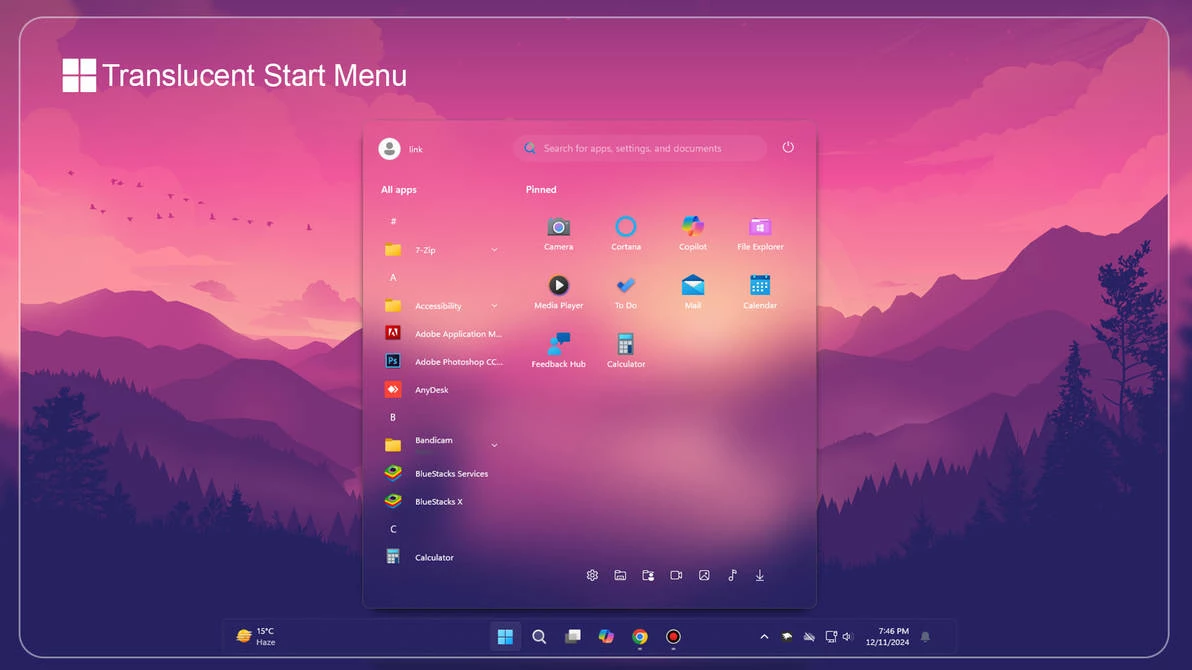
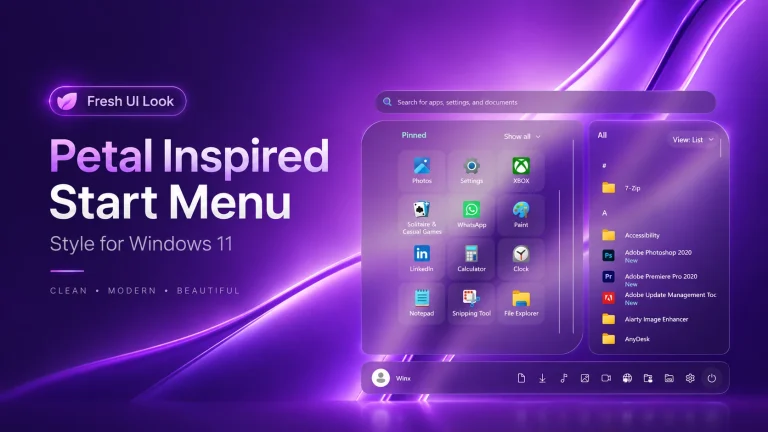
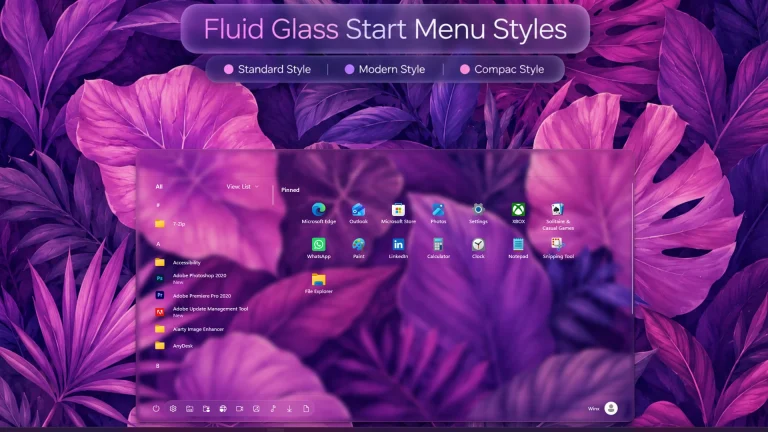
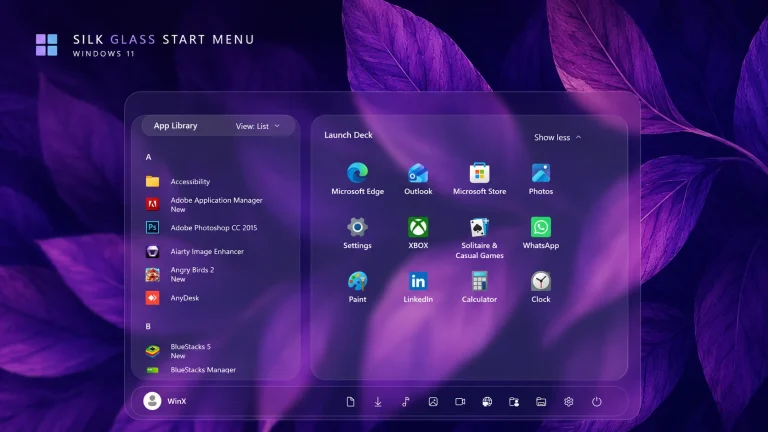
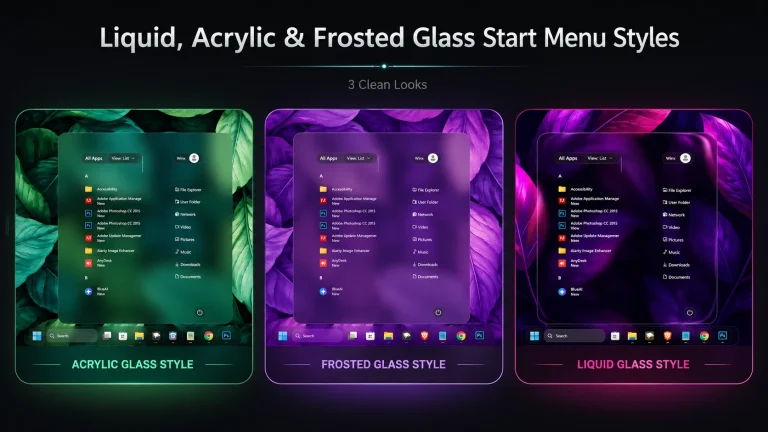
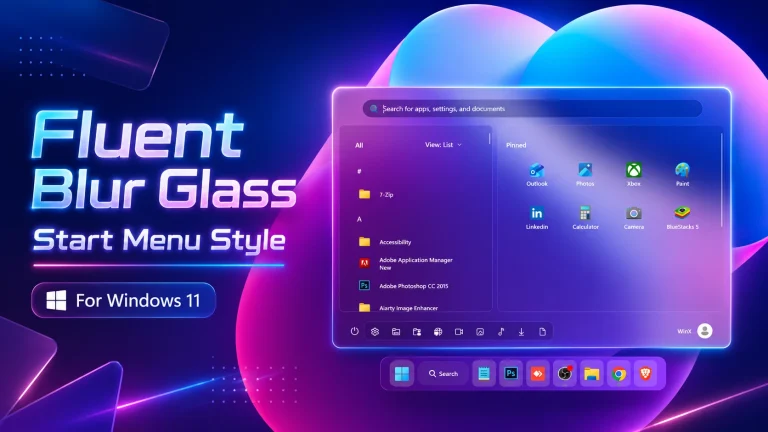
Translucent Start Menu Style For Windows 11:The Translucent Start Menu for Windows 11 features a sleek, frosted-glass effect that blends seamlessly with your desktop. It offers a modern, elegant look with smooth transparency, subtle blur, and refined animations, enhancing the overall user experience while keeping navigation clean and stylish.

Translucent Start Menu Style For Windows 11
If you want to give your Start Menu Translucent Start Menu Style a modern and premium look, the Translucent Start Menu Style For Windows 11 is one of the best customization options available. This stylish Start Menu design adds a beautiful transparent glass effect, smooth blur visuals, and a clean layout that perfectly matches the modern Windows 11 interface.
The Translucent Start Menu Style For Windows 11 is designed for users who love minimal desktop customization with elegant transparency effects. It improves the overall appearance of the Start Menu while keeping the interface lightweight, smooth, and visually attractive. Whether you are creating a gaming setup, productivity workspace, or aesthetic desktop theme, this Start Menu style gives your PC a fresh modern experience.
Features of Translucent Start Menu Style For Windows 11
- Beautiful transparent glass Start Menu design
- Smooth acrylic blur effect for modern UI appearance
- Clean and minimal Windows 11 style layout
- Enhanced visual experience with soft transparency
- Perfect for aesthetic desktop customization setups
- Lightweight and optimized for daily use
- Compatible with Windows 11 customization tools
- Modern interface inspired by Fluent Design
Why Choose Translucent Start Menu Style For Windows 11
The Translucent Start Menu Style For Windows 11 offers a premium desktop experience with elegant transparency and modern design elements. It blends perfectly with custom taskbars, icon packs, wallpapers, and themes. Many Windows 11 users prefer this style because it creates a cleaner and more immersive desktop environment.
Translucent Start Menu Style is ideal for users who want a professional and futuristic desktop look without changing the core functionality of Windows 11. The transparent effect helps your desktop feel more open, stylish, and visually balanced.
Best Setup for Translucent Start Menu Style For Windows 11
For the best experience, combine the Translucent Start Menu Style For Windows 11 with transparent taskbars, Fluent icons, dark wallpapers, and modern dock setups. This combination creates a complete modern Windows 11 customization setup that looks stunning on any desktop.
Download Windhawk To Use The Style
Compatibility
- Windows 11 21H2: May work, but not recommended for the best experience.
- Windows 11 22H2: Yes
- Windows 11 23H2: Yes
- Windows 11 24H2: Yes
- Last Tested on Windows 11 25H2: Build 26200.9457
Installation steps:
- Download & Install windhawk.
- install & Open the Windows 11 Start Menu Styler mod in Windhawk.
- Go to the “Advanced” tab.
- Copy the content below to the text box under “Mod settings” and click “Save”.
{ "theme": "Dragon Knight By Link vegas", "controlStyles[0].target": "Grid#MainMenu", "controlStyles[0].styles[0]": "Width=650", "controlStyles[0].styles[1]": "MinWidth=650", "controlStyles[0].styles[2]": "MaxWidth=650", "controlStyles[1].target": "Grid#FrameRoot", "controlStyles[1].styles[0]": "Height=700", "controlStyles[1].styles[1]": "MaxHeight=700", "controlStyles[2].target": "Grid#SideBySidePinnedWrapper", "controlStyles[2].styles[0]": "ColumnDefinitions:=<ColumnDefinitionCollection><ColumnDefinition Width=\"290*\"/><ColumnDefinition Width=\"360*\"/></ColumnDefinitionCollection>", "controlStyles[3].target": "GridView#AllAppsGrid > Border > Grid#SideBySidePinnedWrapper > ScrollViewer#ScrollViewer", "controlStyles[3].styles[0]": "Grid.Column=0", "controlStyles[3].styles[1]": "Margin=0", "controlStyles[4].target": "ScrollViewer#SideBySidePinnedScrollViewer", "controlStyles[4].styles[0]": "Grid.Column=1", "controlStyles[4].styles[1]": "Margin=0", "controlStyles[5].target": "Grid#SideBySidePinnedWrapper > ScrollViewer > Border#Root > Grid > ScrollContentPresenter > ItemsPresenter > ItemsWrapGrid", "controlStyles[5].styles[0]": "Margin=20,0,20,14", "controlStyles[6].target": "Grid#AllListHeading", "controlStyles[6].styles[0]": "Margin=0,3,0,0", "controlStyles[7].target": "Grid#AllListHeading > TextBlock#AllListHeadingText", "controlStyles[7].styles[0]": "Margin=30,6,8,7", "controlStyles[8].target": "Grid#AllListHeading > Microsoft.UI.Xaml.Controls.DropDownButton#ViewSelectionButton", "controlStyles[8].styles[0]": "Margin=0,0,18,0", "controlStyles[8].styles[1]": "Width=30", "controlStyles[8].styles[2]": "Height=30", "controlStyles[8].styles[3]": "CornerRadius=10", "controlStyles[9].target": "GridView#AllAppsGrid", "controlStyles[9].styles[0]": "Margin=0,0,0,65", "controlStyles[10].target": "StartMenu.PinnedList#StartMenuPinnedList", "controlStyles[10].styles[0]": "Width=350", "controlStyles[10].styles[1]": "MaxWidth=350", "controlStyles[10].styles[2]": "Height=520", "controlStyles[10].styles[3]": "MaxHeight=520", "controlStyles[10].styles[4]": "Margin=5,12,5,0", "controlStyles[11].target": "TextBlock#PinnedListHeaderText", "controlStyles[11].styles[0]": "Visibility=Visible", "controlStyles[11].styles[1]": "Margin=20,4,0,0", "controlStyles[12].target": "Microsoft.UI.Xaml.Controls.PipsPager#PinnedListPipsPager", "controlStyles[12].styles[0]": "Visibility=Collapsed", "controlStyles[13].target": "Grid#TopLevelSuggestionsListHeader", "controlStyles[13].styles[0]": "Visibility=Collapsed", "controlStyles[13].styles[1]": "Height=0", "controlStyles[14].target": "Grid#TopLevelSuggestionsRoot", "controlStyles[14].styles[0]": "Visibility=Collapsed", "controlStyles[14].styles[1]": "Height=0", "controlStyles[14].styles[2]": "MaxHeight=0", "controlStyles[15].target": "Grid#TopLevelSuggestionsContainer", "controlStyles[15].styles[0]": "Visibility=Collapsed", "controlStyles[15].styles[1]": "Height=0", "controlStyles[16].target": "GridView#RecommendedList", "controlStyles[16].styles[0]": "Visibility=Collapsed", "controlStyles[16].styles[1]": "Height=0", "controlStyles[17].target": "Grid#ShowMoreSuggestions", "controlStyles[17].styles[0]": "Visibility=Collapsed", "controlStyles[17].styles[1]": "Height=0", "controlStyles[18].target": "Grid#MoreSuggestionsRoot", "controlStyles[18].styles[0]": "Visibility=Collapsed", "controlStyles[18].styles[1]": "Height=0", "controlStyles[19].target": "StartMenu.SearchBoxToggleButton#SearchBoxToggleButton", "controlStyles[19].styles[0]": "Height=38", "controlStyles[19].styles[1]": "Width=340", "controlStyles[19].styles[2]": "HorizontalAlignment=Right", "controlStyles[19].styles[3]": "Margin=0,0,18,14", "controlStyles[19].styles[4]": "Canvas.ZIndex=10", "controlStyles[20].target": "StartMenu.SearchBoxToggleButton#SearchBoxToggleButton > Grid@CommonStates > Border#BorderElement", "controlStyles[20].styles[0]": "Background:=<SolidColorBrush Color=\"#11FFFFFF\"/>", "controlStyles[20].styles[1]": "BorderBrush:=<RevealBorderBrush Color=\"Transparent\" TargetTheme=\"1\" Opacity=\".65\"/>", "controlStyles[20].styles[2]": "BorderThickness=1", "controlStyles[20].styles[3]": "CornerRadius=10", "controlStyles[21].target": "Border#AcrylicBorder", "controlStyles[21].styles[0]": "Background:=<AcrylicBrush TintColor=\"{ThemeResource SystemChromeMediumColor}\" TintOpacity=\"0\" FallbackColor=\"{ThemeResource SystemChromeMediumColor}\" />", "controlStyles[21].styles[1]": "BorderBrush:=<RevealBorderBrush Color=\"Transparent\" TargetTheme=\"1\" Opacity=\".80\"/>", "controlStyles[21].styles[2]": "BorderThickness=1", "controlStyles[21].styles[3]": "CornerRadius=10", "controlStyles[21].styles[4]": "Margin=0", "controlStyles[22].target": "Border#AcrylicOverlay", "controlStyles[22].styles[0]": "Background=Transparent", "controlStyles[22].styles[1]": "CornerRadius=10", "controlStyles[22].styles[2]": "Margin=0", "controlStyles[23].target": "Border#DropShadow", "controlStyles[23].styles[0]": "CornerRadius=10", "controlStyles[23].styles[1]": "Margin=0", "controlStyles[24].target": "Border#StartDropShadow", "controlStyles[24].styles[0]": "CornerRadius=10", "controlStyles[25].target": "StartMenu.PinnedList#StartMenuPinnedList Border#ContentBorder@CommonStates > Grid#DroppedFlickerWorkaroundWrapper > Border", "controlStyles[25].styles[0]": "Background@Normal:=<RevealBorderBrush Color=\"Transparent\" TargetTheme=\"1\" Opacity=\".12\"/>", "controlStyles[25].styles[1]": "Background@PointerOver:=<RevealBorderBrush Color=\"Transparent\" TargetTheme=\"1\" Opacity=\".30\"/>", "controlStyles[25].styles[2]": "BorderBrush@PointerOver:=<RevealBorderBrush Color=\"White\" TargetTheme=\"1\" Opacity=\".55\"/>", "controlStyles[25].styles[3]": "BorderThickness=1", "controlStyles[25].styles[4]": "CornerRadius=10", "controlStyles[25].styles[5]": "Margin=1", "controlStyles[26].target": "StartMenu.PinnedList#StartMenuPinnedList Border#ContentBorder@CommonStates > Grid#DroppedFlickerWorkaroundWrapper > Border#BackgroundBorder", "controlStyles[26].styles[0]": "Background@Normal:=<RevealBorderBrush Color=\"Transparent\" TargetTheme=\"0\" Opacity=\".10\"/>", "controlStyles[26].styles[1]": "Background@PointerOver:=<RevealBorderBrush Color=\"Transparent\" TargetTheme=\"1\" Opacity=\".25\"/>", "controlStyles[26].styles[2]": "Margin=2", "controlStyles[26].styles[3]": "CornerRadius=9", "controlStyles[27].target": "Grid#NavPanePlaceholder", "controlStyles[27].styles[0]": "Margin=22,0,22,0", "controlStyles[28].target": "StartDocked.NavigationPaneView#UserControl > Grid#RootPanel", "controlStyles[28].styles[0]": "FlowDirection=1", "controlStyles[29].target": "StartDocked.PowerOptionsView#PowerButton", "controlStyles[29].styles[0]": "FlowDirection=0", "controlStyles[30].target": "ItemsStackPanel > ListViewItem", "controlStyles[30].styles[0]": "FlowDirection=0", "controlStyles[31].target": "StartDocked.AppListView#NavigationPanePlacesListView > Border", "controlStyles[31].styles[0]": "Background:=<RevealBorderBrush Color=\"Transparent\" TargetTheme=\"1\" Opacity=\".18\"/>", "controlStyles[31].styles[1]": "BorderBrush:=<RevealBorderBrush Color=\"Transparent\" TargetTheme=\"1\" Opacity=\".60\"/>", "controlStyles[31].styles[2]": "BorderThickness=1", "controlStyles[31].styles[3]": "CornerRadius=10", "controlStyles[32].target": "StartDocked.AppListViewItem > Grid@CommonStates > Border", "controlStyles[32].styles[0]": "Background@Normal:=<RevealBorderBrush Color=\"Transparent\" TargetTheme=\"1\" Opacity=\".12\"/>", "controlStyles[32].styles[1]": "Background@PointerOver:=<RevealBorderBrush Color=\"Transparent\" TargetTheme=\"1\" Opacity=\".30\"/>", "controlStyles[32].styles[2]": "BorderBrush@PointerOver:=<RevealBorderBrush Color=\"Transparent\" TargetTheme=\"1\" Opacity=\".80\"/>", "controlStyles[32].styles[3]": "BorderThickness=1", "controlStyles[32].styles[4]": "CornerRadius=10", "controlStyles[33].target": "StartDocked.NavigationPaneButton#PowerButton > Grid@CommonStates > Border#BackgroundBorder", "controlStyles[33].styles[0]": "Background@Normal:=<RevealBorderBrush Color=\"Transparent\" TargetTheme=\"1\" Opacity=\".18\"/>", "controlStyles[33].styles[1]": "Background@PointerOver:=<RevealBorderBrush Color=\"Transparent\" TargetTheme=\"1\" Opacity=\".35\"/>", "controlStyles[33].styles[2]": "BorderBrush@Normal:=<RevealBorderBrush Color=\"Transparent\" TargetTheme=\"1\" Opacity=\".45\"/>", "controlStyles[33].styles[3]": "BorderBrush@PointerOver:=<RevealBorderBrush Color=\"White\" TargetTheme=\"1\" Opacity=\".65\"/>", "controlStyles[33].styles[4]": "BorderThickness=1", "controlStyles[33].styles[5]": "CornerRadius=20", "controlStyles[34].target": "StartDocked.UserTileView", "controlStyles[34].styles[0]": "Height=42", "controlStyles[35].target": "StartDocked.NavigationPaneButton#UserTileButton > Grid@CommonStates > Border", "controlStyles[35].styles[0]": "Background@Normal:=<RevealBorderBrush Color=\"Transparent\" TargetTheme=\"1\" Opacity=\".15\"/>", "controlStyles[35].styles[1]": "Background@PointerOver:=<RevealBorderBrush Color=\"Transparent\" TargetTheme=\"1\" Opacity=\".30\"/>", "controlStyles[35].styles[2]": "BorderBrush@PointerOver:=<RevealBorderBrush Color=\"White\" TargetTheme=\"1\" Opacity=\".55\"/>", "controlStyles[35].styles[3]": "BorderThickness=1", "controlStyles[35].styles[4]": "CornerRadius=10", "controlStyles[36].target": "StartDocked.PowerOptionsView > StartDocked.NavigationPaneButton > Grid > Border", "controlStyles[36].styles[0]": "CornerRadius=20", "controlStyles[36].styles[1]": "Margin=2,3,2,0", "controlStyles[37].target": "StartMenu.ExpandedFolderList > Grid > Grid", "controlStyles[37].styles[0]": "CornerRadius=10", "controlStyles[38].target": "StartMenu.ExpandedFolderList > Grid > Grid > Microsoft.UI.Xaml.Controls.PipsPager#PinnedListPipsPager", "controlStyles[38].styles[0]": "Visibility=Collapsed", "controlStyles[39].target": "MenuFlyoutPresenter > Border", "controlStyles[39].styles[0]": "BorderBrush:=<RevealBorderBrush Color=\"Transparent\" TargetTheme=\"1\" Opacity=\".80\"/>", "controlStyles[39].styles[1]": "BorderThickness=1", "controlStyles[39].styles[2]": "CornerRadius=10", "controlStyles[40].target": "Windows.UI.Xaml.Controls.Primitives.ToggleButton#ShowHideCompanion", "controlStyles[40].styles[0]": "Visibility=Collapsed", "controlStyles[41].target": "Grid#CompanionRoot", "controlStyles[41].styles[0]": "Visibility=Collapsed", "controlStyles[42].target": "Grid#RightCompanionContainerGrid", "controlStyles[42].styles[0]": "Visibility=Collapsed", "disableNewStartMenuLayout": "newLayoutSideBySide"}Conclusion
The Translucent Start Menu Style For Windows 11 is perfect for users who want a clean, elegant, and modern desktop interface. With smooth transparency effects and a stylish layout, this Start Menu customization can completely transform the appearance of your Windows 11 PC while maintaining excellent usability and performance.
You may also like

One comment
Leave a Reply
Disclaimer: All themes, visual styles, and concepts shared on this website are unofficial, fan-made creations built from imagination for customization purposes. We are not affiliated with, endorsed by, or sponsored by Microsoft or any other official brand.
How to create windhawk?