Fluent Start Menu Style For Windows 11
Download the best Fluent Start Menu Style For Windows 11 using Windhawk. Enjoy a modern transparent UI, smooth animations, acrylic blur effects, and a clean customizable Windows 11 desktop experience.

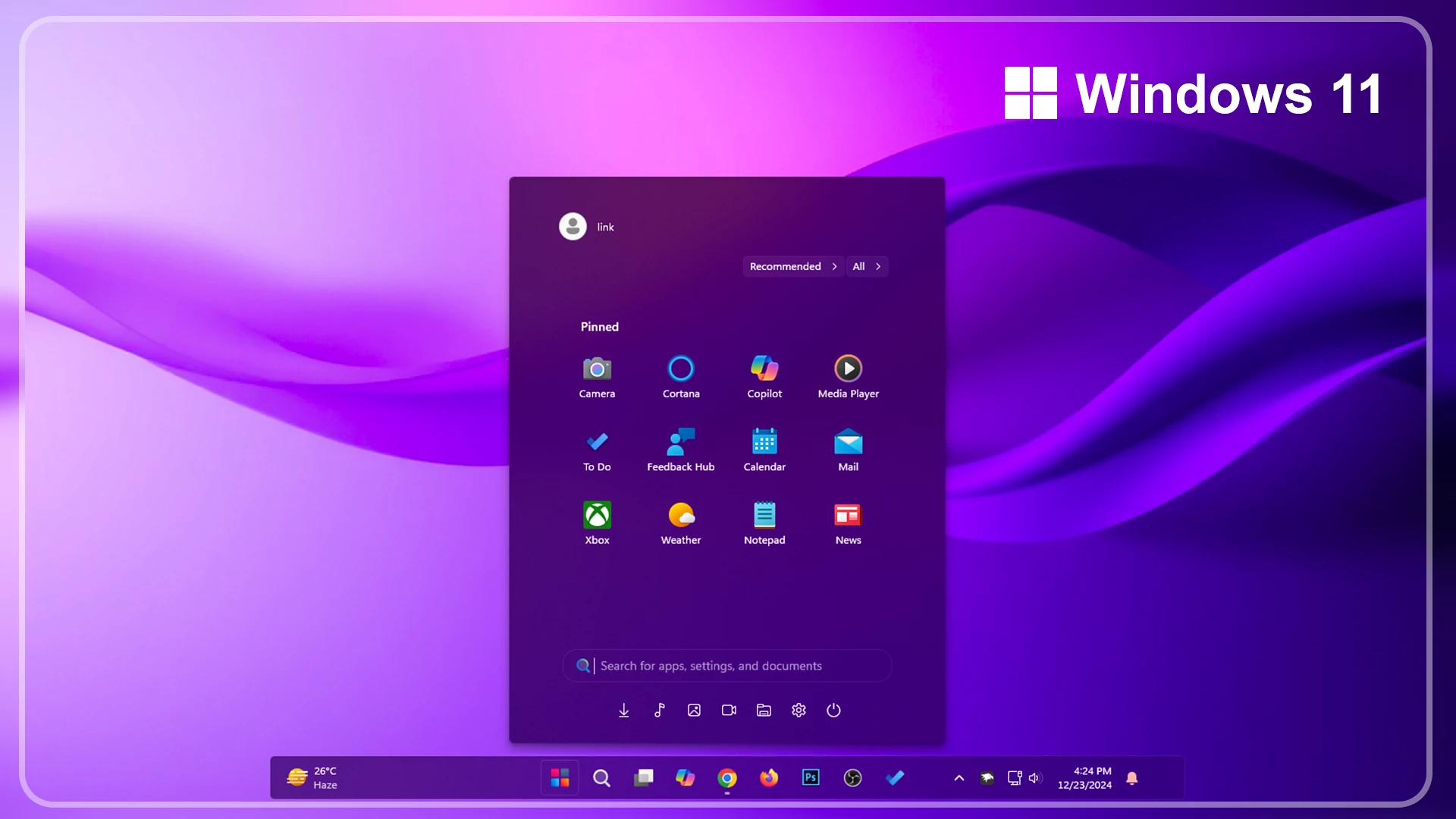
Fluent Start Menu Style For Windows 11
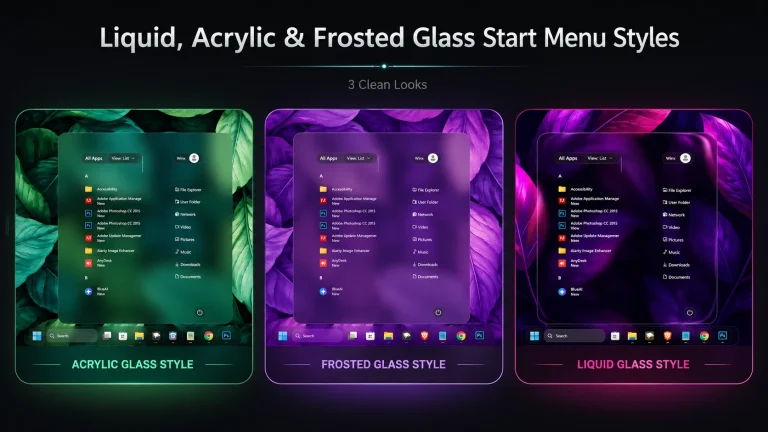
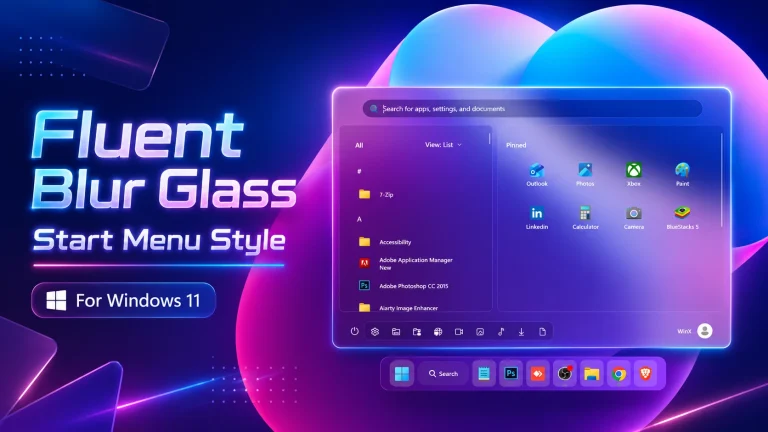
If you want to give your desktop a modern and Fluent Start Menu Stylelook the Fluent Start Menu Style For Windows 11 is one of the best customization options available. Inspired by Microsoft’s Fluent Design System, this start menu style adds transparency, acrylic blur, smooth animations, rounded corners, and a cleaner layout to your Windows 11 desktop.
Using Windhawk, you can completely transform the default Windows 11 start menu into a stylish and elegant interface that feels faster, cleaner, and more visually appealing. Fluent Start Menu Style For Windows 11 design perfectly matches modern desktop setups and creates a professional look for both productivity and gaming environments.
Features of Fluent Start Menu Style
- Modern Fluent Design inspired interface
- Smooth acrylic blur and transparency effects
- Rounded corners for a premium appearance
- Clean and minimal layout for better usability
- Enhanced visual animations and transitions
- Fully customizable using Windhawk mods
- Optimized for Windows 11 desktop setups
- Lightweight performance with smooth responsiveness
Why Use Fluent Start Menu Style?
The default Windows 11 start menu is clean, but many users prefer a more customized and polished experience. The Fluent Start Menu Style For Windows 11 improves the overall desktop aesthetic while maintaining functionality and performance.
This style is perfect for users who enjoy modern UI customization, minimal desktop setups, transparent effects, and elegant Windows themes. It blends perfectly with dark themes, custom taskbars, icon packs, and glass UI enhancements.
Windhawk Customization Support
Windhawk allows you to easily apply and customize the Fluent Start Menu Style with advanced modifications and visual tweaks. You can adjust transparency levels, blur intensity, layout spacing, icon appearance, and animation behavior according to your preference.
The Fluent style works smoothly with most Windows 11 builds and offers a stable customization experience without heavily affecting system performance.
Best For:
- Modern Windows 11 desktop customization
- Fluent Start Menu Style For Windows 11
- Acrylic blur and glass effect enthusiasts
- Gaming and productivity desktop setups
- Users who want a premium Windows interface
- Windows 11 21H2: May work, but not recommended for the best experience
- 22H2 YES
- 22H3 YES
- 24H2 YES
- Windows 11 25H2: YES work, but test carefully after Windows updates
- Download & Install windhawk.
- install & Open the Windows 11 Start Menu Styler mod in Windhawk.
- Go to the “Advanced” tab.
- Copy the content below to the text box under “Mod settings” and click “Save”.
{ "theme": "Fluent Start Menu by Link Vegas", "controlStyles[0].target": "Windows.UI.Xaml.Controls.Grid#TopLevelSuggestionsListHeader", "controlStyles[0].styles[0]": "Visibility=Collapsed", "controlStyles[1].target": "Windows.UI.Xaml.Controls.Grid#NoTopLevelSuggestionsText", "controlStyles[1].styles[0]": "Height=0", "controlStyles[2].target": "Windows.UI.Xaml.Controls.Grid#TopLevelSuggestionsContainer", "controlStyles[2].styles[0]": "Height=0", "controlStyles[3].target": "Windows.UI.Xaml.Controls.Grid#ShowMoreSuggestions", "controlStyles[3].styles[0]": "RenderTransform:=<TranslateTransform Y=\"-572\" X=\"-50\" />", "controlStyles[4].target": "StartMenu.PinnedList", "controlStyles[4].styles[0]": "Height=504", "controlStyles[4].styles[1]": "RenderTransform:=<TranslateTransform Y=\"65\" X=\"20\" />", "controlStyles[5].target": "Windows.UI.Xaml.Controls.Grid#ShowMoreSuggestions > Windows.UI.Xaml.Controls.Button > Windows.UI.Xaml.Controls.ContentPresenter > Windows.UI.Xaml.Controls.StackPanel > Windows.UI.Xaml.Controls.TextBlock", "controlStyles[5].styles[0]": "Text=Recommended", "controlStyles[6].target": "StartDocked.StartSizingFrame", "controlStyles[6].styles[0]": "MaxWidth=500", "controlStyles[6].styles[1]": "MinWidth=500", "controlStyles[6].styles[2]": "MaxHeight=650", "controlStyles[7].target": "Grid#RootContent", "controlStyles[7].styles[0]": "MinWidth=500", "controlStyles[8].target": "StartMenu.ExpandedFolderList > Grid > Grid > Microsoft.UI.Xaml.Controls.PipsPager#PinnedListPipsPager", "controlStyles[8].styles[0]": "Margin=-105,10,0,0", "controlStyles[9].target": "Border#AcrylicOverlay", "controlStyles[9].styles[0]": "Visibility=Collapsed", "controlStyles[10].target": "Border#AcrylicBorder", "controlStyles[10].styles[0]": "Background:=<AcrylicBrush TintColor=\"{ThemeResource CardStrokeColorDefaultSolid}\" FallbackColor=\"{ThemeResource CardStrokeColorDefaultSolid}\" TintOpacity=\"0\" TintLuminosityOpacity=\".85\" Opacity=\"1\"/>", "controlStyles[10].styles[1]": "BorderBrush:=<AcrylicBrush TintColor=\"{ThemeResource SurfaceStrokeColorDefault}\" FallbackColor=\"{ThemeResource SurfaceStrokeColorDefault}\" TintOpacity=\"0\" TintLuminosityOpacity=\".0\" Opacity=\"1\"/>", "controlStyles[10].styles[2]": "BorderThickness=1", "controlStyles[10].styles[3]": "CornerRadius=5", "controlStyles[10].styles[4]": "Margin=0", "controlStyles[11].target": "Border#DropShadow", "controlStyles[11].styles[0]": "CornerRadius=5", "controlStyles[11].styles[1]": "Margin=0", "controlStyles[12].target": "StartDocked.SearchBoxToggleButton#StartMenuSearchBox", "controlStyles[12].styles[0]": "RenderTransform:=<TranslateTransform Y=\"500\" X=\"0\" />", "controlStyles[12].styles[1]": "Margin=60,10,60,0", "controlStyles[13].target": "StartDocked.SearchBoxToggleButton", "controlStyles[13].styles[0]": "Height=38", "controlStyles[13].styles[2]": "CornerRadius=20", "controlStyles[14].target": "StartDocked.SearchBoxToggleButton > Grid > Border", "controlStyles[14].styles[0]": "Background=Transparent", "controlStyles[15].target": "StartDocked.LauncherFrame > Grid#RootGrid > Grid#RootContent > Grid#MainContent > Grid#InnerContent > Rectangle", "controlStyles[15].styles[0]": "RenderTransform:=<TranslateTransform Y=\"520\" X=\"20\" />", "controlStyles[16].target": "StartDocked.SearchBoxToggleButton", "controlStyles[16].styles[0]": "Canvas.ZIndex=1", "controlStyles[17].target": "Windows.UI.Xaml.Controls.TextBlock#PinnedListHeaderText", "controlStyles[17].styles[0]": "Margin=20,0,0,0", "controlStyles[18].target": "Windows.UI.Xaml.Controls.TextBlock#PinnedListHeaderText", "controlStyles[18].styles[0]": "Margin=18,60,0,-100", "controlStyles[19].target": "StartDocked.UserTileView#UserTile", "controlStyles[19].styles[0]": "RenderTransform:=<TranslateTransform Y=\"-555\" X=\"47\" />", "controlStyles[20].target": "StartDocked.NavigationPaneView", "controlStyles[20].styles[0]": "RenderTransform:=<TranslateTransform Y=\"-5\" X=\"-55\" />", "controlStyles[21].target": "StartDocked.AllAppsPane#AllAppsPanel", "controlStyles[21].styles[0]": "Margin=0,0,0,50", "controlStyles[22].target": "StartDocked.LauncherFrame > Grid#RootPanel > Grid#RootGrid", "controlStyles[22].styles[0]": "MinWidth=500", "controlStyles[22].styles[1]": "MaxWidth=500", "controlStyles[23].target": "StartDocked.LauncherFrame > Grid#RootPanel > Grid#RootGrid > Grid#RootContent", "controlStyles[23].styles[0]": "MinWidth=500", "controlStyles[23].styles[1]": "MaxWidth=500", "disableNewStartMenuLayout": "legacyClassicLayout"}{ "theme": "", "controlStyles[0].target": "Grid#MainMenu", "controlStyles[0].styles[0]": "Width=500", "controlStyles[0].styles[1]": "MinWidth=500", "controlStyles[0].styles[2]": "MaxWidth=500", "controlStyles[1].target": "Grid#FrameRoot", "controlStyles[1].styles[0]": "Height=650", "controlStyles[1].styles[1]": "MaxHeight=650", "controlStyles[2].target": "Grid#TopLevelSuggestionsListHeader", "controlStyles[2].styles[0]": "Visibility=Collapsed", "controlStyles[2].styles[1]": "Height=0", "controlStyles[3].target": "Grid#NoTopLevelSuggestionsText", "controlStyles[3].styles[0]": "Visibility=Collapsed", "controlStyles[3].styles[1]": "Height=0", "controlStyles[4].target": "Grid#TopLevelSuggestionsContainer", "controlStyles[4].styles[0]": "Visibility=Collapsed", "controlStyles[4].styles[1]": "Height=0", "controlStyles[5].target": "Grid#TopLevelSuggestionsRoot", "controlStyles[5].styles[0]": "Visibility=Collapsed", "controlStyles[5].styles[1]": "Height=0", "controlStyles[5].styles[2]": "MaxHeight=0", "controlStyles[6].target": "GridView#RecommendedList", "controlStyles[6].styles[0]": "Visibility=Collapsed", "controlStyles[6].styles[1]": "Height=0", "controlStyles[7].target": "Grid#ShowMoreSuggestions", "controlStyles[7].styles[0]": "Visibility=Collapsed", "controlStyles[7].styles[1]": "Height=0", "controlStyles[8].target": "Grid#MoreSuggestionsRoot", "controlStyles[8].styles[0]": "Visibility=Collapsed", "controlStyles[8].styles[1]": "Height=0", "controlStyles[9].target": "StartMenu.PinnedList#StartMenuPinnedList", "controlStyles[9].styles[0]": "Width=440", "controlStyles[9].styles[1]": "MaxWidth=440", "controlStyles[9].styles[2]": "Height=430", "controlStyles[9].styles[3]": "MaxHeight=430", "controlStyles[9].styles[4]": "Margin=30,42,30,0", "controlStyles[10].target": "TextBlock#PinnedListHeaderText", "controlStyles[10].styles[0]": "Margin=18,18,0,0", "controlStyles[10].styles[1]": "FontWeight=600", "controlStyles[11].target": "Microsoft.UI.Xaml.Controls.PipsPager#PinnedListPipsPager", "controlStyles[11].styles[0]": "Visibility=Collapsed", "controlStyles[12].target": "GridView#AllAppsGrid", "controlStyles[12].styles[0]": "Margin=15,0,15,70", "controlStyles[13].target": "Grid#AllListHeading", "controlStyles[13].styles[0]": "Margin=18,0,18,0", "controlStyles[14].target": "Grid#AllListHeading > TextBlock#AllListHeadingText", "controlStyles[14].styles[0]": "Margin=8,6,0,7", "controlStyles[15].target": "Grid#AllListHeading > Microsoft.UI.Xaml.Controls.DropDownButton#ViewSelectionButton", "controlStyles[15].styles[0]": "Margin=0,0,8,0", "controlStyles[16].target": "StartMenu.SearchBoxToggleButton#SearchBoxToggleButton", "controlStyles[16].styles[0]": "Height=38", "controlStyles[16].styles[1]": "Width=380", "controlStyles[16].styles[2]": "HorizontalAlignment=Center", "controlStyles[16].styles[3]": "Margin=0,0,0,14", "controlStyles[16].styles[4]": "RenderTransform:=<TranslateTransform Y=\"500\"/>", "controlStyles[16].styles[5]": "Canvas.ZIndex=10", "controlStyles[17].target": "StartMenu.SearchBoxToggleButton#SearchBoxToggleButton > Grid@CommonStates > Border#BorderElement", "controlStyles[17].styles[0]": "Background=Transparent", "controlStyles[17].styles[1]": "BorderBrush:=<AcrylicBrush TintColor=\"{ThemeResource SurfaceStrokeColorDefault}\" FallbackColor=\"{ThemeResource SurfaceStrokeColorDefault}\" TintOpacity=\"0\" TintLuminosityOpacity=\".22\"/>", "controlStyles[17].styles[2]": "BorderBrush@PointerOver:=<AcrylicBrush TintColor=\"{ThemeResource SurfaceStrokeColorDefault}\" FallbackColor=\"{ThemeResource SurfaceStrokeColorDefault}\" TintOpacity=\"0\" TintLuminosityOpacity=\".40\"/>", "controlStyles[17].styles[3]": "BorderThickness=1", "controlStyles[17].styles[4]": "CornerRadius=20", "controlStyles[18].target": "StartMenu.SearchBoxToggleButton > Grid > ContentPresenter > TextBlock#PlaceholderText", "controlStyles[18].styles[0]": "Opacity=.75", "controlStyles[19].target": "Border#AcrylicBorder", "controlStyles[19].styles[0]": "Background:=<AcrylicBrush BackgroundSource=\"Backdrop\" TintColor=\"{ThemeResource CardStrokeColorDefaultSolid}\" FallbackColor=\"{ThemeResource CardStrokeColorDefaultSolid}\" TintOpacity=\"0\" TintLuminosityOpacity=\".85\"/>", "controlStyles[19].styles[1]": "BorderBrush:=<AcrylicBrush TintColor=\"{ThemeResource SurfaceStrokeColorDefault}\" FallbackColor=\"{ThemeResource SurfaceStrokeColorDefault}\" TintOpacity=\"0\" TintLuminosityOpacity=\".10\"/>", "controlStyles[19].styles[2]": "BorderThickness=1", "controlStyles[19].styles[3]": "CornerRadius=5", "controlStyles[19].styles[4]": "Margin=0", "controlStyles[20].target": "Border#AcrylicOverlay", "controlStyles[20].styles[0]": "Visibility=Collapsed", "controlStyles[21].target": "Border#DropShadow", "controlStyles[21].styles[0]": "CornerRadius=5", "controlStyles[21].styles[1]": "Margin=0", "controlStyles[22].target": "Border#StartDropShadow", "controlStyles[22].styles[0]": "CornerRadius=5", "controlStyles[23].target": "StartMenu.PinnedList#StartMenuPinnedList Border#ContentBorder@CommonStates > Grid#DroppedFlickerWorkaroundWrapper > Border", "controlStyles[23].styles[0]": "CornerRadius=5", "controlStyles[23].styles[1]": "Height=80", "controlStyles[23].styles[2]": "Width=92", "controlStyles[23].styles[3]": "FocusVisualPrimaryBrush:=<SolidColorBrush Color=\"#B3CEFD\" Opacity=\".10\"/>", "controlStyles[24].target": "StartMenu.PinnedList#StartMenuPinnedList Border#ContentBorder@CommonStates > Grid#DroppedFlickerWorkaroundWrapper > Border#BackgroundBorder", "controlStyles[24].styles[0]": "Background@Normal:=<AcrylicBrush TintColor=\"{ThemeResource CardStrokeColorDefaultSolid}\" FallbackColor=\"{ThemeResource CardStrokeColorDefaultSolid}\" TintOpacity=\"0\" TintLuminosityOpacity=\".20\"/>", "controlStyles[24].styles[1]": "Background@PointerOver:=<AcrylicBrush TintColor=\"{ThemeResource CardStrokeColorDefaultSolid}\" FallbackColor=\"{ThemeResource CardStrokeColorDefaultSolid}\" TintOpacity=\"0\" TintLuminosityOpacity=\".35\"/>", "controlStyles[24].styles[2]": "BorderBrush:=<AcrylicBrush TintColor=\"{ThemeResource SurfaceStrokeColorDefault}\" FallbackColor=\"{ThemeResource SurfaceStrokeColorDefault}\" TintOpacity=\"0\" TintLuminosityOpacity=\".12\"/>", "controlStyles[24].styles[3]": "BorderThickness=1", "controlStyles[24].styles[4]": "CornerRadius=5", "controlStyles[25].target": "StartMenu.ExpandedFolderList > Grid > Grid", "controlStyles[25].styles[0]": "CornerRadius=8", "controlStyles[26].target": "StartMenu.ExpandedFolderList > Grid > Border", "controlStyles[26].styles[0]": "CornerRadius=8", "controlStyles[27].target": "StartMenu.ExpandedFolderList > Grid > Grid > Microsoft.UI.Xaml.Controls.PipsPager#PinnedListPipsPager", "controlStyles[27].styles[0]": "Visibility=Collapsed", "controlStyles[28].target": "Grid#NavPanePlaceholder", "controlStyles[28].styles[0]": "Margin=24,0,24,0", "controlStyles[29].target": "StartDocked.NavigationPaneView#UserControl > Grid#RootPanel", "controlStyles[29].styles[0]": "FlowDirection=1", "controlStyles[30].target": "StartDocked.PowerOptionsView#PowerButton", "controlStyles[30].styles[0]": "FlowDirection=0", "controlStyles[31].target": "ItemsStackPanel > ListViewItem", "controlStyles[31].styles[0]": "FlowDirection=0", "controlStyles[32].target": "StartDocked.AppListView#NavigationPanePlacesListView > Border", "controlStyles[32].styles[0]": "Background:=<AcrylicBrush TintColor=\"{ThemeResource CardStrokeColorDefaultSolid}\" FallbackColor=\"{ThemeResource CardStrokeColorDefaultSolid}\" TintOpacity=\"0\" TintLuminosityOpacity=\".45\"/>", "controlStyles[32].styles[1]": "BorderBrush:=<AcrylicBrush TintColor=\"{ThemeResource SurfaceStrokeColorDefault}\" FallbackColor=\"{ThemeResource SurfaceStrokeColorDefault}\" TintOpacity=\"0\" TintLuminosityOpacity=\".12\"/>", "controlStyles[32].styles[2]": "BorderThickness=1", "controlStyles[32].styles[3]": "CornerRadius=10", "controlStyles[33].target": "StartDocked.NavigationPaneButton#PowerButton > Grid@CommonStates > Border#BackgroundBorder", "controlStyles[33].styles[0]": "Background@Normal:=<AcrylicBrush TintColor=\"{ThemeResource CardStrokeColorDefaultSolid}\" TintOpacity=\"0\" TintLuminosityOpacity=\".35\"/>", "controlStyles[33].styles[1]": "Background@PointerOver:=<AcrylicBrush TintColor=\"{ThemeResource CardStrokeColorDefaultSolid}\" TintOpacity=\"0\" TintLuminosityOpacity=\".55\"/>", "controlStyles[33].styles[2]": "BorderBrush:=<AcrylicBrush TintColor=\"{ThemeResource SurfaceStrokeColorDefault}\" TintOpacity=\"0\" TintLuminosityOpacity=\".15\"/>", "controlStyles[33].styles[3]": "BorderThickness=1", "controlStyles[33].styles[4]": "CornerRadius=20", "controlStyles[34].target": "StartDocked.NavigationPaneButton#UserTileButton > Grid@CommonStates > Border", "controlStyles[34].styles[0]": "Background@Normal:=<AcrylicBrush TintColor=\"{ThemeResource CardStrokeColorDefaultSolid}\" TintOpacity=\"0\" TintLuminosityOpacity=\".30\"/>", "controlStyles[34].styles[1]": "Background@PointerOver:=<AcrylicBrush TintColor=\"{ThemeResource CardStrokeColorDefaultSolid}\" TintOpacity=\"0\" TintLuminosityOpacity=\".50\"/>", "controlStyles[34].styles[2]": "CornerRadius=20", "controlStyles[35].target": "StartDocked.UserTileView", "controlStyles[35].styles[0]": "Height=42", "controlStyles[36].target": "Grid#UserTileIcon", "controlStyles[36].styles[0]": "Width=36", "controlStyles[36].styles[1]": "Height=36", "controlStyles[37].target": "Windows.UI.Xaml.Controls.Primitives.ToggleButton#ShowHideCompanion", "controlStyles[37].styles[0]": "Visibility=Collapsed", "controlStyles[38].target": "Grid#CompanionRoot", "controlStyles[38].styles[0]": "Visibility=Collapsed", "controlStyles[39].target": "Grid#RightCompanionContainerGrid", "controlStyles[39].styles[0]": "Visibility=Collapsed", "disableNewStartMenuLayout": "forceNewLayout"}Conclusion
Using Fluent Start Menu Style For Windows 11 Using Windhawk is one of the easiest ways to enhance your desktop experience. With just a few steps, you can achieve a premium and modern interface without spending any money.