

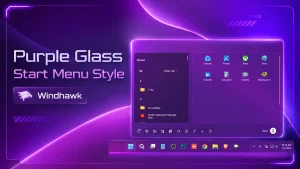
Purple Glass Start Menu Style
Give your Windows 11 Start Menu a modern purple glass look with Purple Glass Start Menu Style for Windhawk. This style adds a smooth transparent design, soft purple tones, rounded corners, and a clean personalized desktop feel.

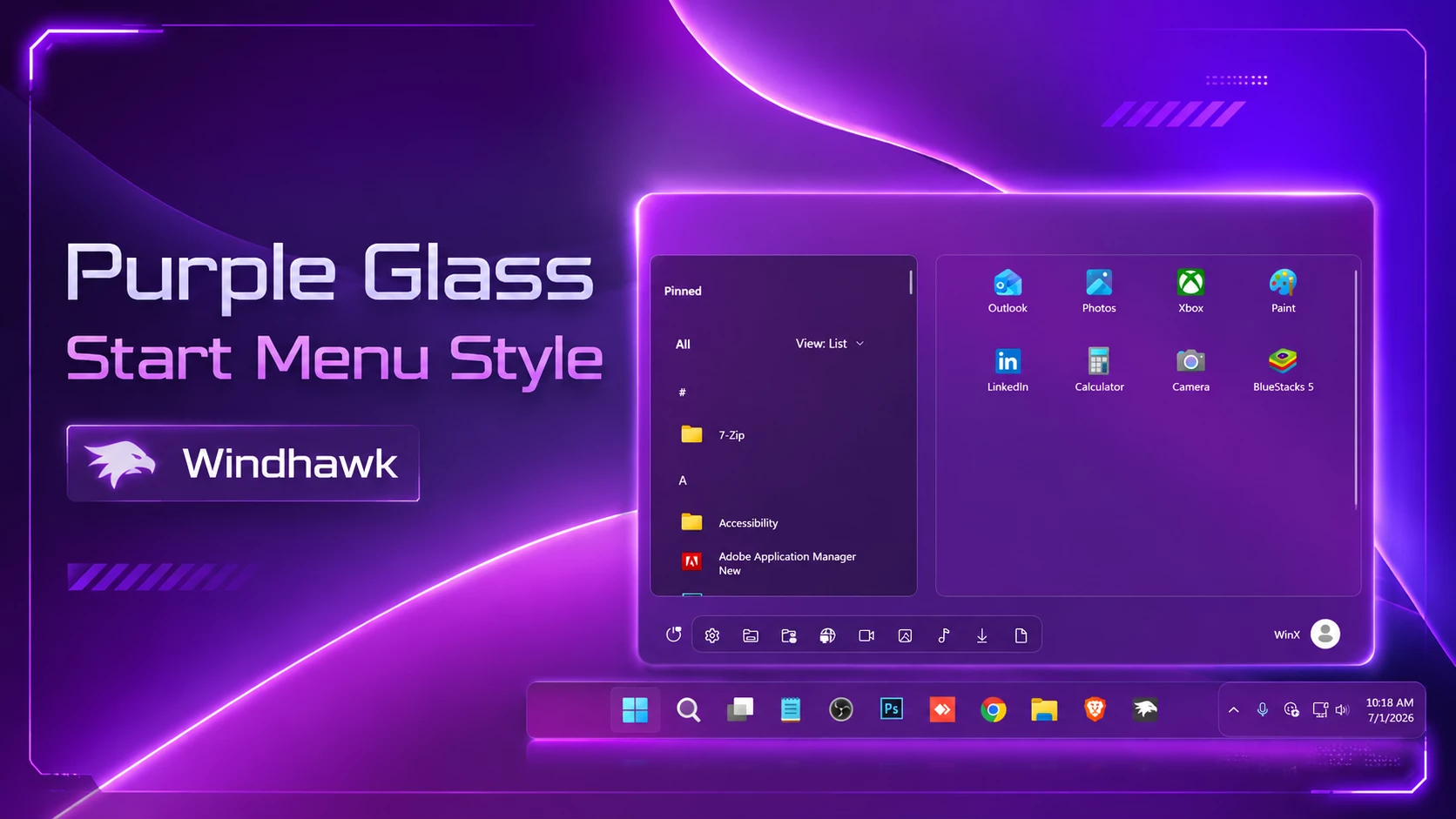
Purple Glass Start Menu Style for Windows
Purple Glass Start Menu Style is a modern Windhawk style made for Windows 11 users who want to customize the look of the Start Menu. It focuses on giving the Start Menu a smooth purple glass appearance with a clean, stylish, and more personalized desktop feel.
This style is designed for users who enjoy Windows 11 customization and want their Start Menu to look more attractive than the default design. It works well with dark wallpapers, glass taskbar styles, purple icon packs, modern cursor themes, and other matching desktop personalization setups.
What Is This Windhawk Style?
Purple Glass Start Menu Style is a visual customization style for the Windows 11 Start Menu. It is made to work with Windhawk and a compatible Start Menu styling mod. The purpose of this style is to change the appearance of the Start Menu while keeping it simple, readable, and easy to use.
Instead of replacing Windows or changing important system features, this style focuses on the design of the Start Menu interface. It can make the Start Menu feel more modern by adding a glass-inspired look, purple color accents, soft transparency, and smoother visual details.
This style is a good choice for beginners who want a clean customization setup without making Windows look too complicated. Before applying any Windhawk style, install Windhawk and the required mods carefully from trusted sources. Always check the mod details, version notes, and compatibility information before making changes to your system UI.
Design Overview
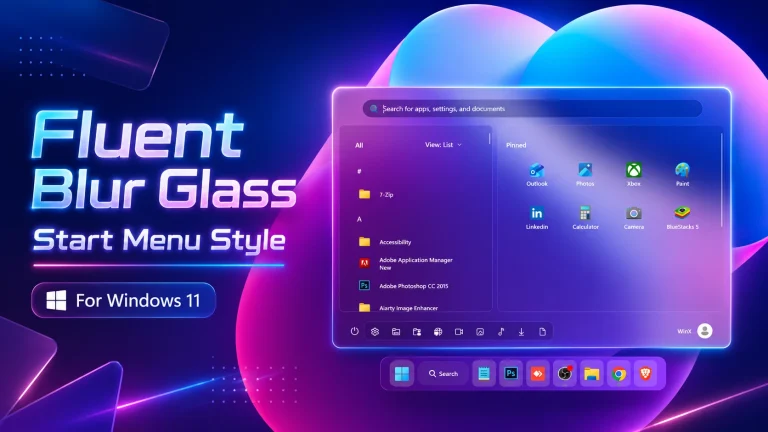
The Purple Glass Start Menu Style is built around a dark and purple glass-inspired design. It gives the Start Menu a stylish transparent feel while keeping the layout familiar for daily use. The purple tone adds personality, while the glass effect gives the menu more depth and a premium look.
The design may include smooth transparency, rounded corners, soft blur effects, darker background layers, and purple highlights around selected areas. These visual details help the Start Menu match modern Windows 11 themes, especially setups based on glass, neon, gradient, dark, or futuristic styles.
This style looks best when used with matching wallpapers and icons. A dark purple wallpaper, minimal icon pack, transparent taskbar, and clean desktop layout can make the whole Windows 11 setup feel more complete. For the best experience, keep the text contrast clear so pinned apps, recommended items, and menu labels remain easy to read.
Download Windhawk To Use The Style
Features
- Custom Windows UI appearance
- Designed for Windhawk mod customization
- Modern desktop personalization
- Works well with matching themes and icons
- Purple glass-inspired Start Menu design
- Smooth transparent visual style
- Rounded and modern Windows 11 look
- Good match for dark, neon, and gradient desktop themes
Compatibility
- Windows 11 21H2: Yes
- Windows 11 22H2: Yes
- Windows 11 23H2: Yes
- Windows 11 24H2: Yes
- Windows 11 25H2: Yes, but test carefully after Windows updates.
How to Install
- Download and install Windhawk
- Open Windhawk and install the Windows 11 Start Menu Styler mod
- Go to the Advanced tab
- Paste the provided configuration code into the “Mod settings” box
- Click Save to apply the style
- For more details, visit this GitHub guide
{ "Theme": "purple glass Start Menu Style by Link Vegas", "disableNewStartMenuLayout": "newLayoutSideBySide", "styleConstants[0]": "PurpleGlass=<WindhawkBlur BlurAmount=\"32\" TintColor=\"#B94C126B\"/>", "styleConstants[1]": "DeepPanel=<WindhawkBlur BlurAmount=\"24\" TintColor=\"#B21D0B2E\"/>", "styleConstants[2]": "SoftPanel=<WindhawkBlur BlurAmount=\"20\" TintColor=\"#6E7D2CB6\"/>", "styleConstants[3]": "HoverGlass=<WindhawkBlur BlurAmount=\"18\" TintColor=\"#26FFFFFF\"/>", "styleConstants[4]": "WhiteStroke=<SolidColorBrush Color=\"#55FFFFFF\"/>", "styleConstants[5]": "SoftStroke=<SolidColorBrush Color=\"#33FFFFFF\"/>", "styleConstants[6]": "WhiteText=<SolidColorBrush Color=\"#FFFFFFFF\"/>", "controlStyles[0].target": "Grid#FrameRoot", "controlStyles[0].styles[0]": "MaxHeight=560", "controlStyles[0].styles[1]": "MinWidth=760", "controlStyles[0].styles[2]": "MaxWidth=860", "controlStyles[1].target": "Border#StartDropShadow", "controlStyles[1].styles[0]": "CornerRadius=14", "controlStyles[2].target": "Border#AcrylicBorder", "controlStyles[2].styles[0]": "Background:=$PurpleGlass", "controlStyles[2].styles[1]": "BorderBrush:=$WhiteStroke", "controlStyles[2].styles[2]": "BorderThickness=1", "controlStyles[2].styles[3]": "CornerRadius=14", "controlStyles[3].target": "Border#AcrylicOverlay", "controlStyles[3].styles[0]": "Visibility=Collapsed", "controlStyles[4].target": "Border#LayerBorder", "controlStyles[4].styles[0]": "Background:=<WindhawkBlur BlurAmount=\"18\" TintColor=\"#40100020\"/>", "controlStyles[4].styles[1]": "CornerRadius=14", "controlStyles[5].target": "Border#BorderElement", "controlStyles[5].styles[0]": "Background:=$DeepPanel", "controlStyles[5].styles[1]": "BorderBrush:=$SoftStroke", "controlStyles[5].styles[2]": "BorderThickness=1", "controlStyles[5].styles[3]": "CornerRadius=10", "controlStyles[6].target": "TextBlock", "controlStyles[6].styles[0]": "Foreground:=$WhiteText", "controlStyles[7].target": "StartDocked.SearchBoxToggleButton", "controlStyles[7].styles[0]": "Visibility=Collapsed", "controlStyles[7].styles[1]": "Height=0", "controlStyles[7].styles[2]": "Margin=0", "controlStyles[8].target": "StartDocked.SearchBoxToggleButton#StartMenuSearchBox", "controlStyles[8].styles[0]": "Visibility=Collapsed", "controlStyles[8].styles[1]": "Height=0", "controlStyles[8].styles[2]": "Margin=0", "controlStyles[9].target": "StartMenu.SearchBoxToggleButton", "controlStyles[9].styles[0]": "Visibility=Collapsed", "controlStyles[9].styles[1]": "Height=0", "controlStyles[9].styles[2]": "Margin=0", "controlStyles[10].target": "Grid#SideBySidePinnedWrapper", "controlStyles[10].styles[0]": "ColumnDefinitions:=<ColumnDefinitionCollection><ColumnDefinition Width=\"330*\"/><ColumnDefinition Width=\"500*\"/></ColumnDefinitionCollection>", "controlStyles[10].styles[1]": "Margin=10,8,10,8", "controlStyles[11].target": "GridView#AllAppsGrid > Border > Grid#SideBySidePinnedWrapper > ScrollViewer#ScrollViewer", "controlStyles[11].styles[0]": "Grid.Column=0", "controlStyles[11].styles[1]": "Margin=0,0,10,0", "controlStyles[11].styles[2]": "Background:=$DeepPanel", "controlStyles[11].styles[3]": "BorderBrush:=$SoftStroke", "controlStyles[11].styles[4]": "BorderThickness=1", "controlStyles[11].styles[5]": "CornerRadius=10", "controlStyles[12].target": "ScrollViewer#SideBySidePinnedScrollViewer", "controlStyles[12].styles[0]": "Grid.Column=1", "controlStyles[12].styles[1]": "Margin=10,0,0,0", "controlStyles[12].styles[2]": "Background:=<WindhawkBlur BlurAmount=\"22\" TintColor=\"#4F7E1CAE\"/>", "controlStyles[12].styles[3]": "BorderBrush:=<SolidColorBrush Color=\"#22FFFFFF\"/>", "controlStyles[12].styles[4]": "BorderThickness=1", "controlStyles[12].styles[5]": "CornerRadius=10", "controlStyles[13].target": "Grid#SideBySidePinnedWrapper > ScrollViewer > Border#Root > Grid > ScrollContentPresenter > ItemsPresenter > ItemsWrapGrid", "controlStyles[13].styles[0]": "Margin=26,10,26,14", "controlStyles[14].target": "Grid#AllListHeading > TextBlock#AllListHeadingText", "controlStyles[14].styles[0]": "Margin=34,8,12,8", "controlStyles[14].styles[1]": "FontWeight=SemiBold", "controlStyles[14].styles[2]": "FontSize=13", "controlStyles[15].target": "TextBlock#PinnedListHeaderText", "controlStyles[15].styles[0]": "Margin=18,8,0,12", "controlStyles[15].styles[1]": "FontWeight=SemiBold", "controlStyles[15].styles[2]": "FontSize=13", "controlStyles[16].target": "Grid#NavPanePlaceholder", "controlStyles[16].styles[0]": "Margin=24,0,24,0", "controlStyles[17].target": "StartDocked.NavigationPaneView#UserControl > Grid#RootPanel", "controlStyles[17].styles[0]": "FlowDirection=1", "controlStyles[18].target": "StartDocked.PowerOptionsView#PowerButton", "controlStyles[18].styles[0]": "FlowDirection=0", "controlStyles[19].target": "ItemsStackPanel > ListViewItem", "controlStyles[19].styles[0]": "FlowDirection=0", "controlStyles[20].target": "GridViewItem", "controlStyles[20].styles[0]": "CornerRadius=8", "controlStyles[20].styles[1]": "Margin=2", "controlStyles[21].target": "ListViewItem", "controlStyles[21].styles[0]": "CornerRadius=8", "controlStyles[21].styles[1]": "Margin=2,1,2,1", "controlStyles[22].target": "Border#ContentBorder@CommonStates", "controlStyles[22].styles[0]": "Background@PointerOver:=$HoverGlass", "controlStyles[22].styles[1]": "Background@Pressed:=<WindhawkBlur BlurAmount=\"18\" TintColor=\"#35FFFFFF\"/>", "controlStyles[22].styles[2]": "BorderBrush@PointerOver:=<SolidColorBrush Color=\"#44FFFFFF\"/>", "controlStyles[22].styles[3]": "BorderThickness=1", "controlStyles[22].styles[4]": "CornerRadius=8", "controlStyles[23].target": "Button#ShowAllAppsButton", "controlStyles[23].styles[0]": "Visibility=Collapsed", "controlStyles[24].target": "Button#CloseAllAppsButton", "controlStyles[24].styles[0]": "Visibility=Collapsed", "controlStyles[25].target": "Windows.UI.Xaml.Controls.Grid#TopLevelSuggestionsListHeader", "controlStyles[25].styles[0]": "Visibility=Collapsed", "controlStyles[25].styles[1]": "Height=0", "controlStyles[26].target": "Windows.UI.Xaml.Controls.Grid#NoTopLevelSuggestionsText", "controlStyles[26].styles[0]": "Visibility=Collapsed", "controlStyles[26].styles[1]": "Height=0", "controlStyles[27].target": "Windows.UI.Xaml.Controls.Grid#TopLevelSuggestionsContainer", "controlStyles[27].styles[0]": "Visibility=Collapsed", "controlStyles[27].styles[1]": "Height=0", "controlStyles[28].target": "Windows.UI.Xaml.Controls.Grid#ShowMoreSuggestions", "controlStyles[28].styles[0]": "Visibility=Collapsed", "controlStyles[28].styles[1]": "Height=0", "controlStyles[29].target": "StartMenu.PinnedList", "controlStyles[29].styles[0]": "Height=504", "controlStyles[29].styles[1]": "Margin=0,0,0,0", "controlStyles[30].target": "StartDocked.AppListView#NavigationPanePlacesListView > Windows.UI.Xaml.Controls.Border", "controlStyles[30].styles[0]": "Background:=<WindhawkBlur BlurAmount=\"18\" TintColor=\"#30100025\"/>", "controlStyles[30].styles[1]": "CornerRadius=10", "controlStyles[30].styles[2]": "BorderBrush:=<SolidColorBrush Color=\"#22FFFFFF\"/>", "controlStyles[30].styles[3]": "BorderThickness=1", "controlStyles[31].target": "MenuFlyoutPresenter > Border", "controlStyles[31].styles[0]": "Background:=$PurpleGlass", "controlStyles[31].styles[1]": "BorderBrush:=$WhiteStroke", "controlStyles[31].styles[2]": "BorderThickness=1", "controlStyles[31].styles[3]": "CornerRadius=10"} Taskbar,Explorer & More 7KB
DownloadDisclaimer
This Windows 11 customization style is provided for personalization and educational purposes only. Link Vegas Theme is not affiliated with Microsoft or any third-party software developers. Always create a system restore point before making system changes and use customization tools from trusted sources.
Final Thoughts
Purple Glass Start Menu Style is a beautiful option for Windows 11 users who want a modern, colorful, and glass-inspired Start Menu design. It adds a more personal look to the desktop while keeping the Start Menu familiar and practical for daily use.
This style is especially useful if your desktop setup already includes dark wallpapers, purple accents, transparent taskbar effects, custom icons, or other Windhawk styles. When applied carefully, it can make your Windows 11 Start Menu feel more stylish and consistent with the rest of your theme.
Always remember to check compatibility, keep a backup of your settings, and install Windhawk mods only from trusted sources. A careful setup will help you enjoy the Purple Glass Start Menu Style safely and smoothly on Windows 11.
FAQs
Do I need Windhawk for this style?
Yes. Purple Glass Start Menu Style is designed for Windhawk customization, so you need Windhawk and the required Start Menu styling mod to apply it properly on Windows 11.
Why is the style not working?
The style may not work if the required mod is not installed, the mod is disabled, the style settings were pasted incorrectly, or your Windows 11 version is not fully compatible. Try updating Windhawk, checking the mod requirements, restarting Windows Explorer, and testing again.
Is Purple Glass Start Menu Style safe to use?
Windhawk styles are commonly used for Windows customization, but you should always be careful when changing system UI appearance. Use trusted sources, read the mod details, and create a restore point before applying any new style.
Can I use this style with other Windows 11 themes?
Yes. Purple Glass Start Menu Style can work well with dark themes, purple wallpapers, transparent taskbar styles, custom icons, and matching desktop setups. However, avoid applying too many overlapping Start Menu styles at the same time because they may conflict with each other.
Will Windows updates affect this style?
Yes, some Windows updates may change the Start Menu interface. If the style stops working after an update, check for Windhawk updates, update the required mod, and reapply the style if necessary.
You may also like

Disclaimer: All themes, visual styles, and concepts shared on this website are unofficial, fan-made creations built from imagination for customization purposes. We are not affiliated with, endorsed by, or sponsored by Microsoft or any other official brand.