

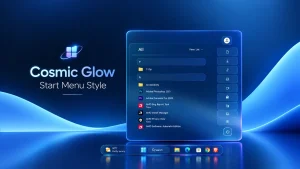
Cosmic Glow Start Menu Style For Windows 11
Cosmic Glow Start Menu Style gives Windows 11 a sleek dark glass appearance with soft blue tones, glowing cyan and purple borders, rounded controls, and a clean list-based app layout. Designed for use with Windhawk customization, it works especially well with modern dark desktops.

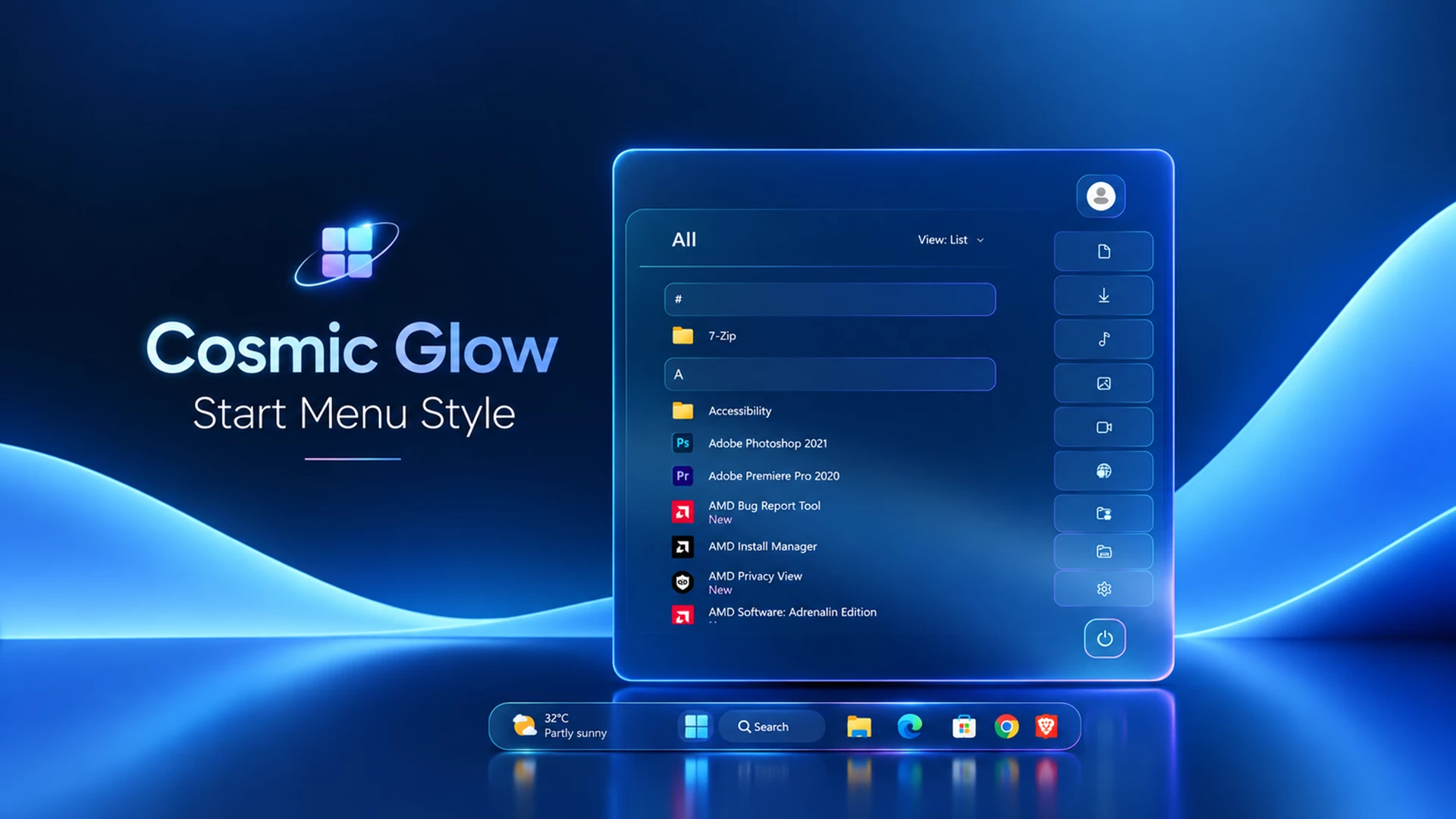
Cosmic Glow Start Menu Style For Windows 11 with Windhawk
Cosmic Glow Start Menu Style For Windows 11 gives the Start menu a clean, futuristic appearance built around deep navy tones, transparent glass-style surfaces, and a subtle cyan-to-purple glow. The design keeps the interface dark and minimal while adding enough color around the edges to make the menu stand out from a standard Windows setup.
The layout is especially well suited to dark blue wallpapers and modern desktop setups. Instead of filling the menu with heavy visual effects, Cosmic Glow uses thin outlines, soft transparency, rounded elements, and neatly separated controls to create a more polished Windows 11 desktop.
What Is Cosmic Glow Start Menu Style?
Cosmic Glow is a custom Start menu design intended for Windows 11 users who customize their interface with Windhawk. Its main visual theme combines a dark blue glass-like background with bright cyan highlights on one side and subtle purple accents around the opposite edges.
The Start menu uses a tall, centered layout with smoothly rounded corners. The application area follows a clean list-style arrangement, with alphabetical sections that make installed programs easier to browse without making the interface feel crowded.
Key Features
- Dark navy and blue-tinted glass-style Start menu with a clean, modern appearance.
- Soft cyan and purple glowing borders around the menu, giving the design a subtle cosmic-inspired look.
- Dedicated All Apps section on the left side, with installed applications arranged in a clean list-style layout and alphabetical grouping.
- Separate navigation panel on the right side, featuring vertically arranged shortcut buttons for quick access to common Windows locations and controls.
- Compact profile button positioned at the top-right area of the menu for a cleaner and more organized layout.
- Dedicated power button placed separately near the bottom-right corner.
- Rounded corners, outlined shortcut buttons, and consistent spacing across the interface.
- Balanced two-column layout that keeps the app list and navigation controls visually separated and easy to use.
Compatibility
- Windows 11 21H2: Not Tested
- Windows 11 22H2: Not Tested
- Windows 11 23H2: Not Tested
- Windows 11 24H2: Not Tested
- Windows 11 25H2: Not Tested.
- Tested On Windows 11 26H2: BUILD 26300.9457.
Before You Apply the Style
Create a system restore point first. Search Windows for Create a restore point, open it, and check that protection is enabled for your system drive. If needed, enable it through Configure. Select Create and give the restore point a name you will recognize.
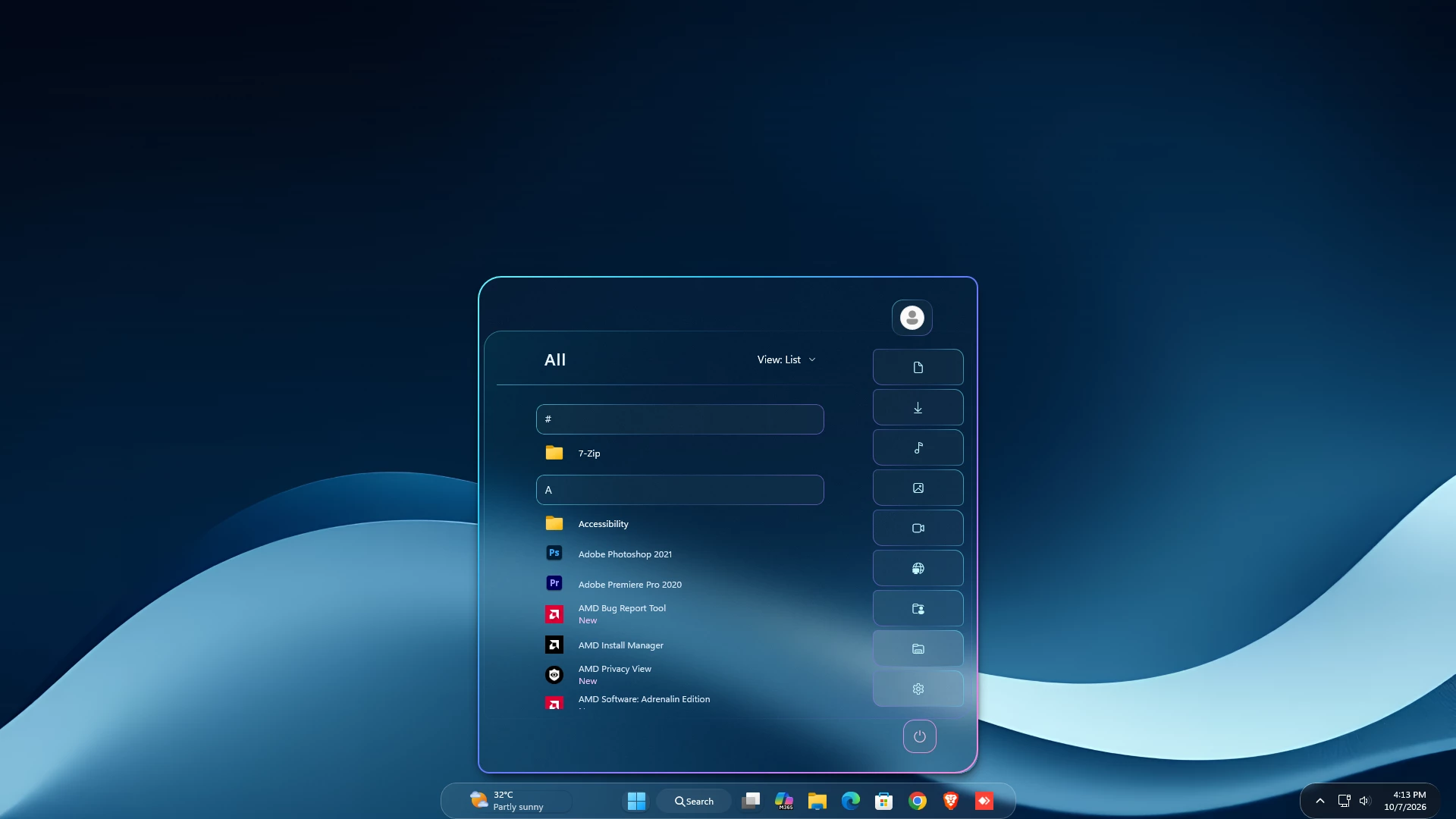
How to Install Cosmic Glow Start Menu Style
Note: This is a YAML format configuration code. Paste the complete code into Textual Mode under the mod’s Settings tab, then click Save settings to apply it.
- Download and install Windhawk.
- Open Windhawk and install the Windows 11 Start Menu Styler mod.
- Open the mod and go to the Settings tab.
- Switch to Textual mode.
- Remove the existing configuration from the editor.
- Open the Cosmic Glow configuration provided with the style package.
- Copy the complete YAML configuration code.
- Paste the copied YAML code into the Textual mode editor.
- Click Save settings to apply the new configuration.
- Open the Windows 11 Start menu to see the new Cosmic Glow Start Menu Style.
Use the complete configuration in its supplied format. A short styling snippet should not replace an entire Mod settings configuration unless its instructions specifically tell you to do so.
theme: Cosmic GlowdisableNewStartMenuLayout: defaultstyleConstants: - ''controlStyles: - target: Grid#FrameRoot styles: - Height=680 - MaxHeight=680 - RequestedTheme=2 - target: Grid#MainMenu styles: - Width=660 - MinWidth=660 - MaxWidth=660 - target: Border#AcrylicBorder styles: - Background:=<AcrylicBrush TintColor="{ThemeResource SystemChromeMediumColor}" TintOpacity="0" FallbackColor="{ThemeResource SystemChromeMediumColor}" /> - BorderBrush:=<LinearGradientBrush StartPoint="0,0" EndPoint="1,1"><GradientStop Color="#FF64F4FF" Offset="0"/><GradientStop Color="#FF23CBF5" Offset="0.24"/><GradientStop Color="#FF637BFF" Offset="0.50"/><GradientStop Color="#FFC17CFF" Offset="0.77"/><GradientStop Color="#FFFF8AD8" Offset="1"/></LinearGradientBrush> - BorderThickness=2 - CornerRadius=30,14,30,14 - target: Border#AcrylicOverlay styles: - Visibility=Visible - IsHitTestVisible=False - Background:=<LinearGradientBrush StartPoint="0,0" EndPoint="1,1"><GradientStop Color="#1200E5FF" Offset="0"/><GradientStop Color="#00060B18" Offset="0.38"/><GradientStop Color="#0010182A" Offset="0.64"/><GradientStop Color="#168B5CFF" Offset="1"/></LinearGradientBrush> - BorderBrush:=<LinearGradientBrush StartPoint="0,0" EndPoint="1,1"><GradientStop Color="#705EF4FF" Offset="0"/><GradientStop Color="#124F95D8" Offset="0.36"/><GradientStop Color="#10324B7D" Offset="0.60"/><GradientStop Color="#608F78FF" Offset="1"/></LinearGradientBrush> - BorderThickness=1 - CornerRadius=23,8,23,8 - Margin=7 - target: Frame#StartFrame styles: - Margin=24,0,150,20 - target: StartMenu.PinnedList#StartMenuPinnedList styles: - Visibility=Collapsed - target: Grid#ShowMorePinnedGrid styles: - Visibility=Collapsed - target: TextBlock#PinnedListHeaderText styles: - Visibility=Collapsed - target: Grid#TopLevelSuggestionsRoot styles: - Visibility=Collapsed - target: Grid#SuggestionsParentContainer styles: - Visibility=Collapsed - target: Grid#TopLevelSuggestionsListHeader styles: - Visibility=Collapsed - target: Grid#NoTopLevelSuggestionsText styles: - Visibility=Collapsed - target: Grid#ShowMoreSuggestions styles: - Visibility=Collapsed - target: Grid#TopLevelSuggestionsContainer styles: - Visibility=Collapsed - target: Grid#AllListHeading styles: - Margin=0,0,0,16 - BorderBrush:=<LinearGradientBrush StartPoint="0,0" EndPoint="1,0"><GradientStop Color="#905EF4FF" Offset="0"/><GradientStop Color="#487D7DFF" Offset="0.5"/><GradientStop Color="#008B5CFF" Offset="1"/></LinearGradientBrush> - BorderThickness=0,0,0,1 - Padding=0,0,0,12 - target: StartMenu.SearchBoxToggleButton#SearchBoxToggleButton styles: - Height=38 - Width=320 - HorizontalAlignment=Right - Margin=0,0,65,22 - RenderTransform:=<TranslateTransform Y="585"/> - Canvas.ZIndex=20 - Visibility=Collapsed - target: StartMenu.SearchBoxToggleButton > Grid > Border#BorderElement styles: - Background:=<AcrylicBrush BackgroundSource="Backdrop" TintColor="#C4F8FF" TintOpacity="0.04" TintLuminosityOpacity="0.03" Opacity="1" FallbackColor="#18C4F8FF" /> - BorderBrush:=<LinearGradientBrush StartPoint="0,0" EndPoint="1,1"><GradientStop Color="#A85DEAFF" Offset="0"/><GradientStop Color="#404B71C8" Offset="0.5"/><GradientStop Color="#929F78FF" Offset="1"/></LinearGradientBrush> - BorderThickness=1 - CornerRadius=12 - target: Grid#NavPanePlaceholder styles: - Visibility=Visible - Grid.Row=0 - Grid.RowSpan=3 - Grid.Column=0 - Grid.ColumnSpan=3 - Width=500 - Height=600 - MinHeight=600 - MaxHeight=600 - HorizontalAlignment=Left - VerticalAlignment=Top - Margin=20,30,0,0 - Canvas.ZIndex=30 - RenderTransform:=<TranslateTransform X="490"/> - target: StartDocked.NavigationPaneView styles: - Visibility=Visible - Width=640 - Height=600 - MinHeight=600 - MaxHeight=600 - Margin=0 - HorizontalAlignment=Left - VerticalAlignment=Top - target: StartDocked.NavigationPaneView > Grid#RootPanel styles: - Visibility=Visible - Width=500 - Height=600 - MinHeight=600 - MaxHeight=600 - Margin=0 - HorizontalAlignment=Left - VerticalAlignment=Top - FlowDirection=LeftToRight - target: StartDocked.UserTileView styles: - Visibility=Visible - Grid.Row=0 - Grid.RowSpan=3 - Grid.Column=0 - Grid.ColumnSpan=3 - Width=54 - Height=48 - Margin=35,0,0,0 - HorizontalAlignment=Left - VerticalAlignment=Top - target: StartDocked.AppListView#NavigationPanePlacesListView styles: - Visibility=Visible - Opacity=1 - Grid.Row=0 - Grid.RowSpan=3 - Grid.Column=0 - Grid.ColumnSpan=3 - Width=480 - MinWidth=480 - MaxWidth=480 - Height=120 - MinHeight=120 - MaxHeight=120 - Margin=10,65,0,0 - Padding=0 - HorizontalAlignment=Left - VerticalAlignment=Top - Canvas.ZIndex=40 - RenderTransformOrigin=0,0 - RenderTransform:=<CompositeTransform Rotation="90" TranslateX="120"/> - target: StartDocked.AppListViewItem styles: - Width=48 - MinWidth=48 - MaxWidth=48 - Height=120 - MinHeight=120 - MaxHeight=120 - Margin=0,0,5,0 - Padding=0 - HorizontalAlignment=Left - HorizontalContentAlignment=Center - VerticalContentAlignment=Center - target: StartDocked.AppListViewItem > Grid > Border#BackgroundBorder styles: - Background:=<AcrylicBrush BackgroundSource="Backdrop" TintColor="#C4F8FF" TintOpacity="0.04" TintLuminosityOpacity="0.03" Opacity="1" FallbackColor="#18C4F8FF" /> - CornerRadius=12,6,12,6 - BorderThickness=1 - BorderBrush:=<LinearGradientBrush StartPoint="0,0" EndPoint="1,1"><GradientStop Color="#A85DEAFF" Offset="0"/><GradientStop Color="#404B71C8" Offset="0.5"/><GradientStop Color="#929F78FF" Offset="1"/></LinearGradientBrush> - target: StartDocked.AppListViewItem > Grid@CommonStates > Border#BackgroundBorder styles: - Background@Normal:=<AcrylicBrush BackgroundSource="Backdrop" TintColor="#C4F8FF" TintOpacity="0.04" TintLuminosityOpacity="0.03" Opacity="1" FallbackColor="#18C4F8FF" /> - Background@PointerOver:=<AcrylicBrush BackgroundSource="Backdrop" TintColor="#C4F8FF" TintOpacity="0.12" TintLuminosityOpacity="0.06" Opacity="1" FallbackColor="#30C4F8FF" /> - Background@Pressed:=<AcrylicBrush BackgroundSource="Backdrop" TintColor="#C4F8FF" TintOpacity="0.18" TintLuminosityOpacity="0.08" Opacity="1" FallbackColor="#40C4F8FF" /> - BorderBrush@Normal:=<LinearGradientBrush StartPoint="0,0" EndPoint="1,1"><GradientStop Color="#A85DEAFF" Offset="0"/><GradientStop Color="#404B71C8" Offset="0.5"/><GradientStop Color="#929F78FF" Offset="1"/></LinearGradientBrush> - BorderBrush@PointerOver:=<LinearGradientBrush StartPoint="0,0" EndPoint="1,1"><GradientStop Color="#FF64F4FF" Offset="0"/><GradientStop Color="#FF23CBF5" Offset="0.24"/><GradientStop Color="#FF637BFF" Offset="0.50"/><GradientStop Color="#FFC17CFF" Offset="0.77"/><GradientStop Color="#FFFF8AD8" Offset="1"/></LinearGradientBrush> - BorderBrush@Pressed=#FF7DEBFF - Opacity@Normal=1 - Opacity@PointerOver=1 - Opacity@Pressed=0.9 - Opacity@Disabled=0.45 - Background@Disabled:=<AcrylicBrush BackgroundSource="Backdrop" TintColor="#C4F8FF" TintOpacity="0.02" TintLuminosityOpacity="0.02" Opacity="1" FallbackColor="#10C4F8FF" /> - target: StartDocked.AppListViewItem > Grid > ContentPresenter styles: - HorizontalAlignment=Center - VerticalAlignment=Center - HorizontalContentAlignment=Stretch - VerticalContentAlignment=Center - Margin=-32,0,-32,0 - Width=100 - MinWidth=100 - MaxWidth=100 - Height=32 - Padding=0 - RenderTransformOrigin=0.5,0.5 - RenderTransform:=<RotateTransform Angle="-90"/> - target: StartDocked.AppListViewItem > Grid > ContentPresenter > FontIcon styles: - FontFamily=Segoe Fluent Icons, Segoe MDL2 Assets - FontSize=15 - Foreground=#C4F8FF - HorizontalAlignment=Center - VerticalAlignment=Center - Width=100 - MinWidth=100 - MaxWidth=100 - Margin=0 - target: StartDocked.PowerOptionsView styles: - Visibility=Visible - Grid.Row=0 - Grid.RowSpan=3 - Grid.Column=0 - Grid.ColumnSpan=3 - Margin=50,0,0,0 - HorizontalAlignment=Left - VerticalAlignment=Bottom - Height=48 - MinHeight=48 - MaxHeight=48 - target: StartDocked.NavigationPaneButton#PowerButton styles: - Width=44 - MinWidth=44 - Height=44 - Padding=0 - CornerRadius=14 - MinHeight=44 - MaxHeight=44 - Margin=0 - VerticalAlignment=Center - Foreground=#FFC1E3 - target: StartDocked.NavigationPaneButton#PowerButton > Grid@CommonStates > Border#BackgroundBorder styles: - Background:=<AcrylicBrush BackgroundSource="Backdrop" TintColor="#FFC1E3" TintOpacity="0.04" TintLuminosityOpacity="0.03" Opacity="1" FallbackColor="#18FFC1E3" /> - CornerRadius=14 - Margin=0 - VerticalAlignment=Stretch - HorizontalAlignment=Stretch - BorderBrush:=<LinearGradientBrush StartPoint="0,0" EndPoint="1,1"><GradientStop Color="#FFCC8CFF" Offset="0"/><GradientStop Color="#FFFF8DBD" Offset="1"/></LinearGradientBrush> - BorderThickness=1 - Background@Normal:=<AcrylicBrush BackgroundSource="Backdrop" TintColor="#FFC1E3" TintOpacity="0.04" TintLuminosityOpacity="0.03" Opacity="1" FallbackColor="#18FFC1E3" /> - Background@PointerOver:=<AcrylicBrush BackgroundSource="Backdrop" TintColor="#FFC1E3" TintOpacity="0.12" TintLuminosityOpacity="0.06" Opacity="1" FallbackColor="#30FFC1E3" /> - Background@Pressed:=<AcrylicBrush BackgroundSource="Backdrop" TintColor="#FFC1E3" TintOpacity="0.18" TintLuminosityOpacity="0.08" Opacity="1" FallbackColor="#40FFC1E3" /> - BorderBrush@PointerOver=#FFFFB4DF - BorderBrush@Pressed=#FFDD90BB - Background@Disabled:=<AcrylicBrush BackgroundSource="Backdrop" TintColor="#FFC1E3" TintOpacity="0.02" TintLuminosityOpacity="0.02" Opacity="1" FallbackColor="#10FFC1E3" /> - target: StartDocked.NavigationPaneButton#UserTileButton styles: - Width=54 - MinWidth=54 - Height=48 - Padding=0 - CornerRadius=14 - Foreground=#C4F8FF - target: StartDocked.NavigationPaneButton#UserTileButton > Grid@CommonStates > Border styles: - Background:=<AcrylicBrush BackgroundSource="Backdrop" TintColor="#C4F8FF" TintOpacity="0.04" TintLuminosityOpacity="0.03" Opacity="1" FallbackColor="#18C4F8FF" /> - CornerRadius=14 - BorderBrush:=<LinearGradientBrush StartPoint="0,0" EndPoint="1,1"><GradientStop Color="#A85DEAFF" Offset="0"/><GradientStop Color="#404B71C8" Offset="0.5"/><GradientStop Color="#929F78FF" Offset="1"/></LinearGradientBrush> - BorderThickness=1 - Background@Normal:=<AcrylicBrush BackgroundSource="Backdrop" TintColor="#C4F8FF" TintOpacity="0.04" TintLuminosityOpacity="0.03" Opacity="1" FallbackColor="#18C4F8FF" /> - Background@PointerOver:=<AcrylicBrush BackgroundSource="Backdrop" TintColor="#C4F8FF" TintOpacity="0.12" TintLuminosityOpacity="0.06" Opacity="1" FallbackColor="#30C4F8FF" /> - Background@Pressed:=<AcrylicBrush BackgroundSource="Backdrop" TintColor="#C4F8FF" TintOpacity="0.18" TintLuminosityOpacity="0.08" Opacity="1" FallbackColor="#40C4F8FF" /> - BorderBrush@PointerOver:=<LinearGradientBrush StartPoint="0,0" EndPoint="1,1"><GradientStop Color="#FF64F4FF" Offset="0"/><GradientStop Color="#FF23CBF5" Offset="0.24"/><GradientStop Color="#FF637BFF" Offset="0.50"/><GradientStop Color="#FFC17CFF" Offset="0.77"/><GradientStop Color="#FFFF8AD8" Offset="1"/></LinearGradientBrush> - BorderBrush@Pressed=#FF7DEBFF - Background@Disabled:=<AcrylicBrush BackgroundSource="Backdrop" TintColor="#C4F8FF" TintOpacity="0.02" TintLuminosityOpacity="0.02" Opacity="1" FallbackColor="#10C4F8FF" /> - target: TextBlock#UserTileNameText styles: - Visibility=Collapsed - target: TextBlock#PlaceholderText styles: - Foreground=#A9BCD6 - FontSize=14 - FontFamily=Segoe UI Variable Text, Segoe UI - target: TextBlock#AllListHeadingText styles: - Foreground=#EBF8FF - FontSize=22 - FontWeight=SemiBold - FontFamily=Segoe UI Variable Display, Segoe UI - CharacterSpacing=50 - target: Windows.UI.Xaml.Controls.Button styles: - Background:=<AcrylicBrush BackgroundSource="Backdrop" TintColor="#C4F8FF" TintOpacity="0.04" TintLuminosityOpacity="0.03" Opacity="1" FallbackColor="#18C4F8FF" /> - BorderBrush:=<LinearGradientBrush StartPoint="0,0" EndPoint="1,1"><GradientStop Color="#A85DEAFF" Offset="0"/><GradientStop Color="#404B71C8" Offset="0.5"/><GradientStop Color="#929F78FF" Offset="1"/></LinearGradientBrush> - BorderThickness=1 - CornerRadius=10 - Foreground=#E9F6FF - target: TextBlock#AllAppsHeading styles: - Foreground=#EBF8FF - FontFamily=Segoe UI Variable Display, Segoe UI - FontSize=22 - FontWeight=SemiBold - CharacterSpacing=50 - target: TextBlock#AppDisplayName styles: - Foreground=#E0EBFA - FontFamily=Segoe UI Variable Text, Segoe UI - target: Border#BorderBackground styles: - CornerRadius=10 - target: StartDocked.NavigationPaneButton#PowerButton > Grid@CommonStates > ContentPresenter > Grid > FontIcon styles: - Foreground=#FFC1E3 - Foreground@Normal=#FFC1E3 - Foreground@PointerOver=#FFF0F8 - Foreground@Pressed=#FF9ECB - target: ToolTip > ContentPresenter#LayoutRoot styles: - Background=#FF111A2D - BorderBrush=#805DEAFF - BorderThickness=1 - CornerRadius=10 - Foreground=#E9F6FF - target: MenuFlyoutPresenter styles: - Background:=<AcrylicBrush BackgroundSource="Backdrop" TintColor="#11172B" TintOpacity="0.94" TintLuminosityOpacity="0.12" FallbackColor="#FF11172B" /> - BorderBrush:=<LinearGradientBrush StartPoint="0,0" EndPoint="1,1"><GradientStop Color="#A85DEAFF" Offset="0"/><GradientStop Color="#404B71C8" Offset="0.5"/><GradientStop Color="#929F78FF" Offset="1"/></LinearGradientBrush> - BorderThickness=1 - CornerRadius=14 - Foreground=#E9F6FF - RequestedTheme=2 - target: Border#StartDropShadow styles: - CornerRadius=26 - Margin=-1 - target: Windows.UI.Xaml.Controls.Button > ContentPresenter@CommonStates styles: - Background@Normal:=<AcrylicBrush BackgroundSource="Backdrop" TintColor="#C4F8FF" TintOpacity="0.04" TintLuminosityOpacity="0.03" Opacity="1" FallbackColor="#18C4F8FF" /> - Background@PointerOver:=<AcrylicBrush BackgroundSource="Backdrop" TintColor="#C4F8FF" TintOpacity="0.12" TintLuminosityOpacity="0.06" Opacity="1" FallbackColor="#30C4F8FF" /> - Background@Pressed:=<AcrylicBrush BackgroundSource="Backdrop" TintColor="#C4F8FF" TintOpacity="0.18" TintLuminosityOpacity="0.08" Opacity="1" FallbackColor="#40C4F8FF" /> - Background@Disabled:=<AcrylicBrush BackgroundSource="Backdrop" TintColor="#C4F8FF" TintOpacity="0.02" TintLuminosityOpacity="0.02" Opacity="1" FallbackColor="#10C4F8FF" /> - target: Windows.UI.Xaml.Controls.Button > Grid@CommonStates > Border styles: - Background@Normal:=<AcrylicBrush BackgroundSource="Backdrop" TintColor="#C4F8FF" TintOpacity="0.04" TintLuminosityOpacity="0.03" Opacity="1" FallbackColor="#18C4F8FF" /> - Background@PointerOver:=<AcrylicBrush BackgroundSource="Backdrop" TintColor="#C4F8FF" TintOpacity="0.12" TintLuminosityOpacity="0.06" Opacity="1" FallbackColor="#30C4F8FF" /> - Background@Pressed:=<AcrylicBrush BackgroundSource="Backdrop" TintColor="#C4F8FF" TintOpacity="0.18" TintLuminosityOpacity="0.08" Opacity="1" FallbackColor="#40C4F8FF" /> - Background@Disabled:=<AcrylicBrush BackgroundSource="Backdrop" TintColor="#C4F8FF" TintOpacity="0.02" TintLuminosityOpacity="0.02" Opacity="1" FallbackColor="#10C4F8FF" /> - target: Windows.UI.Xaml.Controls.Button#Header > Border#Border@CommonStates styles: - Background@Normal:=<AcrylicBrush BackgroundSource="Backdrop" TintColor="#C4F8FF" TintOpacity="0.04" TintLuminosityOpacity="0.03" Opacity="1" FallbackColor="#18C4F8FF" /> - Background@PointerOver:=<AcrylicBrush BackgroundSource="Backdrop" TintColor="#C4F8FF" TintOpacity="0.12" TintLuminosityOpacity="0.06" Opacity="1" FallbackColor="#30C4F8FF" /> - Background@Pressed:=<AcrylicBrush BackgroundSource="Backdrop" TintColor="#C4F8FF" TintOpacity="0.18" TintLuminosityOpacity="0.08" Opacity="1" FallbackColor="#40C4F8FF" /> - Background@Disabled:=<AcrylicBrush BackgroundSource="Backdrop" TintColor="#C4F8FF" TintOpacity="0.02" TintLuminosityOpacity="0.02" Opacity="1" FallbackColor="#10C4F8FF" />themeResourceVariables: - ''webContentStyles: - target: '' styles: - ''webContentCustomJs: ''Looking for a Matching Taskbar Style?
If you want to customize the taskbar to match your Start menu setup, you can explore more designs in our Taskbar Styler category.
There you can find different Windhawk taskbar styles to help you build a more consistent and personalized Windows 11 desktop.
How to Remove or Restore Default Look
If you want to return to the standard Windows 11 Start menu, remove or disable the Cosmic Glow configuration from the Windhawk mod you used. You can also disable the related Start menu modification completely if you no longer need it.
After restoring the original settings, restart Windows Explorer or restart the computer if necessary. If you made additional changes to the taskbar, wallpaper, icons, or other desktop elements separately, restore those items individually as well. Your system restore point can provide an additional recovery option if something does not return to normal as expected.
Who Should Use This Theme?
Cosmic Glow is a good fit for Windows 11 users who prefer dark interfaces but still want a little color around important UI elements. The combination of navy glass, cyan highlights, purple edging, and rounded controls works particularly well for modern desktop setups.
It should also appeal to users who enjoy minimal layouts, transparent or frosted UI designs, gaming-inspired desktops, dark mode, and organized application lists. Because the color accents are relatively thin, the menu can remain visually clean even when paired with a detailed wallpaper.
Disclaimer
Disclaimer: Cosmic Glow is a third-party Windows customization style and is not an official Microsoft product. Compatibility may vary depending on your Windows 11 build and Windhawk version. Always create a system restore point before applying custom interface modifications.
Final Thoughts
Cosmic Glow Start Menu Style gives Windows 11 a distinctive look without relying on an overly complicated layout. Its dark translucent surface, softly glowing blue and purple border, rounded controls, and organized app list create a balanced design that feels both futuristic and practical.
For the best experience, use the style with a compatible Windows 11 build and follow the supplied Windhawk instructions carefully. Creating a restore point and keeping your original settings backed up will also make it much easier to experiment with the design while keeping a reliable way back to the default Windows appearance.
Frequently Asked Questions
Is this theme free to use?
Availability and licensing depend on how the Cosmic Glow files are distributed by their creator or download source. Check the download page or included license information before using or redistributing the files.
Will this theme slow down my PC?
A Start menu customization is generally a lightweight interface change, but performance can vary depending on your Windows build, hardware, Windhawk setup, and other visual modifications. If you notice any issues, temporarily disable the style and compare performance.
Can I uninstall it later?
Yes. Disable or remove the Cosmic Glow configuration from the related Windhawk mod and restart Windows Explorer if needed. Any other desktop customizations should be restored separately.
You may also like

Disclaimer: All themes, visual styles, and concepts shared on this website are unofficial, fan-made creations built from imagination for customization purposes. We are not affiliated with, endorsed by, or sponsored by Microsoft or any other official brand.