

Frosty Start Menu Style For Windows 11
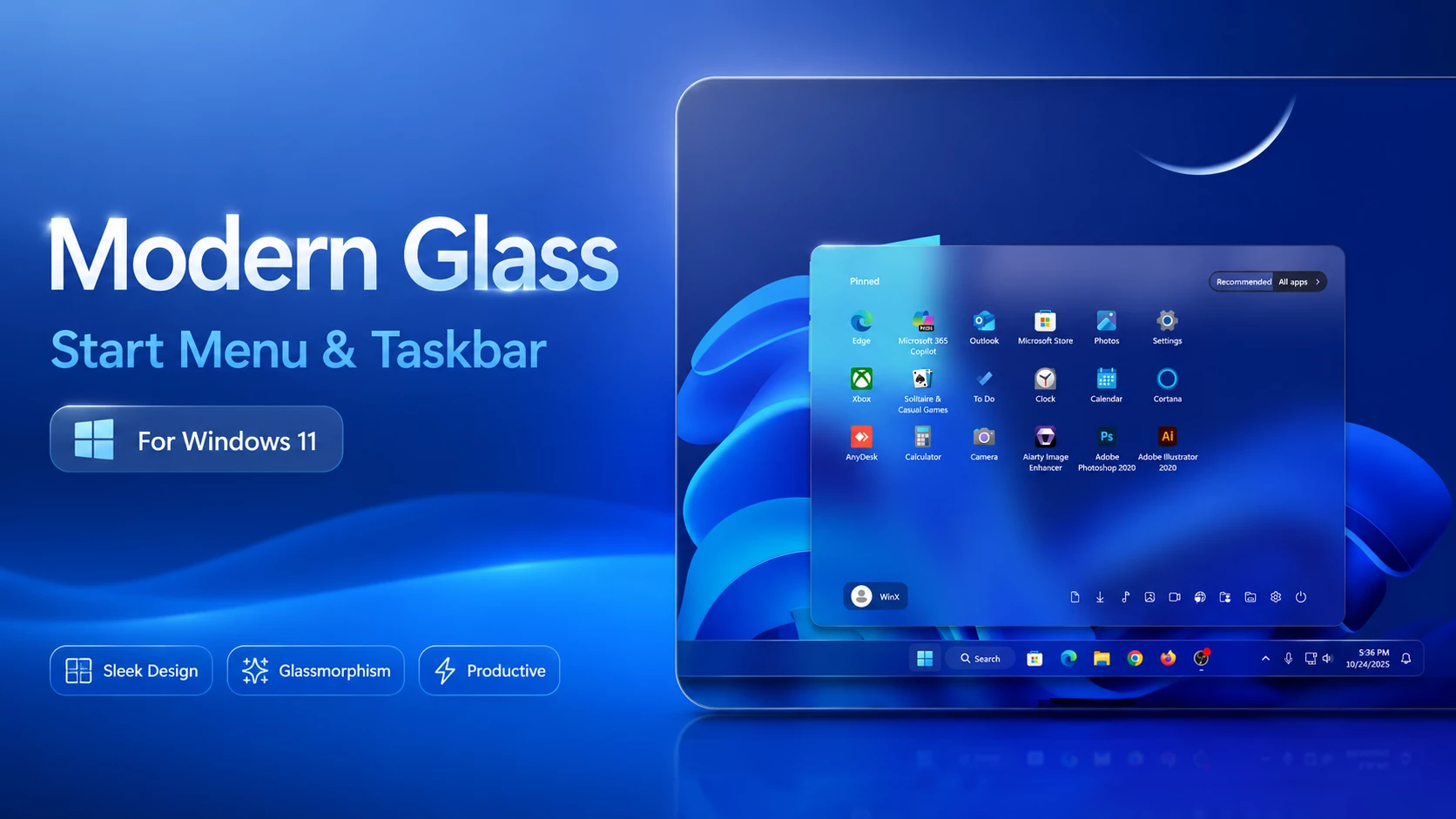
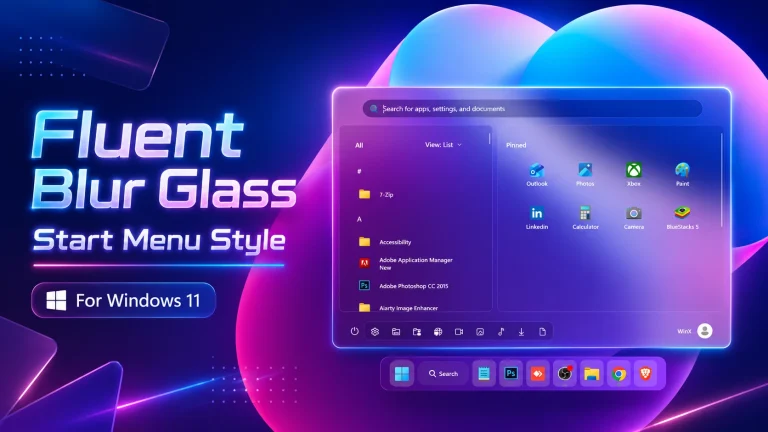
Frosty Start Menu Style : The Frosty Start Menu Style for Windows 11 (Windhawk Mod) brings a clean, glass-inspired look to your desktop, combining elegance and simplicity with a refreshing frosted-glass effect

Frosty Start Menu Style For Windows 11
The Frosty Start Menu Style For Windows 11 is a clean, modern, and glass-inspired customization setup created for users who want to give their desktop a premium frosted look. This Windhawk-based style transforms the default Windows 11 Start Menu into a soft, translucent, and visually refreshing interface with blur effects, icy gradients, smooth corners, and elegant spacing.
Windows 11 already has a modern design language, but many users still want more personalization. The default Start Menu can feel simple and limited, especially for people who enjoy custom desktop themes, glass effects, Rainmeter setups, or macOS-inspired Windows designs. This is where the Frosty Start Menu Style For Windows 11 becomes useful. It gives your Start Menu a beautiful frosted-glass appearance while keeping the layout clean and easy to use.
What Is Frosty Start Menu Style For Windows 11?
The Frosty Start Menu Style is a visual modification for Windows 11 that uses Windhawk and related Start Menu customization mods. It is designed to create a cool glass effect with transparency, blur, glow, and smooth visual balance. Instead of using a heavy or crowded design, this style focuses on minimalism, readability, and a premium desktop experience.
The main purpose of this style is to make your Start Menu look more attractive without making it complicated. It works well with dark wallpapers, light wallpapers, gradient backgrounds, and clean desktop setups. Whether you are creating a futuristic Windows theme or a simple glass desktop layout, this Start Menu style can improve the overall look of your PC.
Why Choose This Frosty Start Menu Style?
The Frosty Start Menu Style For Windows 11 is perfect for users who like a soft and elegant visual design. The frosted-glass effect makes the Start Menu feel more premium, while the transparent background helps it blend naturally with your wallpaper. It is also a good choice for people who create Windows customization videos, desktop showcase posts, or theme-based setups.
Unlike some heavy customization tools, Windhawk mods are lightweight and flexible. You can apply the style, adjust settings, and remove it later if needed. This makes it a practical option for users who want a stylish desktop without permanently changing their Windows system files.
Key Features of Frosty Start Menu Style
- Frosted Glass Effect: Adds a clean blur-based glass look to the Windows 11 Start Menu.
- Soft Glow Edges: Gives the Start Menu a smooth and premium border appearance.
- Modern Minimal Layout: Keeps the Start Menu clean, readable, and visually balanced.
- Wallpaper Friendly: Works beautifully with dark, light, gradient, and abstract wallpapers.
- Windhawk Support: Uses Windhawk mods for easy customization and control.
- Taskbar Matching: Includes taskbar-related mods to help complete the full desktop look.
- Lightweight Design: Designed to look stylish without unnecessary visual clutter.
Best Desktop Setups for This Style
This Frosty Start Menu theme works best when combined with a matching desktop setup. For example, you can use a minimal wallpaper, transparent taskbar, glass icons, and a clean Rainmeter clock widget. These elements can make the entire desktop look more professional and visually connected.
If you are building a macOS-style Windows theme, a liquid glass taskbar setup, or a futuristic Windows 11 customization pack, this Start Menu style will fit perfectly. The blur and transparency effects help the menu blend with the desktop instead of looking separate from it.
Download Windhawk To Use The Style
How to Install
- Download and install Windhawk from the official website.
- Open Windhawk on your Windows 11 device.
- Install the required Start Menu and Taskbar mods.
- Open the mod settings page.
- Go to the advanced configuration section.
- Paste the provided style code or import the downloaded mod file.
- Click Save to apply the Frosty Start Menu Style.
- Restart Windows Explorer if the style does not appear instantly.
Compatibility
- Windows 11 21H2 – Yes
- Windows 11 22H2 – Yes
- Windows 11 23H2 – Yes
- Windows 11 24H2 – Yes
- Windows 11 25H2 – No
Important Notes Before Using
Before applying any Windows customization style, it is recommended to keep a backup of your important files and create a system restore point. Although Windhawk mods are usually easy to enable or disable, Windows updates may sometimes change system components and affect how a style works.
If the Start Menu does not look correct after applying the style, check whether all required mods are enabled. You can also restart Windows Explorer or reboot your PC. If you face any issue, disable the mod from Windhawk and apply the settings again carefully.
{ "controlStyles[0].target": "StartDocked.StartSizingFrame", "controlStyles[0].styles[0]": "MaxHeight=550", "controlStyles[0].styles[1]": "MaxWidth=850", "controlStyles[0].styles[2]": "MinWidth=850", "controlStyles[1].target": "StartDocked.LauncherFrame > Grid#RootPanel > Grid#RootGrid", "controlStyles[1].styles[0]": "MinWidth=850", "controlStyles[1].styles[1]": "MaxWidth=850", "controlStyles[2].target": "StartDocked.LauncherFrame > Grid#RootPanel > Grid#RootGrid > Grid#RootContent", "controlStyles[2].styles[0]": "MinWidth=850", "controlStyles[2].styles[1]": "MaxWidth=850", "controlStyles[3].target": "Windows.UI.Xaml.Controls.Grid#TopLevelSuggestionsListHeader", "controlStyles[3].styles[0]": "Visibility=Collapsed", "controlStyles[4].target": "StartMenu.PinnedList", "controlStyles[4].styles[0]": "Height=340", "controlStyles[5].target": "Windows.UI.Xaml.Controls.Grid#ShowMoreSuggestions", "controlStyles[5].styles[0]": "RenderTransform:=<TranslateTransform Y=\"-408\" />", "controlStyles[6].target": "Windows.UI.Xaml.Controls.Grid#NoTopLevelSuggestionsText", "controlStyles[6].styles[0]": "Height=0", "controlStyles[7].target": "Windows.UI.Xaml.Controls.Grid#ShowMoreSuggestions > Windows.UI.Xaml.Controls.Button > Windows.UI.Xaml.Controls.ContentPresenter > Windows.UI.Xaml.Controls.StackPanel > Windows.UI.Xaml.Controls.TextBlock", "controlStyles[7].styles[0]": "Text=Recommended", "controlStyles[8].target": "Windows.UI.Xaml.Controls.Border#DropShadow", "controlStyles[8].styles[0]": "CornerRadius=10", "controlStyles[9].target": "StartDocked.LauncherFrame > Grid#RootGrid > Grid#RootContent > Grid#MainContent > Grid#InnerContent > Rectangle", "controlStyles[9].styles[0]": "Visibility=Collapsed", "controlStyles[10].target": "StartDocked.SearchBoxToggleButton", "controlStyles[11].target": "Border#AcrylicBorder", "controlStyles[11].styles[0]": "CornerRadius=10", "controlStyles[11].styles[1]": "Background:=<AcrylicBrush TintColor=\"{ThemeResource CardStrokeColorDefaultSolid}\" FallbackColor=\"{ThemeResource CardStrokeColorDefaultSolid}\" TintOpacity=\"0\" TintLuminosityOpacity=\".07\" Opacity=\"1\"/>", "controlStyles[11].styles[2]": "BorderBrush:=<LinearGradientBrush StartPoint=\"0,0\" EndPoint=\"1,1\" Opacity=\"0.6\"><GradientStop Color=\"#80ffffff\" Offset=\"0.0\" /><GradientStop Color=\"{ThemeResource SurfaceStrokeColorDefault}\" Offset=\"0.55\" /><GradientStop Color=\"#80ffffff\" Offset=\"1\" /></LinearGradientBrush>", "controlStyles[11].styles[3]": "BorderThickness=2", "controlStyles[11].styles[4]": "Margin=0", "controlStyles[12].target": "Border#AcrylicOverlay", "controlStyles[12].styles[0]": "Visibility=Collapsed", "controlStyles[13].target": "Windows.UI.Xaml.Controls.Grid#AllAppsRoot", "controlStyles[13].styles[0]": "Margin=0,0,0,40", "controlStyles[14].target": "Windows.UI.Xaml.Controls.Grid#UndockedRoot", "controlStyles[14].styles[0]": "Margin=0,0,0,40", "controlStyles[15].target": "StartDocked.NavigationPaneView#NavigationPane > Windows.UI.Xaml.Controls.Grid#RootPanel", "controlStyles[15].styles[0]": "Margin=0,-10,0,10", "controlStyles[16].target": "StartDocked.AppListView#NavigationPanePlacesListView > Windows.UI.Xaml.Controls.Border", "controlStyles[16].styles[0]": "Background:=<AcrylicBrush TintColor=\"{ThemeResource CardStrokeColorDefaultSolid}\" FallbackColor=\"{ThemeResource CardStrokeColorDefaultSolid}\" TintOpacity=\"0\" TintLuminosityOpacity=\".25\" Opacity=\"1\"/>", "controlStyles[16].styles[1]": "CornerRadius=10", "controlStyles[16].styles[2]": "Margin=0,0,10,0", "controlStyles[17].target": "StartDocked.NavigationPaneButton#PowerButton > Windows.UI.Xaml.Controls.Grid@CommonStates > Windows.UI.Xaml.Controls.Border#BackgroundBorder", "controlStyles[17].styles[0]": "Background:=#30ffffff", "controlStyles[17].styles[1]": "CornerRadius=10", "controlStyles[17].styles[2]": "BorderThickness=1", "controlStyles[17].styles[3]": "BorderBrush@Normal:=<SolidColorBrush Color=\"{ThemeResource SurfaceStrokeColorDefault}\" Opacity=\".8\"/>", "controlStyles[17].styles[4]": "BorderBrush@PointerOver:=<SolidColorBrush Color=\"{ThemeResource SystemAccentColor}\" Opacity=\".9\"/>", "controlStyles[18].target": "StartDocked.NavigationPaneButton#UserTileButton > Grid > Border#BackgroundBorder", "controlStyles[18].styles[0]": "Background:=<AcrylicBrush TintColor=\"{ThemeResource CardStrokeColorDefaultSolid}\" FallbackColor=\"{ThemeResource CardStrokeColorDefaultSolid}\" TintOpacity=\"0\" TintLuminosityOpacity=\".5\" Opacity=\"1\"/>", "controlStyles[18].styles[1]": "CornerRadius=10", "controlStyles[19].target": "Windows.UI.Xaml.Controls.Button#ShowAllAppsButton > Windows.UI.Xaml.Controls.ContentPresenter#ContentPresenter@CommonStates", "controlStyles[19].styles[0]": "Background@Normal:=<SolidColorBrush Color=\"{ThemeResource SystemChromeAltHighColor}\" Opacity=\".8\"/>", "controlStyles[19].styles[1]": "Background@PointerOver:=<SolidColorBrush Color=\"{ThemeResource SystemBaseLowColor}\" Opacity=\"1\" />", "controlStyles[19].styles[2]": "Padding=10,7", "controlStyles[19].styles[3]": "Margin=0,0,-35,0", "controlStyles[19].styles[4]": "CornerRadius=0,15,15,0", "controlStyles[19].styles[5]": "BorderThickness=0", "controlStyles[20].target": "Windows.UI.Xaml.Controls.Button#ShowMoreSuggestionsButton > Windows.UI.Xaml.Controls.ContentPresenter#ContentPresenter@CommonStates", "controlStyles[20].styles[0]": "Background@Normal:=<SolidColorBrush Color=\"{ThemeResource SystemAltMediumLowColor}\" Opacity=\"0\" />", "controlStyles[20].styles[1]": "BorderBrush@Normal:=<SolidColorBrush Color=\"{ThemeResource SystemChromeAltHighColor}\" Opacity=\".8\"/>", "controlStyles[20].styles[2]": "Padding=10,5", "controlStyles[20].styles[3]": "Margin=0,0,19,0", "controlStyles[20].styles[4]": "CornerRadius=15,0,0,15", "controlStyles[20].styles[5]": "BorderThickness=2,2,0,2", "controlStyles[20].styles[6]": "Background@PointerOver:=<SolidColorBrush Color=\"{ThemeResource SystemBaseLowColor}\" Opacity=\".7\" />", "controlStyles[20].styles[7]": "BorderBrush@PointerOver:=<SolidColorBrush Color=\"{ThemeResource SystemBaseLowColor}\" Opacity=\"1\"/>", "controlStyles[21].target": "Windows.UI.Xaml.Controls.Button#HideMoreSuggestionsButton > Windows.UI.Xaml.Controls.ContentPresenter#ContentPresenter", "controlStyles[21].styles[0]": "Background:=<SolidColorBrush Color=\"{ThemeResource SystemChromeMediumLowColor}\" Opacity=\"1\"/>", "controlStyles[21].styles[1]": "Padding=10,6", "controlStyles[21].styles[2]": "Margin=0,0,-35,0", "controlStyles[21].styles[3]": "CornerRadius=10", "controlStyles[22].target": "Windows.UI.Xaml.Controls.Button#CloseAllAppsButton > Windows.UI.Xaml.Controls.ContentPresenter#ContentPresenter", "controlStyles[22].styles[0]": "Background:=<SolidColorBrush Color=\"{ThemeResource SystemChromeMediumLowColor}\" Opacity=\"1\"/>", "controlStyles[22].styles[1]": "Padding=10,6", "controlStyles[22].styles[2]": "Margin=0,0,-35,0", "controlStyles[22].styles[3]": "CornerRadius=10", "disableNewStartMenuLayout": "1"}Final Thoughts
The Frosty Start Menu Style For Windows 11 is a beautiful choice for anyone who wants a clean, glassy, and modern desktop experience. It brings a premium frosted-glass look to the Start Menu and pairs nicely with transparent taskbars, minimal wallpapers, and stylish Windows 11 themes.
If you enjoy desktop customization and want your Windows 11 setup to look more unique, this Frosty Start Menu Style is worth trying. It is simple, elegant, lightweight, and visually attractive, making it a great addition to any modern Windows customization collection.
You may also like

Disclaimer: All themes, visual styles, and concepts shared on this website are unofficial, fan-made creations built from imagination for customization purposes. We are not affiliated with, endorsed by, or sponsored by Microsoft or any other official brand.