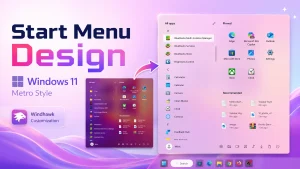
Metro Start Menu Style for Windows 11
Metro Start Menu Style : The Metro Start Menu Style for Windows 11 (Windhawk Mod) brings back the clean, bold, and tile-inspired look of classic Windows design — reimagined for modern desktops.


How to Enable the Metro Start Menu Style for Windows 11
Windows 11 comes with a clean and modern Start Menu, but not every user prefers the default centered layout. Some users still like the bold, colorful, and tile-based appearance that became popular during the Windows 8 and Windows 10 era. If you want a more visual, organized, and retro-modern desktop experience, the Metro Start Menu style for Windows 11 can be a great customization option.
This style focuses on large tiles, strong colors, clean spacing, and a grid-based layout. Instead of showing only small app icons, the Metro-inspired Start Menu gives your desktop a more structured and eye-catching look. It can be especially useful for users who enjoy Windows customization, minimal design, or a tablet-style interface on a large screen.
What Is the Metro Start Menu Style?
The Metro design language was first introduced by Microsoft with a focus on simplicity, readability, and flat visual elements. It was inspired by public transportation signs, where text and icons need to be easy to understand quickly. The main idea behind Metro design is to remove unnecessary visual clutter and make important content more visible.
By using the Metro Start Menu style for Windows 11, you can bring back a similar tile-based look without fully changing your operating system. This does not replace Windows 11 completely. Instead, it customizes the appearance of the Start Menu using supported customization tools such as Windhawk and the Windows 11 Start Menu Styler mod.
Why Use a Metro Style Start Menu on Windows 11?
Many Windows 11 users prefer customization because the default Start Menu may feel limited. The standard layout is simple, but it does not offer the same visual flexibility as older tile-based designs. A Metro-inspired Start Menu can make your desktop look more personal and practical.
This style is useful if you want quick access to your favorite apps, a more colorful interface, and a layout that feels different from the default Windows 11 design. It also works well for users who create desktop themes, Rainmeter setups, or Windows transformation packs.
Key Features of the Metro Start Menu Style for Windows 11
- Tile-Based Layout: Apps can be arranged in a clean grid-style design inspired by Windows 8 and Windows 10.
- Bold Visual Appearance: The design uses strong colors, flat surfaces, and clean spacing for a modern-retro look.
- Better Organization: Frequently used apps can be placed in a more visible and accessible layout.
- Minimal Interface: The Metro style reduces unnecessary visual clutter and focuses on simple shapes and typography.
- Customizable Look: Depending on your configuration, you can adjust size, spacing, background, corner radius, and other visual elements.
- Touch-Friendly Feel: Large tiles and clean spacing can feel more comfortable on touch-screen laptops and large monitors.
Is This Safe to Use?
The Metro Start Menu style is usually applied through customization tools. For this guide, Windhawk is used because it is a popular tool for applying Windows interface modifications. However, you should always download software only from the official website and avoid unknown third-party modified files.
Before applying any system customization, it is a good idea to create a restore point or keep a backup of your important files. Most Start Menu styling changes are reversible, but being careful is always recommended when modifying the Windows interface.
Requirements Before Installation
Before you install the Metro Start Menu style for Windows 11, make sure you have the following:
- A Windows 11 PC or laptop
- Internet connection to download Windhawk
- Basic knowledge of copying and pasting configuration code
- Windows 11 Start Menu Styler mod installed inside Windhawk
- The Metro Start Menu configuration code you want to apply
How to Install
- Download and install Windhawk from the official website.
- Open Windhawk on your Windows 11 device.
- Search for and install the Windows 11 Start Menu Styler mod.
- After installing the mod, open its settings page.
- Go to the Advanced tab.
- Paste your Metro Start Menu configuration code into the Mod settings box.
- Click Save to apply the style.
- Open the Start Menu and check the new Metro-style appearance.
- For more details, visit this GitHub styling guide.
Compatibility
- Windows 11 21H2: Yes
- Windows 11 22H2: Yes
- Windows 11 23H2: Yes
- Windows 11 24H2: Yes
- Windows 11 25H2: YES
{ "theme": "", "controlStyles[0].target": "Grid#MainMenu", "controlStyles[0].styles[0]": "Width=660", "controlStyles[0].styles[1]": "MinWidth=660", "controlStyles[0].styles[2]": "MaxWidth=660", "controlStyles[1].target": "Grid#FrameRoot", "controlStyles[1].styles[0]": "Height=690", "controlStyles[1].styles[1]": "MaxHeight=690", "controlStyles[2].target": "Grid#SideBySidePinnedWrapper", "controlStyles[2].styles[0]": "ColumnDefinitions:=<ColumnDefinitionCollection><ColumnDefinition Width=\"315*\"/><ColumnDefinition Width=\"345*\"/></ColumnDefinitionCollection>", "controlStyles[3].target": "GridView#AllAppsGrid > Border > Grid#SideBySidePinnedWrapper > ScrollViewer#ScrollViewer", "controlStyles[3].styles[0]": "Grid.Column=0", "controlStyles[3].styles[1]": "Margin=0", "controlStyles[4].target": "ScrollViewer#SideBySidePinnedScrollViewer", "controlStyles[4].styles[0]": "Grid.Column=1", "controlStyles[4].styles[1]": "Margin=0", "controlStyles[5].target": "Grid#SideBySidePinnedWrapper > ScrollViewer > Border#Root > Grid > ScrollContentPresenter > ItemsPresenter > ItemsWrapGrid", "controlStyles[5].styles[0]": "Margin=16,0,16,10", "controlStyles[6].target": "Grid#AllListHeading", "controlStyles[6].styles[0]": "Margin=0,10,0,0", "controlStyles[7].target": "Grid#AllListHeading > TextBlock#AllListHeadingText", "controlStyles[7].styles[0]": "Text=All apps", "controlStyles[7].styles[1]": "FontSize=14", "controlStyles[7].styles[2]": "FontWeight=SemiBold", "controlStyles[7].styles[3]": "Opacity=.85", "controlStyles[7].styles[4]": "Margin=24,6,8,7", "controlStyles[8].target": "Grid#AllListHeading > Microsoft.UI.Xaml.Controls.DropDownButton#ViewSelectionButton", "controlStyles[8].styles[0]": "Visibility=Visible", "controlStyles[8].styles[1]": "Margin=0,0,16,0", "controlStyles[8].styles[2]": "Width=28", "controlStyles[8].styles[3]": "Height=28", "controlStyles[8].styles[4]": "CornerRadius=6", "controlStyles[9].target": "GridView#AllAppsGrid", "controlStyles[9].styles[0]": "Margin=0,0,0,65", "controlStyles[10].target": "TextBlock#PinnedListHeaderText", "controlStyles[10].styles[0]": "Visibility=Visible", "controlStyles[10].styles[1]": "Text=Pinned", "controlStyles[10].styles[2]": "FontSize=14", "controlStyles[10].styles[3]": "FontWeight=SemiBold", "controlStyles[10].styles[4]": "Opacity=.85", "controlStyles[10].styles[5]": "Margin=24,14,0,0", "controlStyles[11].target": "StartMenu.PinnedList#StartMenuPinnedList", "controlStyles[11].styles[0]": "Width=330", "controlStyles[11].styles[1]": "MaxWidth=330", "controlStyles[11].styles[2]": "Height=265", "controlStyles[11].styles[3]": "MaxHeight=265", "controlStyles[11].styles[4]": "Margin=4,4,4,0", "controlStyles[12].target": "Microsoft.UI.Xaml.Controls.PipsPager#PinnedListPipsPager", "controlStyles[12].styles[0]": "Visibility=Collapsed", "controlStyles[13].target": "Grid#TopLevelSuggestionsListHeader", "controlStyles[13].styles[0]": "Visibility=Visible", "controlStyles[13].styles[1]": "Margin=0,4,0,0", "controlStyles[14].target": "TextBlock#SuggestionsListHeaderText", "controlStyles[14].styles[0]": "Text=Recommended", "controlStyles[14].styles[1]": "FontSize=14", "controlStyles[14].styles[2]": "FontWeight=SemiBold", "controlStyles[14].styles[3]": "Opacity=.85", "controlStyles[14].styles[4]": "Margin=24,4,0,0", "controlStyles[15].target": "Grid#ShowMoreSuggestions", "controlStyles[15].styles[0]": "Visibility=Collapsed", "controlStyles[15].styles[1]": "Height=0", "controlStyles[16].target": "Grid#MoreSuggestionsRoot", "controlStyles[16].styles[0]": "Visibility=Collapsed", "controlStyles[16].styles[1]": "Height=0", "controlStyles[17].target": "Grid#TopLevelSuggestionsRoot", "controlStyles[17].styles[0]": "Visibility=Visible", "controlStyles[18].target": "Grid#TopLevelSuggestionsContainer", "controlStyles[18].styles[0]": "Visibility=Visible", "controlStyles[19].target": "GridView#RecommendedList", "controlStyles[19].styles[0]": "Visibility=Visible", "controlStyles[19].styles[1]": "Margin=16,2,16,0", "controlStyles[20].target": "StartMenu.SearchBoxToggleButton#SearchBoxToggleButton", "controlStyles[20].styles[0]": "Visibility=Collapsed", "controlStyles[20].styles[1]": "Height=0", "controlStyles[21].target": "Border#AcrylicBorder", "controlStyles[21].styles[0]": "Background:=<AcrylicBrush BackgroundSource=\"Backdrop\" TintColor=\"{ThemeResource CardStrokeColorDefaultSolid}\" TintOpacity=\"0\" TintLuminosityOpacity=\".45\"/>", "controlStyles[21].styles[1]": "BorderBrush:=<RevealBorderBrush Color=\"Transparent\" TargetTheme=\"1\" Opacity=\".50\"/>", "controlStyles[21].styles[2]": "BorderThickness=1", "controlStyles[21].styles[3]": "CornerRadius=12", "controlStyles[21].styles[4]": "Margin=0", "controlStyles[22].target": "Border#AcrylicOverlay", "controlStyles[22].styles[0]": "Visibility=Collapsed", "controlStyles[23].target": "Border#DropShadow", "controlStyles[23].styles[0]": "CornerRadius=12", "controlStyles[23].styles[1]": "Margin=0", "controlStyles[24].target": "Border#StartDropShadow", "controlStyles[24].styles[0]": "CornerRadius=12", "controlStyles[25].target": "StartMenu.PinnedList#StartMenuPinnedList Border#ContentBorder@CommonStates > Grid#DroppedFlickerWorkaroundWrapper > Border", "controlStyles[25].styles[0]": "Background@Normal=Transparent", "controlStyles[25].styles[1]": "Background@PointerOver:=<RevealBorderBrush Color=\"Transparent\" TargetTheme=\"1\" Opacity=\".20\"/>", "controlStyles[25].styles[2]": "BorderThickness=0", "controlStyles[25].styles[3]": "CornerRadius=8", "controlStyles[25].styles[4]": "Margin=1", "controlStyles[26].target": "Grid#NavPanePlaceholder", "controlStyles[26].styles[0]": "Margin=16,0,16,10", "controlStyles[27].target": "StartDocked.UserTileView", "controlStyles[27].styles[0]": "HorizontalAlignment=Left", "controlStyles[27].styles[1]": "Margin=4,0,0,0", "controlStyles[27].styles[2]": "Height=38", "controlStyles[28].target": "StartDocked.NavigationPaneButton#UserTileButton > Grid@CommonStates > Border", "controlStyles[28].styles[0]": "Background@Normal=Transparent", "controlStyles[28].styles[1]": "Background@PointerOver:=<RevealBorderBrush Color=\"Transparent\" TargetTheme=\"1\" Opacity=\".20\"/>", "controlStyles[28].styles[2]": "CornerRadius=8", "controlStyles[29].target": "StartDocked.AppListView#NavigationPanePlacesListView", "controlStyles[29].styles[0]": "HorizontalAlignment=Right", "controlStyles[29].styles[1]": "Margin=0,0,8,0", "controlStyles[30].target": "StartDocked.AppListViewItem > Grid@CommonStates > Border", "controlStyles[30].styles[0]": "Background@Normal=Transparent", "controlStyles[30].styles[1]": "Background@PointerOver:=<RevealBorderBrush Color=\"Transparent\" TargetTheme=\"1\" Opacity=\".20\"/>", "controlStyles[30].styles[2]": "CornerRadius=6", "controlStyles[31].target": "StartDocked.PowerOptionsView", "controlStyles[31].styles[0]": "HorizontalAlignment=Right", "controlStyles[31].styles[1]": "Margin=0,0,4,0", "controlStyles[32].target": "StartDocked.NavigationPaneButton#PowerButton > Grid@CommonStates > Border#BackgroundBorder", "controlStyles[32].styles[0]": "Background@Normal=Transparent", "controlStyles[32].styles[1]": "Background@PointerOver:=<RevealBorderBrush Color=\"Transparent\" TargetTheme=\"1\" Opacity=\".25\"/>", "controlStyles[32].styles[2]": "BorderBrush@PointerOver:=<RevealBorderBrush Color=\"White\" TargetTheme=\"1\" Opacity=\".45\"/>", "controlStyles[32].styles[3]": "CornerRadius=18", "controlStyles[33].target": "StartMenu.ExpandedFolderList > Grid > Grid", "controlStyles[33].styles[0]": "CornerRadius=8", "controlStyles[34].target": "StartMenu.ExpandedFolderList > Grid > Grid > Microsoft.UI.Xaml.Controls.PipsPager#PinnedListPipsPager", "controlStyles[34].styles[0]": "Visibility=Collapsed", "controlStyles[35].target": "Windows.UI.Xaml.Controls.Primitives.ToggleButton#ShowHideCompanion", "controlStyles[35].styles[0]": "Visibility=Collapsed", "controlStyles[36].target": "Grid#CompanionRoot", "controlStyles[36].styles[0]": "Visibility=Collapsed", "controlStyles[37].target": "Grid#RightCompanionContainerGrid", "controlStyles[37].styles[0]": "Visibility=Collapsed", "disableNewStartMenuLayout": "newLayoutSideBySide"}Final Thoughts
The Metro Start Menu style for Windows 11 is a great way to bring back the bold and organized tile-based look while still using the modern Windows 11 system. It gives your desktop a fresh appearance, improves visual organization, and makes the Start Menu feel more personal.
With Windhawk and the Windows 11 Start Menu Styler mod, applying this type of customization is much easier than before. Just make sure you use official sources, follow the steps carefully, and keep a backup before making system-level changes. If you enjoy Windows themes and desktop customization, this Metro-inspired style can be a beautiful addition to your setup.
Frequently Asked Questions
Does Windows 11 officially support the Metro Start Menu?
No, Windows 11 does not officially include the old Metro Start Menu. This style is created through customization tools and visual modifications.
Can I remove this style later?
Yes. You can disable the Windows 11 Start Menu Styler mod from Windhawk or remove the custom configuration to return to the default Start Menu.
Is Windhawk free to use?
Windhawk is available as a free customization tool. Always download it from the official website to avoid unsafe or modified installers.
Will this affect Windows updates?
Most visual customization tools work normally, but major Windows updates may sometimes change system components. If the style stops working after an update, check for an updated version of the mod.
Is this style good for low-end PCs?
In most cases, Start Menu styling does not require heavy system resources. However, performance may vary depending on your device, Windows version, and the complexity of the applied style.