Customize Windows 11 with Polar Night Start Menu & Taskbar Style
Polar Night Start Menu & Taskbar Style with Windhawk : Use Windhawk to create a Polar Night Start Menu and taskbar style on Windows 11 with setup steps, benefits, customization tips, and troubleshooting.

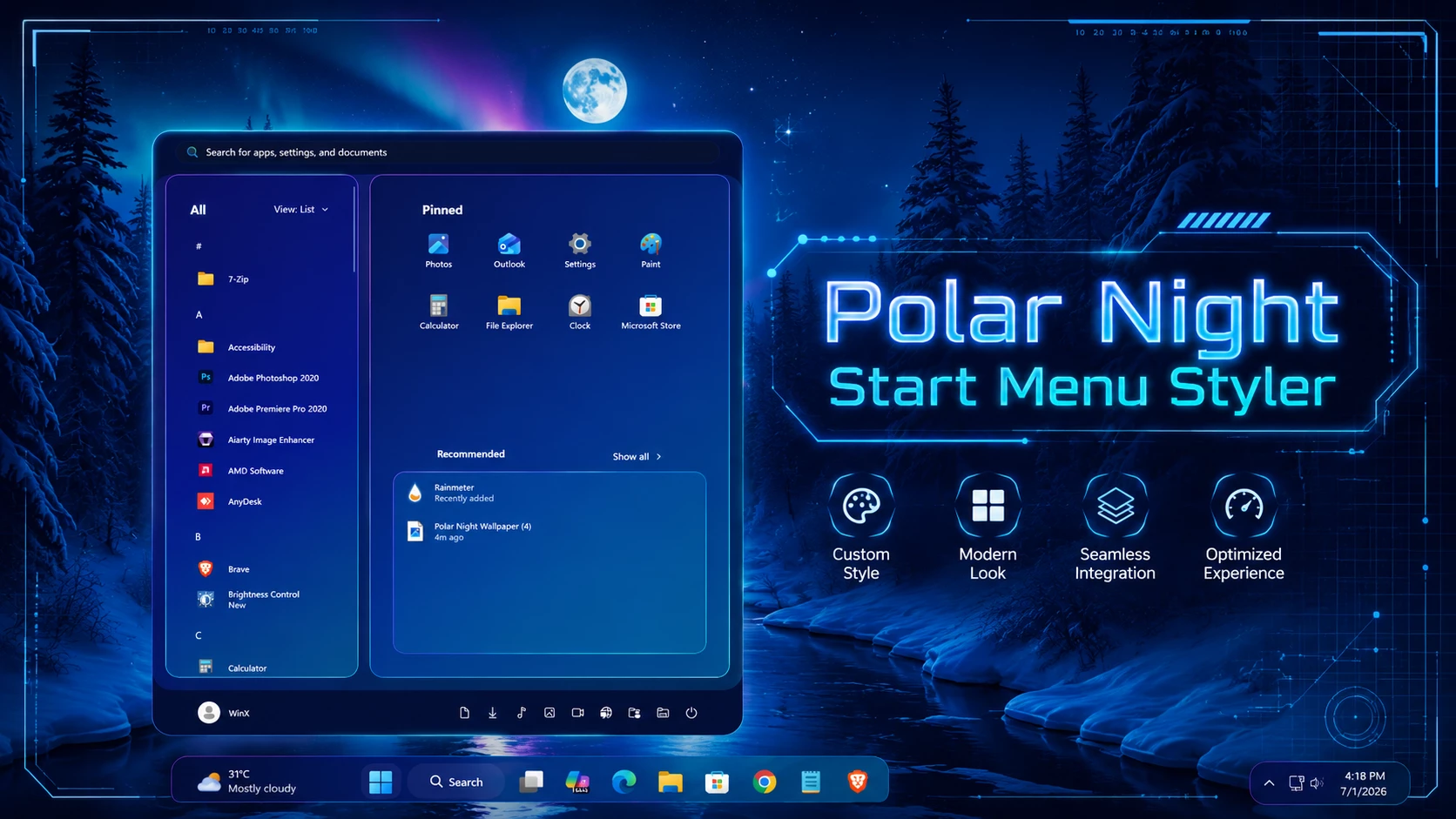
Customize Windows 11 with Polar Night Start Menu & Taskbar Style
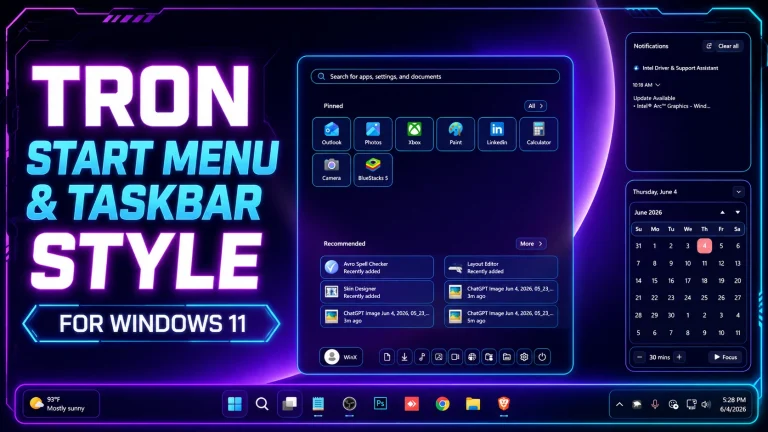
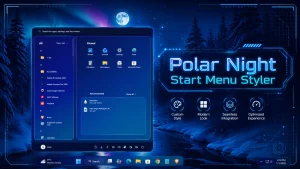
The Polar Night Start Menu and Taskbar Style for Windows 11 provides a cohesive, deep-toned visual overhaul for your desktop workspace. Built using the modular Windhawk customization engine, this setup combines deep blue-gray palettes, vibrant neon gradient borders, smooth rounded contours, and translucent acrylic blur to replace the default look of Windows 11 with an elegant, modern aesthetic.
The design organizes the Start Menu into an efficient dual-pane layout: a dedicated All Apps drawer on the left side and an organized pinned applications grid on the right. Paired with a floating centered taskbar and a matching notification center, the entire setup delivers a coordinated interface that complements dark, winter, and cyberpunk wallpapers effortlessly.
Because all visual changes are injected safely at runtime through Windhawk, your core system files remain completely untouched. You get a fully customized look without the risks associated with manual system DLL patching.
Key Features
- Dual-pane Start Menu layout with an instant All Apps list and structured pinned app tiles.
- Deep navy, indigo, and charcoal color palette with high-contrast neon borders.
- Smooth acrylic background blur with custom translucency and corner curvature.
- Floating, centered taskbar styling with custom icon spacing and indicators.
- Redesigned Notification and Action Center with matching gradient glass panels.
- Pure runtime UI modification powered by Windhawk without modifying system files.
- Modular setup allowing you to use the Start Menu, Taskbar, or Notification styles independently.
Requirements & Compatibility
- Windows 11 21H2: Supported
- Windows 11 22H2: Supported
- Windows 11 23H2: Fully Supported
- Windows 11 24H2: Fully Supported
- Windows 11 25H2: Supported (verify compatibility after major updates)
Download Windhawk
Windhawk is required to compile and inject these UI styling configurations into Windows 11.
How to Install Start Menu Style
- Install and open Windhawk on your PC.
- Search for the Windows 11 Start Menu Styler mod in the Windhawk mod repository and install it.
- Open the mod and click on the Advanced tab.
- Copy the configuration code below and paste it into the Mod settings field.
- Click Save to compile and apply the Start Menu style immediately.
theme: Polar Night Start Menu Style by WinX CustomizationdisableNewStartMenuLayout: newLayoutSideBySidestyleConstants: - NeonBg=<WindhawkBlur BlurAmount="28" TintColor="#B0051238" TintOpacity="0.86" TintLuminosityOpacity="0.18" FallbackColor="#051238"/> - NeonBg2=<LinearGradientBrush StartPoint="0,0" EndPoint="1,1"><GradientStop Color="#EEB72BFF" Offset="0.0"/><GradientStop Color="#D8143CFF" Offset="0.42"/><GradientStop Color="#D900D9FF" Offset="0.72"/><GradientStop Color="#D900F0FF" Offset="1.0"/></LinearGradientBrush> - NeonCard=<LinearGradientBrush StartPoint="0,0" EndPoint="1,1"><GradientStop Color="#551B0B7A" Offset="0.0"/><GradientStop Color="#551133EE" Offset="0.50"/><GradientStop Color="#5514D8FF" Offset="1.0"/></LinearGradientBrush> - NeonLeft=<LinearGradientBrush StartPoint="0,0" EndPoint="1,1"><GradientStop Color="#881E006B" Offset="0.0"/><GradientStop Color="#660014D8" Offset="0.55"/><GradientStop Color="#5520E6FF" Offset="1.0"/></LinearGradientBrush> - NeonRight=<LinearGradientBrush StartPoint="0,0" EndPoint="1,1"><GradientStop Color="#77030C45" Offset="0.0"/><GradientStop Color="#661051EE" Offset="0.55"/><GradientStop Color="#5511B8FF" Offset="1.0"/></LinearGradientBrush> - NeonBorder=<LinearGradientBrush StartPoint="0,0" EndPoint="1,1"><GradientStop Color="#FFFF65F2" Offset="0.0"/><GradientStop Color="#FF7B55FF" Offset="0.36"/><GradientStop Color="#FF00E5FF" Offset="0.72"/><GradientStop Color="#FF66FFF0" Offset="1.0"/></LinearGradientBrush> - NeonHover=<SolidColorBrush Color="#5536E8FF"/> - NeonPress=<SolidColorBrush Color="#664D2BFF"/> - NeonText=<SolidColorBrush Color="#F1FCFF"/> - NeonTextDim=<SolidColorBrush Color="#B7C9FF"/> - NeonRadius=28 - NeonCardRadius=18 - NeonBorderThickness=1.4controlStyles: - target: Grid styles: - RequestedTheme=2 - target: StartDocked.StartSizingFrame styles: - MinWidth=920 - MaxWidth=920 - Width=920 - target: StartDocked.LauncherFrame > Grid#RootGrid styles: - MinWidth=920 - MaxWidth=920 - target: StartDocked.LauncherFrame > Grid#RootPanel > Grid#RootGrid styles: - MinWidth=920 - MaxWidth=920 - target: Border#AcrylicBorder styles: - Background:=$NeonBg - BorderBrush:=$NeonBorder - BorderThickness=$NeonBorderThickness - CornerRadius=$NeonRadius - target: Border#AcrylicOverlay styles: - Background:=$NeonBg2 - Opacity=0.22 - CornerRadius=$NeonRadius - target: Border#LayerBorder styles: - Background:=$NeonBg - BorderBrush:=$NeonBorder - BorderThickness=$NeonBorderThickness - CornerRadius=$NeonRadius - target: Border#DropShadowDismissTarget styles: - Background:=$NeonBg - BorderBrush:=$NeonBorder - BorderThickness=$NeonBorderThickness - CornerRadius=$NeonRadius - Padding=0 - Margin=0 - target: StartDocked.SearchBoxToggleButton#StartMenuSearchBox styles: - Height=48 - Margin=24,18,24,12 - target: StartDocked.SearchBoxToggleButton#StartMenuSearchBox > Grid > Border#BorderElement styles: - Background:=$NeonCard - BorderBrush:=$NeonBorder - BorderThickness=1 - CornerRadius=18 - target: StartDocked.SearchBoxToggleButton#StartMenuSearchBox > Grid > ContentPresenter#ContentPresenter > TextBlock#PlaceholderText styles: - Foreground:=$NeonTextDim - Text=Search apps, files, settings - target: Grid#SideBySidePinnedWrapper styles: - ColumnDefinitions:=<ColumnDefinitionCollection><ColumnDefinition Width="330*"/><ColumnDefinition Width="590*"/></ColumnDefinitionCollection> - target: GridView#AllAppsGrid > Border > Grid#SideBySidePinnedWrapper > ScrollViewer#ScrollViewer styles: - Grid.Column=0 - Background:=$NeonLeft - BorderBrush:=$NeonBorder - BorderThickness=1 - CornerRadius=$NeonCardRadius - Margin=18,0,8,18 - Padding=6,6,6,6 - target: ScrollViewer#SideBySidePinnedScrollViewer styles: - Grid.Column=1 - Background:=$NeonRight - BorderBrush:=$NeonBorder - BorderThickness=1 - CornerRadius=$NeonCardRadius - Margin=8,0,18,18 - Padding=10,8,10,8 - target: Grid#SideBySidePinnedWrapper > ScrollViewer > Border#Root > Grid > ScrollContentPresenter > ItemsPresenter > ItemsWrapGrid styles: - Margin=24,4,24,12 - target: Grid#AllListHeading > TextBlock#AllListHeadingText styles: - Foreground:=$NeonText - FontSize=18 - FontWeight=SemiBold - Margin=28,8,12,8 - target: Grid#AllListHeading > Microsoft.UI.Xaml.Controls.DropDownButton#ViewSelectionButton styles: - Margin=0,0,24,0 - Foreground:=$NeonText - target: Grid#TopLevelSuggestionsContainer styles: - Margin=22,0,22,0 - Background:=<SolidColorBrush Color="#2200E5FF"/> - BorderBrush:=$NeonBorder - BorderThickness=0.8 - CornerRadius=16 - target: Grid#TopLevelSuggestionsListHeader styles: - Margin=22,4,22,4 - target: TextBlock#PinnedListHeaderText styles: - Foreground:=$NeonText - FontSize=18 - FontWeight=SemiBold - target: TextBlock#MoreSuggestionsListHeaderText styles: - Foreground:=$NeonText - FontSize=17 - FontWeight=SemiBold - target: Windows.UI.Xaml.Controls.Grid#AllAppsRoot styles: - Visibility=Visible - Width=330 - MinHeight=610 - Background:=$NeonLeft - BorderBrush:=$NeonBorder - BorderThickness=1 - CornerRadius=$NeonCardRadius - RenderTransform:=<TranslateTransform X="-300"/> - Padding=6,6,6,6 - target: Windows.UI.Xaml.Controls.Grid#UndockedRoot styles: - Visibility=Visible - Width=590 - MinHeight=610 - Margin=300,0,0,0 - Background:=$NeonRight - BorderBrush:=$NeonBorder - BorderThickness=1 - CornerRadius=$NeonCardRadius - Padding=8,8,8,8 - target: Windows.UI.Xaml.Controls.Button#CloseAllAppsButton styles: - Visibility=Collapsed - target: Windows.UI.Xaml.Controls.Button#ShowAllAppsButton styles: - Visibility=Collapsed - target: StartMenu.PinnedList#StartMenuPinnedList styles: - Margin=4,0,4,0 - Height=310 - target: Windows.UI.Xaml.Controls.Grid#TopLevelSuggestionsContainer styles: - Margin=22,-4,22,-24 - Height=260 - target: Windows.UI.Xaml.Controls.Grid#ShowMoreSuggestions styles: - Visibility=Visible - Margin=0,8,22,0 - target: Windows.UI.Xaml.Controls.GridViewItem > Border#ContentBorder@CommonStates styles: - Background@PointerOver:=$NeonHover - Background@Pressed:=$NeonPress - BorderBrush@PointerOver:=$NeonBorder - BorderThickness@PointerOver=1 - CornerRadius=16 - Margin=2 - target: Windows.UI.Xaml.Controls.GridViewItem > Border > Grid > Border#BackgroundBorder styles: - CornerRadius=16 - Background@PointerOver:=$NeonHover - Background@Pressed:=$NeonPress - target: StartDocked.AppListViewItem > Grid > Border#BackgroundBorder styles: - CornerRadius=14 - Background@PointerOver:=$NeonHover - Background@Pressed:=$NeonPress - target: StartDocked.AllAppsGridListView#AppsList styles: - Padding=20,4,10,14 - target: StartDocked.AllAppsGridListView > ScrollViewer > Border > Grid > ScrollContentPresenter styles: - Margin=0,0,4,0 - target: TextBlock styles: - Foreground:=$NeonText - target: Button styles: - Foreground:=$NeonText - target: StartDocked.NavigationPaneView#NavigationPane styles: - Background:=<SolidColorBrush Color="#2200E5FF"/> - BorderBrush:=$NeonBorder - BorderThickness=0.8 - CornerRadius=18 - Margin=24,0,24,18 - target: StartDocked.UserTileView styles: - Foreground:=$NeonText - target: StartDocked.PowerOptionsView#PowerButton styles: - Foreground:=$NeonText - Background:=<SolidColorBrush Color="#3314D8FF"/> - BorderBrush:=$NeonBorder - BorderThickness=1 - CornerRadius=14 - target: ScrollBar styles: - MinWidth=5 - Opacity=0.75 - target: Thumb styles: - Background:=<SolidColorBrush Color="#AA00E5FF"/> - CornerRadius=8 - target: Windows.UI.Xaml.Controls.SemanticZoom#ZoomControl styles: - IsZoomOutButtonEnabled=True - target: Windows.UI.Xaml.Controls.Button#ZoomOutButton styles: - Width=30 - Height=30 - FontSize=16 - CornerRadius=10 - Background:=<SolidColorBrush Color="#4414D8FF"/> - BorderBrush:=$NeonBorder - BorderThickness=1 - target: Windows.UI.Xaml.Controls.Button#ZoomOutButton > Windows.UI.Xaml.Controls.ContentPresenter#ContentPresenter > Windows.UI.Xaml.Controls.TextBlock styles: - Text= - Foreground:=$NeonTextthemeResourceVariables: - ''webContentStyles: - target: '' styles: - ''webContentCustomJs: ''How to Install Taskbar Style
- Open Windhawk and install the Windows 11 Taskbar Styler mod.
- Navigate to the mod’s Advanced tab.
- Paste the taskbar styling configuration code into the Mod settings field.
- Click Save to compile and apply the floating dock taskbar look[cite: 2].
- Restart Windows Explorer if the taskbar does not refresh automatically.
theme: Polar Night Taskbar Style by WinX CustomizationstyleConstants: - ''controlStyles: - target: Taskbar.TaskbarFrame styles: - Width=Auto - HorizontalAlignment=Center - Margin=220,0,220,0 - target: Taskbar.TaskbarFrame > Grid#RootGrid styles: - Background:=<LinearGradientBrush StartPoint="0,0" EndPoint="1,1"><GradientStop Color="#E4071038" Offset="0"/><GradientStop Color="#D5111970" Offset="0.45"/><GradientStop Color="#C20A7E9E" Offset="1"/></LinearGradientBrush> - Padding=8,0,8,0 - CornerRadius=18 - BorderThickness=1 - BorderBrush:=<LinearGradientBrush StartPoint="0,0" EndPoint="1,0"><GradientStop Color="#FFFF2DFF" Offset="0"/><GradientStop Color="#FF00E5FF" Offset="0.5"/><GradientStop Color="#FF3B82F6" Offset="1"/></LinearGradientBrush> - target: Taskbar.TaskbarFrame > Grid#RootGrid > Taskbar.TaskbarBackground > Grid > Rectangle#BackgroundFill styles: - Visibility=Collapsed - target: Rectangle#BackgroundStroke styles: - Visibility=Collapsed - target: Taskbar.ExperienceToggleButton styles: - CornerRadius=12 - Margin=2,4,2,4 - target: Taskbar.SearchBoxButton styles: - CornerRadius=12 - Margin=2,4,2,4 - target: Taskbar.TaskListButton styles: - CornerRadius=12 - Margin=2,4,2,4 - target: Taskbar.TaskListLabeledButtonPanel@RunningIndicatorStates > Rectangle#RunningIndicator styles: - Fill=#FF00E5FF - Height=3 - Width=18 - RadiusX=2 - RadiusY=2 - Fill@ActiveRunningIndicator=#FFFF2DFF - Width@ActiveRunningIndicator=26 - target: Grid#SystemTrayFrameGrid styles: - Background:=<LinearGradientBrush StartPoint="0,0" EndPoint="1,1"><GradientStop Color="#E4071038" Offset="0"/><GradientStop Color="#D5111970" Offset="0.45"/><GradientStop Color="#C20A7E9E" Offset="1"/></LinearGradientBrush> - Margin=8,0,8,8 - Padding=6,0,6,0 - CornerRadius=18 - BorderThickness=1 - BorderBrush:=<LinearGradientBrush StartPoint="0,0" EndPoint="1,0"><GradientStop Color="#FFFF2DFF" Offset="0"/><GradientStop Color="#FF00E5FF" Offset="0.6"/><GradientStop Color="#FF3B82F6" Offset="1"/></LinearGradientBrush> - target: SystemTray.NotifyIconView#NotifyItemIcon styles: - MinWidth=30 - Padding=0 - target: SystemTray.ImageIconContent > Grid#ContainerGrid styles: - Padding=3,0,3,0 - target: SystemTray.TextIconContent > Grid#ContainerGrid styles: - Padding=3,0,3,0 - target: SystemTray.ChevronIconView styles: - MinWidth=28 - Padding=0 - target: SystemTray.OmniButton styles: - Padding=0 - target: Border#OverflowFlyoutBackgroundBorder styles: - Background:=<AcrylicBrush TintColor="#071038" TintOpacity="0.88" FallbackColor="#071038" /> - CornerRadius=18 - BorderThickness=1 - BorderBrush:=<SolidColorBrush Color="#FF00E5FF" /> - target: Taskbar.TaskbarBackground#HoverFlyoutBackgroundControl > Grid > Rectangle#BackgroundFill styles: - Fill:=<AcrylicBrush TintColor="#071038" TintOpacity="0.88" FallbackColor="#071038" />themeResourceVariables: - ''xamlDiagnosticsHandling: ''Taskbar Height & Icon Size Settings
To get the exact compact spacing and icon dimensions shown in the screenshots, use the companion sizing mod in Windhawk:
- Install and open the Taskbar height and icon size mod in Windhawk.
- Navigate to the Settings tab and switch to Textual mode.
- Paste the values below into the configuration box and click Save settings.
TaskbarHeight: 56IconSize: 25TaskbarButtonWidth: 44IconSizeSmall: 20TaskbarButtonWidthSmall: 36How to Install Notification Center Style
- Open Windhawk and install the Windows 11 Notification Center Styler mod.
- Open the mod, head to the Settings tab, and switch to Textual mode (or the Advanced tab).
- Paste the configuration code below into the mod settings area.
- Click Save settings to apply the styling immediately[cite: 3].
- Restart Windows Explorer if the notification and calendar popups do not update right away.
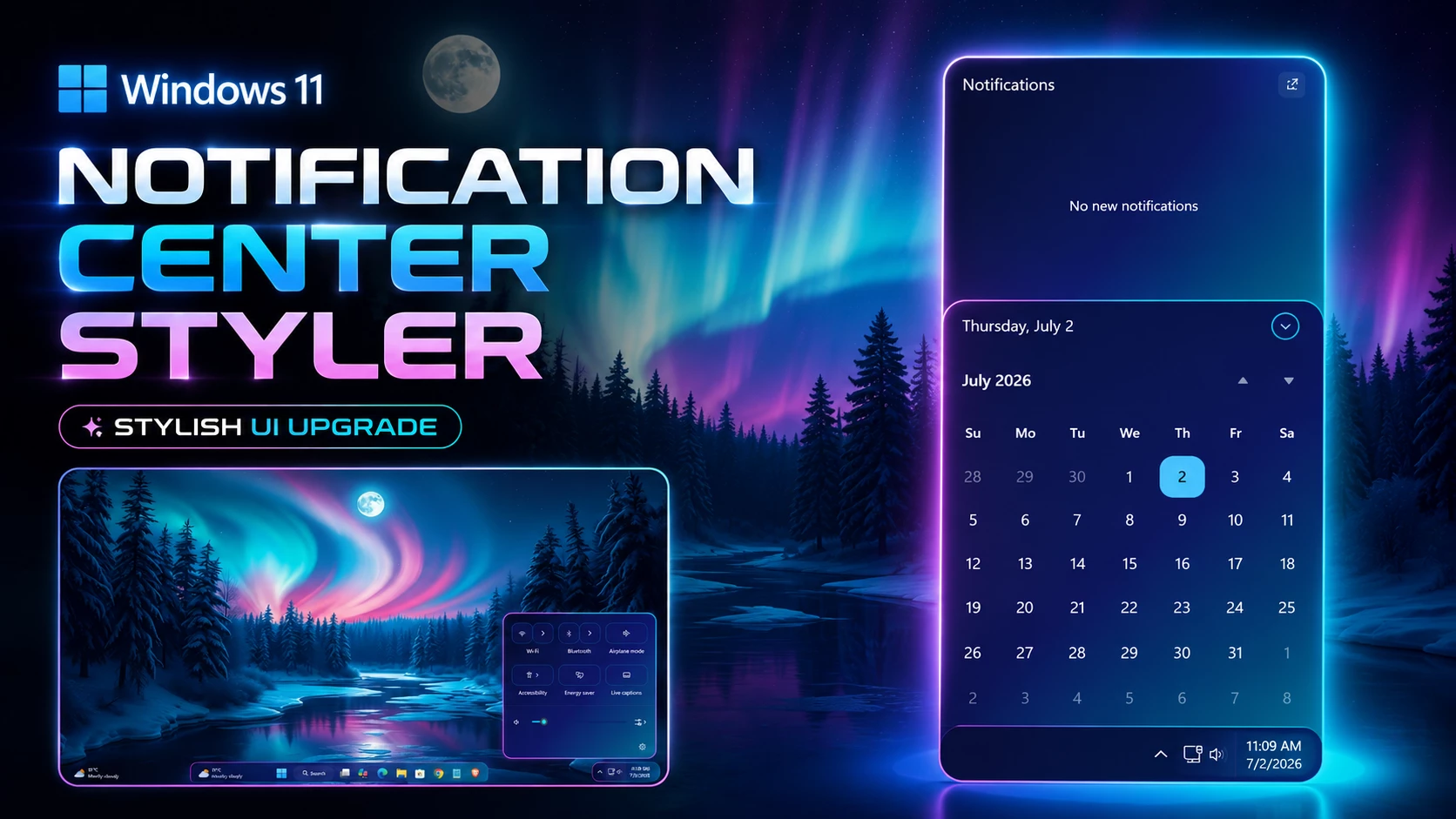
theme: Polar Night Notification Center Style by WinX CustomizationstyleConstants: - ''controlStyles: - target: Grid#NotificationCenterGrid styles: - Background:=<LinearGradientBrush StartPoint="0,0" EndPoint="1,1"><GradientStop Color="#FF071038" Offset="0"/><GradientStop Color="#FF111970" Offset="0.55"/><GradientStop Color="#FF0A7E9E" Offset="1"/></LinearGradientBrush> - BorderBrush:=<LinearGradientBrush StartPoint="0,0" EndPoint="1,0"><GradientStop Color="#FFFF2DFF" Offset="0"/><GradientStop Color="#FF00E5FF" Offset="0.55"/><GradientStop Color="#FF3B82F6" Offset="1"/></LinearGradientBrush> - BorderThickness=1 - CornerRadius=18 - Margin=0,0,0,0 - Shadow:= - target: ScrollViewer#ListContent styles: - Background=Transparent - target: ActionCenter.FlexibleToastView#FlexibleNormalToastView styles: - Background=Transparent - target: Border#ToastBackgroundBorder2 styles: - Background:=<LinearGradientBrush StartPoint="0,0" EndPoint="1,1"><GradientStop Color="#EE111970" Offset="0"/><GradientStop Color="#DD0A7E9E" Offset="1"/></LinearGradientBrush> - BorderBrush=#6600E5FF - BorderThickness=1 - CornerRadius=16 - target: ActionCenter.FlexibleItemView styles: - CornerRadius=16 - target: Button#ClearAll styles: - Background=#66111970 - Foreground=#FFFFFFFF - BorderBrush=#FF00E5FF - BorderThickness=1 - CornerRadius=12 - AccessKey=x - target: ActionCenter.FocusSessionControl styles: - Height=0 - target: ActionCenter.FocusSessionControl#FocusSessionControl > Grid#FocusGrid styles: - Background=Transparent - BorderThickness=0 - target: Grid#CalendarCenterGrid styles: - Background:=<LinearGradientBrush StartPoint="0,0" EndPoint="1,1"><GradientStop Color="#FF071038" Offset="0"/><GradientStop Color="#FF111970" Offset="0.55"/><GradientStop Color="#FF0A7E9E" Offset="1"/></LinearGradientBrush> - BorderBrush:=<LinearGradientBrush StartPoint="0,0" EndPoint="1,0"><GradientStop Color="#FFFF2DFF" Offset="0"/><GradientStop Color="#FF00E5FF" Offset="0.55"/><GradientStop Color="#FF3B82F6" Offset="1"/></LinearGradientBrush> - BorderThickness=1 - CornerRadius=18 - Margin=0,0,8,8 - Shadow:= - target: ScrollViewer#CalendarControlScrollViewer styles: - Background=Transparent - BorderThickness=0 - target: Border#CalendarHeaderMinimizedOverlay styles: - Background=Transparent - BorderThickness=0 - target: Button#ExpandCollapseButton styles: - Background=#66111970 - Foreground=#FFFFFFFF - BorderBrush=#FF00E5FF - BorderThickness=1 - CornerRadius=12 - AccessKey=e - target: CalendarViewDayItem styles: - CornerRadius=12 - BorderThickness=1 - BorderBrush=#3300E5FF - target: CalendarViewDayItem > Border styles: - CornerRadius=12 - target: Control > Border styles: - CornerRadius=12 - target: Grid#ControlCenterRegion styles: - Background:=<LinearGradientBrush StartPoint="0,0" EndPoint="1,1"><GradientStop Color="#FF071038" Offset="0"/><GradientStop Color="#FF111970" Offset="0.55"/><GradientStop Color="#FF0A7E9E" Offset="1"/></LinearGradientBrush> - BorderBrush:=<LinearGradientBrush StartPoint="0,0" EndPoint="1,0"><GradientStop Color="#FFFF2DFF" Offset="0"/><GradientStop Color="#FF00E5FF" Offset="0.55"/><GradientStop Color="#FF3B82F6" Offset="1"/></LinearGradientBrush> - BorderThickness=1 - CornerRadius=18 - Margin=0,0,8,8 - Shadow:= - target: Grid#L1Grid > Border styles: - Background=Transparent - BorderThickness=0 - target: ContentPresenter#PageContent styles: - Background=Transparent - target: ContentPresenter#PageContent > Grid > Border styles: - Background=Transparent - target: ContentControl#QuickActionContentControl > ContentPresenter > Grid > ToggleButton styles: - Background=#66111970 - BorderBrush=#5500E5FF - BorderThickness=1 - CornerRadius=14 - target: ContentControl#QuickActionContentControl > ContentPresenter > Grid > Button styles: - Background=#66111970 - BorderBrush=#5500E5FF - BorderThickness=1 - CornerRadius=14 - target: ControlCenter.PaginatedToggleButton#ToggleButton styles: - Background=#66111970 - BorderBrush=#5500E5FF - BorderThickness=1 - CornerRadius=14 - target: ControlCenter.PaginatedToggleButton#SplitL2Button styles: - Background=#66111970 - BorderBrush=#5500E5FF - BorderThickness=1 - CornerRadius=14 - target: Microsoft.UI.Xaml.Controls.PipsPager#QuickActionsPager styles: - Visibility=Collapsed - target: Grid#FooterGrid styles: - Background=Transparent - BorderThickness=0 - target: ControlCenter.AsyncSlider styles: - Margin=12,0,12,0 - target: Windows.UI.Xaml.Controls.Primitives.Thumb#HorizontalThumb styles: - Background=#FF00E5FF - target: Rectangle#HorizontalTrackRect styles: - Fill=#66111970 - RadiusX=6 - RadiusY=6 - target: Rectangle#HorizontalDecreaseRect styles: - Fill=#FF00E5FF - RadiusX=6 - RadiusY=6 - target: Grid#MediaTransportControlsRegion styles: - Background:=<LinearGradientBrush StartPoint="0,0" EndPoint="1,1"><GradientStop Color="#EE111970" Offset="0"/><GradientStop Color="#DD0A7E9E" Offset="1"/></LinearGradientBrush> - BorderBrush=#6600E5FF - BorderThickness=1 - CornerRadius=18 - Shadow:= - target: Grid#MediaTransportControlsRoot styles: - Background=Transparent - target: Grid#ThumbnailImage styles: - Width=72 - Height=72 - CornerRadius=14 - target: Grid#ThumbnailImage > Border styles: - CornerRadius=14 - target: Button#PlayPauseButton > ContentPresenter#ContentPresenter styles: - Background=#66111970 - BorderBrush=#FF00E5FF - BorderThickness=1 - CornerRadius=12 - target: Windows.UI.Xaml.Controls.Primitives.RepeatButton#NextButton > ContentPresenter#ContentPresenter styles: - Background=#33111970 - BorderBrush=#5500E5FF - BorderThickness=1 - CornerRadius=10 - target: Windows.UI.Xaml.Controls.Primitives.RepeatButton#PreviousButton > ContentPresenter#ContentPresenter styles: - Background=#33111970 - BorderBrush=#5500E5FF - BorderThickness=1 - CornerRadius=10 - target: MenuFlyoutPresenter > Border styles: - Background:=<LinearGradientBrush StartPoint="0,0" EndPoint="1,1"><GradientStop Color="#FF071038" Offset="0"/><GradientStop Color="#FF111970" Offset="1"/></LinearGradientBrush> - BorderBrush:=<LinearGradientBrush StartPoint="0,0" EndPoint="1,0"><GradientStop Color="#FFFF2DFF" Offset="0"/><GradientStop Color="#FF00E5FF" Offset="0.55"/><GradientStop Color="#FF3B82F6" Offset="1"/></LinearGradientBrush> - BorderThickness=1 - CornerRadius=16 - Padding=2,4,2,4 - target: Border#JumpListRestyledAcrylic styles: - Background=#FF071038 - BorderBrush=#FF00E5FF - BorderThickness=1 - CornerRadius=16 - Margin=-2,-2,-2,-2 - target: JumpViewUI.SystemItemListViewItem > Grid#LayoutRoot > Border#BackgroundBorder styles: - Background=Transparent - CornerRadius=12 - target: JumpViewUI.JumpListListViewItem > Grid#LayoutRoot > Border#BackgroundBorder styles: - CornerRadius=12themeResourceVariables: - ''How to Revert to Default Windows 11 Styling
Because all visual changes run directly through Windhawk, returning to default Windows 11 interface elements takes only a few seconds:
- Open the Windhawk application from your Start Menu or system tray.
- Navigate to the Installed Mods section.
- Click Stop or disable Windows 11 Start Menu Styler to restore the stock Start Menu.
- Disable Windows 11 Taskbar Styler to return the taskbar to full-width stock layout.
- Disable Windows 11 Notification Center Styler to restore default Action Center colors.
- Restart Windows Explorer if needed to refresh your desktop appearance immediately.
Frequently Asked Questions
Does this customization modify system files?
No. All changes are injected into the Windows UI process at runtime using Windhawk. No DLL or system system files are replaced or modified.
Will using these mods affect gaming or system performance?
No noticeable impact. Windhawk applies lightweight XAML styling rules directly to Windows UI elements without running resource-heavy background scripts.
Can I use only the Start Menu style without changing the taskbar?
Yes. Each mod operates independently in Windhawk. You can install only the Start Menu Styler code and keep your taskbar and notification center standard.
What should I do if a Windows update breaks the styling?
Check the Windhawk app for mod updates. Mod authors regularly update styling hooks to remain compatible with major Windows cumulative builds.
Disclaimer
The Polar Night Start Menu and Taskbar Style is an independent third-party customization preset created for desktop personalization purposes. It is not affiliated with, sponsored by, or endorsed by Microsoft Corporation or the Windhawk project. Windows, Windows 11, and related brand names belong to Microsoft Corporation.
Final Words
The Polar Night style brings together a structured dual-column Start Menu, a floating dock taskbar, and glowing notification flyouts into a balanced dark theme[cite: 2, 3]. Because every component is managed through modular Windhawk settings, you retain complete control to tweak colors, gradients, and layout options to fit your exact desktop setup.