Polar Night Icon Pack ( Windhawk )
Explore the Polar Night icon Pack Windhawk setup, its visual benefits, installation basics, and practical tips for a cleaner Windows 11 desktop.

Polar Night Icon Pack for Windows 11 – Resource Redirect
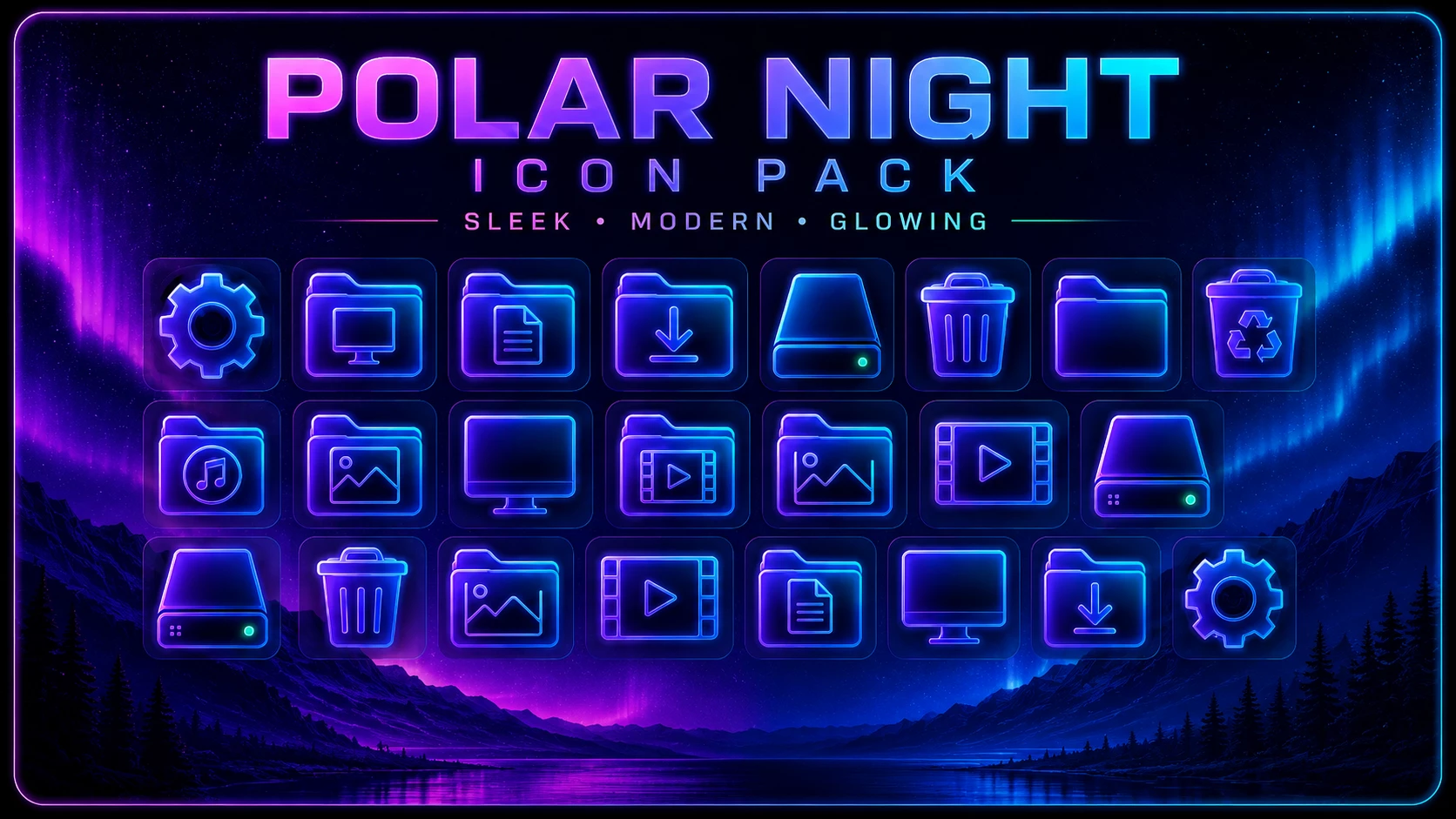
Polar Night Icon Pack brings a neon night-style look to supported Windows 11 icons. The design combines dark icon surfaces with electric blue, cyan, violet, and magenta outlines, creating a bright glowing effect without filling every icon with heavy color.
The pack has a very consistent visual language. Settings, folders, Documents, Downloads, monitors, drives, Recycle Bin, Music, Pictures, and Video resources all use the same illuminated border treatment, so File Explorer feels much more coordinated than a mix of unrelated custom icons.
This version is made for Resource Redirect in Windhawk. It changes supported Windows icon resources through the mod instead of requiring manual replacement of protected Windows system files. Your wallpaper, taskbar, Start menu, and Windows theme remain separate customizations.
The Polar Night Visual Style
The most noticeable part of Polar Night is its glowing outline. Dark blue and near-black icon bodies are surrounded by brighter cyan, purple, and magenta edges, giving each resource a luminous appearance that stands out strongly against a dark desktop.
The pack does not make every icon identical. A drive still looks like a drive, a picture resource still uses an image symbol, and video icons retain their film-style shape. The shared neon border is what connects them visually.
Features
- Electric blue and cyan glowing outlines
- Violet and magenta accent lighting
- Dark icon interiors for stronger contrast
- Matching settings, folder, document, download, drive, monitor, media, and Recycle Bin resources
- Clear line-art symbols that remain easy to recognize
- Designed for Resource Redirect in Windhawk
- No manual replacement of protected Windows system files
What Is Included?
- Polar Night Resource Redirect Icon Pack: Contains replacement resources for supported Windows 11 icons.
Compatibility
- Windows 11
Requirements
- Windows 11
- Windhawk installed
- Resource Redirect mod installed and enabled
- The Polar Night pack extracted to a permanent folder
- A ZIP extraction tool
Before Applying Polar Night
If you already use another Resource Redirect icon theme, save its current folder path before switching to Polar Night. That gives you a quick way to return to the previous setup later.
Choose a permanent location for the extracted Polar Night folder as well. Resource Redirect reads the replacement resources from that path, so moving the folder afterward can break the connection.
How to Install Polar Night Icon Pack
- Install Windhawk: Download and install Windhawk if it is not already installed.
- Add Resource Redirect: Open Windhawk, search for Resource Redirect, and install the mod.
- Download Polar Night: Use the download button below to save the ZIP archive.
- Extract the Archive: Extract the pack to a folder that you do not plan to move later.
- Copy the Folder Path: Open the extracted Polar Night folder and copy its full Windows path.
- Open Resource Redirect Settings: Find the custom theme or resource-folder path field inside the mod settings.
- Add the Path: Paste the Polar Night folder path into that field. Remove surrounding quotation marks if Windows added them automatically.
- Save the Configuration: Apply the settings and allow Resource Redirect to reload.
- Refresh File Explorer: Restart Windows Explorer if the new icons do not appear straight away.
For a more detailed walkthrough, see:
Download Polar Night Icon Pack
Polar Night Icon Pack 9MB
Download Icon PackHow to Remove Polar Night Icon Pack
- Open Windhawk and select Resource Redirect.
- Open the mod settings.
- Remove the Polar Night folder path or restore your previous icon-pack path.
- Save the configuration.
- Restart Windows Explorer.
- Refresh the icon cache if older Polar Night resources remain visible.
- Delete the extracted Polar Night folder only after Resource Redirect is no longer using it.
What Kind of Desktop Suits Polar Night?
Polar Night makes the most sense on a darker desktop where the glowing outlines have enough contrast to stand out. Black, deep navy, violet, aurora, or night-sky wallpapers can all complement the blue and purple lighting used by the icons.
A matching neon setup is not required. The icon pack can also provide the main color accent on an otherwise simple Windows desktop without requiring the taskbar, wallpaper, or other interface elements to use the same style.
Disclaimer
Polar Night Icon Pack is an independent third-party Windows customization resource intended for personal desktop customization. It is not an official Microsoft, Windhawk, or Resource Redirect product and is not affiliated with, authorized by, sponsored by, approved by, or endorsed by those companies or projects. Microsoft, Windows, and other trademarks belong to their respective owners. Appearance and compatibility may vary depending on the Windows build, Resource Redirect version, and other active customization tools.
Final Word
Polar Night stands out because it treats glow as part of the icon design rather than covering everything with solid neon color. Dark interiors keep the resources readable, while cyan, violet, and magenta outlines give folders, drives, media, settings, and system icons a strong nighttime identity.
If your Windows 11 setup already leans toward dark blue, purple, aurora, or neon styling, Polar Night can fit in naturally. It can also work alone when you simply want File Explorer to carry more color without changing the rest of the desktop.
Frequently Asked Questions
Is Polar Night mainly a blue icon pack?
Blue and cyan are major colors, but the design also uses violet, purple, and magenta lighting across many of the icon outlines.
Are the icons filled with neon colors?
Not completely. Most icons use darker interiors with brighter glowing outlines, which gives the pack its distinctive line-art appearance.
Which types of resources are included in the Polar Night style?
The pack includes settings, monitor, document, download, folder, drive, Recycle Bin, music, picture, video, and other system-style resources that follow the same glowing design language.
Would Polar Night work with a simple black wallpaper?
Yes. A black or very dark wallpaper can give the cyan and purple outlines strong contrast without competing with the icon colors.
Can I switch to another Resource Redirect pack later?
Yes. Keep each icon pack in its own folder, change the saved Resource Redirect path to the new pack, save the settings, and restart Explorer if needed.