Ocean Icon Pack For Windows 11
Download the Ocean Icon Pack For Resource Redirect Icon Pack featuring clean, modern ocean-themed icons for websites, apps, social media, presentations, and creative design projects.

Ocean Icon Pack for Windows 11 – Resource Redirect
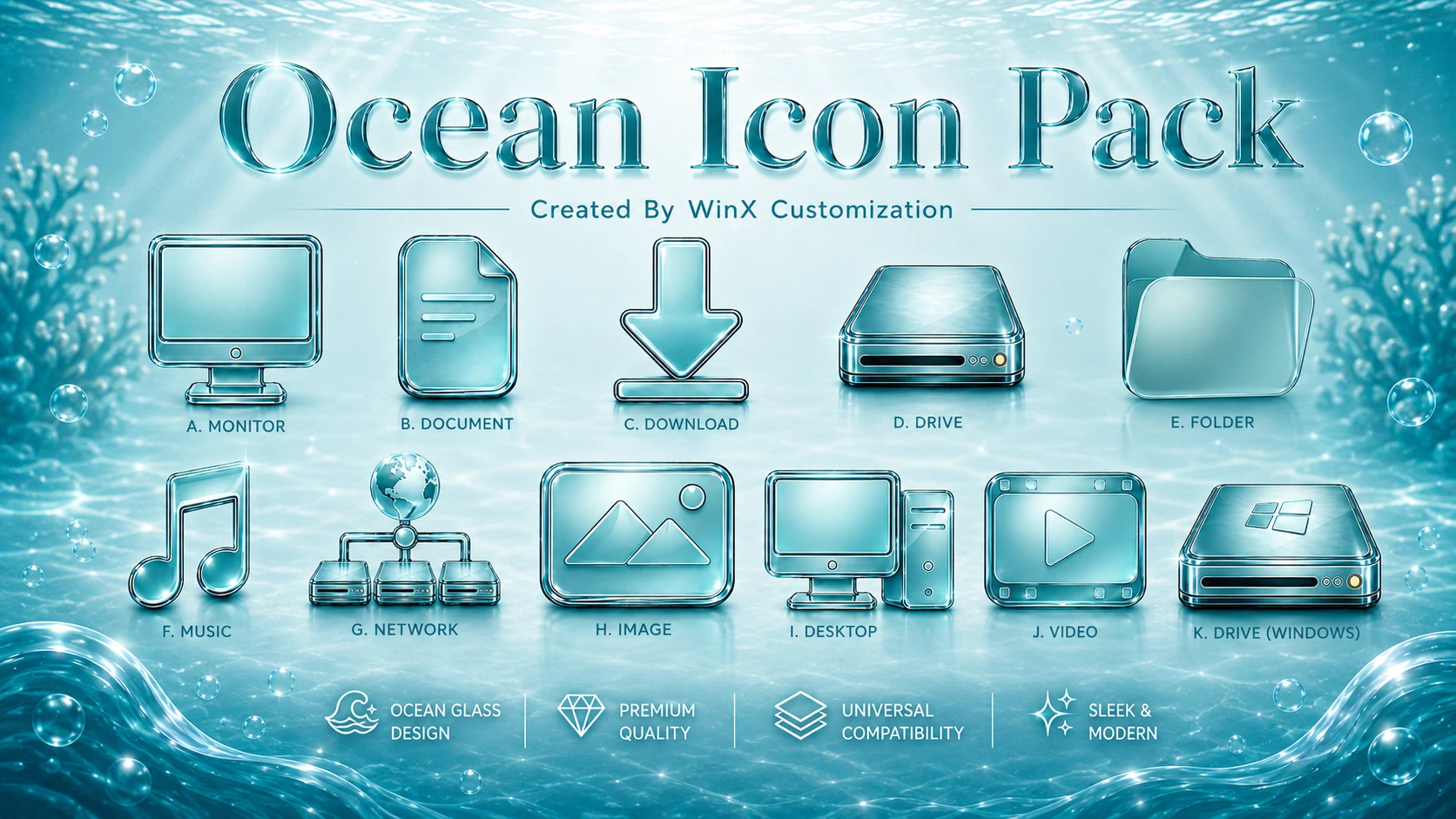
Ocean Icon Pack is a Resource Redirect icon set for Windows 11 built around translucent aqua surfaces, cool cyan highlights, and polished silver edges. The icons have a soft glass-like appearance that gives familiar Windows resources a lighter, more fluid look while keeping their shapes easy to recognize.
The set covers several familiar Windows locations and system resources. In the preview, This PC, Documents, Downloads, drives, folders, Music, Network, Image, Desktop, Video, and the Windows drive all follow the same ocean-inspired visual direction.
Rather than forcing every icon into one identical shape, Ocean keeps the individual resource recognizable while using the same icy blue, teal, silver, and transparent styling across the set. This makes File Explorer feel coordinated without turning it into a wall of identical icons.
This version is designed for Resource Redirect in Windhawk. It changes supported Windows icon resources through the mod, so you do not need to manually replace protected Windows system files. Your wallpaper, Windows theme, taskbar, and Start menu remain separate customizations.
Ocean Glass Icon Style
The strongest visual feature is the combination of cool aqua glass and silver detailing. Several icons have semi-transparent surfaces with brighter edges that resemble polished glass or acrylic, while darker teal areas add depth.
The drive resources use metallic housings with green or cyan indicator details, while folders and documents stay closer to frosted blue glass. Music, Photo, Video, Network, Desktop, and other resources introduce their own shapes without breaking the overall design language.
Features
- Translucent aqua and cyan icon surfaces
- Silver and chrome-style outer edges
- Frosted blue folder and document resources
- Matching monitor, drive, download, music, network, photo, desktop, and video icons
- Cool teal and green accent details on selected resources
- Consistent glass-inspired styling across supported Windows locations
- Designed for Resource Redirect in Windhawk
- No manual replacement of protected Windows system files
- Ocean Resource Redirect Icon Pack: Contains replacement icon resources for supported Windows 11 locations.
Compatibility
- Windows 11
Icon coverage can vary depending on the Windows build and the resources included in the pack. Some applications use their own icon files, while folders that display thumbnail previews may continue to show those previews instead of the themed folder resource.
Requirements
- Windows 11
- Windhawk installed
- Resource Redirect mod installed and enabled
- The Ocean pack extracted to a permanent folder
- A ZIP extraction tool
Before You Apply Ocean
Save a copy of your current Resource Redirect configuration before changing the icon path. If you later decide to return to another icon pack, having the old path ready makes the switch much easier.
Once Ocean is active, keep the extracted folder in the same location. Resource Redirect loads the replacement files from that saved path, so moving or renaming the folder can stop the icons from appearing. Windows customization continues to treat folder paths with the seriousness of international borders.
How to Install Ocean Icon Pack
- Install Windhawk: Download and install Windhawk if it is not already installed.
- Install Resource Redirect: Open Windhawk, search for Resource Redirect, and install the mod.
- Download Ocean: Download the Ocean Icon Pack ZIP archive using the button below.
- Extract the Pack: Extract the archive to a folder that you plan to keep in the same location.
- Copy the Folder Path: Open the extracted Ocean folder and copy its full Windows path.
- Open Resource Redirect Settings: Go to the mod’s settings and locate the custom theme or resource folder field.
- Paste the Path: Paste the Ocean folder path into the required field. Remove quotation marks if Windows added them automatically.
- Save the Settings: Apply the Resource Redirect configuration and let the mod reload.
- Refresh Explorer: Restart Windows Explorer if the new icons do not appear immediately.
For a more detailed setup guide, you can also check:
Download Ocean Icon Pack
Ocean Icon Pack 11MB
Download Icon PackIf the Icons Do Not Appear
Check that Resource Redirect is enabled and confirm that the saved path points to the actual extracted Ocean folder rather than the ZIP archive itself.
If the path is correct but older icons remain visible, restart Windows Explorer. Windows may also be using cached icon data, so an icon-cache refresh can sometimes be needed.
Why Do Some Icons Stay Unchanged?
Resource Redirect can only replace resources included in the pack. Some programs provide their own icons, while certain folders may display thumbnail previews instead of the regular Windows folder resource.
A few unchanged items therefore do not automatically mean the pack failed. They may simply come from resources outside Ocean’s coverage.
How to Remove Ocean Icon Pack
- Open Windhawk: Select the installed Resource Redirect mod.
- Open Its Settings: Find the custom path currently pointing to the Ocean folder.
- Restore Your Previous Setup: Replace the Ocean path with your earlier configuration, or remove it if you want to return to the default Windows resources.
- Save the Changes: Apply the updated Resource Redirect settings.
- Restart Explorer: Restart Windows Explorer so the previous or default icons can reload.
- Delete the Pack Later: Remove the extracted Ocean folder only after Resource Redirect is no longer using it.
Where Ocean Looks Best
The cool aqua and silver styling works naturally with blue, teal, gray, black, or softly blurred wallpapers. Darker backgrounds can give the bright glass edges more contrast, while lighter backgrounds create a softer appearance.
You do not need an ocean-themed wallpaper or a matching Windows theme. The icon pack works independently, so the translucent resources can be the main visual change while the rest of your desktop stays simple.
Creator Credit
The preview identifies WinX Customization as the creator of the Ocean icon design. Credit for the original artwork and pack design remains with its respective creator. Link Vegas Theme does not claim ownership of third-party artwork.
Explore More Windows Customization
Disclaimer
Ocean Icon Pack is an independently created third-party Windows customization resource intended for personal desktop customization. It is not an official Microsoft, Windhawk, or Resource Redirect product and is not affiliated with, authorized by, sponsored by, approved by, or endorsed by those companies or projects. Microsoft, Windows, and other trademarks belong to their respective owners. Appearance and compatibility may vary between Windows builds and mod versions.
Final Word
Ocean has a very clear visual identity. Frosted aqua surfaces, silver borders, translucent blue details, and subtle green accents give supported Windows resources a cool glass-like appearance without forcing every icon into one identical shape.
If you prefer cleaner blue and teal desktop colors and want something more distinctive than flat Windows icons, Ocean gives File Explorer a noticeable refresh while keeping common resources easy to recognize.
Frequently Asked Questions
Is Ocean Icon Pack completely transparent?
No. Many resources use translucent or glass-like surfaces, but the icons still have visible aqua, teal, silver, and metallic details.
What colors are used across the Ocean icon set?
The visible design mainly uses aqua, cyan, teal, silver, white, and darker blue-green accents.
Do I need an ocean-themed Windows wallpaper?
No. The icon pack works independently through Resource Redirect. Blue, teal, dark, gray, or minimal wallpapers can all work well with it.
Does Ocean change the taskbar or Start menu?
No. Ocean focuses on supported icon resources. Taskbar, Start menu, wallpaper, and other interface styling remain separate customizations.
Why might some Windows icons remain unchanged?
Some applications use their own icon files, while certain folders display thumbnails or resources that are not included in the pack.