Futuristic Mist Icon Pack for Windows 11
Futuristic Mist Icon Pack for Windows 11 : Give Windows 11 a futuristic green neon look with the Futuristic Mist Icon Pack, designed for customization using Windhawk Resource Redirect.

Futuristic Mist Icon Pack for Windows 11
Are you looking to give your Windows 11 desktop a serious cyberpunk upgrade? If you’re a fan of dark, high-contrast setups, the Futuristic Mist Icon Pack is exactly what you need. Instead of the bright, standard system icons, this pack completely transforms your File Explorer into a sleek, sci-fi-inspired workstation.
The best part about this setup is how safe and easy it is to apply. Designed to work seamlessly with the Resource Redirect mod in Windhawk, this pack changes your icons on the fly. That means you never have to manually replace or hack any protected, core Windows system files!
What Exactly Is This Icon Pack?
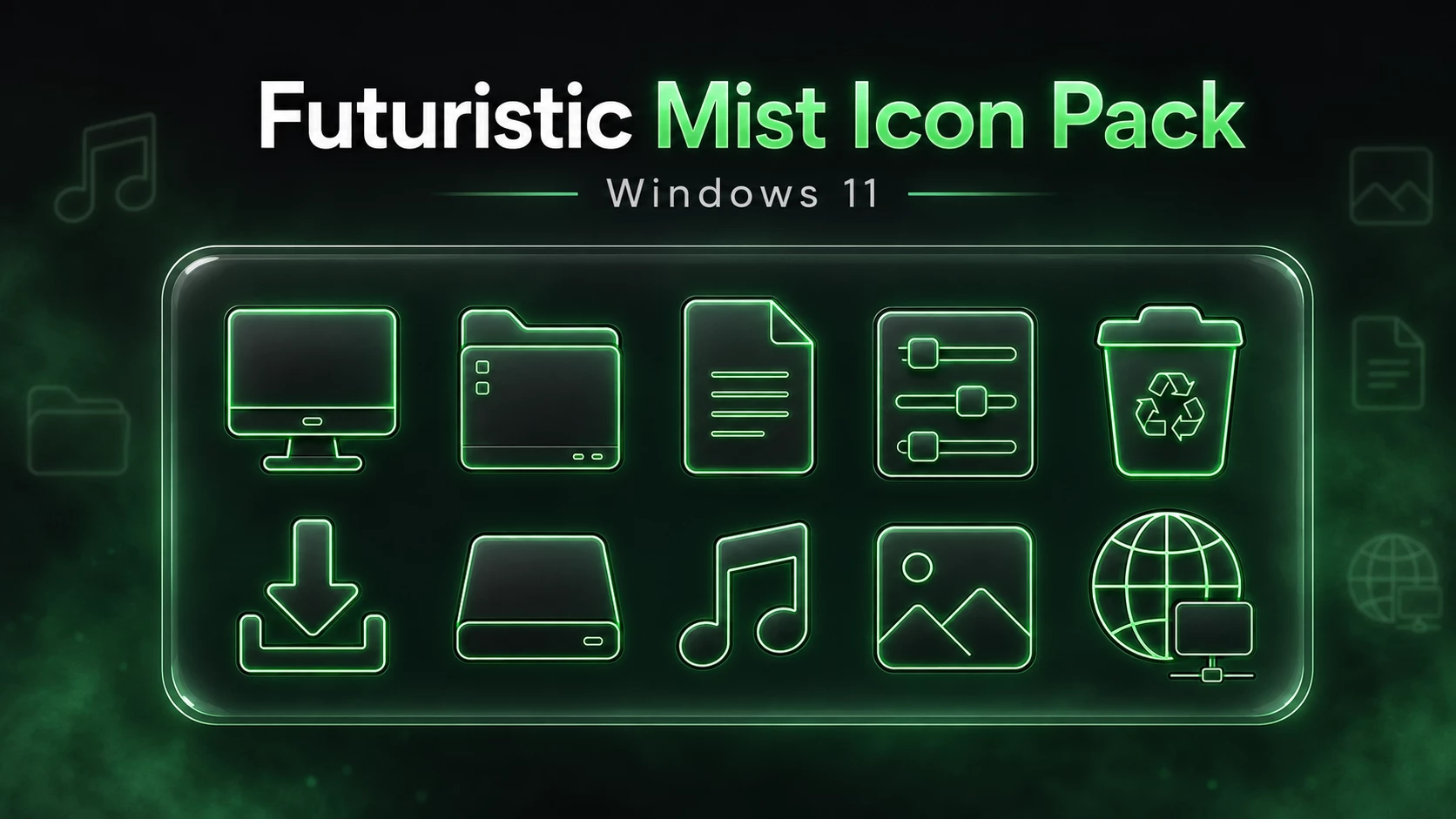
This collection is a complete visual overhaul for your desktop, built around a dark metallic aesthetic with luminous neon-green outlines. It replaces the boring default Windows folders with a sleek charcoal body and a subtle green glow, making directories like Program Files, Downloads, and Documents look incredibly futuristic.
It doesn’t just stop at folders, either. Everything from your hard drives and Recycle Bin to your network and media shortcuts gets the same glowing green treatment. When paired with a dark glass theme, custom taskbar, or a matching green wallpaper, it ties your entire desktop together into one clean, highly customized setup.
- Cyberpunk Aesthetic: Features a dark metallic base that completely changes the vibe of your standard desktop.
- Neon Green Highlights: Eye-catching, luminous outlines that make your icons pop beautifully against dark backgrounds.
- Complete Uniformity: Applies a consistent and unified design language across all your supported Windows system icons.
- Safe Customization: Designed specifically for Windhawk’s Resource Redirect mod, meaning your core Windows system files remain completely untouched.
- File Explorer Overhaul: Say goodbye to boring default yellow folders—these modern replacements look incredibly sleek.
- Dark Mode Friendly: Looks its absolute best when matched with dark glass themes and deep green desktop wallpapers.
- Effortless Switching: Want to go back to the default look or try a new pack? Just toggle your Resource Redirect settings in seconds.
Requirements
- Windows 11 Operating System
- Windhawk Installed
- Resource Redirect Mod Enabled
- Futuristic Mist Icon Pack Files
- Basic File Path Knowledge
Installation Steps
- Create a System Restore Point before making customization changes
- Download and install Windhawk
- Install and enable the Resource Redirect mod inside Windhawk
- Download the Futuristic Mist Icon Pack ZIP file
- Extract the icon pack to a permanent folder on your computer
- Copy the required icon pack folder path
- Add the required path or configuration to the Resource Redirect settings
- Apply the Resource Redirect settings carefully
- Restart Windows Explorer if required to display the new icons
For a detailed installation guide, you can also check:
Futuristic Mist Icon Pack 13MB
DownloadSome Resource Redirect icon packs may use specific folder structures or configuration paths. Keep the extracted icon pack in a permanent location and follow the instructions provided with the download when configuring Resource Redirect.
Icon Style and Appearance
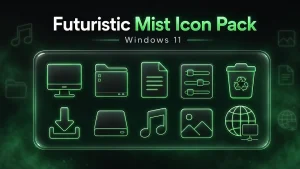
The main visual identity of the Futuristic Mist Icon Pack comes from its combination of dark metallic surfaces and luminous green details. Folder icons use a dark charcoal body with bright green edge highlights, giving File Explorer a clean cyber-inspired appearance without making the icons difficult to recognize.
Other icons shown in the preview follow the same design language. Simple line-based symbols are surrounded by green illumination and placed against dark backgrounds, helping the entire icon set maintain a consistent futuristic theme.
This style is especially suitable for users who prefer black, dark green, neon, cyber, glass, or futuristic Windows desktop customization.
The Windows 11 File Explorer preview also demonstrates the custom folder style across multiple directories, creating a consistent appearance throughout the main Explorer view.
Important Safety Tips
Before applying the Futuristic Mist Icon Pack or changing Resource Redirect settings, create a System Restore Point. This gives you an additional recovery option if a customization change causes an unexpected problem.
It’s also recommended to keep a copy of your current Resource Redirect configuration before replacing or editing it.
- Create a System Restore Point before applying changes
- Keep a backup of your current Resource Redirect settings
- Keep the icon pack in a permanent folder after configuration
- Avoid moving or renaming the configured icon folder afterward
- Do not combine unrelated Resource Redirect configurations without checking their paths
- Check compatibility after major Windows updates
- Use customization files from sources you trust
Why Use Resource Redirect?
Windhawk Resource Redirect provides a convenient way to redirect supported Windows resources to customized alternatives. For icon customization, this means you can use a compatible custom icon pack without manually replacing protected Windows system files.
It also makes changing between compatible icon configurations easier. If you want to return to another setup, you can restore your previous Resource Redirect configuration rather than manually replacing every icon again.
Windows updates can occasionally affect customization tools or resource mappings, so check your Windhawk and Resource Redirect configuration if an icon stops displaying correctly after an update.
How to Return to the Default Windows Icons
If you decide to stop using the Futuristic Mist Icon Pack, disable or remove the related Resource Redirect configuration and restore your previous settings. Restart Windows Explorer afterward if necessary.
Keeping a backup of your original configuration before installation makes this process much easier.
Disclaimer
This icon pack is provided for Windows customization purposes only. Futuristic Mist Icon Pack is intended to be used with compatible customization tools such as Windhawk and the Resource Redirect mod.
Link Vegas Theme is not affiliated with, endorsed by, or associated with Microsoft, Windows, Windhawk, or their respective developers unless explicitly stated. All product names, trademarks, and logos belong to their respective owners.
Windows customization may behave differently depending on your Windows version, build, updates, and installed software. Before applying any customization, create a System Restore Point and keep a backup of your current settings.
You are responsible for any changes made to your system. If you experience compatibility issues after a Windows or Windhawk update, disable the customization and restore your previous configuration before troubleshooting further.
Final Thoughts
The Futuristic Mist Icon Pack for Windows 11 is a strong choice for users who prefer a dark, modern, and futuristic Windows desktop. Its combination of dark metallic folder designs, luminous green outlines, and matching system-style icons creates a distinctive appearance while keeping familiar icon shapes recognizable.
When paired with the right wallpaper, File Explorer style, taskbar customization, and other matching desktop elements, the pack can become the centerpiece of a complete futuristic Windows 11 setup.
Remember to create a System Restore Point, keep your Resource Redirect configuration backed up, and carefully follow the included setup instructions before applying the icon pack.