

Windows 12 Inspired icon Pack For Windows 11
Windows 12 Style Icon Pack Resource Redirect : Upgrade your desktop with the Windows 12 Style Icon Pack using the powerful Resource Redirect mod for Windhawk. This safe and lightweight method lets you change system icons without modifying original Windows files

Windows 12-Inspired Icon Pack for Windows 11
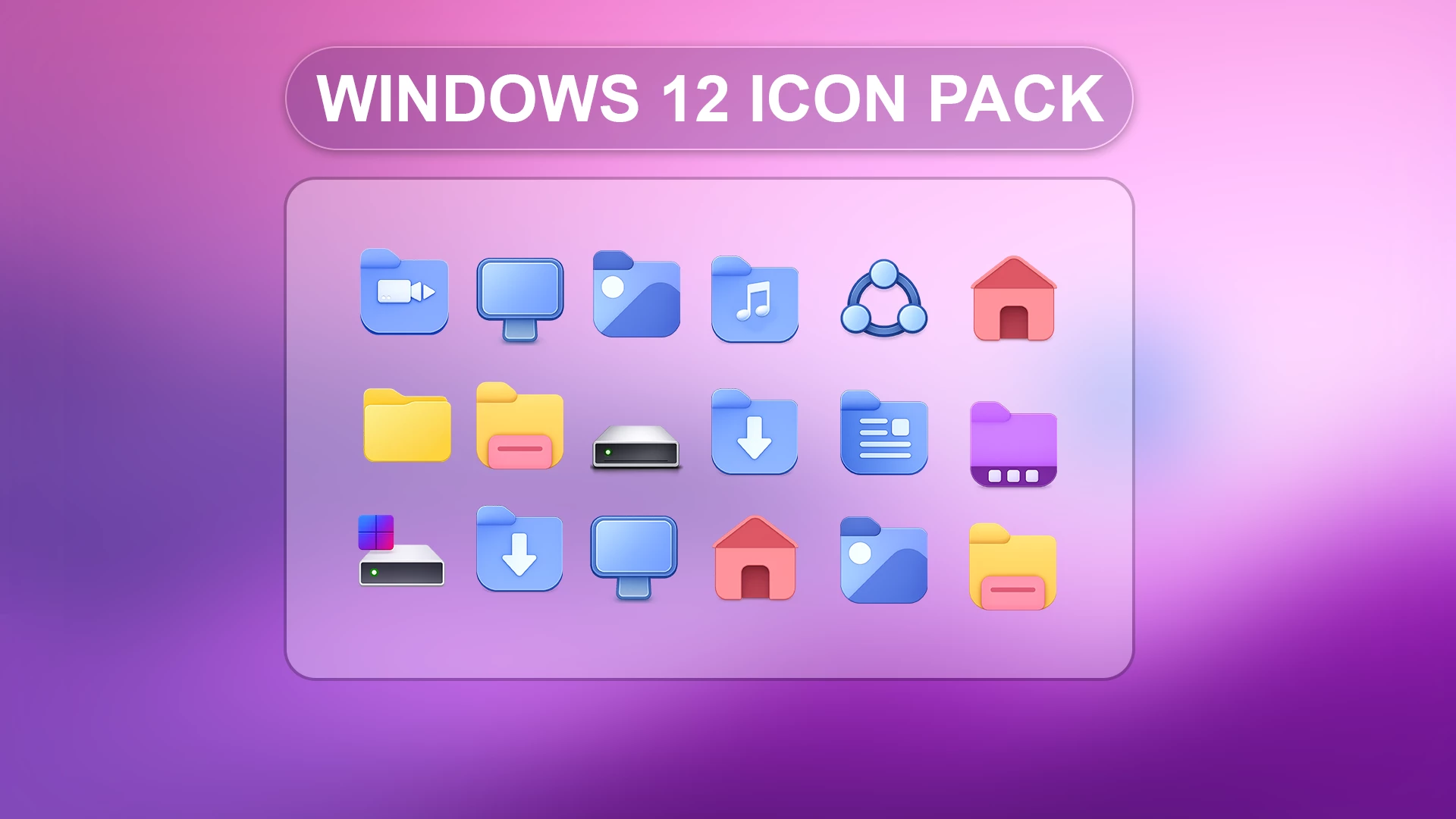
Windows 12-Inspired Icon Pack is a colorful Resource Redirect icon set made for Windows 11 users who want something brighter than the standard system icons. The design mixes blue, cyan, yellow, pink, coral, and purple across rounded folders and system-style icons, giving File Explorer a softer and more playful look.
The shapes stay familiar even though the colors are different. Downloads, music, pictures, desktop, home, drives, folders, and other supported resources use simple symbols inside rounded icon bodies, so they are still easy to recognize at a glance.
This is an independent Windows customization pack designed for Resource Redirect in Windhawk. It changes supported icon resources only. It does not install Windows 12, upgrade Windows 11, or add unreleased Microsoft features.
Windows 12 Concept-Inspired Icon Style
The pack uses a mix of cool and warm colors instead of forcing every icon into the same palette. Blue and cyan appear across several system-style icons, yellow is used for traditional folder designs, while pink, coral, and purple add contrast to other supported resources.
Most icons also use rounded corners and subtle highlights. That gives the set a slightly dimensional look without making the shapes difficult to identify. The result is colorful, but still practical enough for everyday File Explorer use.
Features
- Colorful Windows 12 concept-inspired icon design
- Blue, cyan, yellow, pink, coral, and purple accents
- Rounded folder and system-style icon shapes
- Custom icons for supported folders, drives, media, downloads, home, and other resources
- Designed for Resource Redirect in Windhawk
- No manual replacement of protected Windows system files
- Can be used without changing your Windows theme, wallpaper, or taskbar
Compatibility & Requirements
Coverage can vary between Windows builds and applications. Some apps use their own icons, and folders with thumbnail previews may continue to display those previews instead of the replacement folder icon.
Requirements & Included Files
- Platform: Windows 11
- Tool: Windhawk with Resource Redirect mod enabled
- Included: Windows 12-Inspired Resource Redirect Icon Pack files
- Extras: A ZIP extraction tool (like Windows’ built-in extractor)
Before You Install
Keep a copy of your current Resource Redirect settings before changing the icon path. That makes it much easier to return to your previous setup later instead of trying to remember which folder Windows was looking at. Human memory has enough jobs already.
Once the icon pack is working, keep the extracted folder in the same location. Resource Redirect loads the files from the path saved in its settings, so moving or renaming that folder can stop the icons from loading.
How to Install Windows 12-Inspired Icon Pack
- Install Windhawk: Download and install Windhawk if it is not already on your PC.
- Install Resource Redirect: Open Windhawk, search for Resource Redirect, and install the mod.
- Download the Icon Pack: Save the Windows 12-Inspired Resource Redirect ZIP using the button below.
- Extract the Archive: Extract the ZIP to a folder that you plan to keep in the same location.
- Copy the Folder Path: Open the extracted folder and copy its full Windows path.
- Open Resource Redirect Settings: Go to the mod’s settings and find the field used for the custom theme or resource folder.
- Paste the Path: Paste the extracted icon-pack folder path. Remove quotation marks if Windows added them automatically.
- Save the Settings: Apply the Resource Redirect configuration and allow the mod to reload.
- Refresh Explorer: Restart Windows Explorer if the new icons do not appear immediately.
For a more detailed walkthrough, you can also check:
Icon Pack 9 MB
Download Icon PackIf Some Icons Do Not Change
First check that Resource Redirect is enabled and that the saved path points to the actual extracted pack folder rather than the ZIP file itself.
Some icons may also remain unchanged because the application provides its own icon resource. Folder thumbnail previews can behave the same way. If the configuration looks correct but old icons are still visible, restart Explorer or refresh the icon cache according to the Resource Redirect instructions.
How to Remove Windows 12-Inspired Icon Pack
- Open Windhawk: Select the installed Resource Redirect mod.
- Open the Settings: Find the custom folder path currently pointing to the Windows 12-Inspired pack.
- Restore Your Previous Setup: Replace that path with your earlier Resource Redirect configuration, or remove it if you want to return to the default Windows resources.
- Save the Changes: Apply the updated mod settings.
- Restart Explorer: Restart Windows Explorer so the previous or default icons can reload.
- Delete the Pack Later: Remove the extracted icon-pack folder only after Resource Redirect is no longer using it.
Disclaimer
Windows 12-Inspired Icon Pack is an independently created third-party Windows customization resource intended for desktop personalization. It is not an official Microsoft product and is not affiliated with, authorized by, sponsored by, approved by, or endorsed by Microsoft Corporation. “Windows 12-Inspired” describes the visual concept of this icon pack only and does not refer to an official Microsoft Windows 12 release. Microsoft, Windows, and related trademarks belong to their respective owners.
Final Word
This icon pack has a much more playful character than the standard Windows set. Blue and cyan system icons sit alongside yellow folders, coral home icons, purple elements, and other bright accents, so File Explorer feels more colorful without losing the familiar shapes underneath.
You can keep the icon pack as the only customization or build around it later with a separate theme or Start menu style. The Resource Redirect setup does not require you to redesign the whole desktop just to use the icons.
Frequently Asked Questions
Is this an official Windows 12 icon pack?
No. “Windows 12-Inspired” refers only to the concept-style design. The pack is an independent Windows 11 customization resource.
What colors are used across the icon set?
The pack mixes blue, cyan, yellow, pink, coral, and purple across different folder and system-style icons.
Do I need 7TSP to install this pack?
No. This version is made for Resource Redirect in Windhawk rather than 7TSP.
Can I use the pack with the default Windows 11 theme?
Yes. The icon pack works separately from your Windows visual theme, wallpaper, taskbar, and Start menu styling.
Why do some folders still show thumbnails instead of the new icon?
Windows can display folder previews or thumbnails in place of the regular folder resource. That does not necessarily mean the Resource Redirect pack failed to load.
You may also like
Disclaimer: All themes, visual styles, and concepts shared on this website are unofficial, fan-made creations built from imagination for customization purposes. We are not affiliated with, endorsed by, or sponsored by Microsoft or any other official brand.