Revenge Icon Pack For For Windows 11
Learn how to install Revenge Icon Pack for Resources Redirect on Windows 11 using Windhawk. Step-by-step guide, features, setup, and customization tips.

Revenge Icon Pack for Windows 11
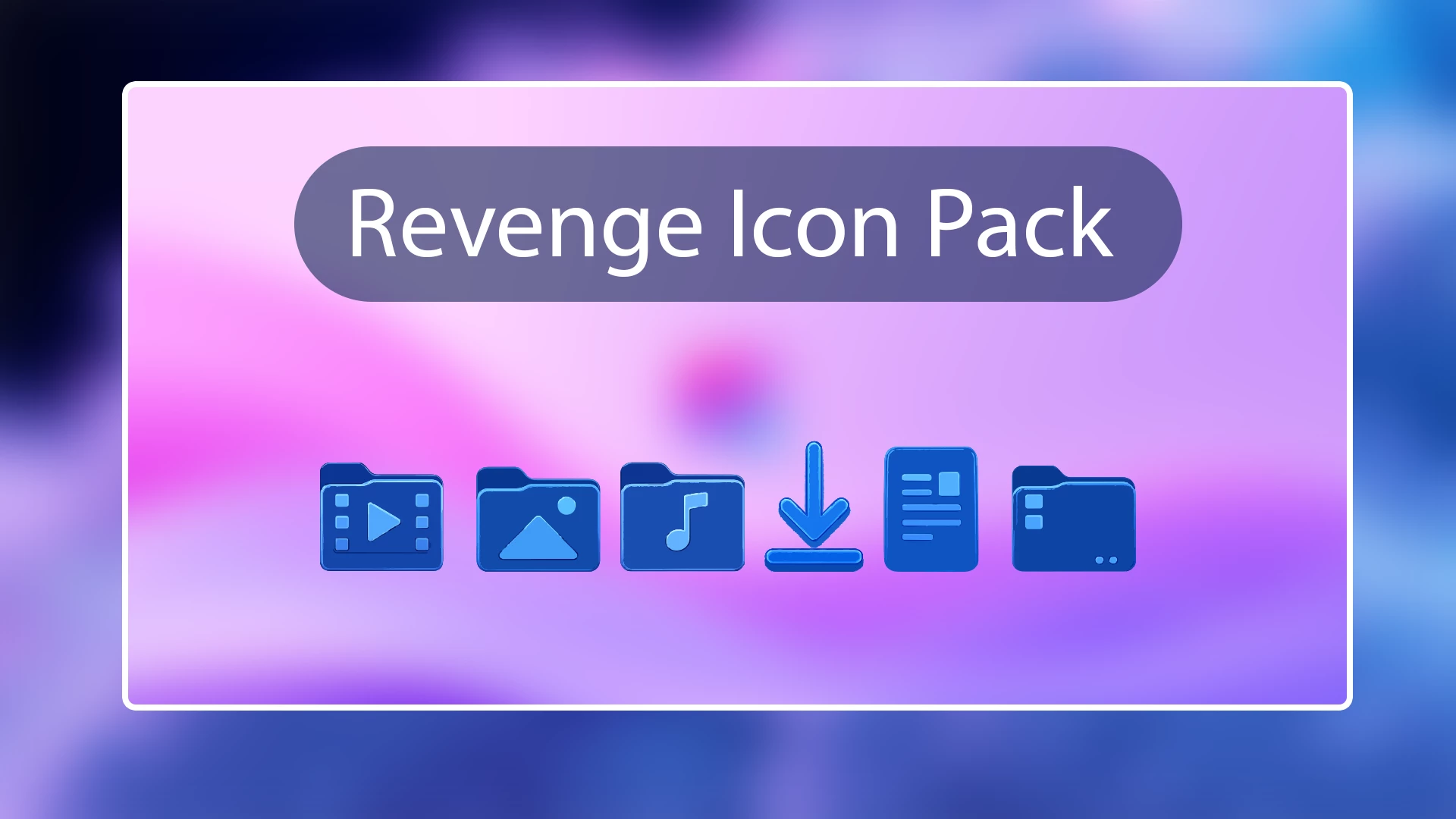
Revenge Icon Pack is a Resource Redirect icon set for Windows 11 built around deep blue surfaces, cyan highlights, and simple geometric shapes. It replaces the usual Windows icon look with a darker blue style while keeping familiar resources such as folders, downloads, documents, music, pictures, and videos easy to recognize.
The pack does not rely on heavy textures or lots of different colors. Most icons stay within the same navy, royal-blue, and cyan palette, which gives the set a tidy and consistent appearance. Small lighter details are used for symbols and edges, so the icons remain clear even against darker desktop backgrounds.
This version is designed for Resource Redirect in Windhawk. It changes supported Windows icon resources through the mod rather than asking you to manually replace protected system files. Your wallpaper, taskbar, Start menu, and Windows theme remain separate customizations.
Blue Revenge Icon Style
The strongest part of Revenge is its controlled color palette. Dark navy and medium blue make up most of the icon bodies, while cyan and light blue are used for symbols, highlights, and smaller details.
Video, image, music, download, document, folder, and other supported icons follow the same visual direction. The shapes are rounded enough to feel modern, but they still keep a sharper edge than soft glass-style icon packs.
Features
- Deep navy and royal-blue icon design
- Cyan and light-blue highlights for symbols and edges
- Matching styling across supported folders, media, downloads, documents, and system resources
- Simple shapes that stay easy to recognize
- Designed for Resource Redirect in Windhawk
- No manual replacement of protected Windows system files
- Can be used without changing your Windows theme or wallpaper
- Revenge Resource Redirect Icon Pack: Contains the replacement resources used by Resource Redirect for supported Windows 11 icons.
Compatibility
- Windows 11
Not every icon in Windows is guaranteed to change. Some applications use their own icon files, and folders that display thumbnail previews may continue to show those previews instead of the replacement folder resource.
Requirements
- Windows 11
- Windhawk installed
- Resource Redirect mod installed and enabled
- The Revenge pack extracted to a permanent folder
- A ZIP extraction tool
Before You Install
Save a copy of your current Resource Redirect settings before changing the icon path. That gives you an easy way to return to your previous setup later instead of trying to rebuild the configuration from memory.
Once Revenge is working, keep the extracted folder in the same location. Resource Redirect loads the icon files from that saved path, so moving or renaming the folder can stop the pack from loading. Windows customization remains strangely devoted to making folder paths matter.
Installation Steps
- Install Windhawk: Download and install Windhawk if it is not already installed.
- Install Resource Redirect: Open Windhawk, search for Resource Redirect, and install the mod.
- Download Revenge: Download the ZIP archive using the button below.
- Extract the Pack: Extract the archive to a folder that you plan to keep in the same location.
- Copy the Folder Path: Open the extracted Revenge folder and copy its full Windows path.
- Open Resource Redirect Settings: Go to the mod’s settings and locate the custom theme or resource folder field.
- Paste the Path: Paste the Revenge folder path into the required field. Remove quotation marks if Windows added them automatically.
- Save the Settings: Apply the Resource Redirect configuration and let the mod reload.
- Refresh Explorer: Restart Windows Explorer if the new icons do not appear immediately.
For a more detailed setup guide, you can also check:
Download Revenge Icon Pack
Revenge Icon Pack 12MB
Download Icon PackIf the Icons Do Not Change
Make sure Resource Redirect is enabled and that the saved path points to the actual extracted Revenge folder rather than the ZIP archive itself.
If the path is correct but the old icons remain visible, restart Windows Explorer. Some resources may also need an icon-cache refresh before Windows stops showing the older version.
Why Do Some Icons Stay Unchanged?
Resource Redirect can only replace resources included in the pack. Some applications provide their own icons, while certain folders may display thumbnail previews instead of the normal folder resource.
That means a few unchanged icons do not necessarily indicate a problem with Revenge. Windows simply has several different ways of deciding where an icon comes from, because apparently one system was too straightforward.
How to Remove
- Open Windhawk: Select the installed Resource Redirect mod.
- Open Its Settings: Find the custom path currently pointing to the Revenge folder.
- Restore Your Previous Setup: Replace the Revenge path with your earlier configuration, or remove it if you want to return to the default Windows resources.
- Save the Changes: Apply the updated Resource Redirect settings.
- Restart Explorer: Restart Windows Explorer so the previous or default icons can reload.
- Delete the Pack Later: Remove the extracted Revenge folder only after Resource Redirect is no longer using it.
Disclaimer
Revenge Icon Pack is an independently shared third-party Windows customization resource intended for desktop personalization. It is not an official Microsoft or Windhawk product and is not affiliated with, authorized by, sponsored by, approved by, or endorsed by Microsoft, Windhawk, or the creators of Resource Redirect. Microsoft, Windows, and other trademarks belong to their respective owners. Appearance and compatibility may vary between Windows builds and mod versions.
Final Word
Revenge keeps its design focused. Dark blue icon bodies, cyan highlights, and simple symbols give supported Windows resources a strong visual identity without throwing every color in the spectrum at them.
It works well as a standalone icon change, especially if you prefer a cooler blue desktop setup. You can always add a separate theme or Start menu style later, but the pack does not depend on either one.