

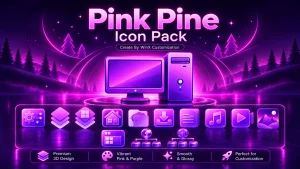
Pink Pine Icon Pack for Resource Redirect
Refresh your Windows 10 and Windows 11 desktop with the Pink Pine Icon Pack For Resources Redirect. Designed for Windhawk Resource Redirect users, this modern icon pack brings a clean, stylish, and personalized look to system icons through a customization and redirection approach. Explore a soft, elegant visual style that works beautifully with matching themes, wallpapers, and desktop setups.

Pink Pine Icon Pack for Windows 11 – Resource Redirect
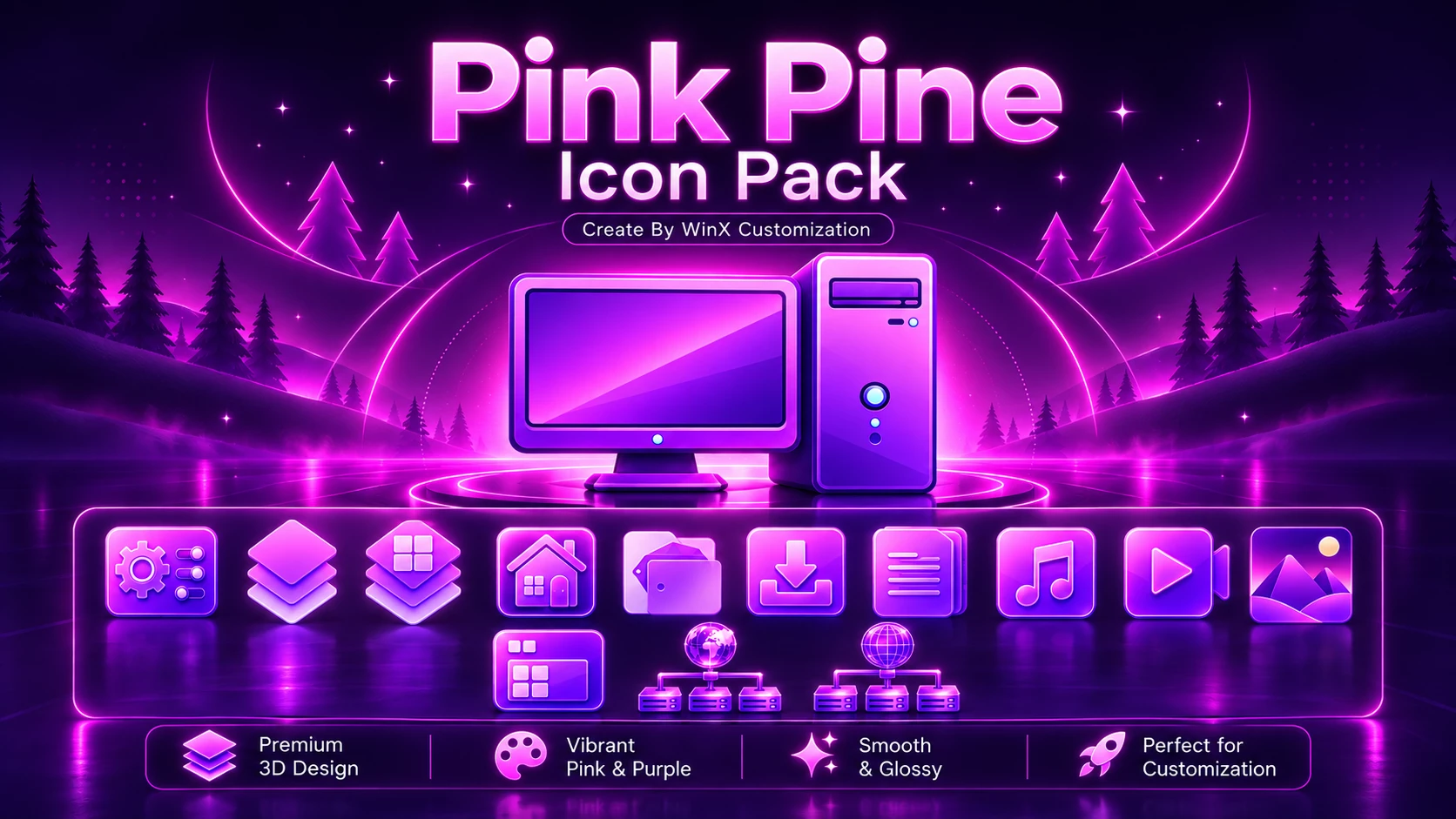
Pink Pine Icon Pack is a colorful Resource Redirect icon set for Windows 11 built around glossy pink, magenta, violet, and purple gradients. The icons use rounded shapes, bright highlights, and layered shading, giving common Windows resources a bolder look than the standard flat system icons.
This icon pack features a small coordinated collection rather than hundreds of unrelated icons. Desktop, folders, settings-style controls, media, downloads, documents, and other supported resources all follow the same pink-purple design language. That consistency is what gives the pack its character.
This pack is made for Resource Redirect in Windhawk. It applies supported replacement icon resources through the mod, so you do not need to manually replace protected Windows system files. Wallpaper, taskbar, Start menu, and other Windows styling remain separate.
Glossy Pink and Purple Design
Pink Pine is not a subtle monochrome pack. Hot pink and magenta make up most of the visible surfaces, while deeper violet and purple are used around edges, shadows, and layered elements. White and lighter pink highlights add the glossy finish.
The icons also have a slightly raised, almost 3D appearance. Folder resources use layered shapes, media icons have rounded frames, and system-style controls follow the same soft-edged design instead of switching to a completely different visual style.
Features
- Hot pink, magenta, violet, and purple color palette
- Glossy gradient surfaces with bright highlights
- Rounded and layered icon shapes
- Matching folder, desktop, media, download, document, and settings-style resources
- Designed for Resource Redirect in Windhawk
- No manual replacement of protected Windows system files
- Pink Pine Resource Redirect Icon Pack
Compatibility
- Windows 11
Requirements
- Windows 11
- Windhawk installed
- Resource Redirect mod installed and enabled
- The Pink Pine pack extracted to a permanent folder
- A ZIP extraction tool
How to Install Pink Pine Icon Pack
- Install Windhawk: Download and install Windhawk if it is not already installed.
- Install Resource Redirect: Open Windhawk, search for Resource Redirect, and install the mod.
- Download Pink Pine: Save the icon-pack ZIP file using the download button below.
- Extract the Archive: Extract the ZIP to a folder that you plan to keep in the same location.
- Copy the Folder Path: Open the extracted Pink Pine folder and copy its full Windows path.
- Open Resource Redirect Settings: Find the custom theme or resource-folder field inside the mod settings.
- Paste the Path: Paste the Pink Pine folder path into the required field. Remove quotation marks if Windows added them automatically.
- Save the Configuration: Apply the settings and allow Resource Redirect to reload.
- Refresh File Explorer: Restart Windows Explorer if the new icons do not appear immediately.
For a more detailed walkthrough, you can also check:
Download Pink Pine Icon Pack
Pink Pine Icon Pack 17MB
Download Icon PackIf the Icons Do Not Update
Make sure the saved Resource Redirect path points to the extracted Pink Pine folder rather than the ZIP file itself. A path that stops one folder too early can also prevent the pack from loading correctly.
If the configuration looks right, restart Windows Explorer. Windows may continue showing older cached icons for a while, so refreshing the icon cache can help when only part of the set appears.
How to Remove Pink Pine Icon Pack
- Open Windhawk and select Resource Redirect.
- Open the mod settings.
- Remove the Pink Pine folder path or restore your previous icon-pack path.
- Save the settings.
- Restart Windows Explorer.
- Refresh the icon cache if any Pink Pine resources remain visible.
- Delete the extracted Pink Pine folder only after Resource Redirect is no longer using it.
Where Pink Pine Fits Best
The pack naturally suits darker desktops because the bright pink and violet gradients have more contrast there. Black, deep purple, navy, or soft gradient wallpapers can all work well without competing too much with the icons.
You can also keep the rest of Windows fairly simple and let Pink Pine provide most of the color. That often looks cleaner than matching every single part of the desktop to exactly the same shade of neon pink, a temptation humanity apparently needed software for.
Disclaimer
Pink Pine Icon Pack is an independent third-party Windows customization resource intended for personal desktop customization. It is not an official Microsoft, Windhawk, or Resource Redirect product and is not affiliated with, authorized by, sponsored by, approved by, or endorsed by those companies or projects. Microsoft, Windows, and other trademarks belong to their respective owners. Appearance and compatibility may vary depending on the Windows build, Resource Redirect version, and other active customization tools.
Final Word
Pink Pine has a much stronger personality than a typical flat folder pack. Its glossy magenta surfaces, violet shading, layered shapes, and bright highlights make supported icons immediately noticeable while the repeated design keeps the set from feeling random.
If you want Windows 11 icons with a vivid pink-purple identity rather than a neutral or monochrome style, Pink Pine gives Resource Redirect a compact but visually distinctive set to work with.


Disclaimer: All themes, visual styles, and concepts shared on this website are unofficial, fan-made creations built from imagination for customization purposes. We are not affiliated with, endorsed by, or sponsored by Microsoft or any other official brand.