Harmony Icon Pack for Windows 11
Transform Windows 11 with the Harmony Icon Pack. Enjoy modern HarmonyOS-inspired icons, clean visuals, and a premium desktop customization experience.

Harmony Icon Pack for Windows 11
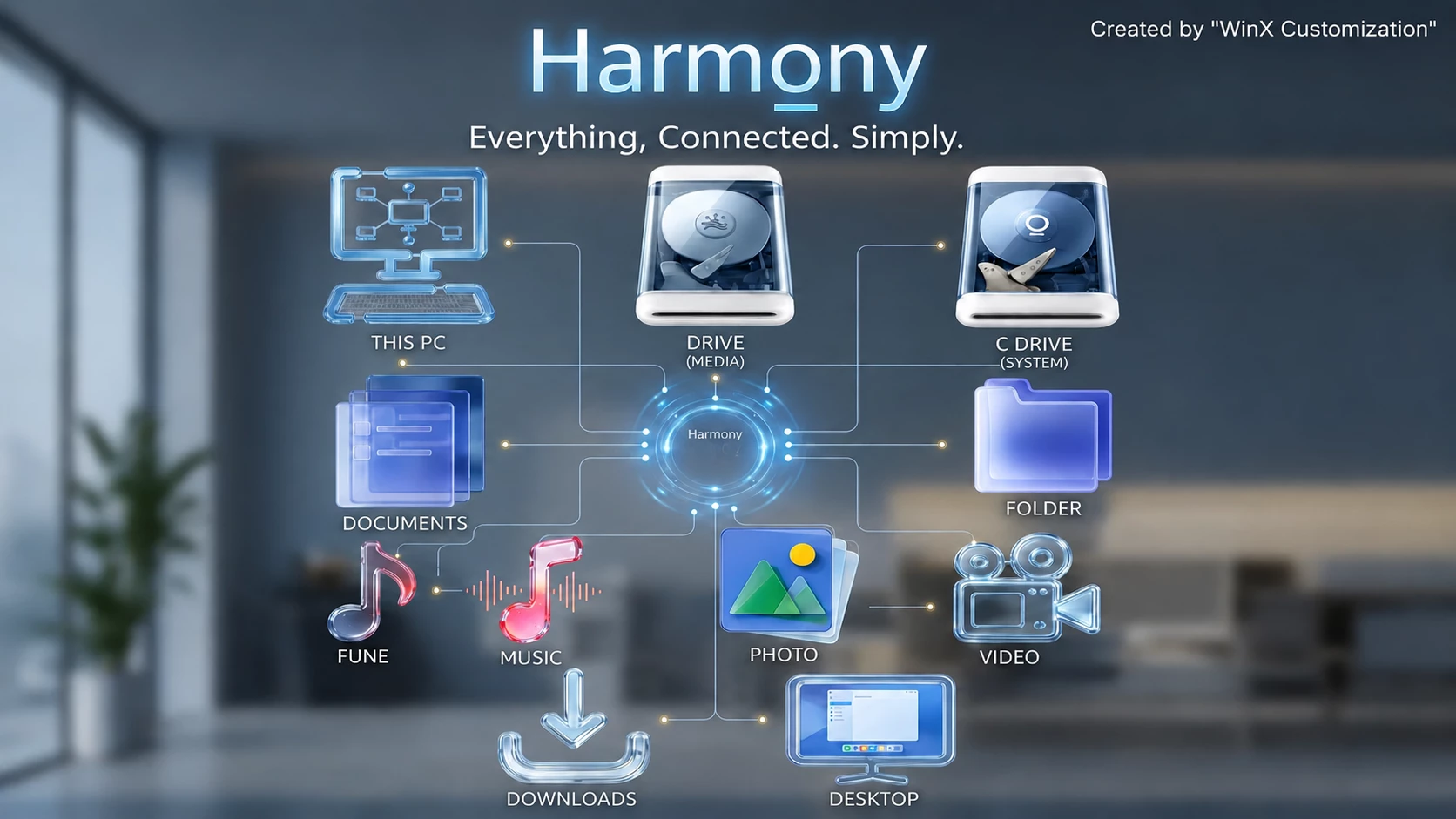
Harmony Icon Pack gives Windows 11 icons a clean glass-and-metal appearance with translucent blue surfaces, silver details, soft reflections, and modern color accents. The pack is designed for users who want to replace the default Windows icon style with a more polished and visually balanced look.
The folder icons feature a frosted blue appearance with layered transparent panels, while drive and system icons use metallic surfaces with darker details. Different resources such as folders, drives, documents, music, photos, and videos keep their own visual identity while maintaining a consistent design style throughout the pack.
This icon pack is created for Resource Redirect in Windhawk. It replaces supported Windows icon resources through the mod without requiring manual replacement of protected Windows system files. Your wallpaper, taskbar, Start Menu, and other Windows customizations remain separate.
Glass, Silver and Soft Color Details
Harmony Icon Pack uses a balanced combination of translucent blue, icy tones, silver surfaces, and soft color accents. Instead of applying one single style to every icon, each resource keeps a slightly different appearance while following the same glass-inspired design direction.
The music icons include brighter color accents, photo resources combine multiple tones, and video icons use a metallic finish. These variations help different resources remain easy to recognize while keeping the overall icon set visually connected.
Features
- Frosted blue and translucent folder icons
- Silver and metallic drive resources
- Glass-style system icons
- Color-accented music, photo, and video icons
- Consistent glass and metallic design language
- Designed for Resource Redirect in Windhawk
- No manual replacement of protected Windows system files
- Harmony Resource Redirect Icon Pack: Contains replacement icon resources for supported Windows 11 locations through Resource Redirect.
Compatibility
- Windows 11
Not every Windows icon is guaranteed to change. Some applications use their own icon resources, while folders that display thumbnail previews may continue showing those previews instead of the custom folder icon.
Requirements
- Windows 11
- Windhawk installed
- Resource Redirect mod installed and enabled
- The icon pack extracted to a permanent folder
- A ZIP extraction tool
Before You Install
Before applying the icon pack, keep a backup of your current Resource Redirect configuration. This allows you to easily restore your previous setup if you decide to switch between different icon packs later.
After applying Harmony Icon Pack, keep the extracted folder in the same location. Resource Redirect loads the icon resources from that folder, so moving or renaming it may cause the icons to stop appearing correctly.
Installation Steps
- Install Windhawk: Download and install Windhawk if it is not already installed.
- Install Resource Redirect: Open Windhawk, search for Resource Redirect, and install the mod.
- Download the Icon Pack: Download the ZIP archive using the download button below.
- Extract the Files: Extract the ZIP file to a folder that you want to keep permanently.
- Copy the Folder Path: Copy the complete path of the extracted Harmony Icon Pack folder.
- Open Resource Redirect Settings: Open the Resource Redirect mod settings in Windhawk.
- Add the Icon Pack Path: Paste the extracted folder path into the required resource folder field.
- Save Settings: Save the configuration and allow Resource Redirect to apply the changes.
- Restart Windows Explorer: Restart Explorer if the new icons do not appear immediately.
For a detailed Resource Redirect setup guide, you can check:
Download Harmony Icon Pack
Harmony Icon Pack 13MB
Download Icon Pack If the Icons Do Not Appear
Make sure Resource Redirect is enabled and the saved path points to the extracted icon pack folder instead of the ZIP file.
If the correct path is already added but old icons are still visible, restart Windows Explorer. In some cases, Windows may keep older icon cache data, so refreshing the icon cache may be required.
Why Do Some Icons Stay Unchanged?
Resource Redirect can only replace icon resources included in the pack. Some applications use their own custom icons, and certain Windows folders may display thumbnails instead of standard folder icons.
Because of this, a few unchanged icons can be normal and do not always indicate an installation problem.
How to Remove
- Open Windhawk: Open the installed Resource Redirect mod.
- Open Settings: Find the resource path currently pointing to Harmony Icon Pack.
- Remove or Replace the Path: Delete the path or replace it with another icon pack location.
- Save Changes: Apply the updated Resource Redirect settings.
- Restart Explorer: Restart Windows Explorer to reload the previous icons.
- Remove Files: Delete the extracted icon pack folder after Resource Redirect is no longer using it.
Where This Icon Pack Looks Best
The cool blue glass appearance and metallic details work well with dark wallpapers, blue-themed setups, and modern Windows 11 customization styles. It can also be combined with glass-style Explorer layouts, custom Start Menu designs, and matching desktop elements.
The different color accents in the media icons add extra variation, allowing the icon pack to maintain a consistent look without making every icon appear identical.
Disclaimer
Harmony Icon Pack is an independently created third-party Windows customization resource intended for desktop personalization. This icon pack is not an official Microsoft, Windhawk, or Resource Redirect product and is not affiliated with, authorized by, sponsored by, or endorsed by those projects. Windows and other trademarks belong to their respective owners. Compatibility and appearance may vary depending on Windows version, installed mods, and system configuration.
Final Word
Harmony Icon Pack brings a fresh visual style to Windows 11 with its combination of glass-inspired surfaces, cool blue tones, metallic details, and soft color accents. The balanced design helps supported Windows resources look more consistent while keeping different icons easy to recognize.
If you enjoy clean desktop setups with modern visuals, transparent effects, and customized Windows interfaces, Harmony Icon Pack can be a useful addition to your personalization collection.
Frequently Asked Questions
What is Harmony Icon Pack?
Harmony Icon Pack is a third-party Windows 11 icon customization pack designed to change supported system icons through Resource Redirect in Windhawk.
Does Harmony Icon Pack replace Windows system files?
No. The pack works through Resource Redirect and does not require manually replacing protected Windows system files.
Do I need Windhawk to use this icon pack?
Yes. Windhawk with the Resource Redirect mod is required to apply this icon pack.
Can I use this icon pack with other Windows themes?
Yes. Harmony Icon Pack can be combined with different wallpapers, Start Menu styles, taskbar customizations, and other desktop personalization tools.
How can I restore the default Windows icons?
Remove the Resource Redirect configuration for this icon pack or disable the mod, then restart Windows Explorer to return to the previous icon setup.