Oxygen Theme For Windows 11
Transform your desktop with the Oxygen Theme For Windows 11. Enjoy a modern Start Menu, dock-style taskbar, premium icons, and sleek customization.

Oxygen Theme For Windows 11 – Light Blue Glass Customization
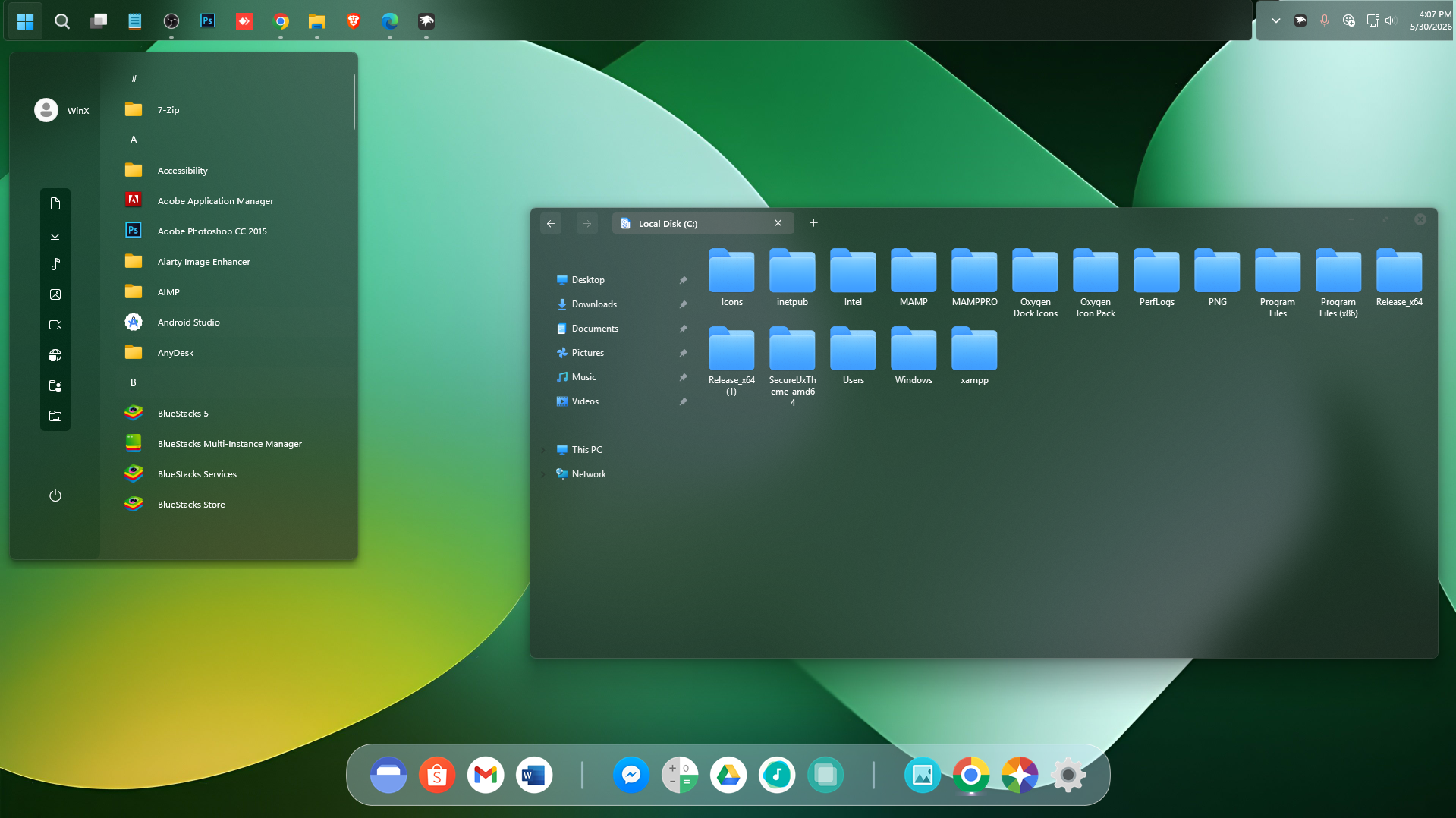
The Oxygen Theme For Windows 11 is a clean desktop customization built around light blue tones, dark translucent surfaces, and a simple glass-style interface. File Explorer keeps the familiar Windows 11 structure while the softer blue details give the desktop a calmer and more customized appearance.
The setup uses light blue accents across supported interface areas, while transparency allows part of the wallpaper to remain visible through File Explorer. Because of this, the final appearance can change slightly depending on the wallpaper you use.
For a more complete Oxygen setup, the main theme works best with matching icon resources and compatible Windhawk mods. If you want a stronger transparent effect, the Translucent Windows Windhawk mod can also be added separately.
Light Blue Glass Desktop Style
Oxygen keeps the interface relatively simple rather than filling every part of Windows with strong colors. Light blue details provide the main visual direction, while darker translucent areas around Explorer keep navigation and text easy to follow.
The theme can be used without additional mods, but Windhawk configurations help extend the same style into more parts of Windows. A matching icon pack also helps folders and supported system icons fit better with the overall light blue desktop.
Oxygen Highlights
- Light blue Windows 11 color direction
- Dark translucent File Explorer surfaces
- Clean glass-style interface treatment
- Compact File Explorer layout
- Matching icon resources can extend the light blue appearance
- Compatible Windhawk mods help create a more complete setup
- Optional Translucent Windows mod for stronger transparency
- Keeps the familiar Windows 11 Explorer structure
My Thoughts on the Oxygen Theme
In my opinion, Oxygen is a good choice for users who like cleaner Windows customization with light blue colors and transparency. The color palette is softer than many darker purple or neon themes, so the desktop feels more restrained while still looking noticeably different from the default Windows 11 design.
I think the setup looks much better when the matching icon pack and compatible Windhawk mods are used with it. The main theme provides the basic appearance, while those extra components help carry the same visual direction into more areas of the desktop.
For users who want more transparency, the Translucent Windows mod is also a useful addition. It is optional, so you can keep the setup simpler if you prefer a less transparent interface.
Tested Windows Version
- Windows 11 21H2: Not Tested
- Windows 11 22H2: Not Tested
- Windows 11 23H2: Not Tested
- Windows 11 24H2: Not Tested
- Windows 11 25H2: YES – Tested
This Oxygen setup has been tested on Windows 11 25H2. Compatibility with older Windows 11 versions has not been tested, so support for those builds cannot be confirmed.
Optional Windhawk mods should also be checked separately, as mod compatibility can change after Windows updates.
Included Resources
- Windows 11 Theme
- Wallpapers
- Dock Resources
- Windhawk Config
A matching icon pack can be added separately if you want folders and supported system icons to follow the same light blue direction. For the fuller setup, combine the main theme with compatible Windhawk mods, matching icons, and the optional dock resources.
Installation Steps
- Create a System Restore Point before making changes.
- Patch Windows using SecureUxTheme or UltraUXThemePatcher.
- Download and extract the Oxygen Theme package.
- Copy the theme folder and
.themefile toC:\Windows\Resources\Themes. - Double-click the
.themefile, or go to Personalization > Themes and select Oxygen. - Apply the matching icon pack, compatible Windhawk mods, dock resources, or the Translucent Windows mod only if you want the complete setup.
- For more details, follow this Windows 11 custom theme installation guide.
Removal Steps
- Switch back to a default Windows 11 theme from Settings > Personalization > Themes.
- Disable the Oxygen Windhawk configurations, Translucent Windows mod, dock, and any matching icon resources you applied.
- Restart Windows Explorer or reboot your PC. Use the System Restore Point if any unwanted changes remain.
- For a complete walkthrough, follow this Windows 11 custom theme removal guide.
Oxygen Theme 3MB
DownloadComplete Your Windows 11 Setup
The icon pack used in this setup helps create a more consistent and stylish desktop appearance. You can try the Oxygen Icon Pack to complete your Windows 11 customization setup with a matching icon style.
Oxygen Customization Notice
Oxygen Theme for Windows 11 is an independently created third-party customization resource intended for personal desktop styling. It is not an official Microsoft, OnePlus, or OxygenOS product and is not affiliated with, sponsored by, approved by, or endorsed by those companies or projects. Windows, OxygenOS, OnePlus, and other related names and trademarks belong to their respective owners.
The theme has been tested on Windows 11 25H2, while older Windows 11 versions have not been tested. Third-party themes and Windhawk mods can also behave differently after Windows updates, so creating a System Restore Point before applying visual changes is recommended.
Final Thoughts
Oxygen gives Windows 11 a cleaner light blue identity with translucent Explorer surfaces and a restrained glass-style appearance. The theme works on its own, but matching icons and compatible Windhawk mods help create a noticeably more complete desktop.
If you prefer stronger transparency, the Translucent Windows mod can be added to the setup. For users who like light blue Windows customization with a clean glass effect, Oxygen offers a simple base that can be expanded without forcing every optional component onto the desktop.
Frequently Asked Questions
Which Windows 11 version has Oxygen Theme been tested on?
The setup has been tested on Windows 11 25H2. Older Windows 11 versions have not been tested.
What is the main color of Oxygen Theme?
The setup mainly uses light blue tones with darker translucent interface surfaces.
Do I need Windhawk mods?
No. The main theme can be used separately, but compatible Windhawk mods help recreate more of the complete Oxygen setup.
How can I add more transparency?
You can use the compatible Translucent Windows Windhawk mod if you want stronger transparency across supported window areas.
Should I use a matching icon pack?
It is optional, but a matching icon pack helps folders and supported system icons follow the same light blue visual direction.
Can I use Oxygen without the dock or extra mods?
Yes. The main Windows theme can be used on its own, while the dock, icons, and Windhawk mods can be added separately if you want them.