

macOS Inspired Elegance Theme For Windows 11
macOS Inspired Elegance Theme : The macOS Elegance Theme for Windows 11 brings the refined beauty of Apple’s design to Microsoft’s latest operating system.

macOS Inspired Elegance Theme for Windows 11
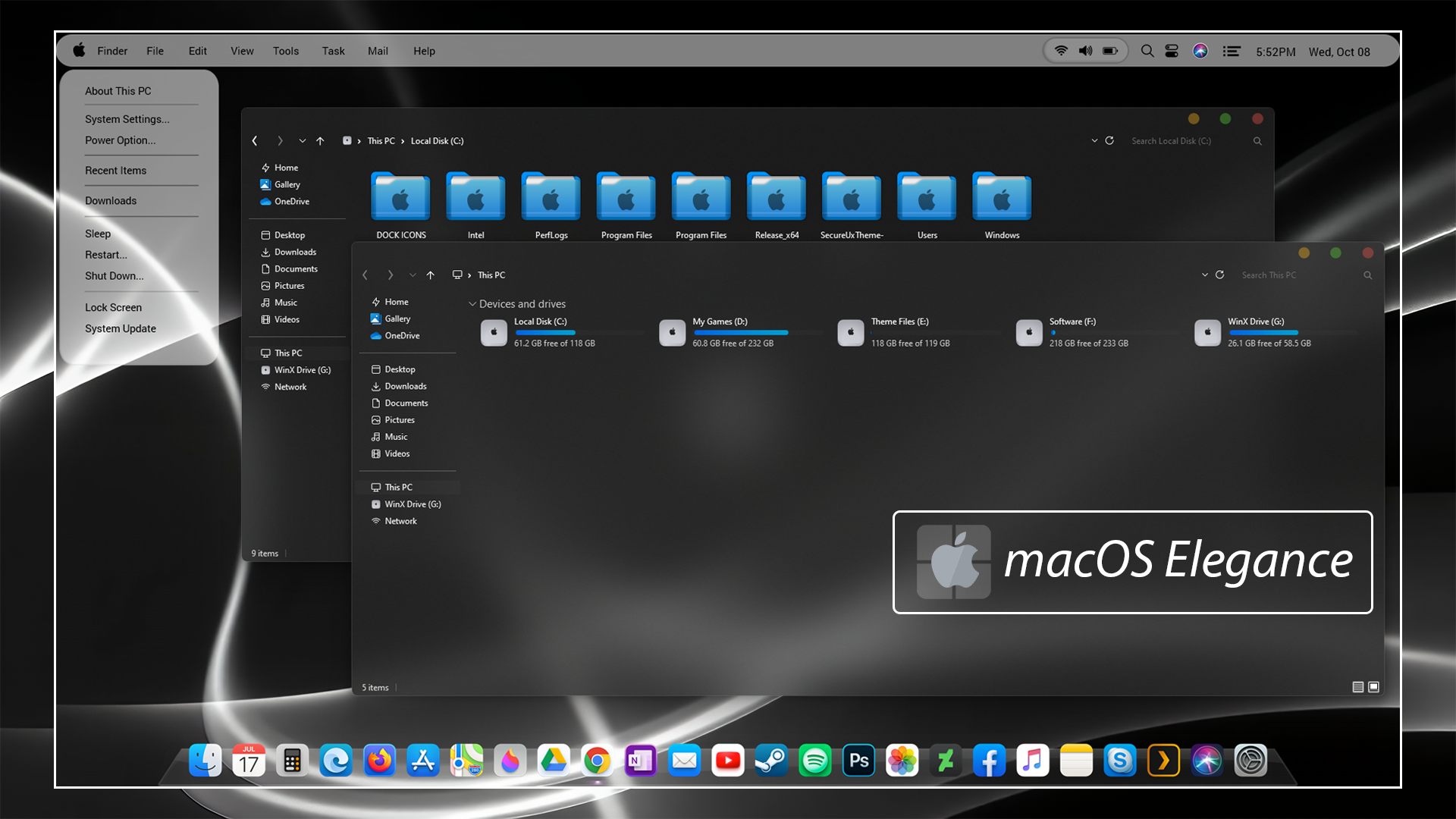
The macOS Inspired Elegance Theme for Windows 11 gives the desktop a darker, more restrained appearance inspired by macOS interface styling. File Explorer uses charcoal and deep gray surfaces with subtle tonal differences between the navigation area and main content panel, creating a cleaner contrast than the standard Windows 11 interface.
The window design keeps the familiar Windows structure while introducing smaller visual details associated with macOS-inspired setups. Compact colored window controls, darker title areas, thin separators, and muted borders give Explorer a more understated appearance without replacing Windows 11 or changing how normal applications work.
The theme can be combined with a matching icon pack, dock, menu-bar customization, or wallpaper if you want a more complete desktop setup. Those elements remain separate from the main Windows theme unless they are specifically included in the downloaded package.
macOS Inspired Elegance Visual Style
The main interface uses dark gray and near-black tones rather than strong gradients or bright accent colors. File Explorer stays readable through a simple contrast between darker panels, lighter text, and restrained interface highlights.
The navigation pane follows the same subdued color direction, with thin separators between locations such as Desktop, Documents, Pictures, Music, Videos, drives, and Network. This keeps the layout organized without introducing large colored panels or heavy visual effects.
Small colored window controls add a refined, Mac-style detail to supported windows, while the rest of the interface remains distinctly Windows 11 underneath. The result is a darker desktop style that borrows selected visual cues without attempting to reproduce macOS itself.
Visual Highlights
- Dark charcoal and deep gray Windows 11 styling.
- Refined macOS-inspired interface details and subtle panel contrasts.
- Compact colored window control buttons.
- Thin borders and restrained layout separators.
- Works seamlessly with optional macOS-inspired icon packs.
- Can be paired with separate dock or menu-bar utilities.
- Maintains the core Windows 11 operating system environment underneath.
What the Theme Changes
The theme focuses on supported Windows 11 visual elements such as File Explorer surfaces, title areas, borders, navigation panels, and other themeable interface components. It changes the visual appearance of Windows rather than its underlying system functionality.
Third-party dock utilities, top menu bars, custom icon packs, and other desktop resources should be treated as separate customizations unless specifically listed in the package contents.
Compatibility
- Windows 11 21H2: Supported
- Windows 11 22H2: Supported
- Windows 11 23H2: Supported
- Windows 11 24H2: Supported
- Windows 11 25H2: Not Supported
Included Files
- Windows 11 Theme Files
- Extras and Supporting Visual Elements
Optional Customization Tools
- SecureUxTheme — use when required by the theme package and compatible with your Windows build.
- 7TSP GUI — optional for compatible icon-pack customization.
- StartAllBack — optional for additional Start Menu or taskbar styling.
- Matching Icon Pack — optional for extending the same visual aesthetic to Windows folder icons.
How to Install the Theme
- Create a System Restore Point and confirm that your theme patcher supports the Windows 11 version you are using.
- Download and extract the package, then copy the required theme folder and
.themefile toC:\Windows\Resources\Themes. - Open Settings > Personalization > Themes and apply the new visual style.
- Verify that the main theme is working correctly before adding optional icon packs, docks, StartAllBack, or menu bars.
- For the complete setup process, follow this Windows 11 custom theme installation guide.
Theme Files 26 MB
Download How to Remove the Theme
- Open Settings > Personalization > Themes and switch back to one of the default Windows 11 themes.
- If you applied a matching icon pack, dock, menu bar, StartAllBack, or taskbar modifications, restore or disable those customizations individually.
- Restart Windows Explorer or reboot your PC if the standard appearance does not return immediately.
- If unwanted visual changes remain, restore your system using the System Restore Point created prior to installation.
- For detailed restoration instructions, follow this Windows 11 custom theme removal guide.
Using With Other Customizations
The main theme can be used on its own or paired with the matching icon pack, a dock, wallpaper, taskbar configuration, or other compatible Windows personalization tools. These additions are optional and can be applied separately depending on how far you want to take the setup.
Keeping the surrounding customizations simple usually works best with darker theme surfaces. Monochrome, black, silver, gray, or subdued abstract wallpapers complement the interface without competing with File Explorer.
Disclaimer
The macOS Inspired Elegance Theme for Windows 11 is an independent third-party Windows customization resource intended solely for personal desktop styling. It is not an official Apple or Microsoft product and is not affiliated with, sponsored by, approved by, or endorsed by Apple Inc. or Microsoft Corporation.
The term macOS Inspired is used strictly to describe visual design influences. macOS and Apple-related trademarks belong to Apple Inc., while Windows and related trademarks belong to Microsoft Corporation. Compatibility with third-party themes and optional customization tools can vary between Windows versions and after system updates.
Final Word
The macOS Inspired Elegance Theme for Windows 11 gives Windows 11 a darker and more restrained appearance through charcoal Explorer surfaces, subtle panel separation, compact window controls, and selected interface accents. The design updates the visual character of Windows without altering the underlying operating system.
You can keep your setup focused on the core theme or add matching icons, a dock, and other interface modifications gradually for a fully tailored desktop workspace.







Disclaimer: All themes, visual styles, and concepts shared on this website are unofficial, fan-made creations built from imagination for customization purposes. We are not affiliated with, endorsed by, or sponsored by Microsoft or any other official brand.