

macOS Sequoia-Inspired Theme For Windows 11
macOS Sequoia-Inspired Theme For Windows 11 : Transform Windows 11 with the macOS Sequoia Theme. Enjoy a clean Apple-inspired UI with smooth transparency, rounded corners, macOS-style taskbar, Start Menu, and icons using Windhawk and 7TSP for a modern, premium desktop experience.

macOS Sequoia-Inspired Theme For Windows 11
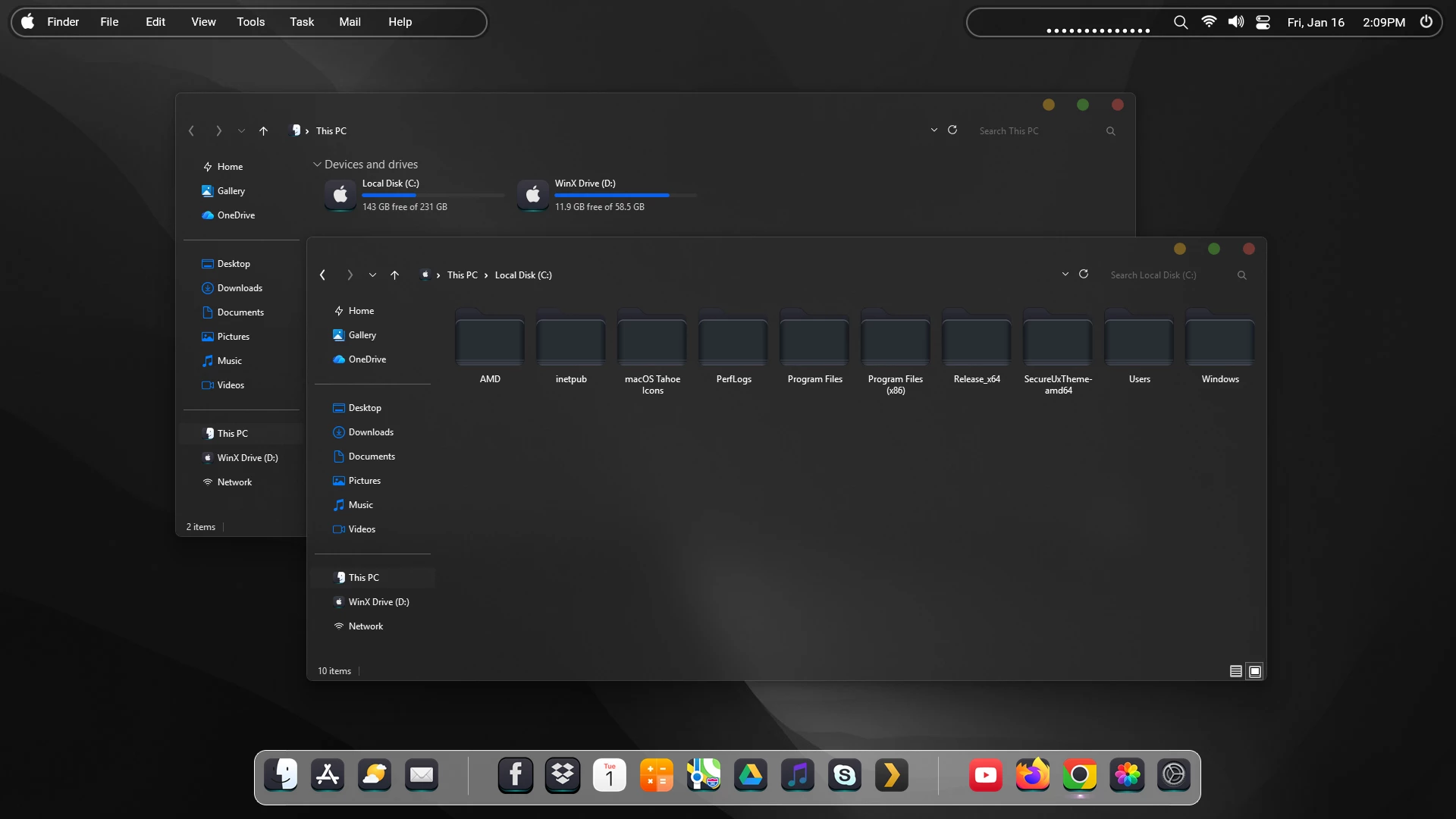
The macOS Sequoia-Inspired Theme For Windows 11 gives File Explorer a dark charcoal appearance with restrained gray surfaces, subtle borders, and macOS-inspired window details. The theme keeps the familiar Windows 11 structure while giving supported interface elements a darker and more understated visual style.
One of the distinctive details is the use of macOS-style traffic-light DWM buttons. The minimize, maximize, and close controls use small yellow, green, and red circular buttons in the upper corner of supported windows, adding a recognizable macOS-inspired touch without changing how the Windows controls work.
The drive section uses bright blue and cyan storage-level indicators that stand out clearly against the dark Explorer background. These cooler accents add a small amount of color while the larger interface remains focused on charcoal, black, and muted gray tones.
This is an independently created third-party Windows customization theme. It does not install macOS, add Apple system software, or replace Windows 11. Optional icons, docks, menu bars, and other desktop modifications can be added separately if you want to extend the same macOS-inspired direction.
About the macOS-Inspired Style
The design is intended for Windows 11 users who prefer a darker desktop with simple interface styling and selected macOS-inspired details. File Explorer uses a deep charcoal treatment across the main content area, navigation pane, and title section, with subtle tonal differences helping each area remain easy to distinguish.
Thin separators and low-contrast borders keep the interface structured without introducing bright panels or heavy visual effects. The colored DWM controls and blue storage indicators provide most of the visible accent color while the rest of the theme stays restrained.
File Explorer and Window Details
The theme uses dark gray and charcoal surfaces with a simple flat appearance. File Explorer remains familiar in layout, but its darker panels, subtle outlines, and compact controls give it a noticeably different character from the default Windows 11 design.
The traffic-light DWM buttons use yellow, green, and red circular accents, while the hard-drive capacity indicators use blue and cyan tones. These details provide contrast without turning the entire interface into a brightly colored design.
Visual Highlights
- Dark charcoal and muted gray Windows 11 styling
- macOS-inspired traffic-light DWM buttons
- Yellow, green, and red circular window controls
- Blue and cyan hard-drive usage indicators
- Dark File Explorer content and navigation areas
- Thin borders and restrained interface separators
- Compatible with optional macOS-inspired icon customization
- Keeps the normal Windows 11 environment underneath
Before Applying the Theme
- Create a System Restore Point before applying third-party visual styles.
- Check that your theme tool supports your current Windows 11 build.
- Keep a backup of important files and your existing customization setup.
Installing the Theme
- Prepare Windows with a compatible theme patcher, place the extracted theme files in
C:\Windows\Resources\Themes, and apply the visual style from Personalization > Themes. - For the complete setup process, follow this Windows 11 custom theme installation guide.
Compatibility
- Windows 11 21H2: May work, but not recommended for the best experience
- 22H2 YES
- 23H2 YES
- 24H2 YES
- 25H2 YES
Included Files
- Windows 11 visual theme
- macOS Sequoia-inspired wallpapers
Sequoia-Inspired Theme 22 MB
Download Return to the Default Windows Look
- Switch back to a default Windows 11 theme and disable any optional icon, dock, taskbar, Start Menu, or other interface changes used with the setup.
- For the complete restoration process, follow this Windows 11 custom theme removal guide.
Disclaimer
The macOS Sequoia-Inspired Theme for Windows 11 is an independently created third-party customization resource intended for personal desktop styling. It is not an official Apple or Microsoft product and is not affiliated with, sponsored by, approved by, or endorsed by Apple Inc. or Microsoft.
The term macOS Sequoia-inspired is used only to describe the visual design influence. macOS and Apple-related trademarks belong to Apple Inc., while Windows and related trademarks belong to Microsoft. Compatibility may vary depending on the Windows build and customization tools used.
Who Should Use This Theme
This visual style is suitable for Windows 11 users who prefer a darker interface with restrained macOS-inspired details. Its charcoal Explorer surfaces, traffic-light DWM buttons, and blue storage indicators give the desktop a distinct appearance without changing the basic Windows layout.
Optional icons, docks, and other desktop modifications can be added separately if you want to extend the same visual direction beyond the main Windows theme.
Final Thoughts
The macOS Sequoia-Inspired Theme For Windows 11 gives File Explorer a dark charcoal identity with simple panel styling, blue drive-level indicators, and macOS-style traffic-light DWM controls.
Windows 11 remains the operating system underneath, while optional customization resources can be added separately according to the setup you want. Keeping those components separate also makes the desktop easier to manage and restore later.







Disclaimer: All themes, visual styles, and concepts shared on this website are unofficial, fan-made creations built from imagination for customization purposes. We are not affiliated with, endorsed by, or sponsored by Microsoft or any other official brand.