

Elegance Start Menu Style – Win 11
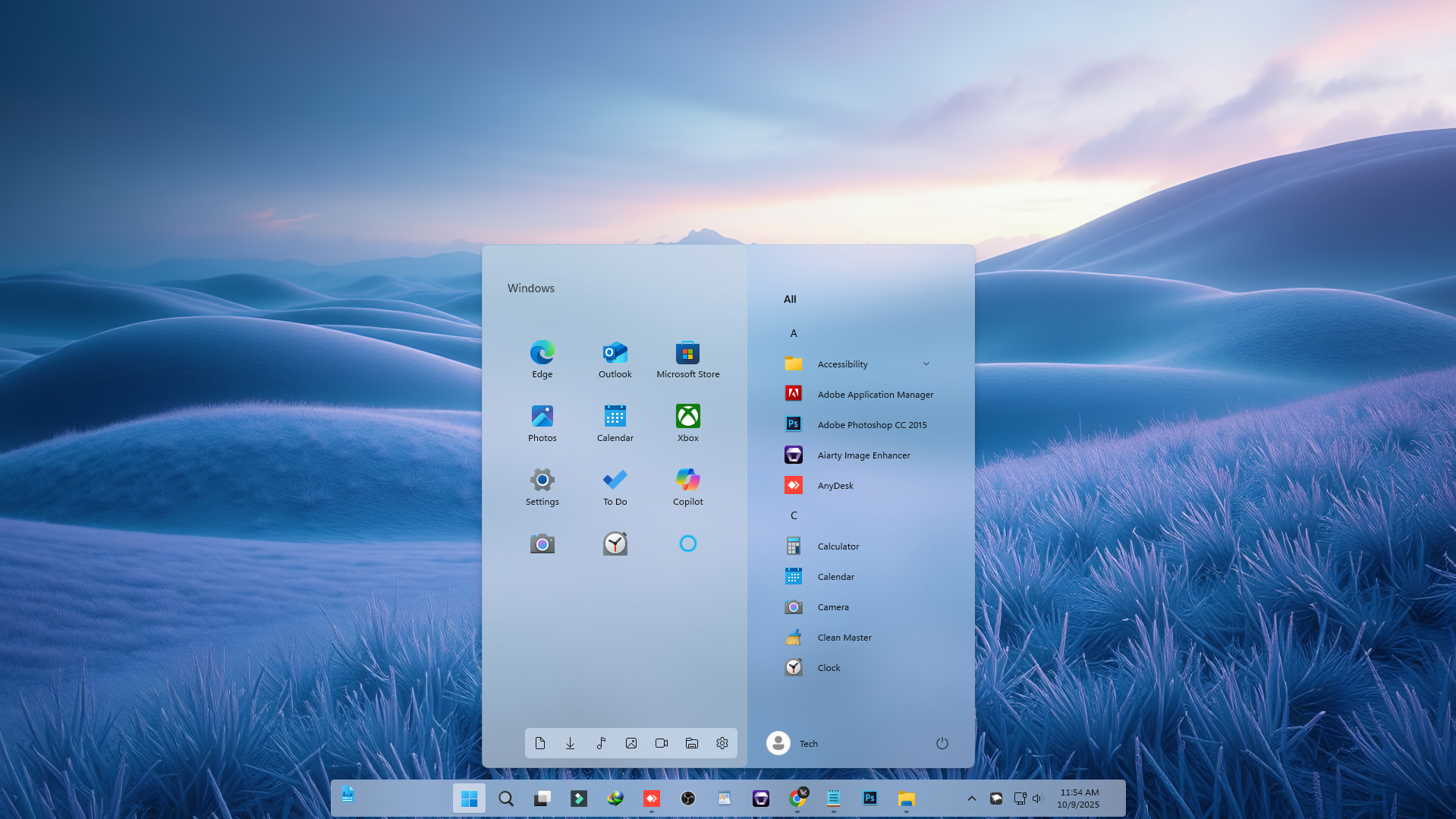
Elegance Start Menu Style : The Elegance Start Menu Style for Windows 11 (Windhawk Mod) redefines desktop simplicity with a clean, refined, and modern aesthetic.

Elegance Start Menu Style For Windows 11
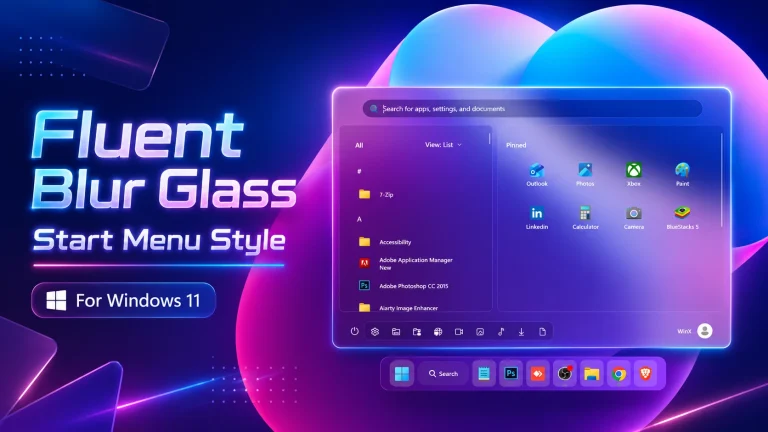
The Elegance Start Menu Style For Windows 11 is a clean, refined, and modern Windhawk customization style designed for users who love minimal desktop setups. It brings a polished glass-like appearance to the Windows 11 Start Menu using soft transparency, subtle gradients, smooth spacing, and a professional visual layout.
Windows 11 already offers a simple and modern interface, but many users want a more premium and personalized desktop experience. The Elegance Start Menu Style improves the default Start Menu by adding a calm, stylish, and visually balanced look. It is perfect for users who prefer a clean workspace without too many heavy effects or distracting colors.
Using Windhawk’s powerful customization system, the Elegance Start Menu Style For Windows 11 creates a sleek and smooth Start Menu design that feels lightweight, fluid, and professional. The style focuses on readability, balanced icon placement, refined color transitions, and a soft glass effect that adapts beautifully with different wallpapers and taskbar styles.
This Start Menu style is a great choice for creators, professionals, students, theme enthusiasts, and anyone who wants a clean Windows 11 customization setup. It pairs perfectly with glass taskbars, gradient taskbar styles, macOS-inspired icon packs, minimal wallpapers, and modern Rainmeter widgets.
What Is Elegance Start Menu Style For Windows 11?
The Elegance Start Menu Style is a Windows 11 customization setup made with Windhawk mods. It changes the appearance of the default Start Menu and gives it a more refined, minimal, and premium look. Instead of using a bold or colorful design, this style focuses on simplicity, smooth transparency, and professional visual balance.
This design is especially useful for users who want their desktop to look clean and organized. The soft background effect, neat spacing, and glass-inspired layout make the Start Menu feel more modern while keeping it easy to use.
Why Choose Elegance Start Menu Style?
The main reason to choose the Elegance Start Menu Style For Windows 11 is its clean and professional appearance. It does not make your desktop look crowded. Instead, it gives your Start Menu a smooth and premium feel that works well for both personal and professional use.
Another benefit is that this style is lightweight and easy to manage through Windhawk. You can apply, customize, or remove the style without permanently changing important Windows system files. This makes it a flexible option for Windows customization lovers.
Key Features of Elegance Start Menu Style
- Clean Minimal Design: Gives the Windows 11 Start Menu a simple, modern, and professional appearance.
- Soft Transparency: Adds a smooth glass-like effect that blends well with wallpapers.
- Subtle Gradients: Uses gentle color transitions for a premium visual experience.
- Balanced Spacing: Keeps icons, text, and menu elements neatly aligned.
- Lightweight Performance: Designed to look stylish without making Windows feel slow.
- Wallpaper Friendly: Works beautifully with minimal, dark, light, and abstract wallpapers.
- Taskbar Matching: Pairs well with glass, gradient, and transparent taskbar styles.
Best Desktop Setup for This Style
The Elegance Start Menu Style looks best with a minimal desktop setup. You can use a soft gradient wallpaper, a transparent taskbar, clean desktop icons, and a simple Rainmeter clock widget to create a complete premium Windows 11 look.
If you prefer a calm and productive workspace, this style is a great option. It avoids heavy colors and strong glow effects, making it suitable for daily use, office work, content creation, and professional desktop customization.
Download Windhawk To Use The Style
Compatibility
- Windows 11 21H2 YES
- Windows 11 22H2 YES
- Windows 11 23H2 YES
- Windows 11 24H2 YES
- Windows 11 25H2 Not Tested
Installation steps:
- Download and install Windhawk.
- Install and open the Windows 11 Start Menu Styler mod in Windhawk.
- Go to the Advanced tab.
- Copy the style code to the text box under Mod settings.
- Click Save to apply the Elegance Start Menu Style.
- Restart Windows Explorer if the style does not appear instantly.
Important Notes Before Using
Before applying any Windows customization style, it is recommended to create a system restore point. Windhawk mods are usually easy to enable or disable, but Windows updates may sometimes affect how custom styles work. A restore point can help you return to the previous setup if needed.
If the Elegance Start Menu Style does not apply correctly, make sure the required Windhawk mods are installed and enabled. You can also restart Windows Explorer or reboot your PC. If the layout looks different from the preview, check whether the full mod settings code has been copied properly.
{ "theme": "", "controlStyles[0].target": "Grid#MainMenu", "controlStyles[0].styles[0]": "Width=650", "controlStyles[0].styles[1]": "MinWidth=650", "controlStyles[0].styles[2]": "MaxWidth=650", "controlStyles[1].target": "Grid#FrameRoot", "controlStyles[1].styles[0]": "Height=690", "controlStyles[1].styles[1]": "MaxHeight=690", "controlStyles[2].target": "Grid#SideBySidePinnedWrapper", "controlStyles[2].styles[0]": "ColumnDefinitions:=<ColumnDefinitionCollection><ColumnDefinition Width=\"320*\"/><ColumnDefinition Width=\"330*\"/></ColumnDefinitionCollection>", "controlStyles[3].target": "ScrollViewer#SideBySidePinnedScrollViewer", "controlStyles[3].styles[0]": "Grid.Column=0", "controlStyles[3].styles[1]": "Margin=0", "controlStyles[4].target": "GridView#AllAppsGrid > Border > Grid#SideBySidePinnedWrapper > ScrollViewer#ScrollViewer", "controlStyles[4].styles[0]": "Grid.Column=1", "controlStyles[4].styles[1]": "Margin=0", "controlStyles[5].target": "Grid#SideBySidePinnedWrapper > ScrollViewer > Border#Root > Grid > ScrollContentPresenter > ItemsPresenter > ItemsWrapGrid", "controlStyles[5].styles[0]": "Margin=16,0,16,14", "controlStyles[6].target": "TextBlock#PinnedListHeaderText", "controlStyles[6].styles[0]": "Visibility=Visible", "controlStyles[6].styles[1]": "Text=Windows", "controlStyles[6].styles[2]": "FontSize=14", "controlStyles[6].styles[3]": "FontWeight=SemiBold", "controlStyles[6].styles[4]": "Opacity=.80", "controlStyles[6].styles[5]": "Margin=26,16,0,0", "controlStyles[7].target": "Grid#AllListHeading", "controlStyles[7].styles[0]": "Margin=0,10,0,0", "controlStyles[8].target": "Grid#AllListHeading > TextBlock#AllListHeadingText", "controlStyles[8].styles[0]": "Text=All", "controlStyles[8].styles[1]": "FontSize=14", "controlStyles[8].styles[2]": "FontWeight=SemiBold", "controlStyles[8].styles[3]": "Opacity=.80", "controlStyles[8].styles[4]": "Margin=24,6,8,7", "controlStyles[9].target": "Grid#AllListHeading > Microsoft.UI.Xaml.Controls.DropDownButton#ViewSelectionButton", "controlStyles[9].styles[0]": "Visibility=Collapsed", "controlStyles[10].target": "GridView#AllAppsGrid", "controlStyles[10].styles[0]": "Margin=0,0,0,65", "controlStyles[11].target": "StartMenu.PinnedList#StartMenuPinnedList", "controlStyles[11].styles[0]": "Width=315", "controlStyles[11].styles[1]": "MaxWidth=315", "controlStyles[11].styles[2]": "Height=510", "controlStyles[11].styles[3]": "MaxHeight=510", "controlStyles[11].styles[4]": "Margin=4,8,4,0", "controlStyles[12].target": "Microsoft.UI.Xaml.Controls.PipsPager#PinnedListPipsPager", "controlStyles[12].styles[0]": "Visibility=Collapsed", "controlStyles[13].target": "Grid#TopLevelSuggestionsListHeader", "controlStyles[13].styles[0]": "Visibility=Collapsed", "controlStyles[13].styles[1]": "Height=0", "controlStyles[14].target": "Grid#TopLevelSuggestionsRoot", "controlStyles[14].styles[0]": "Visibility=Collapsed", "controlStyles[14].styles[1]": "Height=0", "controlStyles[14].styles[2]": "MaxHeight=0", "controlStyles[15].target": "Grid#TopLevelSuggestionsContainer", "controlStyles[15].styles[0]": "Visibility=Collapsed", "controlStyles[15].styles[1]": "Height=0", "controlStyles[16].target": "GridView#RecommendedList", "controlStyles[16].styles[0]": "Visibility=Collapsed", "controlStyles[16].styles[1]": "Height=0", "controlStyles[17].target": "Grid#ShowMoreSuggestions", "controlStyles[17].styles[0]": "Visibility=Collapsed", "controlStyles[17].styles[1]": "Height=0", "controlStyles[18].target": "Grid#MoreSuggestionsRoot", "controlStyles[18].styles[0]": "Visibility=Collapsed", "controlStyles[18].styles[1]": "Height=0", "controlStyles[19].target": "StartMenu.SearchBoxToggleButton#SearchBoxToggleButton", "controlStyles[19].styles[0]": "Visibility=Collapsed", "controlStyles[19].styles[1]": "Height=0", "controlStyles[20].target": "Border#AcrylicBorder", "controlStyles[20].styles[0]": "Background:=<AcrylicBrush BackgroundSource=\"Backdrop\" TintColor=\"{ThemeResource CardStrokeColorDefaultSolid}\" TintOpacity=\"0\" TintLuminosityOpacity=\".45\"/>", "controlStyles[20].styles[1]": "BorderBrush:=<RevealBorderBrush Color=\"Transparent\" TargetTheme=\"1\" Opacity=\".60\"/>", "controlStyles[20].styles[2]": "BorderThickness=1", "controlStyles[20].styles[3]": "CornerRadius=10", "controlStyles[20].styles[4]": "Margin=0", "controlStyles[21].target": "Border#AcrylicOverlay", "controlStyles[21].styles[0]": "Background:=<AcrylicBrush BackgroundSource=\"Backdrop\" TintColor=\"{ThemeResource SystemChromeAltHighColor}\" TintOpacity=\".22\" TintLuminosityOpacity=\".20\"/>", "controlStyles[21].styles[1]": "HorizontalAlignment=Left", "controlStyles[21].styles[2]": "Width=320", "controlStyles[21].styles[3]": "CornerRadius=10,0,0,10", "controlStyles[21].styles[4]": "Margin=0", "controlStyles[22].target": "Border#DropShadow", "controlStyles[22].styles[0]": "CornerRadius=10", "controlStyles[22].styles[1]": "Margin=0", "controlStyles[23].target": "Border#StartDropShadow", "controlStyles[23].styles[0]": "CornerRadius=10", "controlStyles[24].target": "StartMenu.PinnedList#StartMenuPinnedList Border#ContentBorder@CommonStates > Grid#DroppedFlickerWorkaroundWrapper > Border", "controlStyles[24].styles[0]": "Background@Normal=Transparent", "controlStyles[24].styles[1]": "Background@PointerOver:=<RevealBorderBrush Color=\"Transparent\" TargetTheme=\"1\" Opacity=\".25\"/>", "controlStyles[24].styles[2]": "BorderThickness=0", "controlStyles[24].styles[3]": "CornerRadius=8", "controlStyles[24].styles[4]": "Margin=1", "controlStyles[25].target": "StartMenu.PinnedList#StartMenuPinnedList Border#ContentBorder@CommonStates > Grid#DroppedFlickerWorkaroundWrapper > Border#BackgroundBorder", "controlStyles[25].styles[0]": "Background@Normal=Transparent", "controlStyles[25].styles[1]": "Background@PointerOver:=<RevealBorderBrush Color=\"Transparent\" TargetTheme=\"1\" Opacity=\".20\"/>", "controlStyles[25].styles[2]": "Margin=2", "controlStyles[25].styles[3]": "CornerRadius=7", "controlStyles[26].target": "Grid#NavPanePlaceholder", "controlStyles[26].styles[0]": "Margin=16,0,16,10", "controlStyles[27].target": "StartDocked.AppListView#NavigationPanePlacesListView", "controlStyles[27].styles[0]": "Grid.Column=0", "controlStyles[27].styles[1]": "HorizontalAlignment=Left", "controlStyles[27].styles[2]": "Margin=2,0,0,0", "controlStyles[28].target": "StartDocked.AppListView#NavigationPanePlacesListView > Border", "controlStyles[28].styles[0]": "Background:=<RevealBorderBrush Color=\"Transparent\" TargetTheme=\"1\" Opacity=\".18\"/>", "controlStyles[28].styles[1]": "BorderBrush:=<RevealBorderBrush Color=\"Transparent\" TargetTheme=\"1\" Opacity=\".55\"/>", "controlStyles[28].styles[2]": "BorderThickness=1", "controlStyles[28].styles[3]": "CornerRadius=8", "controlStyles[28].styles[4]": "Padding=2,1,2,1", "controlStyles[29].target": "StartDocked.AppListViewItem > Grid@CommonStates > Border", "controlStyles[29].styles[0]": "Background@Normal=Transparent", "controlStyles[29].styles[1]": "Background@PointerOver:=<RevealBorderBrush Color=\"Transparent\" TargetTheme=\"1\" Opacity=\".25\"/>", "controlStyles[29].styles[2]": "CornerRadius=6", "controlStyles[30].target": "StartDocked.UserTileView", "controlStyles[30].styles[0]": "Grid.Column=2", "controlStyles[30].styles[1]": "HorizontalAlignment=Left", "controlStyles[30].styles[2]": "Margin=8,0,0,0", "controlStyles[30].styles[3]": "Height=38", "controlStyles[31].target": "StartDocked.NavigationPaneButton#UserTileButton > Grid@CommonStates > Border", "controlStyles[31].styles[0]": "Background@Normal=Transparent", "controlStyles[31].styles[1]": "Background@PointerOver:=<RevealBorderBrush Color=\"Transparent\" TargetTheme=\"1\" Opacity=\".20\"/>", "controlStyles[31].styles[2]": "CornerRadius=8", "controlStyles[32].target": "StartDocked.PowerOptionsView", "controlStyles[32].styles[0]": "Grid.Column=3", "controlStyles[32].styles[1]": "HorizontalAlignment=Right", "controlStyles[32].styles[2]": "Margin=0,0,2,0", "controlStyles[33].target": "StartDocked.NavigationPaneButton#PowerButton > Grid@CommonStates > Border#BackgroundBorder", "controlStyles[33].styles[0]": "Background@Normal=Transparent", "controlStyles[33].styles[1]": "Background@PointerOver:=<RevealBorderBrush Color=\"Transparent\" TargetTheme=\"1\" Opacity=\".30\"/>", "controlStyles[33].styles[2]": "BorderBrush@PointerOver:=<RevealBorderBrush Color=\"White\" TargetTheme=\"1\" Opacity=\".50\"/>", "controlStyles[33].styles[3]": "CornerRadius=18", "controlStyles[34].target": "StartMenu.ExpandedFolderList > Grid > Grid", "controlStyles[34].styles[0]": "CornerRadius=8", "controlStyles[35].target": "StartMenu.ExpandedFolderList > Grid > Grid > Microsoft.UI.Xaml.Controls.PipsPager#PinnedListPipsPager", "controlStyles[35].styles[0]": "Visibility=Collapsed", "controlStyles[36].target": "Windows.UI.Xaml.Controls.Primitives.ToggleButton#ShowHideCompanion", "controlStyles[36].styles[0]": "Visibility=Collapsed", "controlStyles[37].target": "Grid#CompanionRoot", "controlStyles[37].styles[0]": "Visibility=Collapsed", "controlStyles[38].target": "Grid#RightCompanionContainerGrid", "controlStyles[38].styles[0]": "Visibility=Collapsed", "disableNewStartMenuLayout": "newLayoutSideBySide"}Final Thoughts
The Elegance Start Menu Style For Windows 11 is a beautiful choice for users who want a clean, smooth, and premium Start Menu design. It brings a refined glass-like look to the Windows 11 desktop while keeping the interface simple and practical.
If you enjoy minimal Windows customization and want your desktop to look more professional, this Elegance style is worth trying. It is lightweight, stylish, easy to apply, and perfect for building a modern Windows 11 setup.
Frequently Asked Questions
Is Elegance Start Menu Style free to use?
Yes, you can use this style with Windhawk mods. Always download Windhawk from the official website and use trusted style files.
Does this style affect Windows 11 performance?
The style is designed to be lightweight, so it should run smoothly on most modern Windows 11 devices.
Can I remove this Start Menu style later?
Yes. You can disable or remove the related Windhawk mods anytime to return to the default Windows 11 Start Menu.
Which wallpaper works best with Elegance Start Menu Style?
Minimal, gradient, dark, light, and soft abstract wallpapers work best with this style because they match the clean and refined visual design.
You may also like

Disclaimer: All themes, visual styles, and concepts shared on this website are unofficial, fan-made creations built from imagination for customization purposes. We are not affiliated with, endorsed by, or sponsored by Microsoft or any other official brand.