Oxygen Icon Pack for Windows 11
Download and access Oxygen Icon Pack for Windows 11 resources. Give your desktop a clean, modern Oxygen look with beautiful icons and Windhawk customization support.

Oxygen Icon Pack for Windows 11
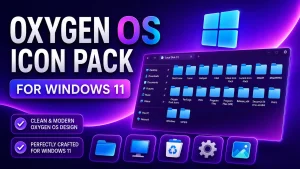
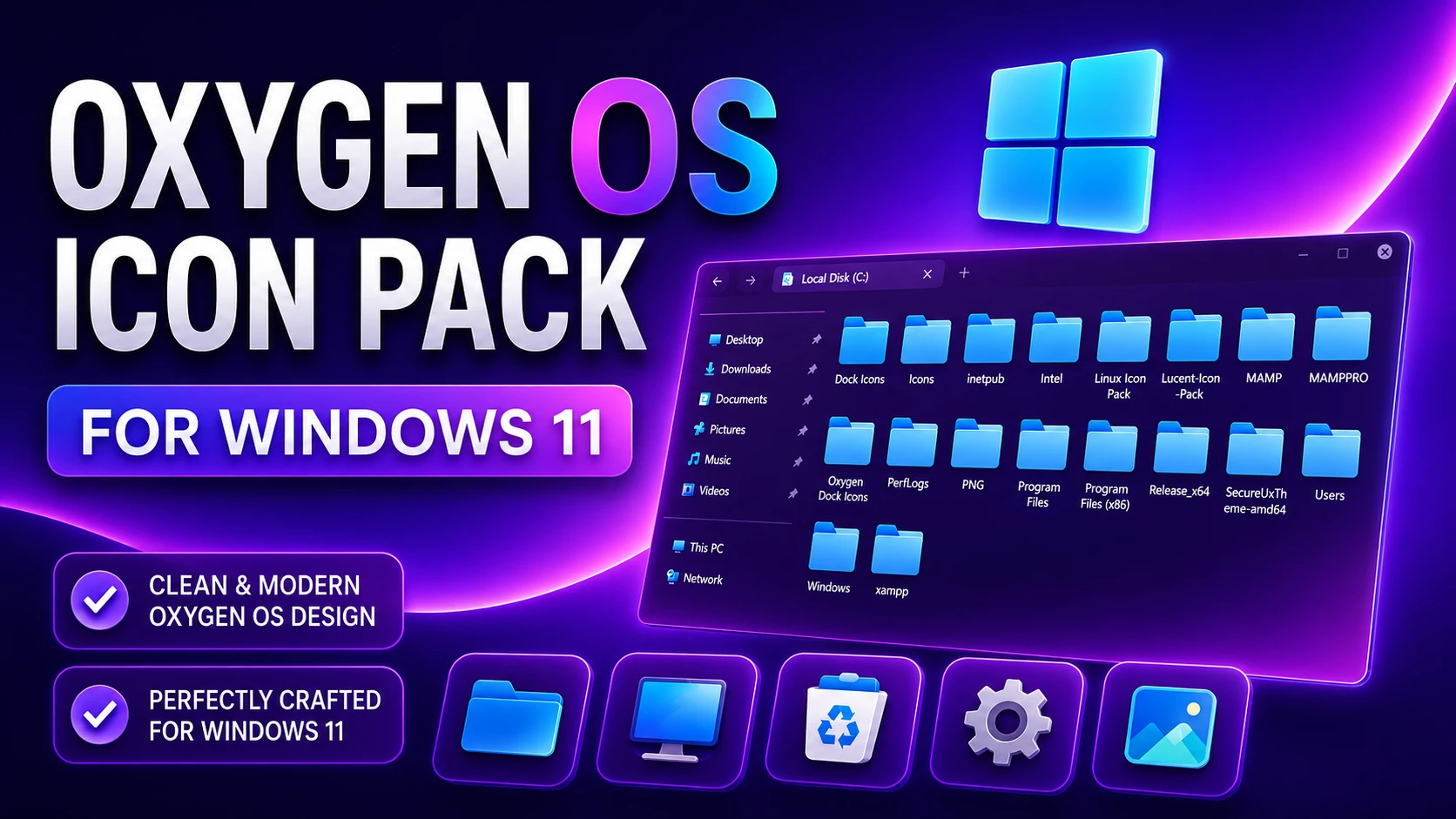
Oxygen Icon Pack is a Resource Redirect icon set for Windows 11 built around bright cyan, sky-blue, and deeper blue tones. The folder icons use a clean layered shape with a lighter top section and darker blue base, giving File Explorer a fresh look without turning every icon into a heavily detailed graphic.
The design stays consistent across the visible resources. Folders carry most of the blue styling, while matching system-style icons such as display, Recycle Bin, settings, and picture resources follow the same cool color direction. The result is colorful, but still easy to read during normal File Explorer use.
This version is designed for Resource Redirect in Windhawk. It changes supported Windows icon resources through the mod, so you do not need to manually replace protected system files. Your Windows theme, wallpaper, taskbar, and Start menu remain separate customizations.
Cool Blue Icon Style
Blue is the main visual idea here. Light cyan sits across the upper part of many folder icons, while richer blue tones add depth underneath. The icons avoid heavy shadows or complex textures, which keeps the set looking clean even when a folder contains many items.
The same approach carries into supported system resources. Rather than mixing unrelated colors everywhere, the pack stays close to blue, cyan, white, and a few darker accents, giving the whole set a more unified appearance.
Features
- Bright cyan and sky-blue folder styling
- Deeper blue lower layers for added depth
- Clean shapes without heavy textures or excessive detail
- Matching system-style resources where supported
- Designed for Resource Redirect in Windhawk
- No manual replacement of protected Windows system files
- Can be used independently from your Windows theme or wallpaper
- Oxygen Resource Redirect Icon Pack: Contains the replacement resources used by Resource Redirect for supported Windows 11 icons.
Compatibility
- Windows 11
Icon coverage can vary depending on your Windows build and the resources included in the pack. Some applications use their own icons, while folders with thumbnail previews may continue to display those previews instead of the themed folder resource.
Requirements
- Windows 11
- Windhawk installed
- Resource Redirect mod installed and enabled
- The icon pack extracted to a permanent folder
- A ZIP extraction tool
Before You Apply the Pack
Save your current Resource Redirect configuration before changing the folder path. If you decide to return to another icon set later, having the old path ready makes the switch much easier.
Once the pack is working, keep the extracted folder in the same location. Resource Redirect loads the replacement resources from that saved path, so moving or renaming the folder can stop the icons from appearing. One innocent folder move, and Windows suddenly develops trust issues.
Installation Steps
- Install Windhawk: Download and install Windhawk if it is not already installed.
- Install Resource Redirect: Open Windhawk, search for Resource Redirect, and install the mod.
- Download the Icon Pack: Download the ZIP archive using the button below.
- Extract the Files: Extract the archive to a folder that you plan to keep in the same location.
- Copy the Folder Path: Open the extracted icon-pack folder and copy its full Windows path.
- Open Resource Redirect Settings: Go to the mod’s settings and locate the custom theme or resource folder field.
- Paste the Path: Paste the extracted folder path into the required field. Remove quotation marks if Windows added them automatically.
- Save the Settings: Apply the Resource Redirect configuration and let the mod reload.
- Refresh Explorer: Restart Windows Explorer if the new icons do not appear immediately.
For a more detailed installation guide, you can also check:
Oxygen Icon Pack 10MB
Download Icon PackIf the New Icons Do Not Appear
Make sure Resource Redirect is enabled and confirm that the saved path points to the extracted icon-pack folder rather than the ZIP archive itself.
If the path is correct but older icons remain visible, restart Windows Explorer. Windows may also be holding on to cached icon data, so an icon-cache refresh can sometimes be necessary.
Why Do Some Icons Stay Unchanged?
Resource Redirect can only replace resources included in the pack. Some programs supply their own icons, and certain folders may show thumbnail previews instead of the regular Windows folder resource.
A few unchanged items therefore do not automatically mean the pack failed. They may simply come from resources that are outside its coverage.
How to Remove
- Open Windhawk: Select the installed Resource Redirect mod.
- Open Its Settings: Find the custom path currently pointing to the Oxygen Icon Pack.
- Restore Your Previous Setup: Replace that path with your earlier configuration, or remove it if you want to return to the default Windows resources.
- Save the Changes: Apply the updated Resource Redirect settings.
- Restart Explorer: Restart Windows Explorer so the previous or default icons can reload.
- Delete the Pack Later: Remove the extracted icon-pack folder only after Resource Redirect is no longer using it.
Where This Icon Pack Fits Best
The cool blue palette works naturally with darker wallpapers, blue gradients, glass-style interfaces, or a simple black desktop. Because the icons themselves are fairly clean, they can also work on a more minimal setup without taking over the whole screen.
You do not need a specialized Windows theme to use them. The icon pack works on its own, so the folders can be the main visual change while the rest of Windows stays untouched.
Explore More Windows Customization
Disclaimer
Oxygen Icon Pack is an independently shared third-party Windows customization resource intended for desktop personalization. The term “Oxygen” describes the visual direction only. This pack is not an official Microsoft, Windhawk, or Resource Redirect product and is not affiliated with, authorized by, sponsored by, approved by, or endorsed by those companies or projects. Microsoft, Windows, and other trademarks belong to their respective owners. Appearance and compatibility may vary between Windows builds and mod versions.
Final Word
This pack keeps its design focused on one simple idea: bright blue folders with enough shading to give them depth, but not so much detail that File Explorer starts looking crowded.
The cyan tops, deeper blue bases, and matching system resources give the set a consistent personality. If you prefer cooler colors and a cleaner icon style, it is an easy way to change the look of Windows 11 without rebuilding the rest of the desktop around it.
Frequently Asked Questions
Is this an official Oxygen icon pack?
No. It is an independent Windows customization resource. “Oxygen” refers only to the visual direction and theme name of the icon set.
What colors are used in the icon pack?
The visible design mainly uses cyan, sky blue, deeper blue, white, and a few darker accent details.
Do I need a custom Windows theme?
No. The icon pack works independently through Resource Redirect, so you can keep your existing Windows theme and wallpaper.
Does the pack also change the Start menu and taskbar?
No. It focuses on supported icon resources. Start menu, taskbar, wallpaper, and other interface styling remain separate.
Why might a few icons remain unchanged?
Some applications use their own icon files, while certain folders display thumbnails or resources that are not included in the pack.