Skyline Icon Pack for Windows 11
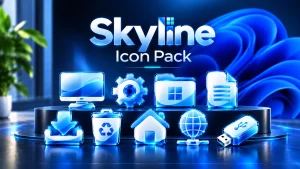
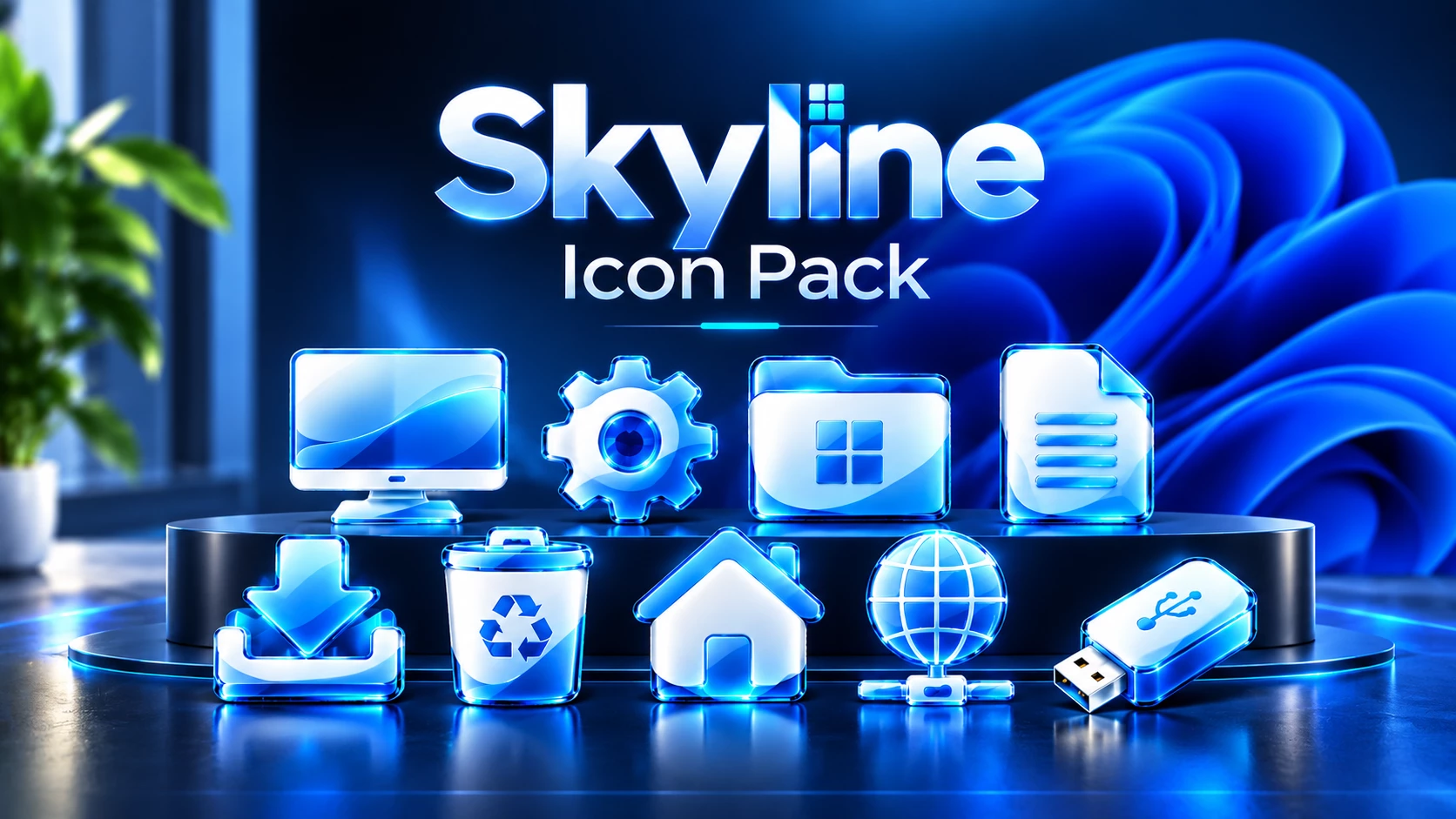
Give Windows 11 a fresh visual style with Skyline Icon Pack, featuring glossy blue and white icons, curved glass-like surfaces, bright cyan edges, and a consistent 3D design for Windhawk Resource Redirect.

Skyline Icon Pack for Windows 11
The Skyline Icon Pack for Windows 11 brings a bright, polished look to familiar Windows system icons. Its design combines glossy blue surfaces, soft white panels, smooth curved shapes, and glowing cyan edges to create a clean 3D style that feels modern without becoming difficult to recognize.
The pack is designed for users who customize Windows with Windhawk and the Resource Redirect mod. It gives common folders, drives, system locations, media shortcuts, and desktop icons a consistent visual identity while keeping their original purpose easy to understand.
Glossy Blue and White Design
Skyline uses a strong blue-and-white color palette throughout the collection. Rich royal blue and aqua tones are paired with cool white surfaces, while thin cyan highlights around the edges create a bright glass-like finish.
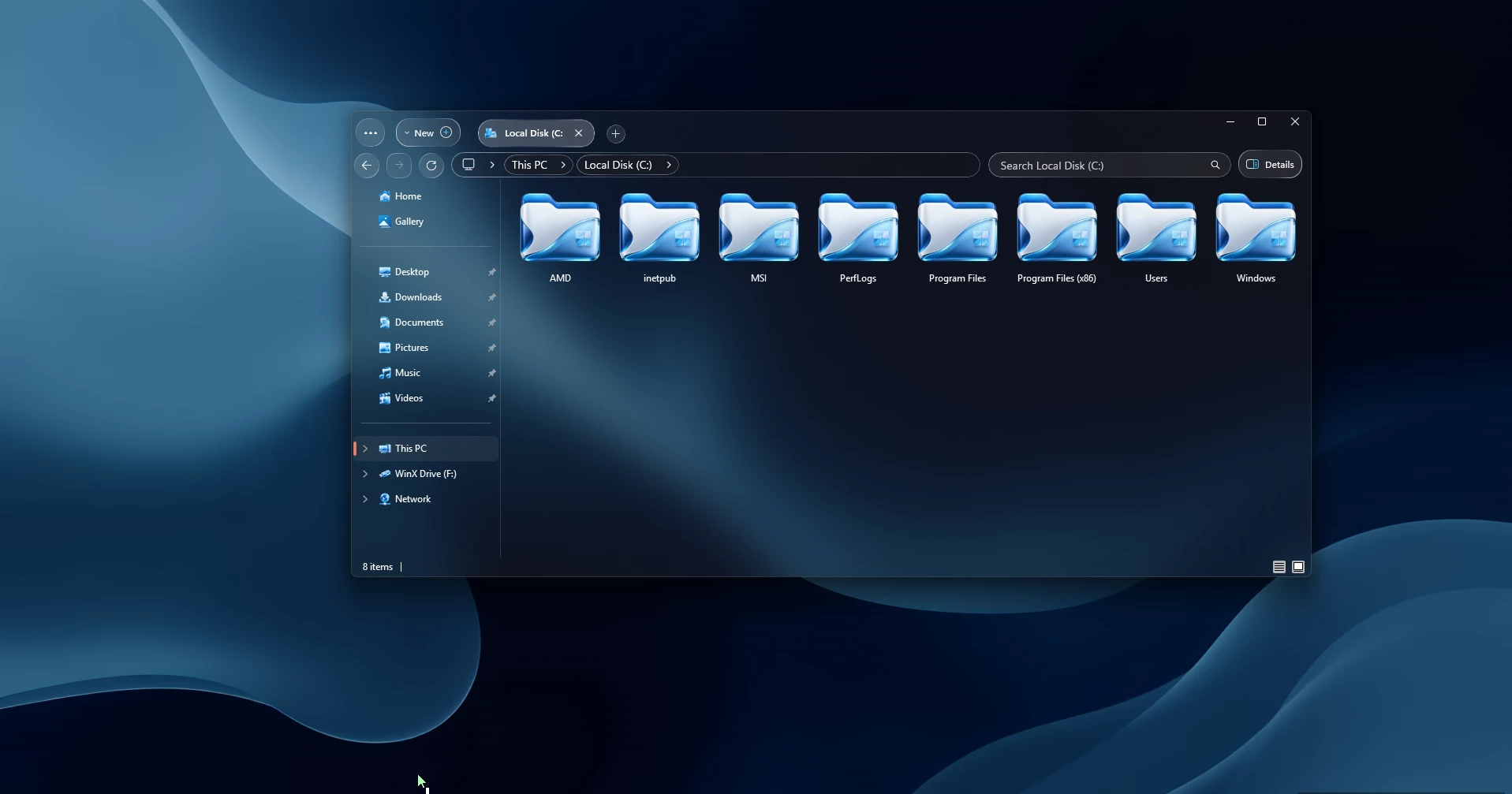
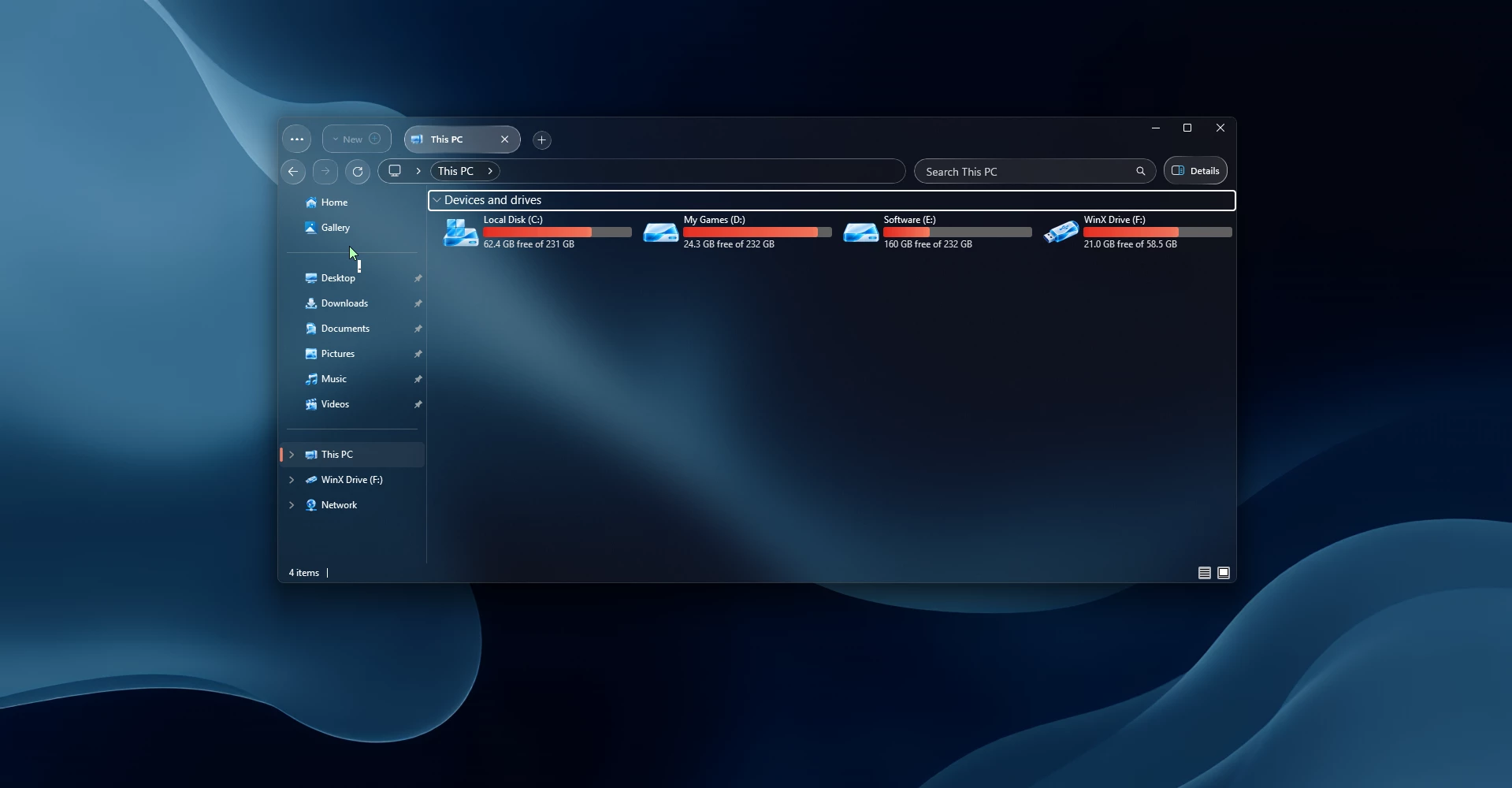
The icons have noticeably rounded forms rather than sharp, flat geometry. Smooth wave patterns move across folders, drives, documents, and system items, giving the entire collection a connected appearance instead of making every icon feel like a separate design.
Soft gradients also add depth to the blue sections. Some areas move from pale sky blue into deeper ocean blue, while reflective highlights create a polished surface similar to glass or glossy acrylic.
What Makes Skyline Icon Pack Different?
- Glossy blue and white visual style
- Bright cyan highlights around icon edges
- Smooth wave-shaped design elements
- Rounded and polished 3D forms
- Consistent styling across system and folder icons
- Easy-to-recognize Windows icon shapes
- Designed for Resource Redirect in Windhawk
- Suitable for clean, blue, glass, and modern desktop setups
How to Install Skyline Icon Pack
- Install and open Windhawk.
- Search for and install the Resource Redirect mod.
- Enable Resource Redirect if it is not already active.
- Download the Skyline Icon Pack.
- Extract the downloaded ZIP file to a permanent folder.
- Open the extracted Skyline folder.
- Copy the required resource path provided with the icon pack.
- Open the Resource Redirect settings in Windhawk.
- Paste the required path into the appropriate Resource Redirect configuration field.
- Save the settings.
- Restart Windows Explorer to apply the changes.
For a detailed installation guide, you can also check:
If a few icons do not refresh immediately, restart Windows Explorer again or sign out and sign back in. Windows may continue using previously cached icon resources for a short time.
SkyLine Icon Pack 17MB
DownloadHow to Remove Skyline Icon Pack
- Open Windhawk on your computer.
- Go to the Resource Redirect mod.
- Open the Settings section.
- Remove the Skyline Icon Pack path or configuration you previously added.
- Click Save Settings to apply the change.
- Restart Windows Explorer from Task Manager.
- If the custom icons are still visible, sign out and sign back in or restart your PC.
After removing the Resource Redirect configuration, Windows should return to its default system icons. You can then delete the Skyline Icon Pack files if you no longer need them.
Who Should Use Skyline Icon Pack?
Skyline is a strong choice for Windows users who prefer bright blue desktop themes, glass-inspired interfaces, white and blue wallpapers, transparent taskbars, and clean File Explorer customizations.
It also works well for anyone who prefers detailed icons instead of extremely flat designs. The 3D surfaces and reflective edges add personality, but the symbols remain familiar enough for normal everyday use.
Because the same colors and shapes are repeated across the collection, Skyline can also help create a more unified desktop when it is paired with matching Start Menu, Taskbar, File Explorer, or Settings styles.
Disclaimer
This Skyline Icon Pack is provided for Windows personalization and educational purposes only. Link Vegas Theme is not affiliated with Microsoft, Windhawk, or other third-party software developers mentioned on this page.
Windows and other product names and trademarks belong to their respective owners. Always create a System Restore Point before making system customization changes. Compatibility may vary depending on your Windows version, installed updates, and Resource Redirect configuration.
Final Word
The Skyline Icon Pack for Windows 11 gives familiar Windows icons a polished new identity built around glossy blue gradients, cool white surfaces, smooth wave patterns, and bright cyan highlights.
Its folder, drive, media, system, Recycle Bin, desktop, document, and download designs all follow the same visual direction, making the collection feel consistent rather than mixed together from unrelated styles.
For users already working with Windhawk Resource Redirect, Skyline offers a clean way to give Windows 10 or Windows 11 a more colorful and detailed desktop appearance while keeping familiar system icons easy to recognize.
Frequently Asked Questions
What is Skyline Icon Pack for Windows 11?
Skyline is a blue-and-white Windows icon collection featuring glossy surfaces, rounded 3D shapes, cyan edge highlights, and curved wave details across system, folder, media, and storage icons.
Does Skyline Icon Pack require Windhawk?
This version of Skyline is designed for use with the Resource Redirect mod in Windhawk. Windhawk and Resource Redirect are therefore required for the intended installation method.
Does Skyline Icon Pack work with Windows 11 25H2?
It can work with compatible Resource Redirect configurations on Windows 11 25H2, but resource locations may change after Windows updates. Some configurations may need adjustment depending on the installed build.
Can I use Skyline Icon Pack on Windows 10?
Skyline can be used on compatible Windows 10 systems where Windhawk and the required Resource Redirect configuration work correctly. Resource mappings may differ from Windows 11.
Why are some Skyline icons not changing?
Check that Resource Redirect is enabled, confirm that the configured folder path is correct, and restart Windows Explorer. A recent Windows update may also have changed the resource location used by an older configuration.
Can I restore the default Windows icons?
Yes. Remove the Skyline redirect configuration from Resource Redirect or disable the mod, then restart Windows Explorer to allow Windows to use its default resources again.
Should I create a System Restore Point first?
Yes. Creating a System Restore Point before applying Windows customization changes is a sensible precaution and gives you another recovery option if you later need to undo system changes.