

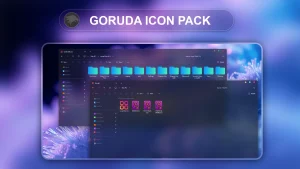
Goruda Icon Pack for Windows 11
Goruda Icon Pack for Resource Redirect : Goruda Icon Pack for Resource Redirect (Windhawk Mods) is a vibrant, high-quality icon set designed to instantly refresh your Windows interface. Perfectly compatible with Resource Redirect, it brings stunning custom icons to apps, folders, and UI elements for a cohesive, modern aesthetic

Goruda Icon Pack for Windows 11 – Resource Redirect
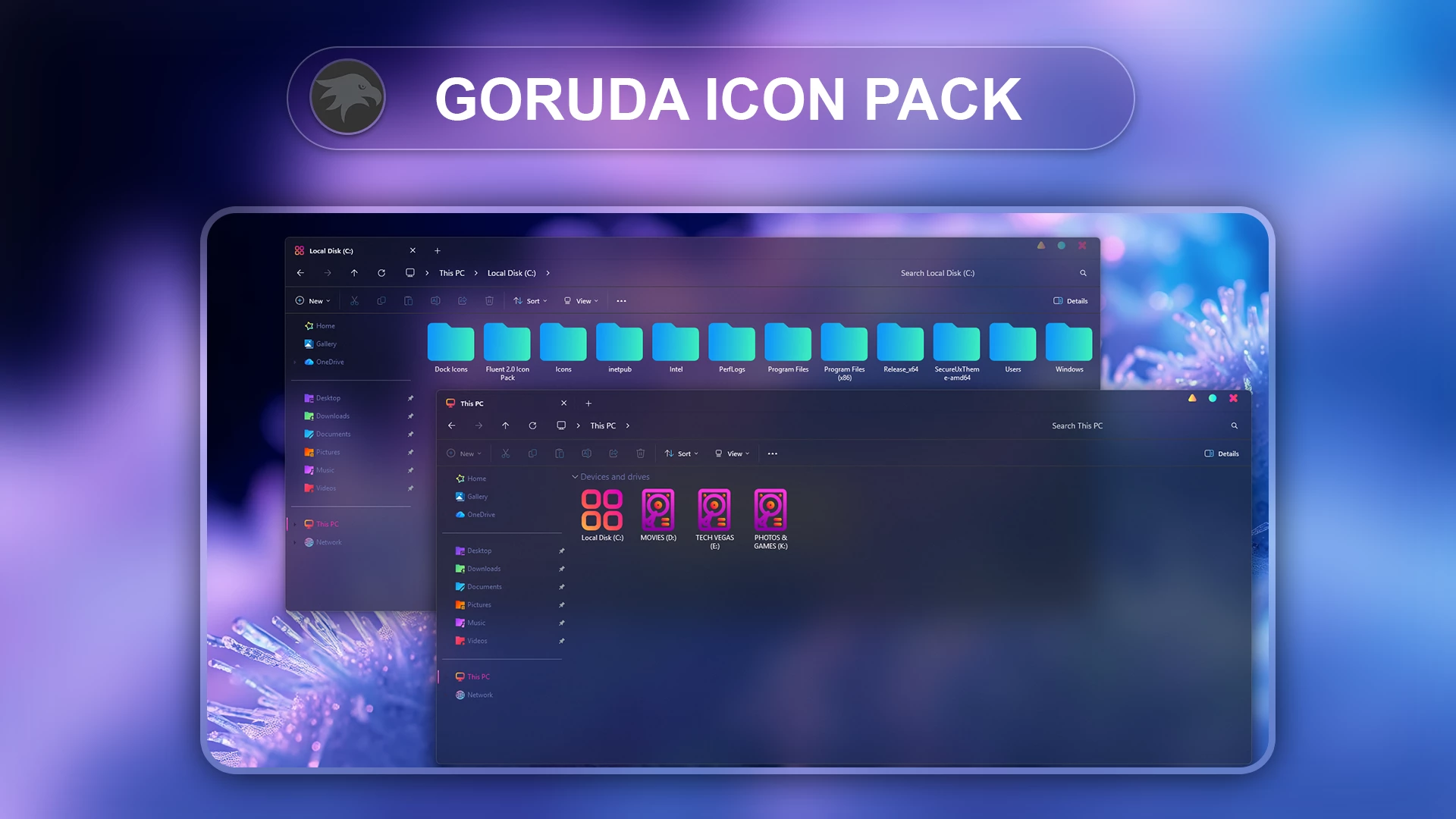
Goruda Icon Pack is a colorful Windows 11 icon set created for use with the Resource Redirect mod in Windhawk. The pack replaces supported Windows icon resources with a brighter design built around cyan and teal folders, along with purple, magenta, pink, and blue accents across selected system and drive icons.
The folder design is especially easy to notice in File Explorer. Instead of the standard yellow Windows folders, Goruda uses a smooth cyan-to-teal color treatment that keeps the familiar folder shape while giving it a much stronger visual identity.
This is an icon customization pack rather than a complete Windows theme. Wallpaper, File Explorer styling, taskbar effects, Start menu changes, and other interface modifications remain separate. Goruda focuses on supported Windows icon resources through Resource Redirect.
Cyan and Neon Icon Style
The main folder icons use bright cyan and turquoise tones with simple shapes that remain easy to recognize. The repeated color treatment gives folder rows a consistent appearance without making every resource look identical.
Supported drive and system icons bring in stronger contrasting colors. Magenta, purple, pink, and cyan details appear across several of these resources, creating a more colorful look in areas such as This PC while still matching the brighter folder set.
Features
- Cyan and teal folder icons for supported Windows locations
- Magenta, purple, pink, and cyan accents across compatible system resources
- Colorful drive icons that match the overall Goruda design
- Designed specifically for Resource Redirect in Windhawk
- No manual replacement of protected Windows system files
- Can be used without changing your Windows wallpaper or visual theme
- Easy to disable or switch by changing the Resource Redirect configuration
What Is Included?
- Goruda Resource Redirect Icon Pack: Contains the icon resources and files used by Resource Redirect to change supported Windows icons.
Requirements
- Windows 11 Operating System
- Windhawk installed
- Resource Redirect mod installed and enabled
- The Goruda ZIP archive extracted to a permanent folder
- A writable location where the extracted pack will not be moved or deleted
Resource Redirect loads the pack from the folder path saved in its settings. Once the setup is working, avoid renaming or moving that folder unless you also update the path inside the mod.
Before You Install
Keep a copy of your current Resource Redirect settings before changing the icon path. That gives you a quick way to return to your previous setup if you later decide Goruda is not the icon style you want.
You can also create a Windows System Restore Point before making broader customization changes, although Resource Redirect itself is designed to redirect supported resources rather than manually overwrite protected Windows files.
How to Install Goruda Icon Pack
- Install Windhawk: Download and install Windhawk if it is not already installed.
- Install Resource Redirect: Open Windhawk, search for Resource Redirect, and install the mod.
- Download Goruda: Download the ZIP archive using the button below.
- Extract the Pack: Extract the archive to a folder you plan to keep in the same location.
- Copy the Folder Path: Open the extracted pack folder and copy its full Windows path.
- Open Resource Redirect Settings: Go to the mod’s settings and locate the field used for the custom resource or theme folder path.
- Paste the Path: Paste the Goruda folder path into the required field. Remove quotation marks around the path if Windows added them while copying.
- Apply the Settings: Save the Resource Redirect configuration and allow the mod to reload.
- Refresh Explorer: Restart Windows Explorer if the new icons do not appear immediately.
Important: Keep the extracted Goruda folder in the same location after installation. Resource Redirect needs that path to continue loading the icon resources.
Download Goruda Icon Pack
Goruda Icon Pack ZIP 23.7 MB
Download via Google DriveIf the Icons Do Not Change
Start by checking the saved folder path. Resource Redirect needs the path to the folder that actually contains the pack files, not the ZIP archive itself or an unnecessary outer folder.
Also confirm that the mod is enabled. If the path is correct but older icons are still showing, restart Windows Explorer. An icon-cache refresh may also be needed depending on the resources Windows is currently displaying.
Why Do Some Icons Stay Unchanged?
Not every icon visible in Windows necessarily comes from a resource covered by the pack. Some applications provide their own icons, while certain folders may show thumbnails or previews instead of the standard folder resource.
That does not automatically mean Resource Redirect failed. The final coverage depends on the resources included in Goruda and the way each Windows component loads its icons.
How to Remove Goruda Icon Pack
- Open Windhawk: Find the installed Resource Redirect mod.
- Open Its Settings: Locate the Goruda folder path currently being used.
- Restore Your Previous Configuration: Replace the Goruda path with your earlier Resource Redirect setup, or remove the custom path if you want to return to the default Windows resources.
- Save the Changes: Apply the updated Resource Redirect settings.
- Restart Explorer: Restart Windows Explorer so the previous or default icons can reload.
- Delete the Pack Later: Remove the extracted Goruda folder only after Resource Redirect is no longer pointing to it.
If you want to stop all Resource Redirect changes, you can disable the mod instead. If old icons remain visible after switching configurations, refresh the icon cache according to the mod’s instructions.
Credits and Usage Rights
Credit and thanks to Niivu. Credit for the original Candy icon theme goes to eliverlara. Artwork, conversions, and other included assets remain the property of their respective creators or rights holders.
Follow the licenses that apply to the included files, including any requirements related to attribution, modification, or redistribution. Link Vegas Theme does not claim ownership of third-party artwork.
Disclaimer
Goruda Icon Pack is an independently shared third-party Windows customization resource intended for desktop personalization. It is not an official Microsoft or Windhawk product and is not affiliated with, endorsed by, sponsored by, or officially connected to Microsoft, Windhawk, or the creators of Resource Redirect. Windows and other trademarks belong to their respective owners. Compatibility and appearance can vary between Windows builds and mod versions.
Final Word
Goruda has a much more colorful character than a typical Windows icon set. The cyan and teal folders provide the main visual identity, while the magenta, purple, pink, and blue system details add enough contrast to keep This PC and other supported areas from feeling repetitive.
Because the pack works through Resource Redirect, you can use the icon set without turning the rest of Windows into the same style. That makes it easy to keep Goruda as the main splash of color while leaving the rest of your desktop relatively simple.
You may also like
Disclaimer: All themes, visual styles, and concepts shared on this website are unofficial, fan-made creations built from imagination for customization purposes. We are not affiliated with, endorsed by, or sponsored by Microsoft or any other official brand.