

Colority Icon Pack for Windows 11
Download Colority Icon Pack for Windows 11 using Windhawk Resource Redirect and upgrade your desktop with modern neon icons, stylish folder designs, and futuristic File Explorer customization.

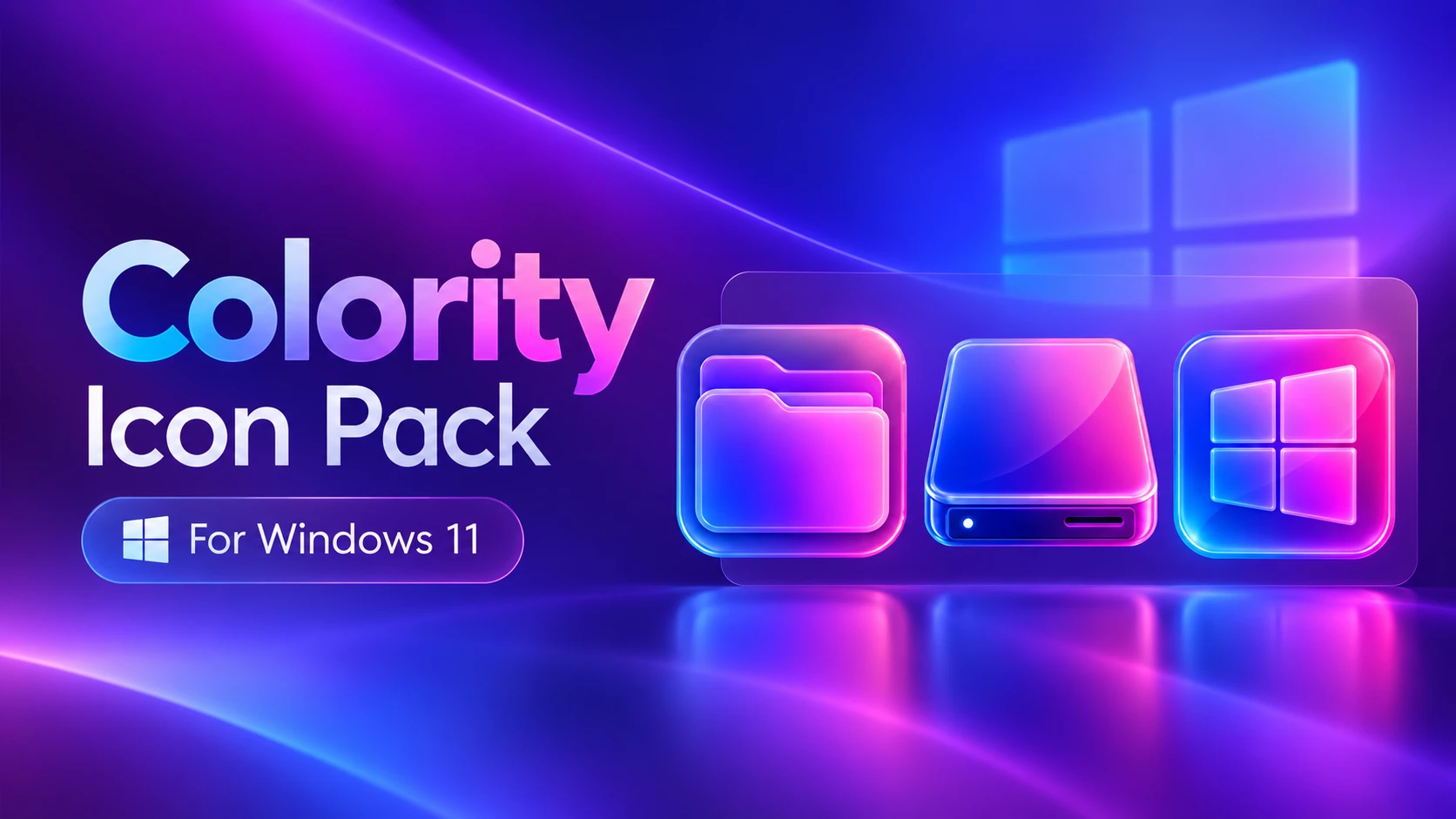
Colority Icon Pack for Windows 11
Colority Icon Pack is a vibrant Resource Redirect icon set designed for Windows 11, built around a rich color gradient of hot pink, magenta, deep violet, and electric cyan highlights. Featuring a layered folder design with soft edge lighting, it gives File Explorer a sleek, modern, and high-contrast personality while keeping your desktop organized.
The pack maintains traditional, recognizable folder silhouettes so your daily navigation stays fast and effortless. Instead of assigning a random color to every single directory, Colority uses a unified palette that looks clean and intentional, even when viewing dozens of folders at once.
Designed specifically for Resource Redirect in Windhawk, this pack dynamically replaces targeted Windows icon assets. It requires no manual file replacing or system patching, leaving your wallpaper, taskbar, Start menu, and Windows visual styles completely untouched.
The Colority Folder Design
The core strength of Colority lies in its balanced color layering. The front face of each folder features a vivid pink and magenta tone, set against darker violet depth shadows. Crisp cyan-blue rim highlights create separation along the edges, making icons pop sharply against dark Explorer backgrounds.
This disciplined color approach keeps your file views cohesive and stylish rather than cluttered, giving Windows 11 a distinct visual upgrade.
Key Features
- Vivid magenta and hot pink folder faces
- Deep violet and purple layered backgrounds
- Cyan-blue edge illumination for high visibility on dark themes
- Familiar, rounded folder shapes for intuitive navigation
- Powered by Windhawk Resource Redirect
- Safe asset replacement with zero risk to protected system files
- Works independently alongside any Windows theme or wallpaper
- Colority Resource Redirect Icon Pack: Complete set of custom icon resources configured for Windhawk Resource Redirect.
Compatibility & Requirements
- OS: Windows 11
- Windhawk framework installed
- Resource Redirect mod enabled in Windhawk
- Extracted icon pack kept in a permanent folder
- Standard archive tool (7-Zip, WinRAR, or Windows ZIP)
Note: Icon coverage depends on your Windows 11 build. Folders set to display live media previews or third-party apps with hardcoded icons may retain their default visual style.
Before You Apply the Pack
Always copy and save your current Resource Redirect configuration path before making changes. Having a backup allows you to revert to your previous icon setup in seconds.
Once extracted, leave the icon pack folder in a permanent directory. Resource Redirect streams icon files directly from that location—moving or renaming the folder will break the path and restore default icons.
Installation Steps
- Install Windhawk: Download and set up Windhawk if it is not already on your system.
- Add Resource Redirect: Launch Windhawk, search for Resource Redirect, and click install.
- Download Colority: Get the ZIP package using the download button below.
- Extract the Folder: Unzip the archive to a permanent folder (e.g.,
C:\Icons\Colority). - Copy Folder Path: Open the extracted folder and copy its full path from the File Explorer address bar.
- Open Mod Settings: Go to Resource Redirect settings inside Windhawk and locate the custom path field.
- Apply Path: Paste your copied folder path into the field (ensure there are no quotation marks surrounding the text).
- Save Changes: Save the configuration and allow the mod to reload.
- Refresh Explorer: Restart Windows Explorer via Task Manager if changes do not appear immediately.
Useful guides for setup and customization:
Download Colority Icon Pack
Colority Icon Pack 9MB
Download Icon PackTroubleshooting Tips
If new icons do not display, confirm that Resource Redirect is turned on and that the saved path points to the actual extracted folder—not the downloaded ZIP file.
If the path is correct but old icons persist, restart Windows Explorer or rebuild the Windows icon cache to clear old stored graphics.
Why Do Some Folders Look Unchanged?
Windows often overrides custom folder resources for folders generating dynamic thumbnail previews (such as Pictures or Videos). Some standalone desktop applications also fetch their own self-contained icons. This is normal system behavior and does not mean the pack installation failed.
How to Uninstall
- Open Windhawk and select the Resource Redirect mod.
- Navigate to settings and delete or update the Colority folder path.
- Save your changes to apply default settings.
- Restart Windows Explorer to reload original system icons.
- Delete the extracted Colority folder from your drive once the mod is detached.
Who Is Colority Best For?
Colority is built for users who want vibrant energy and modern aesthetic flair in File Explorer without sacrificing usable, recognizable icon shapes. Its rich pink, magenta, and violet palette complements dark mode setups, neon wallpapers, and minimalist desktop layouts seamlessly.
Explore More Customizations
Disclaimer
Colority Icon Pack is an independent, third-party desktop customization theme created for Windows 11 personalization. This product is not affiliated with, endorsed by, or sponsored by Microsoft, Windhawk, or Resource Redirect. All product names, logos, and registered trademarks belong to their respective owners.
Frequently Asked Questions
What color scheme does Colority Icon Pack use?
Colority uses a vivid palette of hot pink, magenta, violet shadow tones, and cyan-blue edge highlights.
Does Colority modify protected Windows system files?
No. It uses Windhawk’s Resource Redirect mod to safely swap visual resources in memory, keeping original system files untouched.
Can I use Colority alongside my regular desktop wallpaper and theme?
Yes. Colority only alters supported folder icons, leaving your desktop background, accent colors, and theme settings completely separate.
How do I switch to a different icon set later?
Unzip your new icon pack, update the directory path inside Resource Redirect’s settings, click save, and restart Explorer.
You may also like
Disclaimer: All themes, visual styles, and concepts shared on this website are unofficial, fan-made creations built from imagination for customization purposes. We are not affiliated with, endorsed by, or sponsored by Microsoft or any other official brand.