New Colorful Theme For Windows 11
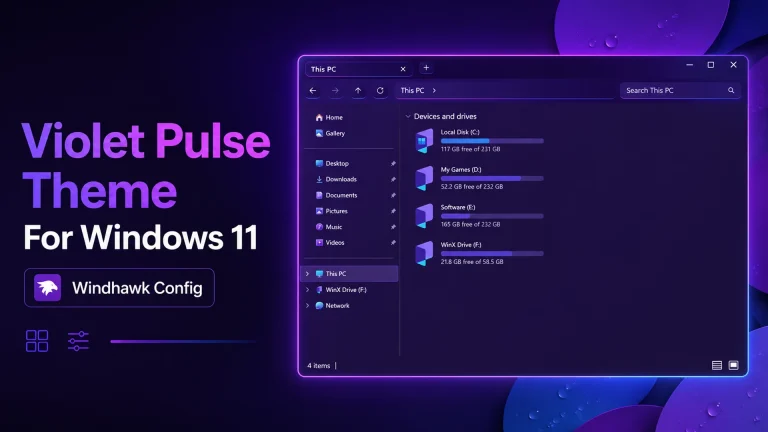
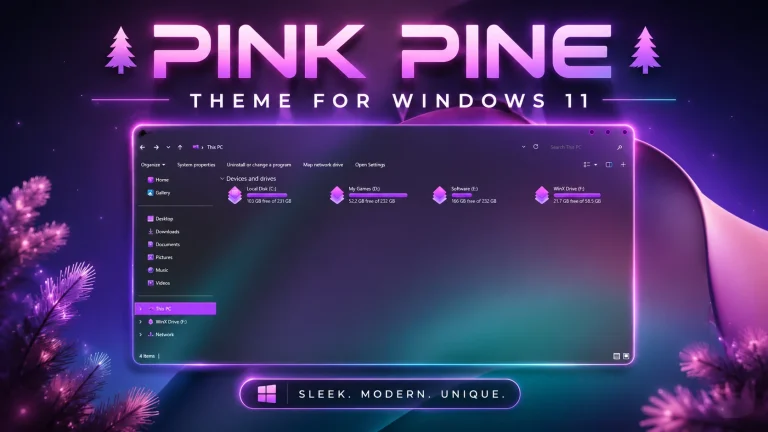
Colorful Theme For Windows 11 : Colorful Theme featuring vibrant neon colors, modern File Explorer UI, stylish icons, acrylic blur effects, and a futuristic customization setup.

Colorful Theme For Windows 11
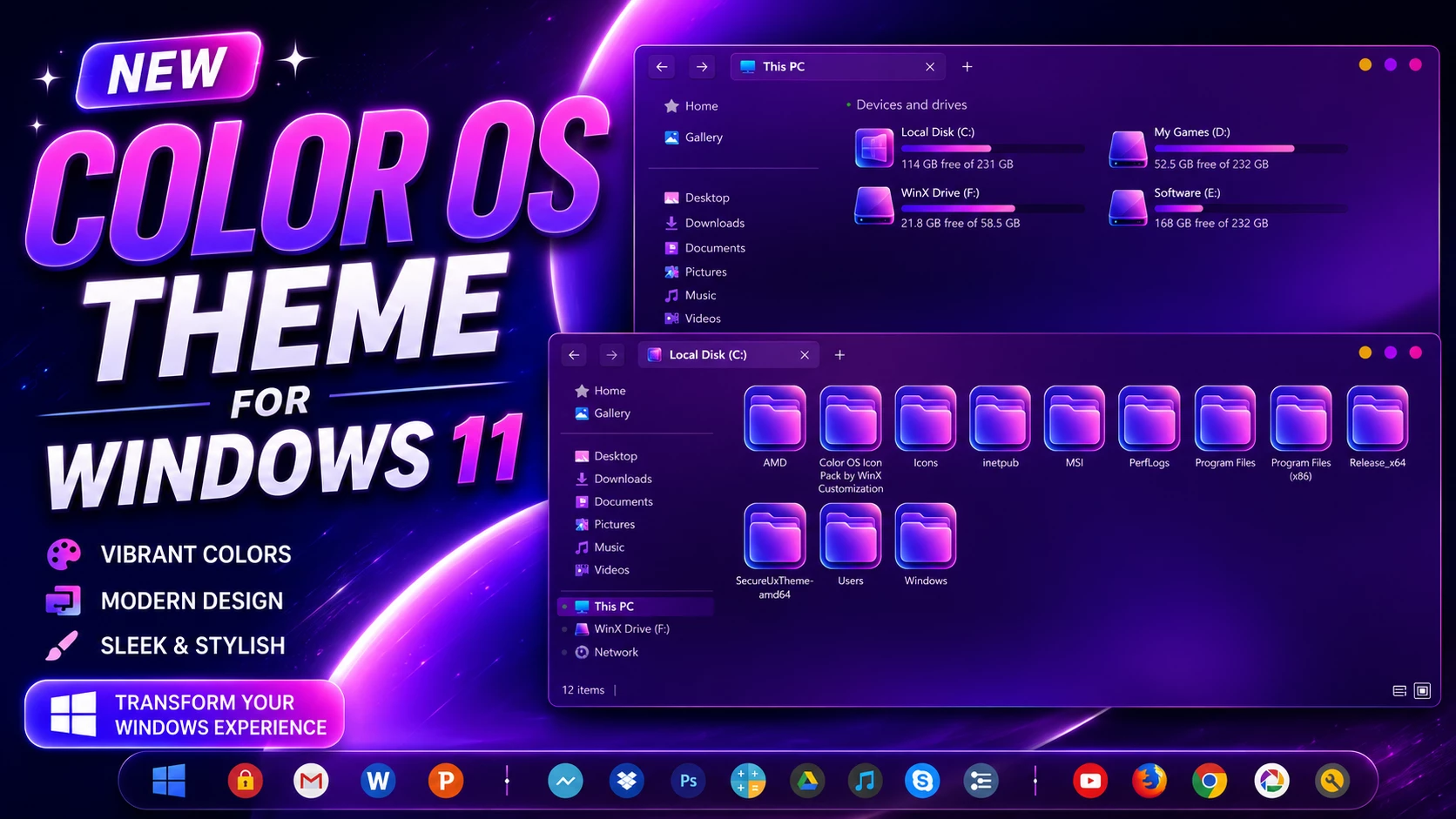
The Colorful Theme For Windows 11 is a transparent glass-style desktop customization with bright accent details and a clean Windows 11 layout. File Explorer allows the wallpaper to remain visible through supported surfaces, so the background becomes an important part of the overall appearance.
Because the interface is transparent, many of the colors visible through File Explorer come from the wallpaper rather than being permanently built into the theme. Changing the background can therefore give the same setup a noticeably different mood.
The storage area uses bright pink and magenta hard-drive level indicators, while supported windows feature small colorful DWM controls in yellow-orange, violet, and pink-red tones. These details add color without making the entire interface excessively bright.
Transparent Glass with Colorful Details
The main character of Colorful Theme comes from its glass-style File Explorer. Instead of using one fixed background color, the transparent surfaces let wallpaper colors show through the navigation panel, content area, and other supported parts of the interface.
The brighter accents are used more selectively. Pink and magenta storage bars stand out against the transparent background, while the colorful DWM controls add a small visual detail to the window frame.
- Transparent glass-style File Explorer surfaces
- Wallpaper remains visible through supported interface areas
- Bright pink and magenta hard-drive level indicators
- Small circular customized DWM window controls
- Yellow-orange, violet, and pink-red button accents
- Clean navigation and content layout
- Subtle interface borders and separators
- Keeps the familiar Windows 11 Explorer structure
Why the Wallpaper Matters
Wallpaper choice can noticeably change the appearance of this theme. Abstract, gradient, colorful, or darker backgrounds can all create a different look because their colors remain visible through the transparent Explorer surface.
This makes the theme useful for users who like changing wallpapers frequently without having to replace the Windows visual style each time.
Optional Desktop Customization
The main Windows theme can be used on its own. Windhawk mods or a matching icon pack can be added separately if you want to extend the same colorful styling into more parts of the desktop.
Installation Process
- Patch Windows with a compatible theme patcher, copy the extracted theme files to
C:\Windows\Resources\Themes, and apply the theme from Personalization > Themes. - For more details, follow this Windows 11 custom theme installation guide.
Windows Compatibility
- Windows 11 21H2: Supported
- Windows 11 22H2: Supported
- Windows 11 23H2: Supported
- Windows 11 24H2: Supported
- Windows 11 25H2: Supported
Included Resources
- Windows 11 Theme
- Windhawk Mods
- Wallpapers
Download Colorful Theme For Windows 11
Colorful Theme 6MB
DownloadRemoval Process
- Switch back to a default Windows 11 theme, disable any extra mods or icon changes, and restart Explorer if needed.
- For the full removal process, follow this Windows 11 custom theme removal guide.
Colorful Theme Notice
Colorful Theme for Windows 11 is an independently created third-party customization resource intended for personal desktop styling. It is not an official Microsoft product and is not affiliated with, sponsored by, or endorsed by Microsoft. Windows and related trademarks remain the property of their respective owners.
Third-party visual styles and Windhawk mods may behave differently across Windows builds, so creating a System Restore Point before applying custom theme files or interface changes is recommended.
Final Thoughts
Colorful Theme combines transparent File Explorer surfaces with bright pink and magenta storage indicators and small colorful DWM controls. Since the wallpaper remains visible through much of the interface, the same theme can look quite different simply by changing the desktop background.
For users who like transparent Windows customization with brighter accents rather than one fixed color palette, this theme provides a flexible base that can be expanded with optional icons or Windhawk mods.
Frequently Asked Questions
Is Colorful Theme transparent?
Yes. Supported File Explorer surfaces use transparency, allowing the wallpaper to remain visible through the interface.
Are all visible colors built into the theme?
No. Many of the colors come from the wallpaper showing through the transparent Explorer surface.
What colors are used for the hard-drive indicators?
The storage level bars use bright pink and magenta accents.
What style do the DWM buttons use?
The customized window controls use small circular buttons with yellow-orange, violet, and pink-red accents.
Can I use another wallpaper?
Yes. Changing the wallpaper can noticeably change the overall appearance because the interface is transparent.
Do I need the optional Windhawk mods?
No. The main Windows theme can be used separately, while additional mods can be applied only if you want the fuller setup.