

Omnix Theme for Windows 11
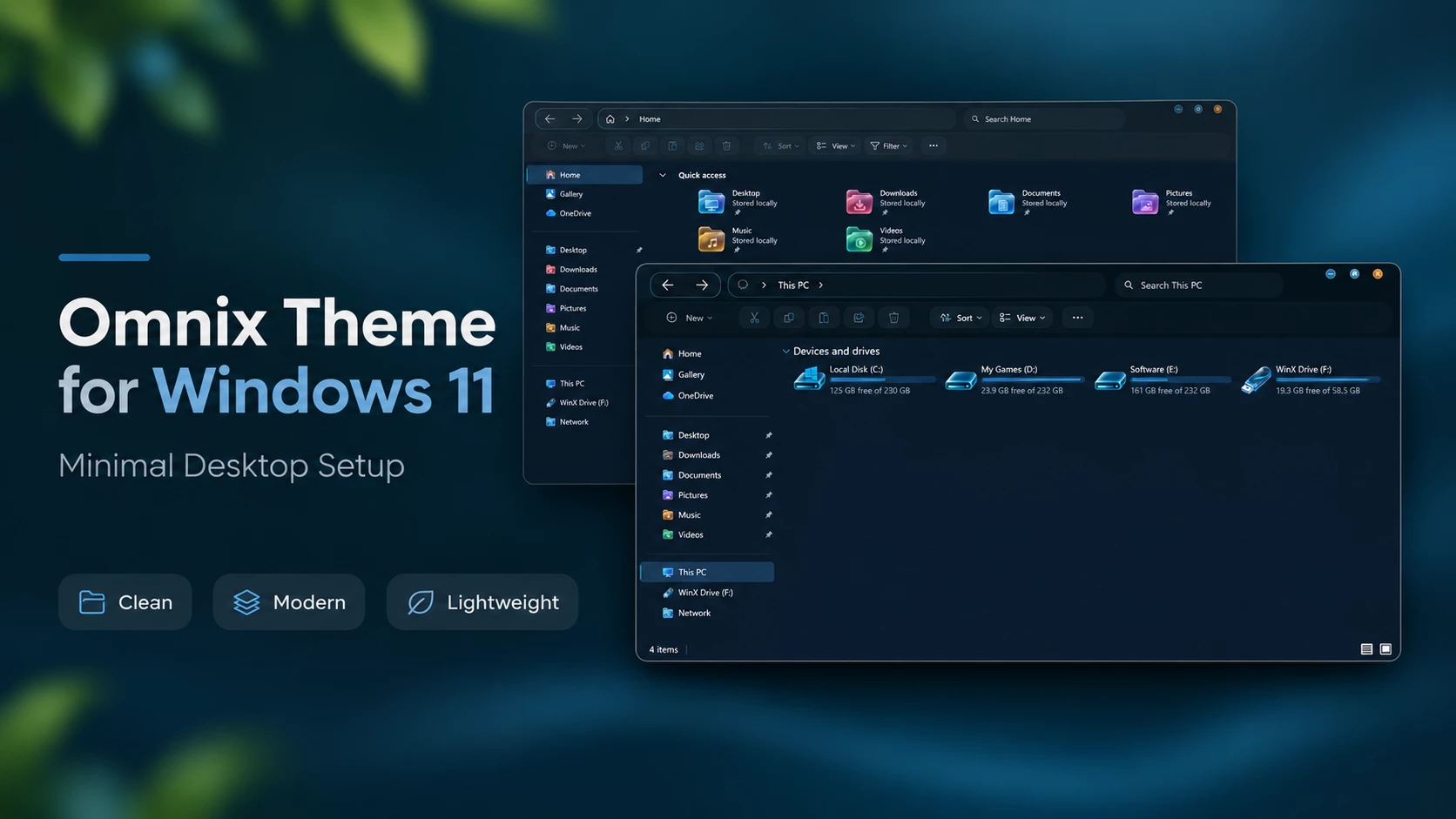
Omnix Theme for Windows 11 : Give Windows 11 a darker, more refined appearance with Omnix Theme. Its deep navy interface, blue highlights, and optional Windhawk transparency create a distinctive desktop style.

Omnix Theme for Windows 11 – A Clean Dark Blue Look
Looking for a dark Windows theme that isn’t just black or grey? Omnix Theme for Windows 11 gives your desktop a fresh look with deep navy blue, darker toolbars, and small cyan details. It’s a nice change if you’re a fan of dark themes but want to try something a little different.
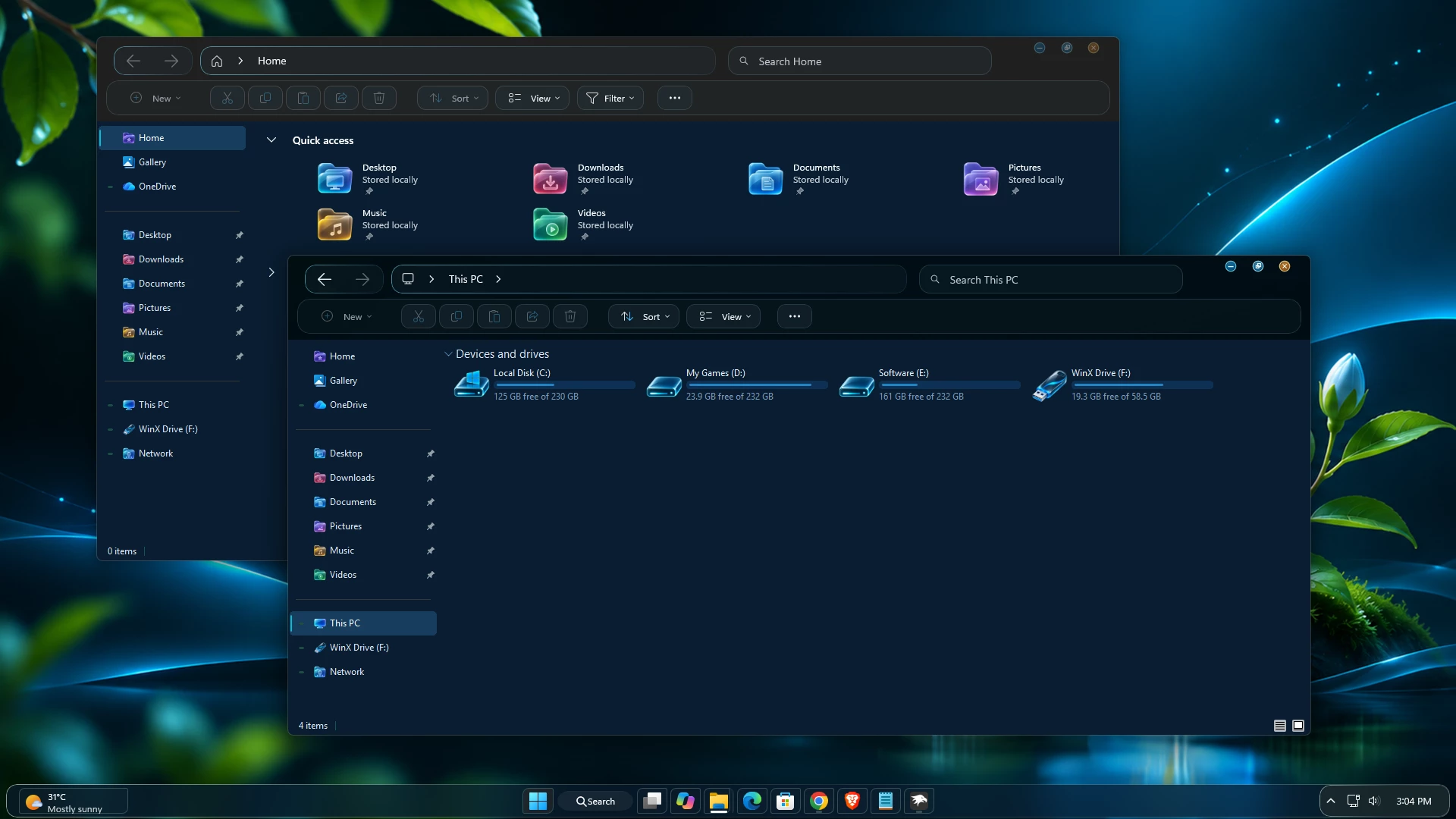
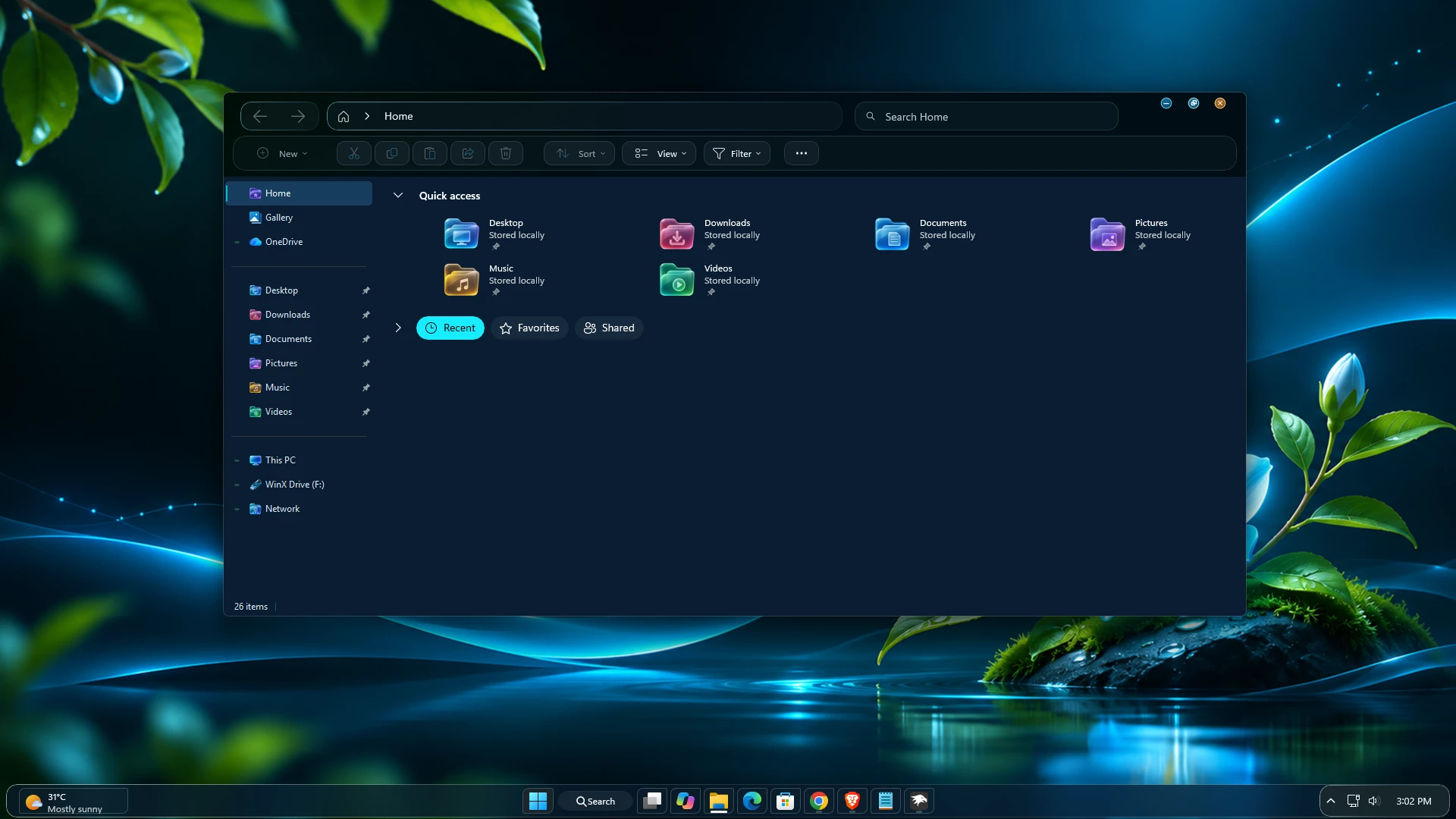
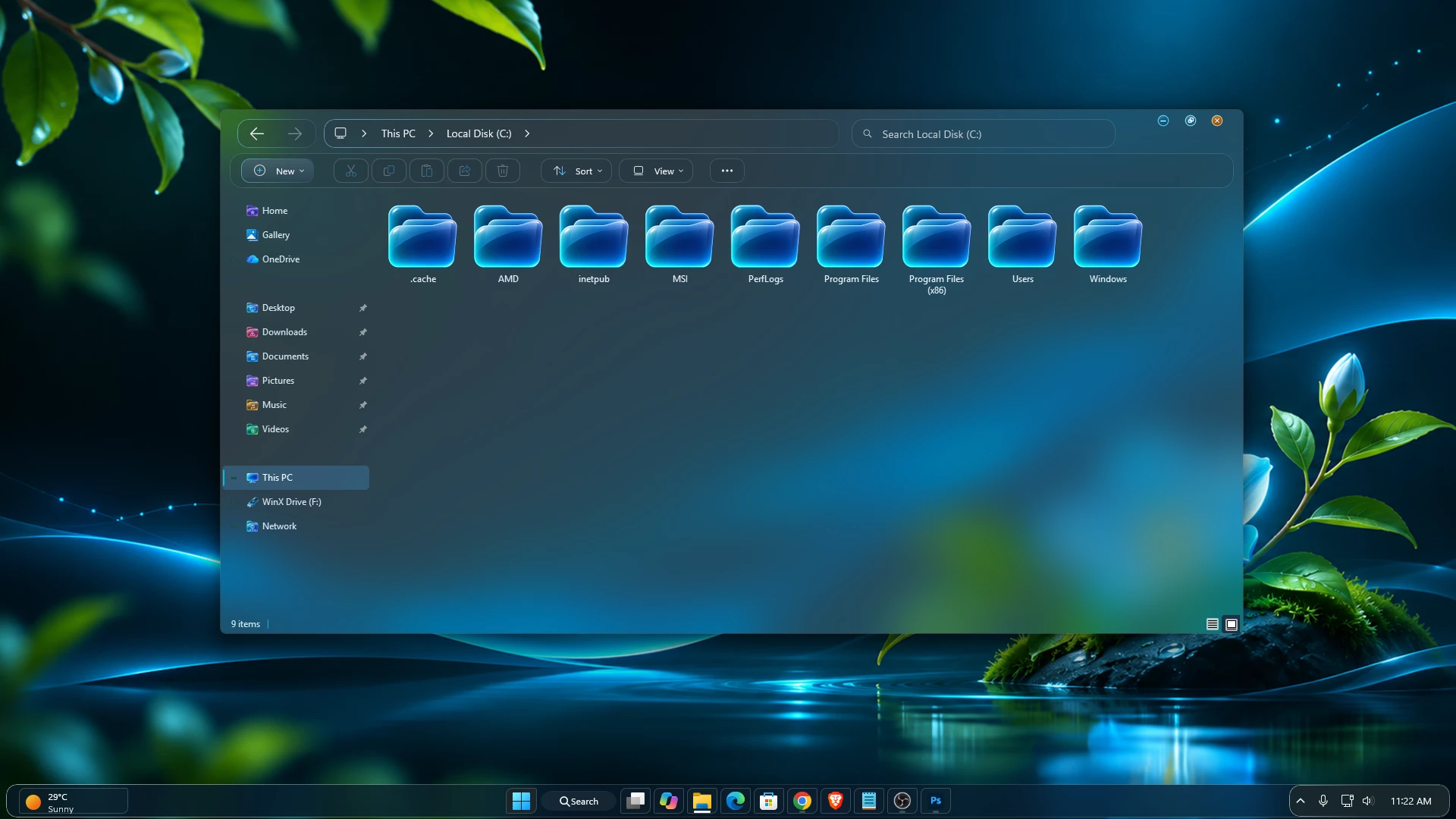
The blue color stands out most in File Explorer. The main area has a dark navy background, while the top bar, address bar, and toolbar use deeper shades. The buttons also have subtle borders that help them stand out without making the interface look too busy.
What I like about this style is that it keeps things familiar. You still have the usual Windows 11 layout, so you won’t need to get used to a completely different interface. It’s mainly the colors, borders, and small design details that give Windows a new look.Omnix also works nicely with a dark desktop setup. Whether you prefer a simple wallpaper or something with matching blue tones, the overall color scheme gives you plenty of room to create a setup that feels right for you.
A Nice Mix of Dark Blue and Cyan
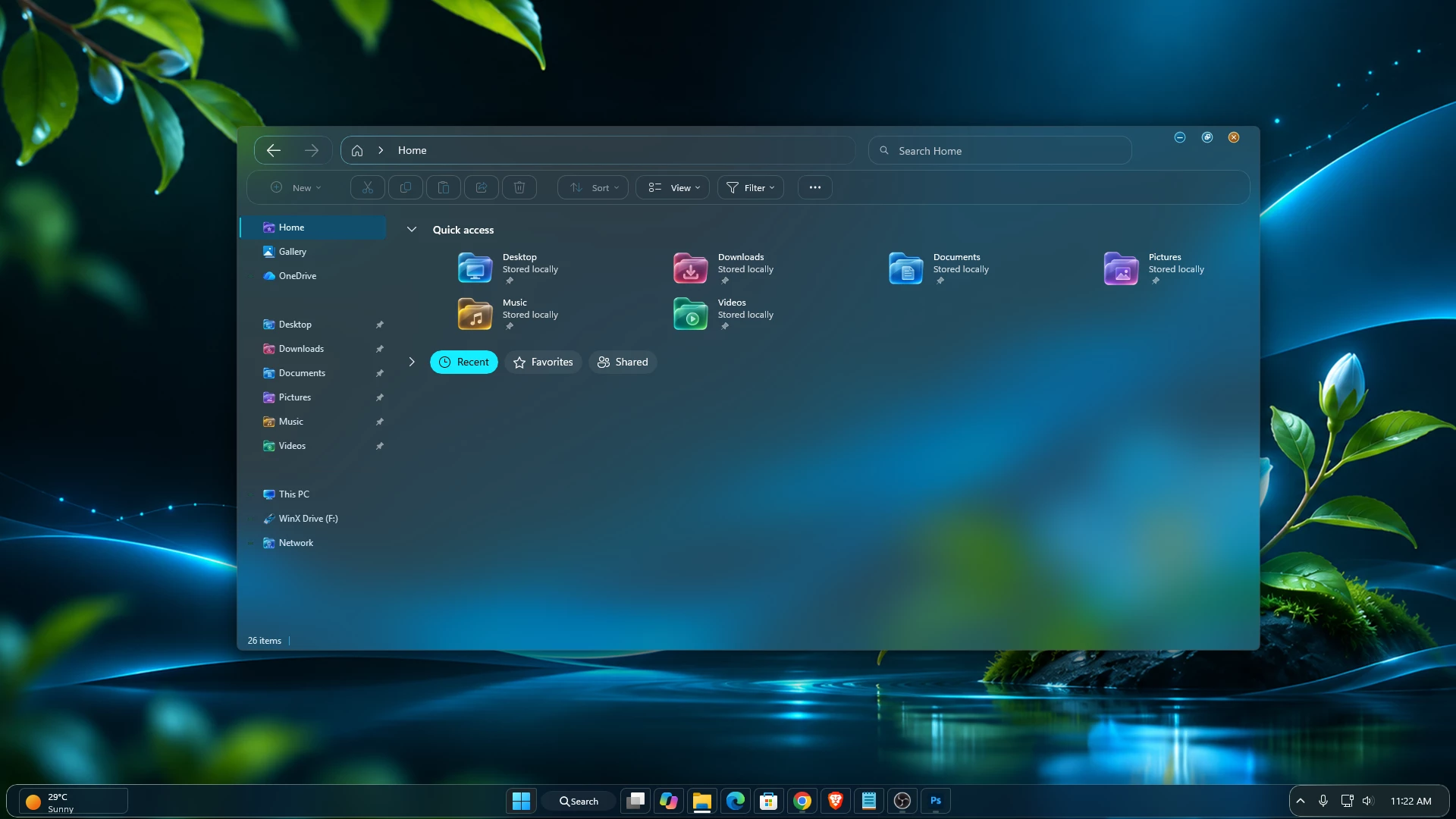
One thing you’ll notice about Omnix is that it doesn’t use the same shade everywhere. The main File Explorer background is dark navy blue, while the upper section around the address bar and toolbar is almost black. This difference in shades gives the window a bit more depth and keeps everything from blending into one flat color. The toolbar buttons have their own dark backgrounds with thin borders around them. You’ll also notice blue highlights in the left navigation panel and a few brighter cyan touches around the interface. These small details add just enough color to break up the darker areas without taking away from the overall look.
The combination of navy blue, blue-black, and cyan gives Omnix its own identity. It’s dark without looking completely black, and the brighter details make the interface feel a little more lively. If you enjoy blue or teal desktop setups, you’ll probably like how these colors work together.Overall, it’s a simple color combination that looks good without trying too hard. The interface stays clean and familiar, while the darker shades give File Explorer a noticeably different appearance.
Features of Omnix Theme
- Dark Navy Colors: A deep blue look for File Explorer and other supported parts of Windows.
- Darker Top Bar: The navigation area uses a near-black color that goes well with the navy background.
- Simple Toolbar Design: Neat buttons with thin borders and softly rounded corners.
- Cyan Details: Small, brighter touches that give the dark theme a little more life.
- Blue Selection Highlights: The active folder or location is easier to find in the sidebar.
- Familiar Layout: File Explorer keeps the controls and navigation you already know.
- Optional Transparency: You can add transparent or blurred effects with compatible Windhawk mods.
A Fresh Look for File Explorer
File Explorer is one of the best parts of Omnix. Instead of the usual grey or black background, you get a deep blue workspace with a darker area across the top.
The address bar, search box, and toolbar buttons have a simple, tidy design. The left sidebar also matches the blue color scheme, with a brighter highlight showing which location is selected.
It’s a noticeable change, but it doesn’t get in the way of opening folders, finding files, or using your drives.
How to Get the Transparent Look with Windhawk
Want to give File Explorer a transparent, blurred look? You can do that with the Windhawk File Explorer Styler mod. There’s no need to install the separate Translucent Windows mod for this effect.
After installing the Windows 11 File Explorer Styler mod, open its Settings and look for these two options:
- Translucent background effect: Select Acrylic from the dropdown menu.
- Translucent background effect region: Select Entire window to apply the effect across the whole File Explorer window.
Save your settings, and File Explorer should now have a nice acrylic blur effect that works well with the Omnix dark blue style.
Note: Make sure Windows Transparency Effects are enabled under Settings > Personalization > Colors. The final appearance may vary depending on your Windows version and settings.
Preview
Compatibility
Omnix Theme is designed for Windows 11. However, custom visual styles may behave differently depending on your Windows version and build. It’s always a good idea to check your system version before applying the theme.
Compatibility with every Windows 11 release has not been confirmed. If you’re using a newer Windows build, create a system restore point before making any changes.
- Windows 11 21H2: Not tested
- Windows 11 22H2: Not tested
- Windows 11 23H2: Not tested
- Windows 11 24H2: Not tested
- Windows 11 25H2: Supported
- Windows 11 26H2 (OS Build 26300.9711): Yes
How to Install Omnix Theme on Windows 11
- Create a Restore Point: Do this first, so you have a way back if something goes wrong. It’s also a good idea to back up important files.
- Check Your Windows Version: Type
winverin the Run box and make sure the theme tools you plan to use support your build. - Set Up a Theme Patcher: If needed, use a compatible tool such as SecureUxTheme or UltraUXThemePatcher. Follow its current instructions.
- Extract the Files: Download and extract the Omnix package, then check the files and any included instructions.
- Copy the Theme Files: If the package includes an Omnix theme folder and a matching
.themefile, copy them toC:\Windows\Resources\Themesas instructed. - Apply Omnix: Go to Settings > Personalization > Themes and select Omnix.
- Add Transparency if You Want: Install Windhawk separately and use the included mod settings for the optional transparent effects.
What’s Included in the Omnix Theme Package?
The Omnix package comes with the main theme files and a few extra items to help you complete the desktop look. Here’s what you’ll find inside:
- Windows 11 Theme: The main Omnix theme files, including the .msstyles file, theme file, and supporting resources.
- Wallpapers: Five matching Omnix wallpapers to go with the dark blue desktop style.
- Windhawk Styles: Three configuration files for File Explorer Styler, Start Menu Styler, and Taskbar Styler.
- Icon Pack: Included in the package.
Note: Windhawk needs to be installed separately. The included style files can then be imported into their respective Windhawk mods.
Google Drive 42 MB
DownloadHow to Remove Omnix Theme
- Switch to a Default Theme: Open Settings > Personalization > Themes and choose one of the standard Windows themes.
- Turn Off Windhawk Mods: Disable the mods you used with Omnix and undo any extra transparency settings.
- Remove the Omnix Files: After switching themes, delete only the Omnix files you added to
C:\Windows\Resources\Themes. Leave the original Windows files alone. - Restart if Needed: Restart File Explorer or your PC. You can also follow our theme removal guide.
Omnix Theme Color Palette
Omnix mainly uses dark blue and blue-black colors, with a few lighter blue and cyan details. Here are some colors that closely match its overall look:
- Deep Navy Blue (#091D31): Main File Explorer background.
- Blue-Black (#000D14): Dark top bar and navigation areas.
- Dark Teal-Charcoal (#0F1F25): Toolbar and button backgrounds.
- Slate Charcoal (#202325): Some of the darker upper controls.
- Selection Blue (#173D5E): Highlighted items in the sidebar.
- Bright Cyan (#15EEFF): Small accent details.
Note: These are approximate colors based on the theme’s appearance. The exact shades may vary across Windows settings, individual theme elements, and Windhawk styles.
Disclaimer
Omnix is an independent Windows customization theme. It is not made or officially supported by Microsoft. Custom themes and Windhawk mods may stop working as expected after a Windows update. Always check compatibility, use trusted software sources, and create a system restore point before installing.
Final Thoughts
Omnix is a good choice if you like dark themes but want something other than plain black. Its navy background, darker toolbar, and small blue highlights give Windows 11 a different feel without changing the layout you’re used to.
You can keep the simple dark blue look or add transparent effects with Windhawk if your Windows version supports the required mods. Either way, the colors are what make Omnix stand out.
Frequently Asked Questions (FAQs)
1. Does Omnix work on every Windows 11 version?
Not necessarily. Custom visual styles can behave differently on different Windows builds. Check compatibility before installing Omnix.
2. Will File Explorer become transparent after I install the theme?
No, not from the theme alone. You’ll need Windhawk and the right mods and settings to add transparency.
3. Is Windhawk required?
You’ll need Windhawk for the extra transparent and blurred effects. The main Omnix visual style is applied using a compatible custom theme installation method.
4. Why does my File Explorer look different?
It may be caused by a different Windows build, missing Windhawk settings, or other customization mods. Check the setup instructions and disable conflicting mods if needed.
5. Can I use Omnix without transparency?
Yes. You can use the dark blue theme without turning on the optional Windhawk transparency effects.
6. Can a Windows update affect Omnix?
Yes. Some updates can change the way custom themes and mods work. Check for compatible versions before using them again.
7. How do I go back to the normal Windows 11 theme?
Select a default theme in Windows Settings, disable the related Windhawk mods, and remove only the Omnix theme files you added. Follow the removal guide above if you need help.
Disclaimer: All themes, visual styles, and concepts shared on this website are unofficial, fan-made creations built from imagination for customization purposes. We are not affiliated with, endorsed by, or sponsored by Microsoft or any other official brand.