

Glassix Split Taskbar Style For Windows 11
Give your Windows 11 desktop a fresh look with Glassix Split Taskbar Style. Enjoy individual glass-style app buttons, subtle depth effects, rounded borders, and a clean floating layout using Windhawk.

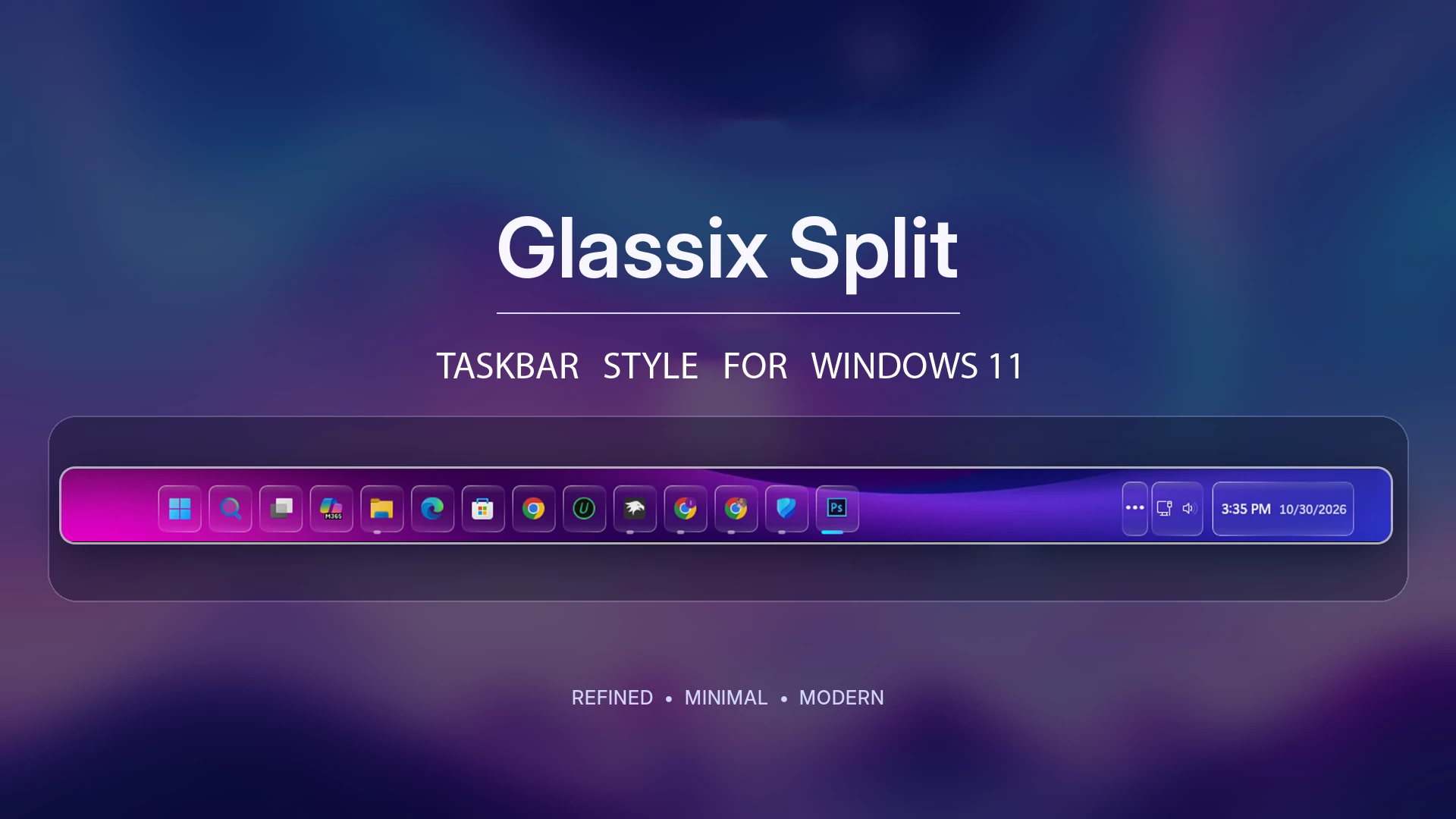
Glassix Split Taskbar Style for Windows 11
Glassix Split Taskbar Style brings a fresh, modern look to the Windows 11 desktop with a clean floating layout, layered depth effects, and neatly arranged app icons. Instead of a traditional solid taskbar, Glassix creates a more refined appearance by splitting every single app and section into individual translucent pill-shaped buttons alongside a separated system tray.
The design combines soft transparency, delicate gradient borders, and subtle depth effects to give the taskbar a polished, premium glass-like finish. Its balanced spacing and rounded elements keep everything organized without making the desktop feel crowded.
Created for use with the Windhawk Windows 11 Taskbar Styler mod, Glassix is a great choice for anyone who enjoys a minimalist desktop with a touch of modern glassmorphism.
Features of Glassix Split Taskbar Style
- Floating Glass App Buttons: Individual rounded glass buttons with subtle depth effects, soft blur, and gradient borders.
- Clean Split Layout: Centered app icons with a separate floating system tray and clock for a modern, organized appearance.
- Invisible Taskbar Track: A subtle background track maintains access to Taskbar Settings while preserving the floating layout.
- Interactive Hover Effects: Smooth transparency changes, gentle highlights, and colored running indicators for active applications.
- Modern System Tray: Rounded translucent panels with neatly arranged system icons, clock, and date.
- Matching Flyouts and Previews: Coordinated glass styling for taskbar previews, flyout menus, and Alt+Tab backgrounds.
- Minimalist Glassmorphism: A clean, balanced design with subtle transparency and depth, without excessive glowing effects.
Customize Your Windows 11 Desktop with Glassix
Glassix works especially well with clean wallpapers, soft gradients, and simple desktop layouts. Its transparent surfaces can blend with different background colors, making it suitable for both colorful and darker desktop setups.
The combination of individually split glass buttons with a depth effect and a separated system tray creates a distinctive look without changing the familiar placement of Windows applications and controls.
Glassix focuses exclusively on the taskbar interface. Wallpapers, third-party icon packs, and complete Windows visual themes are not included as part of this customization.
Why Choose Glassix Split Taskbar Style?
Glassix is a great choice for Windows 11 users who want a cleaner, more modern desktop without making the interface feel complicated. Its floating glass buttons, subtle depth effects, and neatly separated system tray bring a fresh look to the familiar Windows taskbar.
Unlike traditional solid taskbar designs, Glassix focuses on transparency, soft gradient borders, and balanced spacing. It blends beautifully with dark wallpapers, creating a refined, minimalist desktop that feels both stylish and comfortable for everyday use.
Tips for the Best Glassix Experience
For a cleaner and more balanced appearance, we recommend using a dark wallpaper and enabling Windows 11 Dark Mode. Dark backgrounds help the translucent glass buttons, soft gradient borders, and subtle depth effects stand out more naturally.
Keeping your desktop simple with fewer distracting elements can also help the floating taskbar become a more noticeable part of your Windows customization setup.
Compatibility
- Windows 11 21H2: NOt tested
- Windows 11 22H2: Not Tested
- Windows 11 23H2: Not tested
- Windows 11 24H2: Not Tested
- Windows 11 25H2: Yes (Build 26.200.9457)
- Windows 11 26H2:Yes
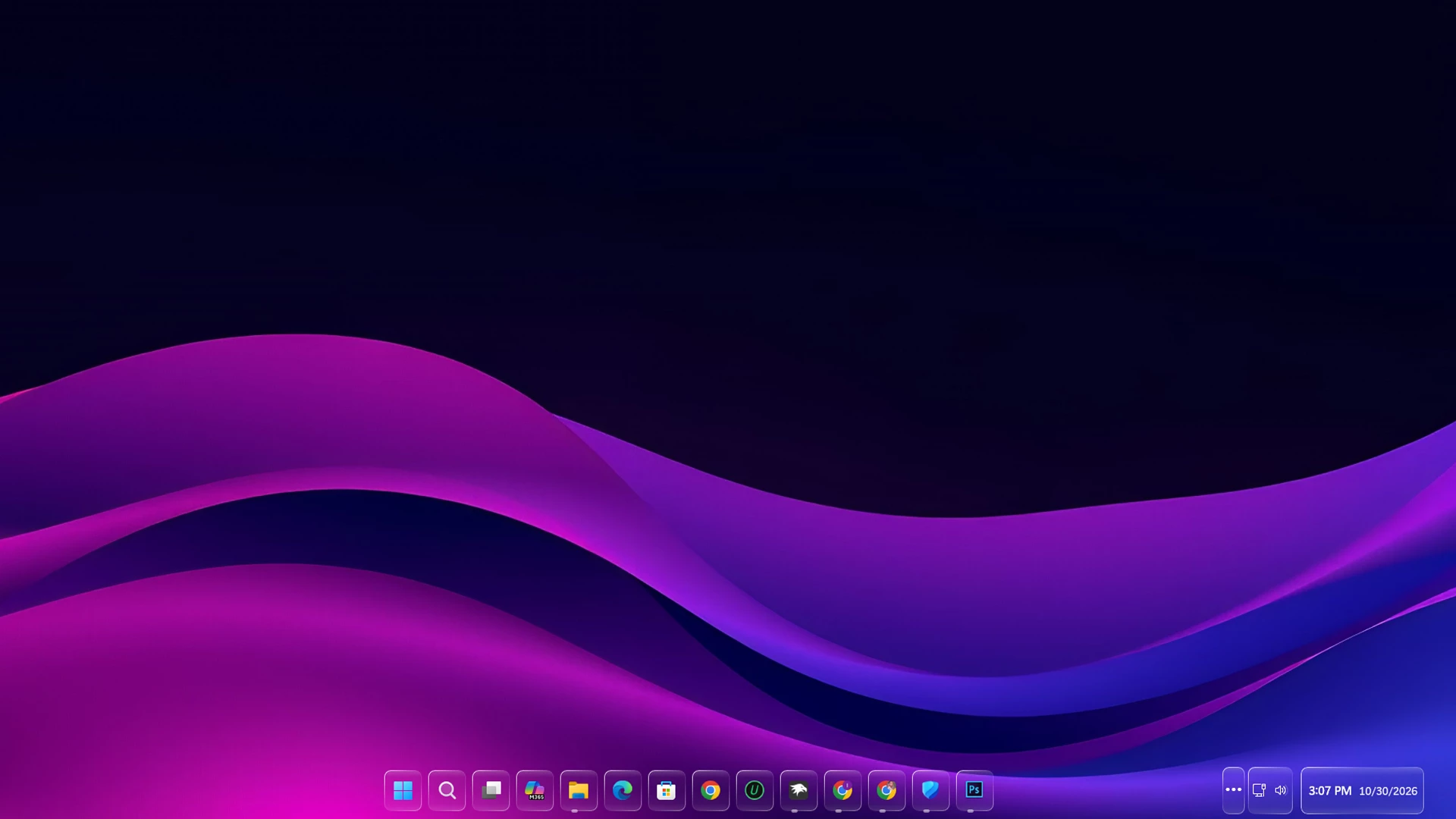
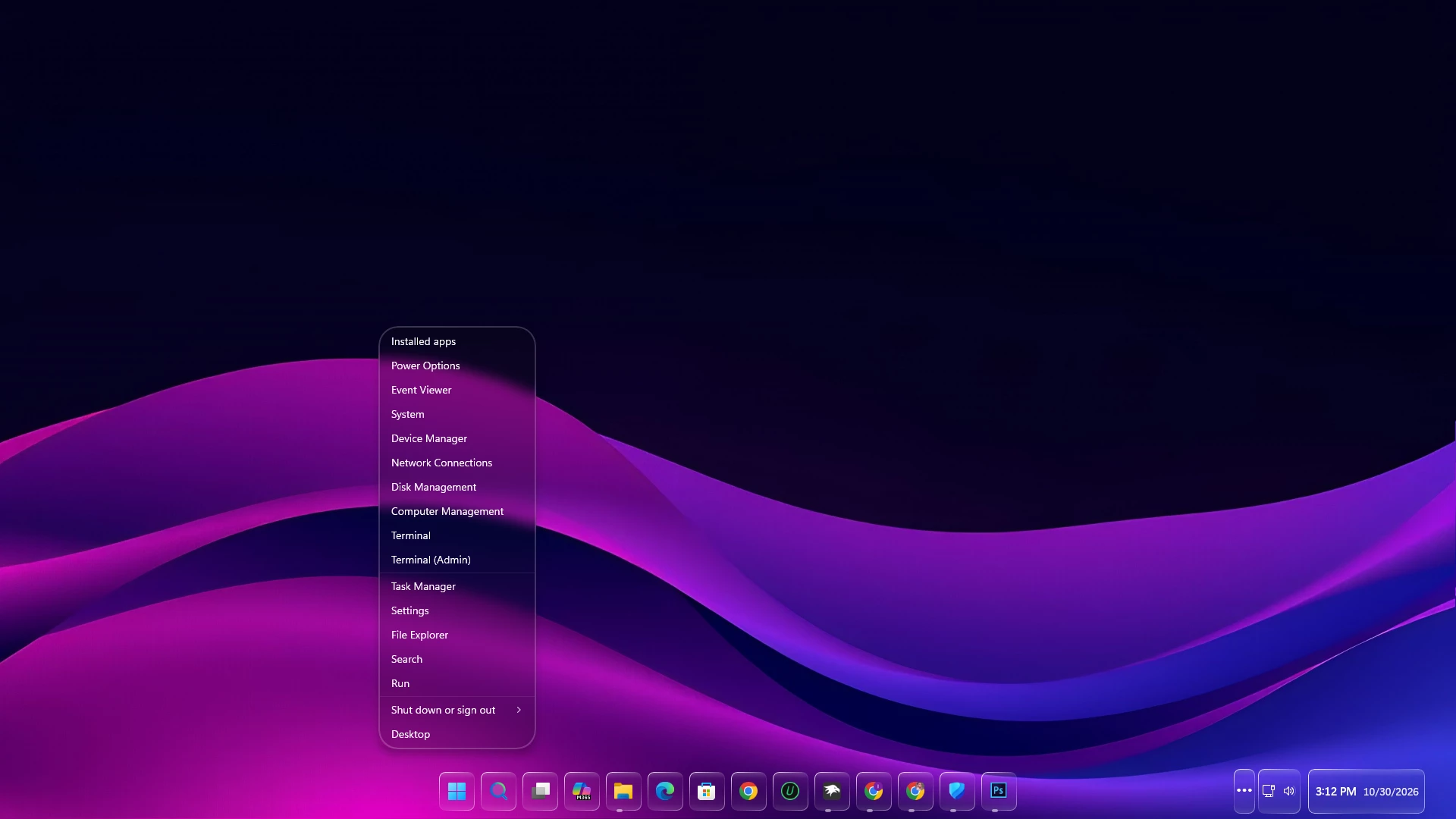
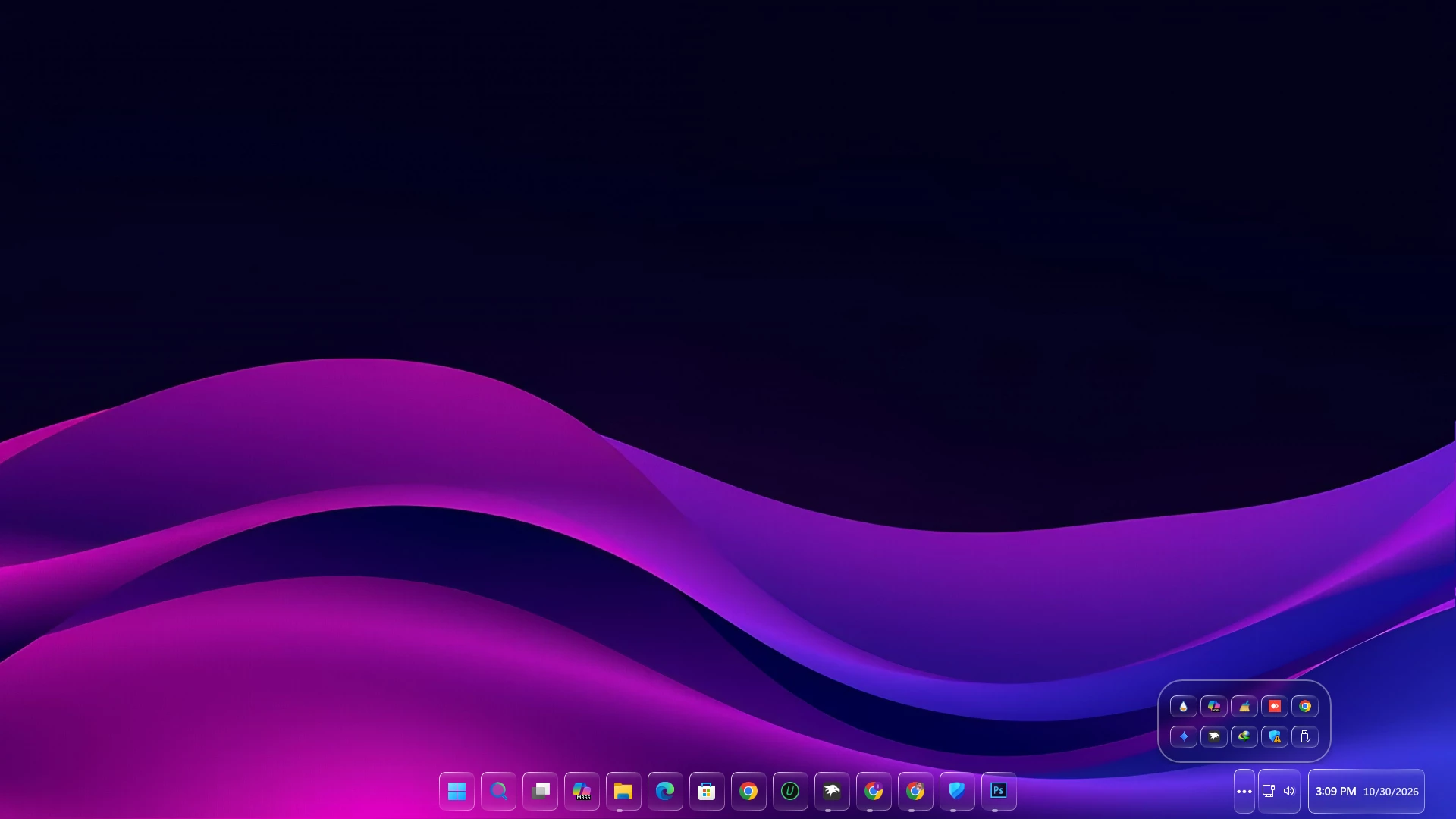
Preview
How to Install
- Before making any changes, always create a system restore point and download files only from trusted sources.
- Download and install Windhawk
- Open Windhawk and install the Windows 11 Taskbar Styler mod
- Go to the Advanced tab
- Paste the provided configuration code into the “Mod settings” box
- Click Save to apply the style
- For more details, visit this GitHub guide
- For Start Menu Style, Check this Start Menu Styles
{ "theme": "Glassix Split Taskbar Style By Link Vegas", "styleConstants[0]": "IconBackground=<LinearGradientBrush StartPoint=\"0,0\" EndPoint=\"0,1\"><GradientStop Color=\"#33FFFFFF\" Offset=\"0.0\"/><GradientStop Color=\"#0AFFFFFF\" Offset=\"0.15\"/><GradientStop Color=\"#05FFFFFF\" Offset=\"0.5\"/><GradientStop Color=\"#0FFFFFFF\" Offset=\"0.85\"/><GradientStop Color=\"#25FFFFFF\" Offset=\"1.0\"/></LinearGradientBrush>", "styleConstants[1]": "IconBorder= <LinearGradientBrush EndPoint=\"1,1\" StartPoint=\"0,0\"><GradientStop Color=\"#F5ffffff\" Offset=\"0.0\"/><GradientStop Color=\"#40ffffff\" Offset=\"0.4\"/><GradientStop Color=\"#20ffffff\" Offset=\"0.6\"/><GradientStop Color=\"#90ffffff\" Offset=\"1.0\"/></LinearGradientBrush>", "styleConstants[2]": "IconHover=<LinearGradientBrush StartPoint=\"0,0\" EndPoint=\"0,1\"><GradientStop Color=\"#4DFFFFFF\" Offset=\"0.0\"/><GradientStop Color=\"#1AFFFFFF\" Offset=\"0.15\"/><GradientStop Color=\"#10FFFFFF\" Offset=\"0.5\"/><GradientStop Color=\"#1FFFFFFF\" Offset=\"0.85\"/><GradientStop Color=\"#3AFFFFFF\" Offset=\"1.0\"/></LinearGradientBrush>", "styleConstants[3]": "IconPressed=<LinearGradientBrush StartPoint=\"0,0\" EndPoint=\"0,1\"><GradientStop Color=\"#1AFFFFFF\" Offset=\"0.0\"/><GradientStop Color=\"#05FFFFFF\" Offset=\"0.15\"/><GradientStop Color=\"#00FFFFFF\" Offset=\"0.5\"/><GradientStop Color=\"#05FFFFFF\" Offset=\"0.85\"/><GradientStop Color=\"#15FFFFFF\" Offset=\"1.0\"/></LinearGradientBrush>", "styleConstants[4]": "IconActive=<LinearGradientBrush StartPoint=\"0,0\" EndPoint=\"0,1\"><GradientStop Color=\"#40FFFFFF\" Offset=\"0.0\"/><GradientStop Color=\"#15FFFFFF\" Offset=\"0.15\"/><GradientStop Color=\"#0AFFFFFF\" Offset=\"0.5\"/><GradientStop Color=\"#15FFFFFF\" Offset=\"0.85\"/><GradientStop Color=\"#30FFFFFF\" Offset=\"1.0\"/></LinearGradientBrush>", "styleConstants[5]": "IconActiveHover=<LinearGradientBrush StartPoint=\"0,0\" EndPoint=\"0,1\"><GradientStop Color=\"#66FFFFFF\" Offset=\"0.0\"/><GradientStop Color=\"#2AFFFFFF\" Offset=\"0.15\"/><GradientStop Color=\"#20FFFFFF\" Offset=\"0.5\"/><GradientStop Color=\"#2AFFFFFF\" Offset=\"0.85\"/><GradientStop Color=\"#4DFFFFFF\" Offset=\"1.0\"/></LinearGradientBrush>", "styleConstants[6]": "IconActivePressed=<LinearGradientBrush StartPoint=\"0,0\" EndPoint=\"0,1\"><GradientStop Color=\"#25FFFFFF\" Offset=\"0.0\"/><GradientStop Color=\"#0AFFFFFF\" Offset=\"0.15\"/><GradientStop Color=\"#05FFFFFF\" Offset=\"0.5\"/><GradientStop Color=\"#0AFFFFFF\" Offset=\"0.85\"/><GradientStop Color=\"#20FFFFFF\" Offset=\"1.0\"/></LinearGradientBrush>", "styleConstants[7]": "transparent = <SolidColorBrush Color=\"Transparent\"/>", "controlStyles[0].target": "Taskbar.TaskbarFrame > Grid#RootGrid@DockingStates", "controlStyles[0].styles[0]": "Tag=horizontal", "controlStyles[0].styles[1]": "Tag@DockedLeft=vertical", "controlStyles[0].styles[2]": "Tag@DockedRight=vertical", "controlStyles[0].styles[3]": "Tag=>taskbarDock", "controlStyles[1].target": "Taskbar.TaskbarFrame", "controlStyles[1].styles[0]": "Grid.Column=1", "controlStyles[1].styles[1]": "Transitions:=<TransitionCollection><RepositionThemeTransition IsStaggeringEnabled=\"False\"/></TransitionCollection>", "controlStyles[1].styles[2]": "Height={{taskbarDock==`vertical`?skip():80}}", "controlStyles[1].styles[3]": "MaxHeight=80", "controlStyles[1].styles[4]": "HorizontalAlignment=Stretch", "controlStyles[2].target": "Grid#IconPanel > Image#Icon, Taskbar.TaskListLabeledButtonPanel#IconPanel > Image#Icon", "controlStyles[2].styles[0]": "Height=24", "controlStyles[2].styles[1]": "Width=24", "controlStyles[2].styles[2]": "Margin=5,0,-5,0", "controlStyles[3].target": "Taskbar.TaskListButtonPanel", "controlStyles[3].styles[0]": "Width=55", "controlStyles[3].styles[1]": "Height=70", "controlStyles[4].target": "Grid#IconPanel, Taskbar.TaskListLabeledButtonPanel", "controlStyles[4].styles[0]": "Width=55", "controlStyles[4].styles[1]": "Height=70", "controlStyles[5].target": "SearchUx.SearchUI.SearchButtonControl > Grid > SearchUx.SearchUI.SearchIconButton > SearchUx.SearchUI.SearchButtonRootGrid#SearchBoxButtonRootPanel", "controlStyles[5].styles[0]": "Width=55", "controlStyles[5].styles[1]": "Height=70", "controlStyles[6].target": "Taskbar.TaskbarFrame > Grid#RootGrid", "controlStyles[6].styles[0]": "Margin=0,8,0,2", "controlStyles[6].styles[1]": "Padding=0,0,0,0", "controlStyles[6].styles[2]": "BorderBrush=$transparent", "controlStyles[6].styles[3]": "Background=$transparent", "controlStyles[7].target": "Taskbar.TaskbarFrame > Grid#RootGrid > Taskbar.TaskbarBackground > Grid > Rectangle#BackgroundFill", "controlStyles[7].styles[0]": "Fill := $transparent", "controlStyles[8].target": "Rectangle#BackgroundStroke", "controlStyles[8].styles[0]": "Fill := $transparent", "controlStyles[9].target": "Windows.UI.Xaml.Controls.FlyoutPresenter", "controlStyles[9].styles[0]": "RequestedTheme=Dark", "controlStyles[9].styles[1]": "Background:=<WindhawkBlur BlurAmount=\"8\" TintColor=\"#2D101010\"/>", "controlStyles[9].styles[2]": "BorderThickness=2", "controlStyles[9].styles[3]": "BorderBrush:=<WindhawkBlur BlurAmount=\"8\" TintColor=\"#30ffffff\"/>", "controlStyles[9].styles[4]": "CornerRadius=33", "controlStyles[9].styles[5]": "Padding=2,3,2,3", "controlStyles[10].target": "Windows.UI.Xaml.Controls.Border#SnapPickerBorder", "controlStyles[10].styles[0]": "RequestedTheme=Dark", "controlStyles[10].styles[1]": "Background:=$transparent", "controlStyles[10].styles[2]": "BorderBrush:=$transparent", "controlStyles[10].styles[3]": "BorderThickness=2", "controlStyles[10].styles[4]": "Margin=0", "controlStyles[11].target": "WindowsInternal.ComposableShell.Experiences.Switcher.AltTab > Grid#ModalRootGrid > Border#BackgroundElement", "controlStyles[11].styles[0]": "Background=$transparent", "controlStyles[11].styles[1]": "BorderThickness=0", "controlStyles[11].styles[2]": "CornerRadius=50", "controlStyles[12].target": "WindowsInternal.ComposableShell.Experiences.Switcher.AltTab > Grid#ModalRootGrid > Border#BackgroundElement > WindowsInternal.ComposableShell.Experiences.Switcher.SwitchItemList", "controlStyles[12].styles[0]": "Background:=<WindhawkBlur BlurAmount=\"8\" TintColor=\"#2D101010\"/>", "controlStyles[12].styles[1]": "BorderThickness=2", "controlStyles[12].styles[2]": "BorderBrush:=<WindhawkBlur BlurAmount=\"8\" TintColor=\"#30ffffff\"/>", "controlStyles[12].styles[3]": "CornerRadius=50", "controlStyles[13].target": "MenuFlyoutPresenter", "controlStyles[13].styles[0]": "CornerRadius=20", "controlStyles[14].target": "MenuFlyoutPresenter > Border", "controlStyles[14].styles[0]": "Background:=<WindhawkBlur BlurAmount=\"8\" TintColor=\"#2D101010\"/>", "controlStyles[14].styles[1]": "BorderThickness=2", "controlStyles[14].styles[2]": "CornerRadius=25", "controlStyles[14].styles[3]": "BorderBrush:=<WindhawkBlur BlurAmount=\"8\" TintColor=\"#30ffffff\"/>", "controlStyles[15].target": "SystemTray.SystemTrayFrame", "controlStyles[15].styles[0]": "Height=80", "controlStyles[15].styles[1]": "Grid.Column=2", "controlStyles[15].styles[2]": "Width=Auto", "controlStyles[15].styles[3]": "HorizontalAlignment=Right", "controlStyles[15].styles[4]": "Margin=25,-2,15,2", "controlStyles[16].target": "StackPanel#SystemTrayFrameGrid, Grid#SystemTrayFrameGrid", "controlStyles[16].styles[0]": "Margin=0,0,0,0", "controlStyles[16].styles[1]": "Height=70", "controlStyles[16].styles[2]": "VerticalAlignment=Bottom", "controlStyles[16].styles[3]": "Padding=10,0,10,0", "controlStyles[16].styles[4]": "Background=$transparent", "controlStyles[16].styles[5]": "BorderBrush=$transparent", "controlStyles[16].styles[6]": "BorderThickness=0", "controlStyles[16].styles[7]": "CornerRadius=20", "controlStyles[16].styles[8]": "Visibility=Visible", "controlStyles[17].target": "Taskbar.TaskListButtonPanel@CommonStates > Grid > Border#BackgroundElement, Taskbar.TaskListButtonPanel@CommonStates > Border#BackgroundElement", "controlStyles[17].styles[0]": "CornerRadius=8", "controlStyles[17].styles[1]": "Margin=2,5.5,2,5.5", "controlStyles[17].styles[2]": "Background:=$IconBackground", "controlStyles[17].styles[3]": "BorderBrush:=$IconBorder", "controlStyles[17].styles[4]": "BorderThickness=1.2", "controlStyles[17].styles[5]": "Background@PointerOver:=$IconHover", "controlStyles[17].styles[6]": "Background@Pressed:=$IconPressed", "controlStyles[17].styles[7]": "Background@Checked:=$IconActive", "controlStyles[17].styles[8]": "Background@CheckedPointerOver:=$IconActiveHover", "controlStyles[18].target": "Taskbar.TaskbarBackground#HoverFlyoutBackgroundControl > Grid > Rectangle#BackgroundStroke", "controlStyles[18].styles[0]": "Fill:=<WindhawkBlur BlurAmount=\"3.5\" TintColor=\"#2D101010\"/>", "controlStyles[18].styles[1]": "Stroke:=<WindhawkBlur BlurAmount=\"8\" TintColor=\"#30ffffff\"/>", "controlStyles[18].styles[2]": "StrokeThickness=5", "controlStyles[18].styles[3]": "RadiusX=14", "controlStyles[18].styles[4]": "RadiusY=14", "controlStyles[18].styles[5]": "Fill:=<WindhawkBlur BlurAmount=\"8\" TintColor=\"#30ffffff\"/>", "controlStyles[19].target": "Taskbar.TaskbarBackground#HoverFlyoutBackgroundControl > Grid > Rectangle#BackgroundFill", "controlStyles[19].styles[0]": "Canvas.ZIndex=0", "controlStyles[19].styles[1]": "Fill:=", "controlStyles[19].styles[2]": "Stroke:=<WindhawkBlur BlurAmount=\"8\" TintColor=\"#30ffffff\"/>", "controlStyles[19].styles[3]": "StrokeThickness=5", "controlStyles[19].styles[4]": "RadiusX=14", "controlStyles[19].styles[5]": "RadiusY=14", "controlStyles[20].target": "Taskbar.FlyoutFrame > Windows.UI.Xaml.Controls.Canvas#HoverFlyoutCanvas > Windows.UI.Xaml.Controls.Grid#HoverFlyoutGrid > Windows.UI.Xaml.Controls.ContentPresenter#HoverFlyoutContent > Taskbar.TaskItemThumbnailList > Microsoft.UI.Xaml.Controls.ItemsRepeater#TaskItemThumbnailListRepeater > Taskbar.TaskItemThumbnailView > Windows.UI.Xaml.Controls.Grid > Windows.UI.Xaml.Controls.Border#BackgroundBorder", "controlStyles[20].styles[0]": "VerticalAlignment=Bottom", "controlStyles[20].styles[1]": "Canvas.ZIndex=1", "controlStyles[20].styles[2]": "Background:=<WindhawkBlur BlurAmount=\"5\" TintColor=\"#761E1E1E\"/>", "controlStyles[20].styles[3]": "Height=25", "controlStyles[20].styles[4]": "CornerRadius=0,0,15,15", "controlStyles[20].styles[5]": "Margin=5,0,5,0", "controlStyles[21].target": "Border#HoverFlyoutBackground", "controlStyles[21].styles[0]": "Margin=4,36,4,0", "controlStyles[21].styles[1]": "Canvas.ZIndex=1", "controlStyles[21].styles[2]": "Width=Auto", "controlStyles[21].styles[3]": "Background:=$transparent", "controlStyles[21].styles[4]": "BorderThickness=0", "controlStyles[21].styles[5]": "CornerRadius=15", "controlStyles[22].target": "Microsoft.UI.Xaml.Controls.ItemsRepeater#ThumbBarRepeater > Taskbar.ThumbBarButton#ThumbBarButton > Windows.UI.Xaml.Controls.ContentPresenter#BorderElement", "controlStyles[22].styles[0]": "Background:=<WindhawkBlur BlurAmount=\"8\" TintColor=\"#761E1E1E\"/>", "controlStyles[22].styles[1]": "Margin=0,-20,0,20", "controlStyles[23].target": "Microsoft.UI.Xaml.Controls.ItemsRepeater#IconsRepeater > Windows.UI.Xaml.Controls.Image", "controlStyles[23].styles[0]": "Visibility=Collapsed", "controlStyles[24].target": "Windows.UI.Xaml.Controls.Button#CloseButton", "controlStyles[24].styles[0]": "HorizontalAlignment=left", "controlStyles[24].styles[1]": "Grid.ColumnSpan=1", "controlStyles[24].styles[2]": "Grid.RowSpan=1", "controlStyles[24].styles[3]": "Canvas.ZIndex=1", "controlStyles[24].styles[4]": "CornerRadius=20", "controlStyles[24].styles[5]": "Width=28", "controlStyles[24].styles[6]": "Height=28", "controlStyles[24].styles[7]": "Margin=-18,40,15,-40", "controlStyles[24].styles[8]": "Background:=<WindhawkBlur BlurAmount=\"8\" TintColor=\"#80ffffff\"/>", "controlStyles[24].styles[9]": "Foreground=black", "controlStyles[24].styles[10]": "BorderBrush:=<WindhawkBlur BlurAmount=\"8\" TintColor=\"#761E1E1E\"/>", "controlStyles[25].target": "Taskbar.FlyoutFrame > Windows.UI.Xaml.Controls.Canvas#HoverFlyoutCanvas > Windows.UI.Xaml.Controls.Grid#HoverFlyoutGrid > Windows.UI.Xaml.Controls.ContentPresenter#HoverFlyoutContent > Taskbar.TaskItemThumbnailList > Microsoft.UI.Xaml.Controls.ItemsRepeater#TaskItemThumbnailListRepeater > Taskbar.TaskItemThumbnailView > Windows.UI.Xaml.Controls.Grid > Windows.UI.Xaml.Controls.TextBlock#DisplayNameTextBlock", "controlStyles[25].styles[0]": "Grid.ColumnSpan=2", "controlStyles[25].styles[1]": "Grid.RowSpan=2", "controlStyles[25].styles[2]": "VerticalAlignment=bottom", "controlStyles[25].styles[3]": "HorizontalAlignment=Center", "controlStyles[25].styles[4]": "Margin=0,-5,0,5", "controlStyles[25].styles[5]": "Canvas.ZIndex=1", "controlStyles[26].target": "Border#OverflowFlyoutBackgroundBorder", "controlStyles[26].styles[0]": "Background:=<WindhawkBlur BlurAmount=\"8\" TintColor=\"#2D101010\"/>", "controlStyles[26].styles[1]": "BorderBrush:=<WindhawkBlur BlurAmount=\"8\" TintColor=\"#60ffffff\"/>", "controlStyles[26].styles[2]": "BorderThickness=2", "controlStyles[26].styles[3]": "CornerRadius=32,32,30,30", "controlStyles[26].styles[4]": "Margin=-10", "controlStyles[27].target": "Grid#IconPanel > TextBlock#LabelControl, Taskbar.TaskListLabeledButtonPanel > TextBlock#LabelControl", "controlStyles[27].styles[0]": "Margin=4,0,0,0", "controlStyles[27].styles[1]": "Foreground=White", "controlStyles[28].target": "Taskbar.SearchBoxButton", "controlStyles[28].styles[0]": "Background=$transparent", "controlStyles[28].styles[1]": "CornerRadius=8", "controlStyles[28].styles[2]": "Margin=2,6,2,6", "controlStyles[28].styles[3]": "BorderBrush=$transparent", "controlStyles[28].styles[4]": "BorderThickness=0", "controlStyles[29].target": "Grid#IconPanel@RunningIndicatorStates > Rectangle#RunningIndicator, Taskbar.TaskListLabeledButtonPanel@RunningIndicatorStates > Rectangle#RunningIndicator", "controlStyles[29].styles[0]": "Height=4", "controlStyles[29].styles[1]": "RadiusX=2", "controlStyles[29].styles[2]": "RadiusY=2", "controlStyles[29].styles[3]": "HorizontalAlignment=Center", "controlStyles[29].styles[4]": "VerticalAlignment=Bottom", "controlStyles[29].styles[5]": "Margin=0,0,0,3", "controlStyles[29].styles[6]": "Width=8", "controlStyles[29].styles[7]": "Fill=#80FFFFFF", "controlStyles[29].styles[8]": "Width@ActiveRunningIndicator=24", "controlStyles[29].styles[9]": "Fill@ActiveRunningIndicator:=<LinearGradientBrush StartPoint=\"0,0\" EndPoint=\"1,0\"><GradientStop Color=\"#00F2FE\" Offset=\"0.0\"/><GradientStop Color=\"#4FACFE\" Offset=\"1.0\"/></LinearGradientBrush>", "controlStyles[29].styles[10]": "Width@RequestingAttentionRunningIndicator=24", "controlStyles[29].styles[11]": "Fill@RequestingAttentionRunningIndicator=#FF453A", "controlStyles[30].target": "TextBlock#SearchBoxTextBlock", "controlStyles[30].styles[0]": "FontSize=12", "controlStyles[30].styles[1]": "Foreground=White", "controlStyles[31].target": "Grid", "controlStyles[31].styles[0]": "RequestedTheme=2", "controlStyles[32].target": "Border#MultiWindowElement", "controlStyles[32].styles[0]": "Visibility=Collapsed", "controlStyles[33].target": "SystemTray.TextIconContent > Grid > SystemTray.AdaptiveTextBlock#Base > TextBlock", "controlStyles[33].styles[0]": "Foreground=White", "controlStyles[34].target": "Taskbar.AugmentedEntryPointButton#AugmentedEntryPointButton", "controlStyles[34].styles[0]": "Margin=-12,0,0,0", "controlStyles[35].target": "SearchUx.SearchUI.SearchButtonControl > Grid > SearchUx.SearchUI.SearchIconButton > SearchUx.SearchUI.SearchButtonRootGrid#SearchBoxButtonRootPanel@CommonStates > Grid > Border#BackgroundElement, SearchUx.SearchUI.SearchButtonControl > Grid > SearchUx.SearchUI.SearchIconButton > SearchUx.SearchUI.SearchButtonRootGrid#SearchBoxButtonRootPanel@CommonStates > Border#BackgroundElement", "controlStyles[35].styles[0]": "Margin=2,5.5,2,5.5", "controlStyles[35].styles[1]": "CornerRadius=8", "controlStyles[35].styles[2]": "Background:=$IconBackground", "controlStyles[35].styles[3]": "BorderBrush:=$IconBorder", "controlStyles[35].styles[4]": "BorderThickness=1.2", "controlStyles[35].styles[5]": "Background@PointerOver:=$IconHover", "controlStyles[35].styles[6]": "Background@Pressed:=$IconPressed", "controlStyles[36].target": "Grid#IconPanel@CommonStates > Border#BackgroundElement, Taskbar.TaskListLabeledButtonPanel@CommonStates > Border#BackgroundElement", "controlStyles[36].styles[0]": "CornerRadius=8", "controlStyles[36].styles[1]": "Margin=2,5.5,2,5.5", "controlStyles[36].styles[2]": "Background:=$IconBackground", "controlStyles[36].styles[3]": "BorderBrush:=$IconBorder", "controlStyles[36].styles[4]": "BorderThickness=1.2", "controlStyles[36].styles[5]": "Background@InactiveNormal:=$IconBackground", "controlStyles[36].styles[6]": "Background@InactivePointerOver:=$IconHover", "controlStyles[36].styles[7]": "Background@InactivePressed:=$IconPressed", "controlStyles[36].styles[8]": "Background@ActiveNormal:=$IconActive", "controlStyles[36].styles[9]": "Background@ActivePointerOver:=$IconActiveHover", "controlStyles[36].styles[10]": "Background@ActivePressed:=$IconActivePressed", "controlStyles[37].target": "Windows.UI.Xaml.Controls.Grid#ConfirmatorMainGrid", "controlStyles[37].styles[0]": "Background:=<WindhawkBlur BlurAmount=\"8\" TintColor=\"#2D101010\"/>", "controlStyles[37].styles[1]": "CornerRadius=24", "controlStyles[37].styles[2]": "BorderBrush:=<WindhawkBlur BlurAmount=\"8\" TintColor=\"#30ffffff\"/>", "controlStyles[37].styles[3]": "BorderThickness=2", "controlStyles[37].styles[4]": "Margin=0,0,0,10", "controlStyles[38].target": "Windows.UI.Xaml.Controls.Grid.Border#ConfirmatorMainGrid", "controlStyles[38].styles[0]": "Background:=<WindhawkBlur BlurAmount=\"8\" TintColor=\"#2D101010\"/>", "controlStyles[39].target": "Windows.UI.Xaml.Shapes.Rectangle#HorizontalTrackRect", "controlStyles[39].styles[0]": "Fill=#20ffffff", "controlStyles[39].styles[1]": "RadiusX=12", "controlStyles[39].styles[2]": "RadiusY=12", "controlStyles[39].styles[3]": "Height=18", "controlStyles[39].styles[4]": "Margin=0", "controlStyles[40].target": "Windows.UI.Xaml.Shapes.Rectangle#HorizontalDecreaseRect", "controlStyles[40].styles[0]": "Fill:=<SolidColorBrush Color=\"{ThemeResource SystemAccentColor}\" />", "controlStyles[40].styles[1]": "RadiusX=12", "controlStyles[40].styles[2]": "RadiusY=12", "controlStyles[40].styles[3]": "Height=18", "controlStyles[41].target": "Windows.UI.Xaml.Controls.Grid#VolumeConfirmator", "controlStyles[41].styles[0]": "Padding=8,0,8,0", "controlStyles[42].target": "Windows.UI.Xaml.Controls.Grid#BrightnessConfirmator", "controlStyles[42].styles[0]": "Padding=8,0,8,0", "controlStyles[43].target": "Windows.UI.Xaml.Controls.TextBlock#volumeLevelText", "controlStyles[43].styles[0]": "Foreground=White", "controlStyles[44].target": "SystemTray.ChevronIconView > Grid#ContainerGrid > ContentPresenter#ContentPresenter > Grid#ContentGrid > SystemTray.TextIconContent > Grid > SystemTray.AdaptiveTextBlock#Base > TextBlock#InnerTextBlock", "controlStyles[44].styles[0]": "Text=•••", "controlStyles[44].styles[1]": "FontSize=18", "controlStyles[44].styles[2]": "FontFamily=Segoe UI", "controlStyles[44].styles[3]": "Foreground=White", "controlStyles[44].styles[4]": "Margin=0,-5,0,0", "controlStyles[45].target": "SystemTray.ChevronIconView > Grid#ContainerGrid > ContentPresenter#ContentPresenter > Grid#ContentGrid > Viewbox", "controlStyles[45].styles[0]": "Visibility=Collapsed", "controlStyles[46].target": "SystemTray.DateTimeIconContent > Grid#ContainerGrid", "controlStyles[46].styles[0]": "CornerRadius=8", "controlStyles[46].styles[1]": "Margin=4,5.5,0,5.5", "controlStyles[46].styles[2]": "Background:=$IconBackground", "controlStyles[46].styles[3]": "BorderBrush:=$IconBorder", "controlStyles[46].styles[4]": "BorderThickness=1.2", "controlStyles[46].styles[5]": "Padding=8,0,8,0", "controlStyles[47].target": "SystemTray.DateTimeIconContent > Grid#ContainerGrid > StackPanel", "controlStyles[47].styles[0]": "Orientation=Horizontal", "controlStyles[47].styles[1]": "HorizontalAlignment=Center", "controlStyles[47].styles[2]": "VerticalAlignment=Center", "controlStyles[48].target": "TextBlock#TimeInnerTextBlock", "controlStyles[48].styles[0]": "Foreground=White", "controlStyles[48].styles[1]": "FontWeight=SemiBold", "controlStyles[48].styles[2]": "FontSize=15", "controlStyles[48].styles[3]": "Margin=0,0,8,0", "controlStyles[48].styles[4]": "FontFamily=Segoe UI Variable Display, Segoe UI", "controlStyles[49].target": "TextBlock#DateInnerTextBlock", "controlStyles[49].styles[0]": "Foreground=#E6FFFFFF", "controlStyles[49].styles[1]": "FontWeight=Medium", "controlStyles[49].styles[2]": "FontSize=14", "controlStyles[49].styles[3]": "Margin=0,1,0,0", "controlStyles[49].styles[4]": "FontFamily=Segoe UI Variable Display, Segoe UI", "controlStyles[50].target": "Taskbar.WidgetsButton Taskbar.TaskListLabeledButtonPanel > Border#BackgroundElement", "controlStyles[50].styles[0]": "CornerRadius=8", "controlStyles[50].styles[1]": "Margin=2,5.5,2,5.5", "controlStyles[50].styles[2]": "Background:=$IconBackground", "controlStyles[50].styles[3]": "BorderBrush:=$IconBorder", "controlStyles[50].styles[4]": "BorderThickness=1.2", "controlStyles[51].target": "Taskbar.ExperienceToggleButton#LaunchListButton[AutomationProperties.AutomationId=StartButton] > Taskbar.TaskListButtonPanel > Grid > Border#BackgroundElement, Taskbar.ExperienceToggleButton#LaunchListButton[AutomationProperties.AutomationId=StartButton] > Taskbar.TaskListButtonPanel > Border#BackgroundElement", "controlStyles[51].styles[0]": "CornerRadius=8", "controlStyles[51].styles[1]": "Margin=2,5.5,2,5.5", "controlStyles[51].styles[2]": "Background:=$IconBackground", "controlStyles[51].styles[3]": "BorderBrush:=$IconBorder", "controlStyles[51].styles[4]": "BorderThickness=1.2", "controlStyles[52].target": "SystemTray.NotifyIconView@CommonStates > Grid#ContainerGrid > Border#BackgroundBorder", "controlStyles[52].styles[0]": "CornerRadius=8", "controlStyles[52].styles[1]": "Background:=$IconBackground", "controlStyles[52].styles[2]": "BorderBrush:=$IconBorder", "controlStyles[52].styles[3]": "BorderThickness=1.2", "controlStyles[52].styles[4]": "Margin=2,5.5,2,5.5", "controlStyles[52].styles[5]": "Background@PointerOver:=$IconHover", "controlStyles[52].styles[6]": "Background@Pressed:=$IconPressed", "controlStyles[53].target": "SystemTray.OmniButton#ControlCenterButton@CommonStates > Grid > Border#BackgroundBorder", "controlStyles[53].styles[0]": "CornerRadius=8", "controlStyles[53].styles[1]": "Background:=$IconBackground", "controlStyles[53].styles[2]": "BorderBrush:=$IconBorder", "controlStyles[53].styles[3]": "BorderThickness=1.2", "controlStyles[53].styles[4]": "Margin=2,5.5,2,5.5", "controlStyles[53].styles[5]": "Background@PointerOver:=$IconHover", "controlStyles[53].styles[6]": "Background@Pressed:=$IconPressed", "controlStyles[54].target": "SystemTray.ChevronIconView@CommonStates > Grid#ContainerGrid > Border#BackgroundBorder", "controlStyles[54].styles[0]": "CornerRadius=8", "controlStyles[54].styles[1]": "Background:=$IconBackground", "controlStyles[54].styles[2]": "BorderBrush:=$IconBorder", "controlStyles[54].styles[3]": "BorderThickness=1.2", "controlStyles[54].styles[4]": "Margin=2,5.5,2,5.5", "controlStyles[54].styles[5]": "Background@PointerOver:=$IconHover", "controlStyles[54].styles[6]": "Background@Pressed:=$IconPressed"}How to Remove
- Open Windhawk on your computer.
- Go to your installed mods.
- Find Taskbar Styler and disable it.
- If you installed Taskbar Height and Icon Size for this setup, disable it as well.
- Wait a few seconds for the Windows taskbar to refresh.
Disclaimer
This design is created for personal customization purposes only, based on creative imagination and independent design ideas. It is not an official Microsoft or Windows product and is not affiliated with, endorsed by, or sponsored by Microsoft.
Final Thoughts
Glassix Split Taskbar Style gives Windows 11 a clean, modern look with floating glass app buttons, subtle depth effects, soft gradient borders, and a neatly separated system tray. Its minimalist design adds a premium touch without unnecessary visual clutter, making it a great choice for a stylish and organized desktop.
Frequently Asked Questions
Does Glassix Split Taskbar Style work on Windows 11?
Glassix is designed for Windows 11 using the Windhawk Taskbar Styler mod. Compatibility depends on the Windows build and the version of the mod installed on your computer.
Do I need Windhawk to use this taskbar style?
Yes. Glassix uses the Windows 11 Taskbar Styler mod, which runs through Windhawk. You need the mod installed and enabled to apply the customization.
Can I change the taskbar colors?
Yes. The configuration includes customizable values for button backgrounds, borders, hover effects, and active states. You can edit these values to create a look that better matches your wallpaper or desktop theme.
Will Glassix change my application icons?
No. Glassix mainly changes the taskbar layout, backgrounds, borders, and related interface styling. Your existing application icons remain in place unless you customize them separately.
Can I restore the original Windows 11 taskbar?
Yes. Disabling the Windows 11 Taskbar Styler mod stops the Glassix styling. You can also restore your previous configuration or remove the mod completely.
You may also like


Disclaimer: All themes, visual styles, and concepts shared on this website are unofficial, fan-made creations built from imagination for customization purposes. We are not affiliated with, endorsed by, or sponsored by Microsoft or any other official brand.