

Glance 2.0 Taskbar Style For Windows 11
Upgrade your desktop with Glance 2.0 Taskbar Style using Windhawk. Enjoy a clean, modern, and minimal Windows taskbar with better design, spacing, and performance.

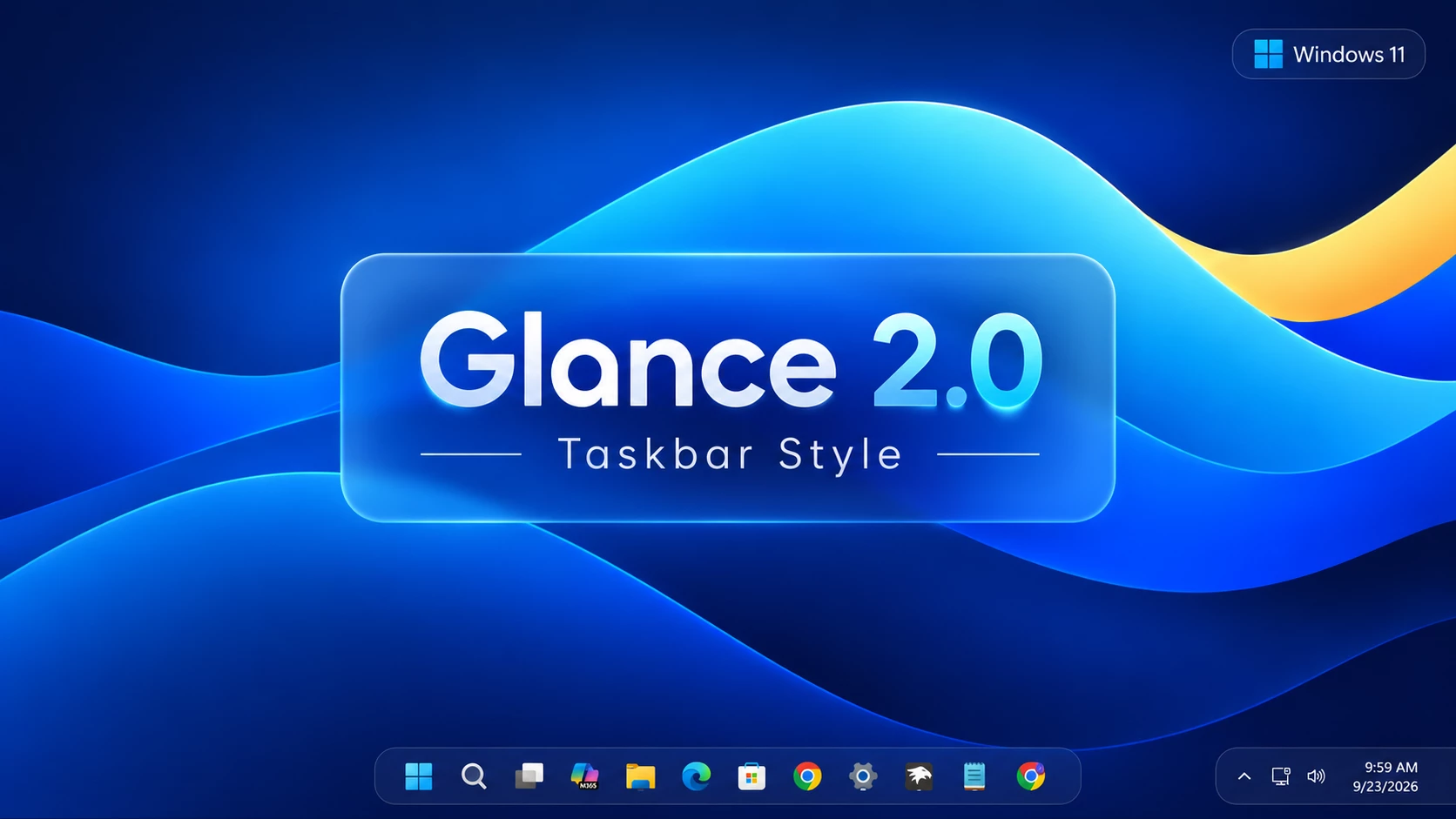
Glance 2.0 Taskbar Style For Windows 11 (Windhawk)
Glance 2.0 Taskbar Style is a modern Windows 11 customization created for users who want a cleaner, more elegant desktop experience. Built with Windhawk, this taskbar modification transforms the default Windows 11 taskbar into a floating glass-style interface with improved spacing, transparency, and a minimal design approach.
Unlike the standard Windows 11 taskbar, Glance 2.0 separates the taskbar into two independent sections. The main taskbar area contains the Start button, search, and pinned application icons, while the system tray section on the right handles notification icons, network, volume, battery, and clock. Each section uses separate styling classifications, creating a balanced and premium floating effect.
The design focuses on simplicity and visual balance. The transparent glass background blends naturally with modern wallpapers, while the rounded corners and smooth spacing create a cleaner desktop appearance. This style is perfect for users who prefer minimal setups, macOS-inspired layouts, or modern Windows customization.
Features of Glance 2.0 Taskbar Style
- Floating glass-style Windows 11 taskbar design
- Separate main taskbar and system tray panels
- Rounded corners with smooth modern UI appearance
- Transparent background effect matching Windows 11 design language
- Improved icon spacing for a cleaner layout
- Minimal and distraction-free desktop experience
- Works perfectly with dark, gradient, and abstract wallpapers
- Created using Windhawk Taskbar Styler customization
- Keeps original Windows taskbar functionality
Download Windhawk To Use This Style
Compatibility
- Windows 11 21H2: May work, but not recommended
- Windows 11 22H2: May work, compatibility can vary
- Windows 11 23H2: Recommended
- Windows 11 24H2: Recommended
- Windows 11 25H2: Works, but test after major Windows updates
Installation Steps
- Download and install Windhawk.
- Open Windhawk and install the Windows 11 Taskbar Styler mod.
- Open the installed Taskbar Styler mod settings.
- Go to the Advanced tab.
- Copy the Glance 2.0 configuration code into the Mod settings box.
- Click Save and restart Windows Explorer if required.
{ "theme": "Glance Taskbar by WinX - Fixed", "controlStyles[0].target": "Grid#RootGrid > Taskbar.TaskbarBackground > Grid", "controlStyles[0].styles[0]": "CornerRadius=20", "controlStyles[0].styles[1]": "BorderThickness=1", "controlStyles[0].styles[2]": "Margin=-20,0,-20,0", "controlStyles[0].styles[3]": "BorderBrush=#40FFFFFF", "controlStyles[0].styles[4]": "Padding=-1", "controlStyles[1].target": "Rectangle#BackgroundStroke", "controlStyles[1].styles[0]": "Fill=Transparent", "controlStyles[2].target": "Taskbar.TaskbarFrame", "controlStyles[2].styles[0]": "Width=Auto", "controlStyles[2].styles[1]": "HorizontalAlignment=Center", "controlStyles[3].target": "Taskbar.TaskbarFrame > Grid#RootGrid", "controlStyles[3].styles[0]": "Visibility=Visible", "controlStyles[3].styles[1]": "Margin=0,0,0,10", "controlStyles[3].styles[2]": "Padding=20,0,20,0", "controlStyles[4].target": "StackPanel#SystemTrayFrameGrid, Grid#SystemTrayFrameGrid", "controlStyles[4].styles[0]": "Margin=0,0,0,10", "controlStyles[4].styles[1]": "CornerRadius=20,0,0,20", "controlStyles[4].styles[2]": "BorderThickness=1,1,0,1", "controlStyles[4].styles[3]": "BorderBrush=#66FFFFFF", "controlStyles[4].styles[4]": "Padding=10,5,0,5", "controlStyles[4].styles[5]": "Background:=#12FFFFFF", "controlStyles[4].styles[6]": "Visibility=Visible", "controlStyles[5].target": "Taskbar.TaskbarFrame > Grid#RootGrid > Taskbar.TaskbarBackground > Grid > Rectangle#BackgroundFill", "controlStyles[5].styles[0]": "Fill:=<WindhawkBlur BlurAmount=\"5\" TintColor=\"#12FFFFFF\"/>", "controlStyles[6].target": "Taskbar.TaskListLabeledButtonPanel@RunningIndicatorStates > Grid > Border#BackgroundElement, Taskbar.TaskListLabeledButtonPanel@RunningIndicatorStates > Border#BackgroundElement, Grid#IconPanel@RunningIndicatorStates > Border#BackgroundElement", "controlStyles[6].styles[0]": "Background:=<AcrylicBrush TintColor=\"{ThemeResource SystemChromeAltHighColor}\" TintOpacity=\"0.9\" FallbackColor=\"{ThemeResource SystemChromeMediumColor}\" />", "controlStyles[6].styles[1]": "Margin=-1,5.5,1,4", "controlStyles[6].styles[2]": "CornerRadius=12", "controlStyles[6].styles[3]": "BorderThickness=2,1,0.5,2", "controlStyles[6].styles[4]": "BorderBrush:=<LinearGradientBrush StartPoint=\"0,0\" EndPoint=\"0.5,1\"><GradientStop Color=\"#0AB3A3A\" Offset=\"0\" /><GradientStop Color=\"#33AB3A3A\" Offset=\"1.5\" /></LinearGradientBrush>", "controlStyles[7].target": "Taskbar.TaskListButtonPanel#ExperienceToggleButtonRootPanel > Grid > Border#BackgroundElement, Taskbar.TaskListButtonPanel#ExperienceToggleButtonRootPanel > Border#BackgroundElement", "controlStyles[7].styles[0]": "Background:=<AcrylicBrush TintColor=\"{ThemeResource SystemChromeAltHighColor}\" TintOpacity=\"0.8\" FallbackColor=\"{ThemeResource SystemChromeLowColor}\" />", "controlStyles[7].styles[1]": "CornerRadius=12", "controlStyles[7].styles[2]": "Margin=-1,5.5,2.5,4", "controlStyles[7].styles[3]": "BorderThickness=2,1,0.5,2", "controlStyles[7].styles[4]": "BorderBrush:=<LinearGradientBrush StartPoint=\"0,0\" EndPoint=\"0.5,1\"><GradientStop Color=\"#0AB3A3A\" Offset=\"0\" /><GradientStop Color=\"#33AB3A3A\" Offset=\"1.5\" /></LinearGradientBrush>", "controlStyles[8].target": "Grid#IconPanel@CommonStates > Rectangle#RunningIndicator, Taskbar.TaskListLabeledButtonPanel@CommonStates > Rectangle#RunningIndicator, Taskbar.TaskListLabeledButtonPanel@RunningIndicatorStates > Rectangle", "controlStyles[8].styles[0]": "Margin=0,0,0,8", "controlStyles[9].target": "Border#MultiWindowElement", "controlStyles[9].styles[0]": "Height=0"}Required Windhawk Mods Taskbar Height & Icon Size for similar results
To achieve similar results, install and configure the following Windhawk mods in addition to Taskbar Styler
{ "TaskbarHeight": 65, "IconSize": 28, "TaskbarButtonWidth": 52, "IconSizeSmall": 16, "TaskbarButtonWidthSmall": 32}How Glance 2.0 Works
Glance 2.0 uses Windhawk Taskbar Styler classifications to customize different parts of the Windows 11 taskbar separately. The main taskbar container and the system tray container are styled independently, allowing better control over spacing, transparency, and positioning.
This classification-based approach creates a cleaner separation between application shortcuts and system controls, resulting in a more organized and premium-looking taskbar layout.
Disclaimer
Glance 2.0 Taskbar Style is a third-party Windows customization project created to improve the visual appearance of Windows 11. It does not modify Windows core functionality. Always create a System Restore Point before applying customization changes. Link Vegas Theme is not affiliated with Microsoft Corporation or Windhawk developers. All trademarks belong to their respective owners.
You may also like


Disclaimer: All themes, visual styles, and concepts shared on this website are unofficial, fan-made creations built from imagination for customization purposes. We are not affiliated with, endorsed by, or sponsored by Microsoft or any other official brand.