New Dox Taskbar Style ( Windhawk )
Download Dox Taskbar Style ( Windhawk ) and give your Windows 11 taskbar a clean, modern, dock-style look with smooth icons and a premium design.

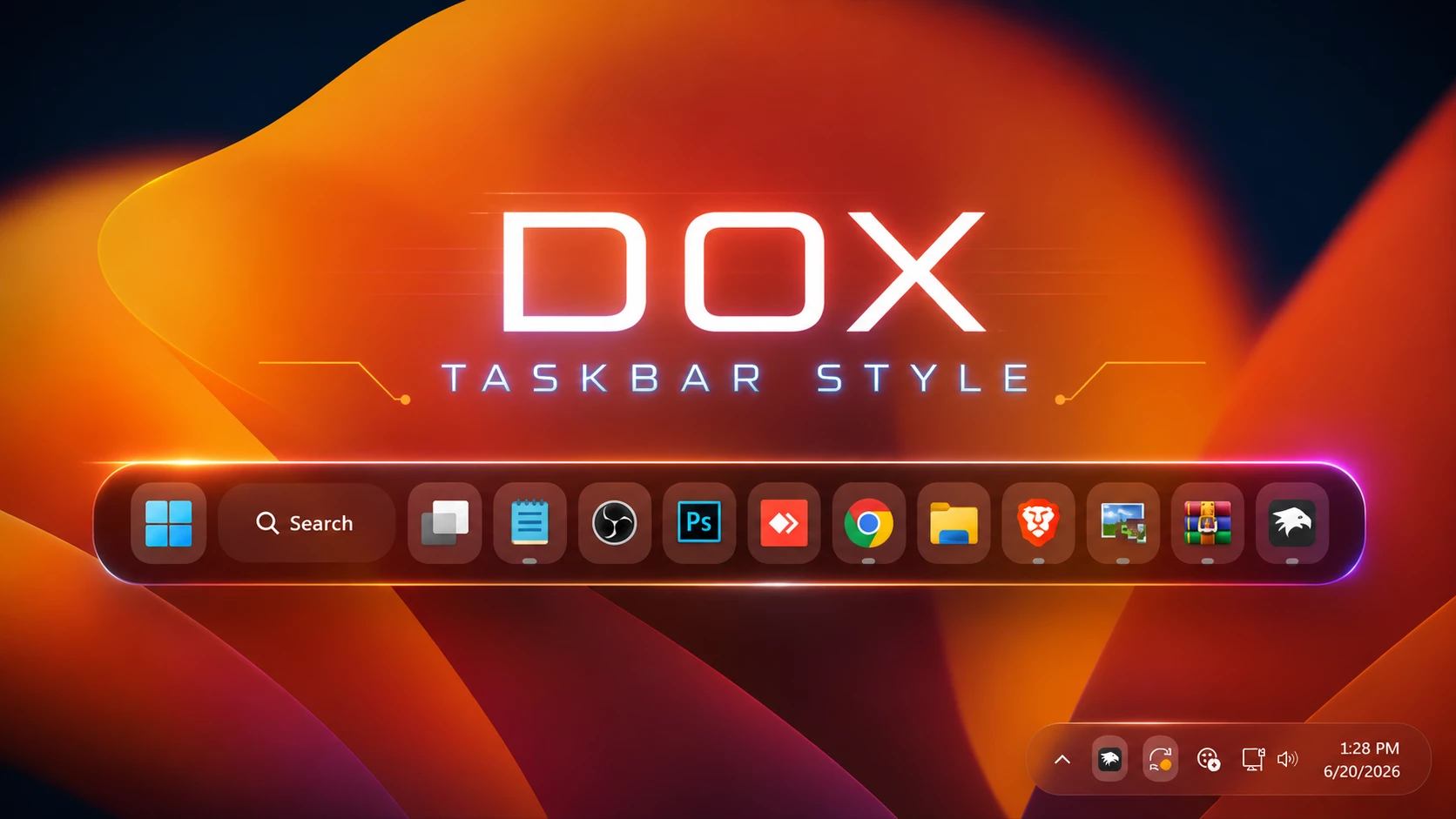
Dox Taskbar Style Windhawk: Modern Windows Taskbar Customization
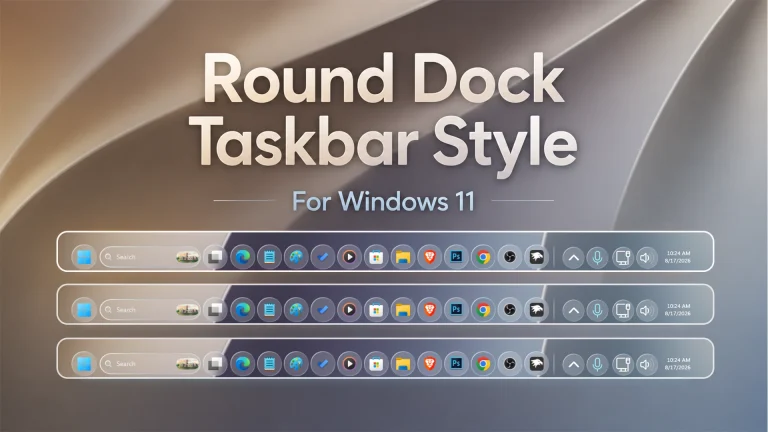
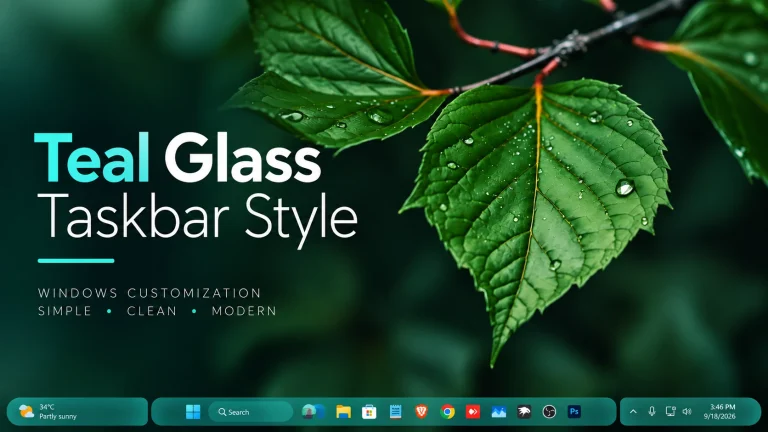
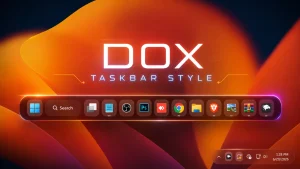
If you want to make your Windows desktop look clean, modern, and more premium, Dox Taskbar Style Windhawk is a beautiful customization style to try. This taskbar design gives Windows a dock-like appearance with rounded corners, smooth spacing, glass-style effects, and a futuristic look. Many Windows customization lovers prefer Dox Taskbar Style Windhawk because it keeps the desktop simple while making the taskbar feel more stylish, organized, and visually attractive.
The default Windows taskbar is useful, but sometimes it feels too basic for users who enjoy desktop customization. With Dox Taskbar Style Windhawk, the taskbar can look cleaner and more personal without making the desktop confusing. It is a good choice for users who like a modern Windows 11 setup, a glassmorphism desktop, a minimal workspace, or a premium dock-style taskbar design.What Is Dox Taskbar Style Windhawk?
Dox Taskbar Style Windhawk is a Windows taskbar customization style that focuses on a dock-like layout. It gives the taskbar a rounded, floating, and polished appearance. Instead of a flat and ordinary taskbar, this style makes the taskbar look more like a modern desktop dock with clean app icons and better visual balance.This style is mainly useful for people who want a different Windows look without making the desktop too complicated. Dox Taskbar Style Windhawk can match beautifully with abstract wallpapers, dark themes, modern icon packs, and other Windows customization tools. The result is a desktop that feels smoother, more organized, and more enjoyable to use every day.Main Features of Dox Taskbar Style Windhawk
- Modern dock-style Windows taskbar look
- Rounded and floating taskbar appearance
- Clean spacing between app icons
- Premium glassmorphism-inspired visual style
- Good match for Windows 11 customization setups
- Works well with dark and colorful wallpapers
- Simple, clean, and easy-to-use desktop design
- Great for Windows customization tutorials and showcase videos
Download Windhawk To Use The Style
Compatibility
- Windows 11 21H2: May work, but not recommended for the best experience
- Windows 11 22H2: May work, but compatibility can vary
- Windows 11 23H2: Recommended
- Windows 11 24H2: Recommended
- Windows 11 25H2: YES work, but test carefully after Windows updates
Installation steps:
- Download and install Windhawk.
- Install and open the Windows 11 Taskbar Styler mod in Windhawk.
- Go to the Advanced tab.
- Copy the content below and paste it into the text box.
- Click Save settings to apply the Dox Taskbar Style.
{ "theme": "", "controlStyles[0].target": "Taskbar.TaskbarFrame#TaskbarFrame > Grid#RootGrid", "controlStyles[0].styles[0]": "Background=Transparent", "controlStyles[0].styles[1]": "Margin=0", "controlStyles[0].styles[2]": "Padding=15,0", "controlStyles[0].styles[3]": "RequestedTheme=Dark", "controlStyles[1].target": "Taskbar.TaskListButtonPanel@CommonStates > Grid > Border#BackgroundElement, Taskbar.TaskListButtonPanel@CommonStates > Border#BackgroundElement", "controlStyles[1].styles[0]": "CornerRadius=15", "controlStyles[1].styles[1]": "Background:=<WindhawkBlur BlurAmount=\"10\" TintColor=\"#30ffffff\" />", "controlStyles[1].styles[2]": "BorderThickness=1", "controlStyles[1].styles[3]": "Background@InactivePointerOver:=<WindhawkBlur BlurAmount=\"10\" TintColor=\"#40ffffff\" />", "controlStyles[1].styles[4]": "Background@ActivePointerOver:=<WindhawkBlur BlurAmount=\"10\" TintColor=\"#40ffffff\" />", "controlStyles[1].styles[5]": "Background@ActiveNormal:=<WindhawkBlur BlurAmount=\"10\" TintColor=\"#30ffffff\" />", "controlStyles[1].styles[6]": "Background@InactiveNormal:=<WindhawkBlur BlurAmount=\"10\" TintColor=\"#30ffffff\" />", "controlStyles[1].styles[7]": "Background@InactivePressed:=<WindhawkBlur BlurAmount=\"10\" TintColor=\"#30ffffff\" />", "controlStyles[1].styles[8]": "Background@ActivePressed:=<WindhawkBlur BlurAmount=\"10\" TintColor=\"#20ffffff\" />", "controlStyles[1].styles[9]": "Background@Normal:=<WindhawkBlur BlurAmount=\"10\" TintColor=\"#30ffffff\" />", "controlStyles[1].styles[10]": "Background@PointerOver:=<WindhawkBlur BlurAmount=\"10\" TintColor=\"#40ffffff\" />", "controlStyles[1].styles[11]": "Background@Pressed:=<WindhawkBlur BlurAmount=\"10\" TintColor=\"#20ffffff\" />", "controlStyles[2].target": "StackPanel#SystemTrayFrameGrid, Grid#SystemTrayFrameGrid", "controlStyles[2].styles[0]": "Background:=<WindhawkBlur BlurAmount=\"10\" TintColor=\"#10ffffff\" />", "controlStyles[2].styles[1]": "CornerRadius=22", "controlStyles[2].styles[2]": "Margin=8,8,8,8", "controlStyles[2].styles[3]": "Padding=10,0,2,0", "controlStyles[2].styles[4]": "BorderBrush:=<LinearGradientBrush StartPoint=\"0,0\" EndPoint=\"1,1\"><GradientStop Color=\"#80ffffff\" Offset=\"0.0\" /><GradientStop Color=\"{ThemeResource SurfaceStrokeColorDefault}\" Offset=\"0.55\" /><GradientStop Color=\"#80ffffff\" Offset=\"1\" /></LinearGradientBrush>", "controlStyles[2].styles[5]": "BorderThickness=1", "controlStyles[2].styles[6]": "RequestedTheme=Dark", "controlStyles[3].target": "Grid#IconPanel@RunningIndicatorStates > Rectangle#RunningIndicator, Taskbar.TaskListLabeledButtonPanel@RunningIndicatorStates > Rectangle#RunningIndicator", "controlStyles[3].styles[0]": "Fill=#808080", "controlStyles[3].styles[1]": "RadiusX=4", "controlStyles[3].styles[2]": "RadiusY=4", "controlStyles[3].styles[3]": "Height=4", "controlStyles[3].styles[4]": "Width=10", "controlStyles[3].styles[5]": "Width@ActiveRunningIndicator=20", "controlStyles[3].styles[6]": "Fill@ActiveRunningIndicator=#60CDFF", "controlStyles[4].target": "Grid#IconPanel > TextBlock#LabelControl, Taskbar.TaskListLabeledButtonPanel > TextBlock#LabelControl", "controlStyles[4].styles[0]": "Margin=4,0,0,0", "controlStyles[4].styles[1]": "Foreground=White", "controlStyles[5].target": "Taskbar.SearchBoxButton", "controlStyles[5].styles[0]": "Foreground=White", "controlStyles[5].styles[1]": "Margin=-11,0,0,0", "controlStyles[6].target": "SearchUx.SearchUI.SearchButtonControl", "controlStyles[6].styles[0]": "Margin=-11,0,0,0", "controlStyles[7].target": "TextBlock#SearchBoxTextBlock", "controlStyles[7].styles[0]": "FontSize=12", "controlStyles[7].styles[1]": "Foreground=White", "controlStyles[8].target": "Taskbar.TaskListButton#TaskListButton[AutomationProperties.Name=Copilot] > Grid#IconPanel > Border#BackgroundElement, Taskbar.TaskListButton#TaskListButton[AutomationProperties.Name=Copilot] > Taskbar.TaskListLabeledButtonPanel#IconPanel > Border#BackgroundElement", "controlStyles[8].styles[0]": "Background:=<WindhawkBlur BlurAmount=\"10\" TintColor=\"#10ffffff\" />", "controlStyles[9].target": "Taskbar.AugmentedEntryPointButton#AugmentedEntryPointButton > Taskbar.TaskListButtonPanel#ExperienceToggleButtonRootPanel@CommonStates > Grid > Border#BackgroundElement, Taskbar.AugmentedEntryPointButton#AugmentedEntryPointButton > Taskbar.TaskListButtonPanel#ExperienceToggleButtonRootPanel@CommonStates > Border#BackgroundElement", "controlStyles[9].styles[0]": "Background:=<WindhawkBlur BlurAmount=\"10\" TintColor=\"#30ffffff\" />", "controlStyles[9].styles[1]": "Background@InactivePointerOver:=<WindhawkBlur BlurAmount=\"10\" TintColor=\"#20ffffff\" />", "controlStyles[9].styles[2]": "CornerRadius=15", "controlStyles[10].target": "Taskbar.AugmentedEntryPointButton#AugmentedEntryPointButton > Border#BackgroundElement", "controlStyles[10].styles[0]": "Background:=<WindhawkBlur BlurAmount=\"10\" TintColor=\"#30ffffff\" />", "controlStyles[10].styles[1]": "CornerRadius=15", "controlStyles[11].target": "Border#MultiWindowElement", "controlStyles[11].styles[0]": "Visibility=Collapsed", "controlStyles[12].target": "TextBlock#TimeInnerTextBlock", "controlStyles[12].styles[0]": "Foreground=White", "controlStyles[12].styles[1]": "Visibility=Visible", "controlStyles[13].target": "TextBlock#DateInnerTextBlock", "controlStyles[13].styles[0]": "Foreground=White", "controlStyles[13].styles[1]": "Visibility=Visible", "controlStyles[14].target": "SystemTray.TextIconContent > Grid > SystemTray.AdaptiveTextBlock#Base > TextBlock", "controlStyles[14].styles[0]": "Foreground=White", "controlStyles[15].target": "Taskbar.AugmentedEntryPointButton#AugmentedEntryPointButton", "controlStyles[15].styles[0]": "Margin=-12,0,0,0", "controlStyles[16].target": "Taskbar.TaskViewButton, Taskbar.ExperienceToggleButton#LaunchListButton[AutomationProperties.Name=Task View]", "controlStyles[16].styles[0]": "Margin=0,0,0,0", "controlStyles[17].target": "Grid#IconPanel@CommonStates > Border#BackgroundElement, Taskbar.TaskListLabeledButtonPanel@CommonStates > Border#BackgroundElement", "controlStyles[17].styles[0]": "CornerRadius=15", "controlStyles[17].styles[1]": "Background:=<WindhawkBlur BlurAmount=\"10\" TintColor=\"#30ffffff\" />", "controlStyles[17].styles[2]": "BorderThickness=1", "controlStyles[17].styles[3]": "Background@InactivePointerOver:=<WindhawkBlur BlurAmount=\"10\" TintColor=\"#40ffffff\" />", "controlStyles[17].styles[4]": "Background@ActivePointerOver:=<WindhawkBlur BlurAmount=\"10\" TintColor=\"#40ffffff\" />", "controlStyles[17].styles[5]": "Background@ActiveNormal:=<WindhawkBlur BlurAmount=\"10\" TintColor=\"#30ffffff\" />", "controlStyles[17].styles[6]": "Background@InactiveNormal:=<WindhawkBlur BlurAmount=\"10\" TintColor=\"#30ffffff\" />", "controlStyles[17].styles[7]": "Background@InactivePressed:=<WindhawkBlur BlurAmount=\"10\" TintColor=\"#20ffffff\" />", "controlStyles[17].styles[8]": "Background@ActivePressed:=<WindhawkBlur BlurAmount=\"10\" TintColor=\"#30ffffff\" />", "controlStyles[17].styles[9]": "Background@Normal:=<WindhawkBlur BlurAmount=\"10\" TintColor=\"#30ffffff\" />", "controlStyles[17].styles[10]": "Background@PointerOver:=<WindhawkBlur BlurAmount=\"10\" TintColor=\"#40ffffff\" />", "controlStyles[17].styles[11]": "Background@Pressed:=<WindhawkBlur BlurAmount=\"10\" TintColor=\"#20ffffff\" />", "controlStyles[17].styles[12]": "Margin=0", "controlStyles[17].styles[13]": "BorderBrush@InactivePointerOver:=<LinearGradientBrush StartPoint=\"0,0\" EndPoint=\"1,1\"><GradientStop Color=\"#80ffffff\" Offset=\"0.0\" /><GradientStop Color=\"{ThemeResource SurfaceStrokeColorDefault}\" Offset=\"0.55\" /><GradientStop Color=\"#80ffffff\" Offset=\"1\" /></LinearGradientBrush>", "controlStyles[17].styles[14]": "Background@MultiWindowNormal:=<WindhawkBlur BlurAmount=\"10\" TintColor=\"#30ffffff\" />", "controlStyles[17].styles[15]": "Background@MultiWindowPointerOver:=<WindhawkBlur BlurAmount=\"10\" TintColor=\"#40ffffff\" />", "controlStyles[17].styles[16]": "Background@MultiWindowActive:=<WindhawkBlur BlurAmount=\"10\" TintColor=\"#30ffffff\" />", "controlStyles[17].styles[17]": "Background@MultiWindowPressed:=<WindhawkBlur BlurAmount=\"10\" TintColor=\"#20ffffff\" />", "controlStyles[18].target": "Taskbar.TaskbarFrame > Grid#RootGrid > Taskbar.TaskbarBackground > Grid > Rectangle#BackgroundStroke", "controlStyles[18].styles[0]": "Visibility=Collapsed", "controlStyles[18].styles[1]": "Fill=Transparent", "controlStyles[19].target": "Taskbar.TaskbarFrame#TaskbarFrame", "controlStyles[19].styles[0]": "Width=Auto", "controlStyles[19].styles[1]": "HorizontalAlignment=Center", "controlStyles[19].styles[2]": "Margin=250,0,250,0", "controlStyles[20].target": "Taskbar.TaskbarFrame > Grid#RootGrid > Taskbar.TaskbarBackground > Grid > Rectangle#BackgroundFill", "controlStyles[20].styles[0]": "Fill=Transparent", "controlStyles[21].target": "SystemTray.NotifyIconView#NotifyItemIcon", "controlStyles[21].styles[0]": "Background:=<WindhawkBlur BlurAmount=\"10\" TintColor=\"#40ffffff\" />", "controlStyles[21].styles[1]": "CornerRadius=12", "controlStyles[21].styles[2]": "Margin=2", "controlStyles[21].styles[3]": "Padding=2", "controlStyles[21].styles[4]": "BorderThickness=2", "controlStyles[22].target": "Taskbar.TaskbarFrame#TaskbarFrame > Grid#RootGrid > Taskbar.TaskbarBackground > Grid", "controlStyles[22].styles[0]": "Background:=<AcrylicBrush TintColor=\"{ThemeResource CardStrokeColorDefaultSolid}\" FallbackColor=\"{ThemeResource CardStrokeColorDefaultSolid}\" TintOpacity=\"0\" TintLuminosityOpacity=\".65\" Opacity=\"1\"/>", "controlStyles[22].styles[1]": "CornerRadius=25", "controlStyles[22].styles[2]": "BorderBrush:=<LinearGradientBrush StartPoint=\"0,0\" EndPoint=\"1,1\" Opacity=\"0.6\"><GradientStop Color=\"#80ffffff\" Offset=\"0.0\" /><GradientStop Color=\"{ThemeResource SurfaceStrokeColorDefault}\" Offset=\"0.55\" /><GradientStop Color=\"#80ffffff\" Offset=\"1\" /></LinearGradientBrush>", "controlStyles[22].styles[3]": "BorderThickness=1", "controlStyles[22].styles[4]": "Padding=0", "controlStyles[22].styles[5]": "Margin=0,4,0,4", "controlStyles[23].target": "SearchUx.SearchUI.SearchButtonRootGrid#SearchBoxButtonRootPanel@CommonStates > Grid > Border#BackgroundElement, SearchUx.SearchUI.SearchButtonRootGrid#SearchBoxButtonRootPanel@CommonStates > Border#BackgroundElement", "controlStyles[23].styles[0]": "CornerRadius=15", "controlStyles[23].styles[1]": "Background:=<WindhawkBlur BlurAmount=\"10\" TintColor=\"#30ffffff\" />", "controlStyles[23].styles[2]": "BorderThickness=1", "controlStyles[23].styles[3]": "Background@InactivePointerOver:=<WindhawkBlur BlurAmount=\"10\" TintColor=\"#40ffffff\" />", "controlStyles[23].styles[4]": "Background@ActivePointerOver:=<WindhawkBlur BlurAmount=\"10\" TintColor=\"#40ffffff\" />", "controlStyles[23].styles[5]": "Background@ActiveNormal:=<WindhawkBlur BlurAmount=\"10\" TintColor=\"#30ffffff\" />", "controlStyles[23].styles[6]": "Background@InactiveNormal:=<WindhawkBlur BlurAmount=\"10\" TintColor=\"#30ffffff\" />", "controlStyles[23].styles[7]": "Background@InactivePressed:=<WindhawkBlur BlurAmount=\"10\" TintColor=\"#30ffffff\" />", "controlStyles[23].styles[8]": "Background@ActivePressed:=<WindhawkBlur BlurAmount=\"10\" TintColor=\"#20ffffff\" />", "controlStyles[23].styles[9]": "Background@Normal:=<WindhawkBlur BlurAmount=\"10\" TintColor=\"#30ffffff\" />", "controlStyles[23].styles[10]": "Background@PointerOver:=<WindhawkBlur BlurAmount=\"10\" TintColor=\"#40ffffff\" />", "controlStyles[23].styles[11]": "Background@Pressed:=<WindhawkBlur BlurAmount=\"10\" TintColor=\"#20ffffff\" />", "controlStyles[24].target": "SearchUx.SearchUI.SearchButtonRootGrid#SearchBoxButtonRootPanel > Grid > Border#SearchPillBackgroundElement, SearchUx.SearchUI.SearchButtonRootGrid#SearchBoxButtonRootPanel > Border#SearchPillBackgroundElement", "controlStyles[24].styles[0]": "Background:=<WindhawkBlur BlurAmount=\"10\" TintColor=\"#30ffffff\" />", "controlStyles[24].styles[1]": "CornerRadius=15", "controlStyles[24].styles[2]": "BorderThickness=1", "themeResourceVariables[0]": "", "xamlDiagnosticsHandling": ""}Required Windhawk Mods Taskbar Height & Icon Size for similar results
To achieve similar results, install and configure the following Windhawk mods in addition to Taskbar Styler
{ "TaskbarHeight": 65, "IconSize": 28, "TaskbarButtonWidth": 52, "IconSizeSmall": 16, "TaskbarButtonWidthSmall": 32}For More Infotmation
⚠️ Disclaimer: This Windhawk Start Menu Style is provided for Windows UI personalization and educational purposes only. It is an unofficial customization and is not developed, endorsed, or supported by Microsoft. Compatibility may vary depending on your Windows version, Windhawk version, Start Menu Styler version, and system configuration. Windows updates may also affect how the style works. Please keep a backup of your current settings before applying any changes.