

Flare Taskbar Style for Windows 11
Flare Taskbar Style for Windows 11 The Flare Taskbar Style brings a fresh, futuristic, and visually striking look to your Windows desktop. Designed with elegance and performance in mind, it reimagines the classic taskbar into a glowing, minimal, and modern interface that perfectly complements today’s customization trends.

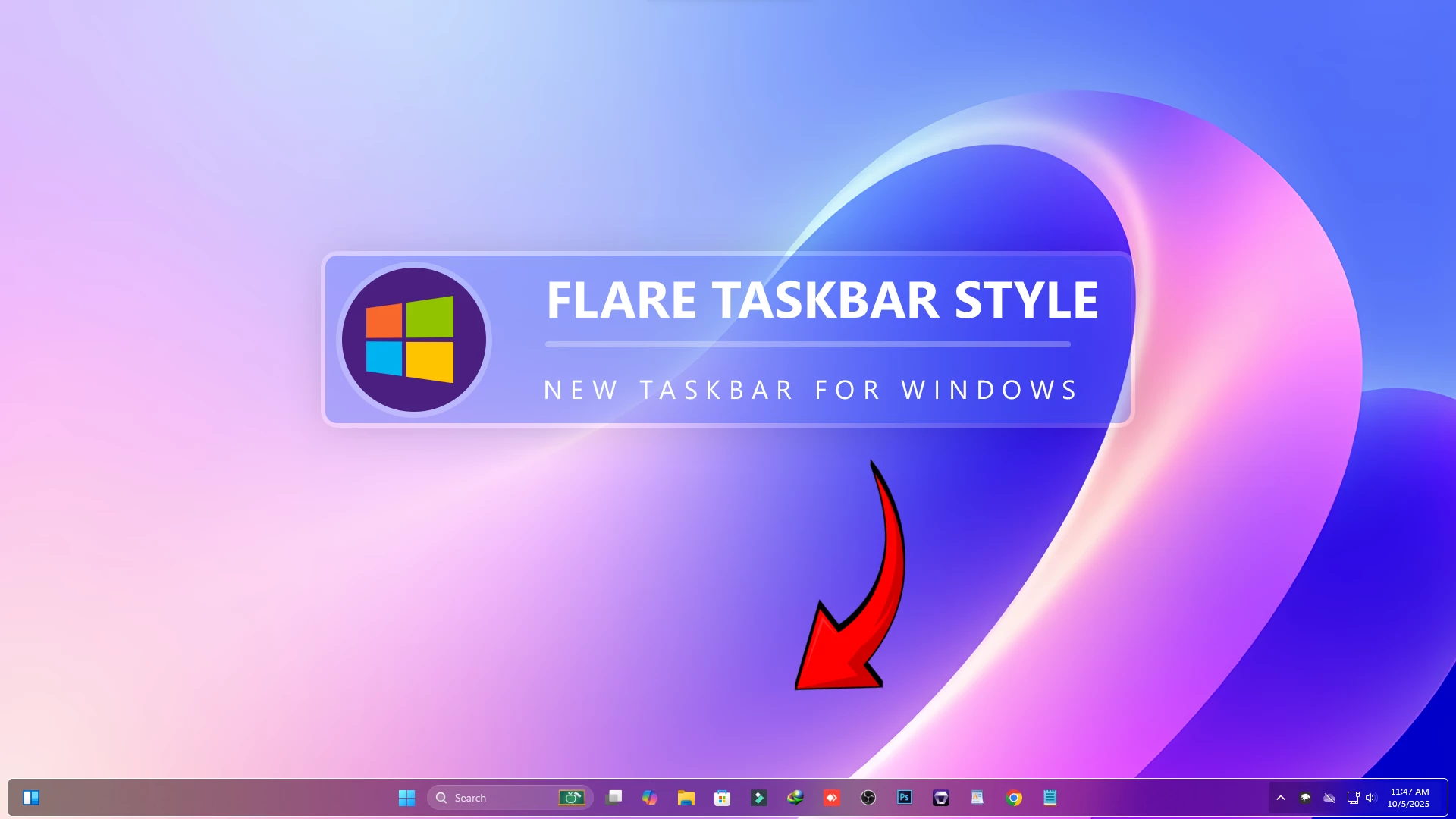
Flare Taskbar Style for Windows 11
Flare Taskbar Style is a clean and modern taskbar customization for Windows 11 users who want their desktop to look more polished without making the setup feel too heavy or complicated. It is designed for users who like a smooth visual style, better spacing, and a more premium-looking taskbar area.
This post will guide you through what the Flare style is, who it is best for, how to install it with Windhawk, how to uninstall it, and what to do if something does not look correct after applying the style.
The goal is simple: help you customize your Windows 11 taskbar in a safe and understandable way. This is not an official Microsoft theme, and results may vary depending on your Windows version, display scaling, taskbar settings, and other customization tools installed on your PC.
What Is Flare Taskbar Style?
Flare is a Windows 11 taskbar visual style made for users who prefer a fresh, minimal, and premium desktop look. Instead of changing your full operating system theme, it focuses mainly on the taskbar area. That makes it useful for people who want a noticeable desktop upgrade without applying too many system-wide changes.
The design is suitable for clean Windows setups, dark wallpapers, glass-style themes, productivity desktops, and modern icon packs. It can also match well with Rainmeter skins, custom wallpapers, and other Windows 11 customization setups.
Because this is a taskbar-focused style, it works best when your desktop layout is already organized. A clean wallpaper, matching icons, and balanced taskbar alignment can make the final result look much better.
Why Use This Taskbar Style?
Many Windows 11 users like the default taskbar, but it does not offer deep styling options from the built-in settings. You can change basic things like alignment, pinned apps, and some personalization options, but you cannot fully reshape the taskbar appearance from Windows Settings alone.
That is where a Windhawk-based style can help. Flare Taskbar Style gives your desktop a more customized look while keeping the setup focused on the taskbar. It is a good choice if you want your PC to feel more personal, modern, and visually balanced.
This style is especially useful for users who create desktop customization videos, theme previews, productivity setups, or personal Windows 11 layouts. It can help your desktop look cleaner in screenshots, tutorials, and daily use.
Main Features of Flare Taskbar Style
- Modern taskbar appearance for Windows 11
- Clean visual style suitable for dark and light desktop setups
- Works well with custom wallpapers and icon packs
- Useful for minimal, glass, futuristic, and premium desktop themes
- Focused customization without changing the whole Windows interface
- Easy to disable if you want to return to the default taskbar look
Before You Install
Before applying any Windows customization, it is a good idea to prepare your system. A taskbar style may look simple, but it still changes how part of the Windows interface appears. Taking a few basic steps can help you avoid confusion later.
- Use the latest stable Windows 11 update available for your device.
- Download Windhawk only from its official source.
- Avoid installing unknown EXE files from random websites.
- Create a restore point if you regularly test Windows customization tools.
- Close unnecessary apps before applying major visual changes.
- Keep a copy of your previous Windhawk settings if you already use other styles.
This style is shared for customization purposes. It should not be described as guaranteed to work on every PC because Windows builds, scaling settings, and other mods can affect the final result.
How to Install Flare Taskbar Style with Windhawk
Follow these steps carefully to apply the Flare Taskbar Style on your Windows 11 desktop.
- Install Windhawk from the official Windhawk website.
- Open the Windhawk app on your PC.
- Search for Windows 11 Taskbar Styler inside Windhawk.
- Install and enable the taskbar styler mod.
- Download the Flare Taskbar Style file or copy the style settings provided on this page.
- Open the settings area of the taskbar styler mod.
- Paste or import the Flare style settings into the correct field.
- Apply the changes and wait a few seconds.
- If the taskbar does not update, restart Windows Explorer or restart your PC.
Download Windhawk To Use The Style
Compatibility
- Windows 11 21H2: May work, but not recommended for the best experience
- Windows 11 22H2: May work, but compatibility can vary
- Windows 11 23H2: Recommended
- Windows 11 24H2: Recommended
- Windows 11 25H2: YES work, but test carefully after Windows updates
{ "controlStyles[0].target": "Taskbar.TaskbarFrame#TaskbarFrame", "controlStyles[0].styles[1]": "HorizontalAlignment=Center", "controlStyles[0].styles[2]": "Width=Auto", "controlStyles[1].target": "Taskbar.TaskbarFrame#TaskbarFrame > Grid#RootGrid", "controlStyles[1].styles[0]": "Padding=6,0,6,0", "controlStyles[1].styles[1]": "Margin=10,2,10,3", "controlStyles[1].styles[2]": "BorderThickness=1", "controlStyles[1].styles[3]": "BorderBrush:=#ffffff", "controlStyles[2].target": "Rectangle#BackgroundFill", "controlStyles[2].styles[0]": "Visibility=Collapsed", "controlStyles[3].target": "Rectangle#BackgroundStroke", "controlStyles[3].styles[0]": "Visibility=Collapsed", "controlStyles[4].target": "Taskbar.AugmentedEntryPointButton#AugmentedEntryPointButton > Taskbar.TaskListButtonPanel#ExperienceToggleButtonRootPanel", "controlStyles[4].styles[0]": "Margin=0", "controlStyles[5].target": "Grid#SystemTrayFrameGrid", "controlStyles[5].styles[0]": "Background:=<AcrylicBrush TintColor=\"{ThemeResource CardStrokeColorDefaultSolid}\" FallbackColor=\"{ThemeResource CardStrokeColorDefaultSolid}\" TintOpacity=\"0\" TintLuminosityOpacity=\".55\" Opacity=\"1\"/>", "controlStyles[5].styles[1]": "CornerRadius=5", "controlStyles[5].styles[2]": "BackgroundSizing=InnerBorderEdge", "controlStyles[5].styles[3]": "Margin=-10,2,15,3", "controlStyles[5].styles[4]": "BorderThickness=5", "controlStyles[6].target": "SystemTray.ChevronIconView", "controlStyles[6].styles[0]": "Padding=0", "controlStyles[7].target": "SystemTray.NotifyIconView#NotifyItemIcon", "controlStyles[7].styles[0]": "Padding=0", "controlStyles[8].target": "SystemTray.OmniButton", "controlStyles[8].styles[0]": "Padding=0", "controlStyles[9].target": "SystemTray.CopilotIcon", "controlStyles[9].styles[0]": "Padding=0", "controlStyles[10].target": "SystemTray.OmniButton#NotificationCenterButton > Grid > ContentPresenter > ItemsPresenter > StackPanel > ContentPresenter > systemtray:IconView#SystemTrayIcon > Grid", "controlStyles[10].styles[0]": "Padding=0,0,0,0", "controlStyles[11].target": "SystemTray.IconView#SystemTrayIcon > Grid#ContainerGrid > ContentPresenter#ContentPresenter > Grid#ContentGrid > SystemTray.TextIconContent > Grid#ContainerGrid", "controlStyles[11].styles[0]": "Padding=0", "controlStyles[12].target": "SystemTray.StackListView#IconStack > ItemsPresenter > StackPanel > ContentPresenter > SystemTray.IconView#SystemTrayIcon", "controlStyles[12].styles[0]": "Padding=0", "controlStyles[13].target": "SystemTray.Stack#ShowDesktopStack", "controlStyles[13].styles[0]": "Margin=0,0,0,0", "controlStyles[14].target": "Taskbar.Gripper#GripperControl", "controlStyles[14].styles[0]": "Width=Auto", "controlStyles[14].styles[1]": "MinWidth=24", "controlStyles[1].styles[4]": "CornerRadius=5", "controlStyles[1].styles[5]": "Background:=<AcrylicBrush TintColor=\"{ThemeResource CardStrokeColorDefaultSolid}\" FallbackColor=\"{ThemeResource CardStrokeColorDefaultSolid}\" TintOpacity=\"0\" TintLuminosityOpacity=\".55\" Opacity=\"1\"/>"}FAQ About Flare Taskbar Style
Does Flare Taskbar Style work without Windhawk?
No. This style is intended to be used with Windhawk and a compatible Windows 11 taskbar styling mod.
Is this an official Microsoft taskbar theme?
No. Flare Taskbar Style is a third-party customization style. It is not made, approved, or officially supported by Microsoft.
Can I use it with other Windows 11 themes?
Yes, you can use it with many desktop setups, but some taskbar-related tools may conflict. Test one customization at a time for better results.
Will it work on every Windows 11 PC?
It may not work the same on every PC. Windows version, updates, display scaling, and active mods can affect how the style appears.
Can I remove it later?
Yes. You can remove the style settings, disable the related Windhawk mod, or uninstall the mod from Windhawk.
Final Thoughts
Flare Taskbar Style is a good option for Windows 11 users who want a cleaner and more stylish taskbar without changing the entire desktop experience. It gives your setup a modern look and works well with wallpapers, icon packs, and other visual customization tools.
For the best result, follow the installation steps carefully, keep your setup simple, and avoid using too many taskbar mods at the same time. If you enjoy Windows customization, you can explore more styles, themes, and desktop setup guides on Link Vegas Theme.
You may also like


Disclaimer: All themes, visual styles, and concepts shared on this website are unofficial, fan-made creations built from imagination for customization purposes. We are not affiliated with, endorsed by, or sponsored by Microsoft or any other official brand.