

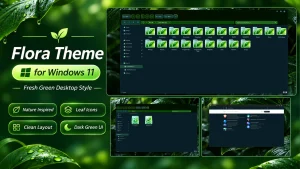
Flora Theme For Windows 11
Flora Theme For Windows 11 : Flora Theme brings a beautiful deep green appearance to Windows 11, paired with a matching Windhawk File Explorer style for coordinated command bar, toolbar, and context menu accents.

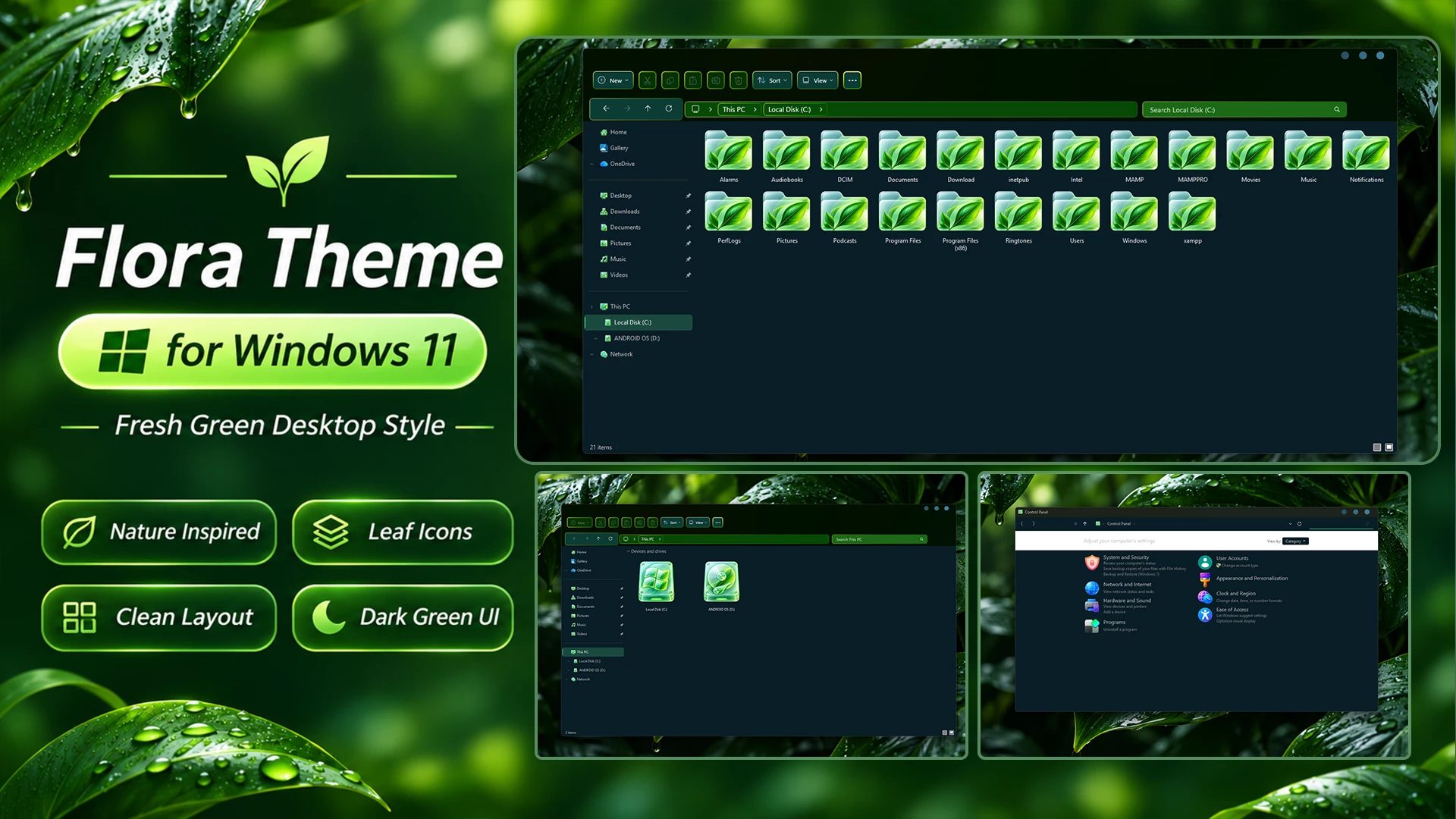
Flora Theme For Windows 11 – A Deep Green Desktop Style
Give your Windows 11 desktop a refreshing new look with Flora Theme For Windows 11. Built around a rich deep green color scheme, Flora brings a distinctive appearance to the Windows interface without losing the familiar layout that makes everyday navigation comfortable.
The theme combines near-black green surfaces with brighter green accents, creating a balanced contrast across File Explorer, navigation controls, and other styled interface elements. Its darker tones keep the overall design understated, while the green details add a fresh touch of color.
Flora is a lovely choice for anyone who enjoys dark desktop themes but wants something a little different from the usual black, grey, or blue Windows appearance.
A Beautiful Deep Green Color Scheme
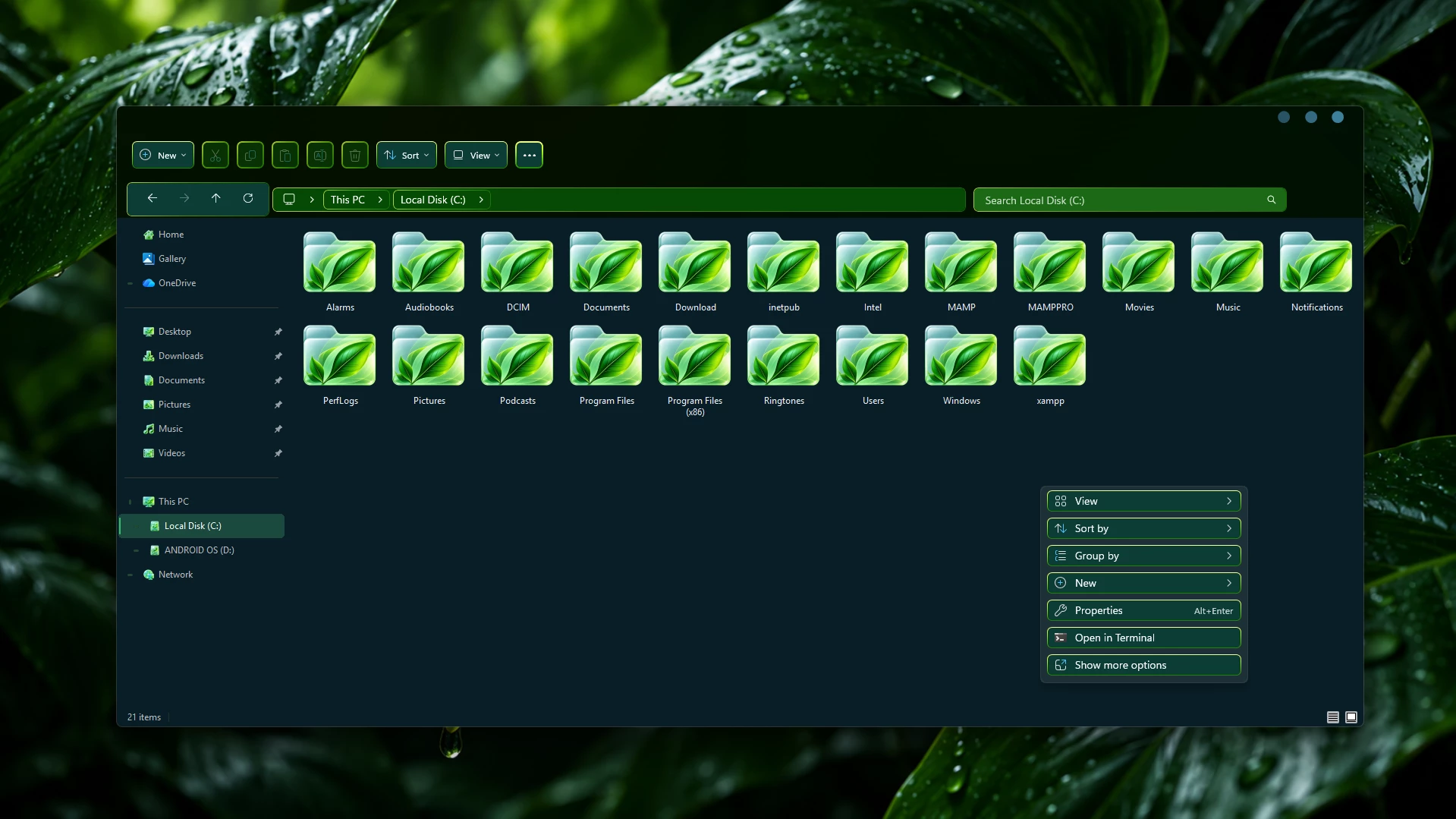
The defining feature of Flora is its deep green color palette. Rather than filling every part of the interface with the same shade, the theme uses different dark green tones to give individual elements their own visual character. The upper section of File Explorer has a very dark, almost black-green finish. The toolbar buttons, address bar, and search field introduce deeper and brighter green shades, with thin green borders adding definition around individual controls.
The main File Explorer area uses a dark background with a subtle blue-green undertone. This darker surface provides a comfortable contrast against the brighter green interface details and keeps file names easy to distinguish.Small touches, such as the outlined buttons and highlighted navigation items, help bring the different sections together. The result is a consistent dark interface with green as its main visual identity.
Features of Flora Theme
- Deep Green Appearance: A combination of dark green, near-black green, and subtle brighter green accents.
- Dark File Explorer: A clean, dark file browsing area that complements the overall color scheme.
- Matching Windhawk Style: An included File Explorer Styler configuration designed to complement the Flora visual style.
- Customized Command Bar: Coordinated dark green styling for the File Explorer command area.
- Green Toolbar Buttons: Matching button backgrounds and green outlines through the supplied Windhawk style.
- Styled Context Menu: Green-accented right-click menu appearance when the matching configuration is applied.
- Navigation Highlights: Subtle green selection colors that complement the darker interface.
- Coordinated Design: The main visual style and additional Explorer styling work together to create a consistent desktop appearance.
Custom File Explorer with Matching Windhawk Style
Flora Theme comes with a matching Windhawk File Explorer Styler configuration to give File Explorer a more complete deep green look.
The included style adds matching green colors to the command bar, toolbar buttons, navigation controls, and right-click context menu. Dark green backgrounds and subtle green borders help everything blend nicely with the main theme.
Note: The Windhawk style configuration is included in the theme package, but you need to install Windhawk separately to use it.
Compatibility
Flora Theme is designed for Windows 11. Compatibility may vary depending on your Windows version and build.
- Windows 11 21H2: Not tested
- Windows 11 22H2: Not tested
- Windows 11 23H2: Not tested
- Windows 11 24H2: Not tested
- Windows 11 25H2: Supported
- Windows 11 26H2 (OS Build 26300.9711): Yes
Note: Compatibility with untested Windows versions is not guaranteed. Always create a system restore point before applying custom visual styles.
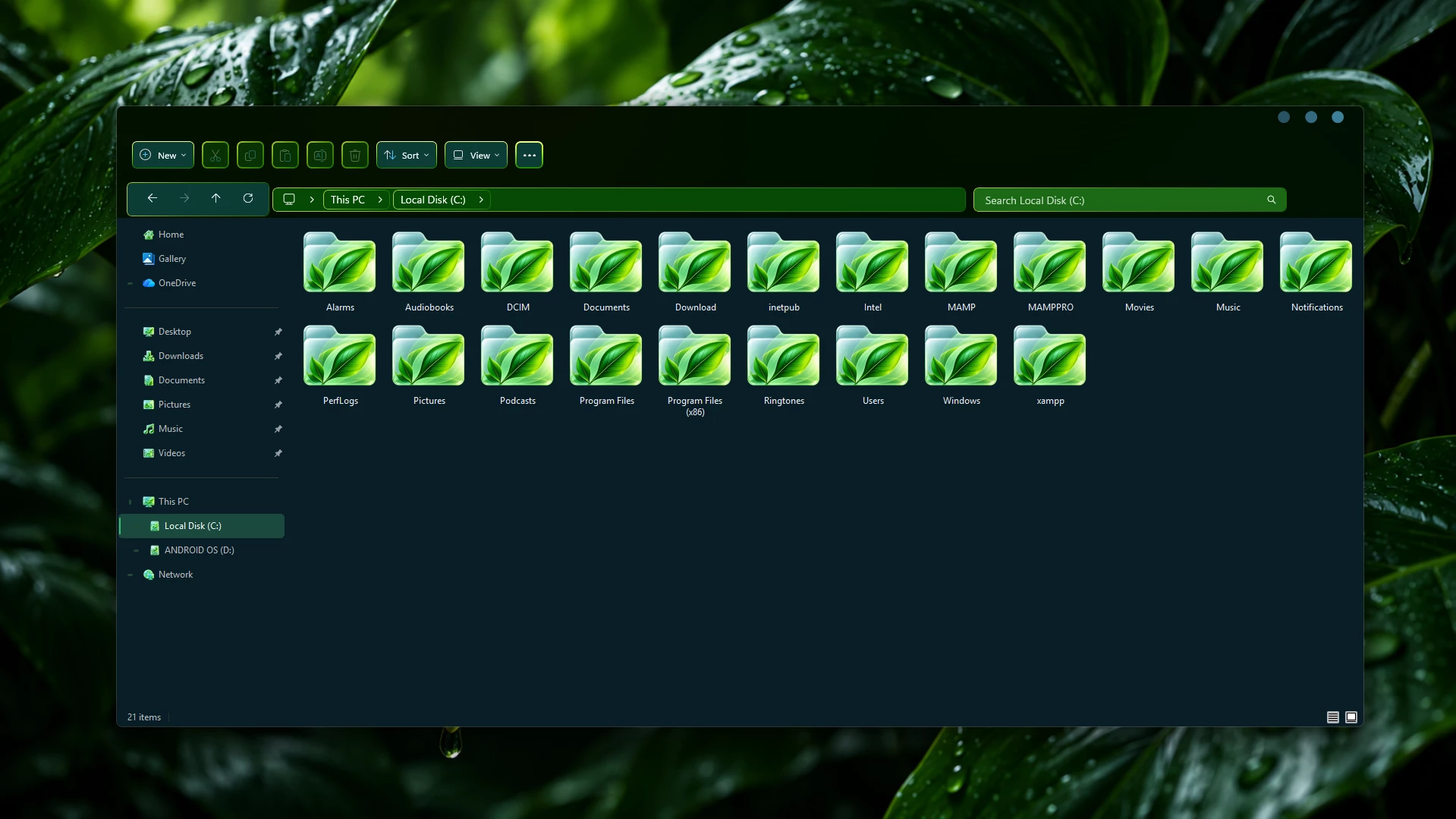
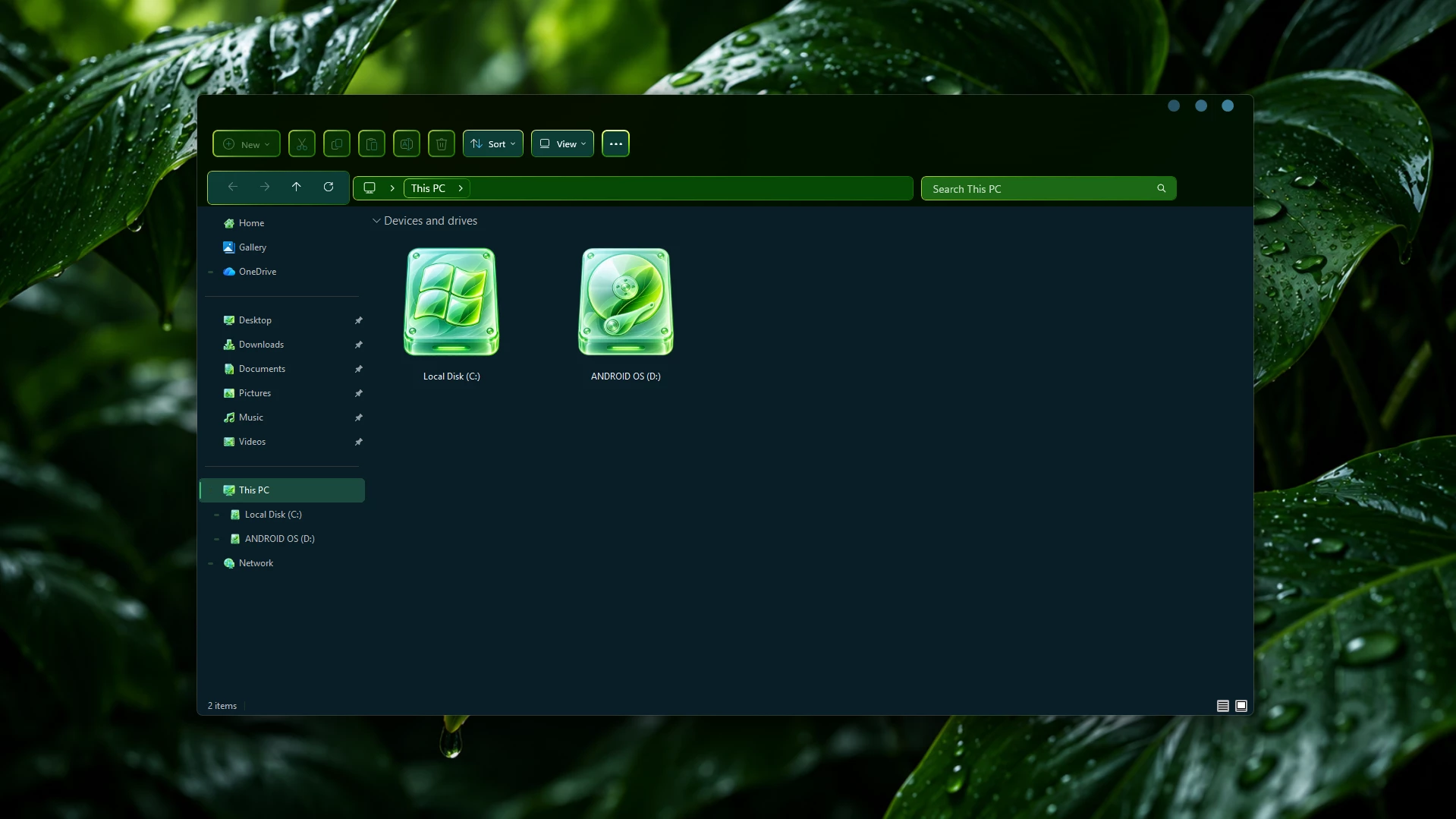
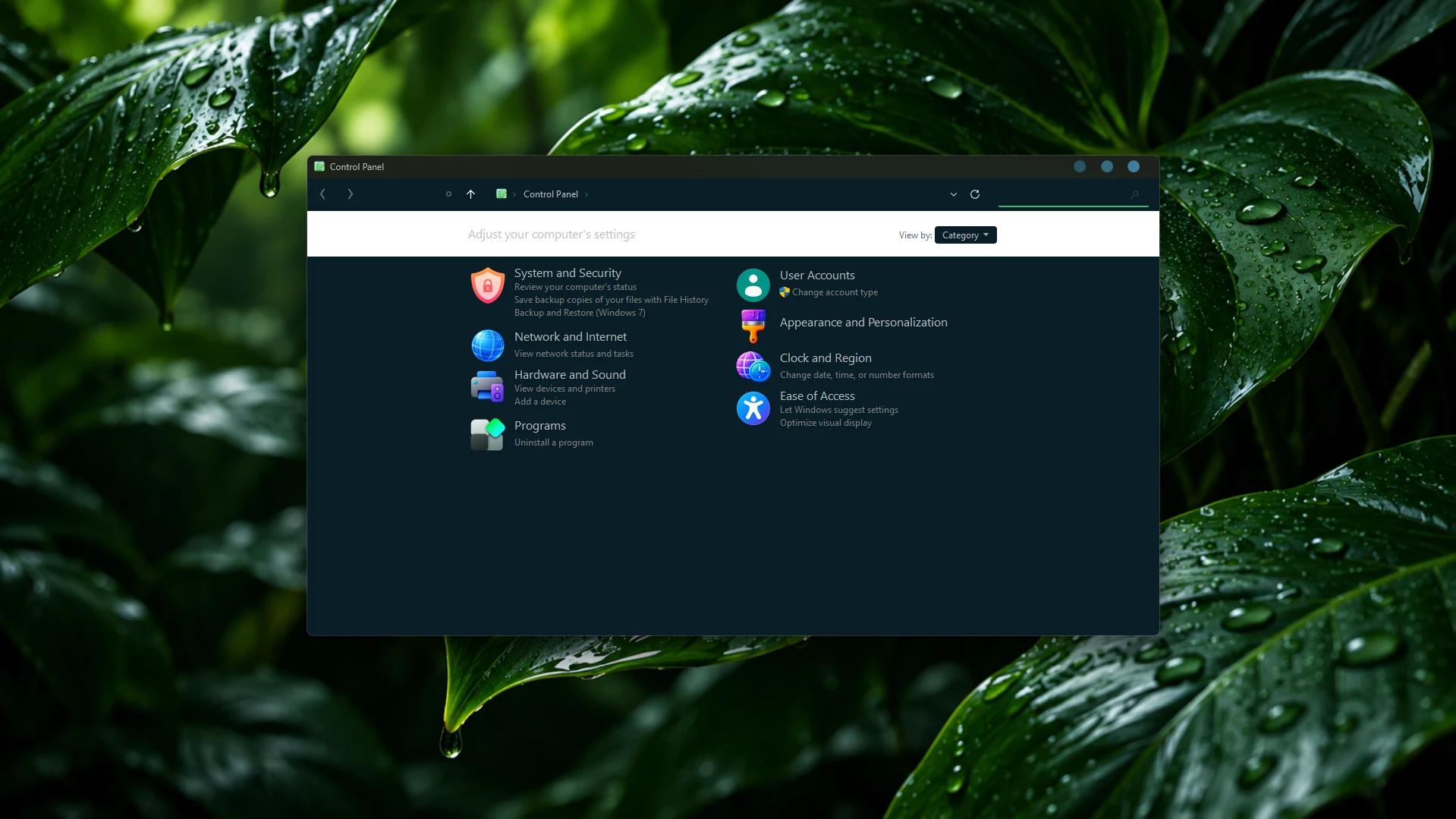
Preview
How to Install This Theme
- Create a System Restore Point before making any changes.
- Make sure the theme supports your Windows 11 version.
- Install a compatible theme patcher, such as SecureUxTheme or UltraUXThemePatcher, and restart if required.
- Download and extract the custom theme package.
- Copy the theme folder and its
.themefile toC:\Windows\Resources\Themes. - Go to Settings > Personalization > Themes and select your custom theme.
- For more details, follow this Windows 11 custom theme installation guide.
Note: Always use trusted theme files and compatible tools. Some themes may require additional customization tools or specific installation steps.
What’s Included in the Flora Theme Package?
The Flora Theme package includes the following files and resources to customize your Windows 11 desktop:
- Icon Pack: Matching green glass icons for the Flora desktop style.
- Wallpapers: Two matching wallpapers to complete the look.
- Windhawk Style: A matching File Explorer style with deep green accents for the command bar, buttons, and context menu.
- Windows 11 Theme: The main Flora theme files and supporting resources.
Google Drive 72.6 MB
DownloadHow to Remove Flora Theme From Windows 11
- Restore Default Theme: Open Settings > Personalization > Themes and select a default Windows 11 theme.
- Remove Customizations: Disable the Windhawk File Explorer Styler and any icon customization mods used with Flora. Restore your default icons, wallpaper, and cursor settings if needed.
- Remove Theme Files and Restart: Delete the Flora theme files from
C:\Windows\Resources\Themesif applicable, without removing default Windows files. Restart your PC to complete the process. For detailed instructions, follow our Windows 11 custom theme removal guide.
Flora Theme Color Palette
Flora Theme features a deep green color palette, combining dark forest tones with subtle green accents for a clean and balanced Windows 11 appearance.
- Deep Forest Green (#040F00): Main toolbar and upper background.
- Dark Green (#054904): Address bar and navigation areas.
- Rich Green (#1B6916): Search field and brighter green accents.
- Deep Blue-Green (#091E27): File Explorer background.
- Dark Teal (#0C3C36): Toolbar buttons and navigation controls.
- Muted Green Teal (#1B493E): Selected navigation items and highlights.
Disclaimer
Flora Theme is an independent Windows customization project and is not affiliated with, endorsed by, or officially supported by Microsoft. The included Windhawk configuration is intended for use with the third-party Windows 11 File Explorer Styler mod. Custom visual styles and modifications may not work with every Windows version. Always verify compatibility, follow trusted installation instructions, and create a system restore point before making changes.
Final Thoughts
Flora Theme offers a fresh approach to Windows 11 customization with its deep green colors, dark surfaces, and carefully matched interface details. Its darker palette keeps the desktop looking clean, while the green accents give it a recognizable personality.
The included Windhawk File Explorer style is a particularly useful addition. By coordinating the command bar, toolbar buttons, and context menu with the main visual style, it helps create a more consistent appearance across File Explorer.
Whether you prefer a simple dark green desktop or a complete nature-inspired setup with matching icons and wallpaper, Flora provides a distinctive starting point for personalizing Windows 11.
Frequently Asked Questions (FAQs)
1. Does Flora Theme work on all Windows 11 versions?
Flora Theme supports Windows 11 25H2. Other Windows 11 versions may have different compatibility requirements, so always check your Windows build before installation.
2. Do I need Windhawk to use Flora Theme?
Windhawk is needed to apply the included File Explorer styling configuration. It adds matching green accents to the command bar, toolbar buttons, and context menu. Windhawk must be installed separately.
3. Are the icon pack and wallpapers included?
Yes. The Flora package includes a matching green glass icon pack and two wallpapers. Additional customization tools may be required to apply the icons.
4. Why does my File Explorer look different from the preview?
Make sure you have applied the included Windhawk File Explorer Styler configuration. The final appearance may also vary depending on your Windows version and other installed customization mods.
5. Why are the green context menu and toolbar buttons not appearing?
Check that the Windows 11 File Explorer Styler mod is enabled in Windhawk and that the supplied Flora configuration has been applied correctly. Restart File Explorer if necessary.
6. Can I use Flora Theme without the included icon pack?
Yes. The icon pack is optional. You can use the Flora visual style with your existing Windows icons or another compatible icon pack.
7. How can I restore the default Windows 11 appearance?
Open Settings > Personalization > Themes and select a default Windows theme. Disable the Flora-related Windhawk modifications and restore your original icons and wallpaper. Follow the theme removal guide for any remaining custom files.
Disclaimer: All themes, visual styles, and concepts shared on this website are unofficial, fan-made creations built from imagination for customization purposes. We are not affiliated with, endorsed by, or sponsored by Microsoft or any other official brand.