AeroLite Theme for Windows 11 – Windows 9 Inspired Minimal UI
Download AeroLite Theme for Windows 11, a Windows 9-inspired customization pack featuring a clean minimal UI, custom theme files, icons, Explorer styling, and optional tools.

AeroLite Theme for Windows 11 – Windows 9 Inspired Minimal UI
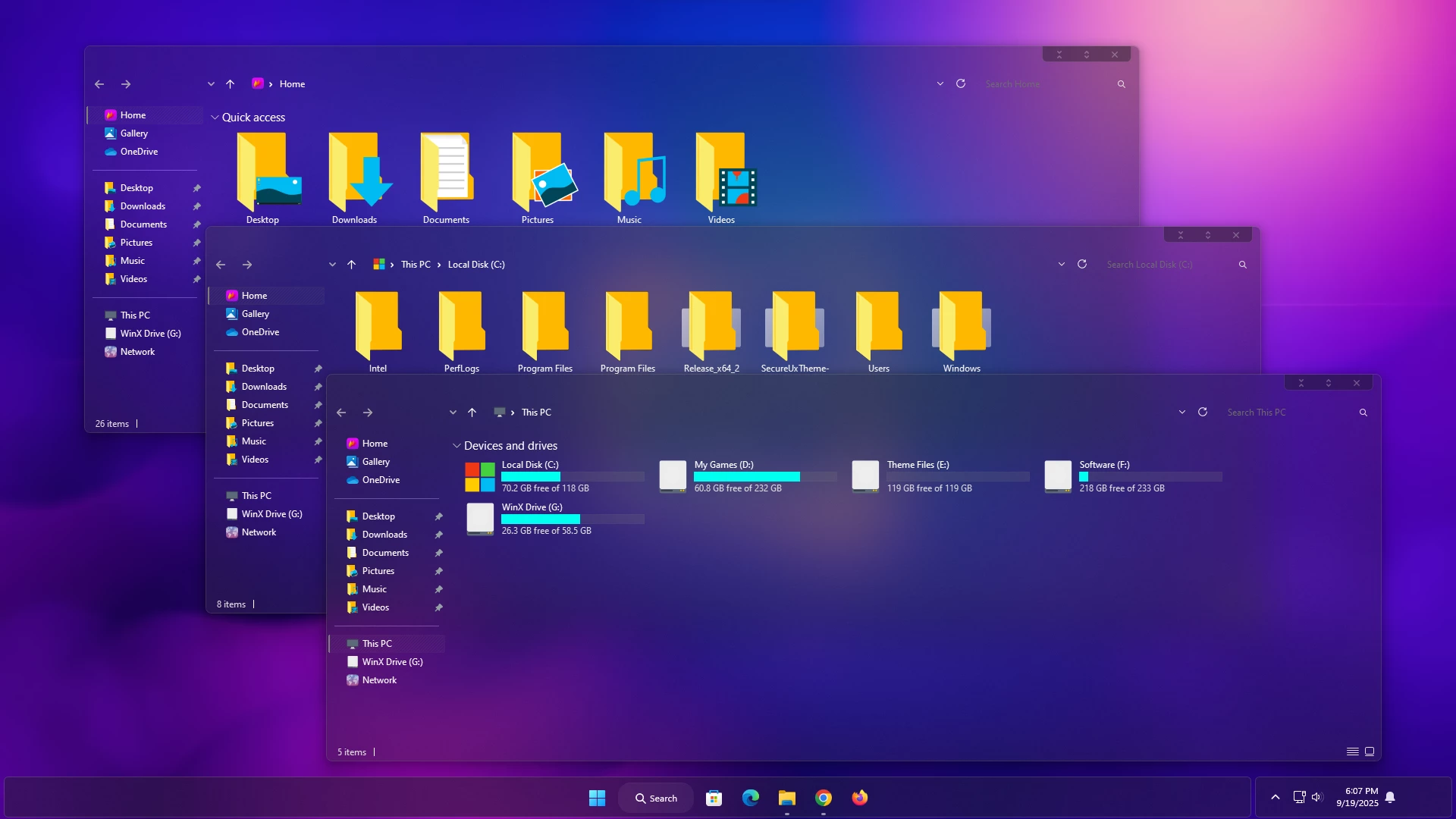
The AeroLite Theme for Windows 11 brings a clean, minimal desktop style inspired by Windows 9 concept-era interface ideas. It combines soft gray and white surfaces, muted blue accents, simple spacing, and a more restrained visual direction while keeping Windows 11 as the operating system underneath.
Instead of relying on heavy transparency, bright gradients, or strong visual effects, AeroLite focuses on a lighter and simpler interface. The result is a retro-modern setup that feels different from the standard Windows 11 appearance without trying to imitate another operating system.
The theme can also be combined with compatible icon packs, Start Menu changes, taskbar styling, or Explorer effects if you want to extend the same visual direction across more of the desktop.
Windows 9 Inspired Visual Style
AeroLite takes inspiration from Windows 9 concept-style interface designs, using simple surfaces, clean spacing, muted blue details, and a less decorative layout. The idea is to keep the desktop organized without filling every part of the interface with extra visual effects.
The overall look works particularly well with simple wallpapers, restrained icon layouts, and uncluttered taskbar setups. Optional tools can be added later if you want to change more than the main Windows theme.
AeroLite Highlights
- Windows 9 concept-inspired visual direction
- Clean and minimal Windows 11 interface styling
- Soft gray, white, and muted blue tones
- Simple window and panel appearance
- Restrained icon styling
- Works with optional Start Menu and taskbar customization
- Can be paired with compatible icon resources
- Keeps the normal Windows 11 environment underneath
What the Theme Changes
AeroLite focuses on supported Windows 11 visual elements and desktop styling. It changes the appearance of themeable interface areas without installing Windows 9, replacing Windows 11, or adding another operating system.
Optional icon packs, Start Menu layouts, taskbar modifications, and Explorer effects should be treated as separate customizations unless they are specifically included in the downloaded package.
Windows 11 Compatibility
AeroLite is intended for Windows 11 customization, but compatibility can vary between builds and after system updates. Check the requirements of the theme files and any optional tools before applying them.
Windows 11 Versions
- Windows 11 21H2
- Windows 11 22H2
- Windows 11 23H2
- Windows 11 24H2
- Windows 11 25H2
Package Contents
Included Files
- Windows 11 Custom Theme Files
- Matching Theme Resources
- Desktop Customization Files
Optional Customization Tools
Optional Tools
How to Install the Theme
Installation Steps
- Download the AeroLite Theme package and extract the ZIP file.
- Copy the extracted theme files and theme folder to
C:\Windows\Resources\Themes. - Right-click on the desktop, select Personalize, open the Themes section, and choose the AeroLite theme to apply it.
- After the main theme is active, you can add optional icon, Start Menu, taskbar, or Explorer customizations separately if you want a more complete setup.
- For the complete installation process and additional setup details, follow this Windows 11 custom theme installation guide.
AeroLite Theme 9 MB
Download AeroLite Theme How to Remove the Theme
Removal Steps
- Right-click on the desktop, open Personalize, and switch back to one of the default Windows 11 themes.
- If you used 7TSP, StartAllBack, ExplorerBlurMica, or another optional customization, restore or disable those changes separately.
- Restart Windows Explorer or reboot the PC if the original Windows appearance does not return immediately.
- For the complete restoration process, follow this Windows 11 custom theme removal guide.
Recommended AeroLite Setup
The theme works best when the surrounding desktop stays fairly simple. A clean wallpaper, fewer desktop shortcuts, and a balanced taskbar layout help preserve the minimal Windows 9-inspired direction.
Setup Tips
- Use a simple wallpaper that matches the gray, white, or muted blue palette
- Keep unnecessary desktop shortcuts to a minimum
- Add StartAllBack only if you want additional Start Menu or taskbar changes
- Use 7TSP only when applying a compatible icon pack
- Apply optional Explorer effects separately rather than changing everything at once
Troubleshooting
If the theme does not appear in Personalization, check that the required files were copied correctly to C:\Windows\Resources\Themes. If only part of the setup appears, remember that icons, Start Menu styling, taskbar layouts, or Explorer effects may depend on separate customization tools.
If the final appearance differs from the expected setup, check your Windows build, display scaling, wallpaper, and optional customization settings before assuming the main theme is the problem.
Disclaimer
AeroLite Theme for Windows 11 is an independent third-party customization resource intended for personal desktop styling. It is not an official Microsoft theme, Windows update, or Microsoft product and is not affiliated with, sponsored by, or endorsed by Microsoft.
The Windows 9 reference is used only to describe the visual concept that inspired the design. The theme does not install Windows 9 or replace Windows 11. Windows and related trademarks belong to Microsoft. Compatibility with third-party themes and optional customization tools can vary between Windows builds and after system updates.
Final Word
AeroLite gives Windows 11 a cleaner retro-modern character through simple surfaces, muted colors, restrained spacing, and Windows 9 concept-inspired details. It avoids heavy visual effects and keeps the desktop recognizable while still giving the interface a noticeably different look.
The main theme can be used on its own, while optional icons, taskbar changes, Start Menu styling, and Explorer effects can be added separately depending on how much of the desktop you want to customize.
Frequently Asked Questions
Does AeroLite install Windows 9?
No. AeroLite is a Windows 11 visual customization theme. The Windows 9 reference describes the design inspiration only.
Is AeroLite an official Microsoft theme?
No. It is an independent third-party Windows customization resource and is not an official Microsoft product.
Do I need every optional customization tool?
No. Use only the tools needed for the parts of the desktop you want to change. The main theme can be applied separately from icon, Start Menu, taskbar, or Explorer modifications.
Why did my icons not change after applying the theme?
Icon customization is separate from the main Windows theme. A compatible icon pack and a tool such as 7TSP GUI may be required if you want to change system icons.
Why does my Start Menu or taskbar look different?
Some Start Menu and taskbar styling may depend on optional tools such as StartAllBack. Without those additional customizations, only the core Windows theme appearance will be applied.
Can I return to the default Windows 11 look?
Yes. Open Personalization and select a default Windows 11 theme, then disable or restore any optional customization tools you applied separately.